


Try Basic Fixes
- Remove filters: In the Outlook app, tap the filter icon in the top right corner and select All messages to view all your emails.
- Turn off battery saver mode: Enabling the battery-saver mode on your phone can impair Outlook’s ability to update emails automatically in the background. To avoid this, you must turn off your phone’s battery saver mode.
- Update the Outlook app: App updates typically bring bug fixes and performance improvements to an app. If the sync issue is limited to the particular version of the app you’re using, updating the Outlook app from the Play Store (Android) or App Store (iPhone) should help.
Fix 1: Allow Outlook to Use Mobile Data (iPhone)
On your iPhone, iOS allows you to manage mobile data permissions for each app separately. If you’ve inadvertently disabled mobile data access for Outlook, the app will not sync emails unless you connect to a Wi-Fi network.
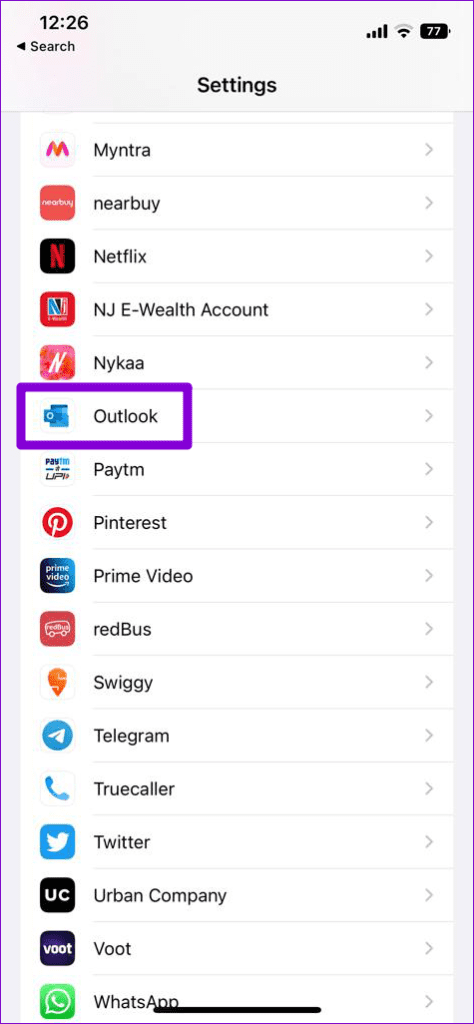
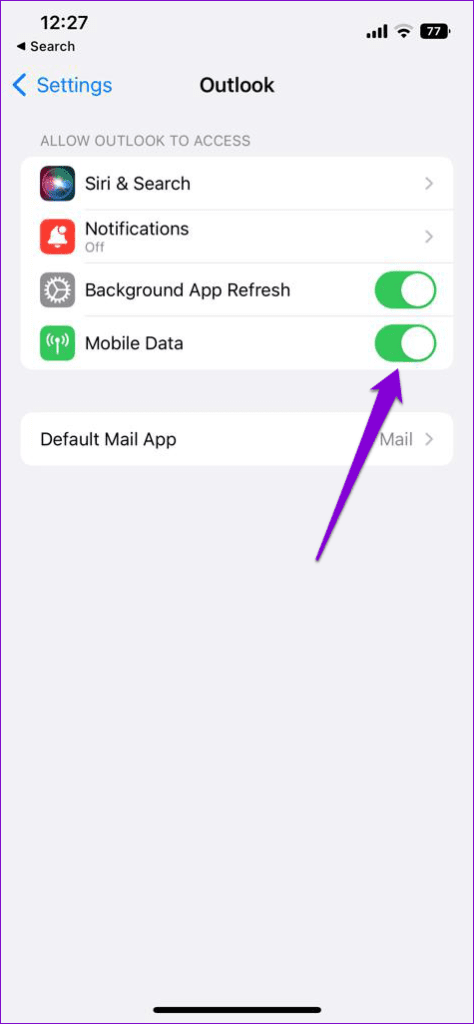
To allow mobile data permission to Outlook, open the Settings app and scroll down to tap on Outlook. Enable the toggle next to Mobile Data.
Fix 2: Reset Account Settings
If you’re having sync problems with only one of your accounts in the Outlook app, you can try resetting all settings for that account and see if that helps.
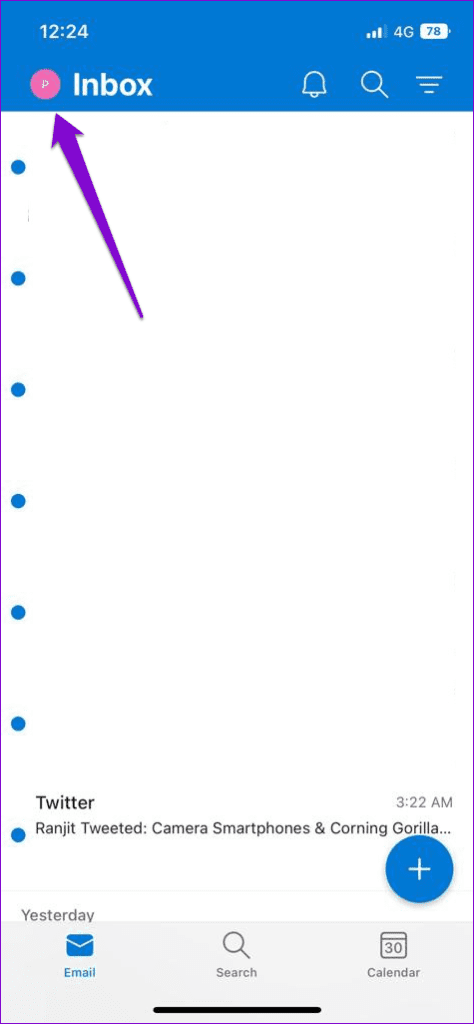
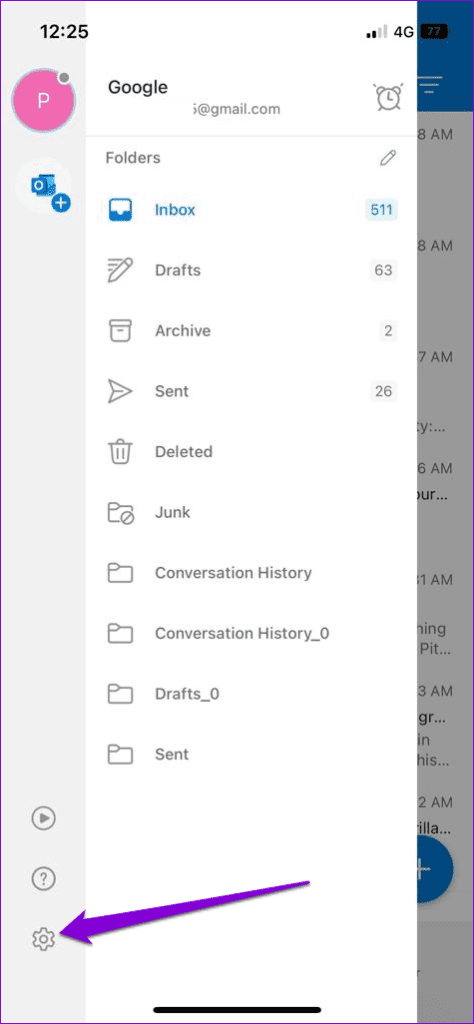
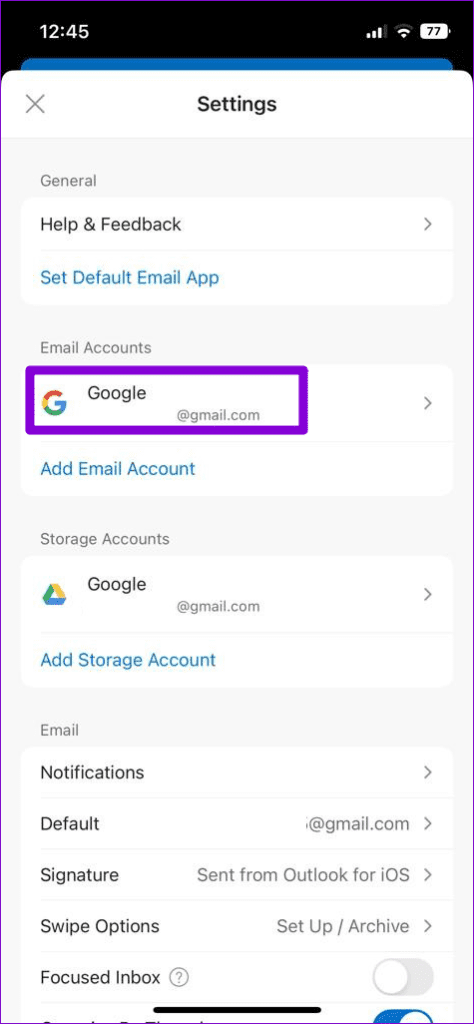
Step 1: In the Outlook app, tap on your profile picture in the top left corner. Then, tap the settings icon in the bottom left corner.
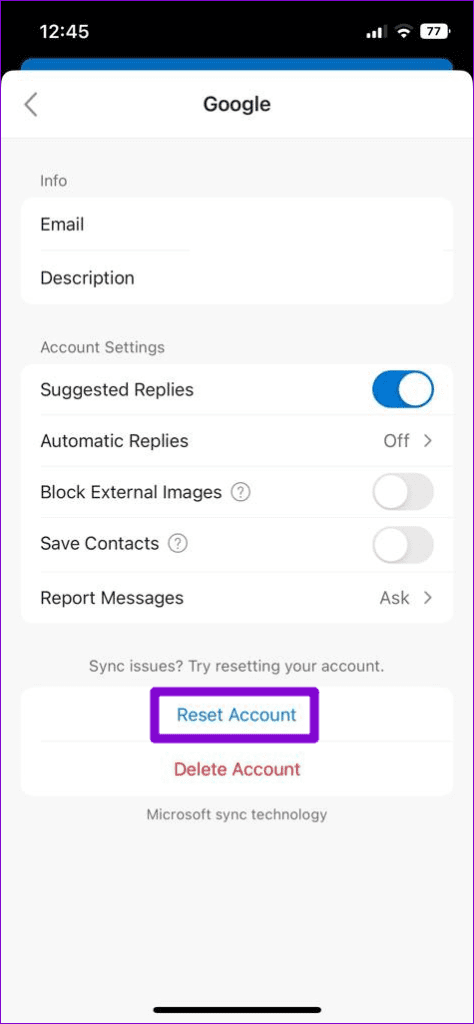
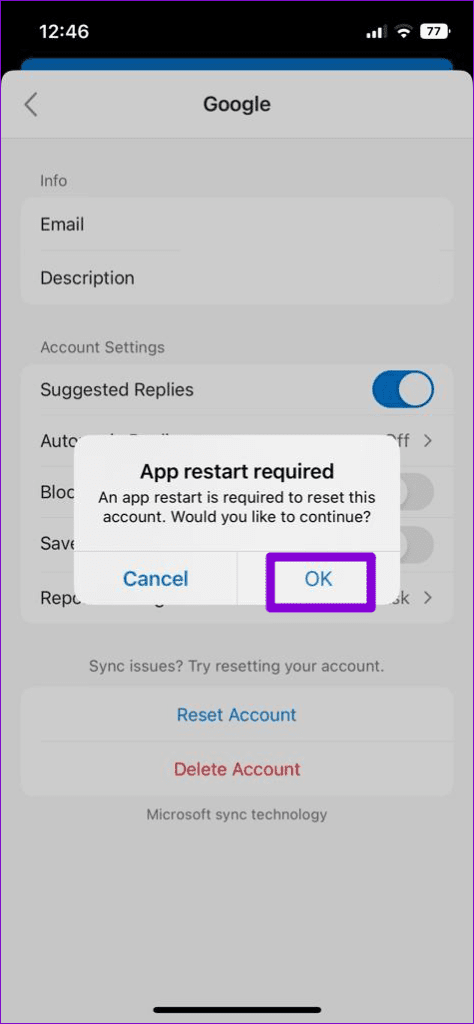
Step 2: Select your email account that is not syncing. Tap Reset Account and hit OK to confirm.
Fix 3: Disable Focused Inbox
Focused Inbox is a feature in the Outlook app that automatically separates your essential emails from the rest. This feature can sometimes be aggressive and move some of your important emails to a separate inbox. And you’ll feel that the app isn’t fetching new emails.
Hence, it’s best to disable this feature if you do not wish to miss out on any new emails.
Step 1: In the Outlook app, tap on your profile picture in the top left corner. Then, tap the settings icon in the bottom left corner.
Step 2: Under the Email section, toggle off the switch next to Focused Inbox.

Fix 4: Enable Background App Refresh for Outlook (iPhone)
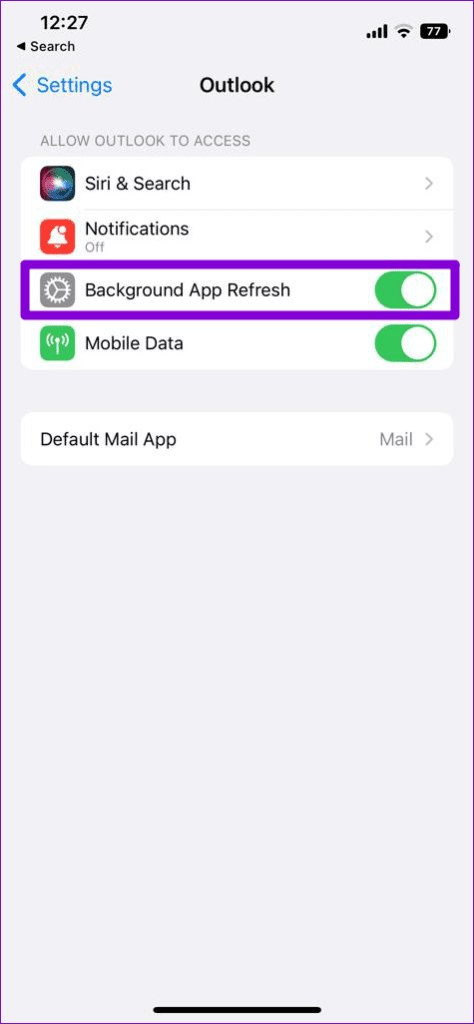
Background App Refresh is a feature in iOS that allows an app to sync data even when you’re not using it. If Background App Refresh is disabled for Outlook, the app will have trouble updating your emails automatically.
Open the Settings app and scroll down to tap on Outlook. Then, turn on the toggle next to Background App Refresh.
Fix 5: Allow Background Data Usage for Outlook (Android)
On Android, you need to check if you have disabled background data usage for the Outlook app. If you have, Outlook won’t sync emails unless you open it.
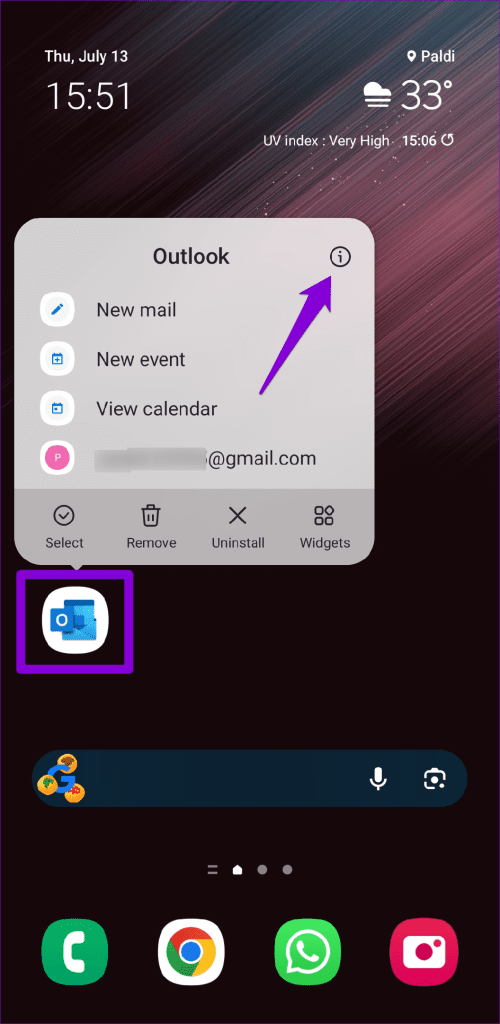
Step 1: Long press on the Outlook app icon and tap the info icon from the resulting menu.
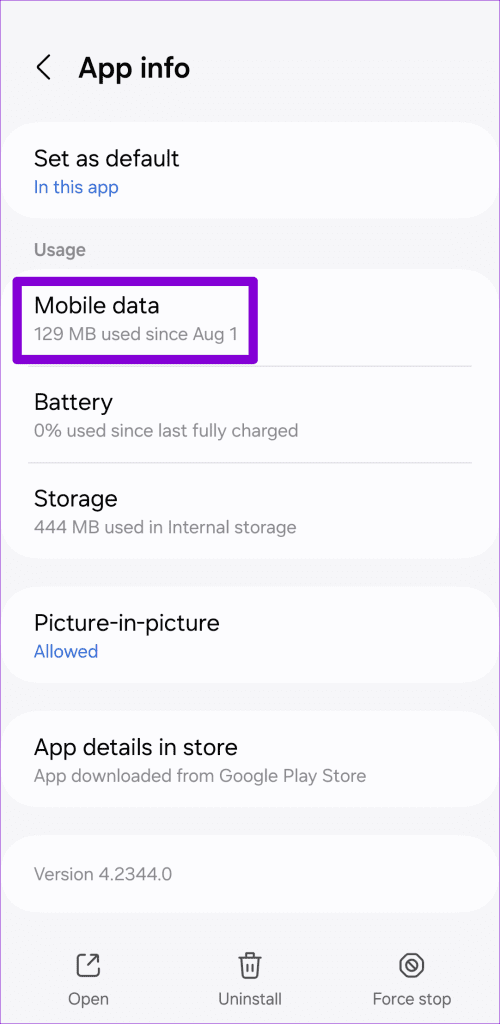
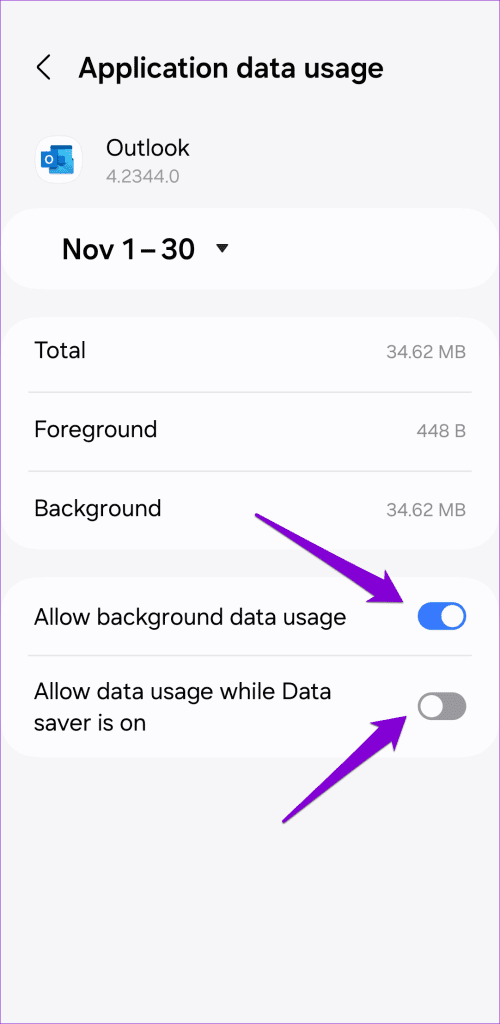
Step 2: Tap on Mobile data and enable the toggles next to Allow background data usage and Allow data usage while Data saver is on.
Fix 6: Remove and Re-add Email Account
Authentication issues with your email account can also prevent Outlook from syncing emails. If that’s the case, removing your account from the app and adding it back should help. Here’s how to do it.
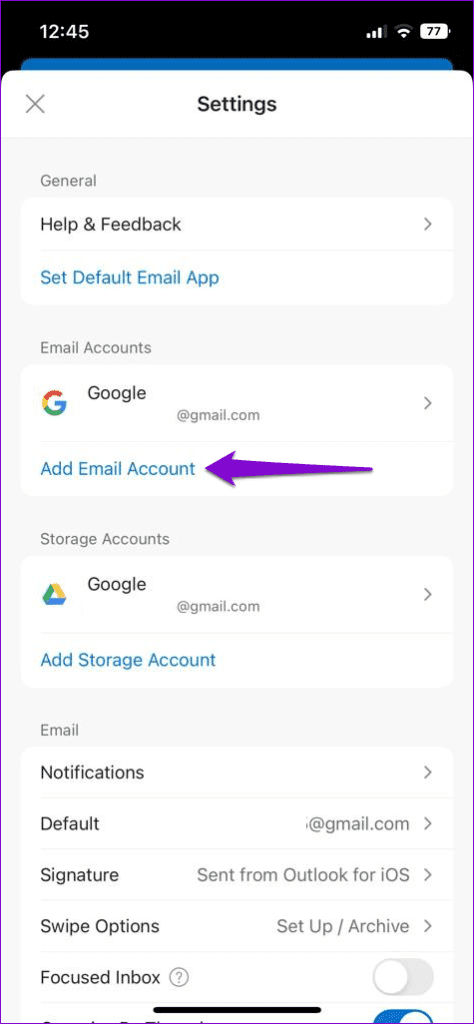
Step 1: In the Outlook app, head to the settings menu.
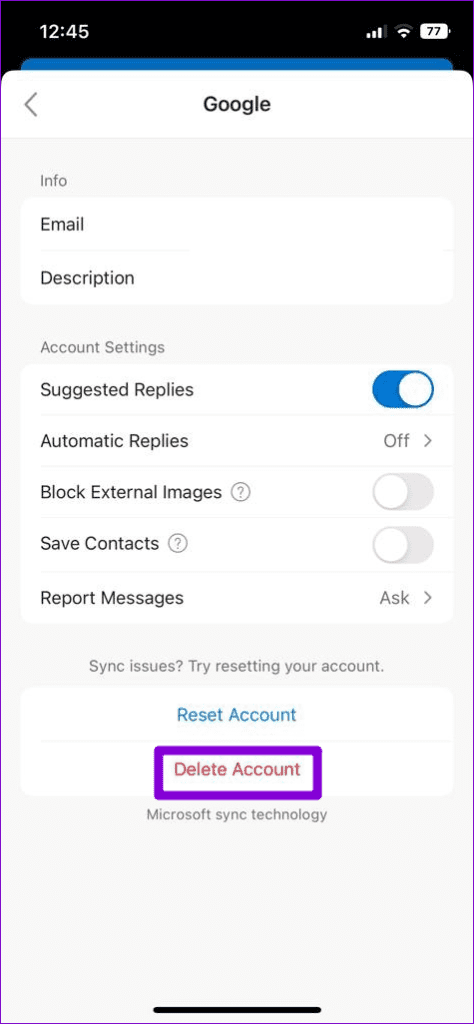
Step 2: Select your email account and tap the Delete Account option in the following menu.
Step 4: Return to the Settings menu and tap on Add Email Account to sign in with your account.
Fix 7: Clear App Cache
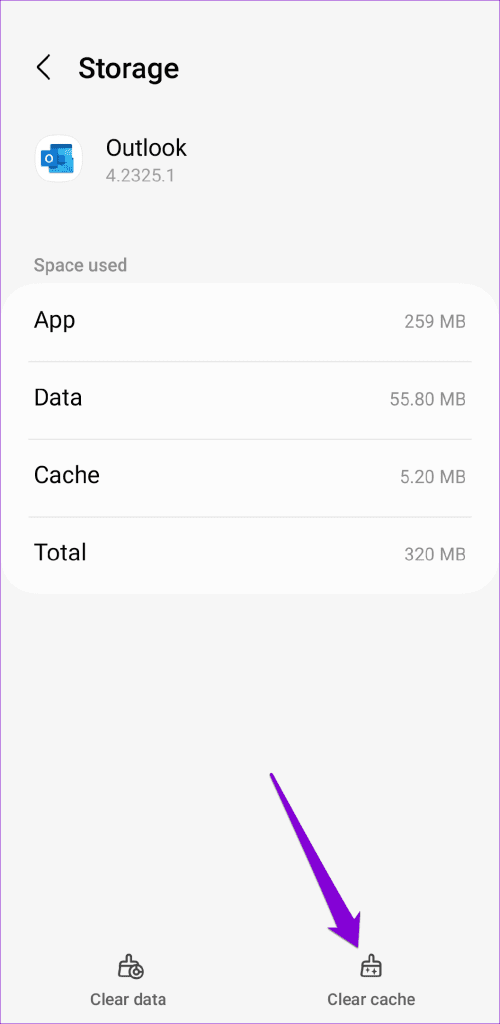
Another thing you can do when Outlook is not downloading or updating new emails on your Android is clear the app cache. This will remove any temporary files that may be causing the issue.
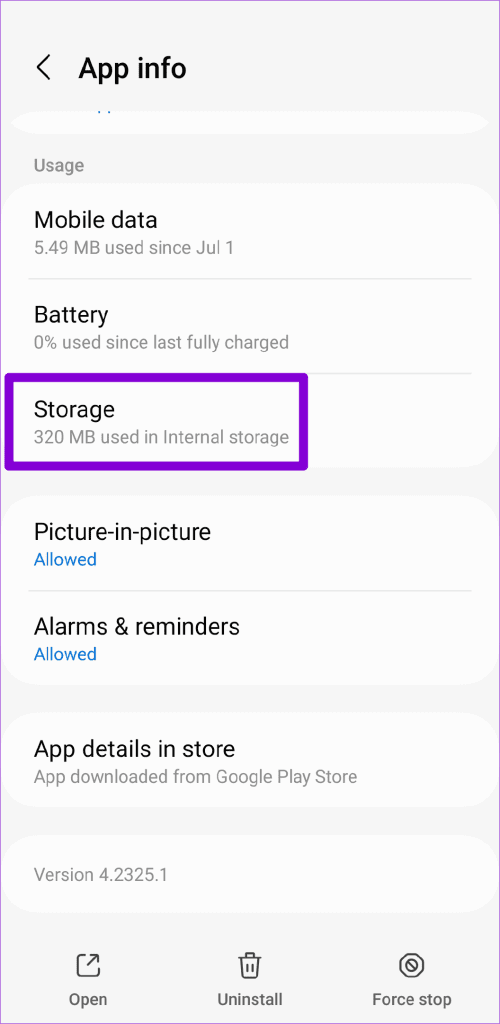
Step 1: Long press on the Outlook app icon and tap the info icon from the resulting menu.
Step 2: Go to Storage and tap the Clear cache option at the bottom.
Was this helpful?
Last updated on 11 July, 2024
1 Comment
Leave a Reply
Read Next
 7 Best Ways to Fix Mail App Not Syncing With Outlook on iPhone
The default Mail app on your iPhone lets you quickly sign in to your Outlook account.
7 Best Ways to Fix Mail App Not Syncing With Outlook on iPhone
The default Mail app on your iPhone lets you quickly sign in to your Outlook account.
 3 Fixes for Microsoft Outlook Not Receiving Emails on Android
Basic Fixes Check other inboxes: If you have multiple email accounts in the Outlook app, you might have opened the wrong one in the app.
3 Fixes for Microsoft Outlook Not Receiving Emails on Android
Basic Fixes Check other inboxes: If you have multiple email accounts in the Outlook app, you might have opened the wrong one in the app.
 5 Ways to Fix Outlook Not Receiving Emails on iPhone
Common Fixes Enable and disable the Airplane Mode: Open the Settings app, toggle on the Airplane Mode, and turn it off after a few seconds.
5 Ways to Fix Outlook Not Receiving Emails on iPhone
Common Fixes Enable and disable the Airplane Mode: Open the Settings app, toggle on the Airplane Mode, and turn it off after a few seconds.
 3 Ways to Fix Microsoft Outlook Not Sending Emails on Android and iPhone
Basic Fixes Double-check the email address and attachment size: Outlook may fail to send an email if you have accidentally misspelled the recipient's email address.
3 Ways to Fix Microsoft Outlook Not Sending Emails on Android and iPhone
Basic Fixes Double-check the email address and attachment size: Outlook may fail to send an email if you have accidentally misspelled the recipient's email address.
 7 Best Ways to Fix Outlook for Mac Not Syncing
https://youtu.be/L1MhNBH9Z7I Note: Before moving on to the fixes, ensure that your Exchange account credentials are correct so that the Outlook for Mac app can sync properly.
7 Best Ways to Fix Outlook for Mac Not Syncing
https://youtu.be/L1MhNBH9Z7I Note: Before moving on to the fixes, ensure that your Exchange account credentials are correct so that the Outlook for Mac app can sync properly.
 4 Ways to Fix Contacts App Not Syncing on Samsung Galaxy Phones
Common Fixes Verify correct date and time - Incorrect date and time prevents the Contacts app from syncing data.
4 Ways to Fix Contacts App Not Syncing on Samsung Galaxy Phones
Common Fixes Verify correct date and time - Incorrect date and time prevents the Contacts app from syncing data.
 5 Ways to Fix Samsung Gallery App Not Syncing With OneDrive
Try Basic Fixes Update the Gallery app: Samsung regularly releases updates for the Gallery app to add new features, fix bugs, and enhance app performance.
5 Ways to Fix Samsung Gallery App Not Syncing With OneDrive
Try Basic Fixes Update the Gallery app: Samsung regularly releases updates for the Gallery app to add new features, fix bugs, and enhance app performance.
 3 Fixes for Outlook Contacts Not Syncing on iPhone and Mac
Basic Fixes Check internet speed: Check if you are getting good internet speeds on your mobile network or Wi-Fi.
3 Fixes for Outlook Contacts Not Syncing on iPhone and Mac
Basic Fixes Check internet speed: Check if you are getting good internet speeds on your mobile network or Wi-Fi.
The article above may contain affiliate links which help support Guiding Tech. The content remains unbiased and authentic and will never affect our editorial integrity.
I tried all of the above, and Outlook for iPad and Outlook for iOS still aren’t downloading my gmail emails. Everything had worked fine up until a couple of months ago or so, when Outlook stopped downloading my gmail emails. I still get emails from another (non-gmail) account. And, since Outlook stopped downloading Gmail on both my iPhone and iPad around the same time, I’m assuming that an update to the software for iOS or for Outlook caused the problem.
I completely deleted Outlook from my iPad, but when I reinstalled it from the app store, and re-added my gmail and other account, all my old emails were there. So, part of Outlook was apparently still in my iPad’s memory even though I’d deleted the app. How do I get a fresh version of Outlook that would have to re-download all my old emails?
Any further suggestions.