Basic Fixes:
- Access From Another Device: OneDrive works on desktop, mobile, and the web. And so does Personal Vault. If you can’t access it on one device, a quick fix could be to access another device. Open OneDrive on your phone to access Personal Vault there quickly.
- Accessible From OneDrive Folder Only: Make sure you’re trying to access the Personal Vault folder properly. The only way to access the Personal Vault folder is from within the OneDrive folder. For security reasons, the Personal Vault folder is not accessible or even visible in the left sidebar of the File Explorer.
- Check if You Moved the Personal Vault Folder: While you can’t delete the Personal Vault folder, you can move it within OneDrive. Did you or someone else accidentally move the Personal Vault folder into another folder? If so, you can search for it, and then move it back to the main OneDrive folder.
Fix 1: Set Up Personal Vault, Again
Did you disable Personal Vault by mistake, or maybe someone else who had access to your Microsoft account or Windows computer disabled it? In that case, you will have to set up Personal Vault again.
Step 1: Head over to the OneDrive site on your web browser.
Step 2: Here, select Personal Vault from the left sidebar, and click on Disable. Click on Disable once again to confirm.
Step 3 Now, launch the OneDrive app on your device, and click on Personal Vault.
Step 4: Follow the prompts to set up verification. This might include setting up a PIN, fingerprint, or facial recognition, depending on your device’s capabilities.
Fix 2: Run SFC and DISM
The SFC or System File Checker scan will look for corrupt or missing system files and repair them. A core system file necessary for the functionality of Personal Vault may be causing this issue. On the other hand, DISM or Deployment Image Servicing and Management command is used to service the Windows image and can also be used when the SFC command above fails to run or fix a corrupt file.
Step 1: Press Windows key+S to open Windows Search and search for Command Prompt. Click on ‘Run as administrator‘ to open CMD (Command Prompt) with admin rights.

Step 2: Run the below commands, one at a time, and wait for the first command to finish before giving the next.
DISM.exe /Online /Cleanup-image /Restorehealth
sfc /scannow
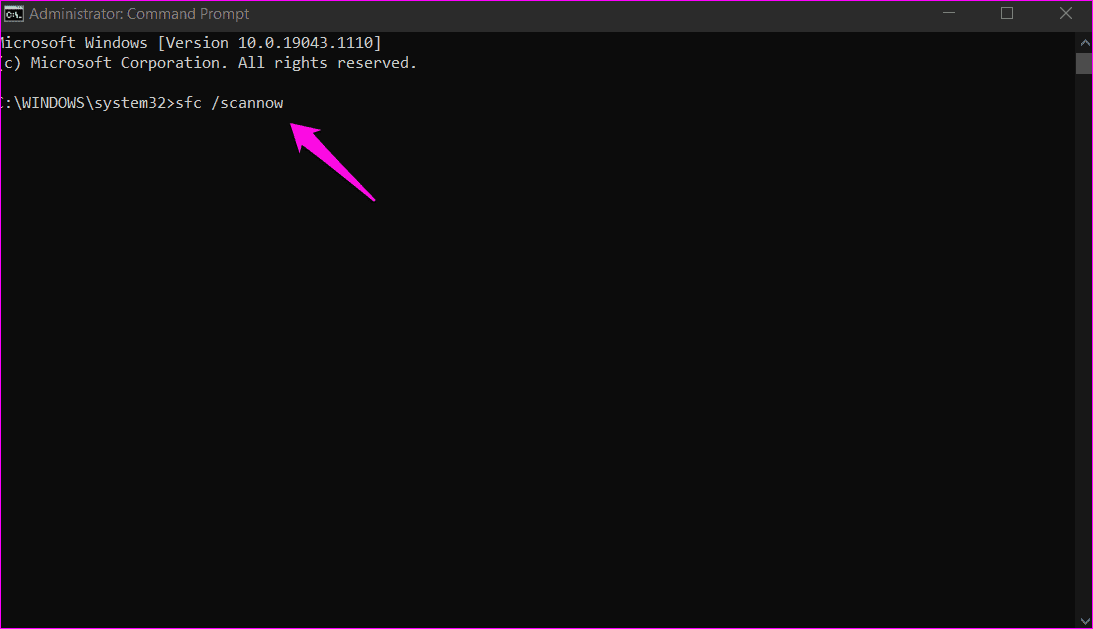
Check again if you can view the Personal Vault folder in OneDrive.
Fix 3: Repair OneDrive App
Resetting the OneDrive app won’t result in the loss of any data. If you have reached so far and still can’t view the Personal Vault folder inside OneDrive, resetting the app might help. Note that OneDrive will resync all the files back, which may take time depending on the amount of data you have stored and your internet connection speed.
Step 1: Press the Windows + R keys to open the Run prompt and type the command below.
%localappdata%\Microsoft\OneDrive\onedrive.exe /reset
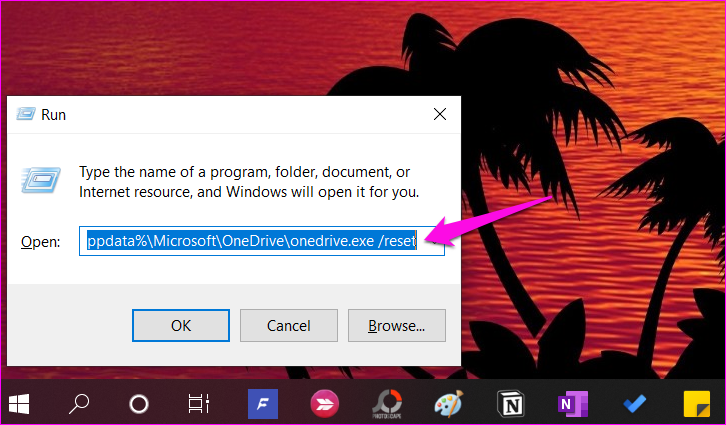
Step 2: This should reset your OneDrive app. Once done, try to see if you’re able to access the Personal Vault.
Fix 4: Reinstall OneDrive App
We recommend a clean reinstall to ensure that any corrupt and leftover files are removed from the system. Otherwise, you may continue facing the same error post reinstall too. For that, you can use Revo Uninstaller to completely uninstall OneDrive from your Windows PC.
Once done, you can download OneDrive and reinstall it.
Was this helpful?
Last updated on 09 July, 2024
Read Next
 What Is Personal Vault in Windows 11/10?
What Is Personal Vault in Windows 11?
What Is Personal Vault in Windows 11/10?
What Is Personal Vault in Windows 11?
 5 Best Ways to Fix Can’t Open Files in OneDrive Error in Windows
People use OneDrive for storing and saving files in all formats.
5 Best Ways to Fix Can’t Open Files in OneDrive Error in Windows
People use OneDrive for storing and saving files in all formats.
 Top 3 Ways to Fix OneDrive Connectivity Error Code 0x8004de40 in Windows 10
OneDrive is arguably one of the best cloud storage and backup solutions for Windows computers.
Top 3 Ways to Fix OneDrive Connectivity Error Code 0x8004de40 in Windows 10
OneDrive is arguably one of the best cloud storage and backup solutions for Windows computers.
 15 Ways to Fix OneDrive Sync Is Pending or Stuck Error in Windows 10
One of the most common issues with any cloud storage service is broken sync.
15 Ways to Fix OneDrive Sync Is Pending or Stuck Error in Windows 10
One of the most common issues with any cloud storage service is broken sync.
 4 Fixes for OneDrive Not Showing Up in File Explorer on Windows
Fix 1: Restart Windows Explorer Windows Explorer is a system process that handles the graphical user interface for File Explorer.
4 Fixes for OneDrive Not Showing Up in File Explorer on Windows
Fix 1: Restart Windows Explorer Windows Explorer is a system process that handles the graphical user interface for File Explorer.
 A Complete Guide to OneDrive Storage and Avoiding Disk Full Error
Microsoft OneDrive, previously known as SkyDrive, is a complete cloud storage solution for Windows users.
A Complete Guide to OneDrive Storage and Avoiding Disk Full Error
Microsoft OneDrive, previously known as SkyDrive, is a complete cloud storage solution for Windows users.
 3 Fixes for OneDrive Error 0x80070185 “Cloud Operation Was Unsuccessful”
Try These Things First Check your internet connection: If your internet connection is not working as expected, it might cause OneDrive to glitch.
3 Fixes for OneDrive Error 0x80070185 “Cloud Operation Was Unsuccessful”
Try These Things First Check your internet connection: If your internet connection is not working as expected, it might cause OneDrive to glitch.
 20 Best Free Notion Templates for Personal Use
Notion – a personal productivity and team collaboration software has taken the market by storm.
20 Best Free Notion Templates for Personal Use
Notion – a personal productivity and team collaboration software has taken the market by storm.
The article above may contain affiliate links which help support Guiding Tech. The content remains unbiased and authentic and will never affect our editorial integrity.