Basic Fixes
- Check Folder Permissions: Was the folder shared with you by someone else? If yes, you may not be able to delete that folder from OneDrive. Essentially, you need admin rights before you can delete a folder in OneDrive.
- Check File Open Elsewhere: One of the files inside the folder you are trying to delete may be open somewhere. For example, it could be your computer or one of the computers in your network. You can also check if you’ve shared the folder with someone and whether they are using it right now. Then, check again if you can delete the folder now.
- Rename the Folder Before Deleting: An old trick, but it may work. Select the folder you want to delete in OneDrive and press F2 on the keyboard. Now name the folder something else, and then try deleting it again.
Fix 1: Delete Folder on Another Device
OneDrive is also available on the web and on mobile platforms like Android and iOS. Because all folders and files within remain in sync everywhere and at all times, deleting a folder on one device should delete it on other devices, too. So, if you delete a folder inside OneDrive on Android, it will be deleted on Windows, too.
Fix 2: Delete Folder Locally, on OneDrive, or Everywhere
While deleting files and folders in Windows is as easy as eating a pie, Microsoft has a detailed guide on deleting files and folders in OneDrive on Windows. It also explains how you can choose to delete a file/folder on your hard drive but not in the cloud and vice versa or delete it everywhere. That feature is called Files on Demand, which can help save precious space on HDD/SSD.
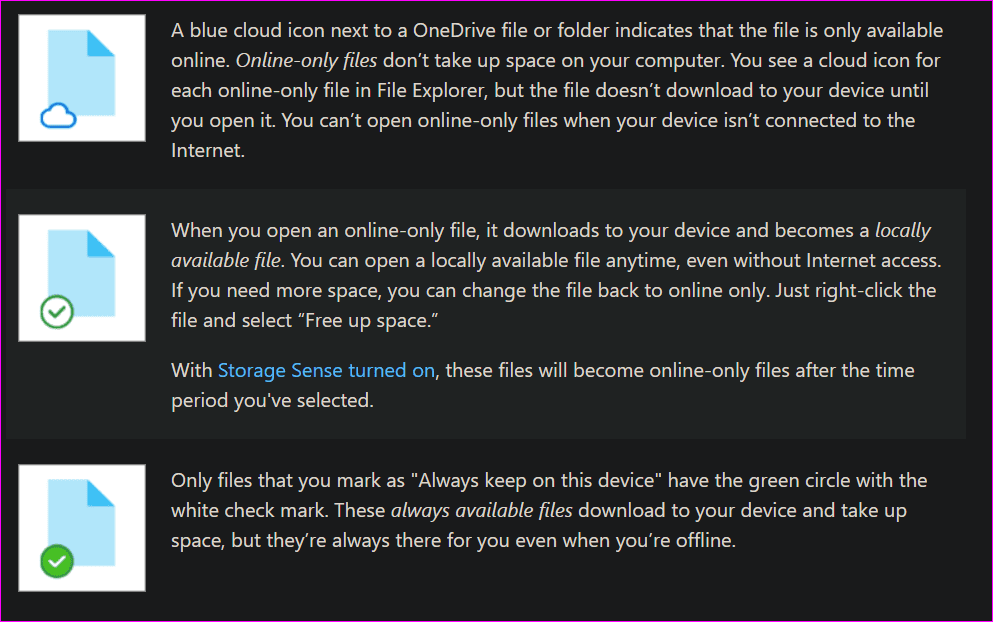
To begin with, check if the folder shows an icon of the cloud or not on your HDD/SSD. Deleting a folder inside the OneDrive folder on your computer will delete it everywhere, including the cloud storage. OneDrive will display a pop-up message to notify you of the same.

You can enable the Files on Demand feature to delete a folder on the hard drive but not in the cloud. And finally, move the folder outside the OneDrive folder on your computer to delete it in the cloud but not on your hard drive. So it’s up to you where you want to remove the folder from.
Fix 3: Tweak Files on Demand
The Files on Demand feature allows you to store files in the cloud and access all that data on your computer without downloading it. This saves valuable space on your HDD/SSD. You can use this to remove offline files on your PC.
Step 1: Right-click on the OneDrive icon in the Taskbar and select Settings.
Step 2: Under the Settings tab, click on Advanced Settings to expand it.

Step 3: Scroll down to the bottom to the Files On-Demand section. Here, click on Free up disk space.
Step 4: This will delete all offline copies of your files, and move them to online-only. Click on Continue to proceed.
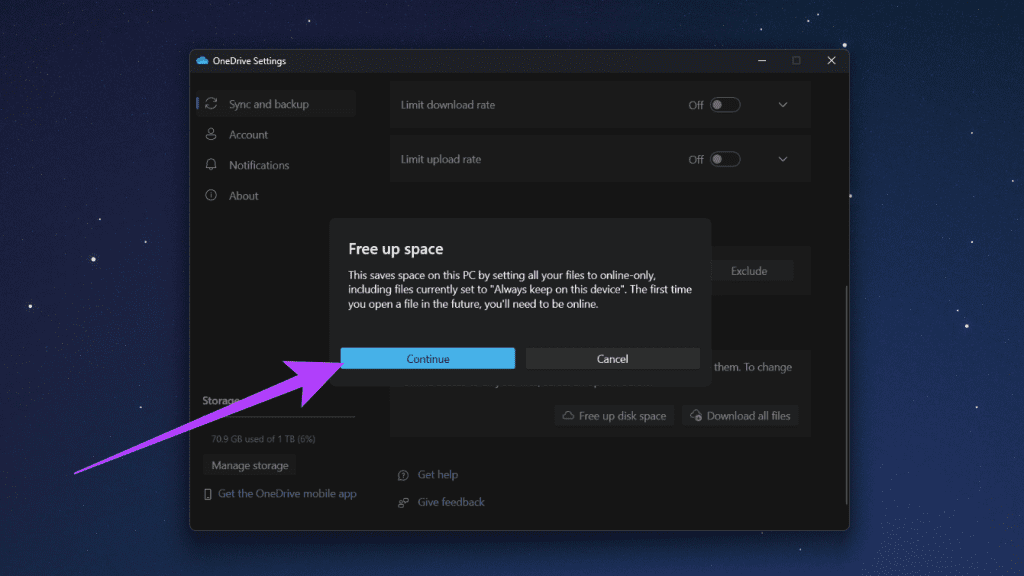
Step 5: Now follow the on-screen instructions. Once done, you can try deleting the folder from the online version of OneDrive.
Fix 4: Pause Sync and Delete Folder
Is the folder still syncing? Maybe that’s why you can’t delete the folder because it is under process.
Step 1: Right-click on the OneDrive icon in the Taskbar and select the Pause syncing option. Then, select a time duration for which you want to stop OneDrive sync.
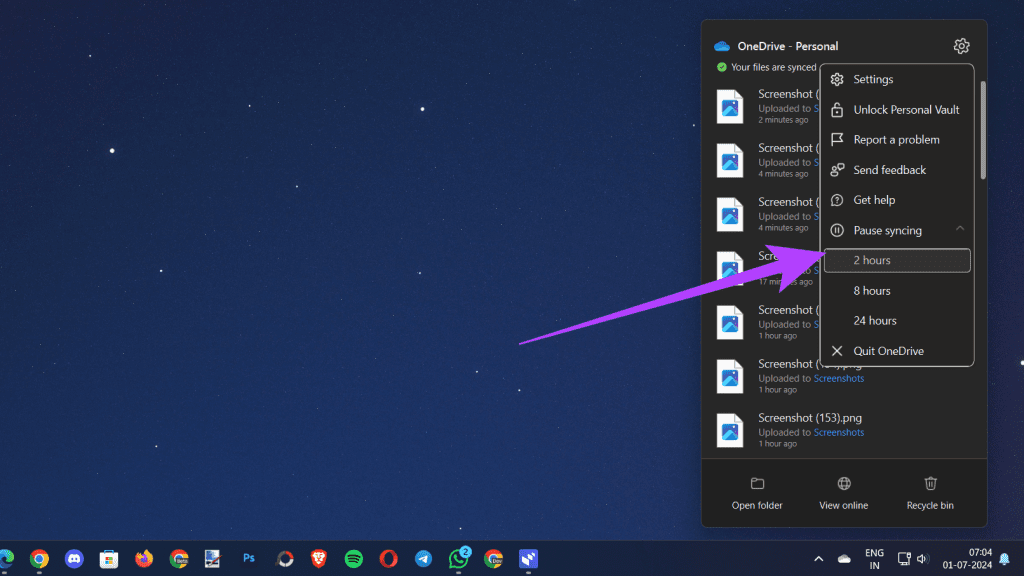
Step 2: Wait a few moments, and then try deleting the folder. You can then go back to the same menu to re-enable OneDrive sync easily.
Fix 5: Reset OneDrive
Resetting OneDrive won’t delete any of your existing files or folders. It would simply disconnect the sync connection and you will need to choose which folders to sync again.
Step 1: Press the Windows key+R to open the Run prompt and type the command below.
%localappdata%\Microsoft\OneDrive\onedrive.exe /reset
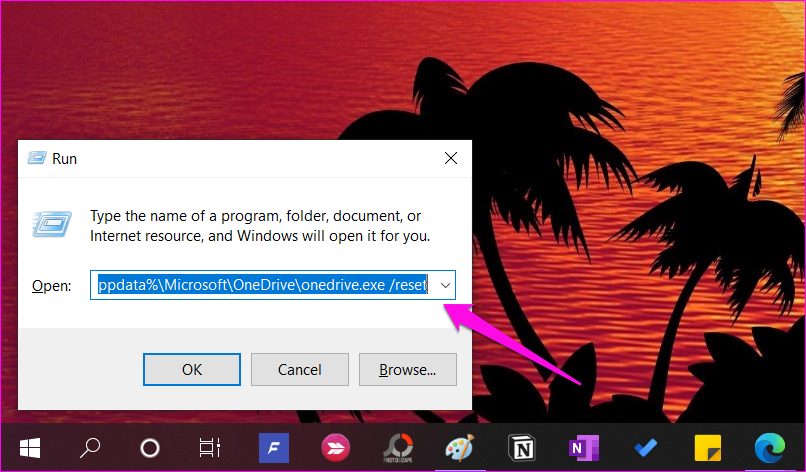
Step 2: If you are greeted with a ‘Windows cannot find…’ error message, give the below command instead.
C:\Program Files\Microsoft OneDrive\onedrive.exe /reset
If the error continues, try this command now.
C:\Program Files (x86)\Microsoft OneDrive\onedrive.exe /reset
Now, OneDrive will close. You will need to launch it again. Search for OneDrive from the Start menu and click on it to run it.
Was this helpful?
Last updated on 09 July, 2024
Read Next
 How to Manage and Share Files and Folder Access on Microsoft OneDrive
Like iCloud and Google Drive, Microsoft's OneDrive is a great cloud storage platform to store your data.
How to Manage and Share Files and Folder Access on Microsoft OneDrive
Like iCloud and Google Drive, Microsoft's OneDrive is a great cloud storage platform to store your data.
 5 Best Ways to Fix Can’t Open Files in OneDrive Error in Windows
People use OneDrive for storing and saving files in all formats.
5 Best Ways to Fix Can’t Open Files in OneDrive Error in Windows
People use OneDrive for storing and saving files in all formats.
 Top 3 Ways to Fix OneDrive Connectivity Error Code 0x8004de40 in Windows 10
OneDrive is arguably one of the best cloud storage and backup solutions for Windows computers.
Top 3 Ways to Fix OneDrive Connectivity Error Code 0x8004de40 in Windows 10
OneDrive is arguably one of the best cloud storage and backup solutions for Windows computers.
 15 Ways to Fix OneDrive Sync Is Pending or Stuck Error in Windows 10
One of the most common issues with any cloud storage service is broken sync.
15 Ways to Fix OneDrive Sync Is Pending or Stuck Error in Windows 10
One of the most common issues with any cloud storage service is broken sync.
 4 Ways to Fix OneDrive Personal Vault Not Showing on Windows Error
Basic Fixes: Access From Another Device: OneDrive works on desktop, mobile, and the web.
4 Ways to Fix OneDrive Personal Vault Not Showing on Windows Error
Basic Fixes: Access From Another Device: OneDrive works on desktop, mobile, and the web.
 4 Ways to Fix OneDrive Not Opening on Startup in Windows 11
Fix 1: Enable OneDrive as a Startup App Windows 11 provides several options for running apps at startup.
4 Ways to Fix OneDrive Not Opening on Startup in Windows 11
Fix 1: Enable OneDrive as a Startup App Windows 11 provides several options for running apps at startup.
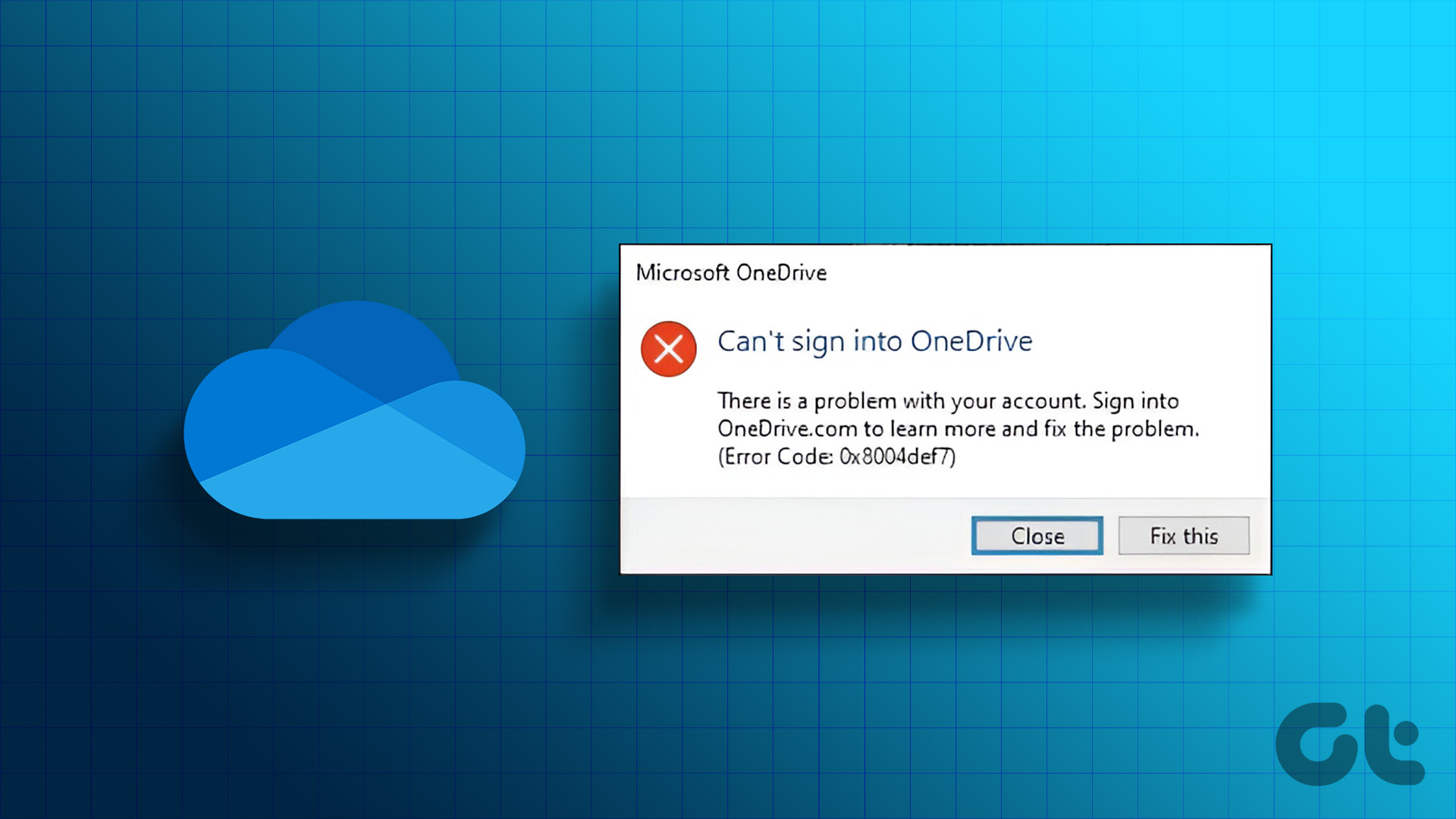 3 Ways to Fix Can’t Sign into OneDrive on Windows 11
Basic Fixes Check the Microsoft OneDrive service status: Open the Microsoft Service health page and click OneDrive to check its current service status.
3 Ways to Fix Can’t Sign into OneDrive on Windows 11
Basic Fixes Check the Microsoft OneDrive service status: Open the Microsoft Service health page and click OneDrive to check its current service status.
 How to Delete Photos From OneDrive
Delete Photos From OneDrive on Mobile OneDrive can sync with your mobile's gallery or camera roll and store your photos.
How to Delete Photos From OneDrive
Delete Photos From OneDrive on Mobile OneDrive can sync with your mobile's gallery or camera roll and store your photos.
The article above may contain affiliate links which help support Guiding Tech. The content remains unbiased and authentic and will never affect our editorial integrity.