Basic Fixes:
- Reboot iPad: Sometimes, a simple fix like rebooting the iPad will bring back the notification sound. To reboot the iPad, hold the physical power button. Then, slide the Power off slider to shut down the iPad. Once done, hold the power button to turn it on and check again.
- Check iPad sound volume: If your iPad is on mute or the volume is low, the notification sound may not ring or be audible. So, check and ensure your iPad’s sound volume is set to max.
- Unplug headphones: If you regularly use wired headphones with your iPad, they might also be causing the iPad’s notification issues. To fix that, unplug the headphones from the headphone jack of your iPad and check again.
- Disable DND: When DND is enabled, you will not hear any notification or call alert sounds. So, disable it and ensure other related settings are also disabled on your iPad.
- Check for app and software updates: You can check and install software updates on your iPad to ensure the issue is not software-related. Similarly, update the relevant app and check if this fixes the issue.
Fix 1: Check iPad Notification Settings
Apple offers several settings to customize notifications on the iPad. You might have accidentally disabled the app notification altogether or tweaked a setting that is causing the notification sound not to work. To fix it, follow these steps.
Step 1: Open Settings and go to Notifications. Tap on Show Previews and select Always.
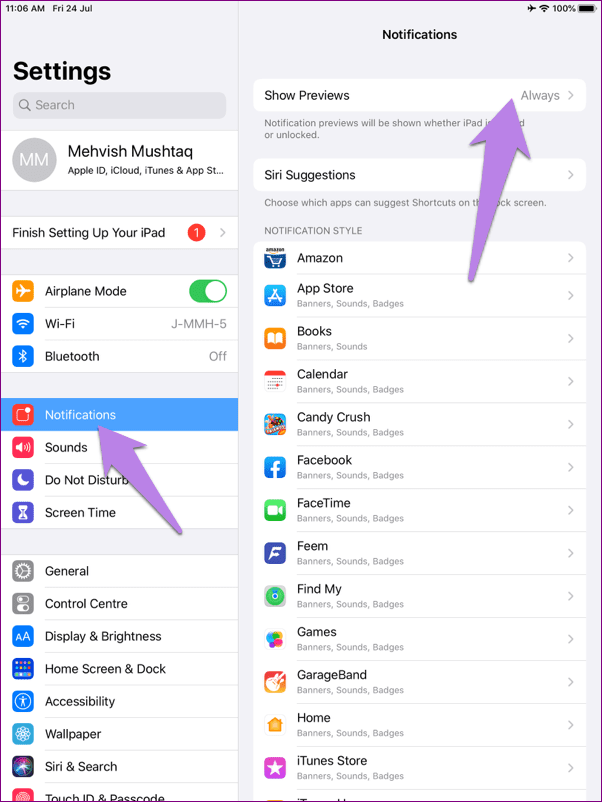
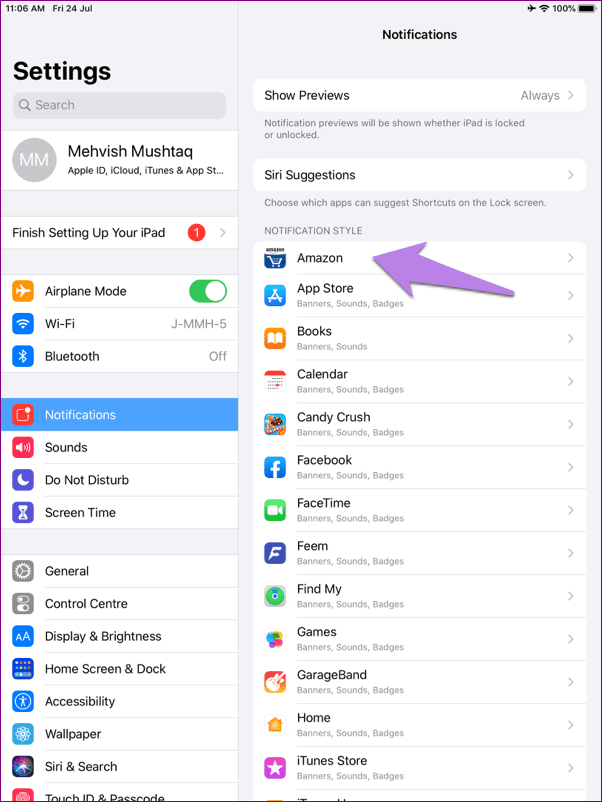
Step 2: Go back to the Notifications page and tap on the relevant app.
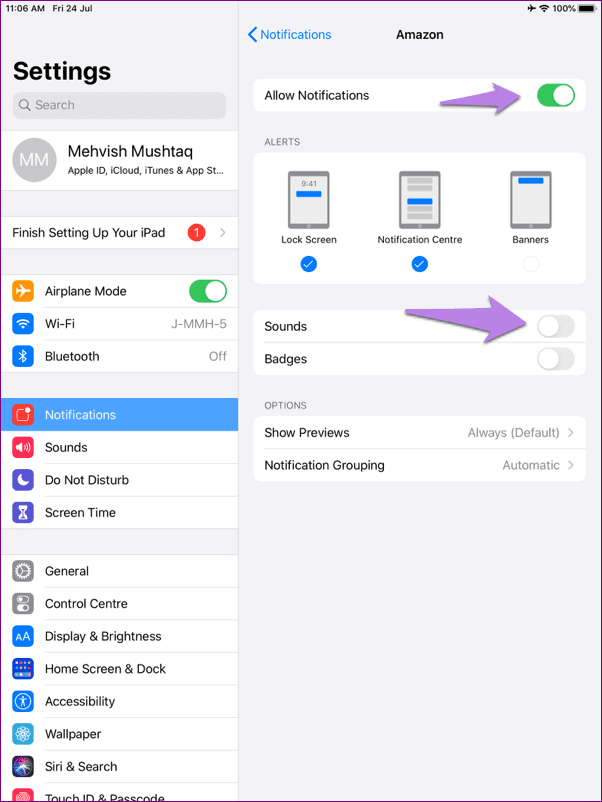
Step 3: Make sure the Allow Notifications toggle is enabled. Next, enable the Sounds toggle.
Also Read: How to fix the App Store badge not showing issue on iOS and iPadOS
Fix 2: Check Custom Notification Sound
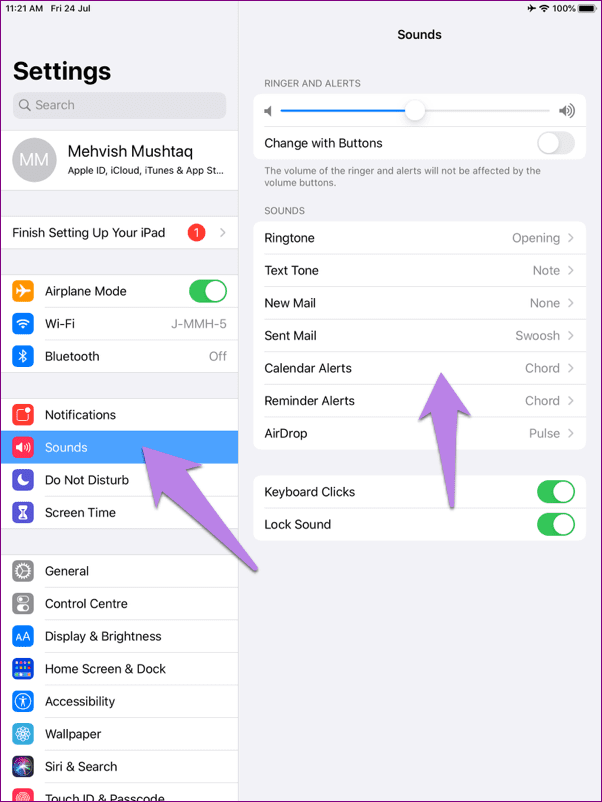
Are you using custom notification alerts? We suggest switching to a system tone for the time being. If you already use a custom tone, switch to a system tone using the notification sound settings menu. Here’s how.
Step 1: Open Settings > tap on Sounds. Tap on the relevant sound type and change it accordingly.
Also Read: How to fix iPad making static noise or buzzing sound
Fix 3: Disable Mono Audio
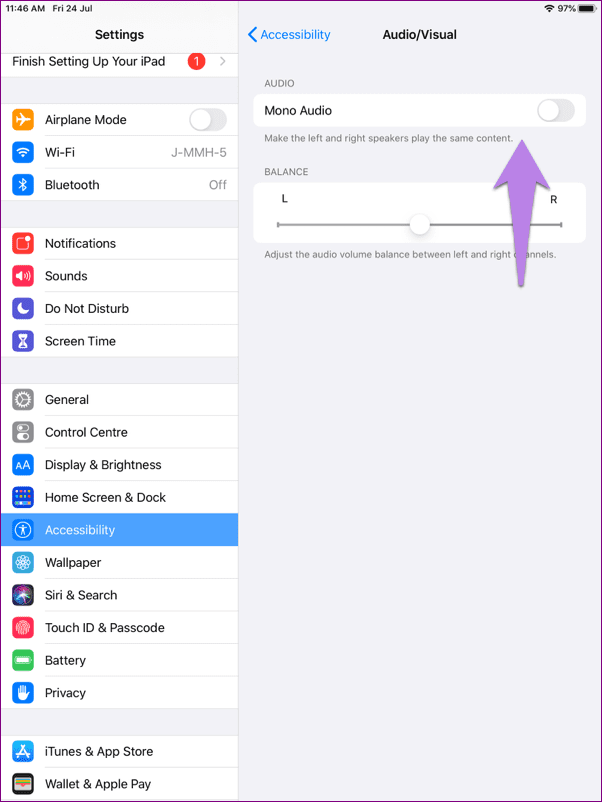
Many iPad users have suggested that disabling the Mono Audio accessibility setting fixed the notification sound issue. Doing this helps ensure your iPad plays the same sound from both speakers, reducing the possibility of notification sounds being accidentally silenced. Here’s how to do it.
Step 1: Open Settings and tap on Accessibility. Disable the Mono Audio toggle.
Fix 4: Reset Settings
If you still have issues with notification sounds on your iPad, reset all settings. This will delete all custom settings from your iPad, like Bluetooth devices, network settings, etc., without affecting other iPad data. Follow the below steps to do it.
Step 1: Open Settings and tap on General. Tap on Transfer or Reset iPad.

Step 2: Here, tap on Reset.

Step 3: From the pop-up, select Reset All Settings.

Follow the on-screen instructions to finish the resetting process. Once done, wait a while and see if notification sounds are working as expected on your iPad.
Was this helpful?
Last updated on 27 June, 2024
Read Next
 4 Ways to Fix iPhone App Notification Sounds Not Working
Basic Fixes: Check your iPhone's speaker: If your iPhone's speaker grill is damaged, it might not play notification sounds.
4 Ways to Fix iPhone App Notification Sounds Not Working
Basic Fixes: Check your iPhone's speaker: If your iPhone's speaker grill is damaged, it might not play notification sounds.
 How to Change or Disable Notification Sounds in Windows 11
How to Change the Default Notification Sound in Windows 11 If you’re going to hear the notification sound all day, you might as well change it to something you like.
How to Change or Disable Notification Sounds in Windows 11
How to Change the Default Notification Sound in Windows 11 If you’re going to hear the notification sound all day, you might as well change it to something you like.
 How to Set Custom Notification Sounds for Different Apps on Samsung Galaxy Phones
How to Set Different Notification Sounds for Different Apps You can change app sounds through the phone's Settings app.
How to Set Custom Notification Sounds for Different Apps on Samsung Galaxy Phones
How to Set Different Notification Sounds for Different Apps You can change app sounds through the phone's Settings app.
 How to Find and Fix Windows 10 Making Random Sounds
Recently, when I was working on my Windows 10 laptop, I heard some random ding sounds coming from the speaker.
How to Find and Fix Windows 10 Making Random Sounds
Recently, when I was working on my Windows 10 laptop, I heard some random ding sounds coming from the speaker.
 2 Ways to Get Full Battery Notification on iPhone and iPad
Method 1: Get Battery Full Alert Using iPhone's Shortcuts App Here's how to automate your iPhone to notify you when the battery is charged to 100%.
2 Ways to Get Full Battery Notification on iPhone and iPad
Method 1: Get Battery Full Alert Using iPhone's Shortcuts App Here's how to automate your iPhone to notify you when the battery is charged to 100%.
 How to Set Different Notifications Sounds for Different Apps on Android Phones
With so many apps installed on our phones, a barrage of notifications is bound to confuse us.
How to Set Different Notifications Sounds for Different Apps on Android Phones
With so many apps installed on our phones, a barrage of notifications is bound to confuse us.
 How to Fix WhatsApp Notification Sound Not Working
Basic Fixes Ensure silent mode is turned off - The first thing you should do is to check and turn off Vibrate/Silent mode on your iPhone or Android.
How to Fix WhatsApp Notification Sound Not Working
Basic Fixes Ensure silent mode is turned off - The first thing you should do is to check and turn off Vibrate/Silent mode on your iPhone or Android.
 5 Ways to Fix Snapchat Notification Sound Not Working
Basic Fixes Disable the silent profile: Press the Volume Up physical button on your Android phone and tap the sound profile icon to disable the silent mode.
5 Ways to Fix Snapchat Notification Sound Not Working
Basic Fixes Disable the silent profile: Press the Volume Up physical button on your Android phone and tap the sound profile icon to disable the silent mode.
The article above may contain affiliate links which help support Guiding Tech. The content remains unbiased and authentic and will never affect our editorial integrity.