Fix 1: Clear Teams Cache
Microsoft Teams collects cache in the background to improve loading times and the overall app experience. However, a corrupt cache can lead to issues such as high CPU usage, screen sharing not working, and continuous prompts to sign in.
In such cases, clearing the Microsoft Teams cache can help.
Step 1: Press the Windows key + R to open the Run dialog box. Type %appdata%\Microsoft\Teams in the field next to Open and hit Enter.
Step 2: Select all folders and right-click on them. Then, click the trash icon.

Open the Teams app again, sign in with your account details, and start using it.
Fix 2: Remove Microsoft Teams Credentials
Another reason you might experience sign-in issues is that the Teams account details stored in the Credential Manager are outdated. Here’s how to fix that.
Step 1: Press the Windows key + S to open the search menu. Type Credential Manager in the box and hit Enter.
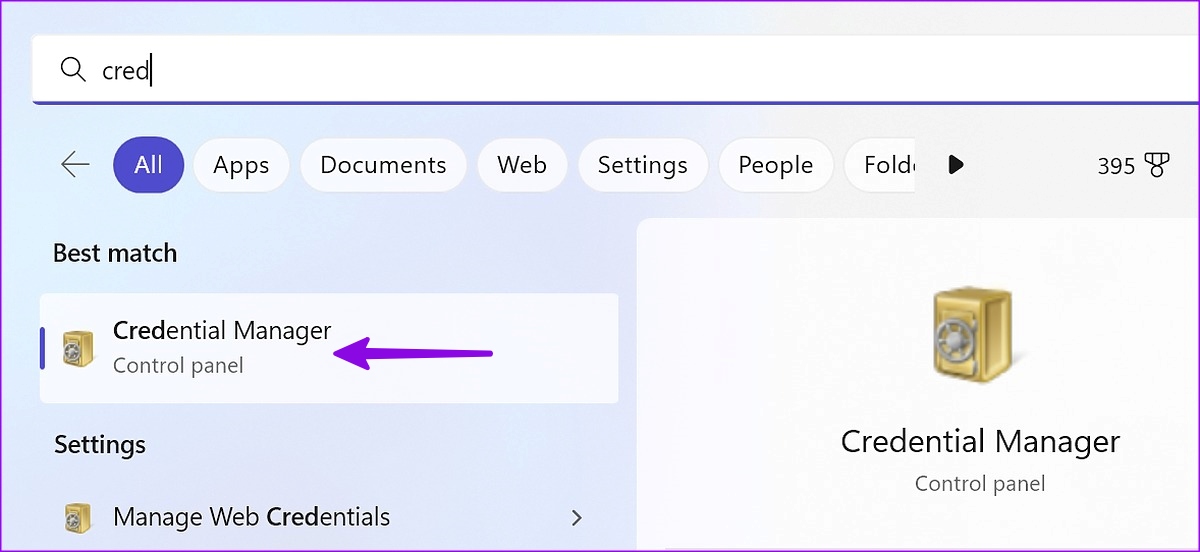
Step 2: In the Credential Manager window, click Windows Credentials.

Step 3: Remove all the msteams entries and restart your PC. After that, check if you can log into the Teams app.

Fix 3: Repair or Reset Microsoft Teams on Windows
Your Windows PC comes with a handy app repair tool. You can use it to fix any issues with the Teams app causing sign-in problems.
Step 1: Press the Windows key + I to open the Settings app and go to Apps > Installed apps.
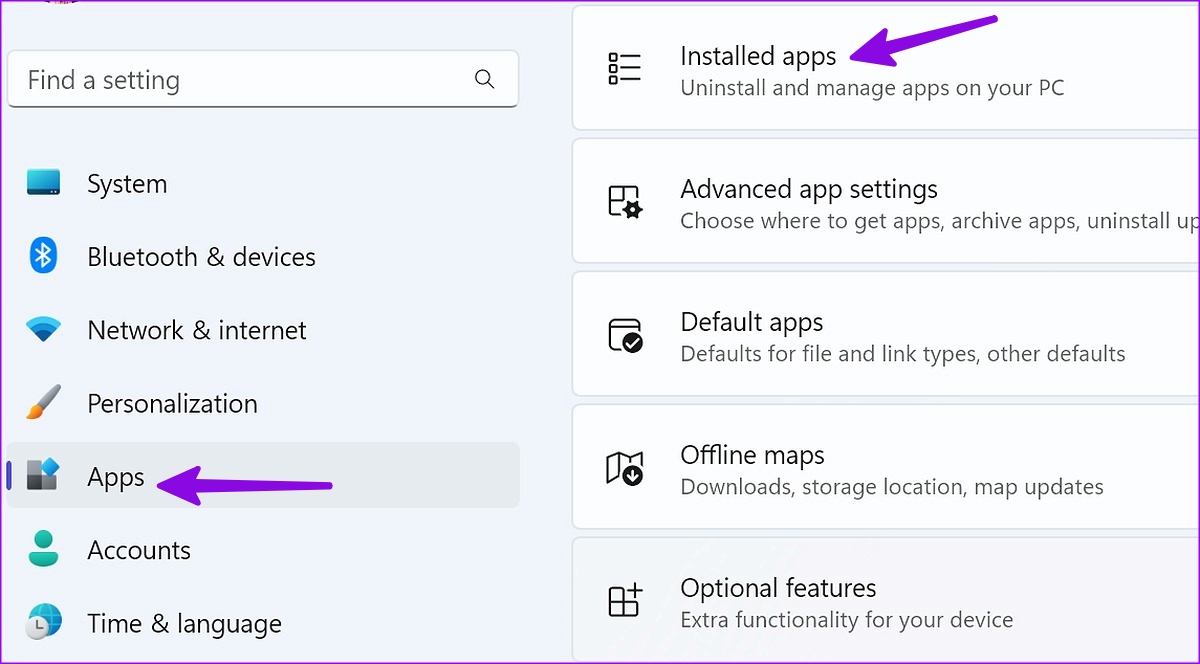
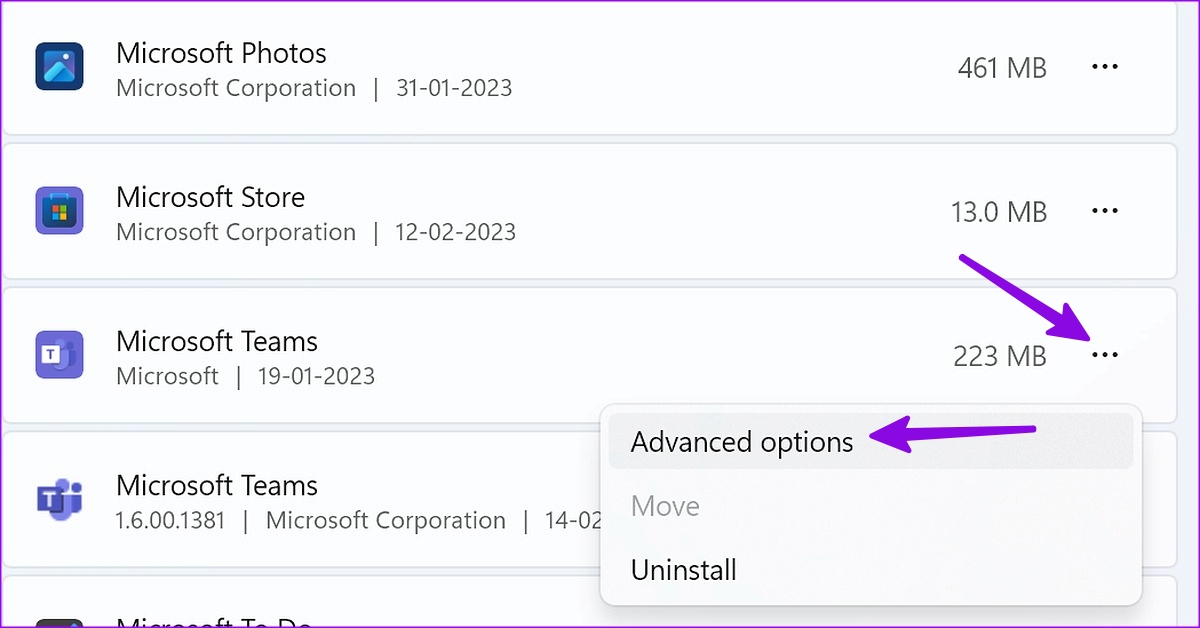
Step 2: Scroll to Microsoft Teams > click the three horizontal dots next to it > select Advanced options.
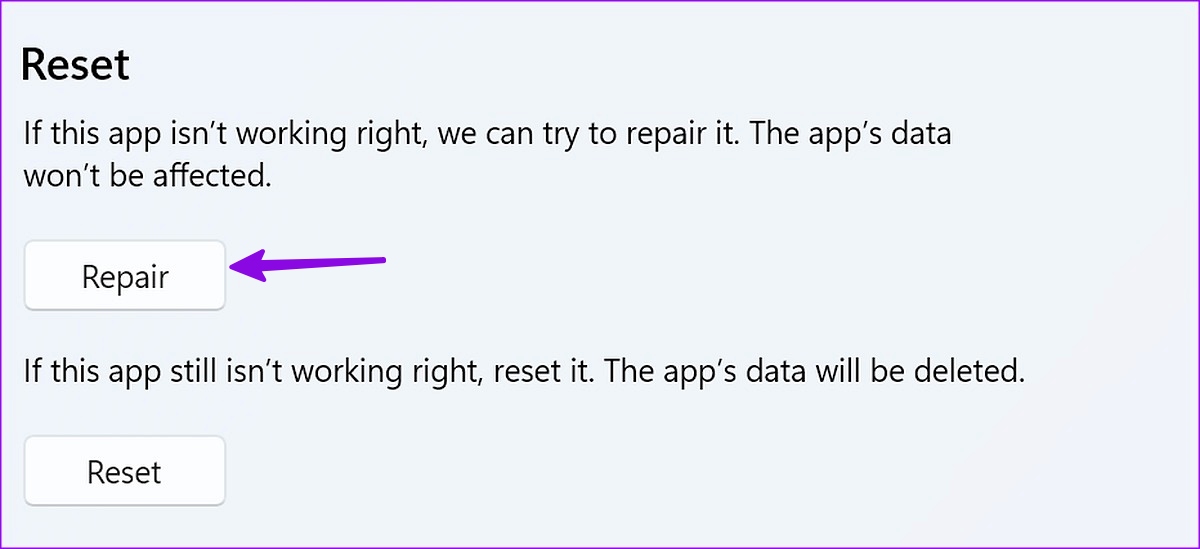
Step 3: Click Repair under the Reset section. If the issue remains, click the Reset button instead.
Fix 4: Reinstall Microsoft Teams
Lastly, if nothing else works, consider uninstalling Microsoft Teams from your computer and reinstalling it. Here’s how.
Step 1: Press the Windows key + I to open the Settings app and go to Apps > Installed apps.
Step 2: Click the three horizontal dots next to Microsoft Teams and select Uninstall.
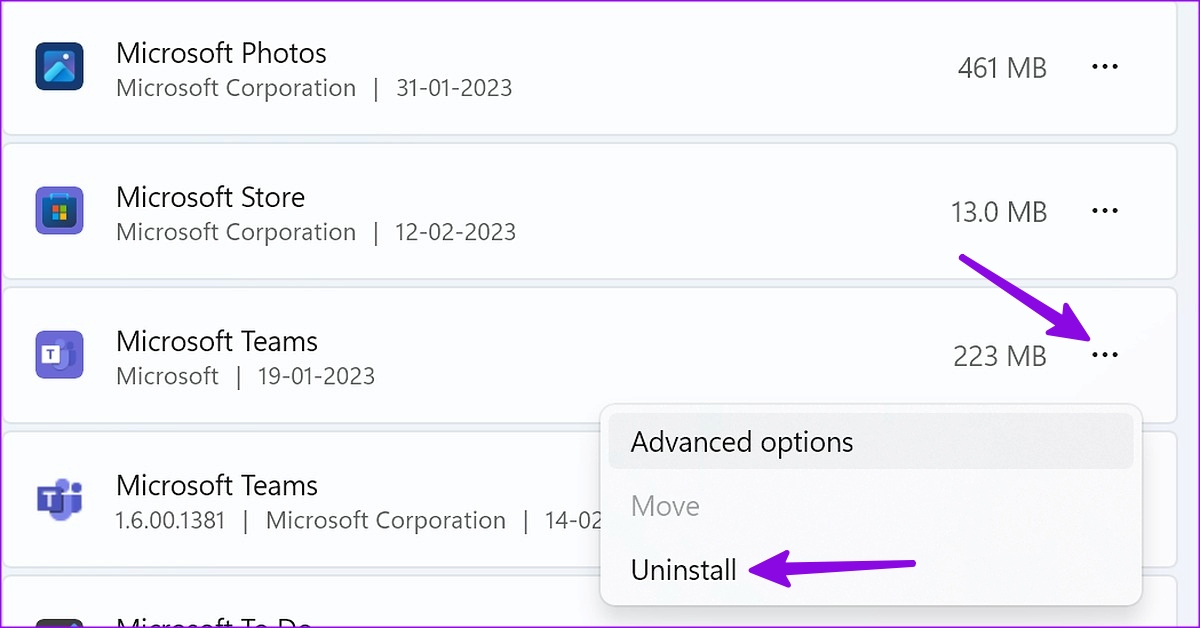
Once removed, download the Microsoft Teams app and install it on your PC. You should not have any sign-in issues after that.
Was this helpful?
Last updated on 29 July, 2024
Read Next
 5 Ways to Fix iCloud on Windows 10 Keeps Asking for Password Issue
Basic Fixes: Check iCloud Server Status: As a starting point, you should check whether iCloud's servers are running normally.
5 Ways to Fix iCloud on Windows 10 Keeps Asking for Password Issue
Basic Fixes: Check iCloud Server Status: As a starting point, you should check whether iCloud's servers are running normally.
 5 Fixes if Outlook Keeps Asking For Password on Windows
Fix 1: Open Outlook in Safe Mode Opening Outlook in Safe Mode allows you to run the application without add-ins.
5 Fixes if Outlook Keeps Asking For Password on Windows
Fix 1: Open Outlook in Safe Mode Opening Outlook in Safe Mode allows you to run the application without add-ins.
 4 Ways to Fix Microsoft Teams Sign-in Error
Preliminary Fixes Check Microsoft Teams servers: Microsoft Teams is infamous for server outrage.
4 Ways to Fix Microsoft Teams Sign-in Error
Preliminary Fixes Check Microsoft Teams servers: Microsoft Teams is infamous for server outrage.
 4 Ways to Fix Google Keeps Asking to Fill Image Captcha
Fix 1: Disable Active VPN The Google search algorithm knows common VPN servers used by bots.
4 Ways to Fix Google Keeps Asking to Fill Image Captcha
Fix 1: Disable Active VPN The Google search algorithm knows common VPN servers used by bots.
 How to Fix iPhone Mail Keeps Asking for Email Password
Fix 1.
How to Fix iPhone Mail Keeps Asking for Email Password
Fix 1.
 How to Sign Documents in Microsoft Teams
Microsoft Teams' user base is skyrocketing.
How to Sign Documents in Microsoft Teams
Microsoft Teams' user base is skyrocketing.
 4 Ways to Fix if Microsoft Teams Keeps Showing Away
Fix 1: Manually Reset Your Status Active on Teams On Windows or Mac Step 1: Launch Microsoft Team, depending on your operating system. Note: For demonstration purposes, we are going
4 Ways to Fix if Microsoft Teams Keeps Showing Away
Fix 1: Manually Reset Your Status Active on Teams On Windows or Mac Step 1: Launch Microsoft Team, depending on your operating system. Note: For demonstration purposes, we are going
 4 Ways to Fix Wi-Fi Not Asking for Passwords on Windows 11
Common Fixes Update and reboot your router: Open the router admin page (e.g., 192.168.1.1 or 192.168.0.1) in your browser to update its firmware.
4 Ways to Fix Wi-Fi Not Asking for Passwords on Windows 11
Common Fixes Update and reboot your router: Open the router admin page (e.g., 192.168.1.1 or 192.168.0.1) in your browser to update its firmware.
The article above may contain affiliate links which help support Guiding Tech. The content remains unbiased and authentic and will never affect our editorial integrity.