Preliminary Fixes
- Check the Network Connection: A stable internet connection is crucial for Messenger calls. Go to Settings > Network & internet (or Wi-Fi) to check the connection.
- The Recipient Turned off the Internet: If the recipient has turned off the internet on their phone, your Messenger call gets stuck on connecting status.
- Check Messenger Service Status: When Facebook servers face an outage, you may face issues with sending messages, calling, and other basic functions. You can visit Downdetector to confirm the downtime.
- Restart Messenger: Restarting the Messenger app can fix temporary glitches. Tap the recent apps button, swipe away the Messenger app, and try restarting it.
- Update Messenger: Your Messenger calls may not work on an outdated app build. Facebook frequently releases updates to add new features and fix bugs on Messenger. You can head to the Play Store or App Store and download the latest Messenger update.
Fix 1: Enable Microphone and Camera Permission
When you first try to use a microphone and camera on Messenger, the app asks for relevant permission to access them on the phone. Messenger calls won’t work if you deny such permissions.
iPhone
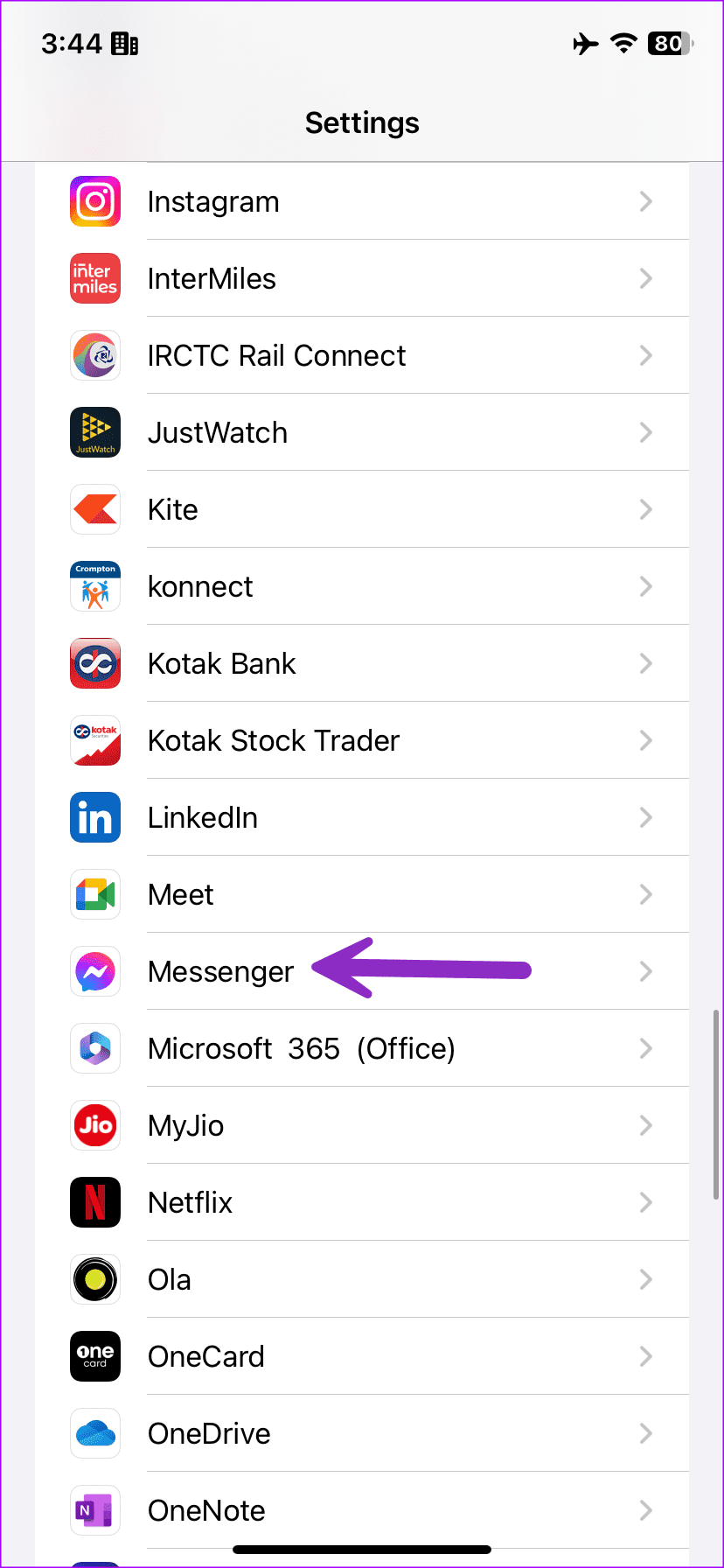
Step 1: Open the Settings app on your iPhone and scroll to Messenger.
Step 2: Enable the Camera and Microphone permissions from the following menu.

Android
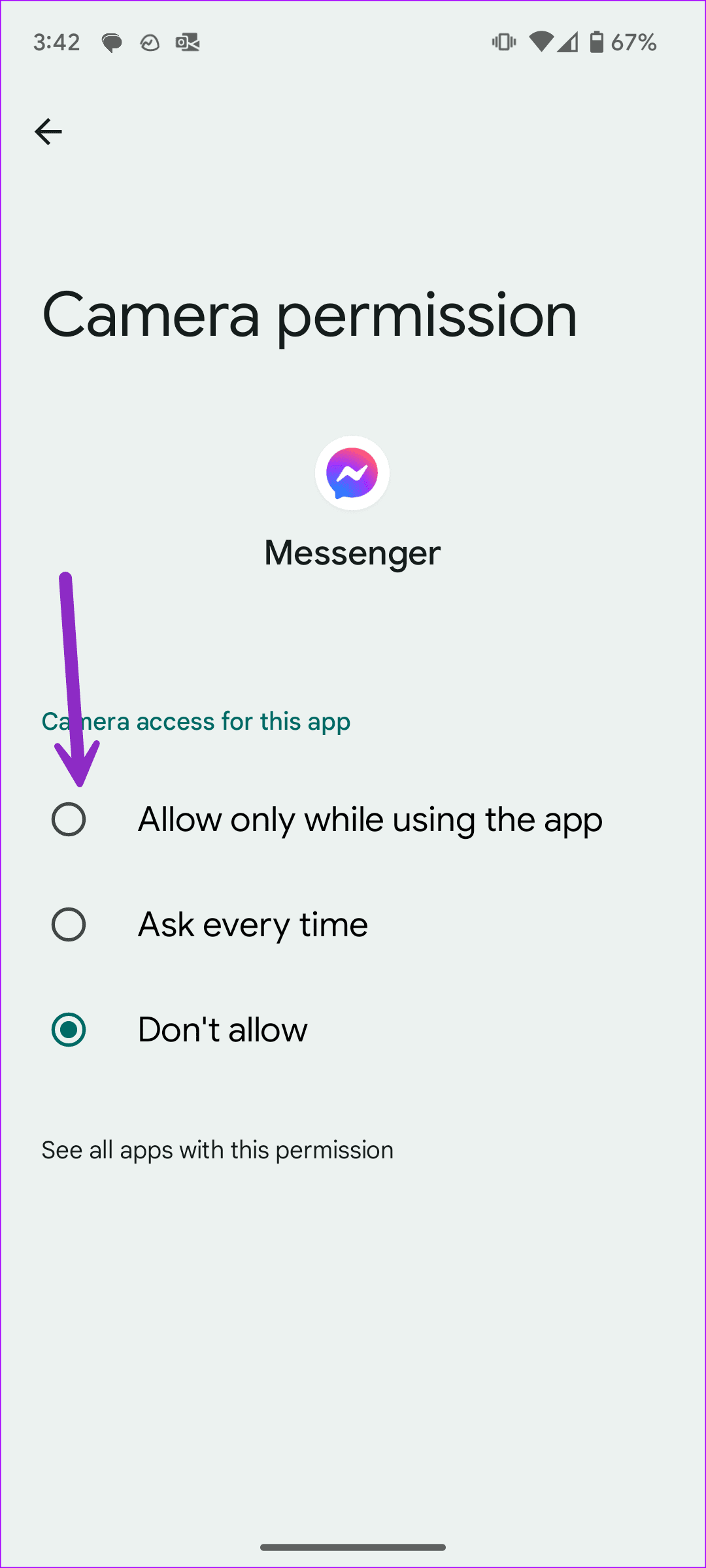
Step 1: Long-press on the Messenger app icon and tap the i icon to open the App Info menu.
Step 2: Select Permissions and tap Camera.
Step 3: Tap the radio button beside Allow only while using the app.

Return to the previous menu and enable the permission for the microphone.
Fix 2: The Person Has Blocked You
When things go south, the person may block you on Facebook. Your Messenger calls won’t work when someone blocks you on the platform. Refer to our post to learn the indications when you are blocked on Messenger.
Fix 3: Clear Messenger Cache
You can clear the Facebook Messenger cache and try composing calls without any problem.
Step 1: Long-press on the Messenger app icon and tap the i icon to open the App Info menu.
Step 2: Select Storage and cache and tap Clear cache.


Fix 4: Disable Low Data Mode
Messenger calls may not work on an active data saver mode on iPhone and Android. The system compresses mobile data usage and leaves you with less internet bandwidth to utilize on your phone.
iPhone
Step 1: Open the Settings app on your iPhone. Select Mobile Service.
Step 2: Select your main SIM and turn off the Low Data Mode toggle.


Android
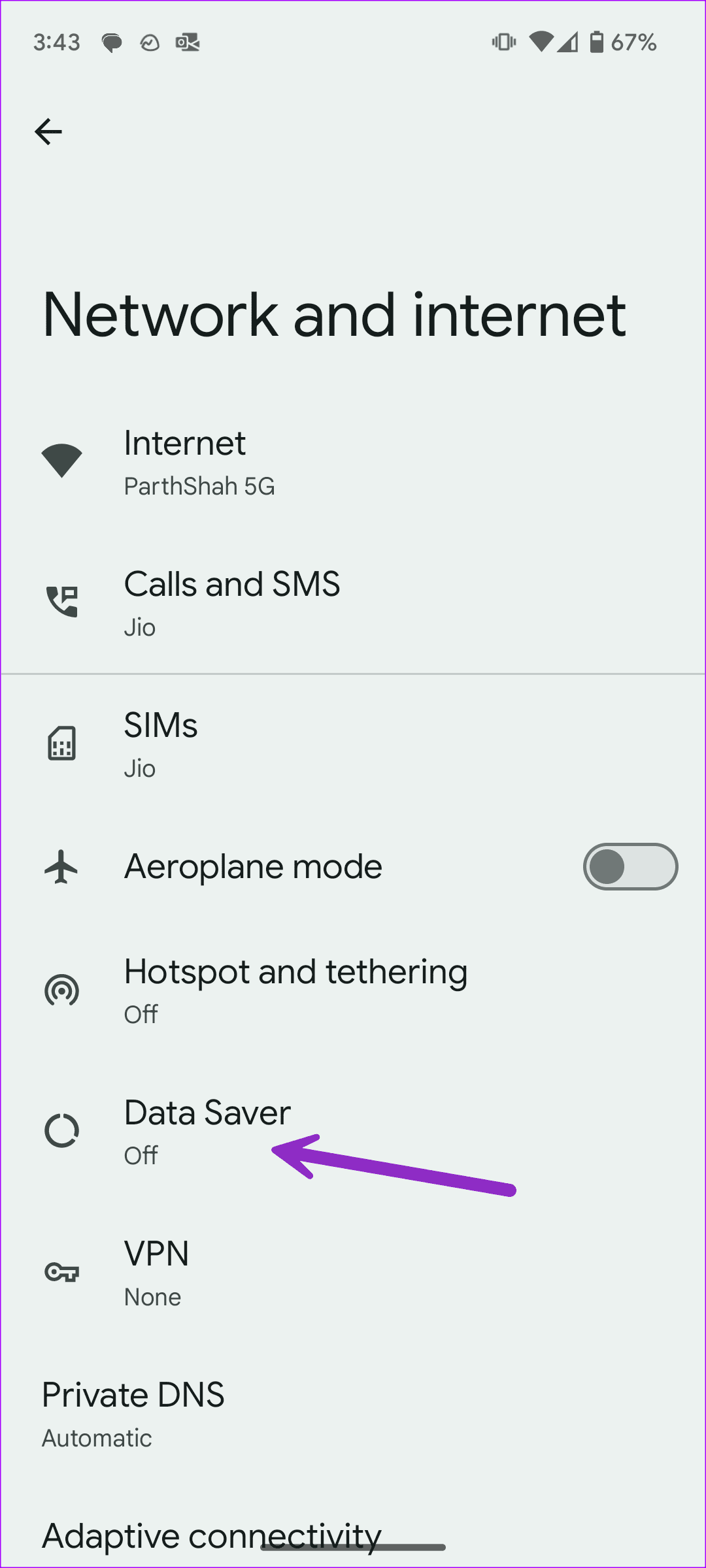
Step 1: Launch the Settings app and select Network and internet.
Step 2: Tap Data Saver and disable the same.

Fix 5: Reinstall Messenger
iPhone
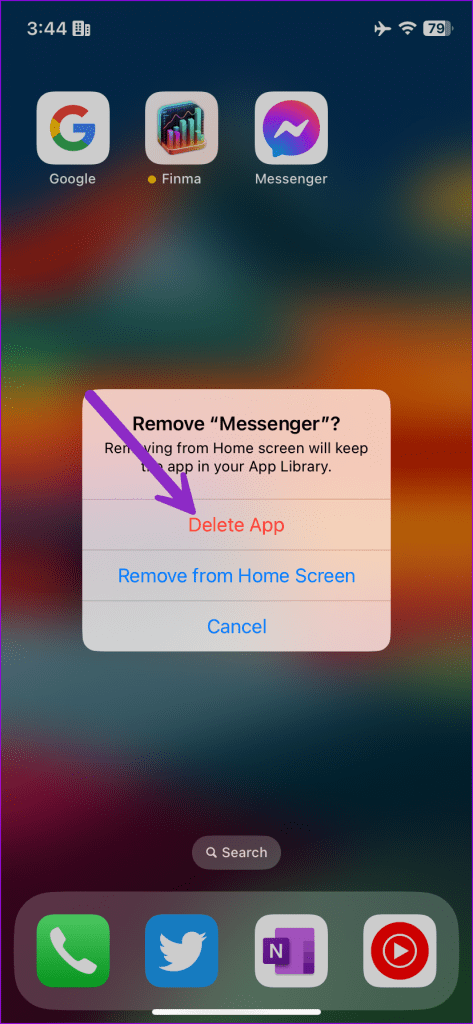
Step 1: Long-press on the Messenger app icon and select Remove App.
Step 2: Tap Delete App to remove it from your phone.

Android
Step 1: Head to the Messenger app info menu (check the steps above).
Step 2: Tap Uninstall and confirm the same.
Download the Messenger app, log in with account details, and try calling your friends or family members.
Was this helpful?
Last updated on 16 July, 2024
Read Next
 3 Fixes for No Sound in Facebook Messenger Video Calls
Basic Fixes Check volume levels: Check whether you have optimum volume levels on your iPhone or Android phone.
3 Fixes for No Sound in Facebook Messenger Video Calls
Basic Fixes Check volume levels: Check whether you have optimum volume levels on your iPhone or Android phone.
 How to Use Your Avatar During Video Calls on Instagram and Facebook Messenger
How to Create Your Avatar on Instagram To use your personalized avatar during video calls, you will first need to create your Instagram avatar.
How to Use Your Avatar During Video Calls on Instagram and Facebook Messenger
How to Create Your Avatar on Instagram To use your personalized avatar during video calls, you will first need to create your Instagram avatar.
 3 Ways to Fix Facebook Messenger Camera Not Working on Android and iPhone
Fix 1: Enable Camera Permission for Messenger Like any other app, Messenger needs permission to access your phone's camera.
3 Ways to Fix Facebook Messenger Camera Not Working on Android and iPhone
Fix 1: Enable Camera Permission for Messenger Like any other app, Messenger needs permission to access your phone's camera.
 4 Ways to Fix Facebook Messenger Not Working on the Desktop
Basic Fixes Run Messenger app as an Admin: Search for the Messenger app on your PC and select Run as Administrator.
4 Ways to Fix Facebook Messenger Not Working on the Desktop
Basic Fixes Run Messenger app as an Admin: Search for the Messenger app on your PC and select Run as Administrator.
 How to Fix Messenger Video Calls Not Working on Windows 11
Basic Fixes Login again to your Messenger account: The very first thing you should do is to log out and then back into your Messenger account.
How to Fix Messenger Video Calls Not Working on Windows 11
Basic Fixes Login again to your Messenger account: The very first thing you should do is to log out and then back into your Messenger account.
 Make Free International Calls With Facebook Messenger
Viber is the standard when it comes to free VoIP calls.
Make Free International Calls With Facebook Messenger
Viber is the standard when it comes to free VoIP calls.
 2 Ways to Fix Facebook Messenger Won’t Let Me Log In on Android and iPhone
Try Basic Fixes Update the Messenger app: The Messenger app may not let you sign in if you’re using an outdated version of the app.
2 Ways to Fix Facebook Messenger Won’t Let Me Log In on Android and iPhone
Try Basic Fixes Update the Messenger app: The Messenger app may not let you sign in if you’re using an outdated version of the app.
 Top 8 Ways to Fix Messenger Search in Conversation Not Working on Android and iPhone
As your Messenger conversations grow and the number of messages increases, it can be quite difficult to find specific messages during a conversation.
Top 8 Ways to Fix Messenger Search in Conversation Not Working on Android and iPhone
As your Messenger conversations grow and the number of messages increases, it can be quite difficult to find specific messages during a conversation.
The article above may contain affiliate links which help support Guiding Tech. The content remains unbiased and authentic and will never affect our editorial integrity.