Basic Fixes
- Add link at the beginning or end of the message: Along with this, ensure that the URL starts with https://. Only then will the link work, and the preview will be visible.
- Switch between Wi-Fi and mobile data: Depending on your current location, try making the switch on your iPhone.
- Update Messages app: To do this, install the latest iOS version depending on your iPhone model name.
The Messages app on your iPhone lets you stay connected with friends and family. You can lock the Messages app on your iPhone to avoid unwanted access to your chats. Besides sending media files, you also get a preview of the web page links you receive or share in Messages.
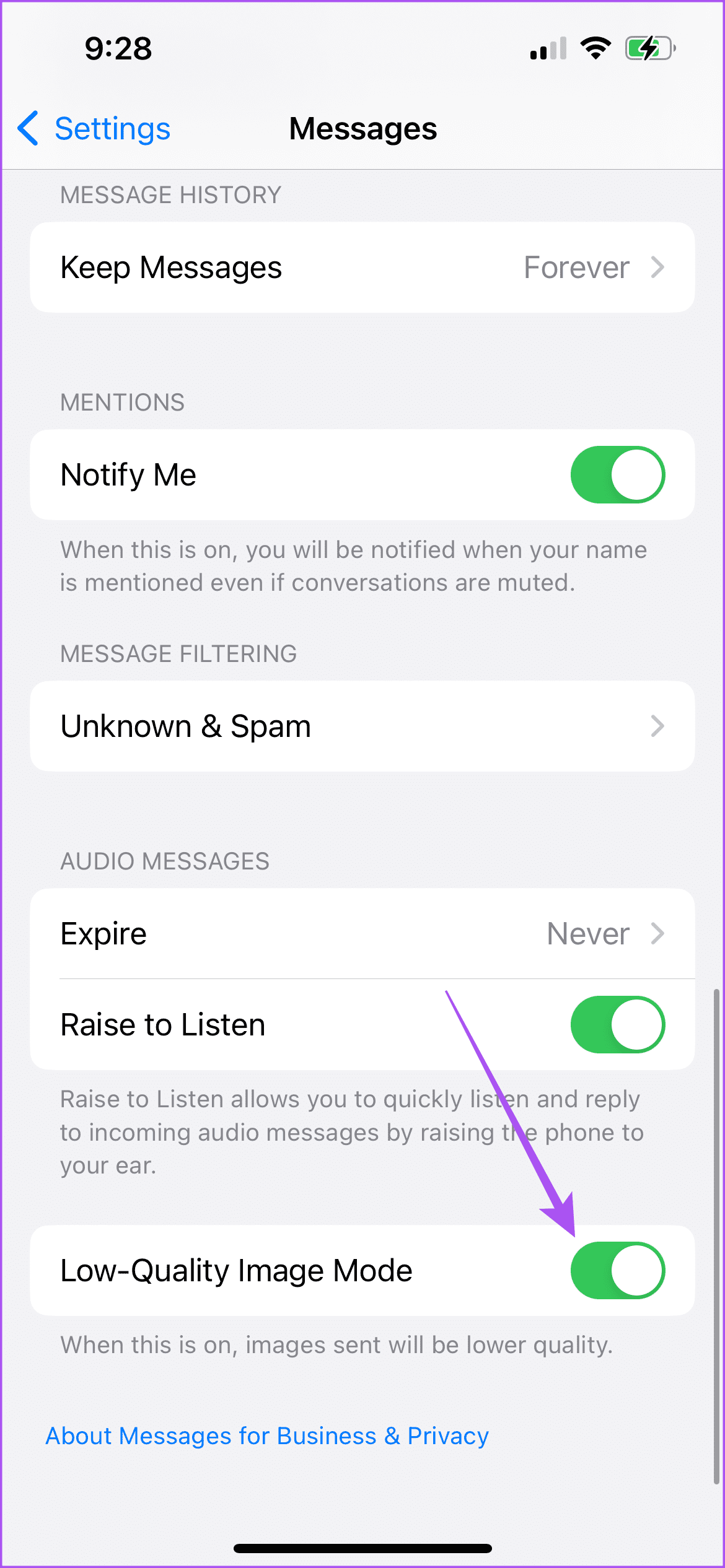
Fix 1: Disable Low-Quality Image Mode
Several users have mentioned on the Apple Community forums their inability to view link previews in the Messages app. One of the user-suggested solutions was to disable Low-Quality Mode in the Messages app. So, we tested the solution, and it worked.
Open Settings > Messages > disable Low-Quality Image Mode.

Fix 2: Check if MMS Messaging Is Enabled
MMS helps you receive media files like images and videos on your iPhone. This also helps receive text message reactions from Android users. So, you can check whether MMS has been enabled to fix the link preview not working in iMessage.
Open Settings > Messages > enable MMS Messaging.

Fix 3: Enable iMessage Again on Your iPhone
Another effective solution is to enable the iMessage service again on your iPhone. This will download all your Messages app data again and refresh the app.
Step 1: Open Settings > Messages > disable iMessage.
Step 2: Wait for a few seconds and tap the toggle again to enable iMessage.

Fix 4: Reset Network Settings
If link previews are still not working in the Messages app on your iPhone, the issue might be related to your network preferences. Try resetting the Network Settings on your iPhone to check if that solves the issue.
This advanced solution will remove details of your previously connected wireless networks, like Wi-Fi, Bluetooth, and mobile data preferences. You must set them up again. Check our post to learn how to reset Network Settings on your iPhone.
Was this helpful?
Last updated on 29 July, 2024
Read Next
 4 Fixes for Link Previews Not Working in Google Messages App
Basic Fixes Check internet connection speeds: Switch to 5G or a 5GHz frequency band if you have a dual-band router.
4 Fixes for Link Previews Not Working in Google Messages App
Basic Fixes Check internet connection speeds: Switch to 5G or a 5GHz frequency band if you have a dual-band router.
 5 Best Ways to Fix iMessage Not Working On iPhone and iPad
Try Basic Fixes Check if iMessage is down: Sometimes, it's possible that the iMessage servers are down, which is why your iPhone's iMessage is not working.
5 Best Ways to Fix iMessage Not Working On iPhone and iPad
Try Basic Fixes Check if iMessage is down: Sometimes, it's possible that the iMessage servers are down, which is why your iPhone's iMessage is not working.
 4 Ways to Fix iMessage Apps and Games Not Working on iPhone
Fix 1: Enable the iMessage App and MMS Messaging Step 1: Open the Settings app on your iPhone and select Messages.
4 Ways to Fix iMessage Apps and Games Not Working on iPhone
Fix 1: Enable the iMessage App and MMS Messaging Step 1: Open the Settings app on your iPhone and select Messages.
 4 Ways to Fix Phone Link App Not Working With iPhone
Basic Fixes: Close and reopen the Phone Link app: Closing and reopening any app helps to close all app functions and restart them.
4 Ways to Fix Phone Link App Not Working With iPhone
Basic Fixes: Close and reopen the Phone Link app: Closing and reopening any app helps to close all app functions and restart them.
 5 Ways to Fix iMessage Notifications Not Working on iPhone
Basic Fixes Force restart your iPhone: An existing iOS glitch may suppress iMessage notifications.
5 Ways to Fix iMessage Notifications Not Working on iPhone
Basic Fixes Force restart your iPhone: An existing iOS glitch may suppress iMessage notifications.
 7 Best Fixes for iMessage Search Not Working on iPhone
Like other messaging apps, iMessage also comes packed with features for iPhone.
7 Best Fixes for iMessage Search Not Working on iPhone
Like other messaging apps, iMessage also comes packed with features for iPhone.
 4 Ways to Fix iMessage Not Activating on iPhone
Try Basic Fixes Check Apple's iMessage server status: The iMessage servers may be down, which is why your iPhone’s iMessage is not working.
4 Ways to Fix iMessage Not Activating on iPhone
Try Basic Fixes Check Apple's iMessage server status: The iMessage servers may be down, which is why your iPhone’s iMessage is not working.
 4 Ways to Fix iMessage “Not Delivered” Error on iPhone
Why Is Your iMessage Not Being Delivered on iPhone?
4 Ways to Fix iMessage “Not Delivered” Error on iPhone
Why Is Your iMessage Not Being Delivered on iPhone?
The article above may contain affiliate links which help support Guiding Tech. The content remains unbiased and authentic and will never affect our editorial integrity.