Basic Fixes
- Turn on hotspot and mobile data manually: You can check and manually enable the Hotspot and Mobile Data on your iPhone and Mac, which go hand-in-hand.
- Keep iPhone closer to Mac: Keeping both devices in closer proximity helps connect them quickly.
- Use the same Apple account on iPhone and Mac: It is important to link both devices to the same Apple account.
- Disconnect other Bluetooth devices: Your Bluetooth devices should not be connected to your Mac.
Fix 1: Enable Handoff on iPhone and Mac
Handoff lets you pick up something from one Apple device and share it with another Apple device connected to your iCloud. To make iPhone Hotspot work on your Mac, you must enable this feature on your iPhone and Mac.
On iPhone
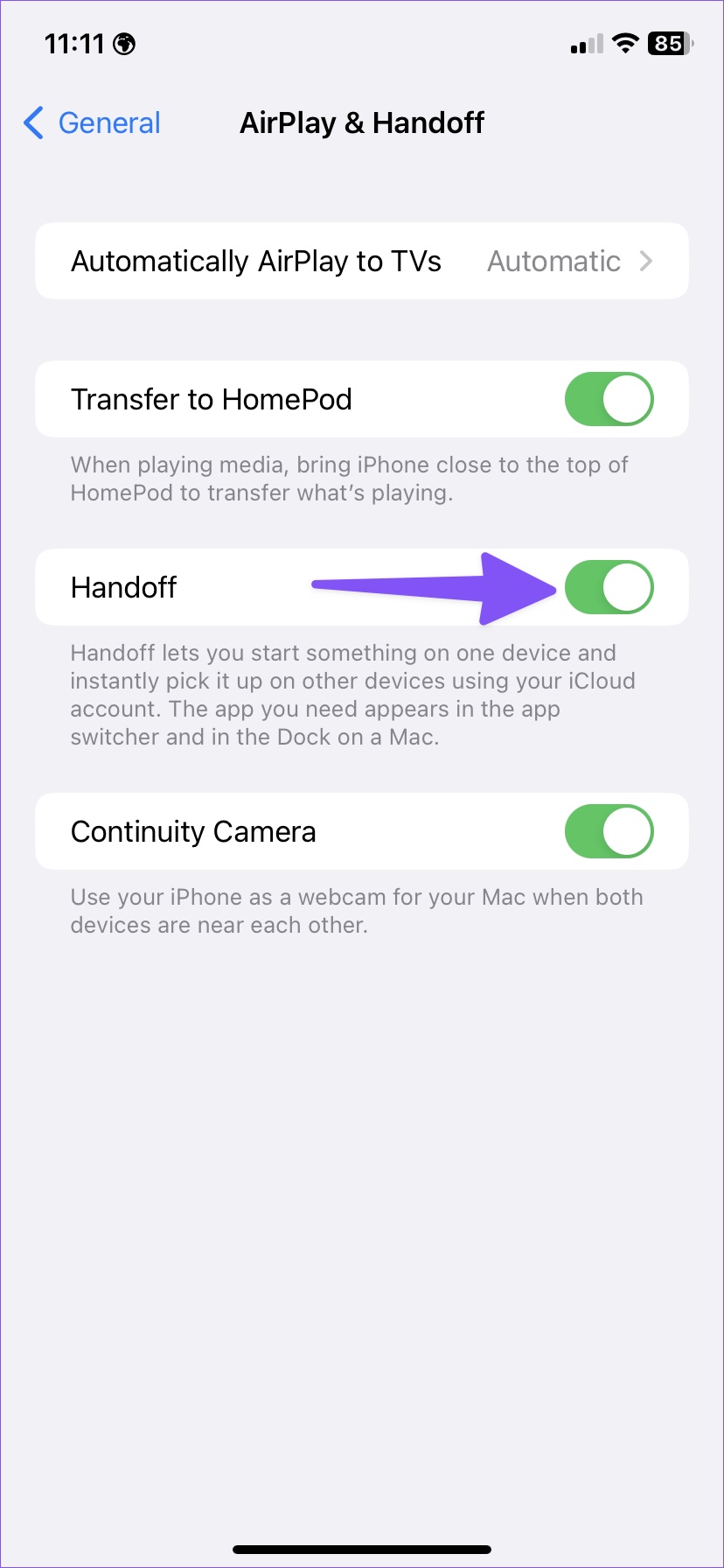
Go to Settings > General > AirPlay and Handoff and enable Handoff.

On Mac
Step 1: Click the Apple logo at the top-left corner and select System Settings.
Step 2: Select General > go to AirPlay and Handoff.
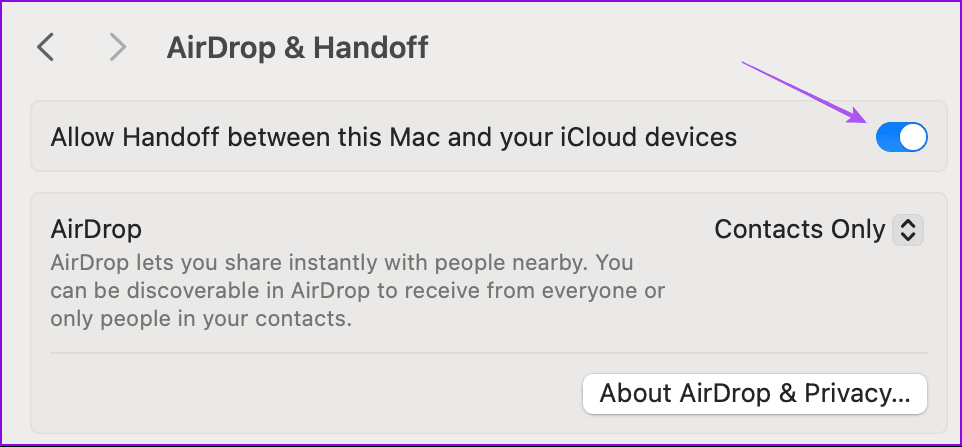
Step 3: Enable Allow Handoff between this Mac and your iCloud devices.
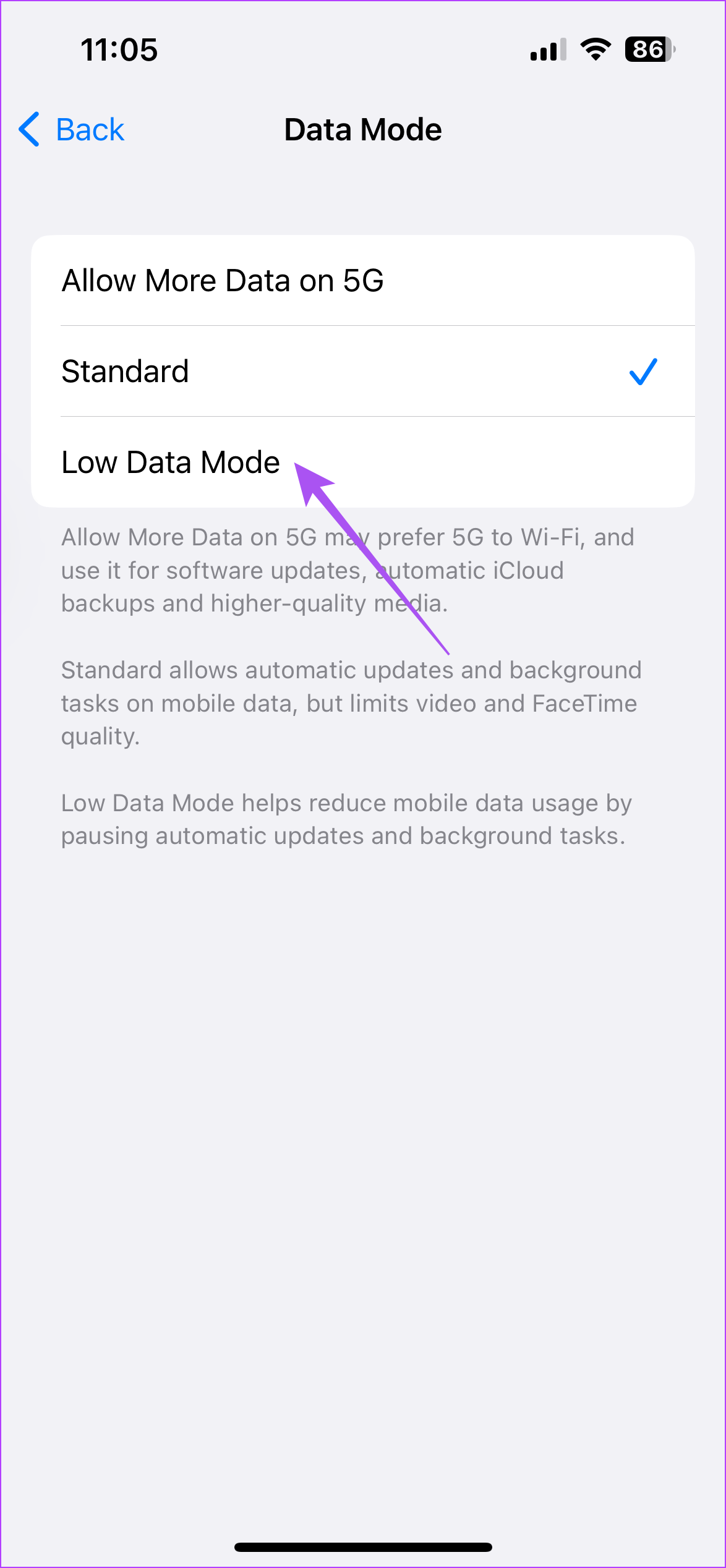
Fix 2: Disable Low Data Mode on iPhone
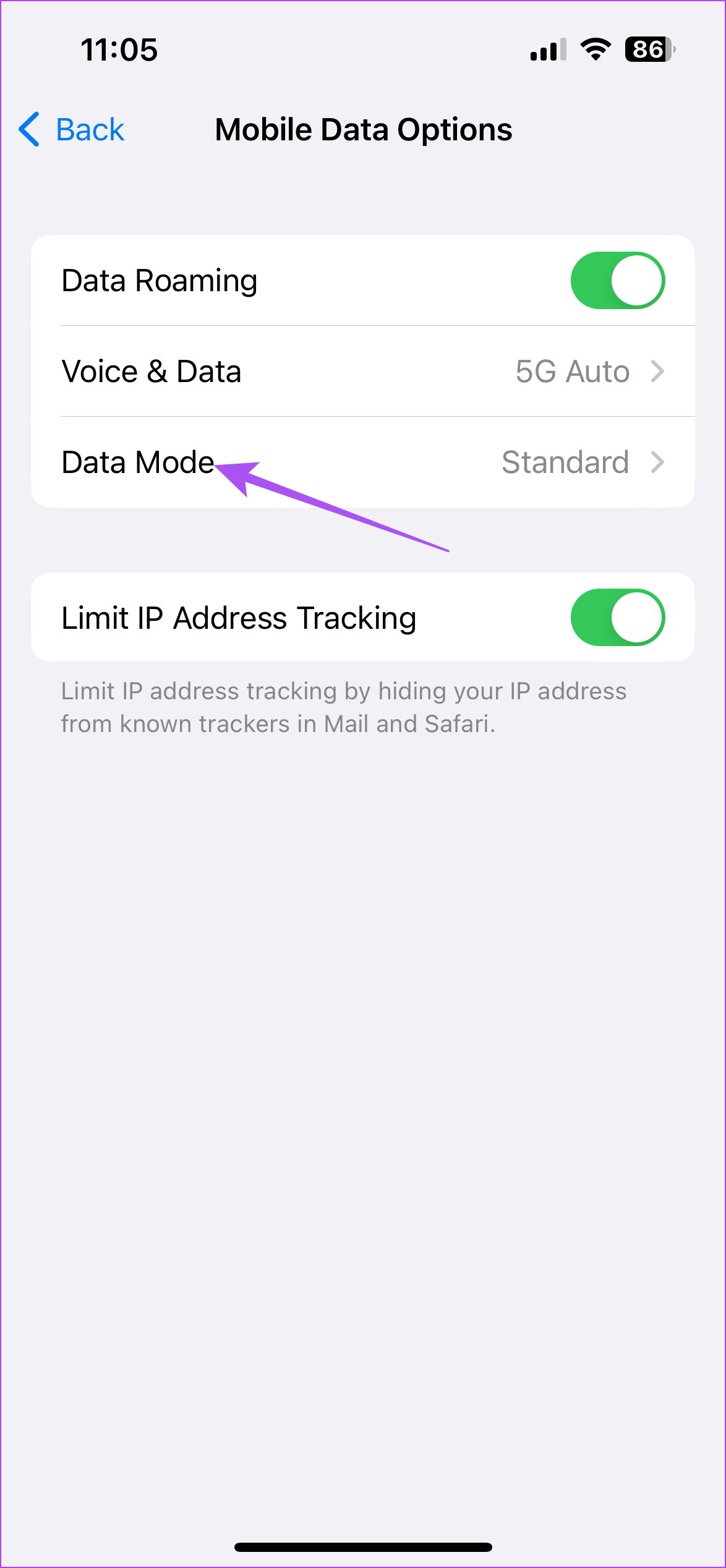
Low Data Mode prevents excessive mobile data usage on your iPhone and can prevent you from using the internet on your Mac.
Open Settings > Mobile Service > Mobile Data Options > Data Mode > disable Low Data Mode.
Fix 3: Disable VPN on Mac
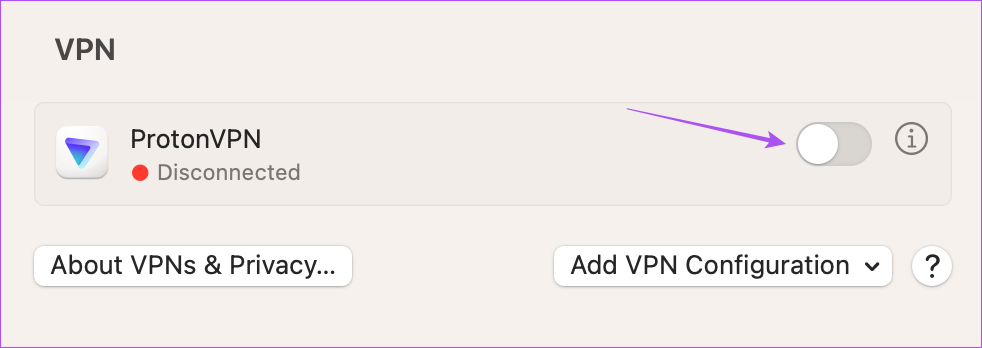
VPNs are great for connecting to websites that are inaccessible in your region. But you should try turning it off if you can’t connect your Mac with your iPhone Hotspot.
Step 1: Open System Settings > click on VPN from the left menu.
Step 2: Disable the VPN connection on your Mac.
Fix 4: Reset Network Settings
If you face network-related issues on your iPhone, the device hotspot won’t work on your Mac. You must reset the network settings on your iPhone.
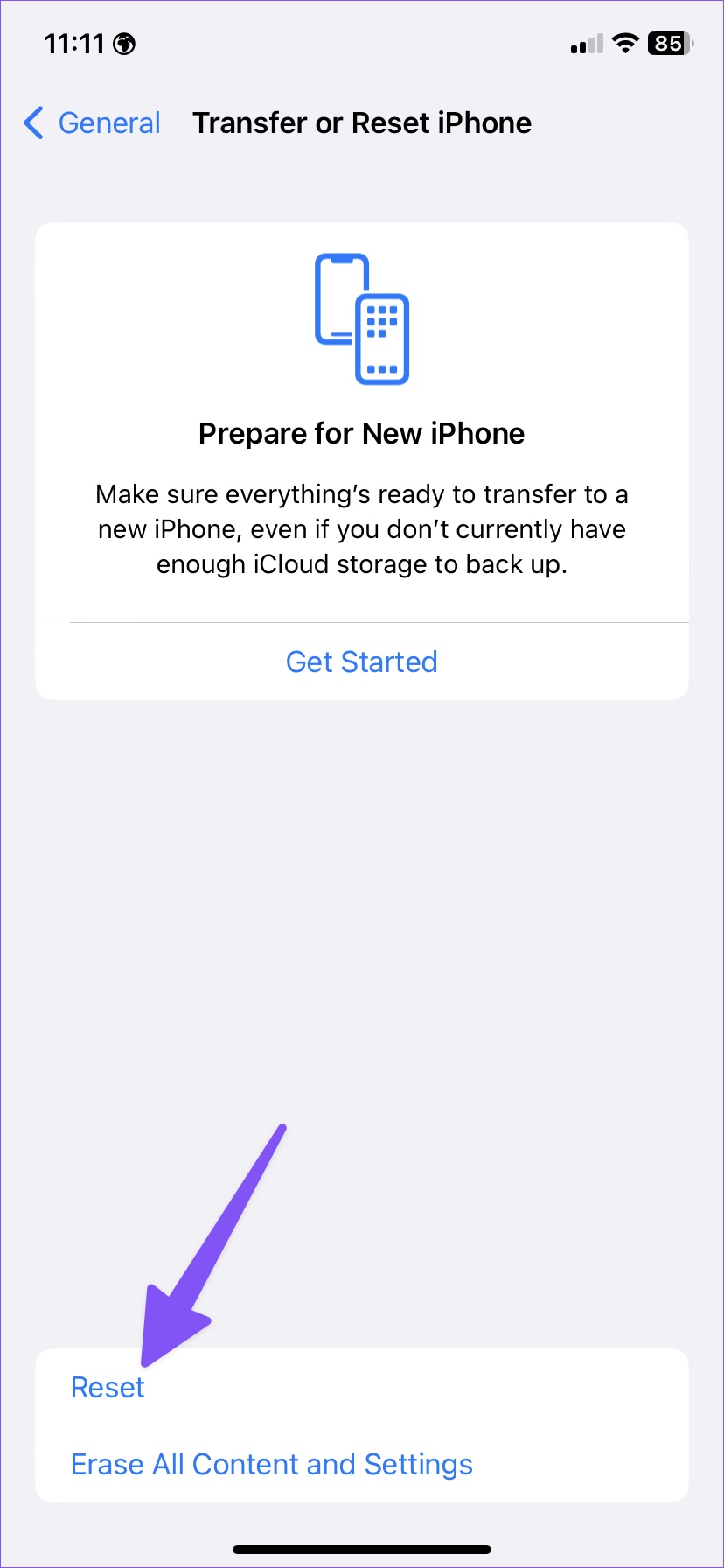
Step 1: Open the Settings app on your iPhone > scroll down to General.
Step 2: Scroll down and select Transfer or Reset iPhone.
Step 3: Tap Reset > select Reset Network Settings from the following menu.
Note: Resetting network settings won’t touch your personal data.

Was this helpful?
Last updated on 06 June, 2024
Read Next
 Top 6 Ways to Fix Mac Not Connecting to Hotspot
Using a mobile hotspot is a great way to connect to the internet when away from a Wi-Fi network.
Top 6 Ways to Fix Mac Not Connecting to Hotspot
Using a mobile hotspot is a great way to connect to the internet when away from a Wi-Fi network.
 How to Fix iPhone Hotspot Keeps Disconnecting on Windows and Mac
Why Does My iPhone Hotspot Keeps Disconnecting Before we show you step-by-step instructions to fix the hotspot issue on your iPhone, let's quickly go over some of the possible reasons
How to Fix iPhone Hotspot Keeps Disconnecting on Windows and Mac
Why Does My iPhone Hotspot Keeps Disconnecting Before we show you step-by-step instructions to fix the hotspot issue on your iPhone, let's quickly go over some of the possible reasons
 2 Ways to Fix iPhone Hotspot Not Showing Up on Android
https://youtu.be/U75VRX50Yzw Basic Fixes Toggle airplane mode: Toggling Airplane Mode essentially resets the radios on your phone.
2 Ways to Fix iPhone Hotspot Not Showing Up on Android
https://youtu.be/U75VRX50Yzw Basic Fixes Toggle airplane mode: Toggling Airplane Mode essentially resets the radios on your phone.
 Top 7 Ways to Fix Android Mobile Hotspot Not Working
We are relying on mobile hotspot more than ever in the work from home situation.
Top 7 Ways to Fix Android Mobile Hotspot Not Working
We are relying on mobile hotspot more than ever in the work from home situation.
 7 Ways to Fix Mobile Hotspot Not Working on Windows 11
Try These Things First Turn off Bluetooth: Sometimes, the Bluetooth connection on your PC may interfere with the mobile hotspot.
7 Ways to Fix Mobile Hotspot Not Working on Windows 11
Try These Things First Turn off Bluetooth: Sometimes, the Bluetooth connection on your PC may interfere with the mobile hotspot.
 Top 9 Ways to Fix Mobile Hotspot Not Working on Samsung Galaxy Phones
Mobile hotspot comes in handy when your office or home Wi-Fi is facing an outage.
Top 9 Ways to Fix Mobile Hotspot Not Working on Samsung Galaxy Phones
Mobile hotspot comes in handy when your office or home Wi-Fi is facing an outage.
 5 Ways to Restore the Missing Personal Hotspot on iPhone
Try Basic Fixes Check with your carrier: It's important to note that not all cellphone carriers or cellular plans support the Personal Hotspot feature on the iPhone.
5 Ways to Restore the Missing Personal Hotspot on iPhone
Try Basic Fixes Check with your carrier: It's important to note that not all cellphone carriers or cellular plans support the Personal Hotspot feature on the iPhone.
 How to Stop iPhone Personal Hotspot From Turning On Automatically
https://youtu.be/RIBOWbQOnMU Fix 1.
How to Stop iPhone Personal Hotspot From Turning On Automatically
https://youtu.be/RIBOWbQOnMU Fix 1.
The article above may contain affiliate links which help support Guiding Tech. The content remains unbiased and authentic and will never affect our editorial integrity.