Basic Fixes
- Restart iPhone: A simple restart fixes most issues affecting your iPhone. So, restart and check if the iPhone camera app stops freezing.
- Update iPhone: If the Camera app keeps freezing due to a widespread bug affecting many other users, Apple will release an update to fix the issue.
Fix 1: Turn off Smart HDR and Auto HDR
Features such as Smart HDR and Auto HDR might be demanding and can consume many resources, making the camera sluggish and eventually crash.
Step 1: Open the Settings app and tap on Camera. Turn off the toggle for Smart HDR.
Step 2: Open the Camera app and tap on the HDR icon at the top left corner. Ensure the icon is struck off, indicating that the Auto HDR is off.


Fix 2: Disable 24MP Photos
I’ve observed my iPhone undergo thermal throttling, and the Camera app tends to lag when Photo Mode is set to 24MP – changing it to 12MP helped me fix the issue.
Step 1: Open the Settings app and go to Camera. Tap on Formats.
Step 2: Tap on Photo Mode and select 12 MP.


Fix 3: Reset All Settings on Your iPhone
As a last resort, you can reset your iPhone to fix all misconfigurations causing the issue.
Note: Resetting will revert all system-related settings and erase any saved Wi-Fi networks. However, you will not lose your data.
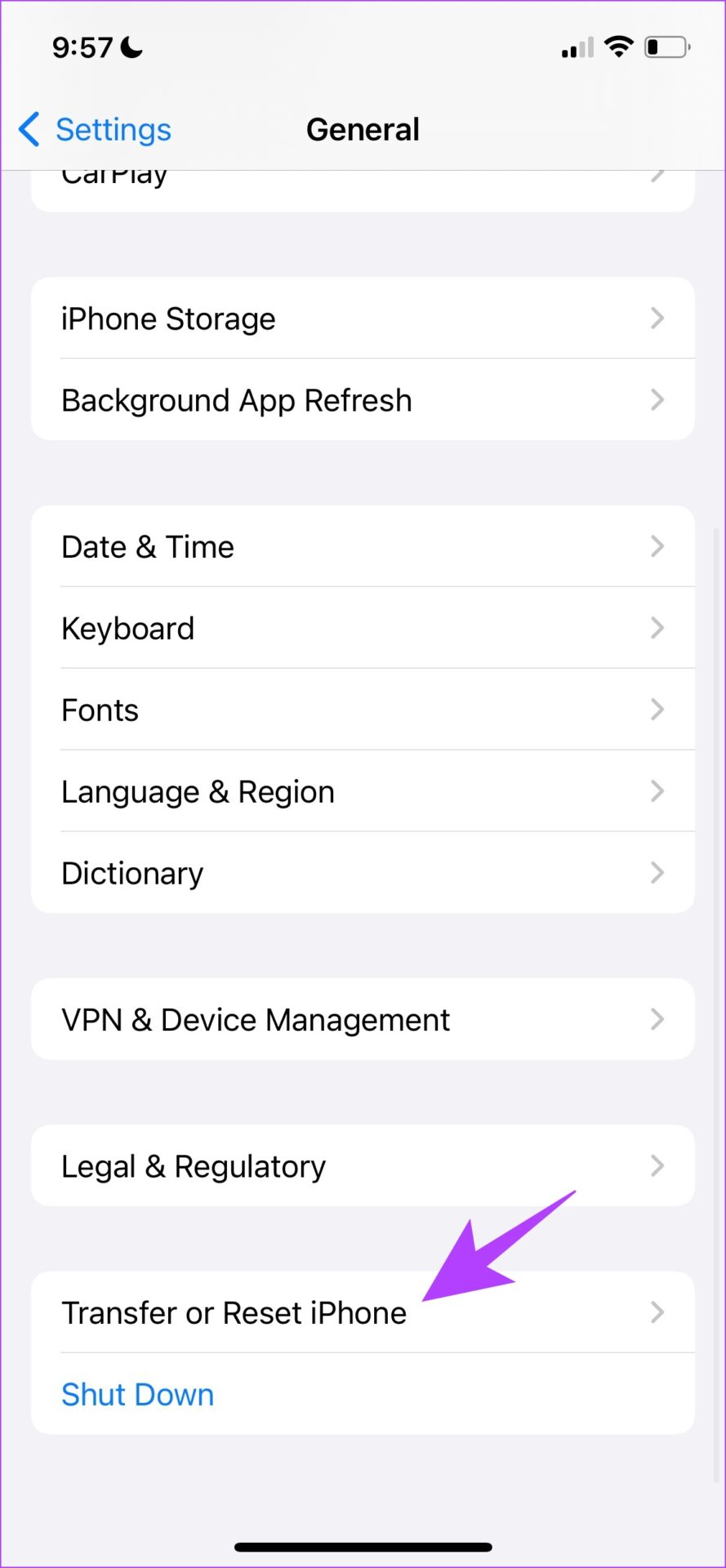
Step 1: Open the Settings app and select General > Transfer & Reset iPhone.
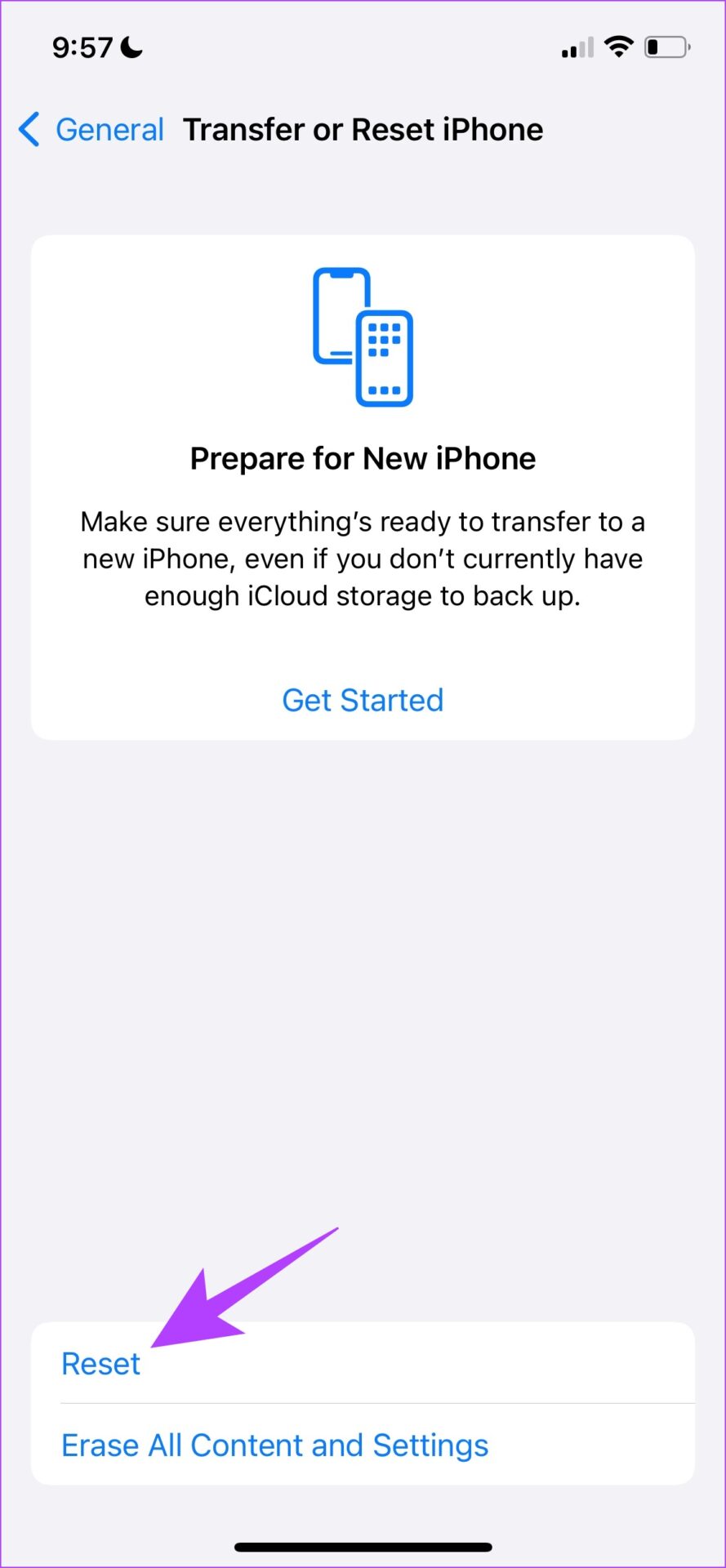
Step 2: Tap on Reset. Now, tap on Reset All Settings. Enter the passcode when prompted and follow the on-screen instructions.
This will return all the settings and configurations of your iPhone to their default states.

If none of the above fixes helped, we suggest using third-party camera apps for iPhone like Focos, ProCam 8, and VSCO until the issue is fixed.
Was this helpful?
Last updated on 04 April, 2024
Read Next
 3 Ways to Fix Messages App Keeps Crashing or Freezing on iPhone
Basic Fixes: Check the Messages app server status: If there is an issue with Apple's servers, it can affect the functioning of the Messages app.
3 Ways to Fix Messages App Keeps Crashing or Freezing on iPhone
Basic Fixes: Check the Messages app server status: If there is an issue with Apple's servers, it can affect the functioning of the Messages app.
 Top 10 Ways to Fix Google Chrome Keeps Freezing or Crashing on Windows 10
Google Chrome is the go-to browser of millions across the world.
Top 10 Ways to Fix Google Chrome Keeps Freezing or Crashing on Windows 10
Google Chrome is the go-to browser of millions across the world.
 3 Ways to Fix Netflix Keeps Freezing on Your Phone
Basic Fixes: Close and restart all background apps: Background apps can end up hogging system resources, causing the Netflix app not to work as expected.
3 Ways to Fix Netflix Keeps Freezing on Your Phone
Basic Fixes: Close and restart all background apps: Background apps can end up hogging system resources, causing the Netflix app not to work as expected.
 3 Ways to Fix Fire TV Stick Mirroring Not Working or Freezing
Screen Mirroring Requirements and Limitations for Fire TV Stick Before starting, let us look at certain conditions that you might need to meet when screen mirroring your device to your
3 Ways to Fix Fire TV Stick Mirroring Not Working or Freezing
Screen Mirroring Requirements and Limitations for Fire TV Stick Before starting, let us look at certain conditions that you might need to meet when screen mirroring your device to your
 7 Ways to Fix Rocket League Crashing or Freezing
Basic Fixes: Check if Your System Supports the Game: Before diving into solutions, ensure your system meets the game's minimum requirements.
7 Ways to Fix Rocket League Crashing or Freezing
Basic Fixes: Check if Your System Supports the Game: Before diving into solutions, ensure your system meets the game's minimum requirements.
 9 Ways to Fix Videos Freezing on Instagram Stories and Posts
Ever since apps like Dubsmash and TikTok popularized short videos, popular social media apps have come up with alternatives for posting short-form content.
9 Ways to Fix Videos Freezing on Instagram Stories and Posts
Ever since apps like Dubsmash and TikTok popularized short videos, popular social media apps have come up with alternatives for posting short-form content.
 Your iPhone Can Now Take Pictures Like a $10,000 Camera — Thanks to Leica’s New Camera App
Over the years, phones have become synonymous with pocket cameras.
Your iPhone Can Now Take Pictures Like a $10,000 Camera — Thanks to Leica’s New Camera App
Over the years, phones have become synonymous with pocket cameras.
 4 Ways to Fix iPhone Keeps Switching to Mobile Data From Wi-Fi
Basic Fixes Move close to your router: Poor Wi-Fi signal can force your iPhone to switch to mobile data instead of Wi-Fi.
4 Ways to Fix iPhone Keeps Switching to Mobile Data From Wi-Fi
Basic Fixes Move close to your router: Poor Wi-Fi signal can force your iPhone to switch to mobile data instead of Wi-Fi.
The article above may contain affiliate links which help support Guiding Tech. The content remains unbiased and authentic and will never affect our editorial integrity.