Basic Fixes
- Check your network connection: Ensure your device has a good internet connection. I recommend at least 5-10 Mbps internet speed to refresh your Instagram Reels feed.
- Force close the Instagram app and reopen it: Swipe up from your phone’s screen bottom to switch apps and slide up the Instagram card to force close it. On PC, press the Windows key, search Installed apps, and click to open it. Locate Instagram, click its three-dot menu > Advanced options, and select Terminate.
- Update or reinstall the Instagram app: Open your respective device app store (e.g. Google Play Store, Apple App Store, or Microsoft Store), search Instagram, and select Update. Alternatively, uninstall the app and install it afresh.
Fix 1: Clear the Instagram Cache and App Data (Android)
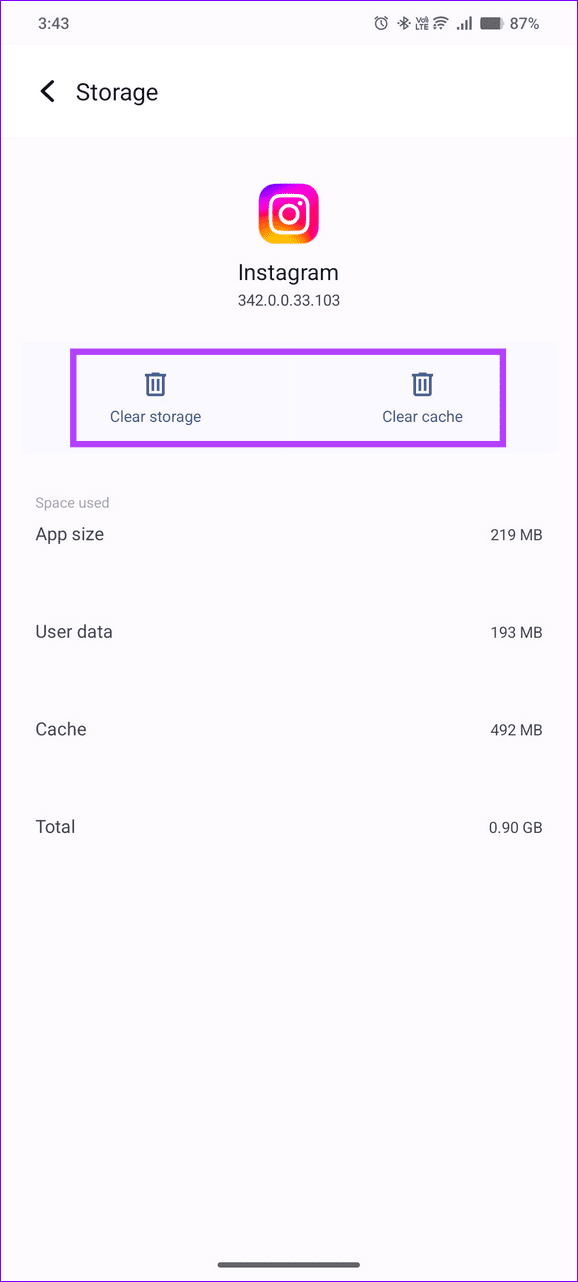
Corrupt cache and obsolete app data are common culprits behind Instagram showing the same reels repeatedly. Clear them manually on your Android device and reopen the Instagram app.
Step 1: Long-tap the Instagram app icon and open App info.
Step 2: Select Storage and cache, and tap Clear cache followed by Clear storage.


Fix 2: Offload the Instagram App (iOS)
Unlike Android, iOS doesn’t allow clearing the Instagram app cache manually. Instead, you can offload the app and reinstall it to get rid of the same reels appearing repetitively on your Instagram account.
Step 1: Open iPhone Settings, select General, and tap iPhone Storage.

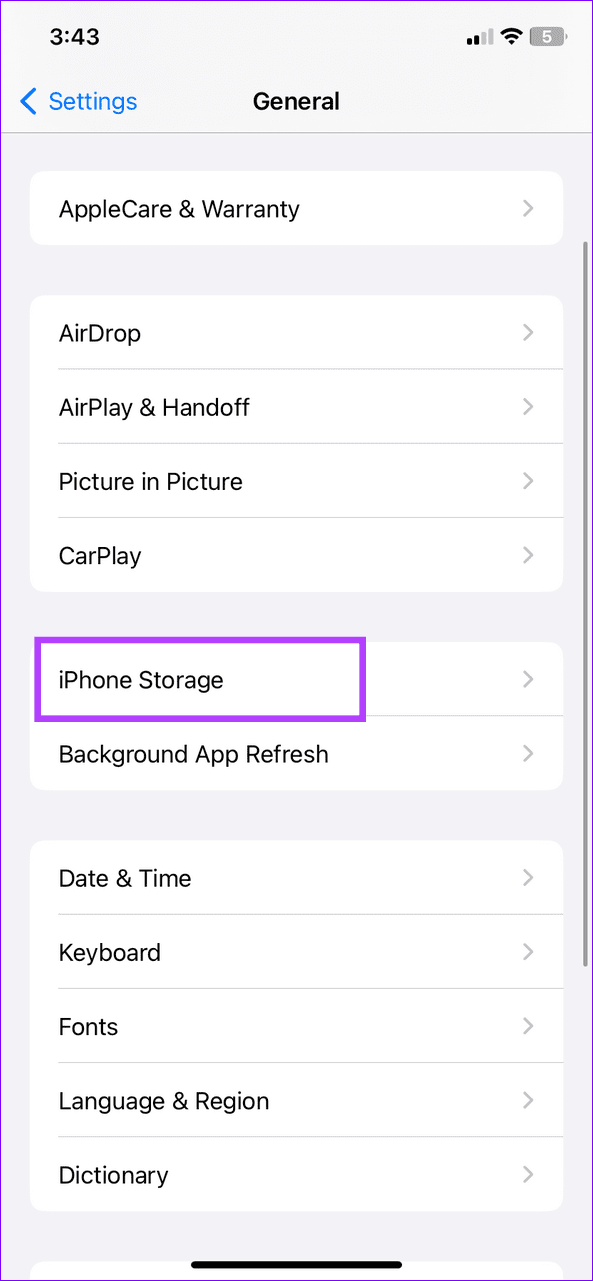
Step 2: Select Instagram and tap Offload App. Head to the Apple App Store to reinstall and open it.


Fix 3: Log Out and Sign Back In
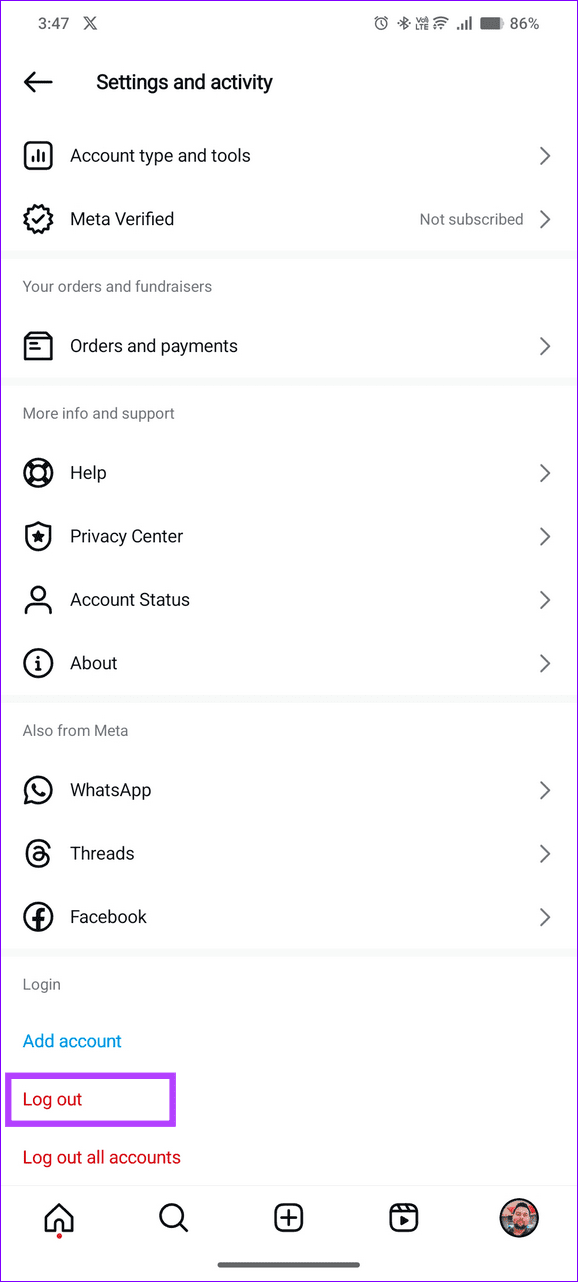
Besides corrupt app cache, account authentication issues in the Instagram app may freeze video playback or repeat the same reels. Log out and sign back in to resolve the issue.
Step 1: Open your profile in the Instagram app and tap the hamburger menu at the top right corner.
Step 2: Scroll down to the bottom and tap Log out. Once signed out, tap Log in and type your account credentials to sign back in.

Fix 4: Repair or Reset the Instagram App (PC)
If the Instagram app on your Windows PC is consistently showing the same reels, repair or reset the app to fix its malfunction.
Step 1: Press the Windows key, search Instagram, and right-click it to open its App settings.

Step 2: Scroll down and click Repair. If the issue persists, select Reset to restore the app to its factory defaults.

Was this helpful?
Last updated on 05 August, 2024
Read Next
 How to Fix Reels Not Showing on Instagram
Basic Fixes Check your Internet connection: You need a stable internet connection to view Instagram reels.
How to Fix Reels Not Showing on Instagram
Basic Fixes Check your Internet connection: You need a stable internet connection to view Instagram reels.
 Top 5 Ways to Fix Facebook Not Showing Reels on Mobile
https://youtu.be/Jgtj4Z-2Dzs Preliminary Fixes Check the Network Connection: Ensuring a stable network connection is crucial for loading content on Facebook, including Reels.
Top 5 Ways to Fix Facebook Not Showing Reels on Mobile
https://youtu.be/Jgtj4Z-2Dzs Preliminary Fixes Check the Network Connection: Ensuring a stable network connection is crucial for loading content on Facebook, including Reels.
 3 Ways to Fix Sound Not Working on Instagram Reels
Basic Troubleshooting Unmute/raise the volume: When your phone is silent, Instagram mutes the video on the home feed and the Reels tab.
3 Ways to Fix Sound Not Working on Instagram Reels
Basic Troubleshooting Unmute/raise the volume: When your phone is silent, Instagram mutes the video on the home feed and the Reels tab.
 4 Ways to Fix if You Can’t Pause Instagram Videos or Reels
Fix 1: Tap to Open Videos From Feed The videos on the feed or timeline cannot be paused like reels.
4 Ways to Fix if You Can’t Pause Instagram Videos or Reels
Fix 1: Tap to Open Videos From Feed The videos on the feed or timeline cannot be paused like reels.
 Why Are My Instagram Reels Blurry and How to Fix It
Why Do My Instagram Reels Look Blurry?
Why Are My Instagram Reels Blurry and How to Fix It
Why Do My Instagram Reels Look Blurry?
 How to Find Instagram Reels That You Saved or Liked
How to Find Saved Instagram Reels On iPhone and Android Step 1: Tap on your Profile tab at the bottom and select the three-bar menu icon at the top right.
How to Find Instagram Reels That You Saved or Liked
How to Find Saved Instagram Reels On iPhone and Android Step 1: Tap on your Profile tab at the bottom and select the three-bar menu icon at the top right.
 How to Recover Deleted Instagram Posts, Stories, Reels, and IGTV Videos
To save people from losing their Instagram data when their account gets hacked, Instagram launched the Recently Deleted feature.
How to Recover Deleted Instagram Posts, Stories, Reels, and IGTV Videos
To save people from losing their Instagram data when their account gets hacked, Instagram launched the Recently Deleted feature.
 How to Edit Reels Using Instagram’s Built-In Editor
Edit Reels Using the Built-In Editor Step 1: Open the Instagram app and tap on the Create button at the bottom.
How to Edit Reels Using Instagram’s Built-In Editor
Edit Reels Using the Built-In Editor Step 1: Open the Instagram app and tap on the Create button at the bottom.
The article above may contain affiliate links which help support Guiding Tech. The content remains unbiased and authentic and will never affect our editorial integrity.