


Try Basic Fixes
- Check if iMessage is down: Sometimes, it’s possible that the iMessage servers are down, which is why your iPhone’s iMessage is not working. To check if iMessage is down, head over to Apple’s System Status website and look for the light next to iMessage.
- Remove and reinsert the SIM card: When you remove and re-insert your SIM card, the iMessage activation process begins from scratch, which can fix any issues.
- Ensure you have an active plan on your SIM: This is mainly for when iMessage is not working on a new iPhone. When you insert a SIM into your iPhone, Apple sends an automatic SMS from your mobile number to activate iMessage for the first time. Failure to send this SMS will result in iMessage not working.
- Delete old messages: If you’re able to send iMessages but unable to receive them, it could be that your iPhone has run out of storage, and hence, there’s no space to store new messages. The best way to tackle this issue is to delete older messages to make way for new ones.
- Install software updates: At times, a particular software version may cause issues with the functioning of iMessage. Updating your device to the latest iOS or iPadOS version can help fix the iMessage not working issue.
Fix 1: Check Send & Receive Addresses
Your iPhone has a certain number of phone numbers and email IDs that it can use to send and receive texts via iMessage. If your current phone number or email ID isn’t one of them, iMessage will not work. Here’s how to check your Send & Receive addresses and update them.
Step 1: Open the Settings app on your iPhone. Scroll down and tap on Messages.
Step 2: Tap on Send & Receive.


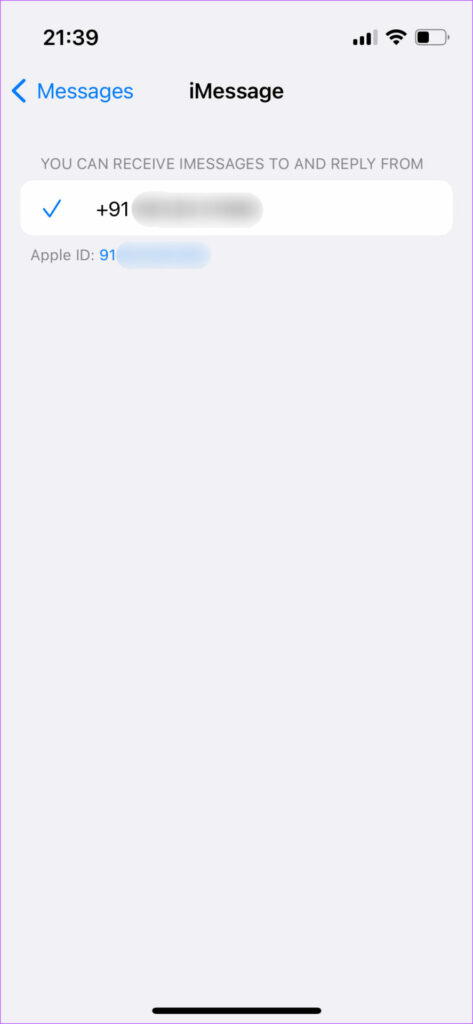
Here, you can see the phone numbers and email IDs that you can use for iMessage. If your details aren’t up to date, chances are that your iCloud and iMessage accounts do not match. Follow the guide mentioned in the link and you should have the right settings for iMessage.
Fix 2: Check if the Recipient Is Using iMessage
In order for you to send an iMessage to someone, the other party also needs to be using iMessage. What this means is your text bubbles will appear blue only if the recipient is also using an iPhone, iPad, iPod, Mac, or an Apple product and is registered for iMessage. So, ensure that the person you’re texting is also using iMessage by following this simple method.
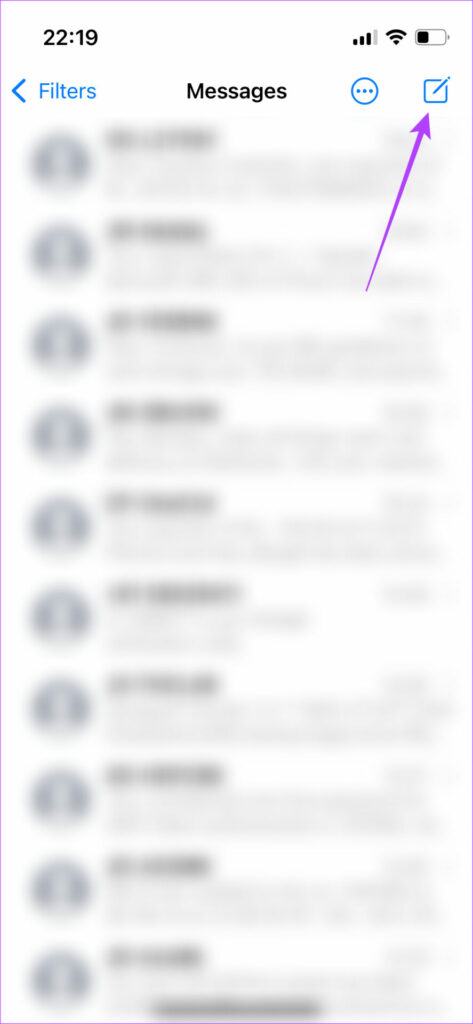
Step 1: Open the Messages app on your iPhone. Tap the compose icon in the top-right corner.
Step 2: Enter the recipient’s phone number or email ID.
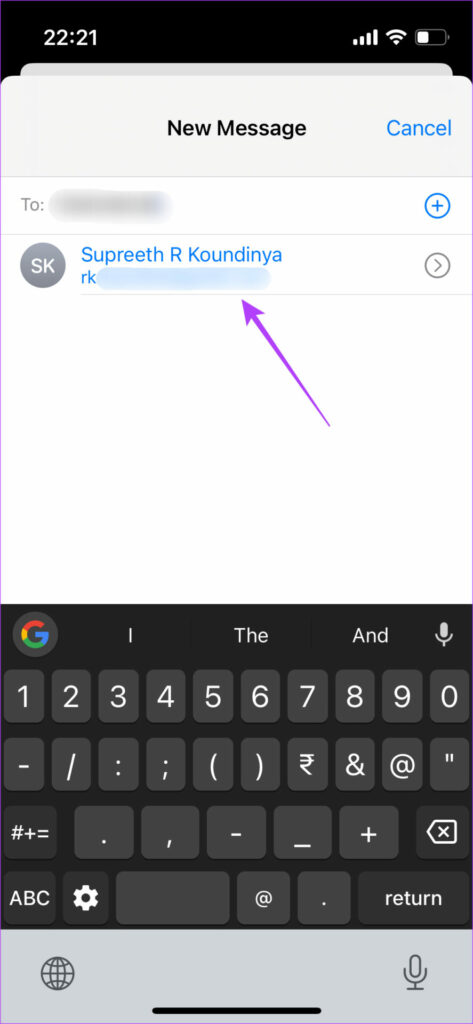
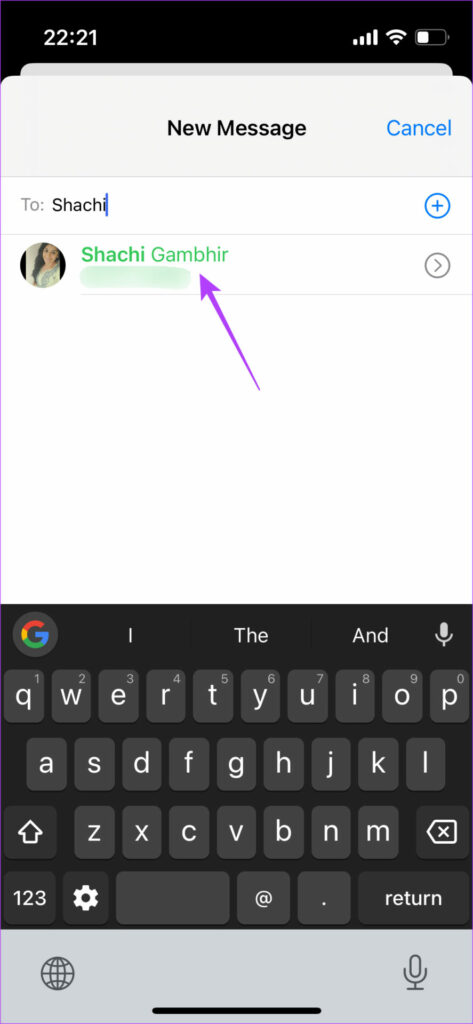
If their name appears in blue, it means they’re using iMessage. If it appears in green, they’re not using iMessage, and hence, whatever you send will be delivered in the form of SMS.
Fix 3: Disable the “Send As SMS” Toggle
The iPhone and iPad have a feature that automatically sends a message via SMS if iMessage isn’t available. Sometimes, enabling this toggle can lead to your messages being sent via SMS by default instead of iMessage even if your network connection is slightly erratic. So, it’s best to disable it.
Step 1: Open the Settings app on your iPhone or iPad. Scroll down and tap on Messages.
Step 2: Find the Send as SMS toggle and disable it.

Fix 4: Set the Date and Time to Update Automatically
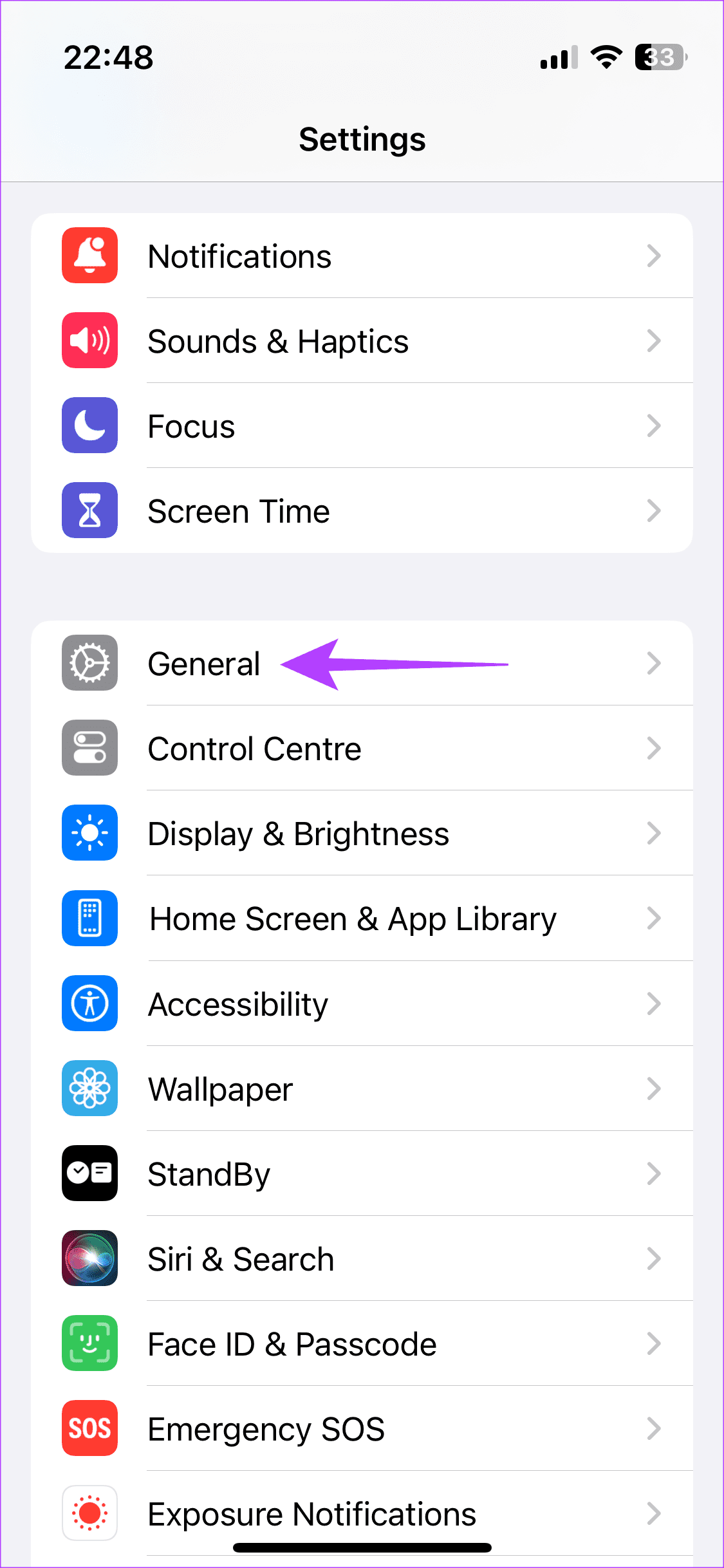
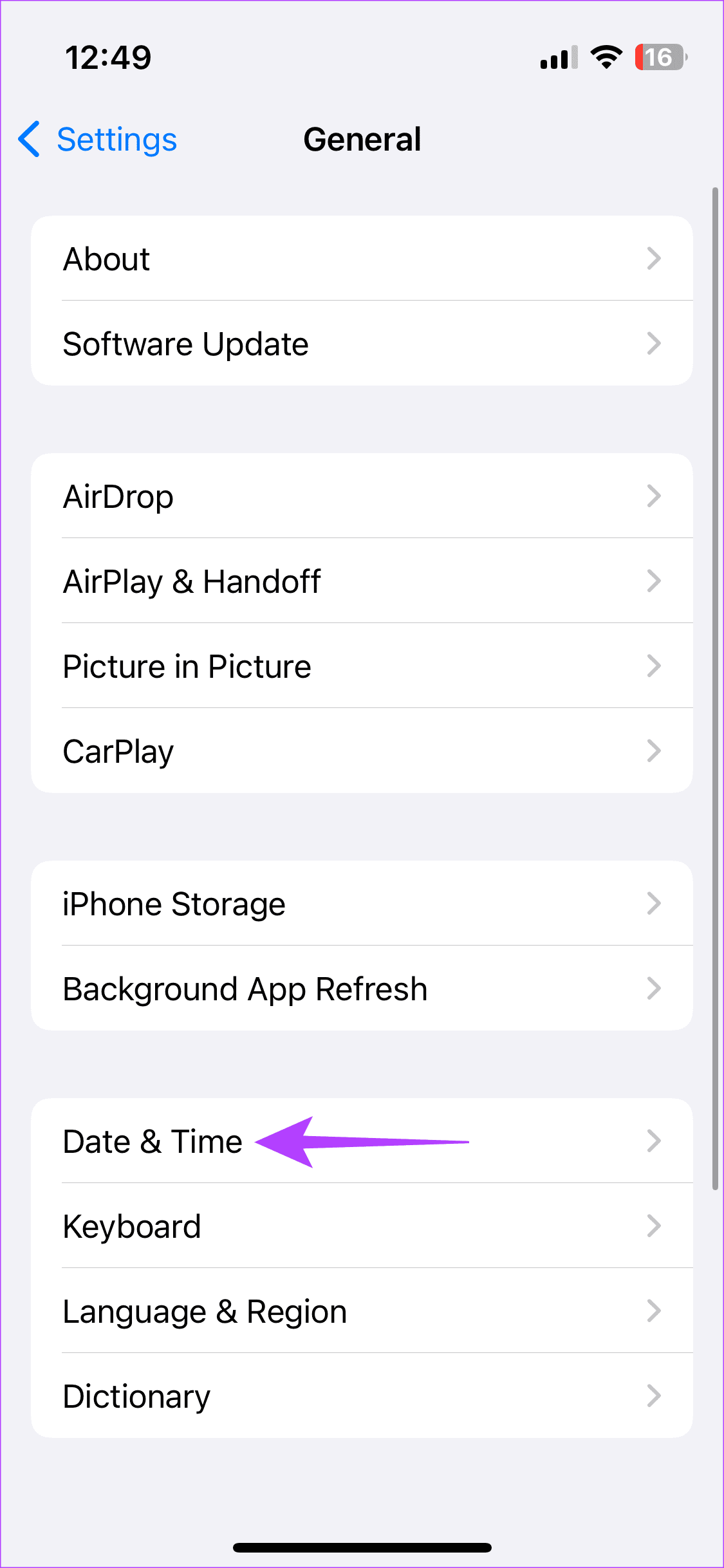
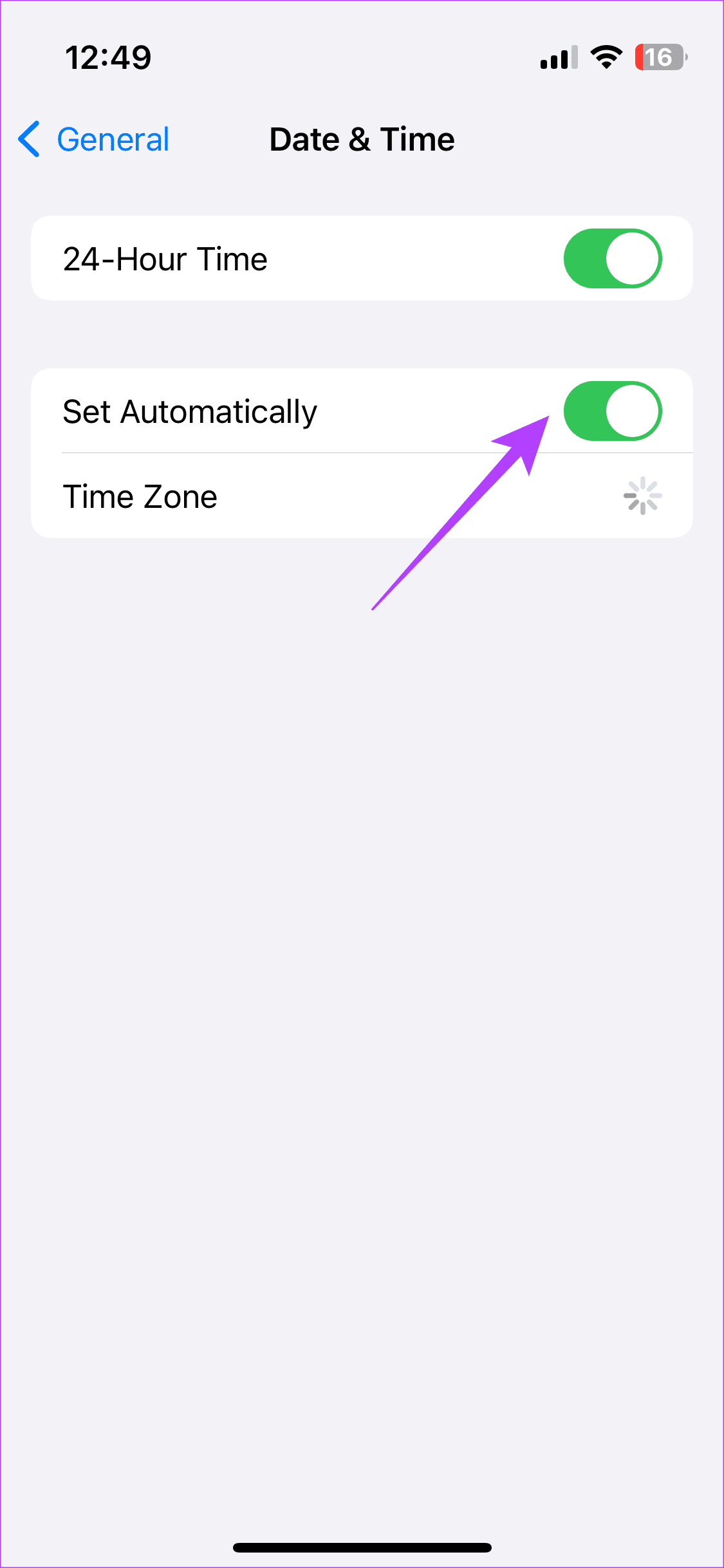
There have been reports of iMessage not working when the date and time of the iPhone were set incorrectly. So, try setting the date and time as per the iPhone’s automatic setting to prevent iMessage from ceasing to work.
Step 1: Open the Settings app and head to General > Date & Time.
Step 2: Turn on the toggle beside Set Automatically.
Fix 5: Reset Network Settings
If none of the above solutions worked for you, resetting the network settings on your iPhone or iPad could come in handy.
Step 1: Open the Settings app and head to General > Transfer or Reset iPhone.
Step 2: Tap Reset at the bottom and select Reset Network Settings.


Was this helpful?
Last updated on 05 September, 2024
1 Comment
Leave a Reply
Read Next
 2 Ways to Change SMS and iMessage Color and Font on iPhone or iPad
What Does the Standard Message Color Represent The message bubbles are available in three different colors.
2 Ways to Change SMS and iMessage Color and Font on iPhone or iPad
What Does the Standard Message Color Represent The message bubbles are available in three different colors.
 How to Use iMessage Group Chat on iPhone and iPad
Group chats are highly effective when conveying information to several people simultaneously.
How to Use iMessage Group Chat on iPhone and iPad
Group chats are highly effective when conveying information to several people simultaneously.
 10 Best iMessage Games for iPhone and iPad
iMessage is packed with features designed to make your communications fun.
10 Best iMessage Games for iPhone and iPad
iMessage is packed with features designed to make your communications fun.
 5 Ways to Fix iMessage Notifications Not Working on iPhone
Basic Fixes Force restart your iPhone: An existing iOS glitch may suppress iMessage notifications.
5 Ways to Fix iMessage Notifications Not Working on iPhone
Basic Fixes Force restart your iPhone: An existing iOS glitch may suppress iMessage notifications.
 4 Ways to Fix iMessage Apps and Games Not Working on iPhone
Fix 1: Enable the iMessage App and MMS Messaging Step 1: Open the Settings app on your iPhone and select Messages.
4 Ways to Fix iMessage Apps and Games Not Working on iPhone
Fix 1: Enable the iMessage App and MMS Messaging Step 1: Open the Settings app on your iPhone and select Messages.
 How to Fix iMessage Link Previews Not Working on iPhone
Basic Fixes Add link at the beginning or end of the message: Along with this, ensure that the URL starts with https://.
How to Fix iMessage Link Previews Not Working on iPhone
Basic Fixes Add link at the beginning or end of the message: Along with this, ensure that the URL starts with https://.
 7 Best Fixes for iMessage Search Not Working on iPhone
Like other messaging apps, iMessage also comes packed with features for iPhone.
7 Best Fixes for iMessage Search Not Working on iPhone
Like other messaging apps, iMessage also comes packed with features for iPhone.
 3 Fixes for Stickers Not Working in iMessage on iPhone
Basic Fixes Disable Low Power Mode: Open Settings > Battery > Disable Low Power Mode.
3 Fixes for Stickers Not Working in iMessage on iPhone
Basic Fixes Disable Low Power Mode: Open Settings > Battery > Disable Low Power Mode.
The article above may contain affiliate links which help support Guiding Tech. The content remains unbiased and authentic and will never affect our editorial integrity.
let’s take a break from this app.