


Common Fixes
- Check your internet connection: Ensure your device is connected to a stable internet connection. For better internet speed, connect to the 5GHz Wi-Fi frequency band.
- Inspect your Google Drive storage: Open Google Drive in your browser and look at the Storage bar in the sidebar to check the free space.
- Check the Google Drive error list: Click the Up arrow icon at the right end of the Windows 11 taskbar and select the Google Drive icon. Click its Gear icon (at the top right) and select Error list to view sync errors.
- Reopen the Google Drive app: Select the Up arrow in the taskbar, click the Google Drive icon, and open Settings via the Gear button. Click Quit to close its running instance and relaunch the app.
- Update or reinstall the Google Drive app: Download the latest Google Drive app installer to update or reinstall the Google Drive app.
Fix 1: Resume the Google Drive Sync Manually
If Google Drive isn’t syncing automatically on Windows 11, trigger it manually by resuming the sync service.
Step 1: Click the Up arrow at the right end of the taskbar and select the Google Drive icon.

Step 2: Select the Gear icon at the top right and click Resume syncing.

Fix 2: Remove Bandwidth Restriction
If you’ve capped Google Drive’s download and upload speed to limit your data usage, its file sync might fail. Adjust the bandwidth settings to resume Google Drive sync on Windows 11.
Step 1: Click the Google Drive icon in the taskbar (check the above steps), select the Gear icon at the top right, and open Preferences.
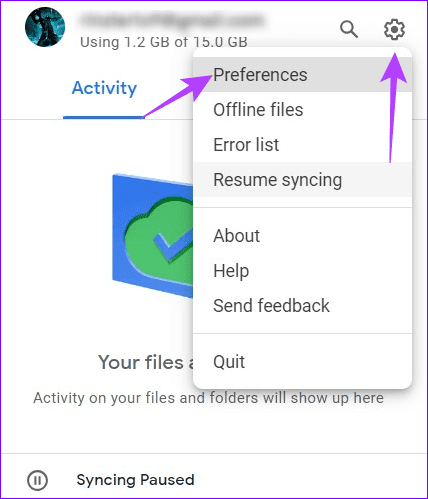
Step 2: Open Google Drive settings via the Gear icon at the top right.

Step 3: Scroll down to locate Bandwidth settings > uncheck Download rate and Upload rate to remove speed restrictions > click Save to apply changes.

Fix 3: Disconnect and Reconnect Your Google Account
Existing issues with your Google account can often halt the Google Drive sync service. To resume sync, disconnect and reconnect your account manually in the Drive app.
Step 1: Open Google Drive preferences (check the above steps) and click the Gear icon at the top right.
Step 2: Select Disconnect account next to your connected Google account and click Disconnect to confirm it.
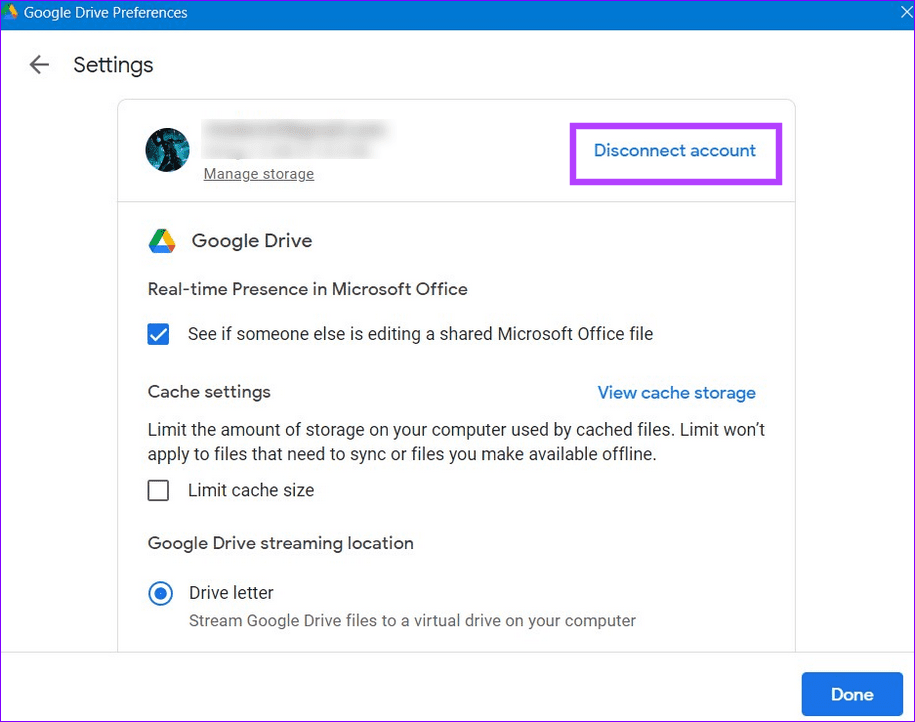
Step 3: Reopen the Google Drive app and sign in with your Google account credentials to resume sync.
Fix 4: Launch Google Drive at Startup
If you manually resume Google Drive sync each time your PC reboots, adjust its startup settings to launch the Google Drive app when the system starts. This way, the app will automatically sync files and the latest changes at system startup.
Step 1: Open Google Drive preferences and click the Gear icon at the top right.

Step 2: Scroll down and enable Launch Google Drive when you login to your computer.

Was this helpful?
Last updated on 12 July, 2024
1 Comment
Leave a Reply
Read Next
 11 Best Ways to Fix Dropbox Not Connecting or Syncing on Windows 10 Error
Dropbox is a popular cloud storage solution that, for the most part, works right out of the box.
11 Best Ways to Fix Dropbox Not Connecting or Syncing on Windows 10 Error
Dropbox is a popular cloud storage solution that, for the most part, works right out of the box.
 4 Ways to Fix Microsoft To Do App Not Syncing on Windows
Try Basic Fixes Check Microsoft To Do service status: Microsoft maintains a service status page for all its services, including Microsoft To Do.
4 Ways to Fix Microsoft To Do App Not Syncing on Windows
Try Basic Fixes Check Microsoft To Do service status: Microsoft maintains a service status page for all its services, including Microsoft To Do.
 3 Ways to Fix Google Drive Not Syncing on iPhone
Common Fixes Check your network connection: Unstable internet can halt the Google Drive sync.
3 Ways to Fix Google Drive Not Syncing on iPhone
Common Fixes Check your network connection: Unstable internet can halt the Google Drive sync.
 3 Ways to Fix Google Keep Not Syncing on iPhone
Basic Fixes Check internet access: Switch from mobile data to Wi-Fi and try connecting to a 5GHz frequency band if possible.
3 Ways to Fix Google Keep Not Syncing on iPhone
Basic Fixes Check internet access: Switch from mobile data to Wi-Fi and try connecting to a 5GHz frequency band if possible.
 3 Ways to Fix Google Calendar Not Syncing on iPhone
Basic Fixes Switch to Wi-Fi: If you are using mobile data, we suggest switching to Wi-Fi on your iPhone.
3 Ways to Fix Google Calendar Not Syncing on iPhone
Basic Fixes Switch to Wi-Fi: If you are using mobile data, we suggest switching to Wi-Fi on your iPhone.
 Top 3 Ways to Fix Microsoft Teams Not Syncing on Desktop and Mobile
Preliminary Fixes Check Internet Connection: A stable internet connection is essential for Microsoft Teams to function correctly.
Top 3 Ways to Fix Microsoft Teams Not Syncing on Desktop and Mobile
Preliminary Fixes Check Internet Connection: A stable internet connection is essential for Microsoft Teams to function correctly.
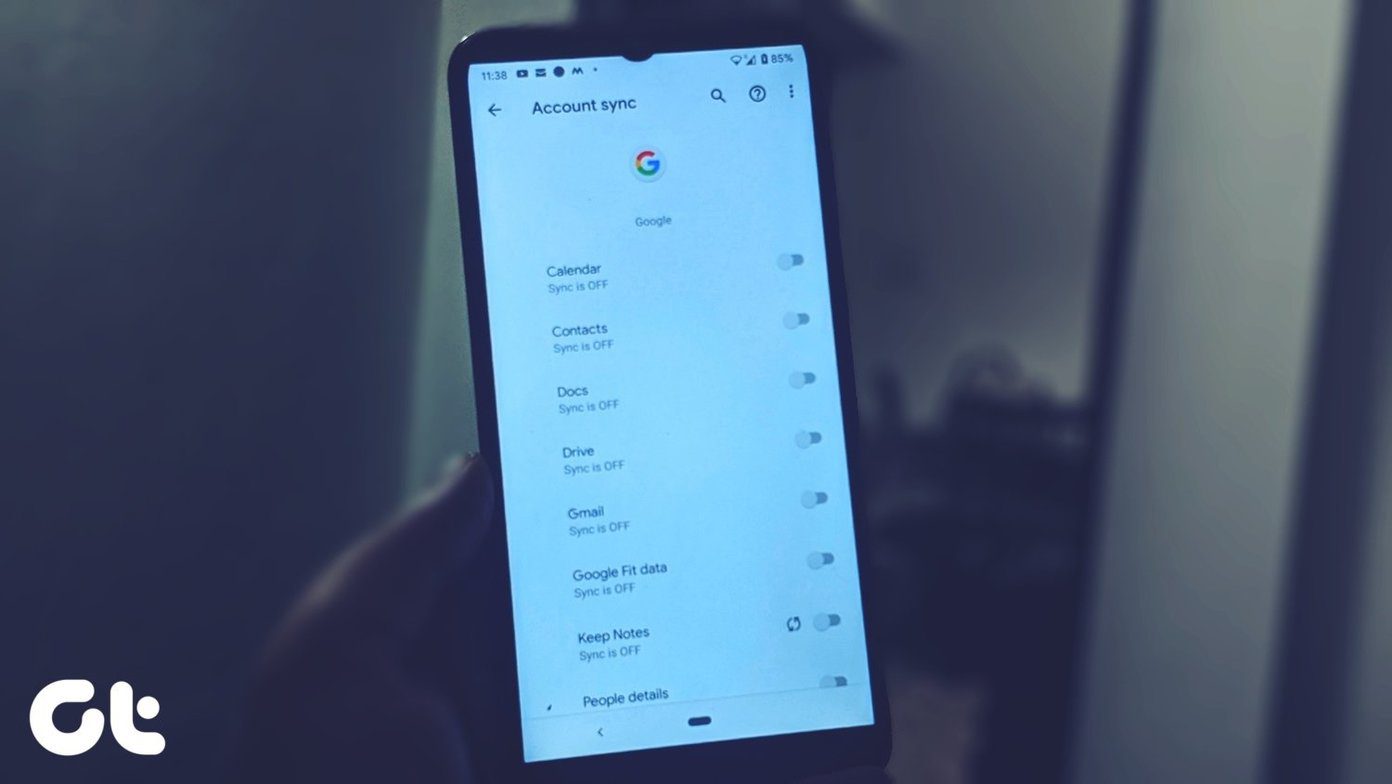 5 Ways to Add Google Account in Android Without Syncing
Method 1: Quickly Disable Sync Google doesn’t let you choose what you want to sync and what you don’t when you add a Google account.
5 Ways to Add Google Account in Android Without Syncing
Method 1: Quickly Disable Sync Google doesn’t let you choose what you want to sync and what you don’t when you add a Google account.
 3 Fixes for iTunes Not Syncing Music on Windows 11
Basic Fixes Check internet speed: Check if you have good internet speeds at your connected network.
3 Fixes for iTunes Not Syncing Music on Windows 11
Basic Fixes Check internet speed: Check if you have good internet speeds at your connected network.
The article above may contain affiliate links which help support Guiding Tech. The content remains unbiased and authentic and will never affect our editorial integrity.

Thank you. Your tips are very helpful.