

Try Basic Fixes
- Restart Windows Explorer: Problems with the Windows Explorer process can also prevent you from copying and pasting files in File Explorer. To fix it, press Ctrl + Shift + Esc to open the Task Manager. In the Processes tab, locate the Windows Explorer process. Right-click on it and select Restart.
- Scan for malware: There’s a chance that your PC might be infected with malware. To ensure your system’s safety, try scanning it with Windows Security or a third-party antivirus program.
Fix 1: Reset the Remote Desktop Clipboard Process
The Remote desktop clipboard process is responsible for managing a shared clipboard between the local host and the remote desktop. If the process encounters any issues, the copy-paste functionality in the Remote Desktop setup may not work. Here’s what you can do to fix it.
Step 1: Press the Windows key + R to open the Run dialog box. Type C:\Windows\System32 in the Open field and press Enter.
Step 2: In the File Explorer window, locate and right-click on rpdclip.exe and select Run as administrator.

Fix 2: Clear Clipboard Cache
Windows stores your copied text and images to its clipboard for later use. However, if the clipboard isn’t working properly, you might have trouble copying or pasting items on Windows. You can try clearing the existing clipboard cache to see if that resolves the issue.
Step 1: Press the Windows key + X to open the Power User menu and select Terminal (Admin) from the list.
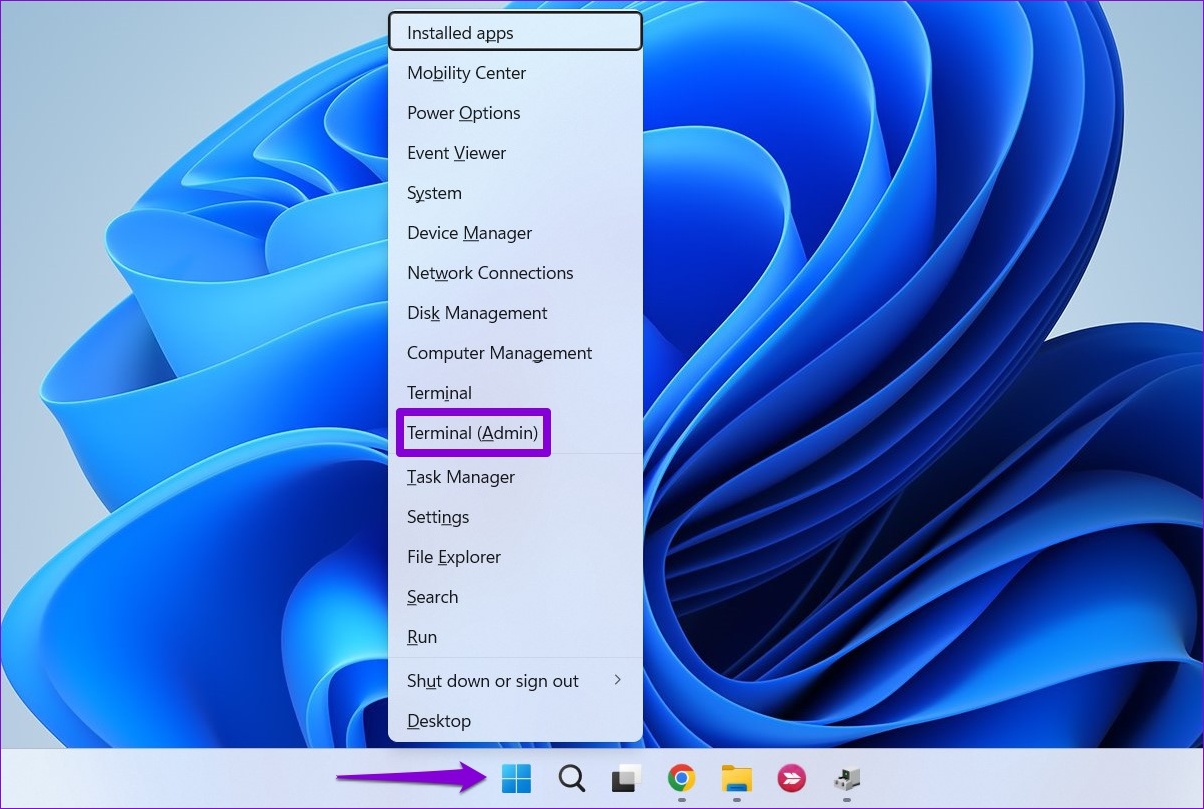
Step 2: Type the following command in the console and press Enter.
echo off | clip

Fix 3: Run the SFC and DISM Scans
Corrupted system files can disrupt Windows processes and prevent them from working correctly. SFC (or System File Checker) scan is a useful utility on Windows that can detect and repair such damaged system files. Here’s how you can run it.
Step 1: Press the Windows key + X to open the Power User menu and select Terminal (Admin) from the list.
Step 2: Type the following command in the console and press Enter.
SFC /scannow
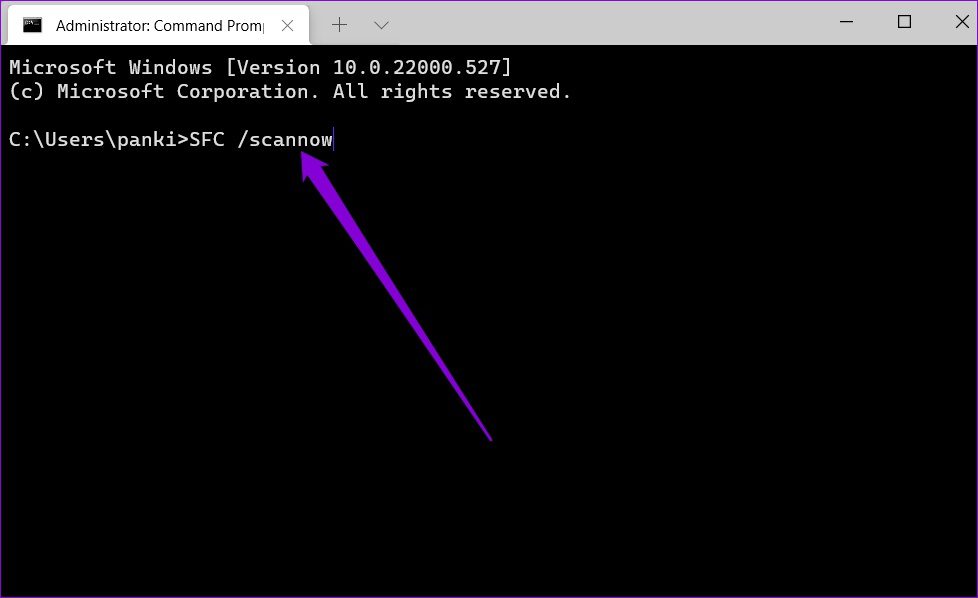
After completing the scan, you’ll see a message indicating whether or not it found any problems. You’ll also get instructions to fix errors if there is a problem.
Next, run the DISM (Deployment Image Servicing and Management) scan. For that, launch Windows Terminal with administrative privileges, run the following commands individually, and press Enter after each command:
DISM /Online /Cleanup-Image /CheckHealth
DISM /Online /Cleanup-Image /ScanHealth
DISM /Online /Cleanup-Image /RestoreHealth

After the scan is complete, restart your PC and see if the issue is still there.
Fix 4: Avoid Using RAM Optimization Apps and Third-Party Clipboard Managers
When you copy any text, image, or file, Windows temporarily stores that content on your PC’s RAM. If you’re using any RAM booster app, it may clear the clipboard data to free up space. This can lead you to believe there are problems with the copy-and-paste functionality on Windows. You can disable any RAM optimization app on your PC to see if that helps.
Using a third-party clipboard manager can also cause the copy-paste functionality to stop working. You can try disabling or uninstalling any third-party clipboard app before testing the copy-paste functionality again on Windows.
Was this helpful?
Last updated on 09 August, 2024
1 Comment
Leave a Reply
Read Next
 Top 9 Ways to Fix Copy-Paste Not Working on Windows 10 Issue
The copy-paste function in Windows 10 is often taken for granted.
Top 9 Ways to Fix Copy-Paste Not Working on Windows 10 Issue
The copy-paste function in Windows 10 is often taken for granted.
 7 Ways to Fix Copy and Paste Not Working in Microsoft Word
Basic Fixes Restart PC: Restart your PC to eliminate any temporary bugs and glitches.
7 Ways to Fix Copy and Paste Not Working in Microsoft Word
Basic Fixes Restart PC: Restart your PC to eliminate any temporary bugs and glitches.
 5 Fixes for Remote Desktop Copy-Paste Not Working on Windows
Fix 1: Configure Remote Desktop Connection Settings A common reason you may be unable to copy and paste data during a Remote Desktop session is if you have previously disabled
5 Fixes for Remote Desktop Copy-Paste Not Working on Windows
Fix 1: Configure Remote Desktop Connection Settings A common reason you may be unable to copy and paste data during a Remote Desktop session is if you have previously disabled
 4 Ways to Fix Copy and Paste Not Working on Mac
Fix 1: Force Quit the Pasteboard Server Pboard is the short form for Pasteboard Server.
4 Ways to Fix Copy and Paste Not Working on Mac
Fix 1: Force Quit the Pasteboard Server Pboard is the short form for Pasteboard Server.
 How to Fix Copy and Paste Not Working in Chrome
Note: While the article concentrates on solutions for the Chrome browser, you can use them to fix the issue in any other browser, such as Safari, Firefox, and Edge.
How to Fix Copy and Paste Not Working in Chrome
Note: While the article concentrates on solutions for the Chrome browser, you can use them to fix the issue in any other browser, such as Safari, Firefox, and Edge.
 5 Ways to Copy and Paste Text on Android
Method 1: Copy and Paste General Text To copy and paste text on your Android device, follow these steps: Step 1: Long-press the text you want to copy.
5 Ways to Copy and Paste Text on Android
Method 1: Copy and Paste General Text To copy and paste text on your Android device, follow these steps: Step 1: Long-press the text you want to copy.
 How to Copy and Paste Pictures on Android
Copying pictures on iPhones and PCs is easy.
How to Copy and Paste Pictures on Android
Copying pictures on iPhones and PCs is easy.
 4 Ways to Copy Captions or Text From an Instagram Post
Method 1: Using a Web Browser The easiest way to copy any text on Instagram is to use Instagram on a web browser.
4 Ways to Copy Captions or Text From an Instagram Post
Method 1: Using a Web Browser The easiest way to copy any text on Instagram is to use Instagram on a web browser.
The article above may contain affiliate links which help support Guiding Tech. The content remains unbiased and authentic and will never affect our editorial integrity.

copy paste issue cant copy paste it is not suppoting on my pc