Fix 1: Create Shortcut Option Grayed Out Issue
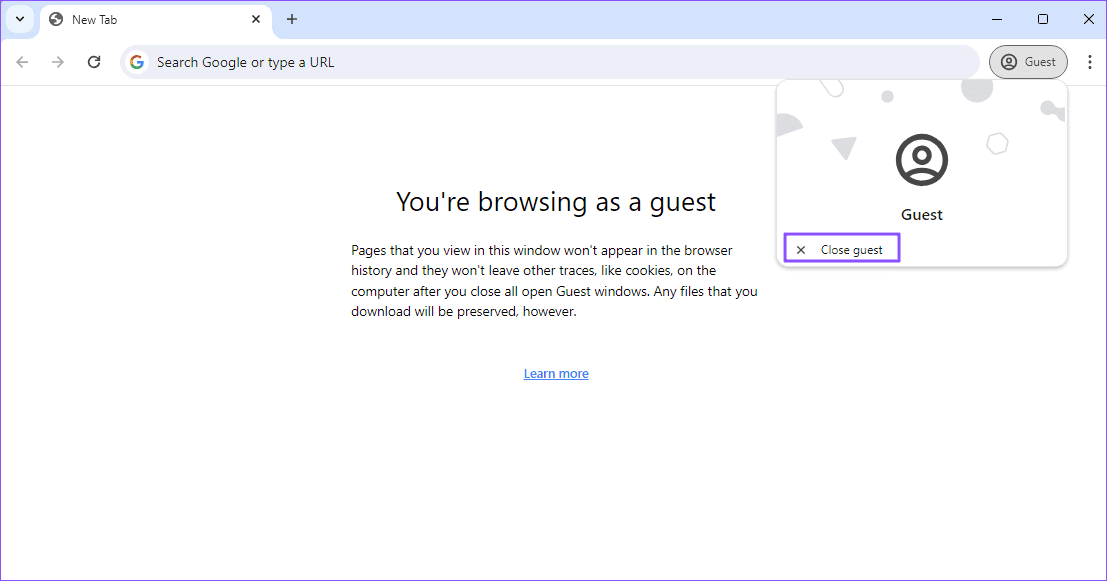
Sometimes, the Create Shortcut option will be grayed out if you use an Incognito or Guest window in Chrome. You must open the website in a standard Chrome window to resolve the issue. The same restriction applies when using Chrome in Guest mode.
Step 1: To switch to normal browsing mode while in Incognito mode, click on the three-dot menu > New window or press Ctrl + N.

Step 2: Load the website to create a shortcut; you should be able to access the Create Shortcut option without issues.
Step 3: To exit the Guest mode, click on the Guest profile icon and Exit Guest. Once again, load the website in a normal Chrome window and reaccess the Create Shortcut option.
Fix 2: Create Shortcut Option Missing From More Tools
Earlier, Chrome had the option under More tools in the primary menu. However, this was moved recently under a different menu.
Step 1: Click on the three-dot menu and select Save and share.

Step 2: Click Create shortcut to make a shortcut of the website.
Fix 3: Website Shortcut Not Showing on Desktop Issue
If the shortcut to a website doesn’t show up on your PC or Mac, here’s how to fix the issue.
Step 1: Visit the Chrome app launcher (type chrome://apps into the address bar).
Step 2: Right-click the shortcut and select Create Shortcuts in the context menu.

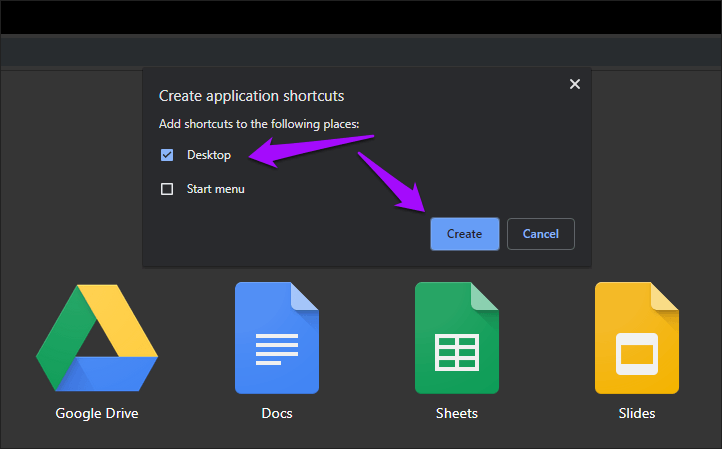
Step 3: Check the box next to Desktop and click Create. You should find the shortcut present on the desktop.
Step 4: If the shortcut fails to appear, delete it and create a new one. To do that, right-click the shortcut within the Apps Launcher and click Remove From Chrome.
Bonus Tip: Install as Progressive Web Apps
Starting with Chrome version 70, the browser lets you install certain websites as progressive web apps (PWAs). These apps work similarly to ordinary website shortcuts, but feature bolstered functionality such as notification support and faster load times.
After loading a website, look for a computer icon with down arrow in the right corner of the address bar. If you see one, click it, and then click Install.

By default, installing PWAs will configure the shortcuts to launch in their dedicated windows, which lets you skip the additional step of checking off the Open As Window box when using the Create Shortcut option.
However, remember that this option is unavailable on most websites—if that’s the case, use the Create Shortcut option instead.
Was this helpful?
Last updated on 08 July, 2024
Read Next
 How to Create Incognito Mode Shortcut on Windows Desktop
Create a Shortcut to Open Incognito Tab on Desktop Nearly all browsers offer Incognito/Private mode, but the feature is named differently on every browser.
How to Create Incognito Mode Shortcut on Windows Desktop
Create a Shortcut to Open Incognito Tab on Desktop Nearly all browsers offer Incognito/Private mode, but the feature is named differently on every browser.
 6 Ways to Fix Chrome Autofill Not Working Issue
Fix 1: Check Chrome’s Autofill Settings Usually, Google Chrome automatically saves your passwords, addresses, or payment methods.
6 Ways to Fix Chrome Autofill Not Working Issue
Fix 1: Check Chrome’s Autofill Settings Usually, Google Chrome automatically saves your passwords, addresses, or payment methods.
 4 Ways to Fix Snipping Tool Keyboard Shortcut Not Working
Basic Fixes: Check your keyboard for damages: Any physical damage to keyboard keys might prevent them from working as expected.
4 Ways to Fix Snipping Tool Keyboard Shortcut Not Working
Basic Fixes: Check your keyboard for damages: Any physical damage to keyboard keys might prevent them from working as expected.
 How to Fix Chrome Sync Bookmarks Not Working Issue
Preliminary Fixes Restart device: Restarting your device refreshes your system, closes background processes that might be interfering, and clears temporary files.
How to Fix Chrome Sync Bookmarks Not Working Issue
Preliminary Fixes Restart device: Restarting your device refreshes your system, closes background processes that might be interfering, and clears temporary files.
 4 Ways to Fix Chrome Bookmarks Not Deleting Issue
Basic Fixes: Check for software updates: Software glitches can cause Chrome bookmarks to show up even after being deleted.
4 Ways to Fix Chrome Bookmarks Not Deleting Issue
Basic Fixes: Check for software updates: Software glitches can cause Chrome bookmarks to show up even after being deleted.
 6 Ways to Fix Chrome Keeps Logging Me Out Issue
Basic Fixes Disable Chrome extensions: Select the vertical three-dot menu at the top right of Google Chrome, and click Extensions > Manage Extensions.
6 Ways to Fix Chrome Keeps Logging Me Out Issue
Basic Fixes Disable Chrome extensions: Select the vertical three-dot menu at the top right of Google Chrome, and click Extensions > Manage Extensions.
 Top 10 Ways to Fix Chrome Passwords Not Syncing Issue
Chrome's built-in password manager may lack the advanced functionalities of dedicated services such as 1Password, LastPass, or Dashlane, but it sure is convenient to use.
Top 10 Ways to Fix Chrome Passwords Not Syncing Issue
Chrome's built-in password manager may lack the advanced functionalities of dedicated services such as 1Password, LastPass, or Dashlane, but it sure is convenient to use.
 3 Fixes for Chrome Send to Devices Missing or Not Working Issue
Note: The steps are the same for Windows and Mac on desktop and Android and iOS on mobile.
3 Fixes for Chrome Send to Devices Missing or Not Working Issue
Note: The steps are the same for Windows and Mac on desktop and Android and iOS on mobile.
The article above may contain affiliate links which help support Guiding Tech. The content remains unbiased and authentic and will never affect our editorial integrity.