Basic Fixes
- Avoid proximity sensor activation: Don’t bring your iPhone closer to your ear while listening to the voice messages.
- Send the voice message again: Try to record and send the voice message again to your contact on WhatsApp.
- Force quit and relaunch the WhatsApp app: This will give the app a fresh start if it has been running in the background for quite some time now.
- Update or reinstall WhatsApp: Install the latest version of WhatsApp on your iPhone.
Fix 1: Disable Bluetooth Devices
Disconnect any Bluetooth device connected to your iPhone. The sound of the voice message will be heard on your output device. If that’s a Bluetooth device, you will hear the voice message audio in that device.
Open Settings > Bluetooth > Info icon next to the device name > Forget This Device.


Fix 2: Check the Volume Levels on Your iPhone
Starting with the basic solution, you should check the volume levels of your iPhone to fix the issue of low volume on WhatsApp voice message. You might have reduced the volume levels while working or at a place requiring you to do so. If you have enabled Silent Mode using the side switch, move it upwards to disable it.
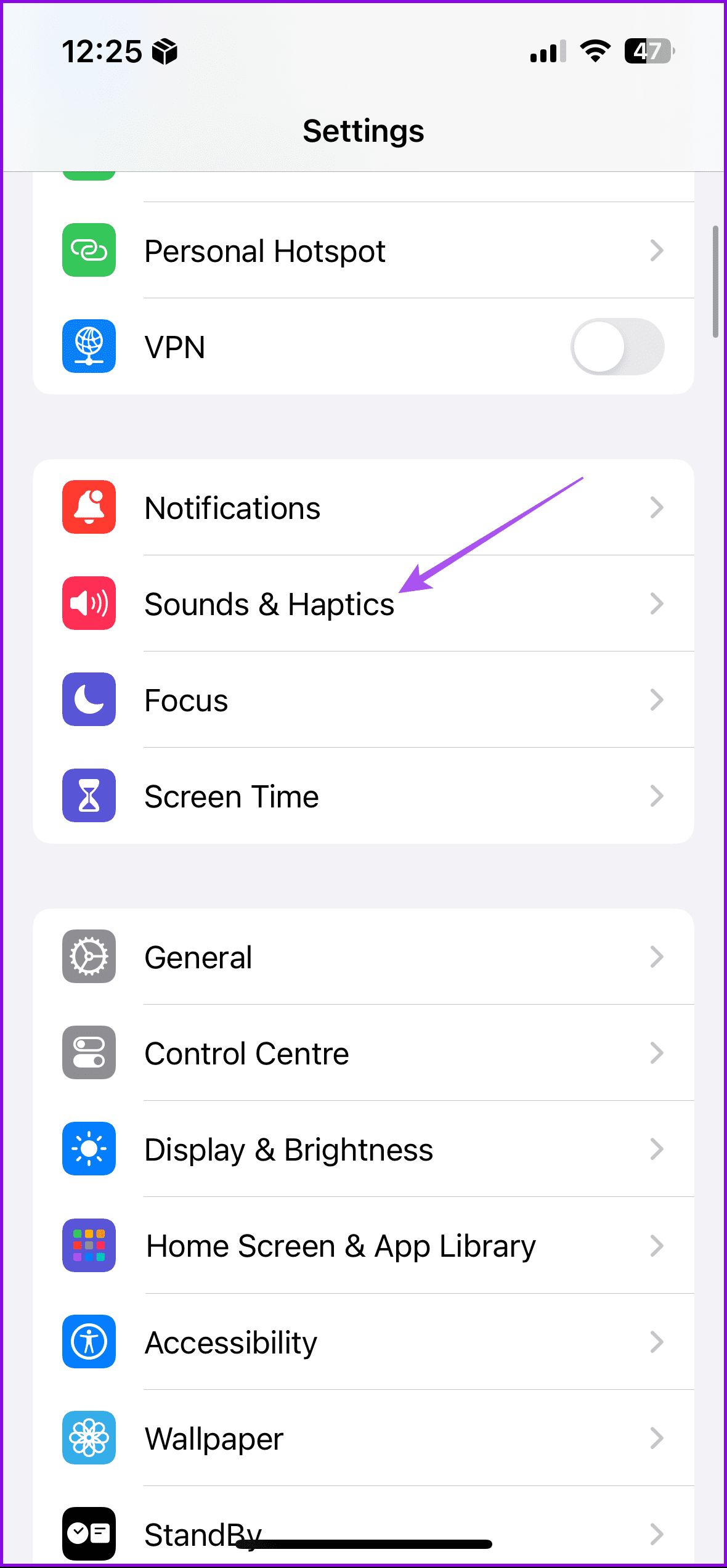
Apart from using the volume buttons on the side of your iPhone, here’s how you can increase the volume levels.
Open Settings > Sound & Haptics > under Ringtone and Volume, use the slider to change the volume level.

Fix 3: Reset All Settings
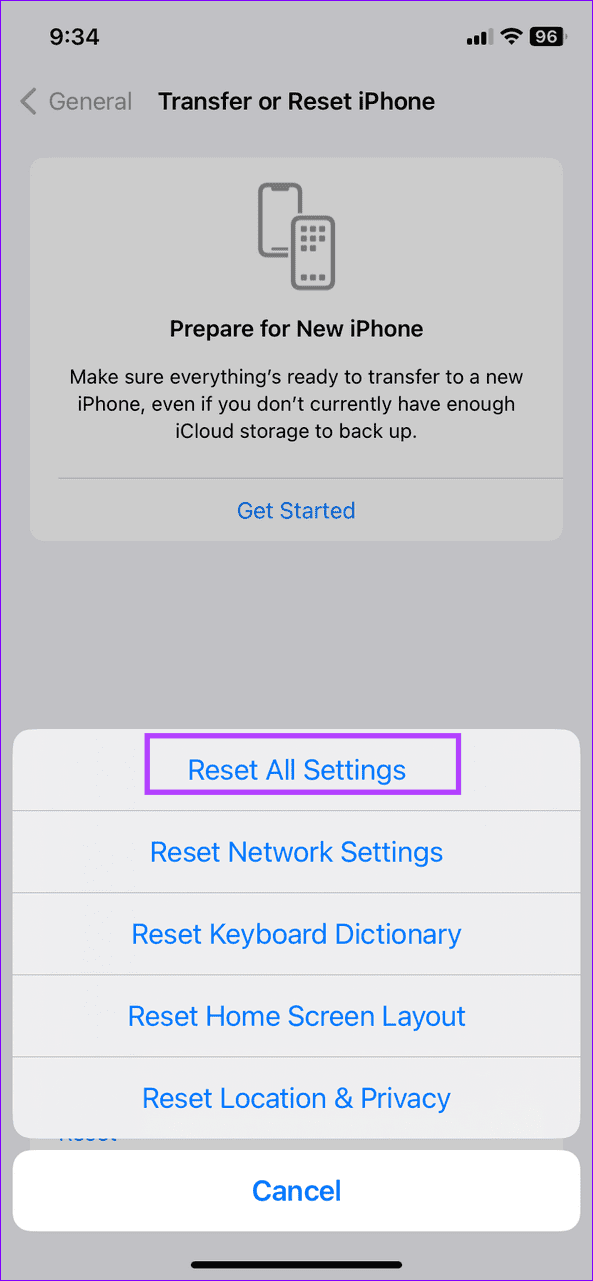
If nothing works, we suggest that you reset all settings on your iPhone. This will reset all app and feature preferences on your iPhone.
Open Settings > General > Transfer or Reset iPhone > Reset > Reset All Settings.

If you want to learn more, refer to our post on how to save WhatsApp audio on your iPhone.
Was this helpful?
Last updated on 04 September, 2024
Read Next
 3 Fixes for iMessage Voice Messages Playing in Low Volume
Basic Fixes Check iPhone volume levels: You may have reduced the volume levels previously to avoid disturbing others while using your iPhone to consume media.
3 Fixes for iMessage Voice Messages Playing in Low Volume
Basic Fixes Check iPhone volume levels: You may have reduced the volume levels previously to avoid disturbing others while using your iPhone to consume media.
 5 Ways to Fix Low or Loud Alarm Volume on iPhone
Common Fixes Restart iPhone - Press and hold either of the volume buttons with the side button and drag the power off slider to shut down.
5 Ways to Fix Low or Loud Alarm Volume on iPhone
Common Fixes Restart iPhone - Press and hold either of the volume buttons with the side button and drag the power off slider to shut down.
 5 Ways to Fix Low Call Volume on iPhone
Basic Fixes Clean earpiece - Gently clean the earpiece cavity to remove accumulated dust and debris.
5 Ways to Fix Low Call Volume on iPhone
Basic Fixes Clean earpiece - Gently clean the earpiece cavity to remove accumulated dust and debris.
 4 Ways to Fix Apple Music Low Volume Issue on iPhone
Basic Fixes: Check volume levels on iPhone: If the volume levels are set to low, it might result in an overall low volume when using Apple Music.
4 Ways to Fix Apple Music Low Volume Issue on iPhone
Basic Fixes: Check volume levels on iPhone: If the volume levels are set to low, it might result in an overall low volume when using Apple Music.
 3 Fixes for Voice Messages Not Playing in Instagram on iPhone
Basic Fixes Switch to Wi-Fi: If you have access to a Wi-Fi, make the switch to get better internet speeds.
3 Fixes for Voice Messages Not Playing in Instagram on iPhone
Basic Fixes Switch to Wi-Fi: If you have access to a Wi-Fi, make the switch to get better internet speeds.
 7 Ways to Fix Low Volume on YouTube Videos in Chrome
Basic Fixes Restart Chrome and the computer - A simple reboot can fix minor glitches that may cause the volume problem.
7 Ways to Fix Low Volume on YouTube Videos in Chrome
Basic Fixes Restart Chrome and the computer - A simple reboot can fix minor glitches that may cause the volume problem.
 7 Ways to Fix Low Volume on Windows 11
https://youtu.be/1snNqM2ZcwI Try Basic Fixes Check the volume mixer: Right-click the speaker icon on the taskbar and select the Open volume mixer option.
7 Ways to Fix Low Volume on Windows 11
https://youtu.be/1snNqM2ZcwI Try Basic Fixes Check the volume mixer: Right-click the speaker icon on the taskbar and select the Open volume mixer option.
 How to Send a Voice Message on iPhone (via iMessage)
Method 1.
How to Send a Voice Message on iPhone (via iMessage)
Method 1.
The article above may contain affiliate links which help support Guiding Tech. The content remains unbiased and authentic and will never affect our editorial integrity.