Preliminary Fixes
- Your IP Address is Blocked: Websites sometimes block specific IP addresses for suspicious activity, security reasons, or geographic restrictions. If your IP address has been blocked, you won’t be able to access the website from any browser.
- Check Website Status: Sometimes, the website you’re trying to visit may be down for everyone due to server issues, maintenance, or other technical problems. Websites like DownDetector or IsItDownRightNow can tell you if the site is experiencing widespread issues.
- Try Private Mode: Browsing data such as cookies, cache, and saved login information can sometimes cause issues when accessing certain websites. Using private or incognito mode bypasses this stored data.
- You are Shadowbanned: A shadowban is a situation where a user is blocked or partially blocked. While the user can still access the website, their actions (such as posts or comments) may not be visible to others, or they may be unable to interact with specific features.
Fix 1: Flush the DNS Cache
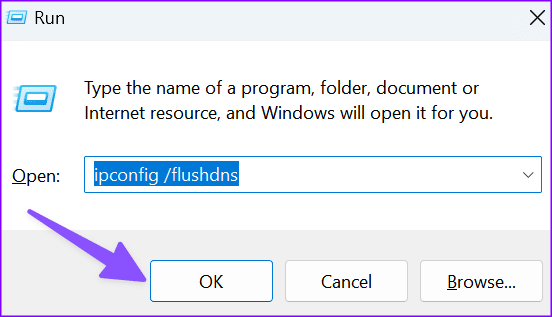
Step 1: Press the Windows + R key to open the Run command box.
Step 2: Type the below command and hit Enter.
ipconfig /flushdns
Fix 2: Reset TCP/IP
Step 1: Select Start and type CMD.
Step 2: Type Command Prompt, then choose Run as Administrator.
Step 3: From the command prompt, type the following, then press Enter.
netsh int ip reset

Restart your computer, then try to see if you can access the Internet from a browser now.
Fix 3: Clear Website Cache
You can clear website cache and try again. Follow the steps below.
Step 1: Visit the troubling website in Google Chrome.
Step 2: Click the lock icon in the address bar and open Site settings.
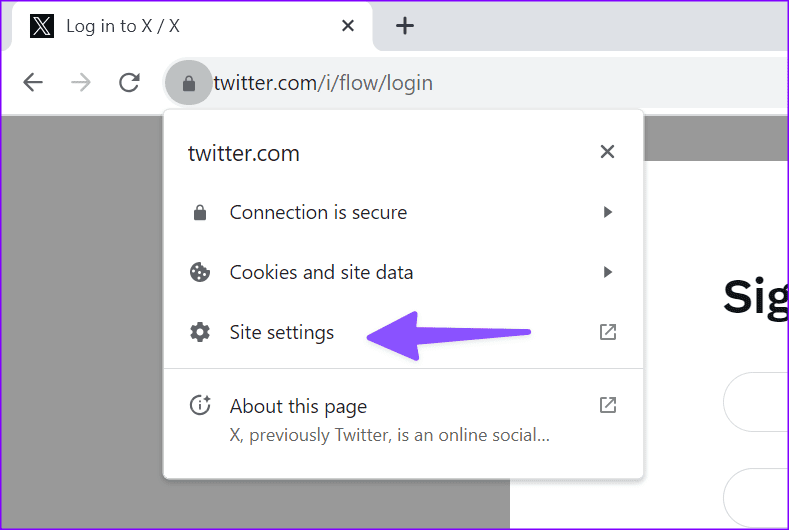
Step 3: Click Delete data.
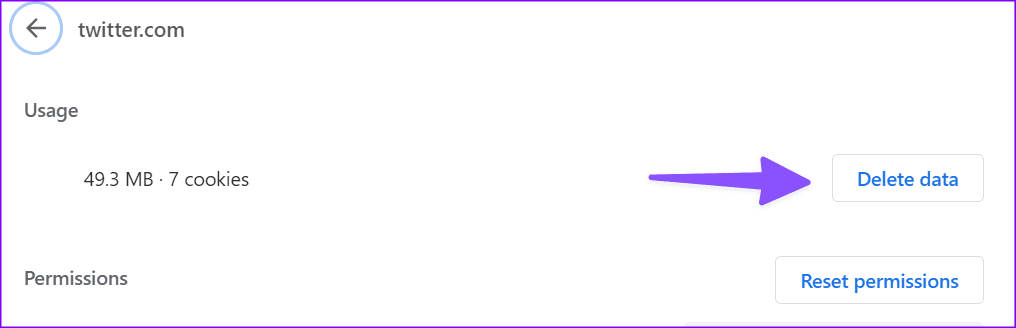
Restart the browser and try again.
Fix 4: Run Windows Security Scan
Step 1: Open Windows Security and go to Virus & Threat Protection from the sidebar.
Step 2: Select Scan options.

Step 3: Run a full scan from the following menu.
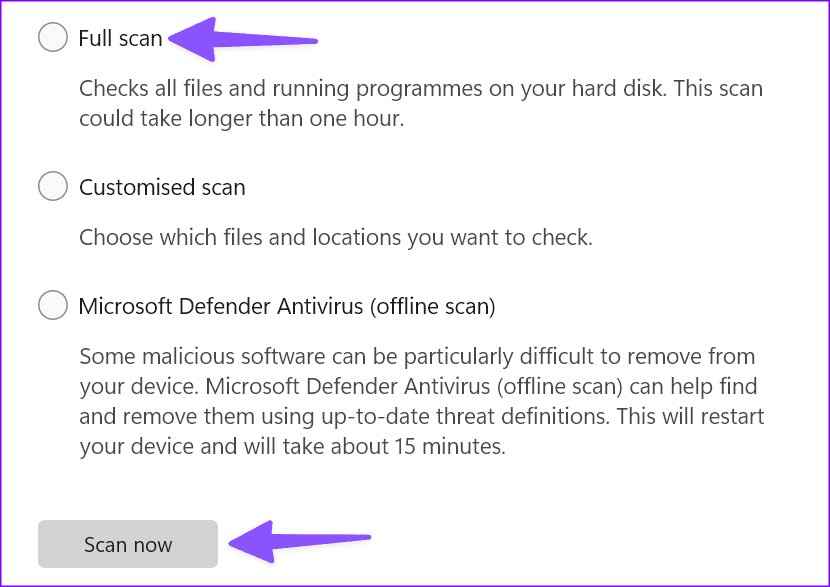
If Windows Security is not opening, check our dedicated guide to fix the problem.
Fix 5: Disable Firewall
Step 1: Launch Windows Security and select Firewall & network protection.
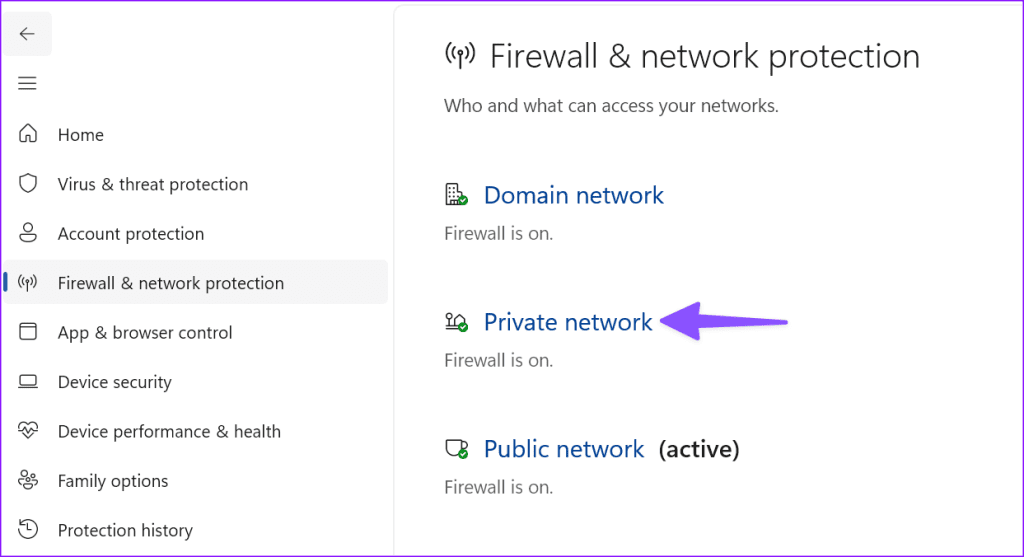
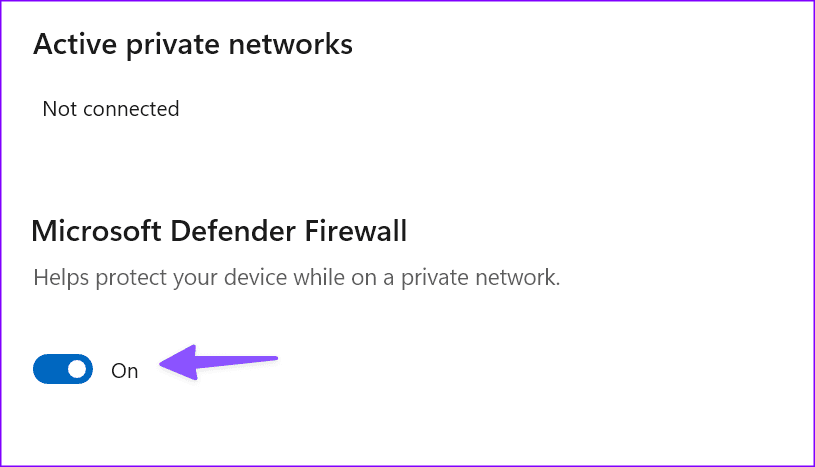
Step 2: Select your network profile and disable the Microsoft Defender Firewall option.
Fix 6: Disable Extensions
Step 1: Launch Chrome, click the three-dot menu, and expand Extensions.
Step 2: Choose Manage Extensions.
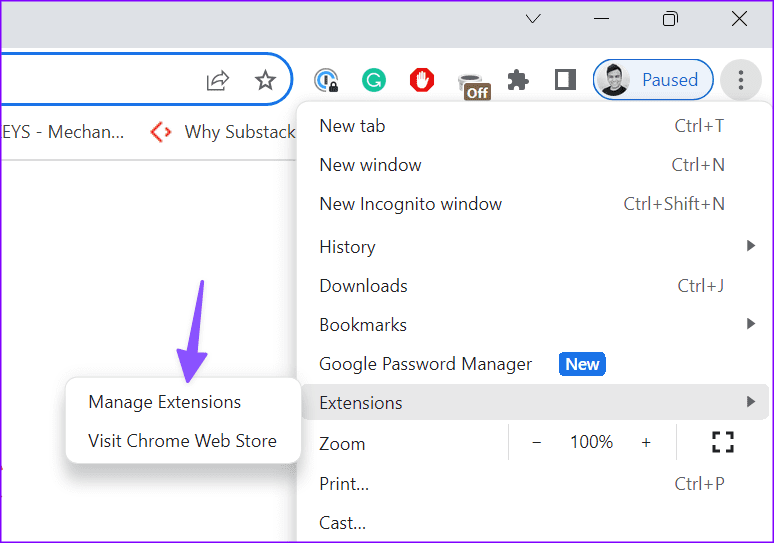
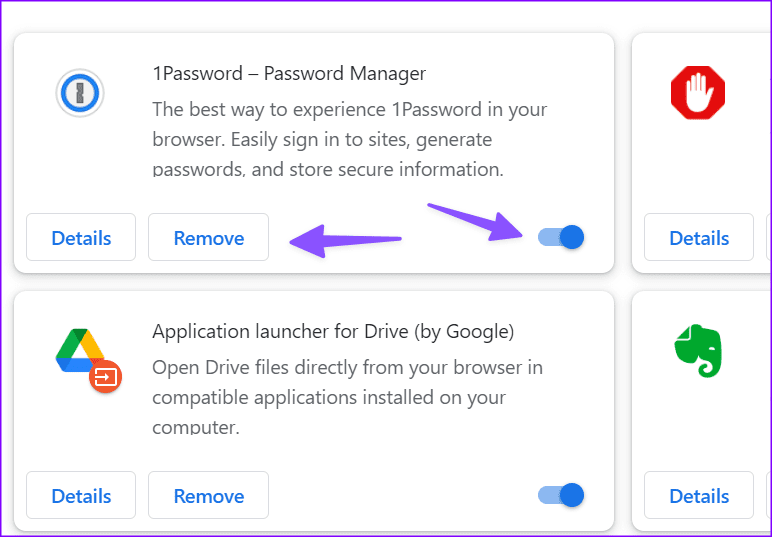
Step 3: Turn off or uninstall irrelevant extensions.
Fix 7: Run a Netsh Command
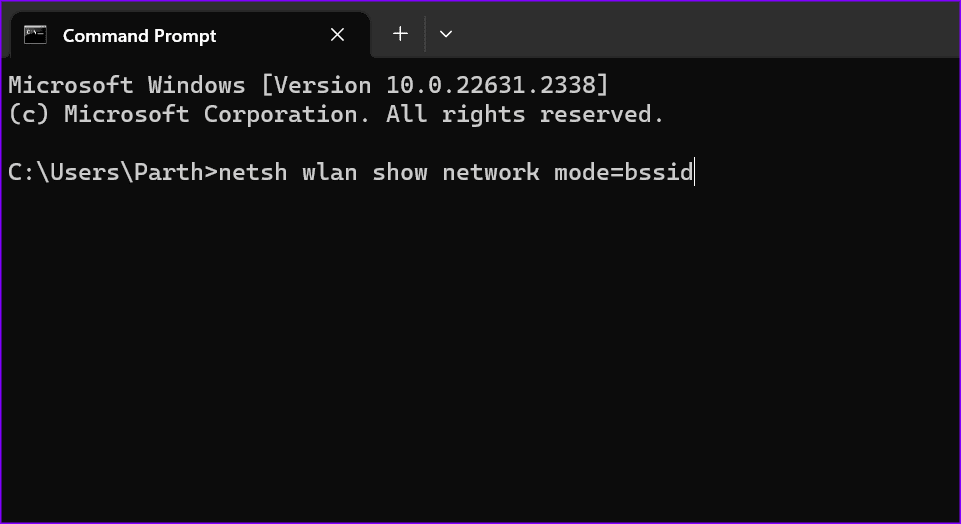
Step 1: Launch the Command Prompt app as an admin.
Step 2: Run the following command and hit Enter.
netsh wlan show network mode=bssid
You can check Microsoft’s official website to learn about popular netsh commands.
Hopefully, one of the above steps has provided you with a successful solution to not being able to connect to certain websites on your Windows computer.
Was this helpful?
Last updated on 20 August, 2024
Read Next
 6 Ways to Fix Certain Websites Not Loading on Mac
Basic Fixes Restart your Mac: Start the solution hunt by restarting your Mac.
6 Ways to Fix Certain Websites Not Loading on Mac
Basic Fixes Restart your Mac: Start the solution hunt by restarting your Mac.
 How to Access Desktop Websites in Safari
Method 1: On iPhone Note: Modern websites have responsive designs that adapt to different screen sizes, making it challenging to force a desktop view.
How to Access Desktop Websites in Safari
Method 1: On iPhone Note: Modern websites have responsive designs that adapt to different screen sizes, making it challenging to force a desktop view.
 4 Ways to Fix “We Restrict Certain Activity to Protect Our Community” on Instagram
Basic Fixes Check if Instagram is down: Check if Instagram is facing downtime.
4 Ways to Fix “We Restrict Certain Activity to Protect Our Community” on Instagram
Basic Fixes Check if Instagram is down: Check if Instagram is facing downtime.
 How to Prevent Users From Running Certain Programs on Windows 11
Method 1: Prevent Users From Running Certain Programs via the Group Policy Editor The Local Group Policy Editor on Windows makes it easy to apply system-wide changes on a computer.
How to Prevent Users From Running Certain Programs on Windows 11
Method 1: Prevent Users From Running Certain Programs via the Group Policy Editor The Local Group Policy Editor on Windows makes it easy to apply system-wide changes on a computer.
 How to Create and Share Link of YouTube Videos Starting at a Certain Time
YouTube, one of the most popular video-streaming community, actually has a lot of tricks that power users like you must be aware of, but if you’re specifically looking for a
How to Create and Share Link of YouTube Videos Starting at a Certain Time
YouTube, one of the most popular video-streaming community, actually has a lot of tricks that power users like you must be aware of, but if you’re specifically looking for a
 3 Fixes for “We Limit How Often You Can Do Certain Things on Instagram” Error
What Does the "We Limit How Often You Can Do Certain Things on Instagram" Error Mean Instagram takes various measures to protect its platform from the annoying and harmful presence
3 Fixes for “We Limit How Often You Can Do Certain Things on Instagram” Error
What Does the "We Limit How Often You Can Do Certain Things on Instagram" Error Mean Instagram takes various measures to protect its platform from the annoying and harmful presence
 Kiwi Browser vs Google Chrome: Which Android Browser Should You Use
The Google Play store is chock-full of browser apps, all of which boast of a single stand out feature that differentiates them from the rest.
Kiwi Browser vs Google Chrome: Which Android Browser Should You Use
The Google Play store is chock-full of browser apps, all of which boast of a single stand out feature that differentiates them from the rest.
 6 Ways to Fix Edge Keeps Signing Me Out of Websites
Fix 1: Prevent Edge From Deleting Cookies and Passwords on Exit First, ensure that Edge isn’t configured to delete passwords and browser cookies every time you close the browser.
6 Ways to Fix Edge Keeps Signing Me Out of Websites
Fix 1: Prevent Edge From Deleting Cookies and Passwords on Exit First, ensure that Edge isn’t configured to delete passwords and browser cookies every time you close the browser.
The article above may contain affiliate links which help support Guiding Tech. The content remains unbiased and authentic and will never affect our editorial integrity.