Basic Fixes
- Use 5GHz Wi-Fi: Bluetooth uses a 2.4GHz frequency band, which can cause the signals to overlap and can cause problems by disconnecting the device. Therefore, try using a 5Ghz Wi-Fi.
- Charge Bluetooth device: Ensure there’s enough battery left on your Bluetooth device.
- Check distance between devices: Maintain a close distance between your phone and Bluetooth device. If there are physical obstructions like walls in between, Bluetooth will keep disconnecting
- Restart devices: Restart both your smartphone and the Bluetooth device to fix any bugs and glitches.
Fix 1: Reconnect Bluetooth Device
It’s a good idea to pair it with your phone again to get rid of any bugs by establishing a fresh connection.
Open the Settings app, go to Bluetooth, select the settings icon next to your Bluetooth device, and select Forget.


Fix 2: Enable Unrestricted Battery Usage to Bluetooth
If you’ve enabled any battery usage restrictions for Bluetooth, you may face problems.
Step 1: Open Settings > Apps > Show All Apps, tap on the three-dots icon at the top right, and select Show System.

Step 2: Select Bluetooth from the list of apps, select App battery usage, and select Unrestricted.

Fix 3: Clear Cache
If the software components that control Bluetooth connectivity on your Android device are affected by a bug, you can clear the cache and junk files from the service.
Step 1: Open Settings > Apps > Show All Apps, tap on the three-dots icon at the top right, and select Show System.
Step 2: Select Bluetooth from the list. Select Storage & Cache > Clear Cache.


Also Read: 3 ways to fix Android can’t find nearby Bluetooth devices
Fix 4: Update or Reset Bluetooth Device
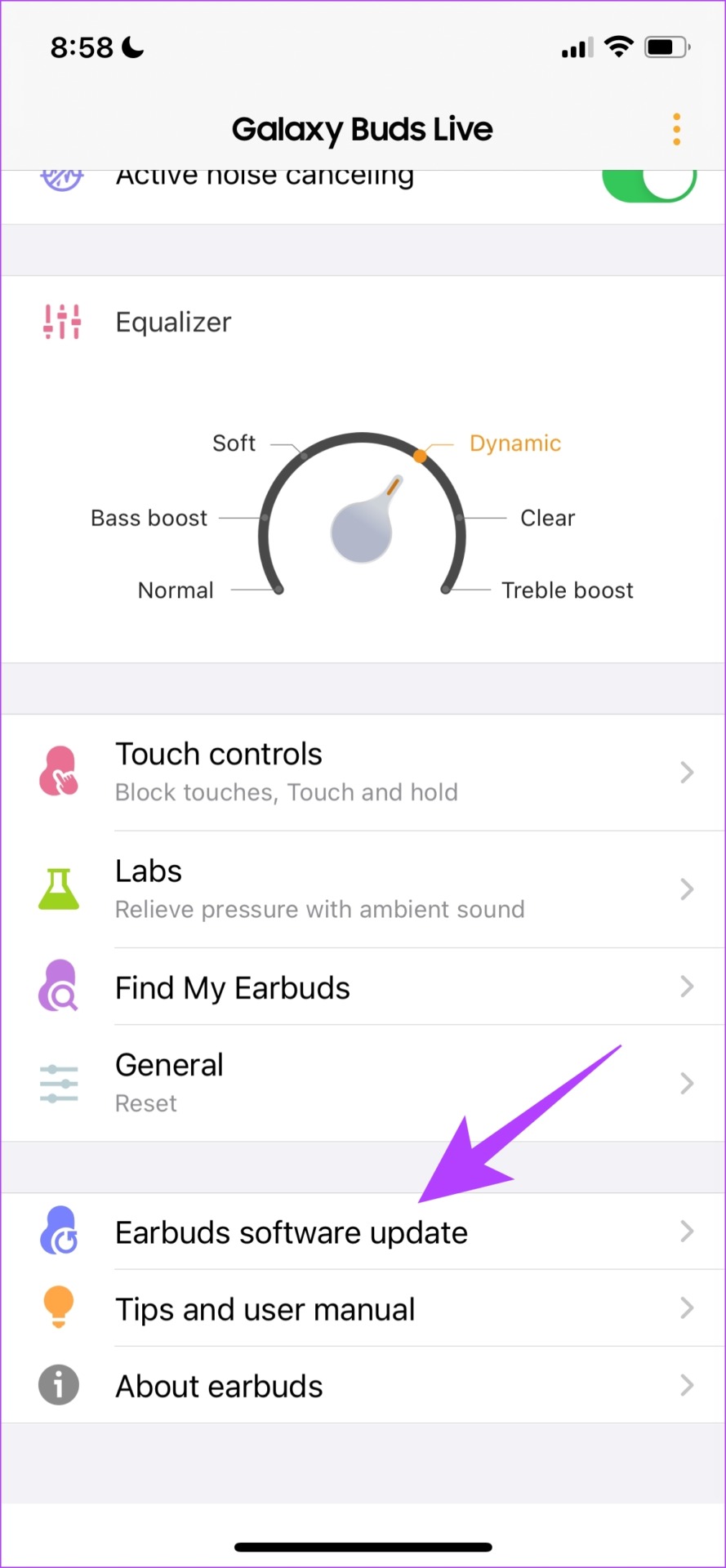
Some Bluetooth devices come with a dedicated app to control and configure them. These apps also present you with an option to update the firmware.
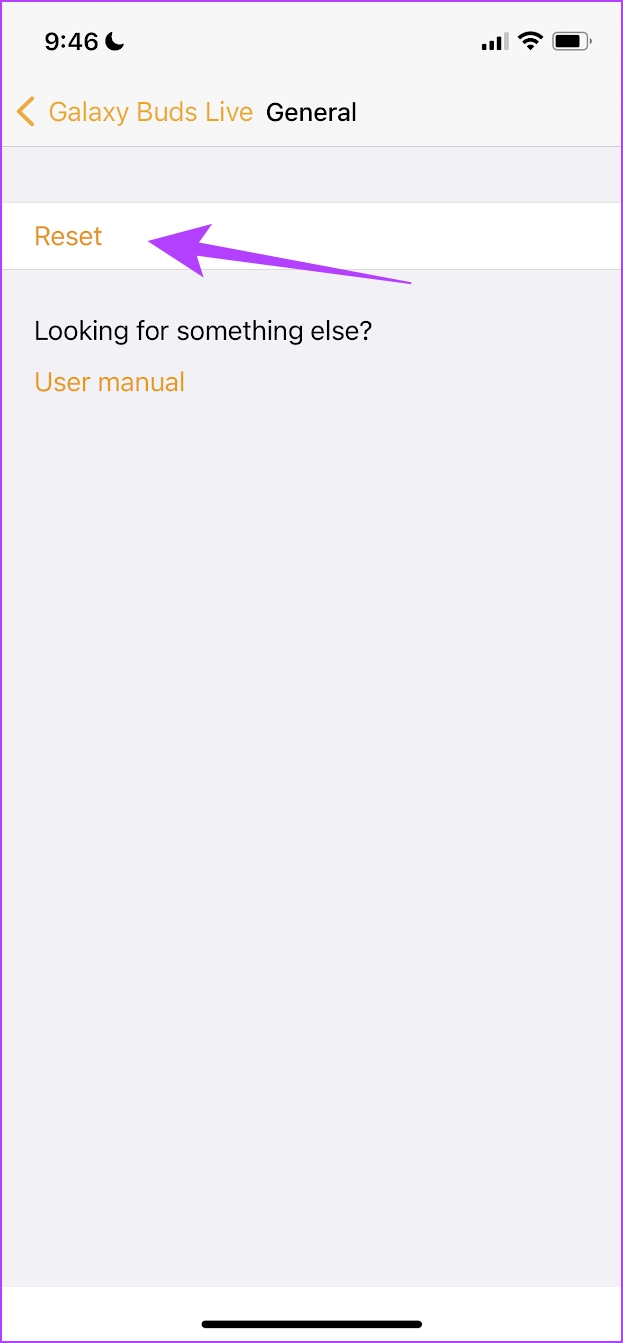
Resetting the Bluetooth device will reset all the applied configurations to their default states. There is a good chance that most issues are fixed. This is also possible on the official app for the Bluetooth device. Here’s how it looks on the Samsung Galaxy Buds app.
For example, here’s how it looks on the dedicated app for Samsung Bluetooth devices to update the firmware.
If none of the above methods work, try resetting the network settings on your Android device.
Was this helpful?
Last updated on 24 July, 2024
Read Next
 2 Ways to Fix Android Phone Keeps Disconnecting From Wi-Fi
Try Basic Fixes Disable interfering apps: VPNs and Wi-Fi prioritizing apps can sometimes interfere with your phone's network.
2 Ways to Fix Android Phone Keeps Disconnecting From Wi-Fi
Try Basic Fixes Disable interfering apps: VPNs and Wi-Fi prioritizing apps can sometimes interfere with your phone's network.
 4 Ways to Fix Android Auto Keeps Disconnecting
Basic Fixes Update the Android Auto app: Sometimes, the Android Auto interface may not support an old or outdated version of the app.
4 Ways to Fix Android Auto Keeps Disconnecting
Basic Fixes Update the Android Auto app: Sometimes, the Android Auto interface may not support an old or outdated version of the app.
 7 Best Ways to Fix Wear OS Smartwatch Keeps Disconnecting From Phone
A smartwatch is a great supplement to a smartphone.
7 Best Ways to Fix Wear OS Smartwatch Keeps Disconnecting From Phone
A smartwatch is a great supplement to a smartphone.
 6 Ways to Fix Mac Wi-Fi Keeps Disconnecting
Fix 1: Run macOS Wireless Diagnostics macOS has a built-in diagnostic tool to diagnose and fix connectivity problems on your Mac.
6 Ways to Fix Mac Wi-Fi Keeps Disconnecting
Fix 1: Run macOS Wireless Diagnostics macOS has a built-in diagnostic tool to diagnose and fix connectivity problems on your Mac.
 8 Best Ways to Fix Windows 10 Ethernet Keeps Disconnecting
On Windows 10 computers, both wired and wireless connections come with their respective problems.
8 Best Ways to Fix Windows 10 Ethernet Keeps Disconnecting
On Windows 10 computers, both wired and wireless connections come with their respective problems.
 Top 14 Ways to Fix Apple CarPlay Keeps Disconnecting
Apple CarPlay is quite helpful while driving.
Top 14 Ways to Fix Apple CarPlay Keeps Disconnecting
Apple CarPlay is quite helpful while driving.
 How to Fix iPhone Hotspot Keeps Disconnecting on Windows and Mac
Why Does My iPhone Hotspot Keeps Disconnecting Before we show you step-by-step instructions to fix the hotspot issue on your iPhone, let's quickly go over some of the possible reasons
How to Fix iPhone Hotspot Keeps Disconnecting on Windows and Mac
Why Does My iPhone Hotspot Keeps Disconnecting Before we show you step-by-step instructions to fix the hotspot issue on your iPhone, let's quickly go over some of the possible reasons
 4 Ways to Fix USB Devices Keep Disconnecting and Reconnecting in Windows 11
https://youtu.be/tUV-xdBsm5o Try Basic Fixes Reconnect the device: Unplugging your USB device and plugging it back in should help fix any issues caused by a loose connection.
4 Ways to Fix USB Devices Keep Disconnecting and Reconnecting in Windows 11
https://youtu.be/tUV-xdBsm5o Try Basic Fixes Reconnect the device: Unplugging your USB device and plugging it back in should help fix any issues caused by a loose connection.
The article above may contain affiliate links which help support Guiding Tech. The content remains unbiased and authentic and will never affect our editorial integrity.