

Basic Fixes
Try basic troubleshooting options first if your apps fail to automatically update within a reasonable time frame.
- Update iPhone software: To update to the newest iOS version, go to Settings > General > Software Update.
- Check Apple’s server status: There could be issues with Apple’s servers. Your apps won’t update if there’s a red or yellow dot beside the App Store. Once you see a green dot, automatic updating should commence.
Fix 1: Enable Automatic App Updates
The apps auto-update if the feature is turned on. To enable it, open Settings. Locate and select App Store. Then, enable the toggle for App Updates.
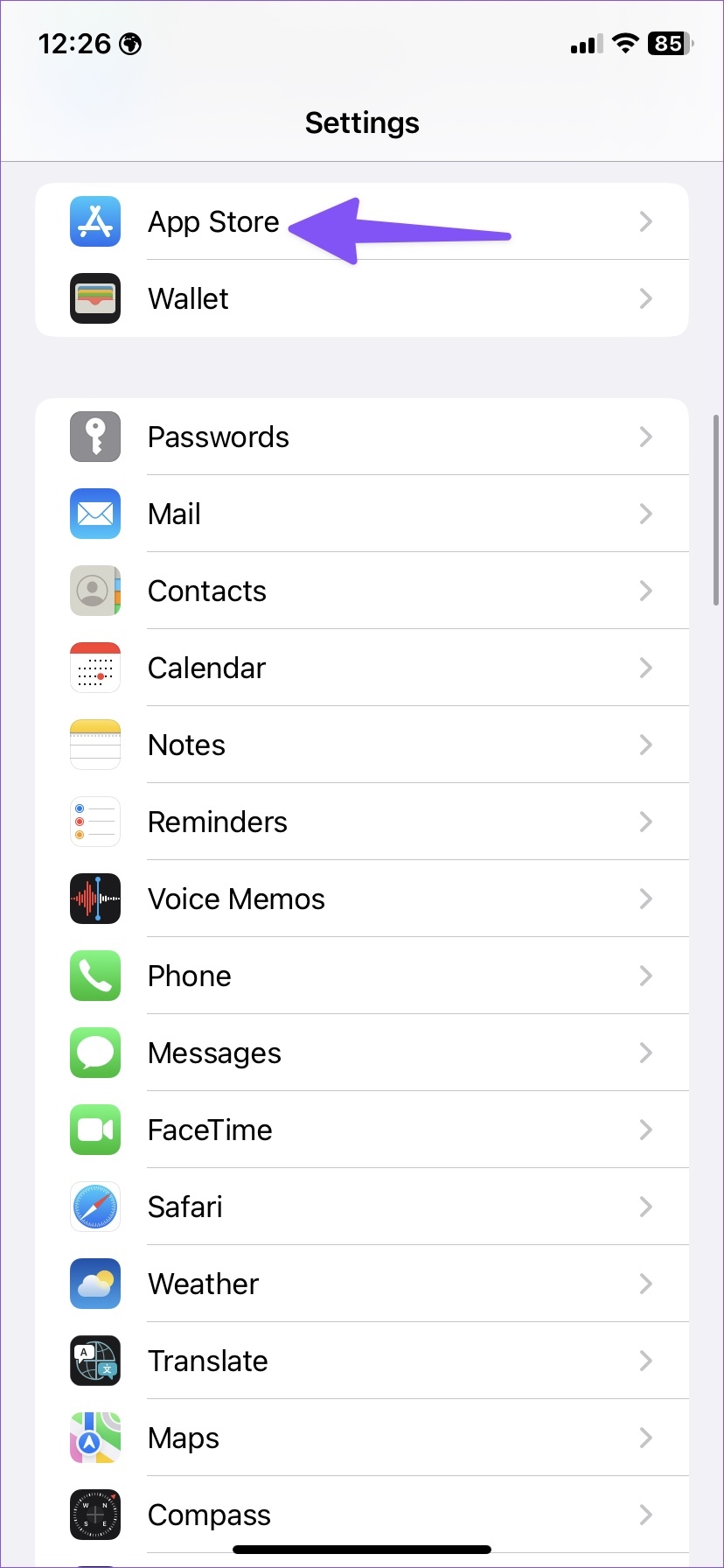
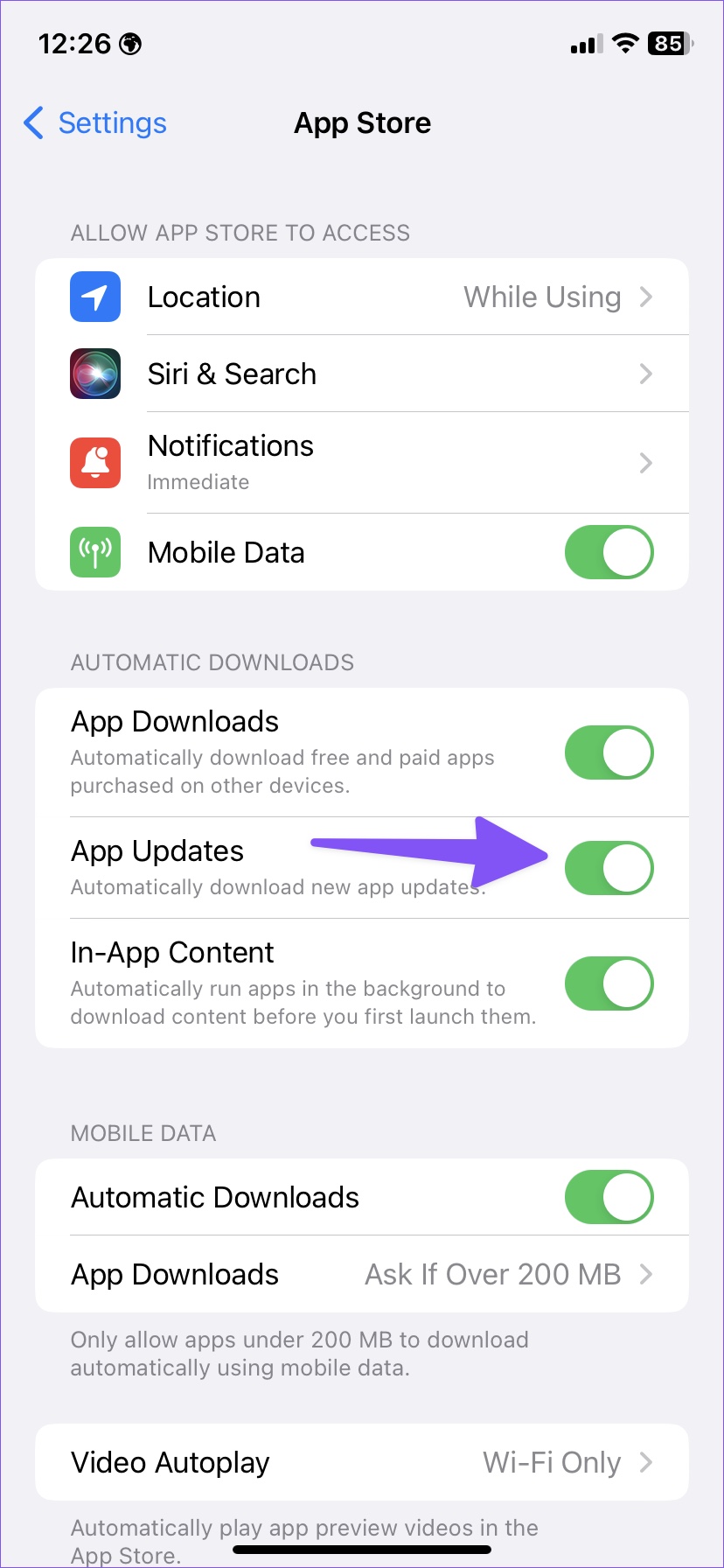
Auto updation will begin once you’re connected to a strong Wi-Fi network.
Fix 2: Connect to a Wi-Fi Network and Disable Low Data Mode
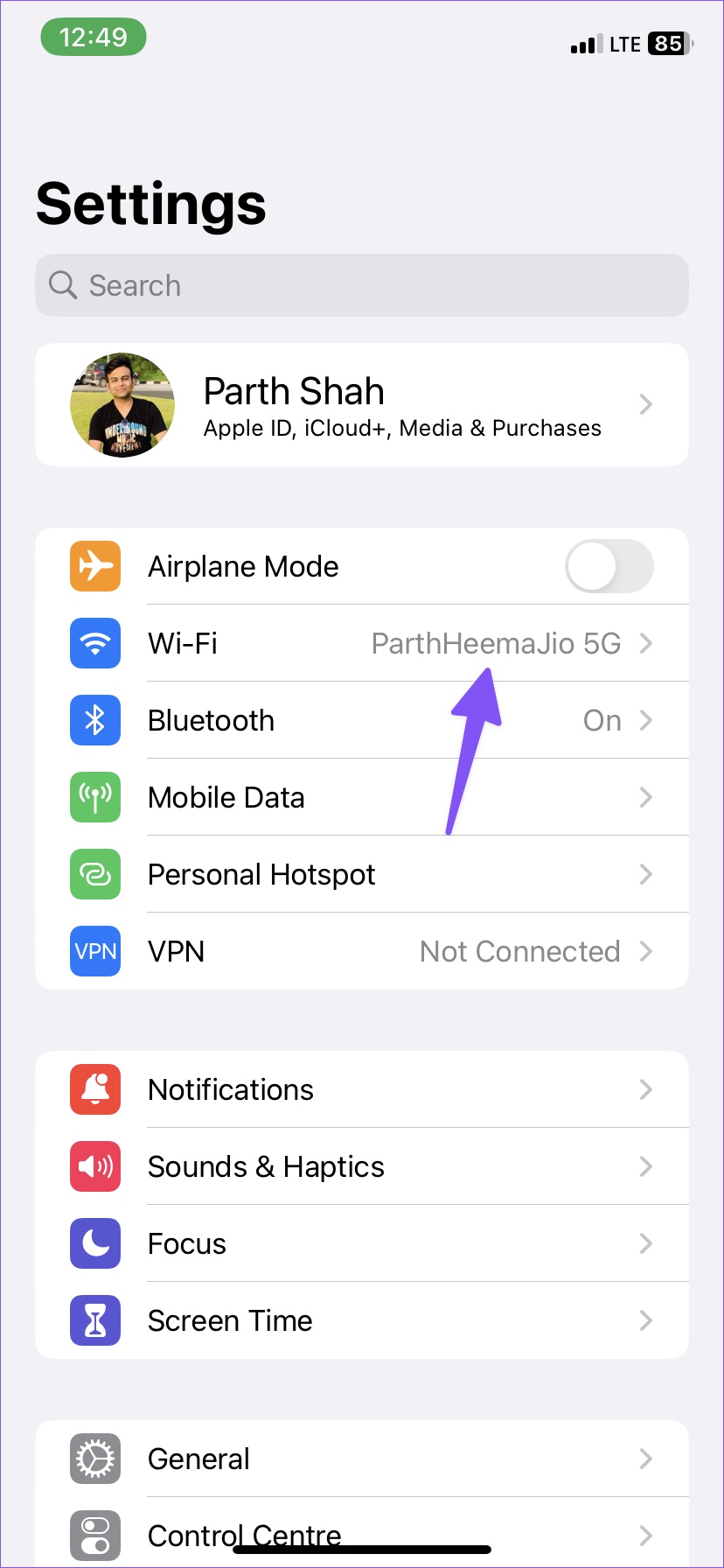
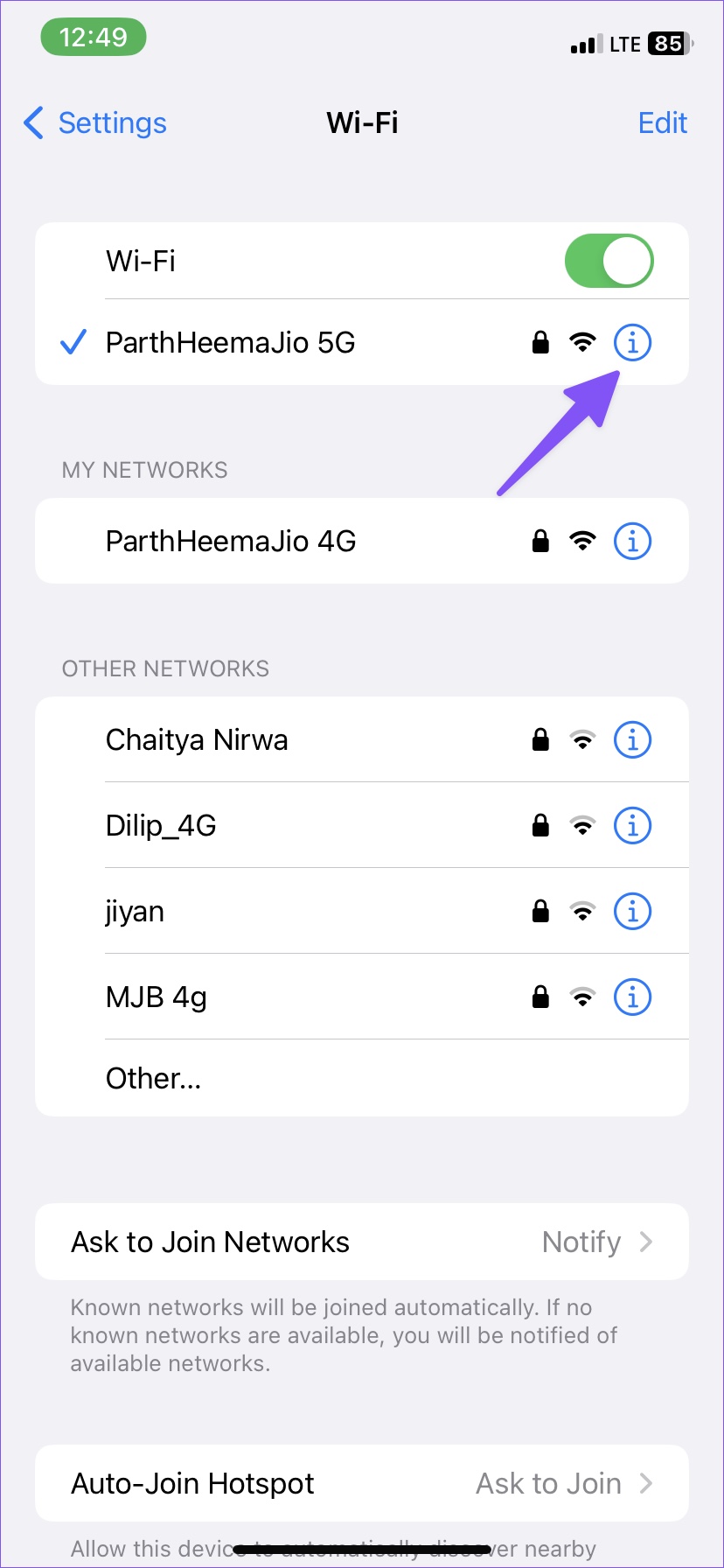
To ensure smooth auto-downloading, connect to a strong Wi-Fi network and disable low data on Wi-Fi.
Open Settings. Then, tap on ⓘ. Finally, disable the toggle for Low Data Mode.

Fix 3: Clear Your iPhone’s Storage
When your iPhone runs low on internal storage, the system may stop automatically updating apps in the background. Here’s how to check your iPhone’s storage situation.
Open Settings > Scroll down to General > go to iPhone Storage.
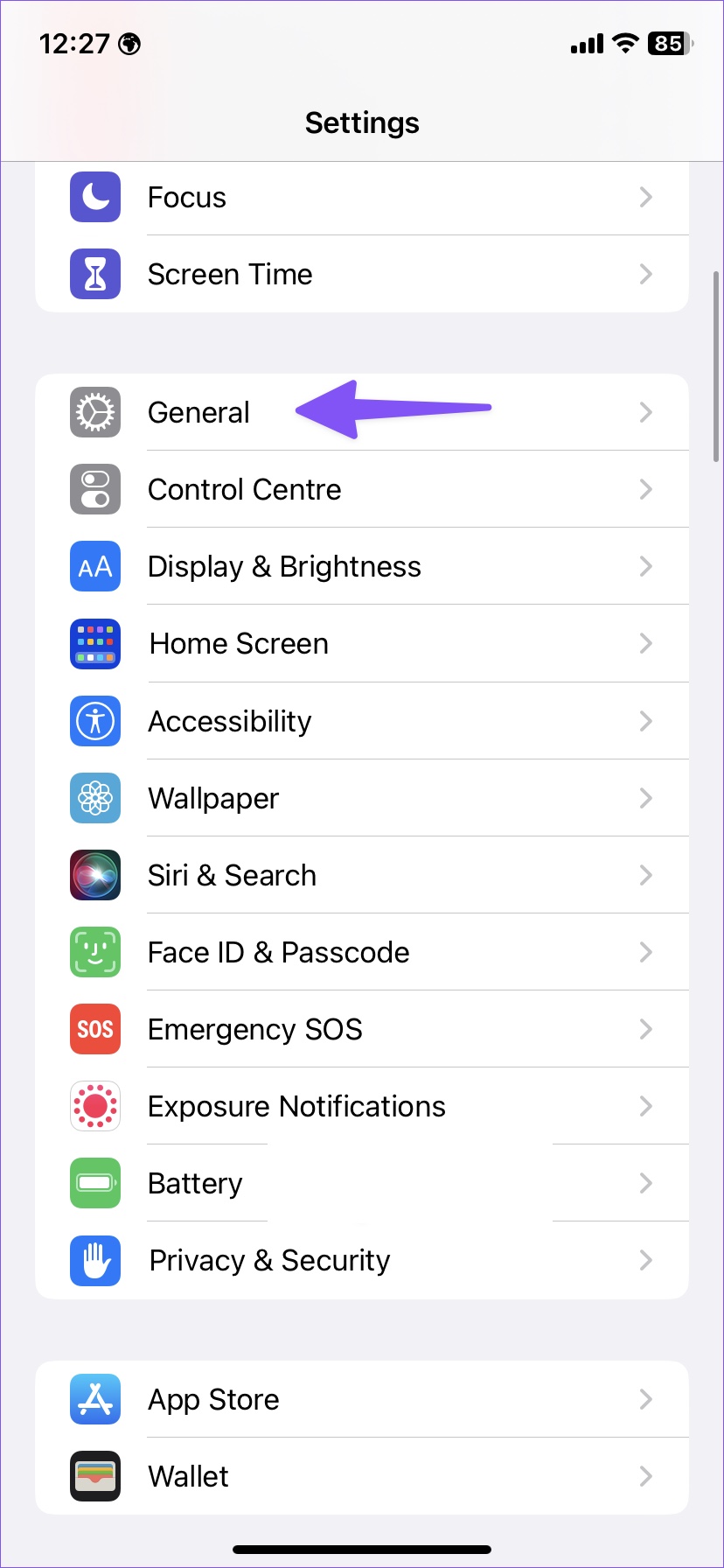
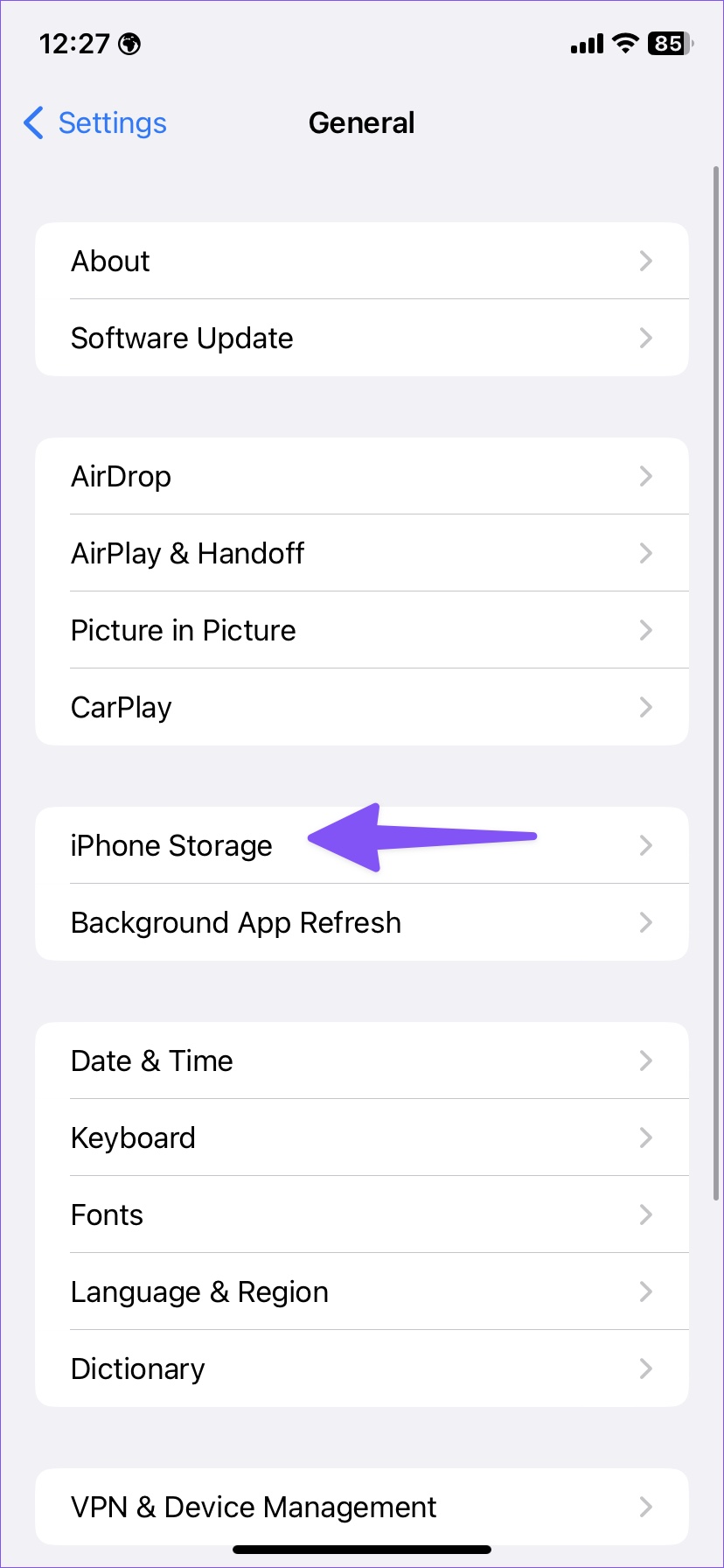
From the detailed storage breakdown, you can delete or offload apps to free up space on your iPhone.
Fix 4: Disable Low Power Mode
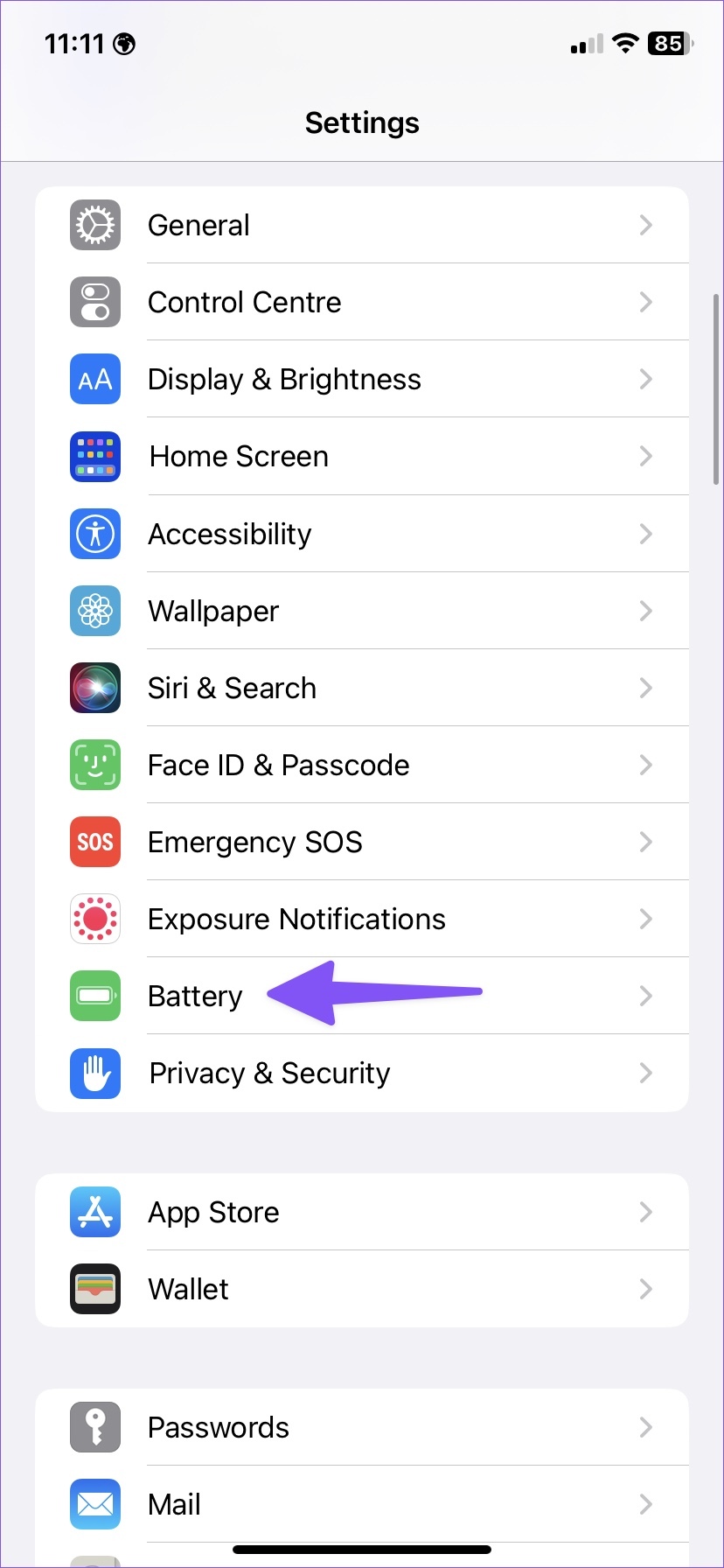
Low power mode on your iPhone stops certain background activities when the phone is low on charge. This includes automatic app updates. Here’s how to disable low-power mode on your iPhone.
Open Settings > select Battery > disable the toggle for Low Power Mode.

Was this helpful?
Last updated on 12 April, 2024
2 Comments
Leave a Reply
Read Next
 5 Ways to Fix Microsoft Store Apps Not Updating Automatically
Fix 1: Verify Auto Update Settings in the Microsoft Store The first thing you should do is verify the auto-update settings in the Microsoft Store app.
5 Ways to Fix Microsoft Store Apps Not Updating Automatically
Fix 1: Verify Auto Update Settings in the Microsoft Store The first thing you should do is verify the auto-update settings in the Microsoft Store app.
 5 Ways to Fix Apps Not Updating on Android
Basic Fixes Check network connection: Ensure there's no problem with the network connectivity on your Android device.
5 Ways to Fix Apps Not Updating on Android
Basic Fixes Check network connection: Ensure there's no problem with the network connectivity on your Android device.
 4 Ways to Fix Apps Not Updating on Android TV
Basic Fixes Check internal storage: App updates need sufficient storage on your Android TV in the long run.
4 Ways to Fix Apps Not Updating on Android TV
Basic Fixes Check internal storage: App updates need sufficient storage on your Android TV in the long run.
 3 Ways to Fix Profile Picture Not Updating on iPhone
Basic Fixes Select your Apple ID: Open a native iOS app such as Settings and tap your Apple ID to force the device to download your profile picture from the
3 Ways to Fix iPhone Widgets Not Updating
Common Fixes Open the widget's app - This will refresh the widget to fetch new data from its app.
3 Ways to Fix Profile Picture Not Updating on iPhone
Basic Fixes Select your Apple ID: Open a native iOS app such as Settings and tap your Apple ID to force the device to download your profile picture from the
3 Ways to Fix iPhone Widgets Not Updating
Common Fixes Open the widget's app - This will refresh the widget to fetch new data from its app.
 5 Ways to Fix Live Location Not Updating on Android and iPhone
Fix 1: Ensure Location Services Are Enabled Enabling location services on your phone is the most basic step before you can share your live location.
5 Ways to Fix Live Location Not Updating on Android and iPhone
Fix 1: Ensure Location Services Are Enabled Enabling location services on your phone is the most basic step before you can share your live location.
 5 Ways to Fix Location Sharing Not Updating in Google Maps on Phone
Common Fixes Check your internet connection - Google Maps will fail to update the location if your internet is unstable.
5 Ways to Fix Location Sharing Not Updating in Google Maps on Phone
Common Fixes Check your internet connection - Google Maps will fail to update the location if your internet is unstable.
 5 Ways to Fix WhatsApp Live Location Not Updating on Android and iPhone
Try Basic Fixes Update WhatsApp: An outdated app version can also cause performance issues, especially if you haven't updated it in a long time.
5 Ways to Fix WhatsApp Live Location Not Updating on Android and iPhone
Try Basic Fixes Update WhatsApp: An outdated app version can also cause performance issues, especially if you haven't updated it in a long time.
The article above may contain affiliate links which help support Guiding Tech. The content remains unbiased and authentic and will never affect our editorial integrity.

NONE of that worked! Even completely resetting did NOT re-enable automatic app updates. WTF?
As Joe stated, none of that shit works. You losers need to find the real solution to this problem because even Apple support couldn’t give me a straight answer as to why Apps have never auto-updated even on a new Iphone with 16GB of free storage.
Still had to manually update every App just like I have been doing since the release of the iPhone 6S Plus.