Basic Fixes
- Restart Wi-Fi: Turning off your Wi-Fi and building fresh connectivity between the Wi-Fi router and your Apple Watch can help fix the problem.
- Restart Apple Watch: If you restart your Apple Watch, the bug preventing it from connecting to Wi-Fi can be removed.
- Enter the correct password: Ensure you enter the right password for the Wi-Fi network on your Apple Watch.
- Check network connectivity: Ensure you have an active internet connection plan, and check with your internet service provider if none of your devices can connect to the Wi-Fi network. Further, ensure there are no problems with your Wi-Fi router.
Fix 1: Forget and Reconnect to the Network
Most Wi-Fi problems are solved by forgetting the saved network and reconnecting to it. At times, network configurations on your device may have been corrupted, and forgetting the Wi-Fi network erases all information, settings, and even the password.
Step 1: Press the Crown once to open the App Library.
Step 2: Open the Settings app > tap on Wi-Fi > select the saved Wi-Fi network > tap on Forget.
Now, go back and connect to the network again.


Also Read: How to use Shazam on Apple Watch
Fix 2: Update Apple Watch
If several users face the issue with Wi-Fi connectivity on Apple Watch, Apple will undoubtedly note the complaints and push an update to fix the same.
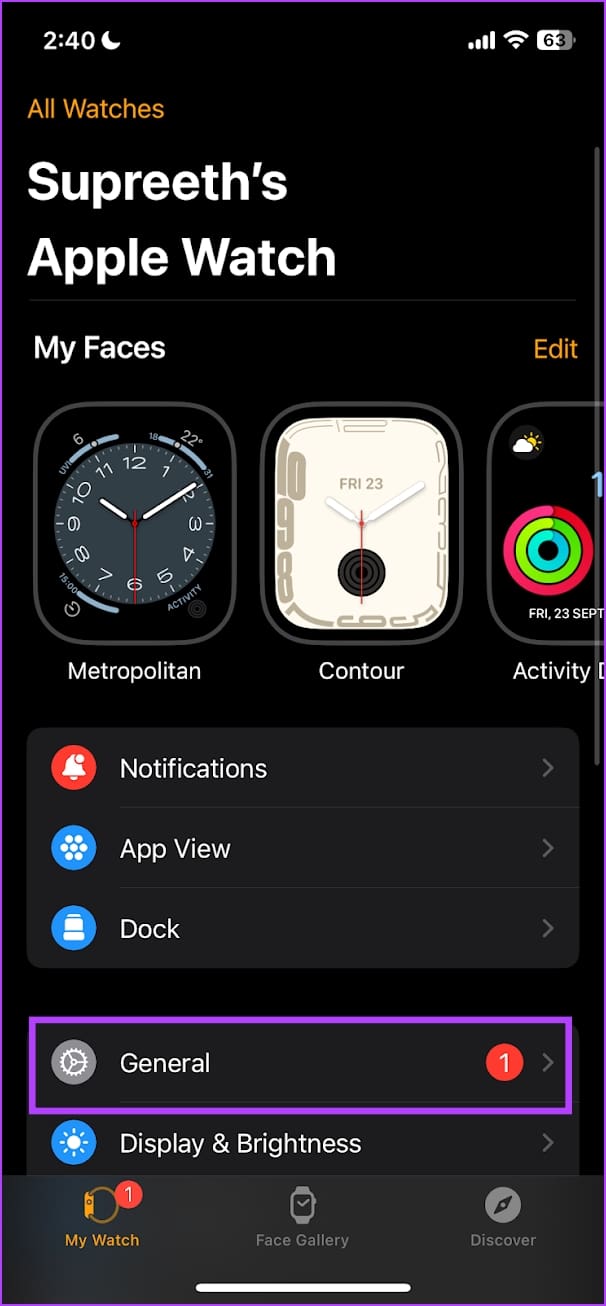
Step 1: Open the Watch app on your iPhone.
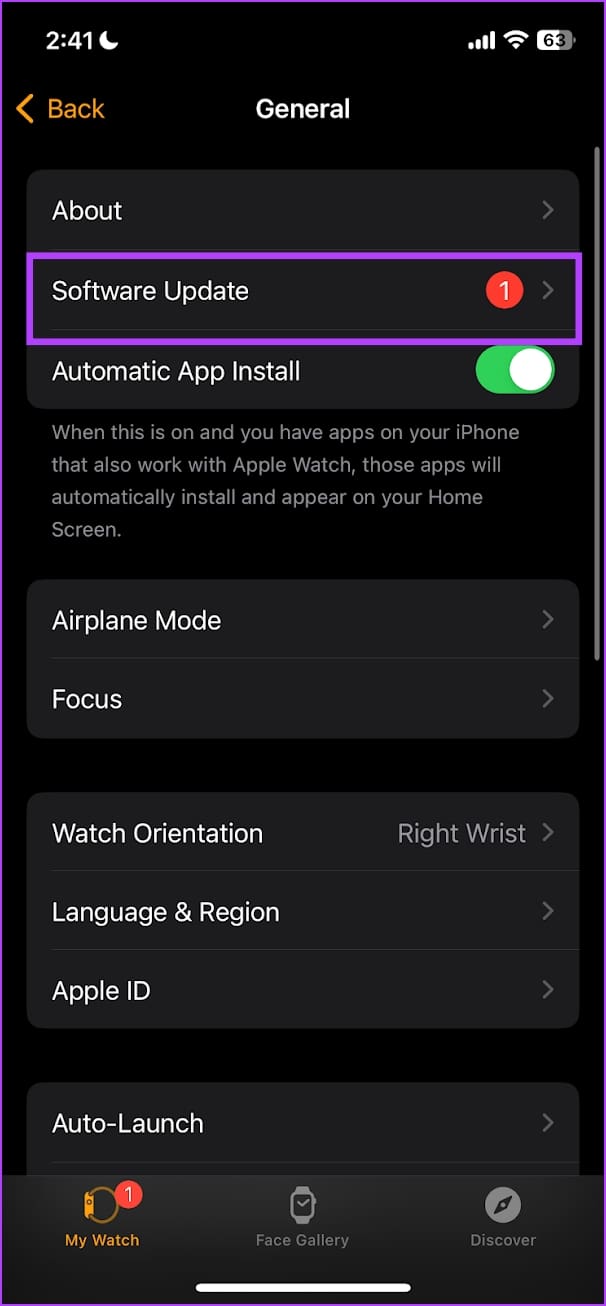
Step 2: Tap on General > go to Software Update > download and install a new update, if available.
Your Apple Watch must have at least 50% of battery level and be on charging as you install the update.

Also Read: How AI could make the Apple Watch an indispensible gadget
Fix 3: Reset Apple Watch
If none of the above methods work, reset your Apple Watch. This should fix the software-related issue. However, doing this will erase all the data on your Apple Watch, including your workout data. Unless you have a backup, you can’t restore it.
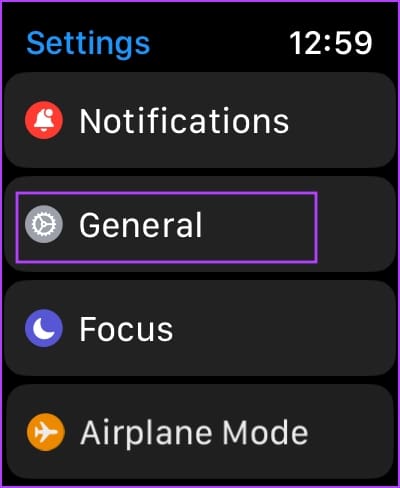
Step 1: Press the Digital Crown once to open the home screen and go to Settings.
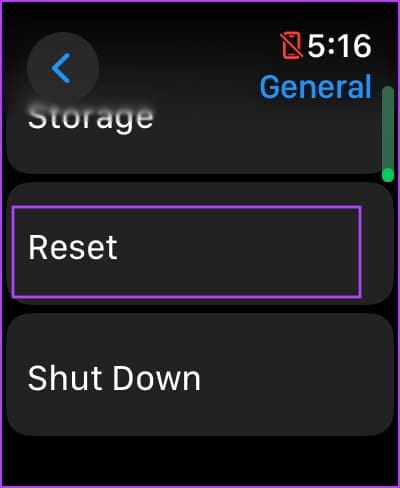
Step 2: Tap on General > Reset.
Step 4: Tap on Erase All Content and Settings to proceed. If prompted, confirm the deletion.
You can then pair it back to your iPhone.

Fix 4: Contact Apple Support
If none of the above methods work, your Apple Watch is due for a service. Apple customer care will guide you further and help you fix the problem. There might be some hardware damage responsible for connecting your Apple Watch to a Wi-Fi network.
Also Read: How to change Apple Watch Face
Was this helpful?
Last updated on 09 August, 2024
Read Next
 Samsung Galaxy Watch Not Connecting to Phone: 4 Ways to Fix It
Fix 1: Unpair and Pair Again Your Samsung Galaxy Watch If the Samsung Galaxy Watch isn't connecting to your phone, unpair and pair it again.
Samsung Galaxy Watch Not Connecting to Phone: 4 Ways to Fix It
Fix 1: Unpair and Pair Again Your Samsung Galaxy Watch If the Samsung Galaxy Watch isn't connecting to your phone, unpair and pair it again.
 3 Ways to Fix iPhone or iPad Not Connecting to Windows PC
Basic Fixes Check or switch your data cable: Closely inspect the data cable you use to connect the iPhone/iPad to your PC.
3 Ways to Fix iPhone or iPad Not Connecting to Windows PC
Basic Fixes Check or switch your data cable: Closely inspect the data cable you use to connect the iPhone/iPad to your PC.
 How to Change Apple Watch Face from iPhone or Watch
Traditional watches had the problem that you couldn't change their clock face.
How to Change Apple Watch Face from iPhone or Watch
Traditional watches had the problem that you couldn't change their clock face.
 4 Best Fixes for Apple Pencil Not Connecting or Pairing
Basic Fixes Charge Apple Pencil: Your Apple Pencil may be out of charge.
4 Best Fixes for Apple Pencil Not Connecting or Pairing
Basic Fixes Charge Apple Pencil: Your Apple Pencil may be out of charge.
 3 Ways to Fix WhatsApp Not Connecting on iPhone
Basic Fixes: Enable and disable Airplane mode: If your iPhone is facing several network issues, enable Airplane mode on the iPhone.
3 Ways to Fix WhatsApp Not Connecting on iPhone
Basic Fixes: Enable and disable Airplane mode: If your iPhone is facing several network issues, enable Airplane mode on the iPhone.
 3 Ways to Fix Facebook Messenger Not Connecting to the Internet on iPhone
Try Basic Fixes Check if Messenger is down: Facebook Messenger servers can occasionally experience problems.
3 Ways to Fix Facebook Messenger Not Connecting to the Internet on iPhone
Try Basic Fixes Check if Messenger is down: Facebook Messenger servers can occasionally experience problems.
 4 Ways to Fix iPad Not Connecting to the Internet
Basic Fixes: Restart your iPad: Restarting your iPad can help fix any temporary issues preventing it from connecting to the internet.
4 Ways to Fix iPad Not Connecting to the Internet
Basic Fixes: Restart your iPad: Restarting your iPad can help fix any temporary issues preventing it from connecting to the internet.
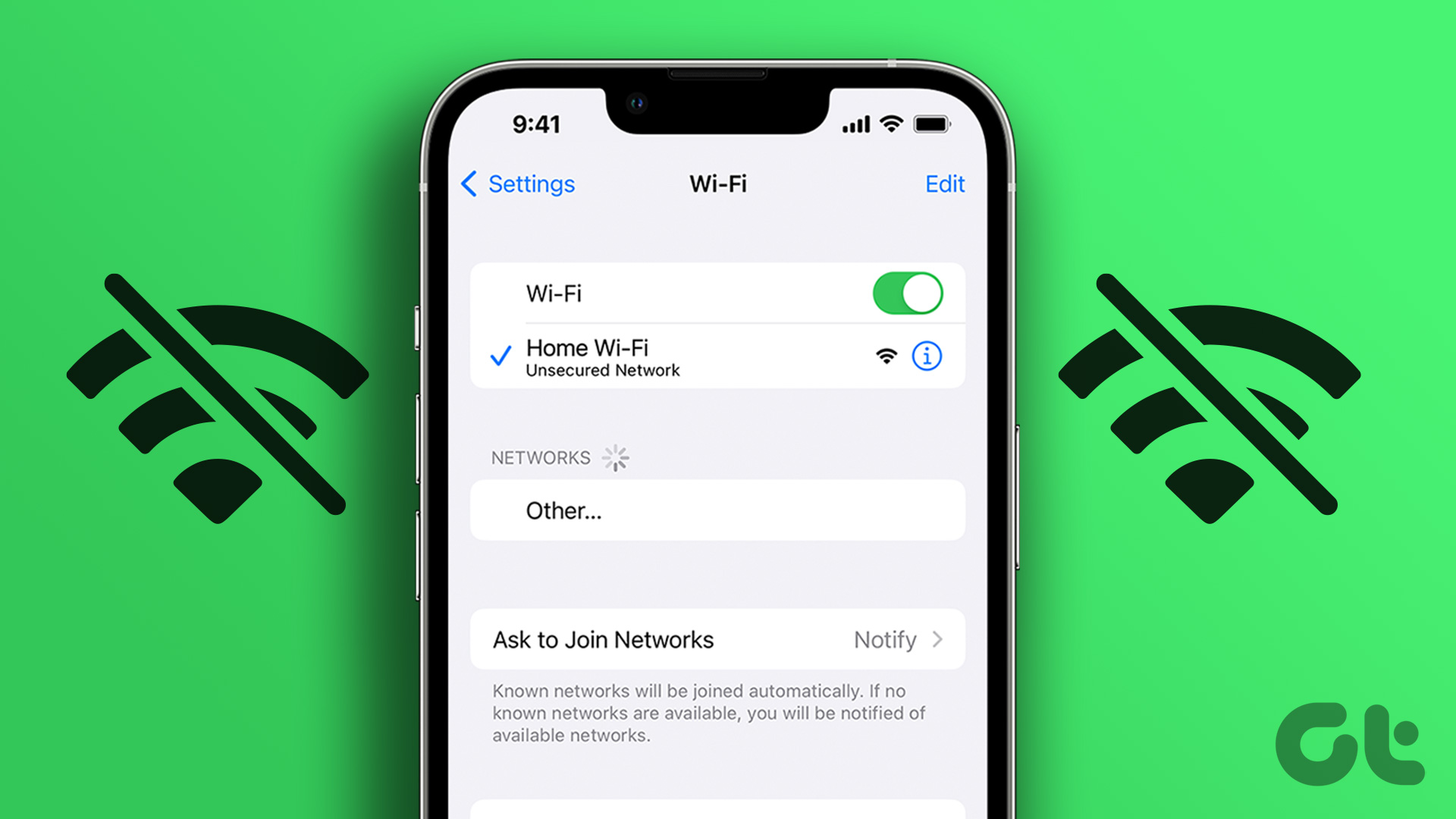 3 Ways to Fix iPhone Not Automatically Connecting to Wi-Fi
Before you begin, ensure that there isn't any problem with your network connectivity and the Wi-Fi router.
3 Ways to Fix iPhone Not Automatically Connecting to Wi-Fi
Before you begin, ensure that there isn't any problem with your network connectivity and the Wi-Fi router.
The article above may contain affiliate links which help support Guiding Tech. The content remains unbiased and authentic and will never affect our editorial integrity.