Basic Fixes
- Restart Apple Watch: Restart your Apple Watch to fix temporary bugs and glitches.
- Remove the case: The case on your Apple Watch may be blocking the microphone.
- Clean the microphone: Dust particles may be blocking the microphone, gently clean it with a soft, microfiber cloth
- Disable Low Power Mode: On your Apple Watch, go to Settings > Battery and disable Low Power Mode.
- Update Apple Watch: Update your Apple Watch to the latest version of watchOS for bug free experience.
Where Is the Microphone on my Apple Watch
The microphone is nestled between the Digital Crown and the side button on your Apple Watch. Knowing where it is can help you see if the case on your Apple Watch is blocking it or if any dust particles are present nearby.
Fix 1: Enable Permissions for the Microphone
You may not have permitted the third-party app to access the microphone on your Apple Watch.
Step 1: Press the Digital Crown once to open the App Library. Open the Settings app.
Step 2: Tap on Privacy & Security.
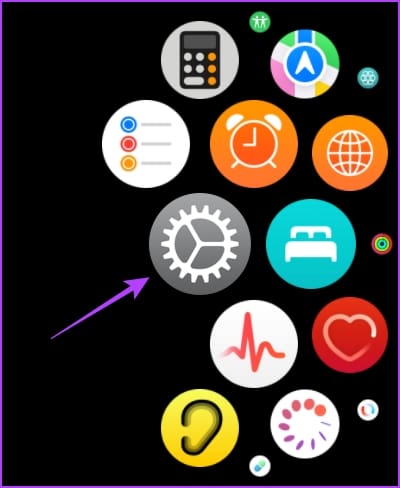

Step 3: Scroll down and tap on Microphone.
Step 4: Check if the permission is disabled for any app.
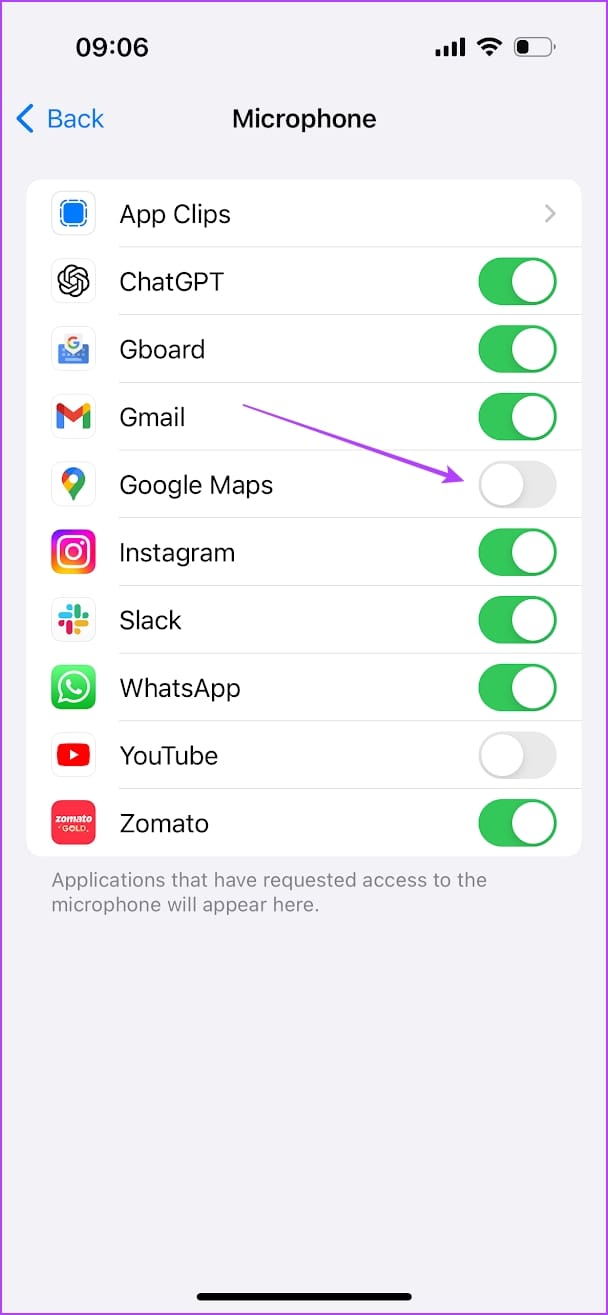
Note: The permission settings will be shared between your Apple Watch and iPhone. You need to open the privacy settings on your iPhone to grant the app permission to use the microphone.
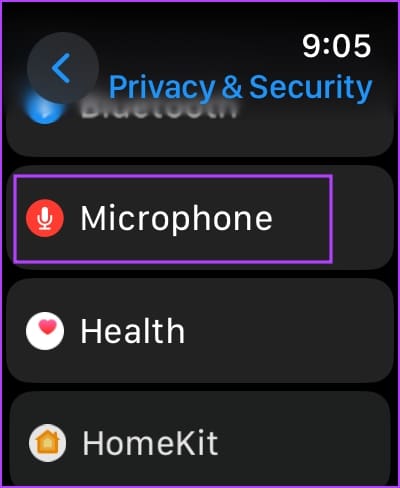

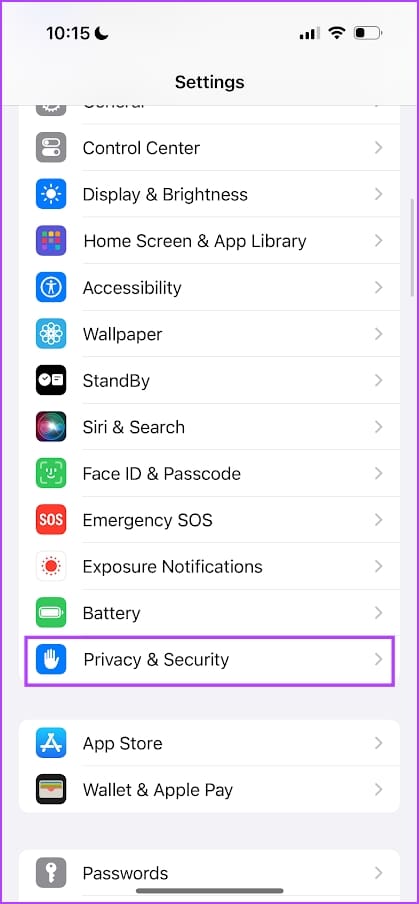
Step 5: On your iPhone, go to Settings > Privacy > Microphone.
Step 6: Enable permissions for the app to use the microphone.

Also Read: 7 apps to make your Apple Watch do more than just fitness tracking
Fix 2: Enable Dictation
If you can’t dictate and use speech-to-text while using your Apple Watch, you may have disabled Dictation on your Apple Watch.
Step 1: Press the Digital Crown once to open the App Library.
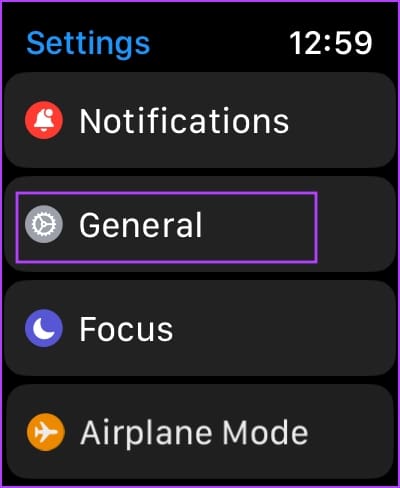
Step 2: Go to Settings > Tap on General.
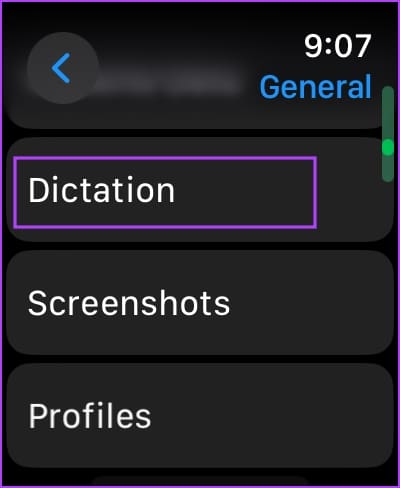
Step 3: Tap on Dictation.
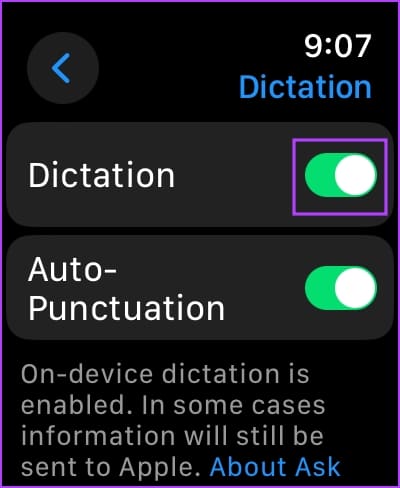
Step 4: Turn on the toggle for Dictation.
Fix 3: Check Siri Settings
If you’re unable to use Siri on your Apple Watch, don’t conclude that the microphone is not working on your Apple Watch. You need to ensure you’ve enabled Siri on your Apple Watch.
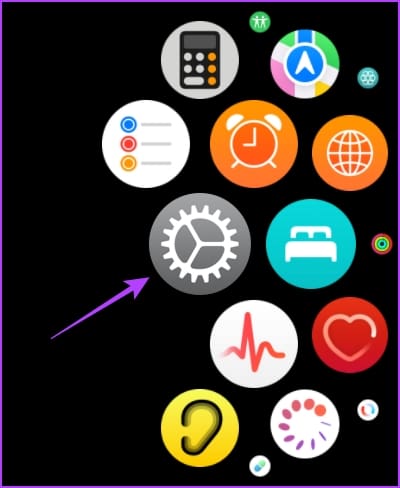
Step 1: Press the Digital Crown to open the home screen on the Apple Watch.
Step 2: Now, tap on the Settings app and select Siri.
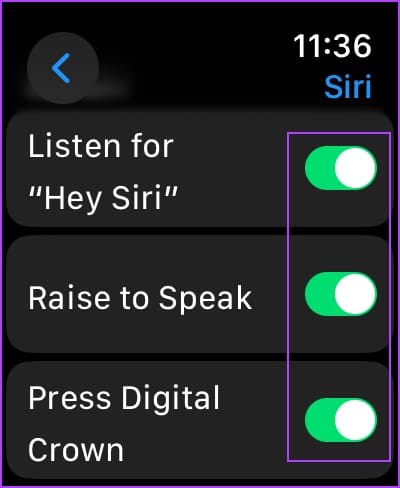
Step 3: Enable the toggles for the below options.
- Press Digital Crown – Toggle on this option if you cannot activate Siri by pressing the Crown.
- Listen for “Hey Siri”: Enable this option if your Apple Watch does not recognize the ‘Hey Siri’ command.
- Raise to Speak – Raise to Speak is a convenient way to access Siri on your Apple Watch. However, if that does not work, enable this option.

Fix 4: Eject Water
The Apple Watch is water-resistant, but there’s no stopping water droplets from entering the speaker and the microphone. However, there is an option to easily discard water and moisture from your Apple Watch by using the Water Lock feature.
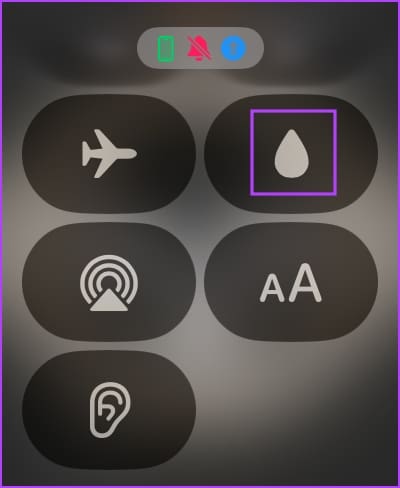
Step 1: Open the Control Center on your Apple Watch.
Note: Control Center does not open when you swipe up on the latest watchOS 10. You need to click on the side button once to do so.
Step 2: Tap on the Water Lock icon.
Step 3: You will see a water droplet icon on the top of your watch face, indicating that Water Lock is enabled.

To turn off the Water Lock on your Apple Watch, hold the Crown for a few seconds until you see a message that says ‘Unlocked’. Then, wait for the sound to be played that ejects moisture and water out of your Apple Watch.


Fix 5: Re-Install App
If you find the microphone working everywhere except a single third-party app, uninstall the app and reinstall it from the App Store. This removes any corrupt or junk files causing the issue.
Step 1: Press the Digital Crown once to open the App Library.
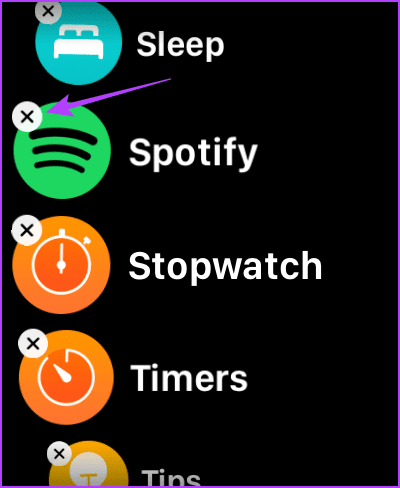
Step 2: Long-tap on the app icon you want to delete.
Step 3: Tap on the cross-mark icon to uninstall the app. Tap on Delete App to confirm.
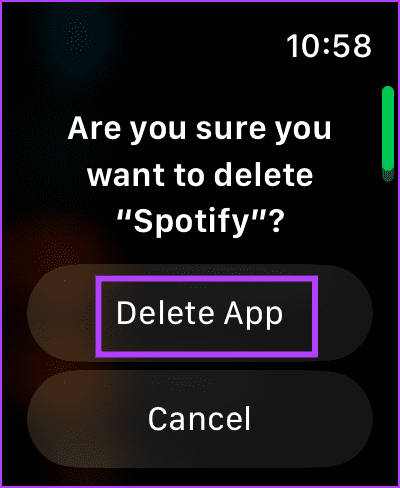
Step 4: Now, open the App Store on your Apple Watch, search, and reinstall the app.


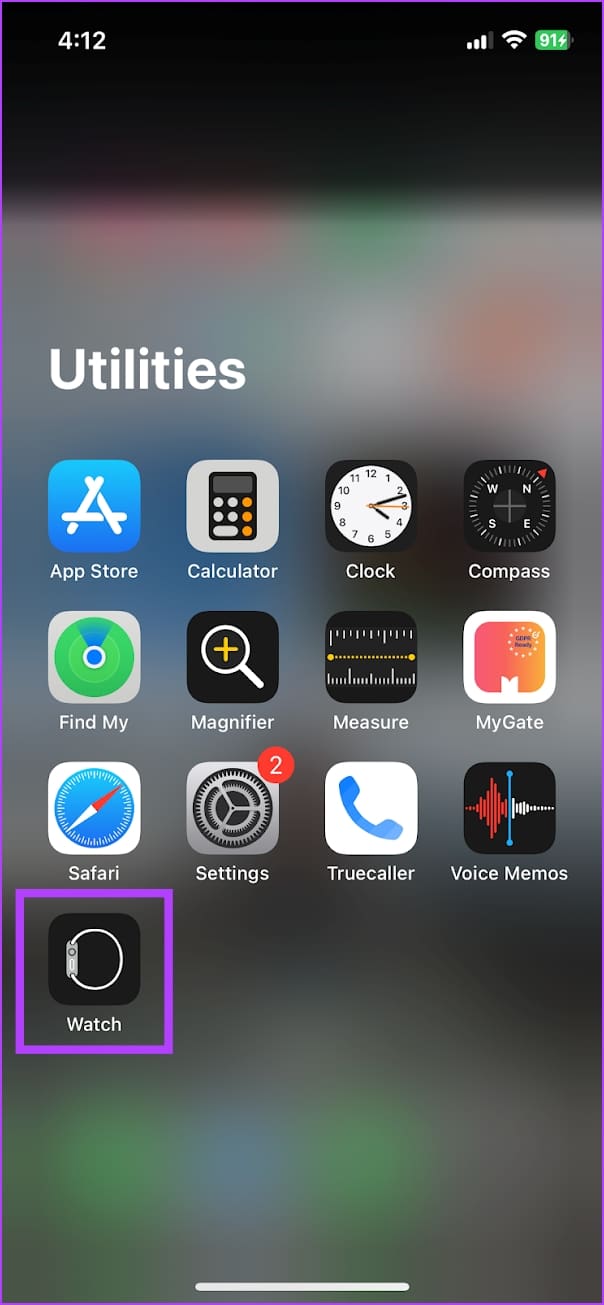
Alternatively, you can open the Watch app on your iPhone. Scroll down to find the available apps, and tap on Install next to the app to get the app on your Apple Watch.

Fix 6: Reset Apple Watch
If none of the above methods work, reset your Apple Watch. This should fix the software-related issues.
Note: Resetting will unpair your Apple Watch and iPhone. So, you’ll have to re-pair the devices.
Step 1: Press the Digital Crown once to open the home screen and go to Settings.
Step 2: Tap on General.
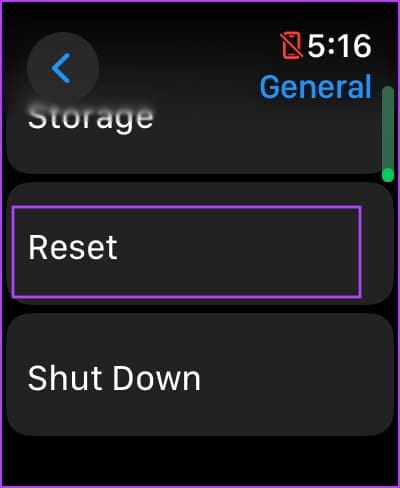
Step 3: Tap on Reset.
Step 4: Tap on Erase All Content and Settings to proceed. If prompted, confirm the deletion.
Tip: If you have GPS + Cellular Apple Watch, choose to keep your mobile plan if you wish to pair with the same iPhone.

If none of the above methods work, reach out to Apple Support. If there’s any hardware issue, they can resolve it and fix the microphone on your Apple Watch.
Also Read: How AI could make the Apple Watch an indispensable gadget
Was this helpful?
Last updated on 30 August, 2024
Read Next
 5 Ways to Fix Microphone Not Working on iPhone
Try Basic Fixes Unplug all the accessories and disable Bluetooth: One of the external accessories connected to your iPhone may be causing problems with the microphone.
5 Ways to Fix Microphone Not Working on iPhone
Try Basic Fixes Unplug all the accessories and disable Bluetooth: One of the external accessories connected to your iPhone may be causing problems with the microphone.
 4 Ways to Fix Microphone Not Working on iPad
Basic Fixes: Check the microphone on the iPad: To check the device's microphone, open the camera app on your iPad and record a video.
4 Ways to Fix Microphone Not Working on iPad
Basic Fixes: Check the microphone on the iPad: To check the device's microphone, open the camera app on your iPad and record a video.
 Top 10 Ways to Fix Google Meet Microphone Not Working on Windows and Mac
For the most part, Google Meet offers a seamless browser-based video conferencing experience on both Windows and macOS.
Top 10 Ways to Fix Google Meet Microphone Not Working on Windows and Mac
For the most part, Google Meet offers a seamless browser-based video conferencing experience on both Windows and macOS.
 7 Ways to Fix Microphone Not Working Issue on Windows 11
Try Basic Fixes Check the microphone connection: If you’re using an external microphone on your PC, check its physical connection to see if it's connected properly.
7 Ways to Fix Microphone Not Working Issue on Windows 11
Try Basic Fixes Check the microphone connection: If you’re using an external microphone on your PC, check its physical connection to see if it's connected properly.
 Top 8 Ways to Fix WhatsApp Microphone Not Working on iPhone and Android
Thanks to group calls, the ability to share and create call links, and desktop support, WhatsApp voice and video calls are gaining traction among users.
Top 8 Ways to Fix WhatsApp Microphone Not Working on iPhone and Android
Thanks to group calls, the ability to share and create call links, and desktop support, WhatsApp voice and video calls are gaining traction among users.
 2 Ways to Fix Microphone Not Working on Instagram
Basic Fixes: Force close all background apps: If other apps use the microphone in the background, you may have issues accessing it on Instagram. You can close such apps on your
2 Ways to Fix Microphone Not Working on Instagram
Basic Fixes: Force close all background apps: If other apps use the microphone in the background, you may have issues accessing it on Instagram. You can close such apps on your
 How to Change Apple Watch Face from iPhone or Watch
Traditional watches had the problem that you couldn't change their clock face.
How to Change Apple Watch Face from iPhone or Watch
Traditional watches had the problem that you couldn't change their clock face.
 3 Ways to Fix Apple Watch Crown Not Working
Before you begin, restart your Apple Watch and update it to the latest version of watchOS.
3 Ways to Fix Apple Watch Crown Not Working
Before you begin, restart your Apple Watch and update it to the latest version of watchOS.
The article above may contain affiliate links which help support Guiding Tech. The content remains unbiased and authentic and will never affect our editorial integrity.