

Basic Fixes
- Check if your Apple Watch supports Always On: Always On display is available on the Apple Watch Series 5,6,7,8,9 and Apple Watch Ultra 1st and 2nd gen.
- Enable Always On in Settings: Go to Settings > Display and Brightness > Always On and make sure you enable the feature.
- Restart Apple Watch: Restarting your Apple Watch can resolve any glitches affecting the Always On feature.
- Update Apple Watch: Update your Apple Watch to the latest version of watchOS for a bug-free experience.
Fix 1: Always On Showing Time Only – Enable Complications, Notifications, and App Data
If the Always On display is showing only time on your Apple Watch, you may have accidentally disabled complications, notifications, and app data from being shown.
Step 1: Open the Settings app on your Apple Watch. Go to Display and Brightness > Always On.
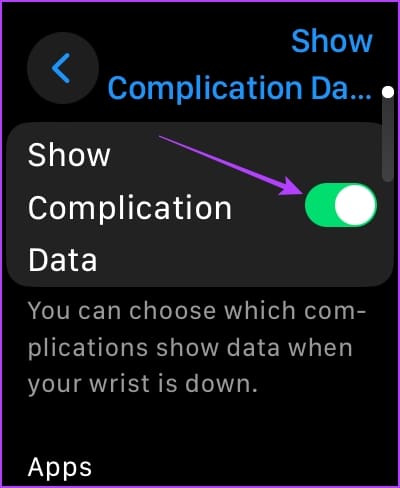
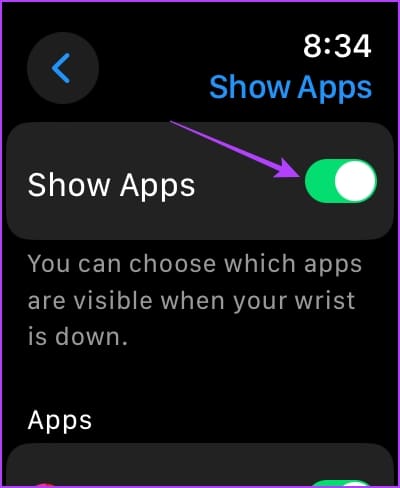
Step 2: You can open Complication Data, Show Notifications, and Show Apps and enable the toggles to make them visible in Always On.
Further, you can also scroll down in each of these menus, and choose to see notifications or complications from specific apps only in Always On.

Also Read: How to change Apple Watch Face.
Fix 2: Turn Off Automatic Wrist Detection
If there is an issue with wrist detection, your Apple Watch may not recognize that you are wearing the watch and, thus, may not light up the Always On display feature.
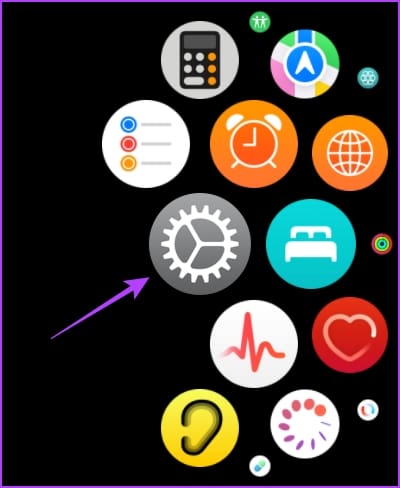
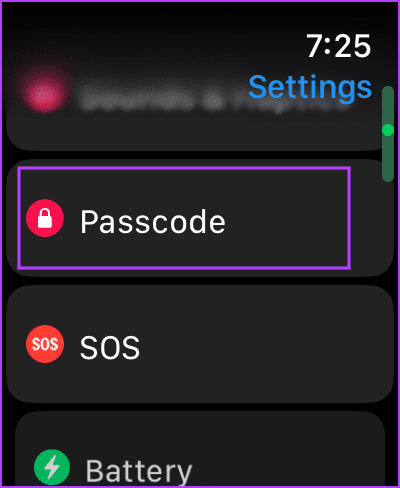
Open the Settings app. Tap on Passcode. Scroll down, and turn off the toggle for Wrist Detection.
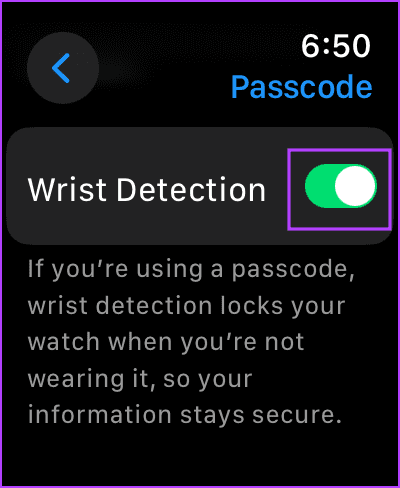
Also Read: How to enable or disable Wrist Detection on Apple Watch.
Fix 3: Disable Cinema or Theater Mode
The Cinema Mode or Theater Mode on the Apple Watch dims the screen, and if the Always On display is not visible, try turning off the theatre mode.
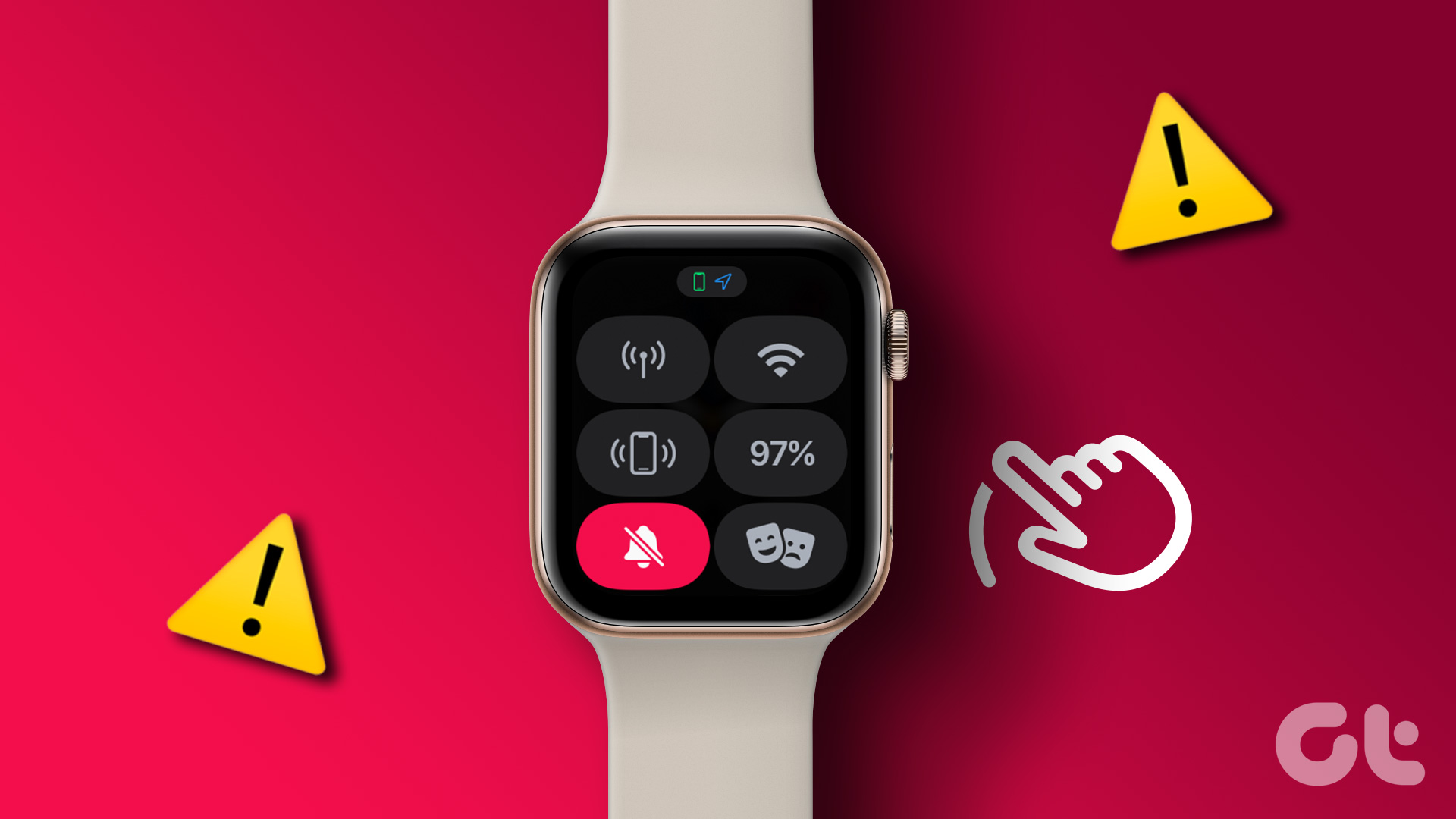
All you need to do is swipe up to access the Control Center and tap on the double mask icon to turn off the Cinema Mode.

If nothing works, you can reset your Apple Watch. Go to Settings > General > Reset on your Apple Watch and tap on Erase All Content and Settings. This will reset any misconfiguration that is causing the problem.
Was this helpful?
Last updated on 16 May, 2024
Read Next
 6 Ways to Fix Always on Display Not Working on Android
Fix 1: Set Always On Display to Show All the Time As the name suggests, the Always On Display stays on all the time.
6 Ways to Fix Always on Display Not Working on Android
Fix 1: Set Always On Display to Show All the Time As the name suggests, the Always On Display stays on all the time.
 How to Change Apple Watch Face from iPhone or Watch
Traditional watches had the problem that you couldn't change their clock face.
How to Change Apple Watch Face from iPhone or Watch
Traditional watches had the problem that you couldn't change their clock face.
 2 Ways to Fix Apple Watch Swipe Up Not Working
Try Basic Fixes Force restart the Apple Watch: Press and hold the side button along with the Apple Watch digital crown simultaneously for 10 seconds.
2 Ways to Fix Apple Watch Swipe Up Not Working
Try Basic Fixes Force restart the Apple Watch: Press and hold the side button along with the Apple Watch digital crown simultaneously for 10 seconds.
 3 Ways to Fix Spotify Not Working on Apple Watch
Basic Fixes Ensure Apple Watch is connected: Make sure your Apple Watch is connected to your iPhone with an active internet connection.
3 Ways to Fix Spotify Not Working on Apple Watch
Basic Fixes Ensure Apple Watch is connected: Make sure your Apple Watch is connected to your iPhone with an active internet connection.
 3 Ways to Fix Apple Watch Crown Not Working
Before you begin, restart your Apple Watch and update it to the latest version of watchOS.
3 Ways to Fix Apple Watch Crown Not Working
Before you begin, restart your Apple Watch and update it to the latest version of watchOS.
 6 Ways to Fix Apple Watch Wrist Detection Not Working
Basic Fixes: Tighten the Apple Watch band: If your Apple Watch keeps losing contact with your wrist, it might think you've taken the watch off.
6 Ways to Fix Apple Watch Wrist Detection Not Working
Basic Fixes: Tighten the Apple Watch band: If your Apple Watch keeps losing contact with your wrist, it might think you've taken the watch off.
 6 Ways to Fix Microphone Not Working on Apple Watch
Basic Fixes Restart Apple Watch: Restart your Apple Watch to fix temporary bugs and glitches.
6 Ways to Fix Microphone Not Working on Apple Watch
Basic Fixes Restart Apple Watch: Restart your Apple Watch to fix temporary bugs and glitches.
 3 Ways to Fix Speaker Not Working on Apple Watch
Basic Fixes Restart Your Mac: The go-to fix for any issue is the good old restart.
3 Ways to Fix Speaker Not Working on Apple Watch
Basic Fixes Restart Your Mac: The go-to fix for any issue is the good old restart.
The article above may contain affiliate links which help support Guiding Tech. The content remains unbiased and authentic and will never affect our editorial integrity.

