Why Is Your Phone Losing Battery While Charging
Your Android phone may quickly lose battery while charging due to software or hardware issues, such as:
- You’re charging your phone with a less power output source, e.g., your PC or laptop’s USB port.
- Your phone requires more charging power than the wireless charger delivers.
- The charging adapter or cable is disoriented or damaged.
- Your Android phone is overheating due to poor system optimization and resource-intensive apps.
- You’re using an incompatible/poor-quality charging adapter or cable.
- The battery of your phone is damaged or degraded.
Basic Fixes
- Use certified cables and fast charging adapters: Avoid purchasing charging cables from unknown brands and grab a certified charging adapter from a reputed company.
- Avoid charging the phone when heating: Most Android phones have an in-built cooling mechanism to reduce temperature while overheating. Wait patiently and try charging it after some time.
- Don’t use wireless charging: Avoid charging your phone wirelessly as it generates more heat, delivering insufficient power. Also, placing your phone inaccurately on the charging pad may halt or reduce its charging speed.
- Check the app battery usage: Open Android settings, select Battery, and scroll down to view the app battery usage. Select an app with high battery consumption and set it to Restricted.
- Switch to a different power port/outlet: Your existing power outlet is delivering insufficient power to charge your Android phone.
Fix 1: Change Display Settings
If your phone’s screen stays on while charging, it increases the battery consumption slowing down the charging speed. Adjust the display settings to reduce the screen timeout duration.
Step 1: Open the Settings app, select Display and brightness, and tap Screen timeout.
Step 2: Pick the lowest Screen timeout duration so your phone automatically turns off the display after some time, reducing battery consumption.


Fix 2: Disable Adaptive Charging
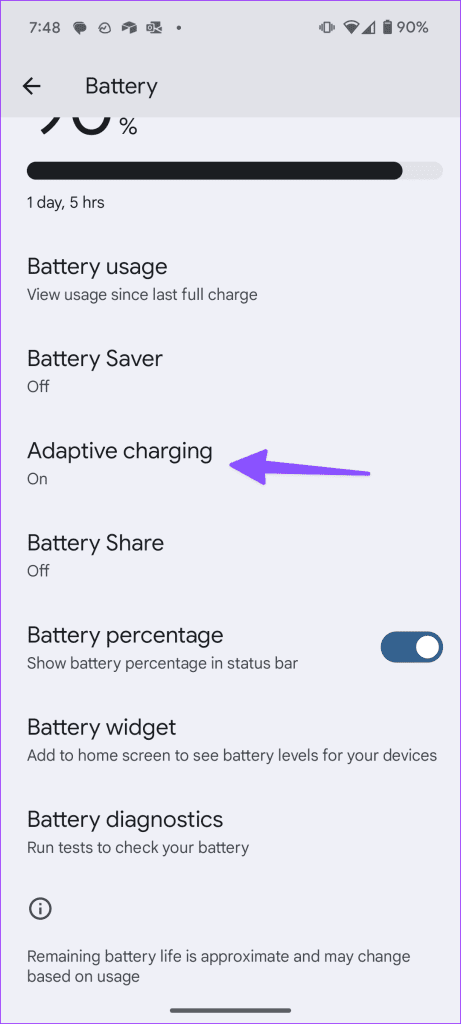
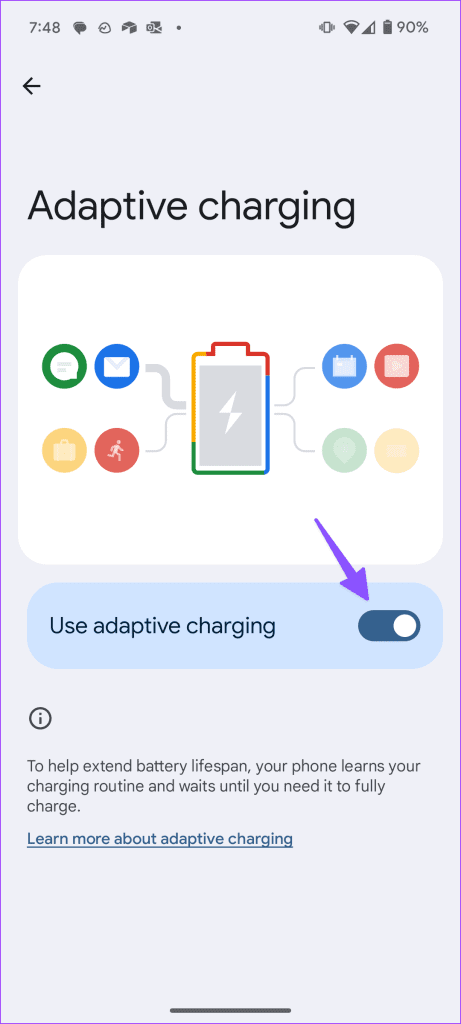
Adaptive charging learns your routine and suspends charging in inactive hours to extend your phone’s battery life. If you plug in during these hours, it may seem like your phone is draining battery instead of charging. Head to Android Settings to disable the feature.
Note: Adaptive Charging is labeled as ‘Optimised Battery Charging’ on certain Android devices.
Step 1: Open Android Settings, select Battery, and tap Adaptive charging.
Step 2: Toggle off Use adaptive charging to disable it.

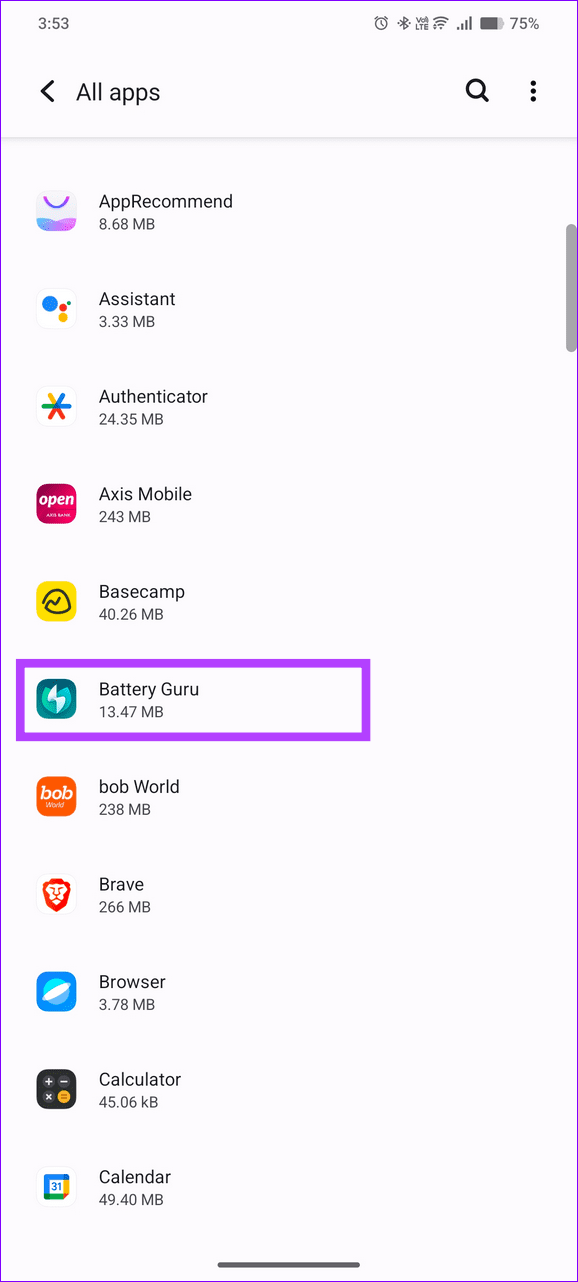
Fix 3: Uninstall Third-Party Battery Apps
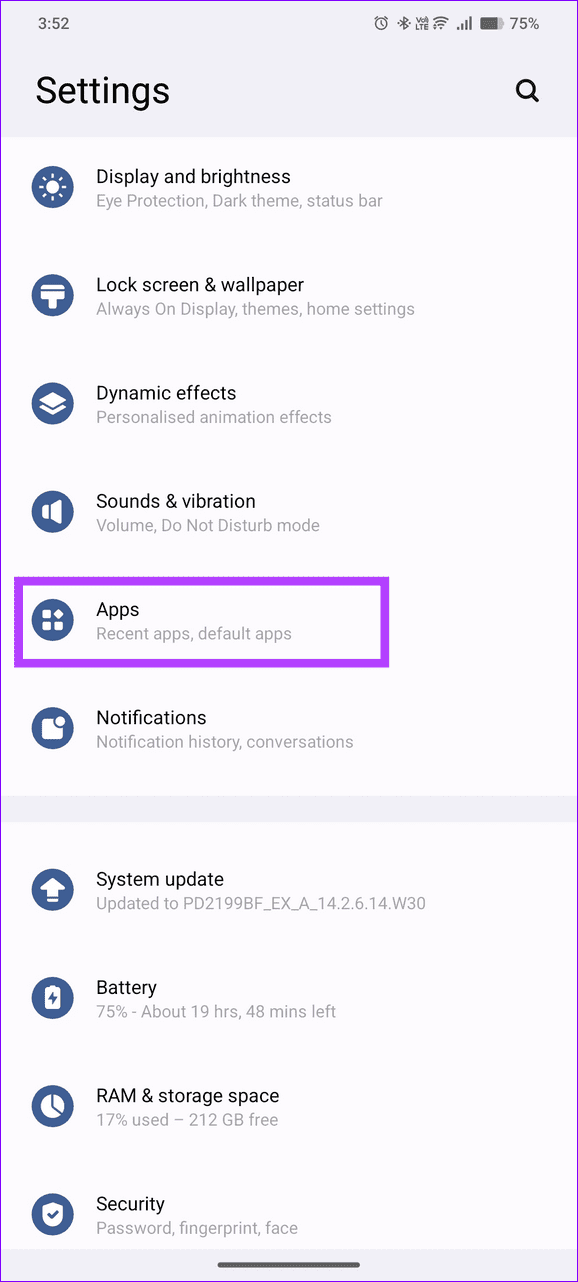
Most battery-related Android apps claiming to protect your battery are resource-hungry and can drain your phone’s battery while charging. Uninstall them and retry charging your device.
Step 1: Select Apps under Android Settings and tap the installed battery-related app.
Step 2: Tap Uninstall to delete it from your device.

Fix 4: Calibrate the Battery
If your Android phone has abruptly started to drain its battery or showing the wrong battery percentage while charging, battery calibration can fix it.
Charge your device to 100% and use it till it switches off due to low battery. Then, recharge it completely without interruptions. Repeat this process a few times to calibrate the battery and improve its lifespan.
Fix 5: Boot Into Safe Mode
Sometimes, an installed third-party app on your Android phone may malfunction draining your device’s battery while charging. Boot your phone in safe mode and retry charging it.
Step 1: Long-press the physical Lock/Unlock button on your device to open the Power menu and hold the Restart button for a few seconds.
Step 2: Tap OK to reboot your device into the safe mode.


Was this helpful?
Last updated on 02 August, 2024
Read Next
 6 Ways to Fix iPhone Battery Draining While Charging
https://youtu.be/Eotj1OWfuME Fix 1: Use MFi-Certified Cables and Adapters It’s advisable to use Apple’s original accessories that ship with the phone.
6 Ways to Fix iPhone Battery Draining While Charging
https://youtu.be/Eotj1OWfuME Fix 1: Use MFi-Certified Cables and Adapters It’s advisable to use Apple’s original accessories that ship with the phone.
 4 Ways to Fix Google Play Services Draining Battery on Android
Basic Fixes Check recently installed apps: If you observed an increase in battery drain only recently, uninstall any newly downloaded apps.
4 Ways to Fix Google Play Services Draining Battery on Android
Basic Fixes Check recently installed apps: If you observed an increase in battery drain only recently, uninstall any newly downloaded apps.
 3 Ways to Fix Bluetooth Draining Battery on Android
Fix 1: Turn off Bluetooth Scanning When you enable Bluetooth, your Android device continuously runs Bluetooth scanning in the background, leading to unnecessary battery drain.
3 Ways to Fix Bluetooth Draining Battery on Android
Fix 1: Turn off Bluetooth Scanning When you enable Bluetooth, your Android device continuously runs Bluetooth scanning in the background, leading to unnecessary battery drain.
 4 Ways to Fix Google Maps Draining Battery on Android and iPhone
https://youtu.be/HEEhE2uFRfw Try Basic Fixes Remove the Google Maps widget from home screen: If you use Google Maps' live traffic widget to get traffic information on your home screen, the app’s
4 Ways to Fix Google Maps Draining Battery on Android and iPhone
https://youtu.be/HEEhE2uFRfw Try Basic Fixes Remove the Google Maps widget from home screen: If you use Google Maps' live traffic widget to get traffic information on your home screen, the app’s
 4 Ways to Fix MacBook Draining Battery When Closed
https://youtu.be/fkXYhA950FQ Preliminary Fixes Disable the background process: If you are downloading a large file or installing an app from the Mac App Store, pause the process first and close the
4 Ways to Fix MacBook Draining Battery When Closed
https://youtu.be/fkXYhA950FQ Preliminary Fixes Disable the background process: If you are downloading a large file or installing an app from the Mac App Store, pause the process first and close the
 10 Tips to Fix Kindle Battery Draining Fast
1.
10 Tips to Fix Kindle Battery Draining Fast
1.
 How to Stop Chrome From Draining the Battery on iPhone and iPad
Basic Fixes Close Unwanted Tabs: If Chrome is open with multiple tabs, your battery will drain faster.
How to Stop Chrome From Draining the Battery on iPhone and iPad
Basic Fixes Close Unwanted Tabs: If Chrome is open with multiple tabs, your battery will drain faster.
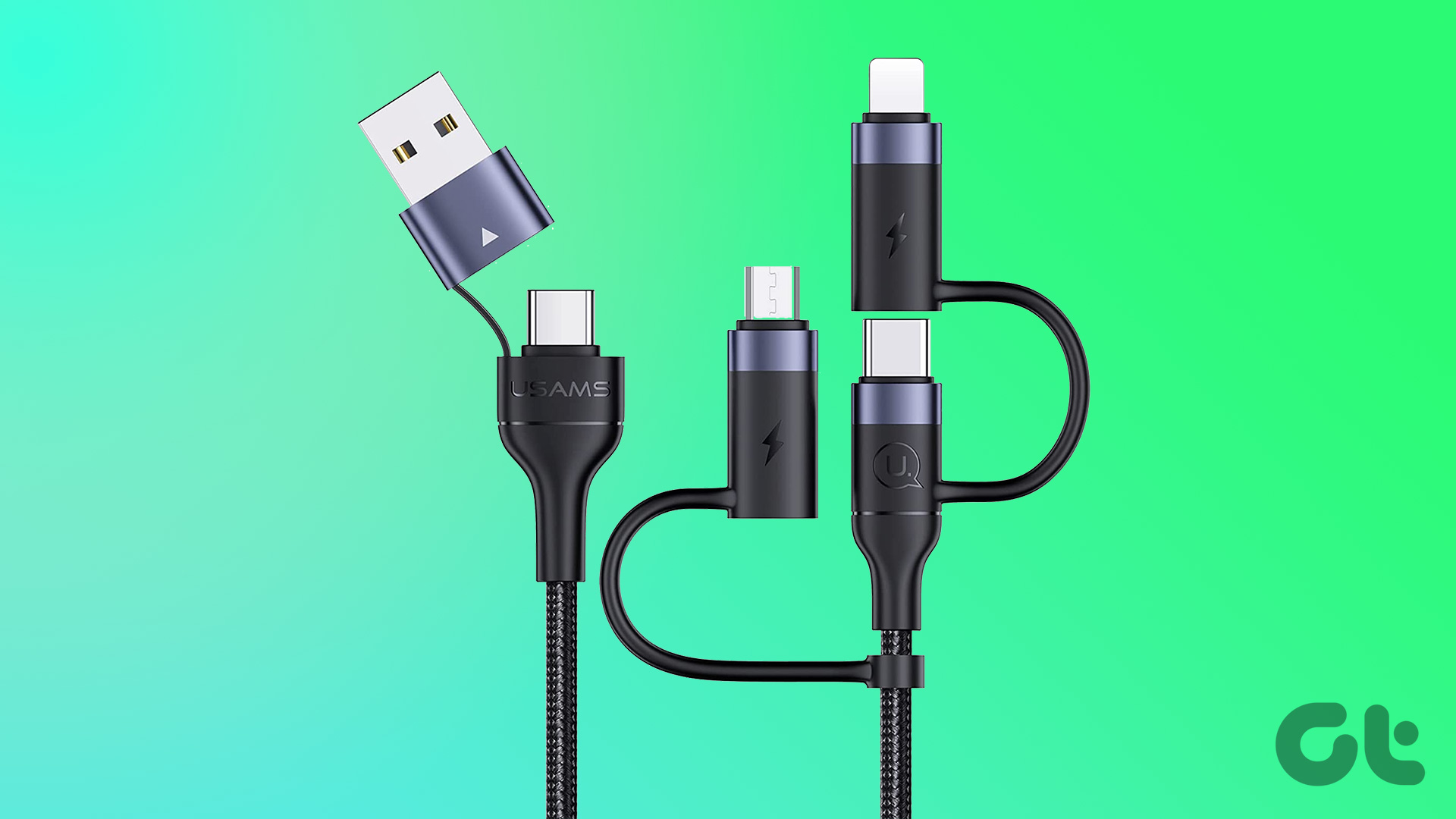 7 Best Multi-Charging Cables for Charging Multiple Devices
Most of us nowadays have multiple devices to charge.
7 Best Multi-Charging Cables for Charging Multiple Devices
Most of us nowadays have multiple devices to charge.
The article above may contain affiliate links which help support Guiding Tech. The content remains unbiased and authentic and will never affect our editorial integrity.