


Basic Fixes:
- Enable and disable Airplane mode: You can reset your Android phone’s network connection using the Airplane mode. It effectively troubleshoots common network glitches. Enable it on your phone and wait. Disable it, and once the network bars appear, place a call.
- Reinsert SIM: It’s another handy trick to fix call drops on your phone. You can remove the SIM tray, ensure there isn’t any wear and tear, and place it back in.
- Check carrier plan: If your local carrier plan has expired, top up your mobile number with a new plan. Your carrier services may also end if you forget to pay the carrier bill before the due date.
- Let your phone cool down: If your phone’s temperature is abnormally high, let it cool down before placing a call. Your calls may hang up if your phone runs exceptionally hot.
- Update the Phone app: Software glitches can cause the Phone app to drop calls as soon as you dial. To fix this, check and install the latest Phone app updates. Then, try placing a call.
Fix 1: Disable Wi-Fi Calling
While Wi-Fi calling is useful for making calls in a low-network area, it can also drop calls. Here’s how to disable Wi-Fi calling on your Android phone:
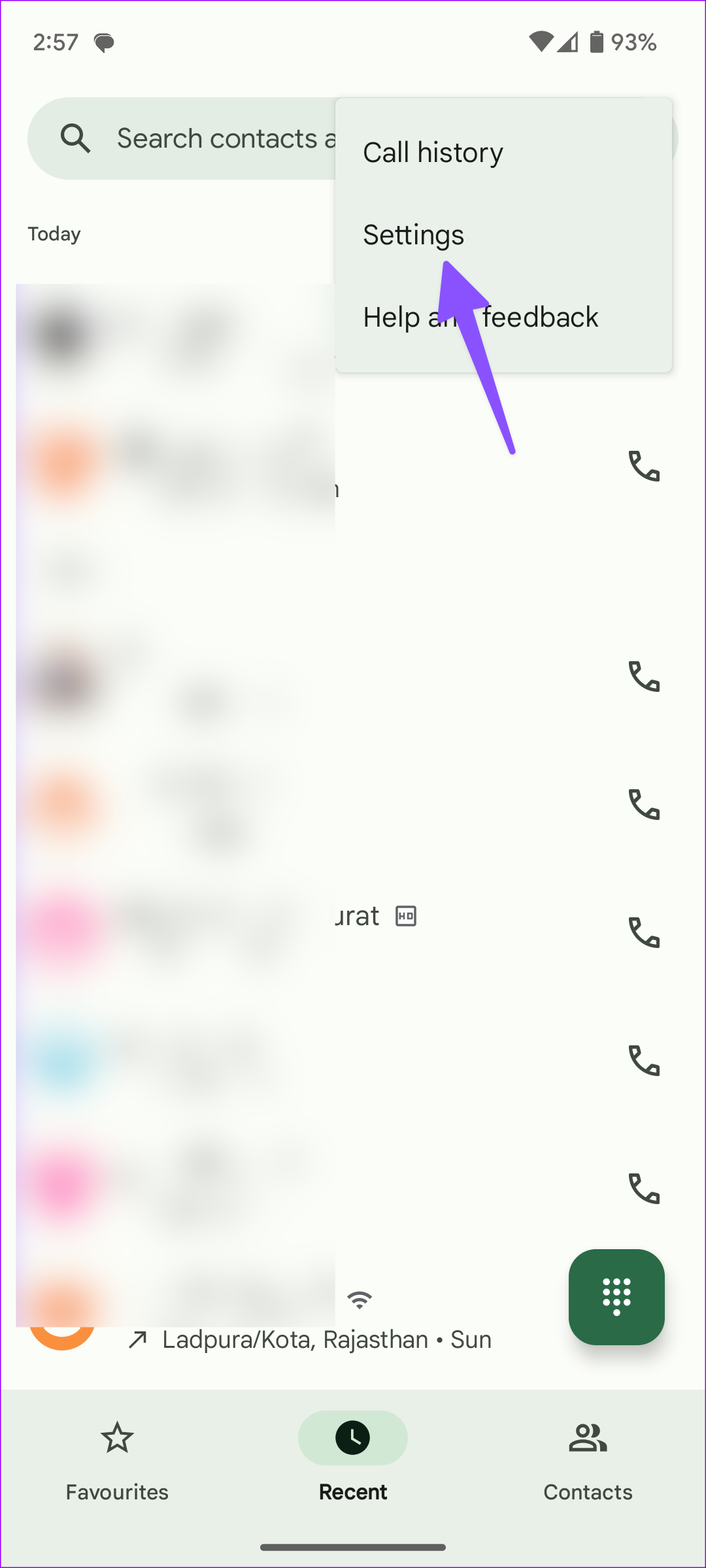
Step 1: Open the Phone app and tap the three-dot menu at the top. Select Settings > tap on Calls.
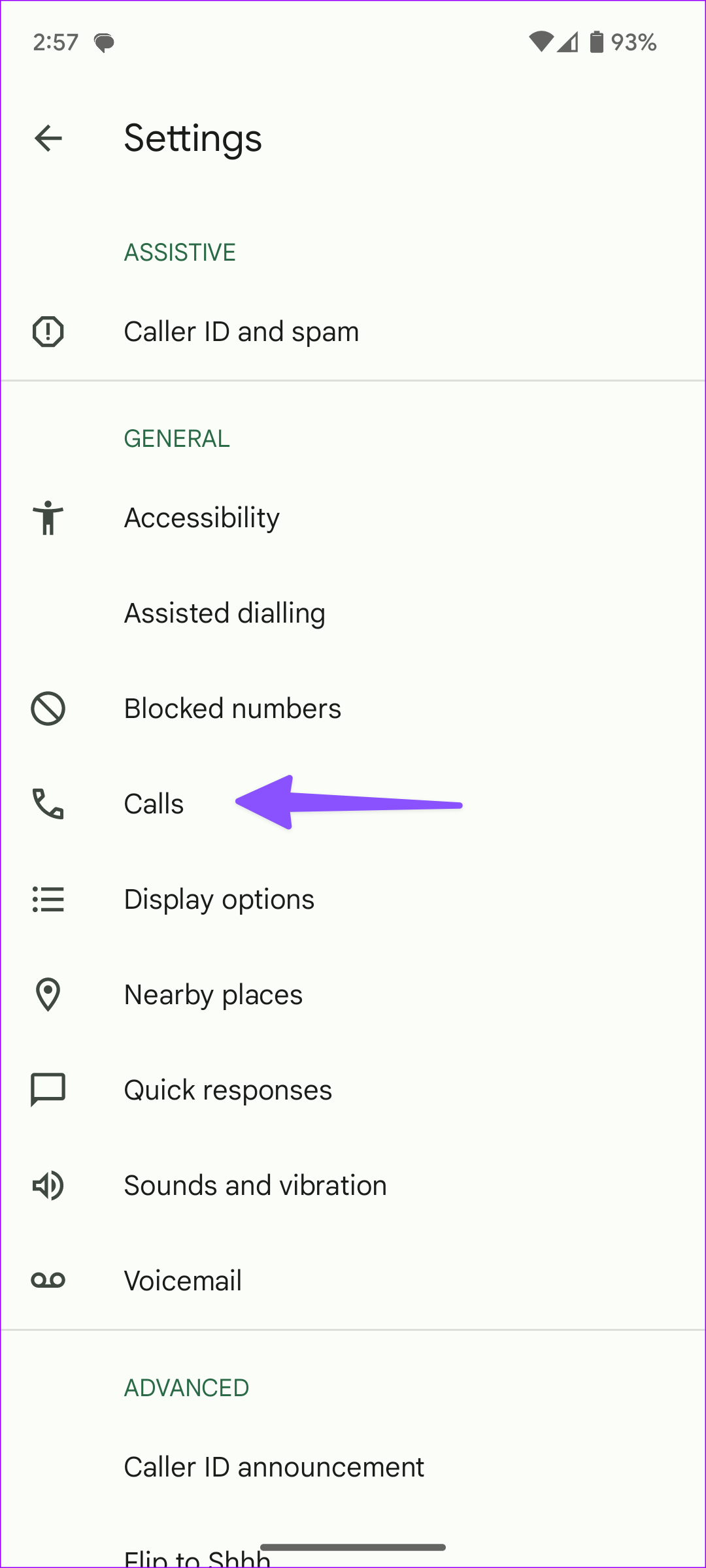
Step 2: Tap on Wi-Fi calling and turn off the toggle.


Fix 2: Disable 5G
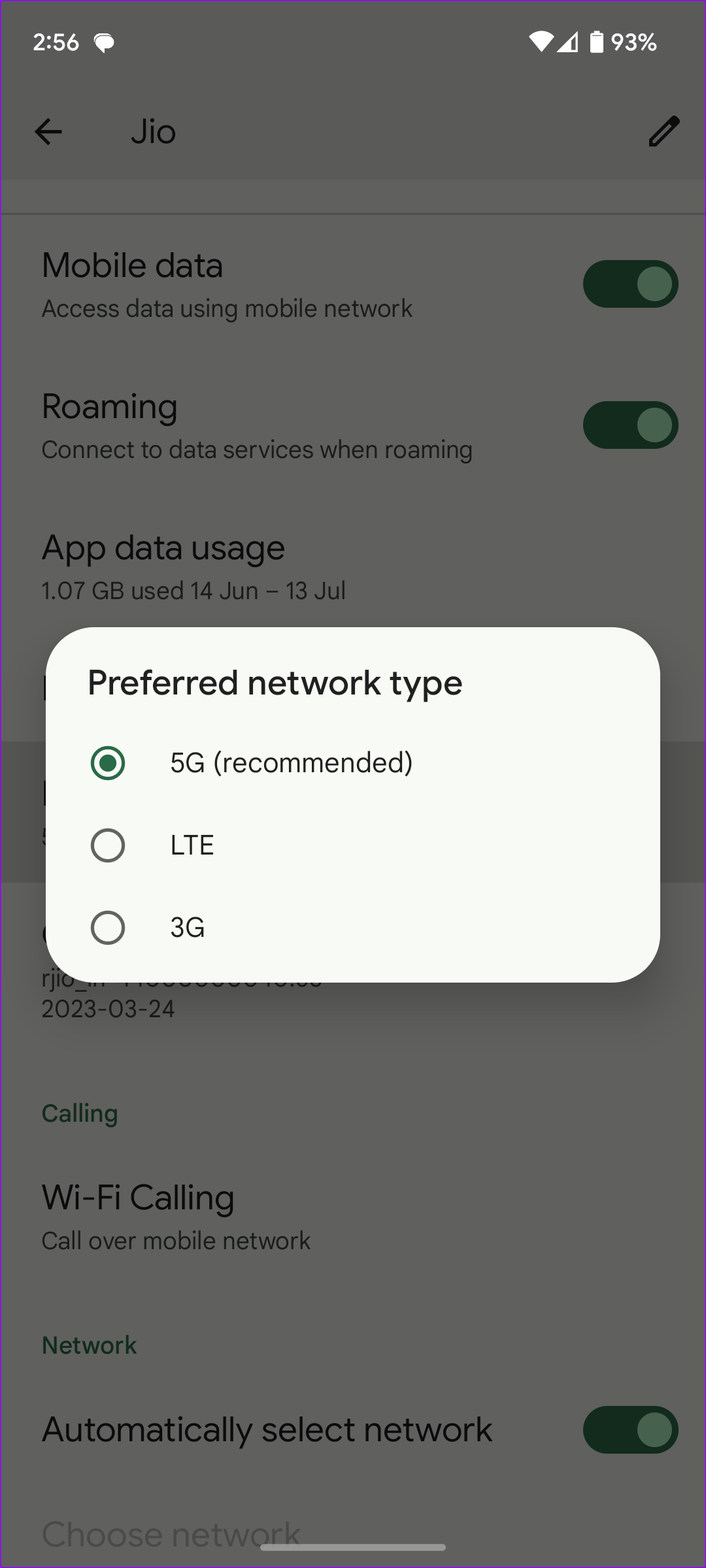
Are you trying to make calls over 5G on your Android phone? If 5G isn’t widely available in your region, calls may hang as soon as you dial. So, move back to LTE or 3G. Here’s how.
Step 1: Open Settings and select Network and internet.
Step 2: Select Internet and tap the gear icon beside the network.
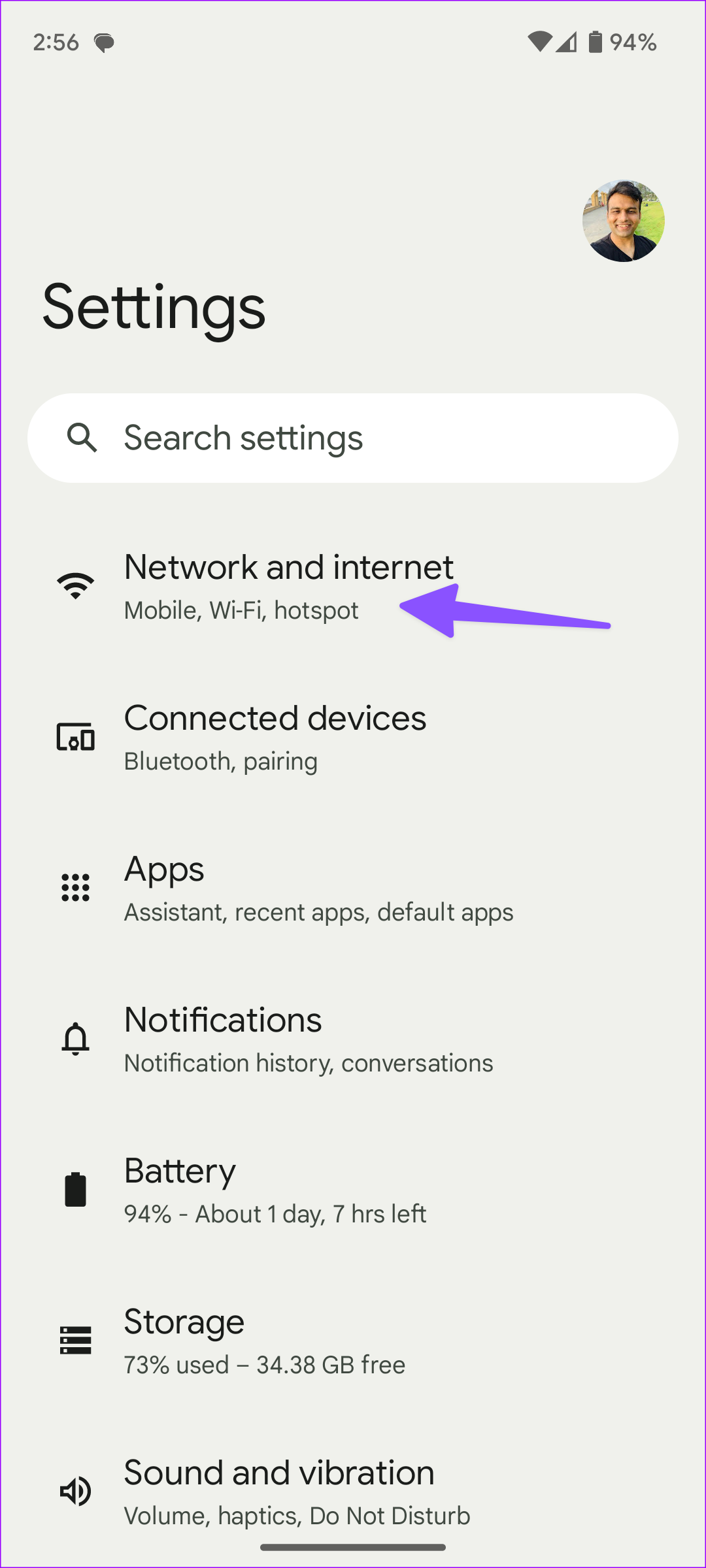


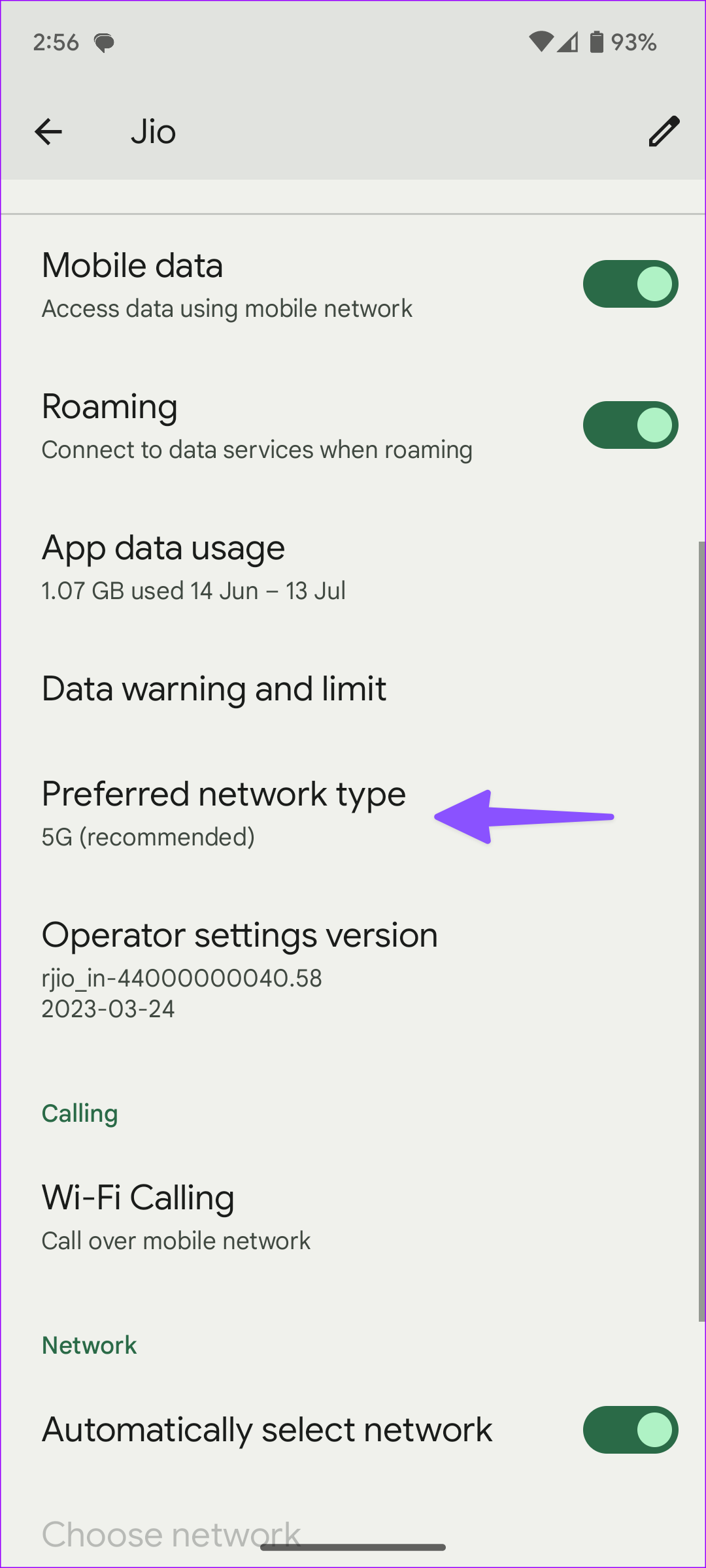
Step 3: Tap on Preferred network type and select LTE or 3G.
Fix 3: Ensure the Correct Phone App Is Selected
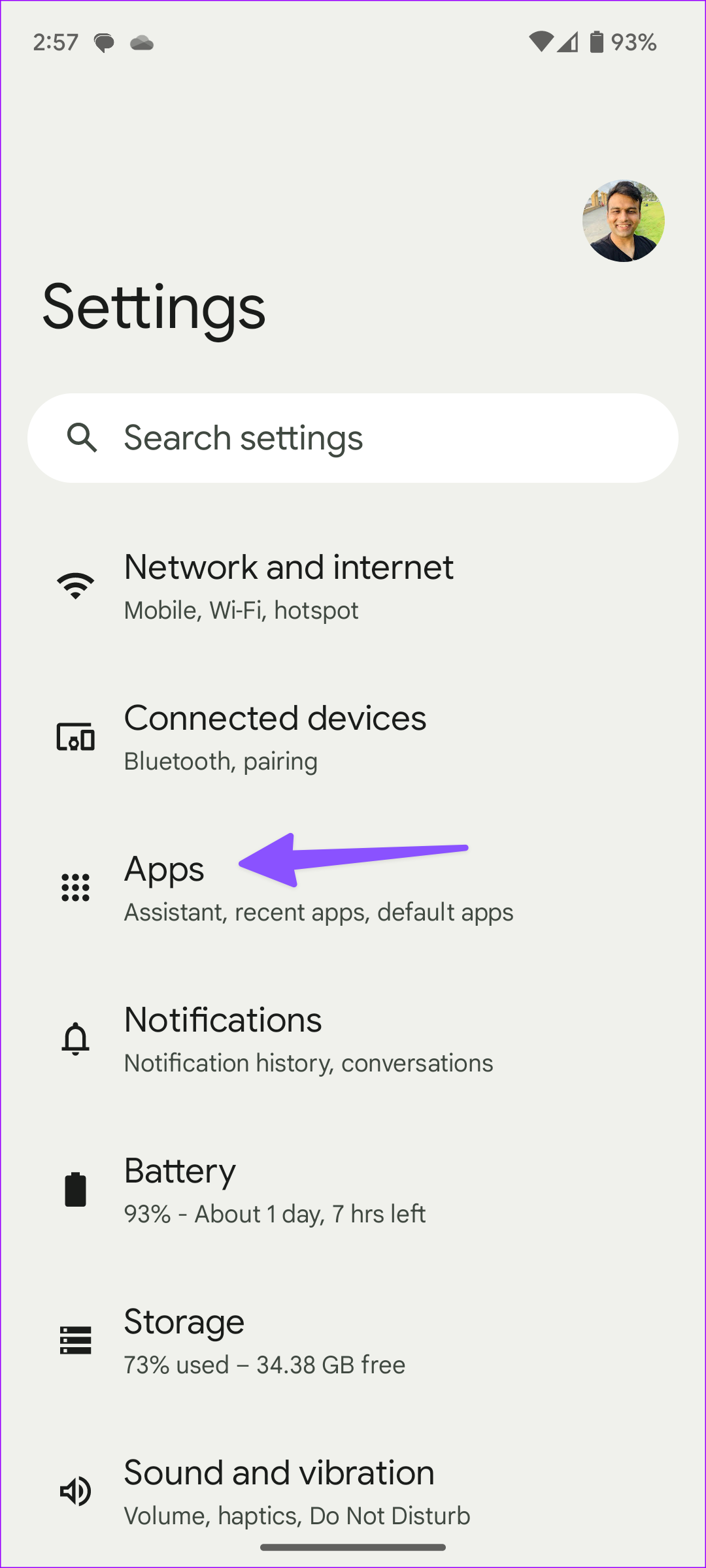
Is the third-party calling app acting up on Android? Open Settings and ensure the Phone app is selected as your default calling app. Here’s how.
Step 1: Open Settings and scroll to Apps. Select Default apps.

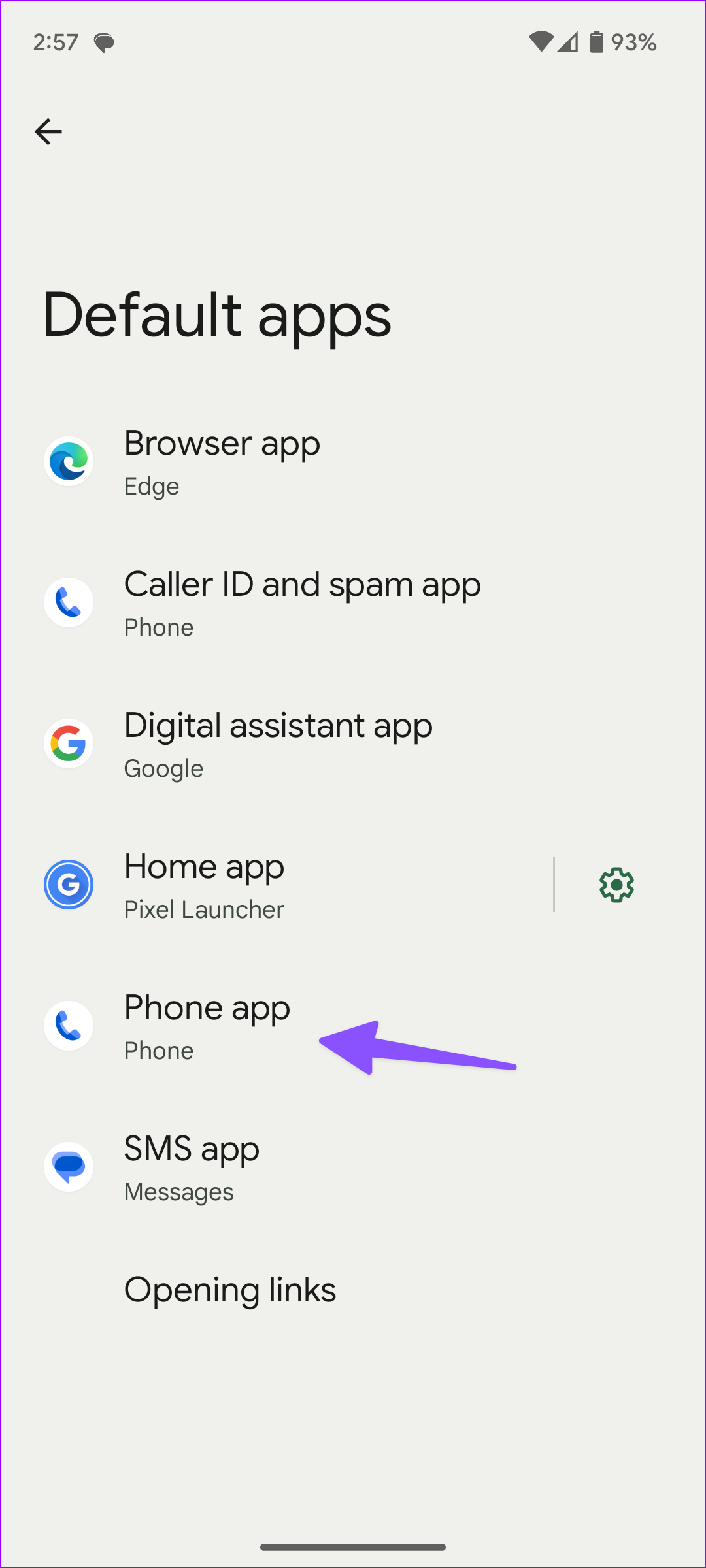
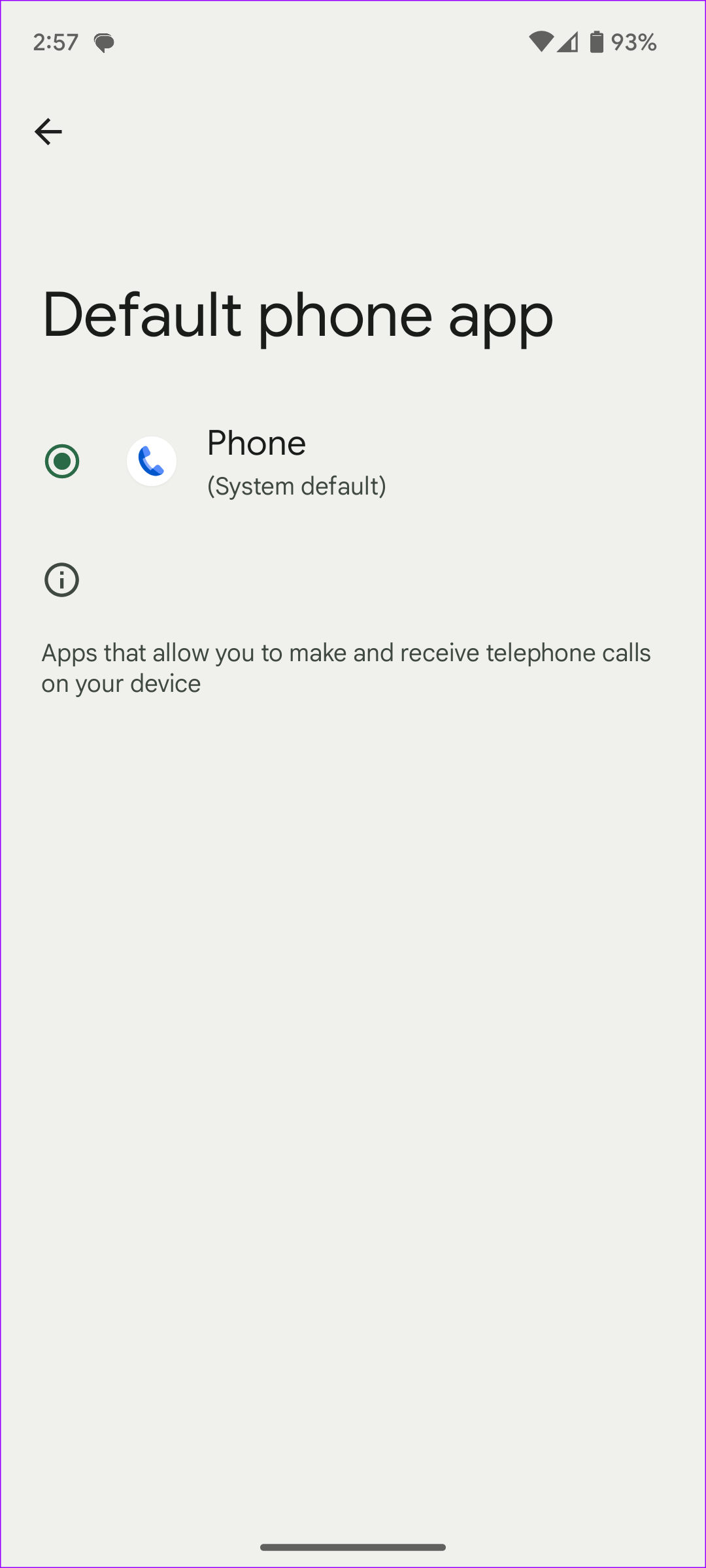
Step 2: Tap the Phone app and ensure the Phone app is selected.
Fix 4: Reset Network Settings
If you still have network connection issues, reset the network settings on Android. Note that this will remove all the details of the Wi-Fi connections you’ve added to your phone. Also, details of the Bluetooth devices and your network carrier settings will reset.
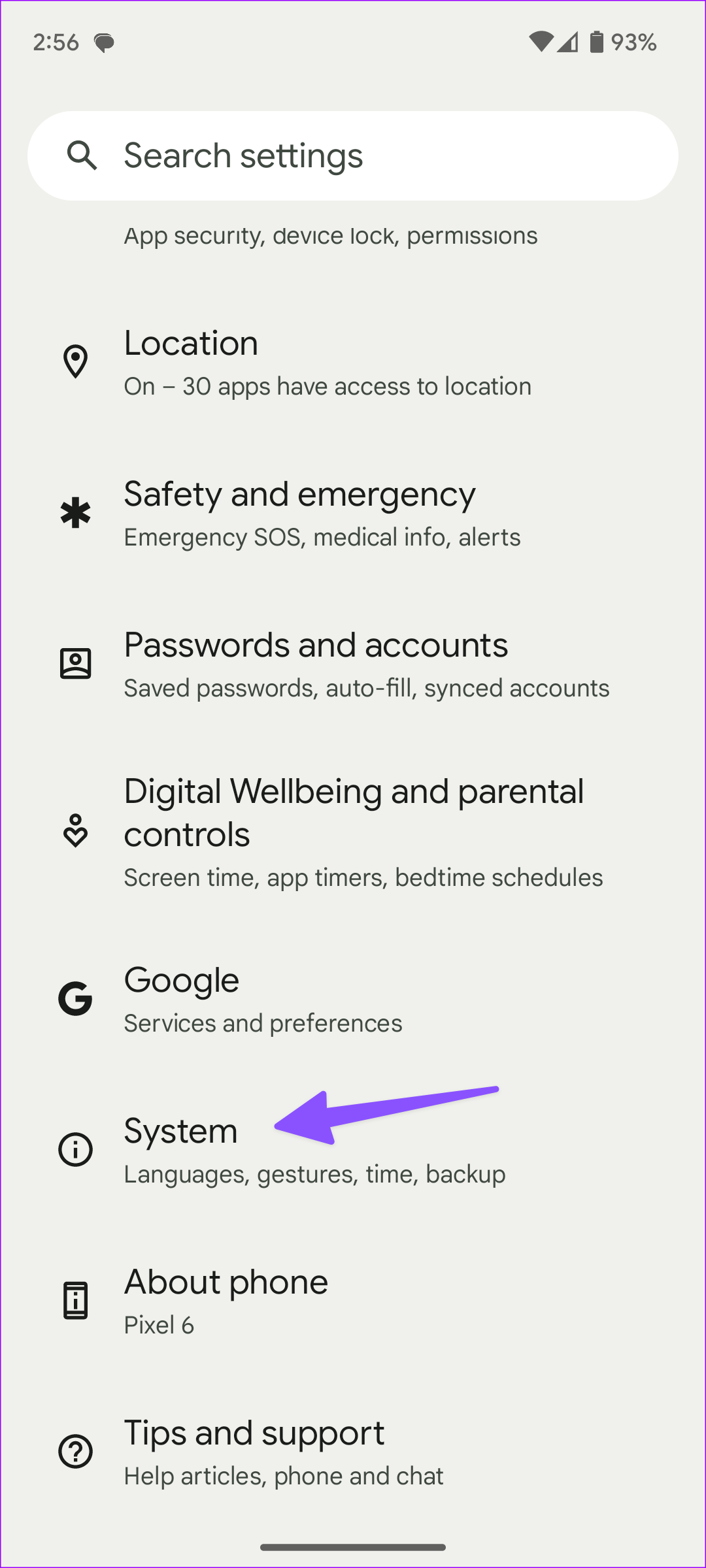
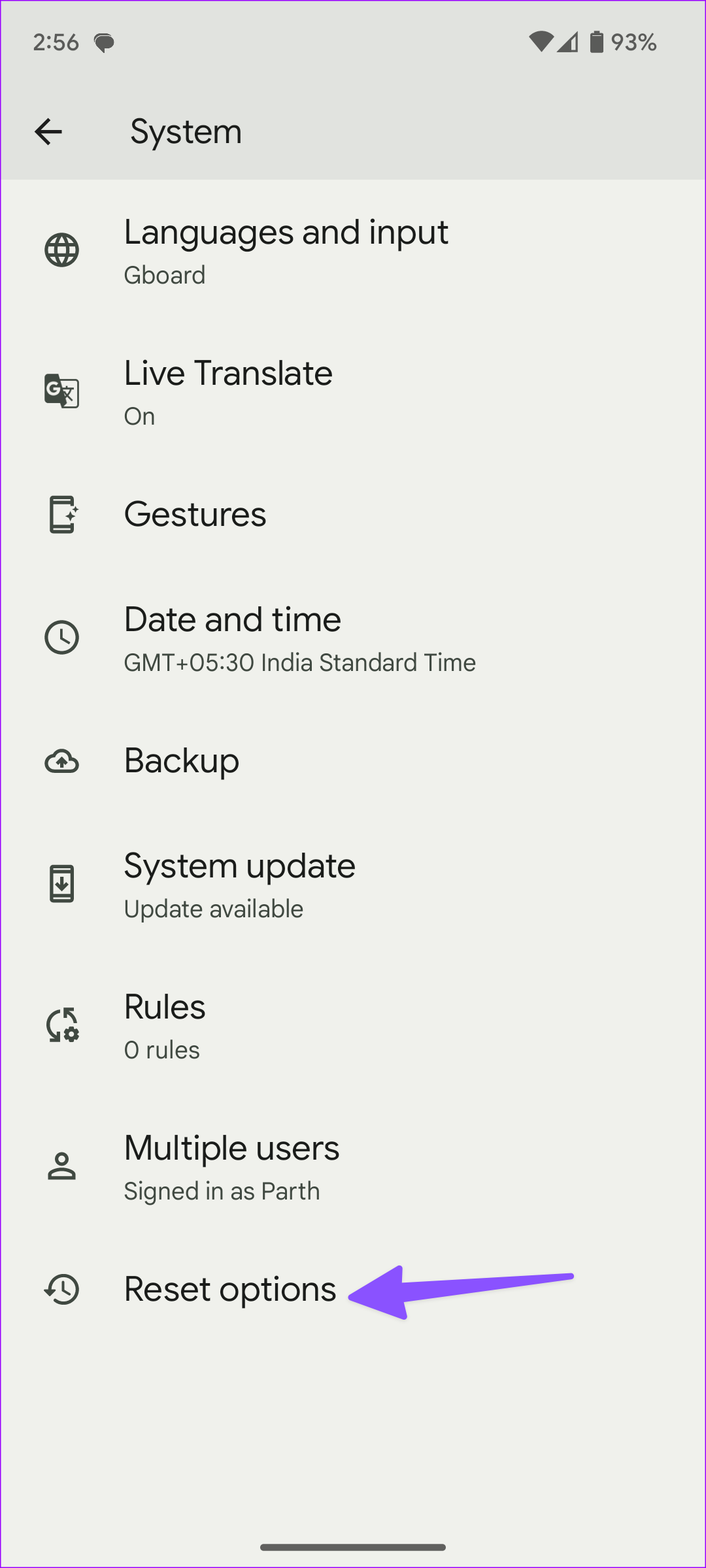
Step 1: Open Settings and scroll to System. Tap Reset options.
Step 2: Select Reset Wi-Fi, mobile and Bluetooth and confirm the same from the following menu.

Read our dedicated guide for resetting network settings on Android. Once done, try placing the call again to see if the issue has been fixed on your Android phone.
Was this helpful?
Last updated on 27 June, 2024
1 Comment
Leave a Reply
Read Next
 4 Ways to Setup Speed Dial on Android
Method 1: Add Contact to Favorites Your Android phone lets you create and manage a list of your favorite contacts so that you can contact them quickly without shuffling through
4 Ways to Setup Speed Dial on Android
Method 1: Add Contact to Favorites Your Android phone lets you create and manage a list of your favorite contacts so that you can contact them quickly without shuffling through
 3 Ways to Fix iPhone Hangs Up When I Call Someone
Basic Fixes Restart your iPhone: If your iPhone hangs up during a call, restarting it is the first thing to try.
3 Ways to Fix iPhone Hangs Up When I Call Someone
Basic Fixes Restart your iPhone: If your iPhone hangs up during a call, restarting it is the first thing to try.
 How to Dial an Extension on iPhone and Android
How to Call With an Extension on iPhone Directly If you have an iPhone, here's how to call with an extension before you dial a number.
How to Dial an Extension on iPhone and Android
How to Call With an Extension on iPhone Directly If you have an iPhone, here's how to call with an extension before you dial a number.
 Spotify to Cost More in the US Soon – Check These 4 Cheaper Alternatives
Spotify Prices to Increase Again Spotify has adjusted its pricing structure in the US market once again.
Spotify to Cost More in the US Soon – Check These 4 Cheaper Alternatives
Spotify Prices to Increase Again Spotify has adjusted its pricing structure in the US market once again.
 How to Scan QR Code on Phone Without Using Another Phone
Note: Both iPhone and Android can scan QR codes on the phone.
How to Scan QR Code on Phone Without Using Another Phone
Note: Both iPhone and Android can scan QR codes on the phone.
 5 Ways to Fix Android Phone Not Receiving Emails
Basic Fixes Check internet connectivity: Ensure your device is connected to a Wi-Fi network or cellular data with good signal strength and an active plan.
5 Ways to Fix Android Phone Not Receiving Emails
Basic Fixes Check internet connectivity: Ensure your device is connected to a Wi-Fi network or cellular data with good signal strength and an active plan.
 4 Ways to Fix Android Phone Keeps Losing Network Connection
Basic Fixes Check network connection: Ensure there's enough signal strength, or move to different surroundings.
4 Ways to Fix Android Phone Keeps Losing Network Connection
Basic Fixes Check network connection: Ensure there's enough signal strength, or move to different surroundings.
 5 Ways to Fix Android Phone Automatically Pressing the Back Button
Common Fixes Check hardware damage: Ensure your phone's touch screen is intact to avoid having ghost touch issues with the back navigation button.
5 Ways to Fix Android Phone Automatically Pressing the Back Button
Common Fixes Check hardware damage: Ensure your phone's touch screen is intact to avoid having ghost touch issues with the back navigation button.
The article above may contain affiliate links which help support Guiding Tech. The content remains unbiased and authentic and will never affect our editorial integrity.
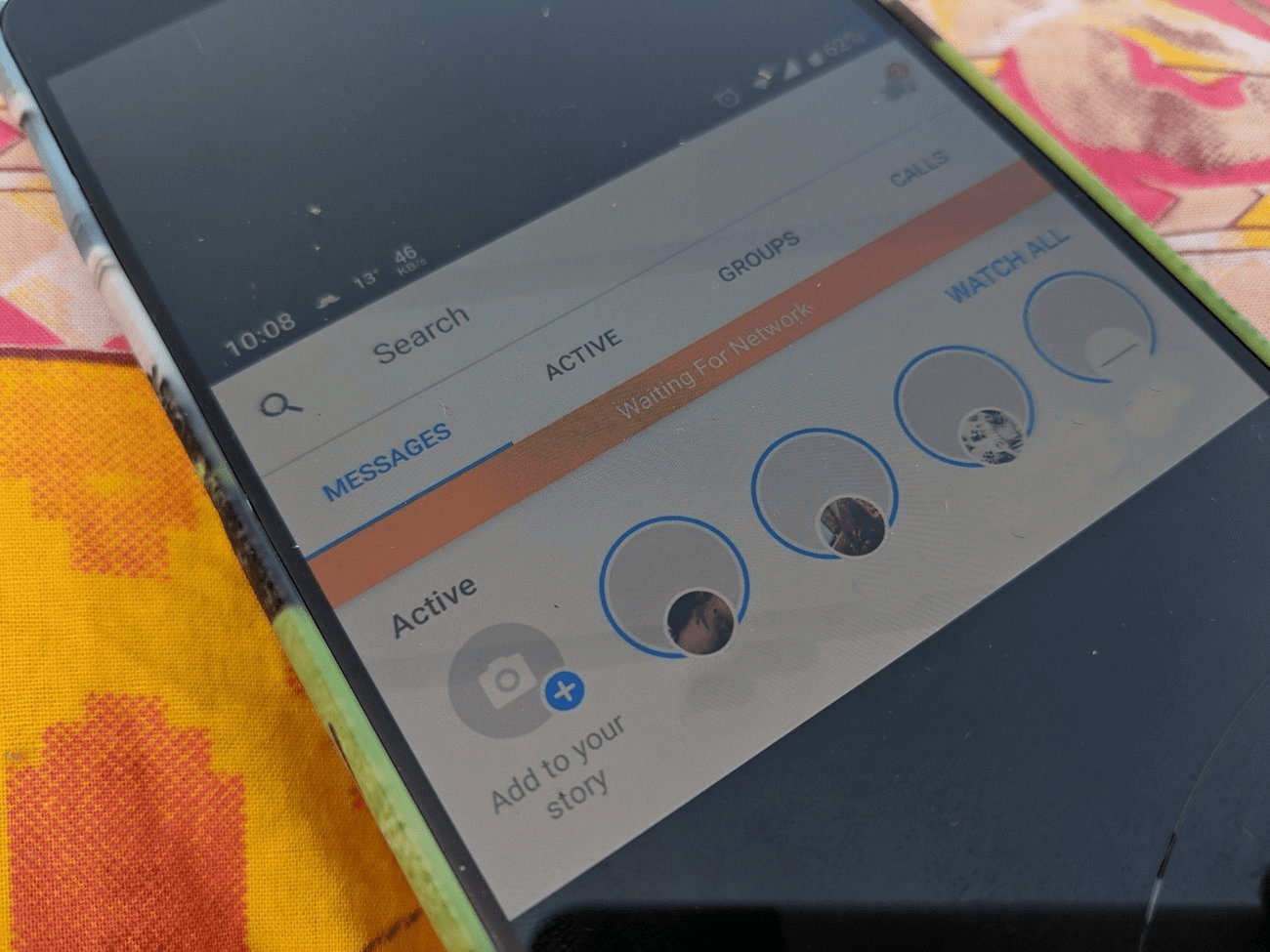

Thank you VERY much for the Quick Tips – it worked!!
T