


Note: The solutions in this guide apply to all generations or editions of the Apple AirPods — AirPods 1, AirPods 2, AirPods 3, AirPods Pro, and the AirPods Pro 2nd Generation.
Try Basic Fixes
- Re-enable Bluetooth: Disabling and re-enabling Bluetooth on your phone or computer can also help fix temporary connectivity issues. This has worked for many.
- Disconnect other devices: In the case of multiple (or simultaneous) connections, make sure the AirPods is the primary audio output device. Go to your phone or PC’s Bluetooth settings menu and disconnect any unwanted devices.
Fix 1: Check the Battery Percentage
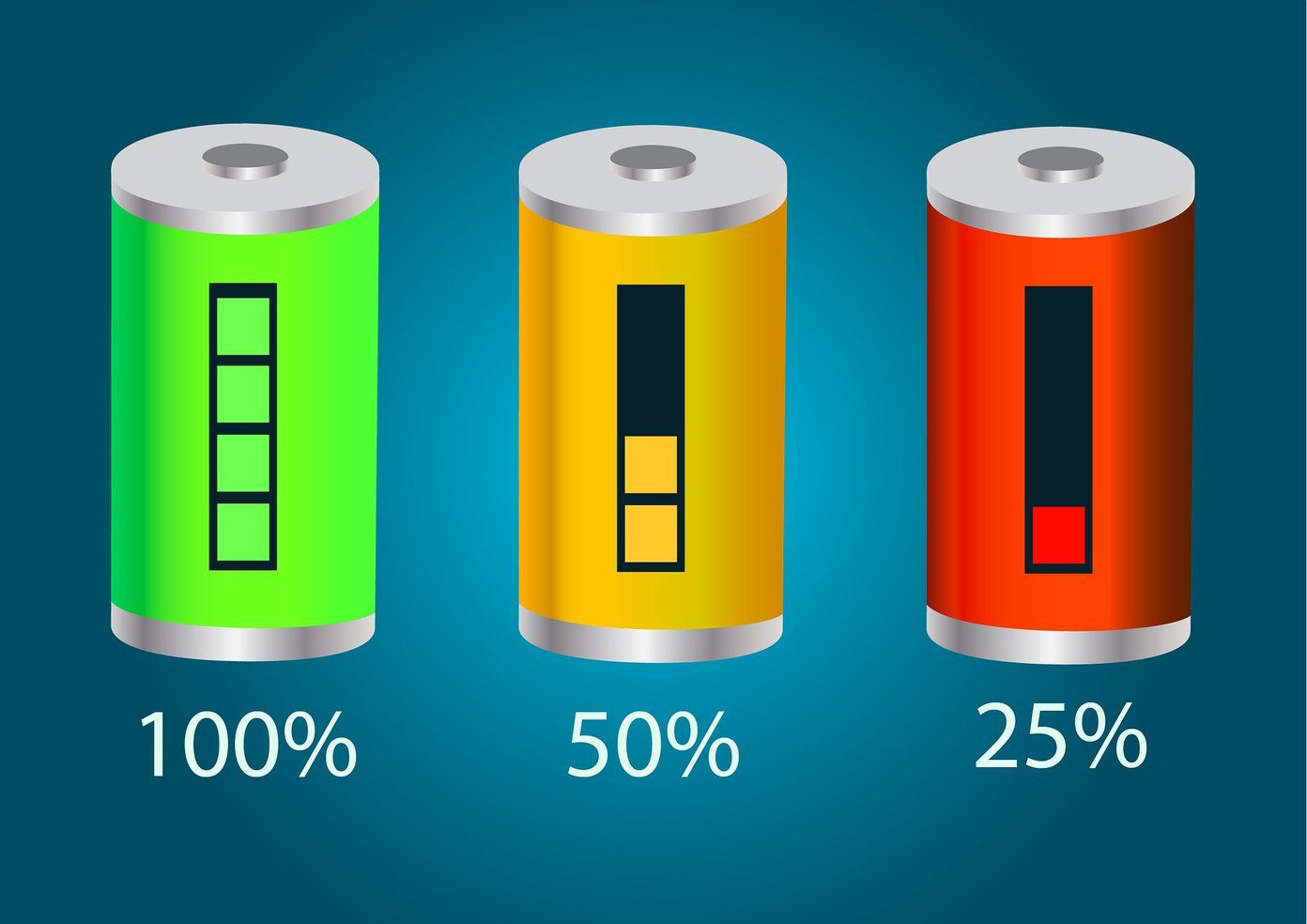
If your AirPods connect but there’s no sound, it could be that the battery level is critically low. On an iPhone or iPad, place both AirPods in the charging case, close the lids, and reopen them. You should see a card showing the battery status (in percentage) of both the AirPods and the charging case.
For Mac, click the Bluetooth icon on the menu bar and hover your cursor on the connected AirPods. The battery status for both left and right AirPods and the charging case will be displayed.
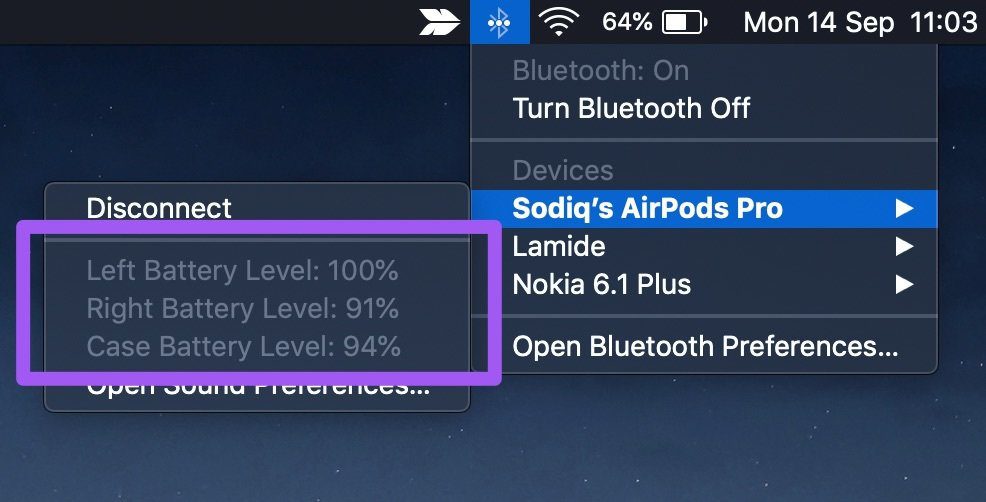
Note: There is no way to natively check the AirPods battery life on Android and Windows devices.
If the AirPods battery level is 10% or below, leave them in the charging case to charge and try again.
Fix 2: Adjust the Audio Balance
If you inadvertently routed the audio output volume to one AirPod more than the other, you could experience problems. Follow the steps below to adjust your device’s audio balance.
For iPhone
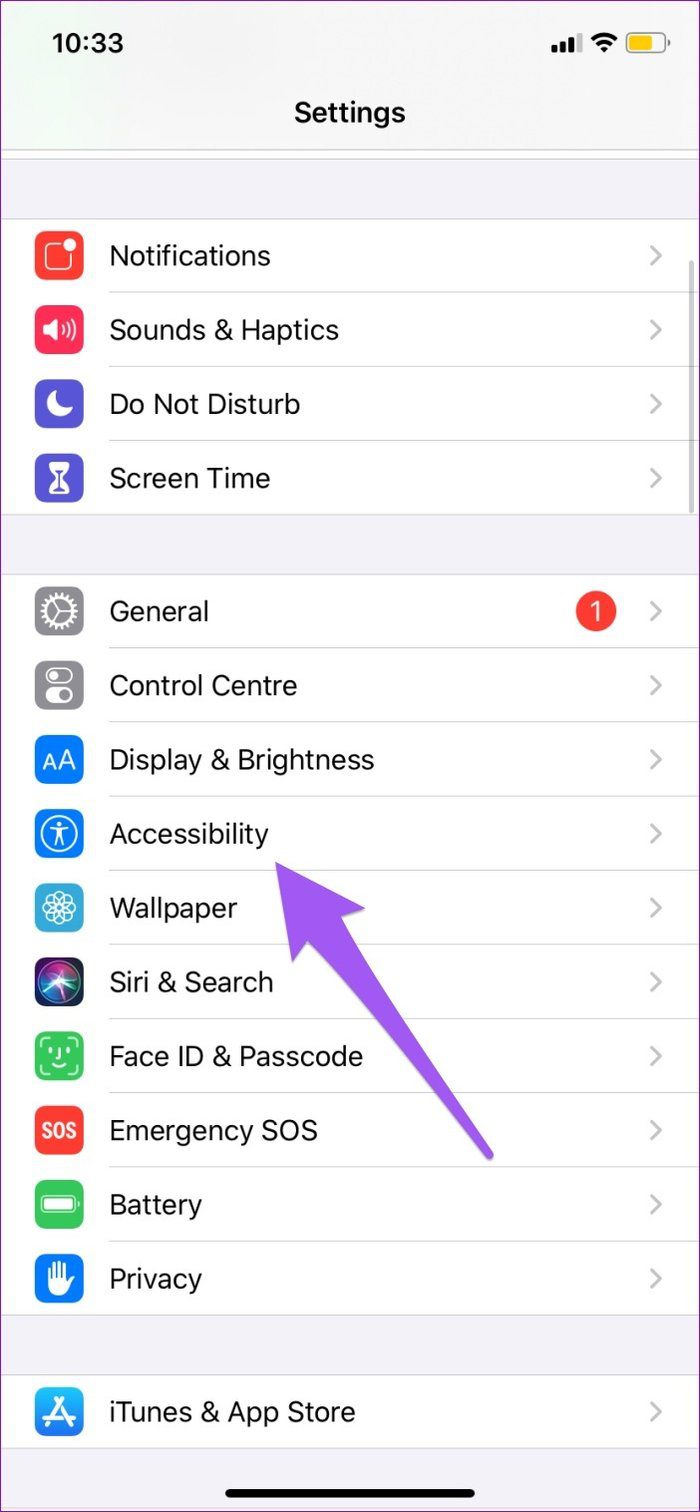
Step 1: Launch the Settings menu and head to Accessibility > Audio/Visual.
Step 2: Make sure the Balance slider is positioned in the middle.


For Android
Step 1: Launch the Settings menu and navigate to Accessibility > Hearing enhancements.
Step 2: Set the Connected audio and phone speakers sliders in the middle.


For Mac
Step 1: Click the Bluetooth icon on the Status menu, hover the cursor on your AirPods, and select Open Sound Preferences.

Step 2: Go to the Output tab and select the AirPods.
Step 3: Finally, adjust the Balance slider to the middle.

For Windows
Step 1: Press Windows + I to open the Settings app and head to System > Sound.
Step 2: In the Output section, ensure the AirPods are your preferred output device. Then, click on Device properties.

Step 3: Now set the audio balance for both left and right AirPods to 50. Additionally, make sure the Disable checkbox is left unchecked.

Fix 3: Disable Automatic Ear Detection
The audio output is automatically routed to the AirPods when placed in your ears on your iPhone and iPad. That is a cool feature, but it sometimes messes up the AirPods’ sound production. Some iPhone users who experienced this sound issue fixed it by disabling Automatic Ear Detection. Here’s how you can do it.
Connect the AirPods to your device and follow the steps below.
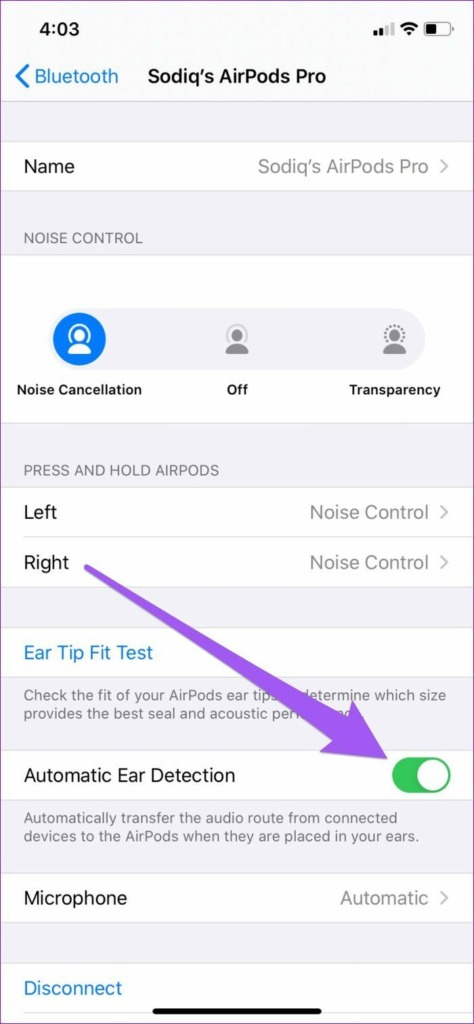
Step 1: Go to your iPhone’s Bluetooth menu and tap the info icon next to your AirPods.
Step 2: Toggle off Automatic Ear Detection.

Fix 4: Reset Your AirPods
If the AirPods still don’t produce sound after implementing all the solutions above, you should reset them. Place both AirPods back in the charging case and hold the setup button on the case for 10 seconds till the status light continuously blinks white. Now, go to your device’s Bluetooth settings menu and add the AirPods as a new device.
Was this helpful?
Last updated on 05 September, 2024
Read Next
 5 Best Ways to Fix Spatial Audio Not Working on AirPods 3 or AirPods Pro
Try Basic Fixes Update the AirPods firmware: Put your AirPods inside the case while they’re connected to your phone.
5 Best Ways to Fix Spatial Audio Not Working on AirPods 3 or AirPods Pro
Try Basic Fixes Update the AirPods firmware: Put your AirPods inside the case while they’re connected to your phone.
 5 Fixes for Touch Controls Not Working on AirPods and AirPods Pro
Fix 1: Clean the Outer Surface of the AirPods The touch sensors on the AirPods need to detect proper contact with your fingers to register a touch or a press.
5 Fixes for Touch Controls Not Working on AirPods and AirPods Pro
Fix 1: Clean the Outer Surface of the AirPods The touch sensors on the AirPods need to detect proper contact with your fingers to register a touch or a press.
 Top 5 Ways to Fix Bluetooth Headphones Connected but No Sound on Windows 10
On a usual day, you'd hook your wireless Bluetooth headphones to your PC to listen to a song.
Top 5 Ways to Fix Bluetooth Headphones Connected but No Sound on Windows 10
On a usual day, you'd hook your wireless Bluetooth headphones to your PC to listen to a song.
 4 Fixes for Amazon Echo Connected to Bluetooth but No Sound
Fix 1: Remove AUX Cable Is an aux cable connected to your Echo?
4 Fixes for Amazon Echo Connected to Bluetooth but No Sound
Fix 1: Remove AUX Cable Is an aux cable connected to your Echo?
 6 Ways to Fix iPad Connected to Wi-Fi but No Internet
Basic Fixes: Restart the router and iPad: Power off your iPad and Wi-Fi router.
6 Ways to Fix iPad Connected to Wi-Fi but No Internet
Basic Fixes: Restart the router and iPad: Power off your iPad and Wi-Fi router.
 4 Fixes for iPhone Connected to Wi-Fi but Internet Not Working Issue
Basic Fixes: Restart the iPhone and modem: Long-press the power button and turn off your iPhone.
4 Fixes for iPhone Connected to Wi-Fi but Internet Not Working Issue
Basic Fixes: Restart the iPhone and modem: Long-press the power button and turn off your iPhone.
 Why Are My AirPods Crackling, Rattling, or Producing Static Noise: 11 Ways to Fix This
If you use an iPhone or a Mac, and you're looking to buy a pair of wireless earbuds, your first option is generally the AirPods.
Why Are My AirPods Crackling, Rattling, or Producing Static Noise: 11 Ways to Fix This
If you use an iPhone or a Mac, and you're looking to buy a pair of wireless earbuds, your first option is generally the AirPods.
 How to Fix Wi-Fi Stops Working on Windows When an External Monitor Is Connected
Basic Fixes: Check Monitor Cable: Bad connection cables can cause your Wi-Fi to stop working when an external monitor is connected on Windows.
How to Fix Wi-Fi Stops Working on Windows When an External Monitor Is Connected
Basic Fixes: Check Monitor Cable: Bad connection cables can cause your Wi-Fi to stop working when an external monitor is connected on Windows.
The article above may contain affiliate links which help support Guiding Tech. The content remains unbiased and authentic and will never affect our editorial integrity.

