How to Find and Join Public Telegram Groups and Channels
Joining public groups or channels on Telegram is easy if you know the exact name or username. You can also request an invitation from the admin or creator.
On the Telegram Desktop App or Web
Step 1: Launch the Telegram desktop app. Then, go to the search box in the left pane above the chats.
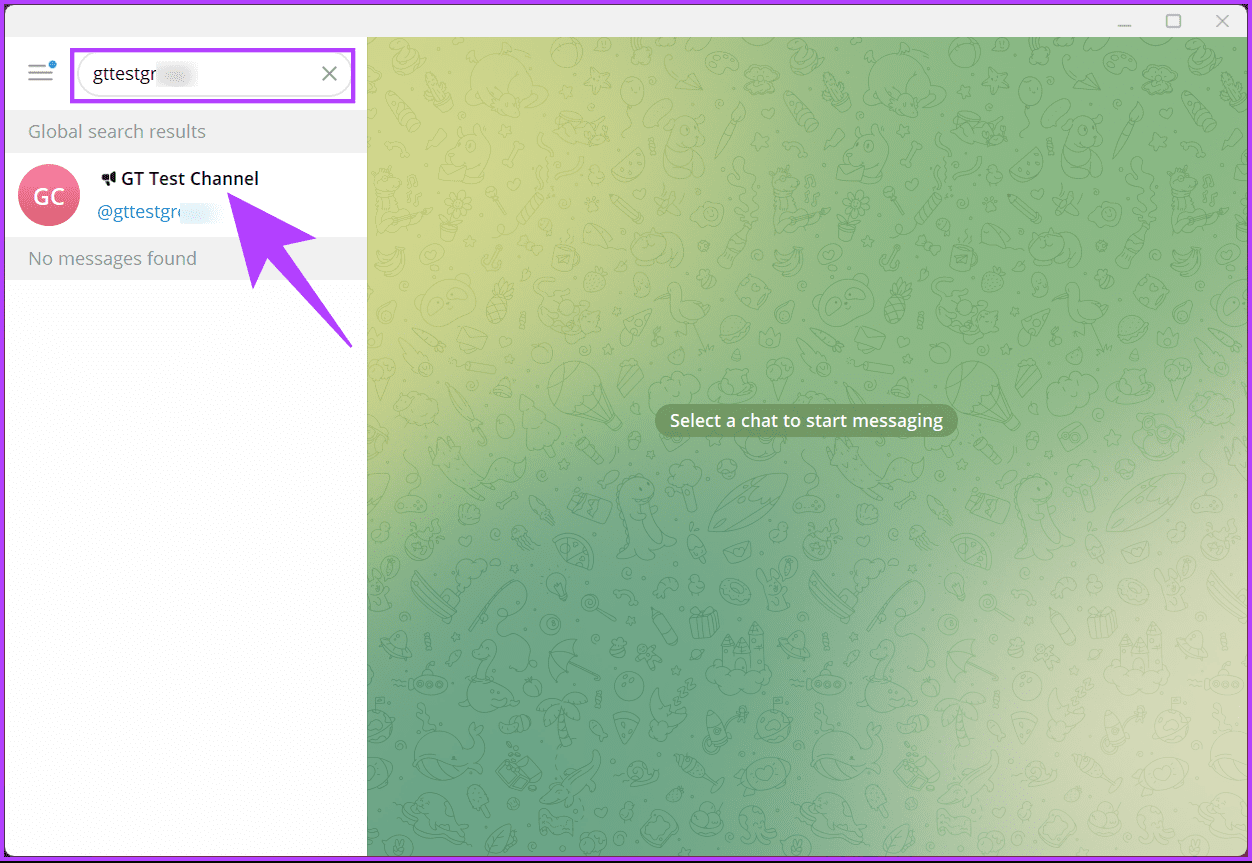
Step 2: Now, type the group’s or channel’s name or username, and from the search results, click on the one you want to join.
Step 3: Finally, click the Join or Join Channel button to enable yourself to message or share content in the group.
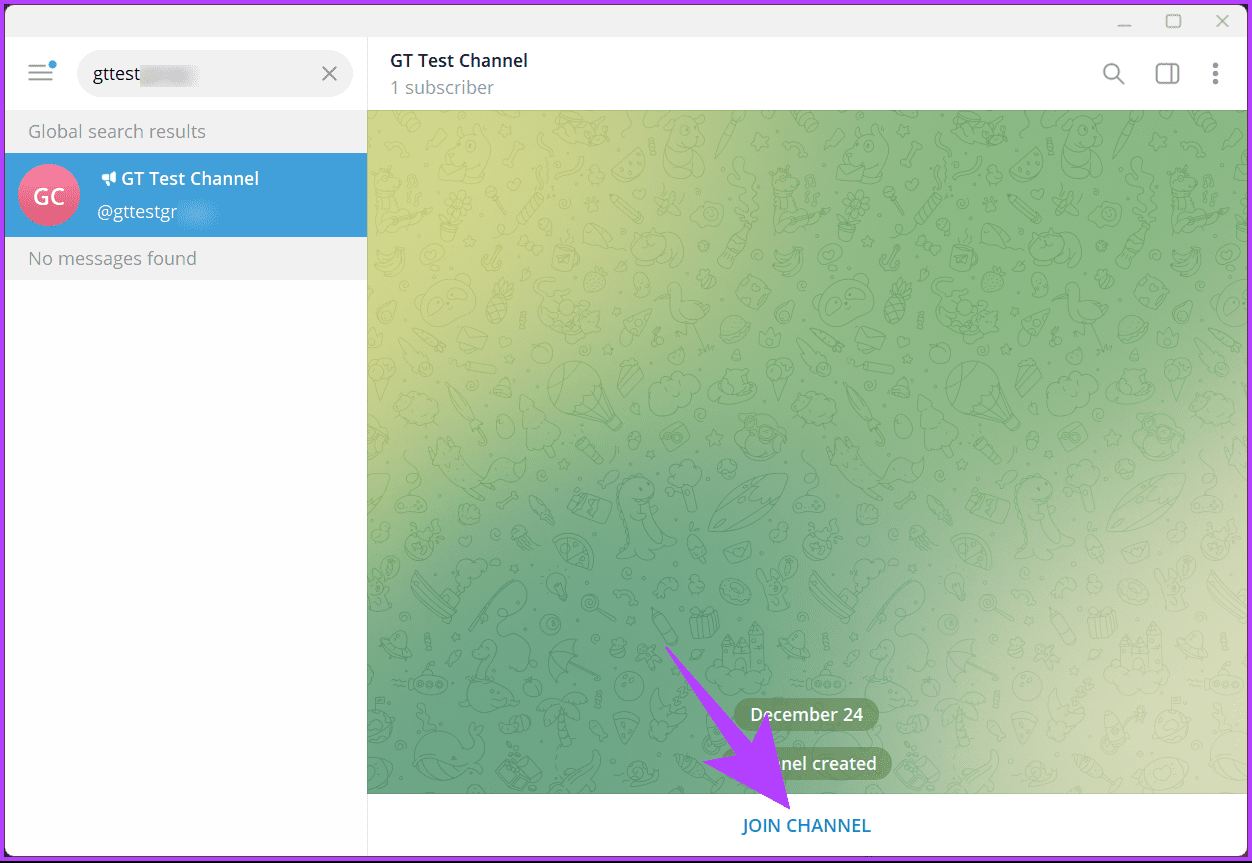
That’s it. You searched and joined the group or channel you wanted to join. If you don’t have access to a desktop and want to search for groups or channels in the Telegram mobile app, continue reading.
Also Read: How to hide your phone number on Telegram
On Telegram Mobile App (Android or iOS)
Step 1: Open the Telegram app. Once launched, tap the magnifying glass icon at the top-right corner.
Step 2: Now, type the public group or channel name, and from the search results, tap on the one you wish to join.
Step 3: Finally, click the Join Group or Join Channel button to enable yourself to message or share content in the group.

There you go. You have joined a public Telegram group or channel without a Telegram group or channel link. This was the case when the group or channel was open to everyone. But what if the group or the channel is private? keep reading.
How to Join Private Telegram Groups
Private groups or private channels cannot be found when searched on Telegram. To join a private group or channel, you must be invited or have an invite link. If you already have the invitation link, let’s begin with the steps for the desktop.
On the Telegram Desktop App or Web
Step 1: Launch the Telegram desktop app. Then, navigate to the chat consisting of the invitation link.
Step 2: Click the invitation link.
If you revert to the same chat, the invitation link has likely expired, or the private group or channel no longer exists.
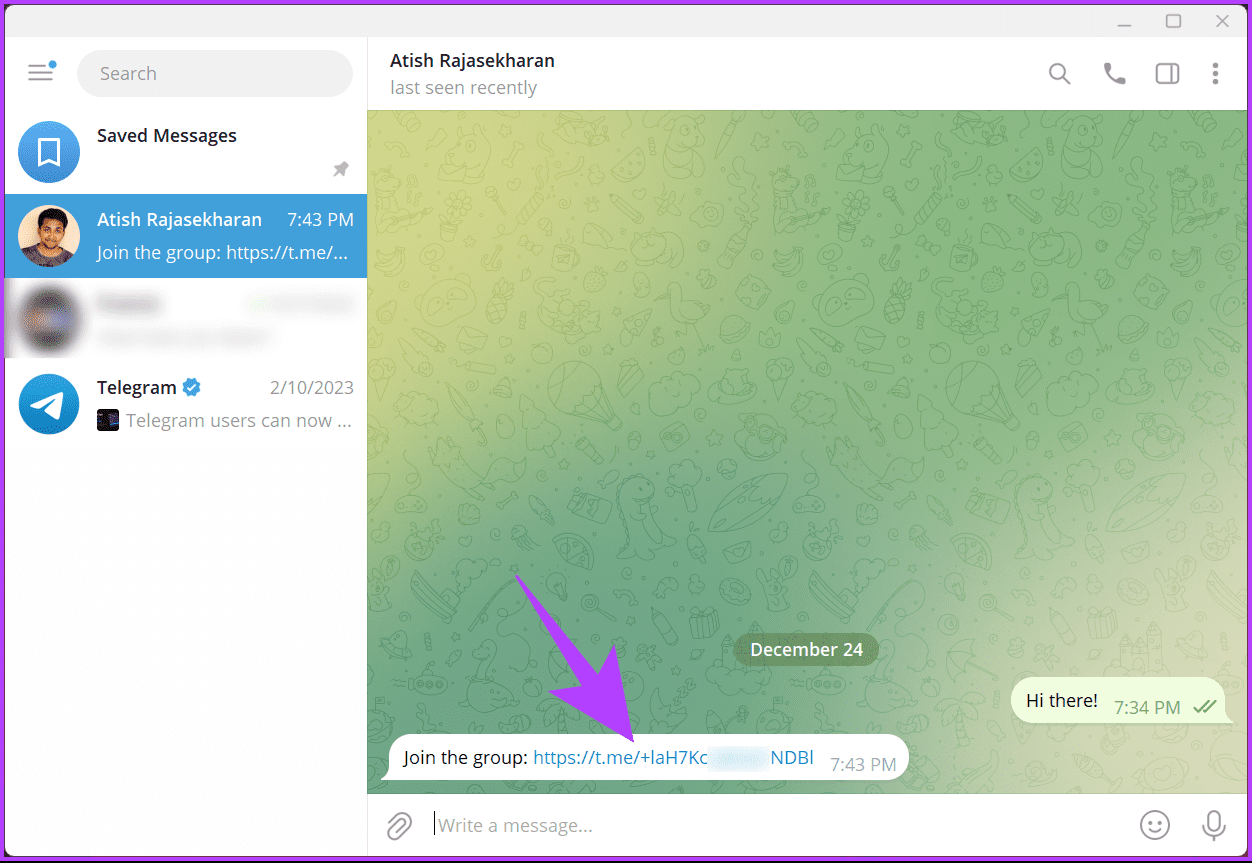
Step 3: Depending on the privacy settings, you can navigate through the older chats before joining. Once sure, click the Join Group or Join Channel button.
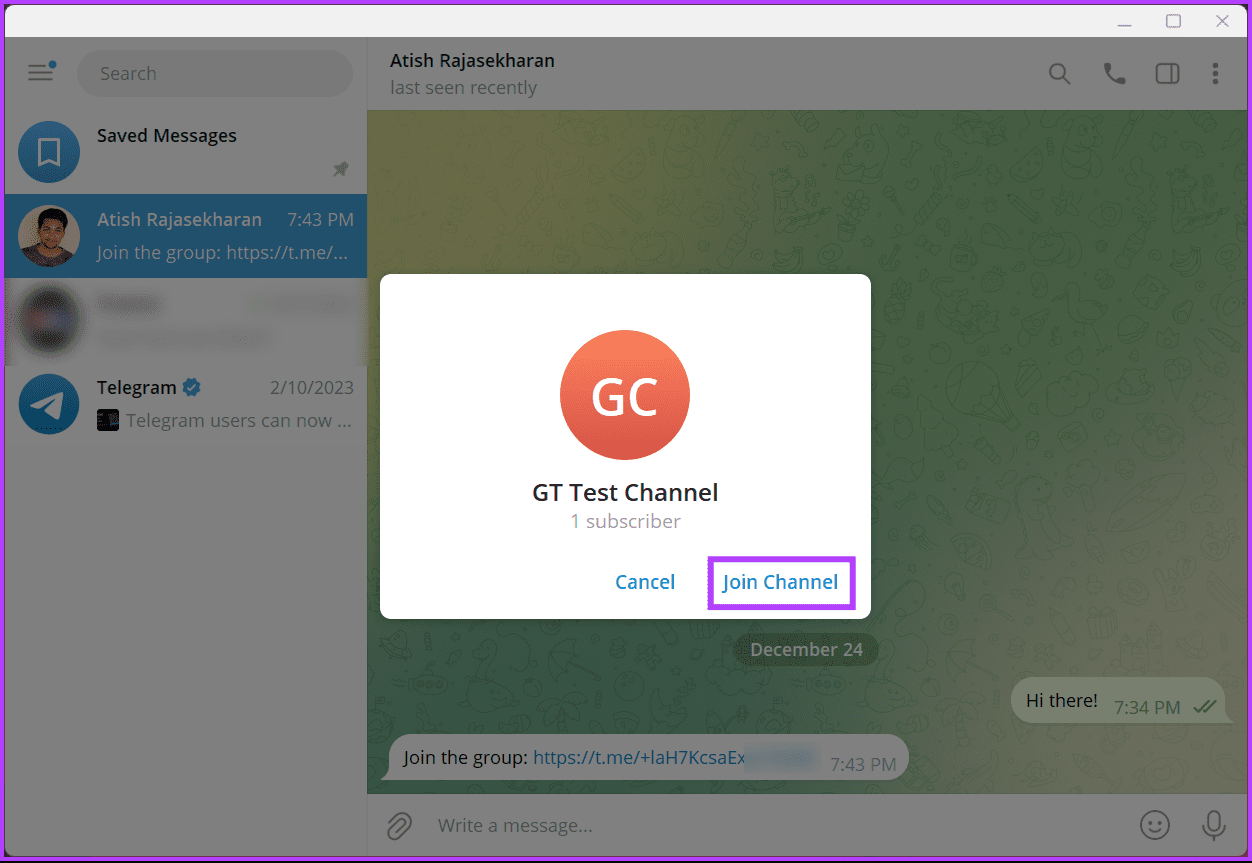
If you don’t have access to your desktop and want to do the same using a mobile device, continue reading.
Also Read: What are Telegram read receipts, and can you turn them off?
On Telegram Mobile App (Android or iOS)
Step 1: Open the Telegram app. Once launched, navigate to the chat containing the invitation link.
Step 2: Tap the invitation link. Finally, click the Join Group or Join button to enable yourself to message or share content in the group.
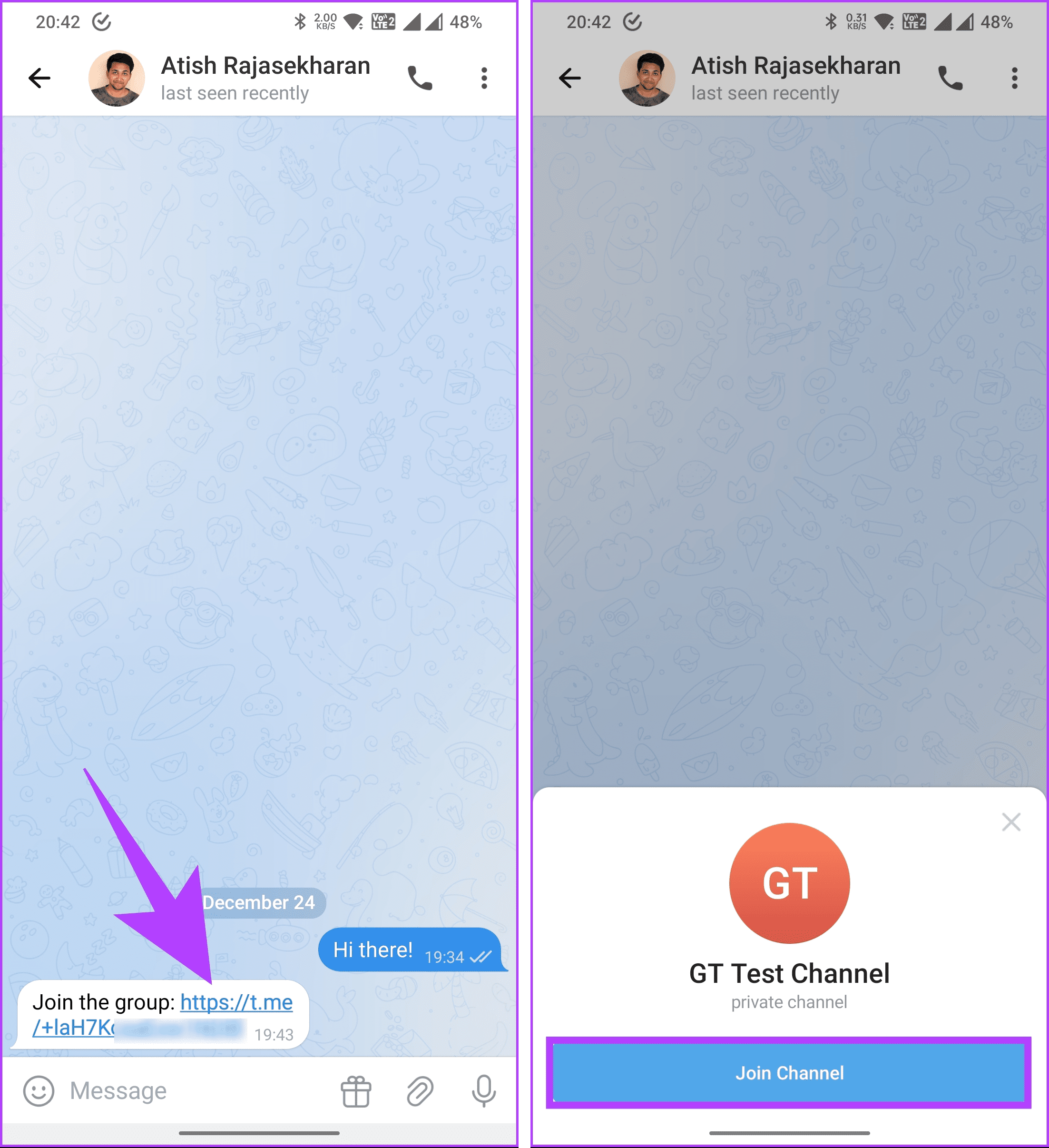
That’s about it. Once you join the group or channel, depending on the privacy settings in place, you can look back at the conversation, including shared images, videos, or gifs that members had shared before you joined the group.
FAQs
Telegram does not have a built-in age restriction feature. However, some groups or channels might have their rules regarding age limits.
Telegram does not impose a specific limit on the number of groups you can join. However, based on your device’s storage and performance, there may be practical limits.
Also Read: How to manage downloads in Telegram
Was this helpful?
Last updated on 19 August, 2024
Read Next
 WhatsApp Channels vs Telegram Channels: Know the Differences
WhatsApp Channels vs Telegram Channels: Key Differences Feature WhatsApp Channels Telegram ChannelsEngagement and Interaction One-way broadcast One-way broadcastSix basic emojisOptional group linking for discussionsSubscribers vs.
WhatsApp Channels vs Telegram Channels: Know the Differences
WhatsApp Channels vs Telegram Channels: Key Differences Feature WhatsApp Channels Telegram ChannelsEngagement and Interaction One-way broadcast One-way broadcastSix basic emojisOptional group linking for discussionsSubscribers vs.
 9 Telegram Bots for Groups You Should Try
1.
9 Telegram Bots for Groups You Should Try
1.
 How to Add Someone or Join Telegram Groups Using a QR Code
How to Scan Telegram QR Code to Add Contact or Join Groups You can get a QR code for your profile and send it to contacts who wish to add
How to Add Someone or Join Telegram Groups Using a QR Code
How to Scan Telegram QR Code to Add Contact or Join Groups You can get a QR code for your profile and send it to contacts who wish to add
 WhatsApp Groups vs. Communities: Understand the Differences
What Is a WhatsApp Group?
WhatsApp Groups vs. Communities: Understand the Differences
What Is a WhatsApp Group?
 WhatsApp Channel vs. Community vs. Groups: What’s the Difference
WhatsApp Channel vs.
WhatsApp Channel vs. Community vs. Groups: What’s the Difference
WhatsApp Channel vs.
 Google Chrome Release Channels: Stable vs. Beta vs. Canary vs. Dev
What Is Chrome Canary?
Google Chrome Release Channels: Stable vs. Beta vs. Canary vs. Dev
What Is Chrome Canary?
 2 Ways to Block YouTube Channels on Desktop and Mobile
Method 1: Block a YouTube Channel From Appearing on Your Feed If you want to stop a YouTube channel from appearing in your feed without fully blocking it, you can
2 Ways to Block YouTube Channels on Desktop and Mobile
Method 1: Block a YouTube Channel From Appearing on Your Feed If you want to stop a YouTube channel from appearing in your feed without fully blocking it, you can
 What Are WhatsApp Channels and How to Access and Join Them
A lot of work goes into managing your followers across different social media platforms.
What Are WhatsApp Channels and How to Access and Join Them
A lot of work goes into managing your followers across different social media platforms.
The article above may contain affiliate links which help support Guiding Tech. The content remains unbiased and authentic and will never affect our editorial integrity.