Try Basic Fixes
- Update the Messenger app: The Messenger app may not let you sign in if you’re using an outdated version of the app. If that’s the case, updating the Messenger app from the Play Store (Android) or App Store (iPhone) should help.
- Temporarily disable VPN connection: A VPN connection can also interfere with the sign-in process in the Messenger app. Since VPNs spoof your location, Messenger may block your sign-in attempts. Temporarily disable your VPN connection and see if that helps.
- Check if Messenger is down: Messenger, like any other service, is susceptible to server outages. To check for this possibility, you can visit a website like Downdetector. If the servers are down, there is nothing you can do but wait for Messenger to fix the problem.
Fix 1: Clear Messenger App Cache (Android)
An outdated or corrupt cache data can disrupt an app’s performance on your Android and create problems. Clearing the existing app cache is an effective way to deal with such issues. To clear the Messenger app cache on your Android, use these steps.
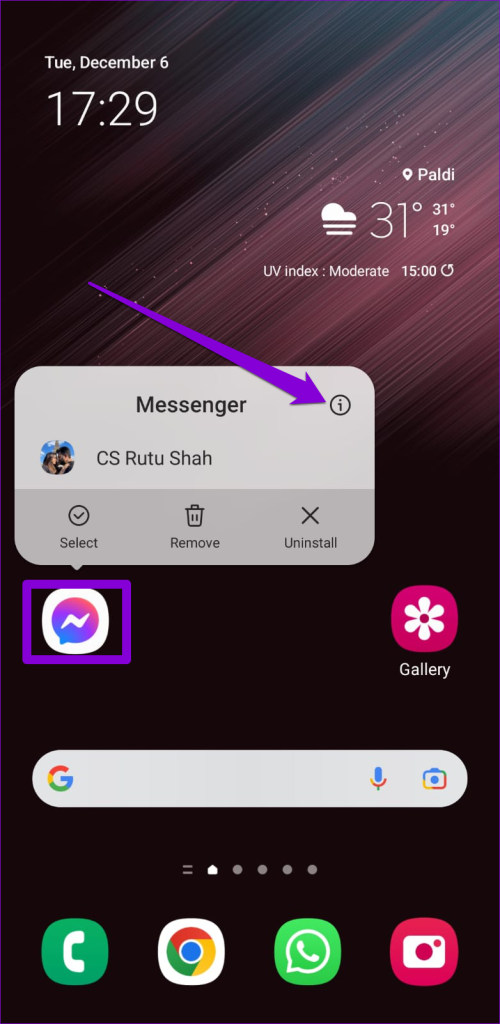
Step 1: Long-press the Messenger app icon and tap the info icon from the menu that appears.
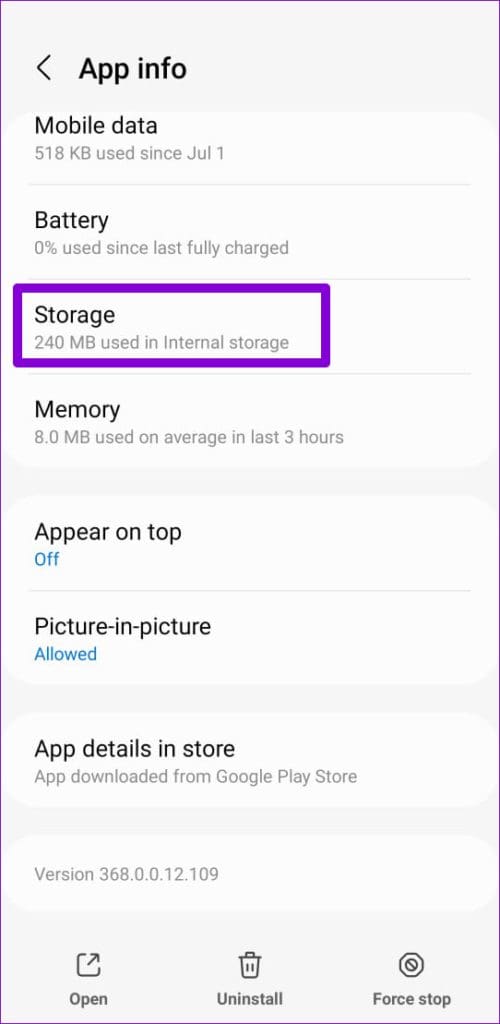
Step 2: Go to Storage and tap the Clear cache option at the bottom.

Fix 2: Log Out of All Sessions and Change Your Password
Still no luck? It’s time you log out of all Messenger sessions and reset your account password. You’ll need to switch to your computer and sign in to your Facebook account.
Once you’ve done that, use the following steps to log out of all active sessions and reset your password.
Step 1: Click on your profile icon in the top right corner and select Settings & privacy.

Step 2: Select Settings.

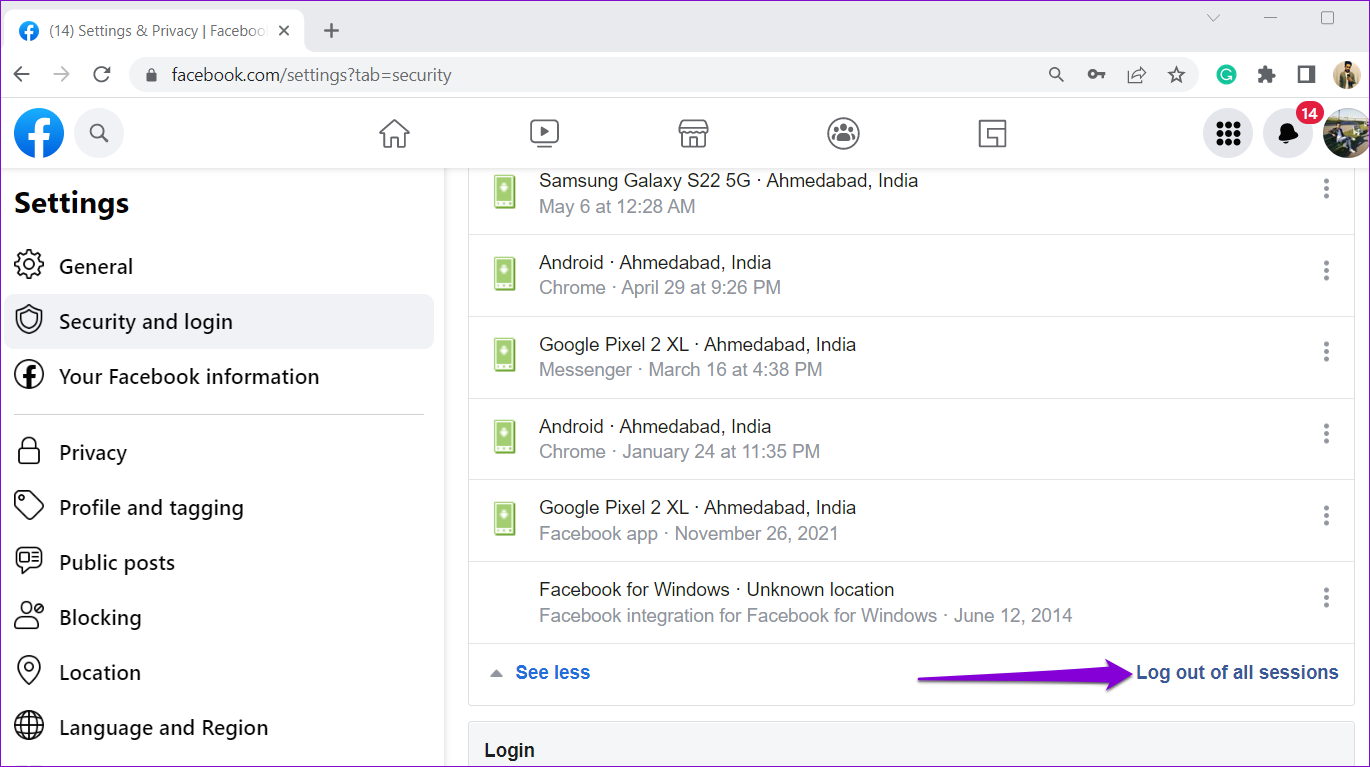
Step 3: Select Security and login from the left sidebar. Then, click the See more button under the Where you’re logged in section.

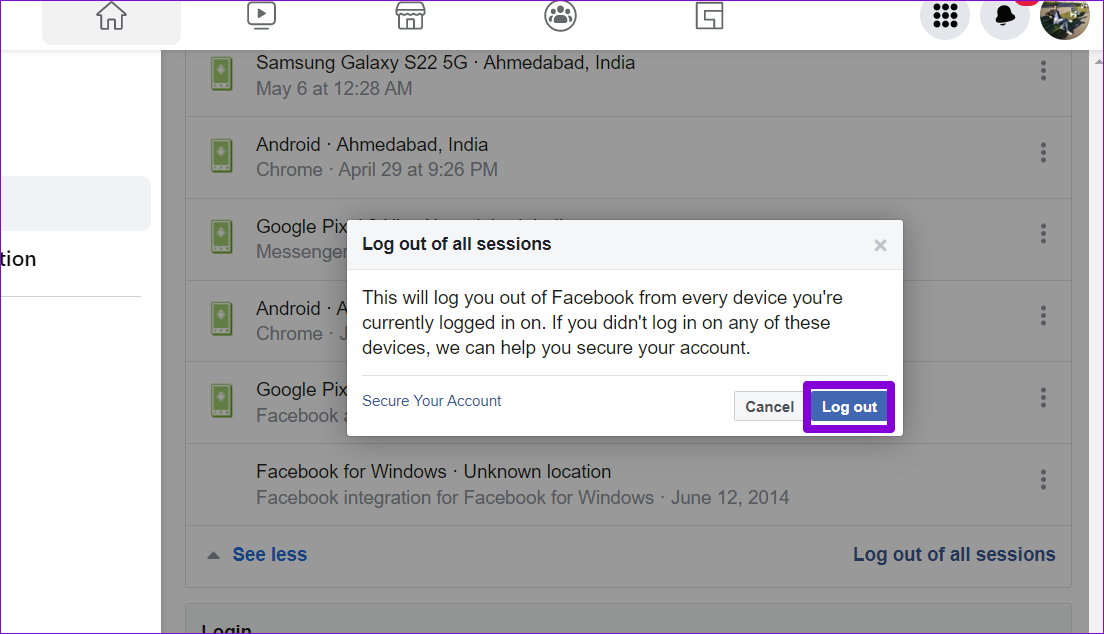
Step 4: Click on Log out of all sessions.
Step 5: Select Log out to confirm. After that, Facebook will log you out of all your devices except the current one.
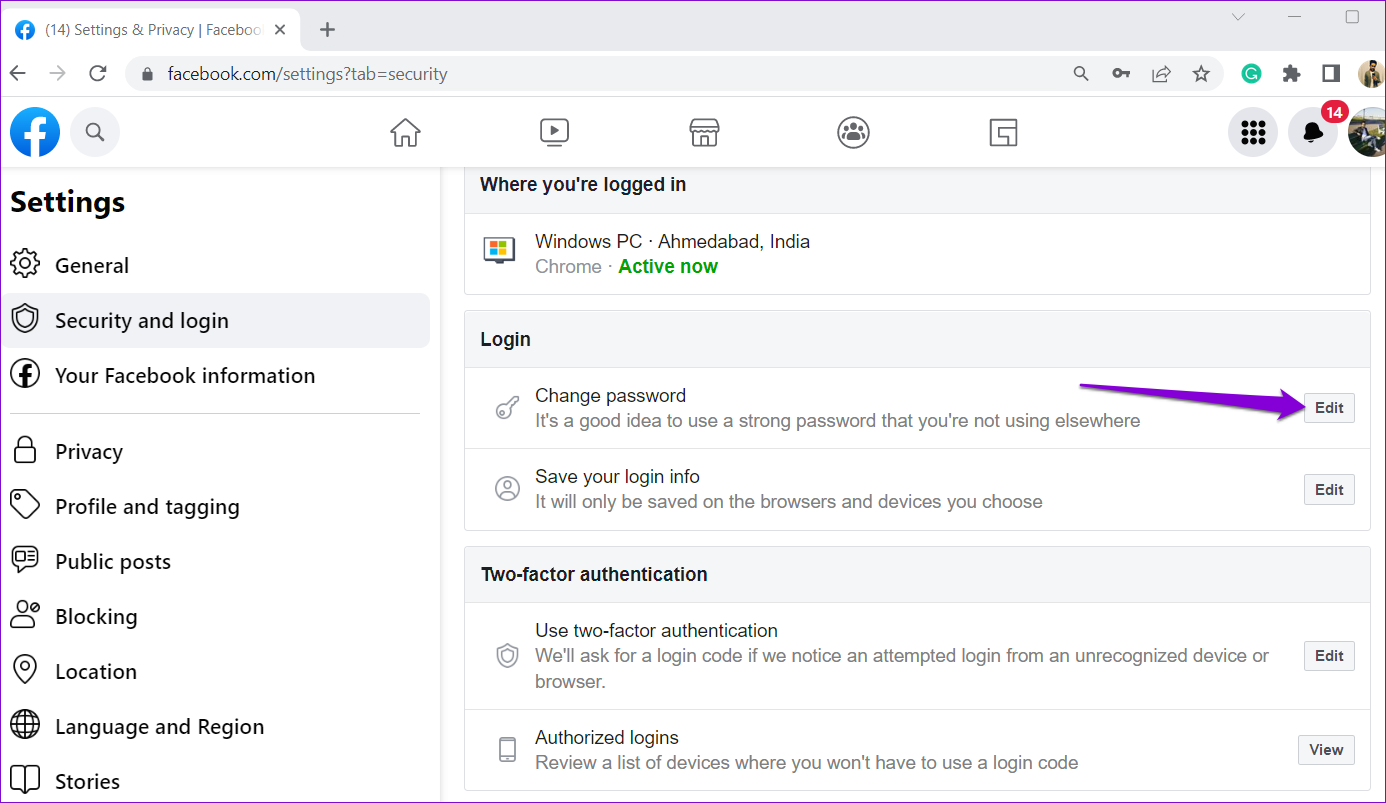
Step 6: Under the Login section, click the Edit button next to Change password.
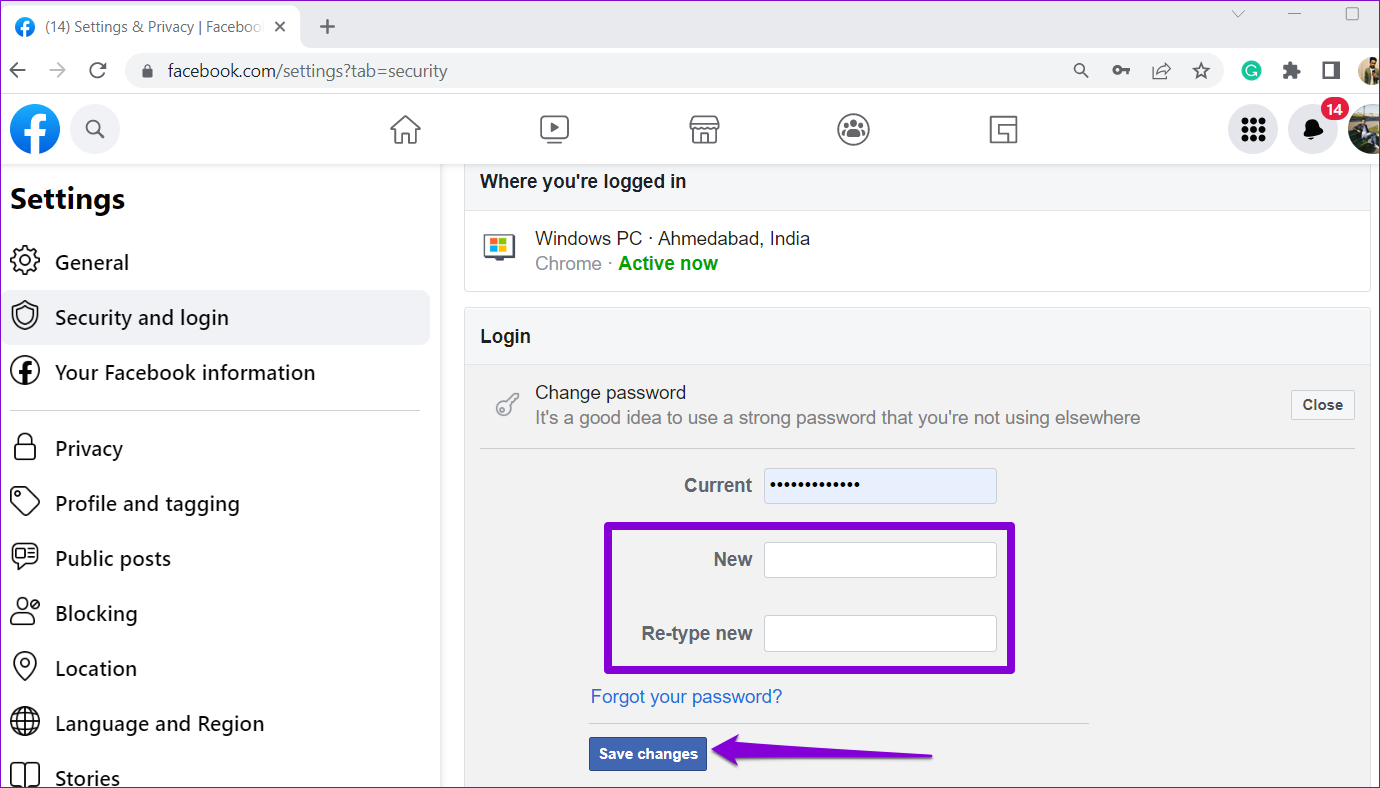
Step 7: Set up a new password for your account and click the Save changes button.
After resetting your password, try to sign in to the Messenger app on your Android or iPhone one more time.
Was this helpful?
Last updated on 26 July, 2024
Read Next
 3 Ways to Fix YouTube Won’t Let Me Log In on Android and iPhone
Try Basic Fixes Temporarily disable VPN connection: A Virtual Private Network (VPN) connection may cause issues with the YouTube app's sign-in process, especially if you switch servers frequently.
3 Ways to Fix YouTube Won’t Let Me Log In on Android and iPhone
Try Basic Fixes Temporarily disable VPN connection: A Virtual Private Network (VPN) connection may cause issues with the YouTube app's sign-in process, especially if you switch servers frequently.
 5 Ways to Fix Xbox App Won’t Let Me Log in on Windows 11
Fix 1: Ensure Xbox Services Are Running The Xbox app for Windows relies on certain background services to work on your computer.
5 Ways to Fix Xbox App Won’t Let Me Log in on Windows 11
Fix 1: Ensure Xbox Services Are Running The Xbox app for Windows relies on certain background services to work on your computer.
 Top 8 Ways to Fix Google Sheets Won’t Let Me Type or Edit Error
Google Sheet allows users to collaborate on a single spreadsheet without needing to save anything.
Top 8 Ways to Fix Google Sheets Won’t Let Me Type or Edit Error
Google Sheet allows users to collaborate on a single spreadsheet without needing to save anything.
 5 Ways to Fix Google Sheets Won’t Let Me Scroll Error
Basic Fixes: Check if Scroll Lock is enabled: Some keyboards have a physical Scroll Lock key that blocks scrolling features on your device.
5 Ways to Fix Google Sheets Won’t Let Me Scroll Error
Basic Fixes: Check if Scroll Lock is enabled: Some keyboards have a physical Scroll Lock key that blocks scrolling features on your device.
 4 Ways to Fix Google Play Won’t Let Me Sign in Error
Basic Fixes Check network connection: If your internet connection isn't stable or is facing a problem, you can't log in to Play Store.
4 Ways to Fix Google Play Won’t Let Me Sign in Error
Basic Fixes Check network connection: If your internet connection isn't stable or is facing a problem, you can't log in to Play Store.
 7 Best Ways to Fix OneNote Won’t Let Me Type Error in Windows 10
Microsoft OneNote is one of the oldest note-taking apps and a key component of Microsoft's Office Suite.
7 Best Ways to Fix OneNote Won’t Let Me Type Error in Windows 10
Microsoft OneNote is one of the oldest note-taking apps and a key component of Microsoft's Office Suite.
 3 Fixes for Snapchat Won’t Let Me Export Snaps to Phone
https://youtu.be/D3Y6bZgaodI Try Basic Fixes Check if Snapchat is down: Even popular services like Snapchat can experience server outages at times.
3 Fixes for Snapchat Won’t Let Me Export Snaps to Phone
https://youtu.be/D3Y6bZgaodI Try Basic Fixes Check if Snapchat is down: Even popular services like Snapchat can experience server outages at times.
 5 Ways to Fix Facebook Messenger Notification Won’t Go Away
Try Basic Fixes Mark your messages as read: At times, Facebook Messenger may sometimes fail to mark your messages as read, even after you have opened them.
5 Ways to Fix Facebook Messenger Notification Won’t Go Away
Try Basic Fixes Mark your messages as read: At times, Facebook Messenger may sometimes fail to mark your messages as read, even after you have opened them.
The article above may contain affiliate links which help support Guiding Tech. The content remains unbiased and authentic and will never affect our editorial integrity.