

By default, conditional formatting in Excel allows you to format the cell’s look (such as font or background color) based on its own value. But by extending the range of the “check,” you can learn how to format a whole row based on one cell in it.
Part 1: Excel Format a Whole Row Based on One Cell Value
To make things a bit simpler to explain, we’ll have a sample table from B2 that displays employee information including when their contract ends. We’ll check if that date has past and format their entire row red.
For reference, here’s what an employee table might look like.
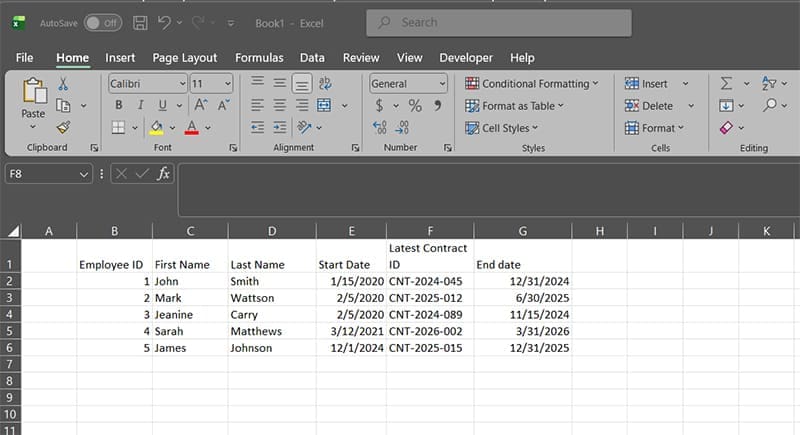
Step 1. Select the entire range where your data is (excluding the headers). In this case, we’re using B2:G6.
Step 2. Click on “Conditional Formatting” then select “New Rule.”
Step 3. Choose the option “Use a formula to determine which cells to format.”
Step 4. In the formula, we’ll use the function: =$G2<TODAY()
This formula will go through the entire table. Since the “G” column has a “$” before it, it will be locked to check the end date of the contract. The “row” indicator will move as the formula goes down the table, and needs to start with the first row where the data is (in this case 2).
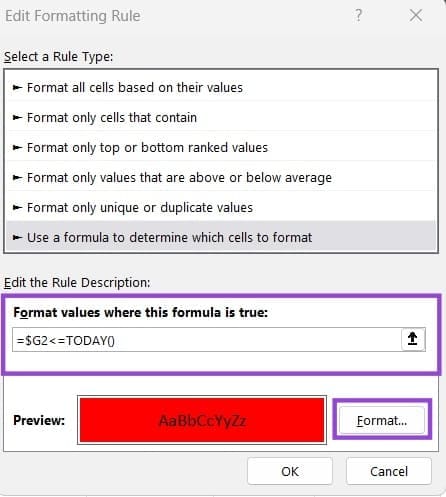
Step 5. Click on the “Format” button, then go to the “Fill” tab and choose the color to fill the cell with. You can also choose additional formatting if you want. When you’re happy with the choice, select “OK.”
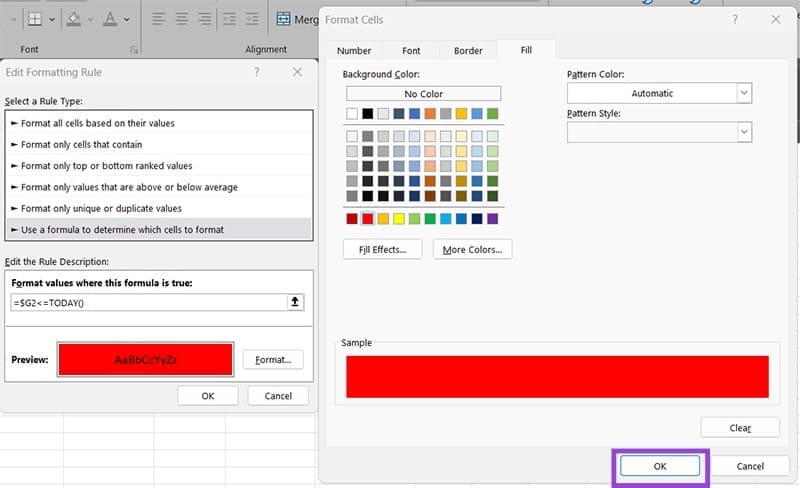
Step 6. Click on “OK” in the Conditional Formatting menu to save the changes.
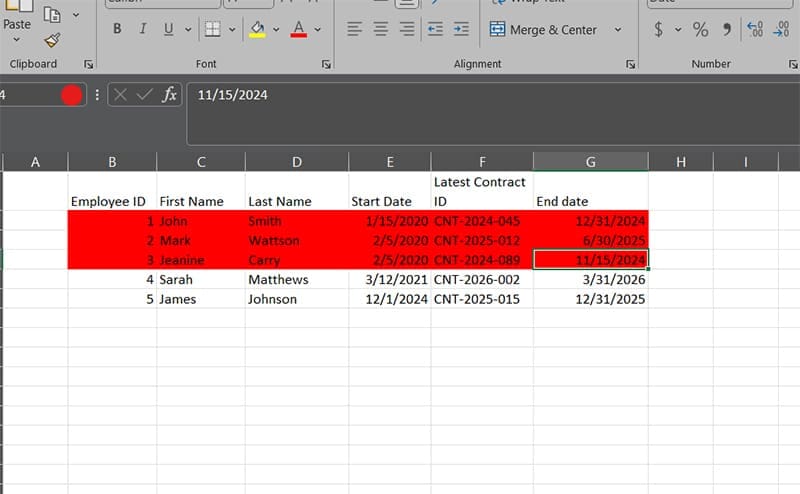
As a result, dates that have already passed (as of time of writing) as well as the entire row they’re in are highlighted.
If you want to combine multiple criteria, you can use the OR or AND functions, which have specific formatting requirements (such as OR(logical_test1,logical_test2…)). To search for a specific substring inside a cell, use the function =SEARCH(”string”,$ColumnRow)>0.
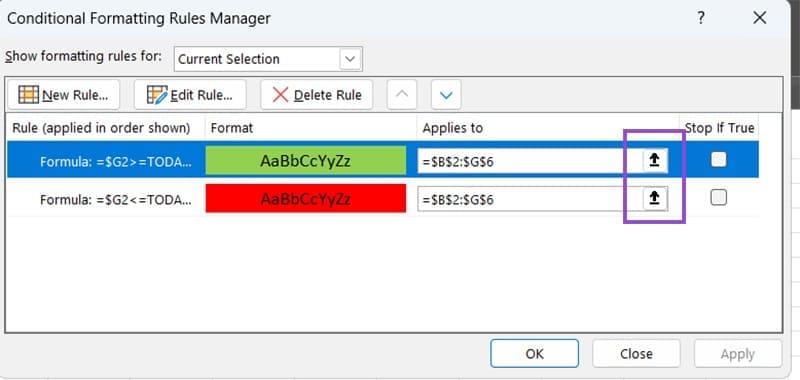
You can create multiple rules for the same table. In the above case, we created a rule to highlight all current contracts in green. Then, you can go to “Conditional Formatting” and “Manage Rules” to see all rules that apply to the table. Use the up and down arrows to change rule priorities (the last rule that is true will apply).
Part 2: How to Format a Row if a Checkbox Is Checked in Excel
Alternatively, for simple yes or no checks, you can implement checkboxes in cells that will act as logical “true” or “false” based on which to format the row.
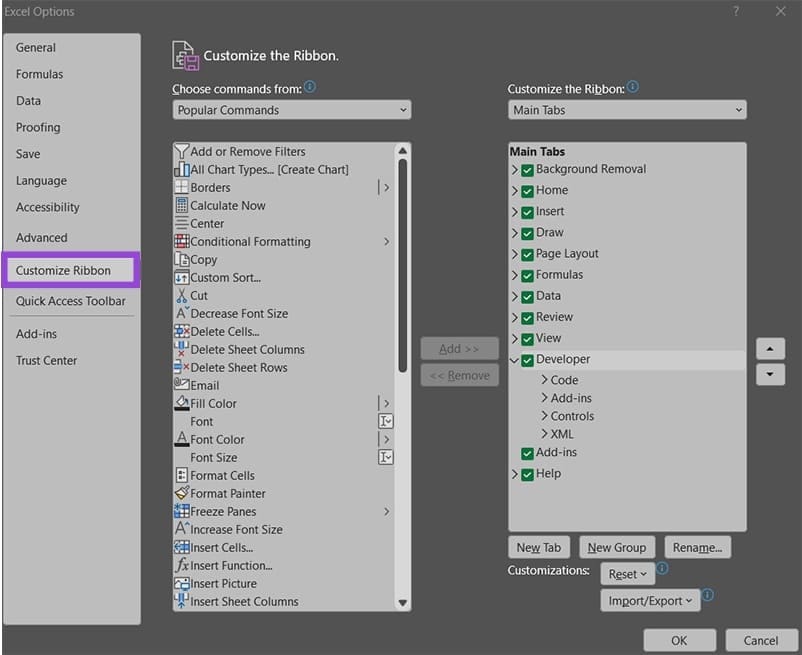
Notably, you’ll need to enable the Developer tab in Excel for versions that are not Excel 365 (which can be done via Options > Customize Ribbon > Enable the Developer box on the right panel).
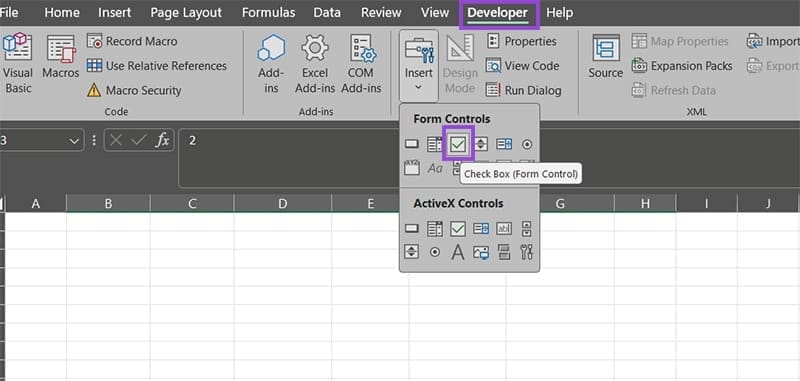
After that, you can add a checkbox to the table from the Developer tab from “Controls” then “Checkbox.” This places a checkbox on the table, which needs to be moved into place.
For this, we’ve added a column H to display an employee’s marital status.
Step 1. Add five checkboxes to the table. For each, remove the text, then right-click on it and select “Format Control.”
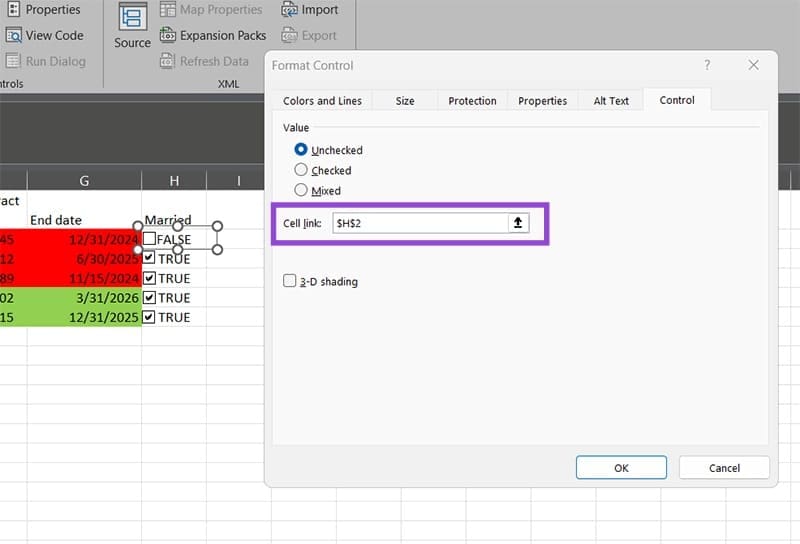
Step 2. In the “Control” tab, enter the absolute reference to the cell the checkbox is in (for example, the first box will be “$H$2”).
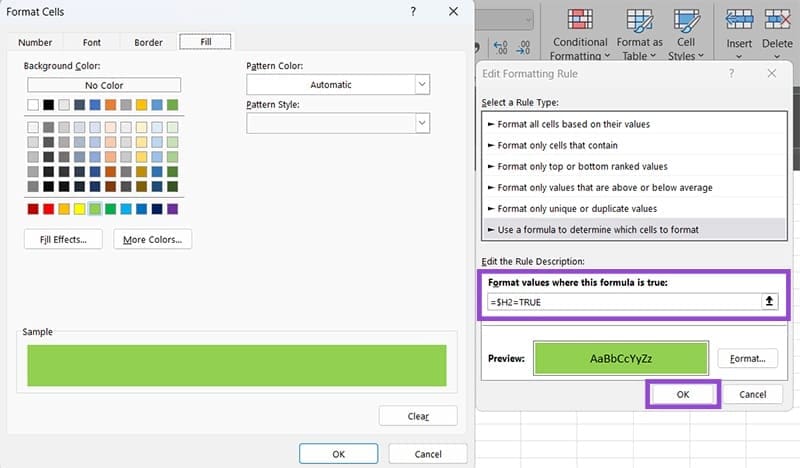
Step 3. Select the new table range and create Conditional Formatting. This time, the formula will be “=$H2=TRUE” since we’re using the H column.
Step 4. Select your formatting and click “OK” on both boxes.
We’ve removed the previous rules to make things easier to see.
Was this helpful?
Last updated on 30 December, 2025
Read Next
 How to Mute Whole WhatsApp Notifications on Android and iOS
Turn off All WhatsApp Notifications on Android Step 1: Open Settings on your phone > go to Apps & notifications / Installed apps / Apps.
How to Mute Whole WhatsApp Notifications on Android and iOS
Turn off All WhatsApp Notifications on Android Step 1: Open Settings on your phone > go to Apps & notifications / Installed apps / Apps.
 How to Print First Row or Column on Every Excel Page
Print the First Row or Column on Every Excel Page Step 1: On your workbook, select the desired sheet and navigate to the Page Layout tab on the ribbon.
How to Print First Row or Column on Every Excel Page
Print the First Row or Column on Every Excel Page Step 1: On your workbook, select the desired sheet and navigate to the Page Layout tab on the ribbon.
 5 Ways to Jump to Cell A1 in MS Excel Real Quick
Method 1: Using Keyboard Shortcuts One of the easiest ways to return to the A1 cell is to use keyboard shortcuts.
5 Ways to Jump to Cell A1 in MS Excel Real Quick
Method 1: Using Keyboard Shortcuts One of the easiest ways to return to the A1 cell is to use keyboard shortcuts.
 How to Insert a Picture in Excel Cell
There’s a lot you can do in Microsoft 365 and the latest version of Excel that doesn’t involve formulae or complex calculations.
How to Insert a Picture in Excel Cell
There’s a lot you can do in Microsoft 365 and the latest version of Excel that doesn’t involve formulae or complex calculations.
 How to Format Phone Numbers in Excel
Unfortunately, Excel doesn’t always handle phone numbers correctly - or, at least, it doesn’t handle them as we’d expect.
How to Format Phone Numbers in Excel
Unfortunately, Excel doesn’t always handle phone numbers correctly - or, at least, it doesn’t handle them as we’d expect.
 4 iPhone Keyboards With Numbers Row on Top
1.
4 iPhone Keyboards With Numbers Row on Top
1.
 How to Fix Green Cell or Green Line Error in Google Sheets
Google Sheets users are facing an issue where they view a green line after some cells, or the cell carrying a green border.
How to Fix Green Cell or Green Line Error in Google Sheets
Google Sheets users are facing an issue where they view a green line after some cells, or the cell carrying a green border.
 3 Best Ways to Clear the Cell Content in Google Sheets
Google Sheets is ranked high in the list of popular spreadsheet tools.
3 Best Ways to Clear the Cell Content in Google Sheets
Google Sheets is ranked high in the list of popular spreadsheet tools.
The article above may contain affiliate links which help support Guiding Tech. The content remains unbiased and authentic and will never affect our editorial integrity.

