How to Convert and Decode Base64 Data on Notepad ++
Here’s how you can easily encode and decode Base64 data on Notepad ++ on your PC.
Step 1: Open the document on Notepad ++.
To encode or decode Base64 data you need to first highlight the entire range of data you want to be encoded or decoded.

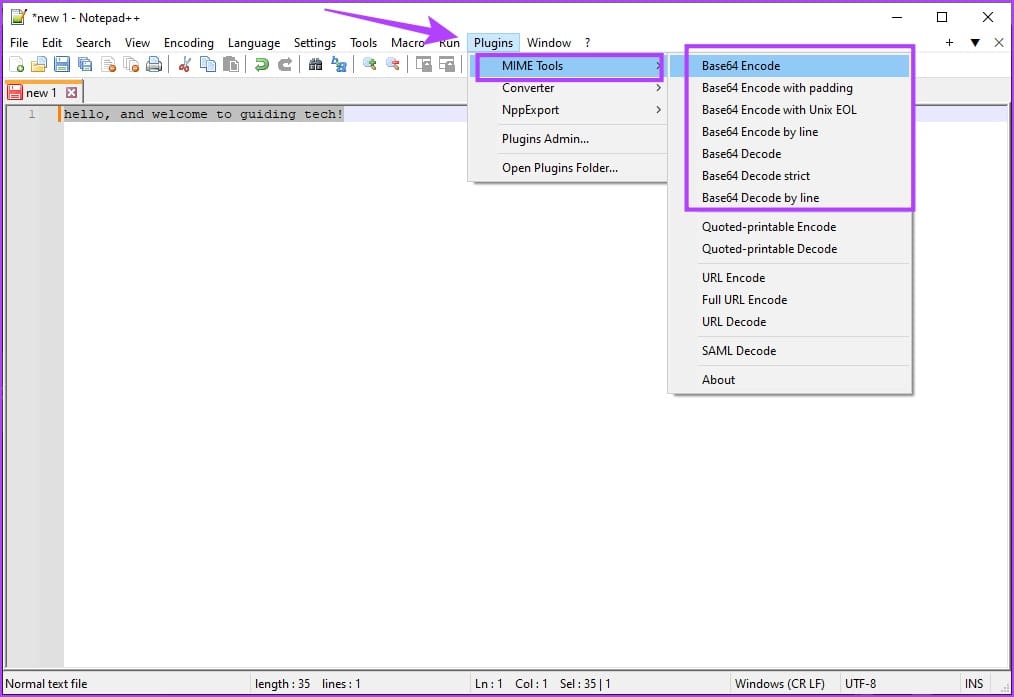
Step 2: Next, click on Plugins in the top bar, then MIME Tools. In the second level of the menu, you can see all of the Base64 encode and decode options.
Also Read: How to compare two files in Notepad ++.
Note: The encoders only work on selected data, make sure you highlight all the data you want encoded first.
Here’s what all of the encoding and decoding options do on Notepad ++.
- “Base64 Encode” encodes all of the selected data into one Base64 string but omits the padding character even if it’s needed. This could cause compatibility issues with some Base64 decoders.
- “Base64 Encode with padding” encodes all selected data but includes the padding where it’s needed.
- “Base64 Encode with Unix EOL” specifically uses an “End Of Line” (EOL) character used by Unix systems, rather than the default Windows EOL. This can be helpful if a Unix-based command-line decoder is failing to decode the data.
- “Base64 Encode by line” encodes each separate line of data into a separate Base64 string.
- “Base64 Decode” decodes a single Base64 encoded string but may show corrupted output if there are unexpected characters.
- “Base64 Decode strict” decodes a single Base64 string but will throw an error message if an unexpected character is detected, such as “&”.
- “Base64 Decode by line” can decode multiple separate Base64 strings at once if they’re on new lines.
Also Read: Top 10 Notepad++ Plugins.
FAQs on Base64 Data Encoding and Decoding
Encoding data to Base64 typically increases the size of the data by approximately 33%.
You can download Notepad ++ from the official website.
Yes. Notepad ++ is free to install and use on Windows.
If you try to decode data that is not Base64-encoded, you’ll likely get a decoding error, and the output may be unreadable.
Yes, there is a difference between URL-safe Base64 and standard Base64 encoding. URL-safe Base64 uses different characters for the “+” and “/” symbols to make the encoded data safe for use in URLs and filenames.
Ensure that you have installed Notepad++ correctly. Try re-installing Notepad ++ to fix the problem.
Was this helpful?
Last updated on 11 July, 2024
Read Next
 10 Notepad++ Plugins for Writers and Coders
1.
10 Notepad++ Plugins for Writers and Coders
1.
 How to Fix Notepad Missing Issue in Windows 11/10
Method 1: Install Notepad From Optional Features Microsoft has made Notepad an optional feature.
How to Fix Notepad Missing Issue in Windows 11/10
Method 1: Install Notepad From Optional Features Microsoft has made Notepad an optional feature.
 4 Ways to Fix Notepad Not Opening on Windows 11
Basic Fixes Restart PC: Press the Windows + X shortcut to open the Power User Menu.
4 Ways to Fix Notepad Not Opening on Windows 11
Basic Fixes Restart PC: Press the Windows + X shortcut to open the Power User Menu.
 How to Sync Apple Photos Library With Google Photos
How to Enable Backup & Sync in Google Photos To add the pictures in your Photos app to the Google Photos app, you first need to enable the automatic sync
How to Sync Apple Photos Library With Google Photos
How to Enable Backup & Sync in Google Photos To add the pictures in your Photos app to the Google Photos app, you first need to enable the automatic sync
 5 Ways to Fix Google Chrome Not Loading Pages on Android and iPhone
Try Basic Fixes Enable or disable the VPN: If webpages are not loading in Chrome, consider disabling your VPN connection temporarily and see if that resolves the problem.
5 Ways to Fix Google Chrome Not Loading Pages on Android and iPhone
Try Basic Fixes Enable or disable the VPN: If webpages are not loading in Chrome, consider disabling your VPN connection temporarily and see if that resolves the problem.
 15 FaceTime Tips and Tricks for iPhone and iPad
1.
15 FaceTime Tips and Tricks for iPhone and iPad
1.
 5 Ways to Fix Delayed Emails in Mail App on iPhone
Common Fixes Enable Background App Refresh - Access General settings on iPhone, tap Background App Refresh, and enable the toggle for the Mail app.
5 Ways to Fix Delayed Emails in Mail App on iPhone
Common Fixes Enable Background App Refresh - Access General settings on iPhone, tap Background App Refresh, and enable the toggle for the Mail app.
 7 Best Fixes for iMessage Search Not Working on iPhone
Like other messaging apps, iMessage also comes packed with features for iPhone.
7 Best Fixes for iMessage Search Not Working on iPhone
Like other messaging apps, iMessage also comes packed with features for iPhone.
The article above may contain affiliate links which help support Guiding Tech. The content remains unbiased and authentic and will never affect our editorial integrity.