


Note: The steps might differ for different Android devices and Android versions. You can still use the search option to find them.
How to Turn on Autofill on Android
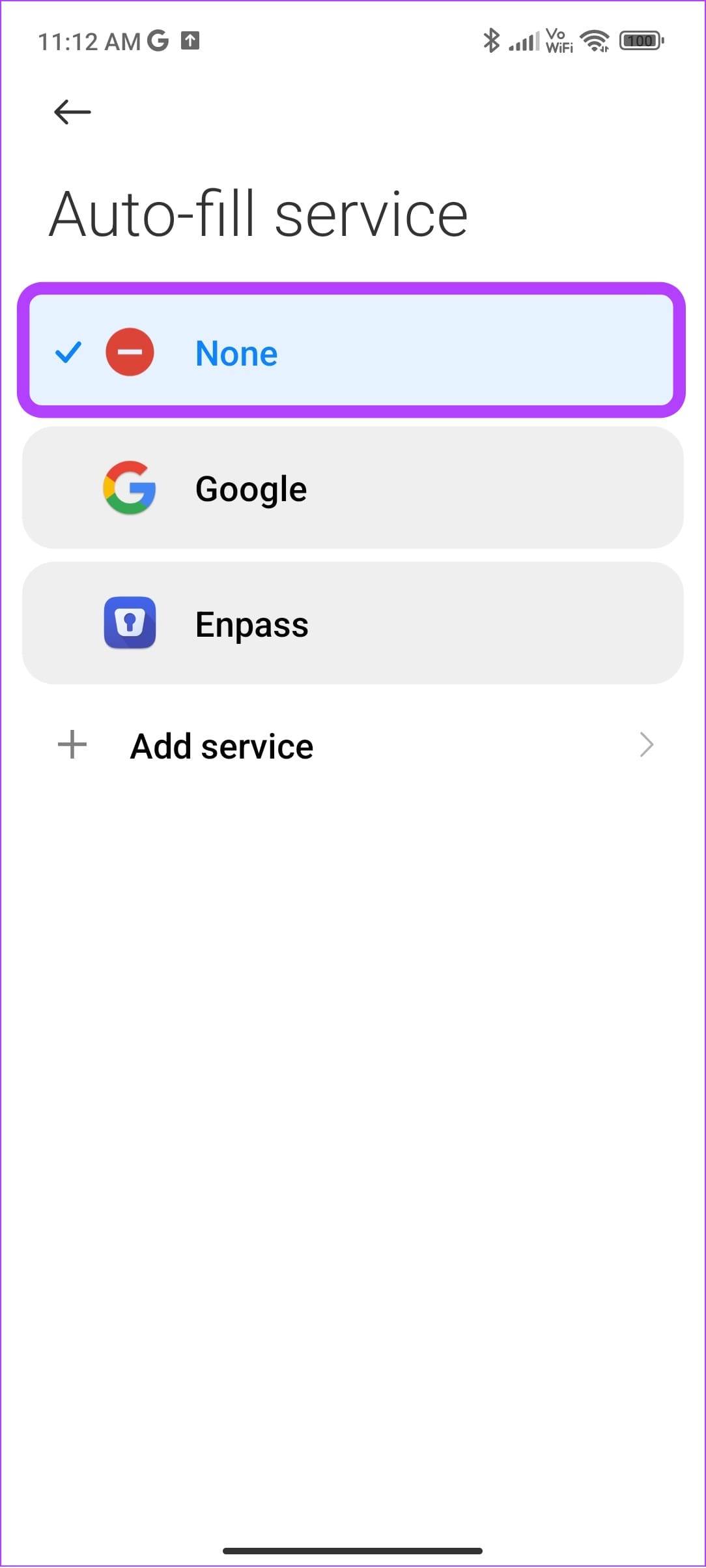
If Autofill has not been enabled on your device, you can follow the steps below to turn on Autofill on Android:
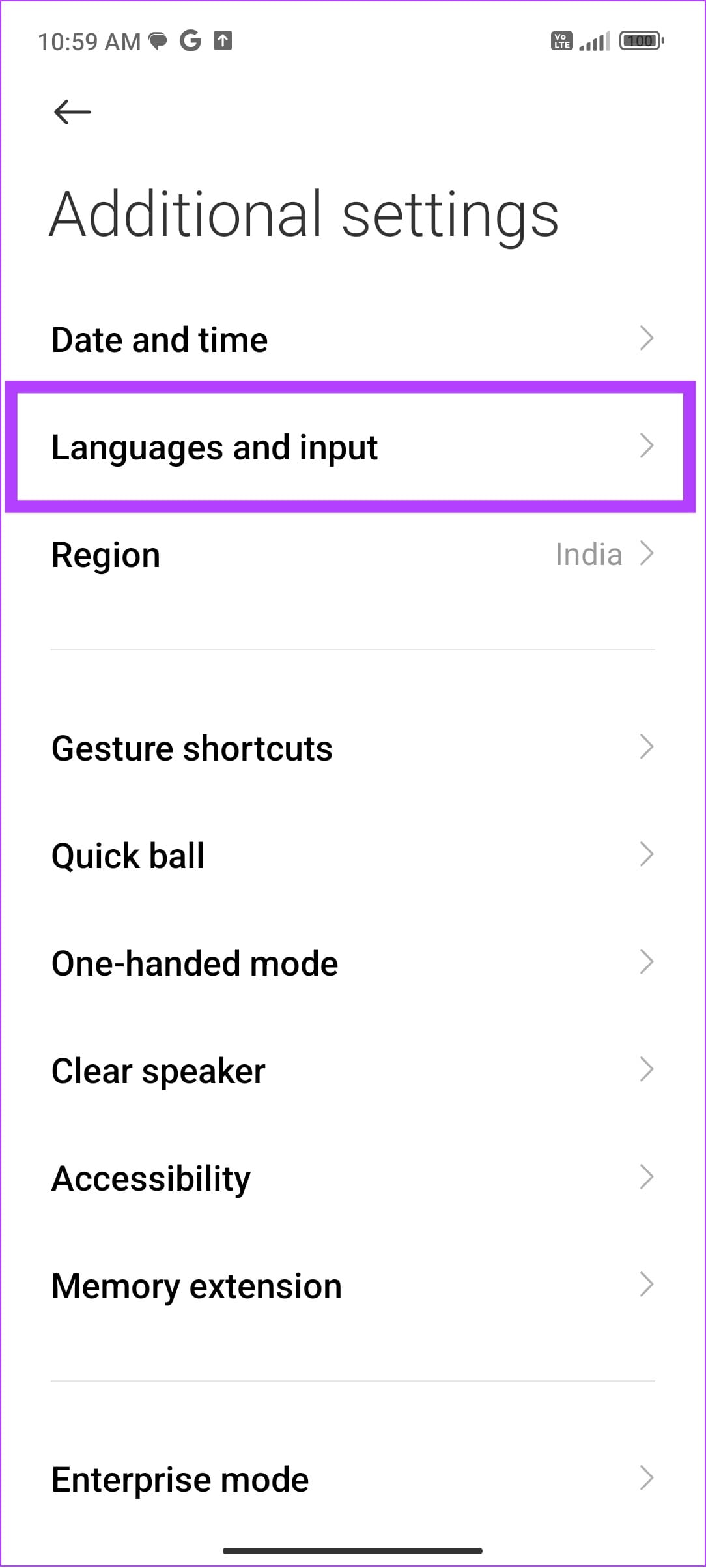
Step 1: Open Settings > tap Additional settings.
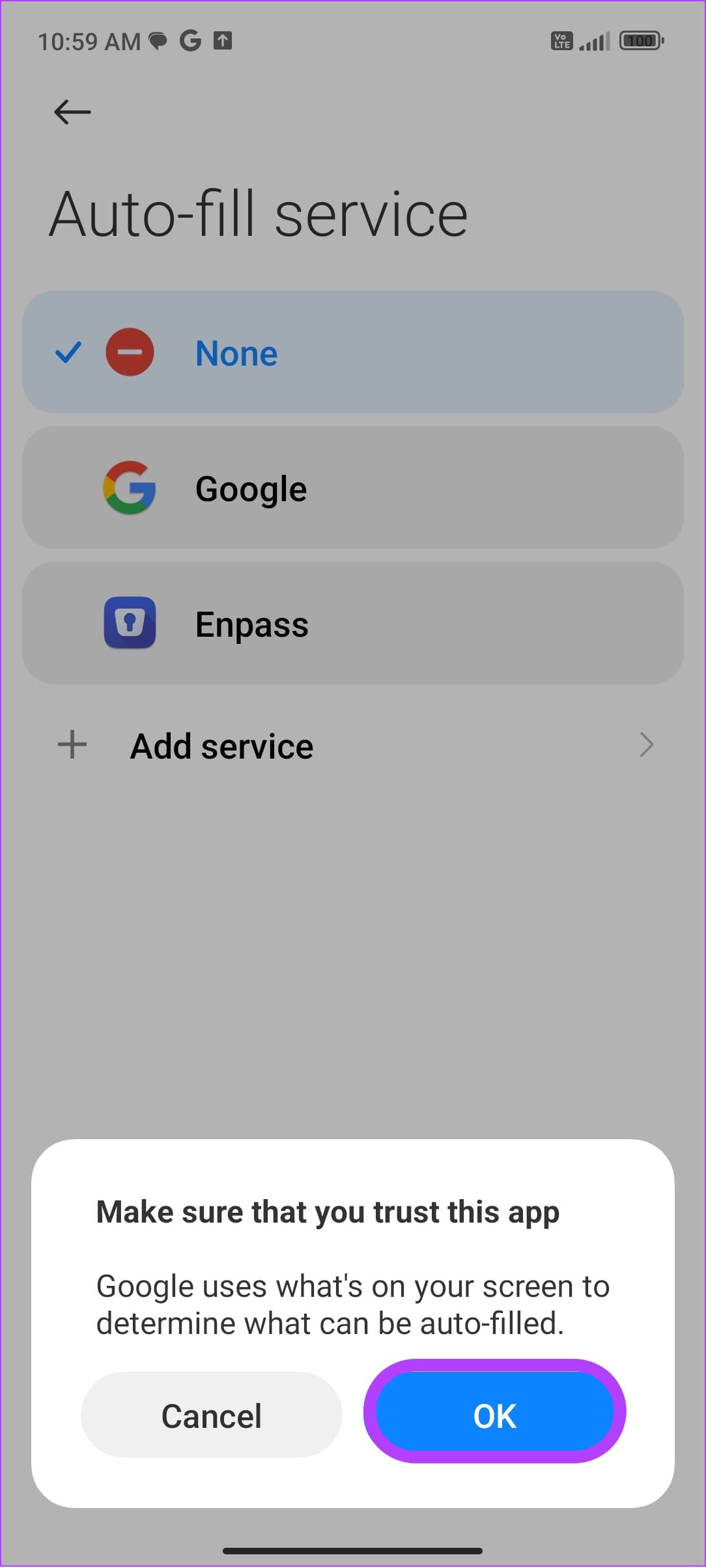
Step 2: Tap Language and input > choose Auto-fill service.

Step 3: Now choose Google.
Step 4: Tap OK to confirm.

How to Enable Third-Party Autofill Services
You can also use other third-party Autofill services on your Android smartphone besides Google Autofill. Here are the steps to follow:
Step 1: Open Settings > tap Additional settings.
Step 2: Tap Language and input > choose Auto-fill service.
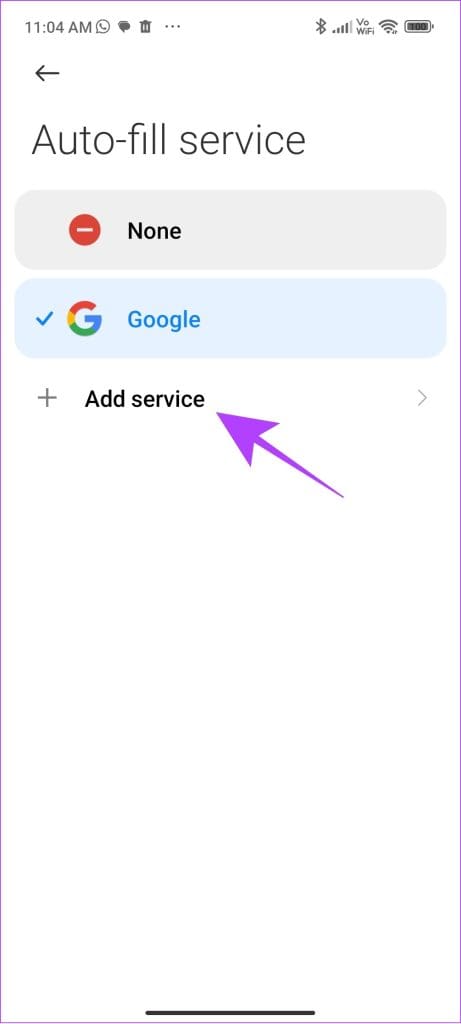
Step 3: Now, choose Add service. You will be redirected to the Play Store page with some suggestions.

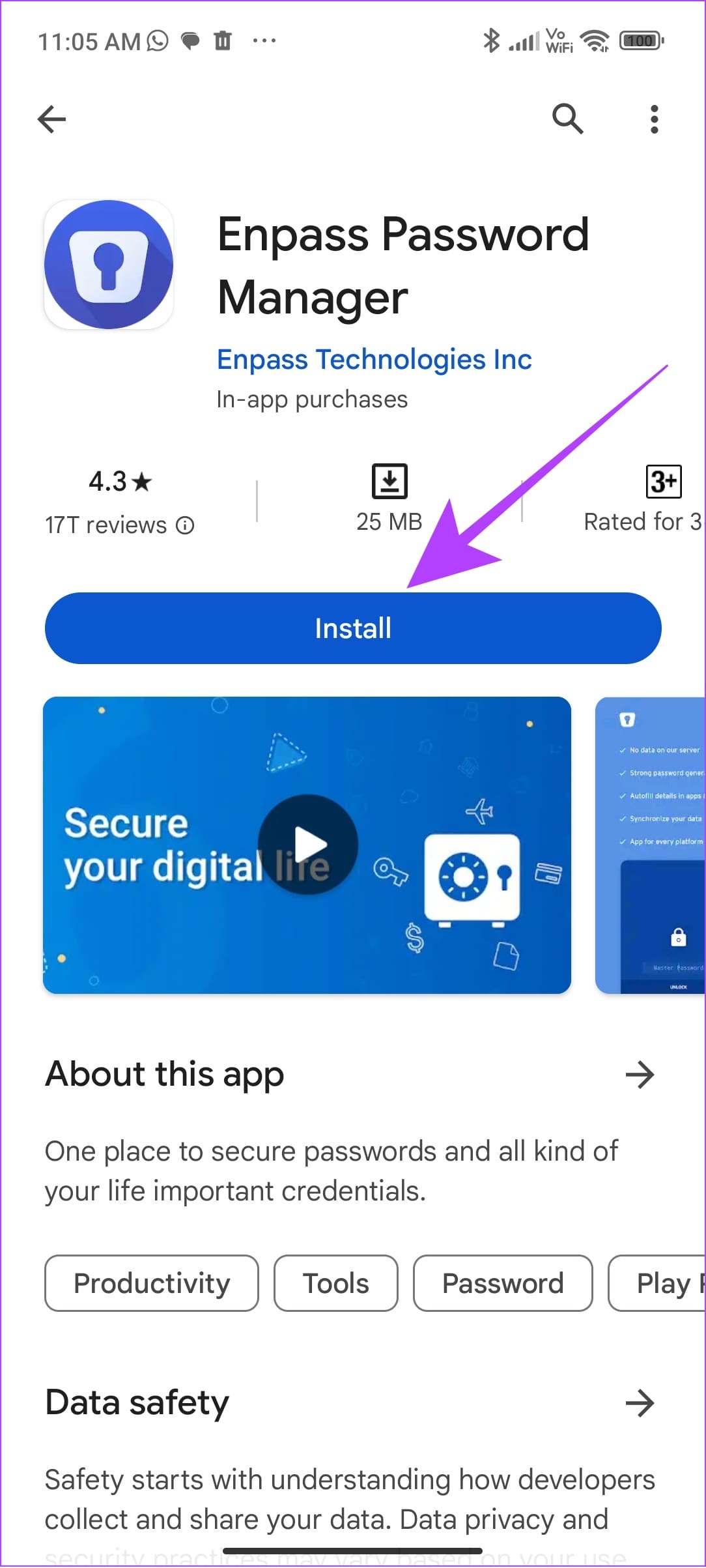
Step 4: Tap the app and select Install.
Step 5: Once installed, return to the Auto-fill service page and tap the third-party app you installed.
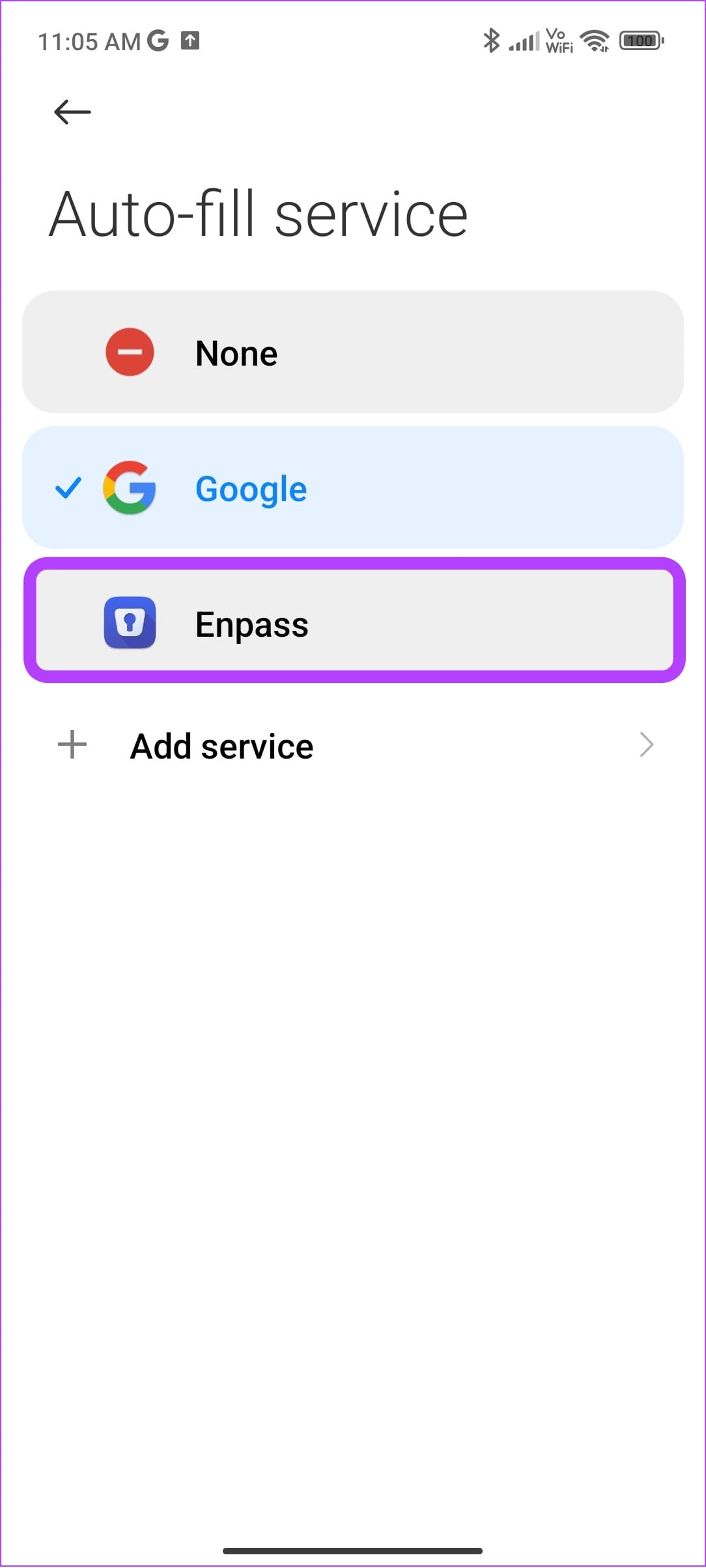
Step 6: Tap OK to confirm.

Also read: How to enable or disable autofill in Google Chrome
How to Turn off Autofill on Android
If you are concerned about your data, you can also turn off this feature.
Step 1: Go to Settings > tap Additional settings.
Step 2: Tap Language and input > choose Auto-fill service.
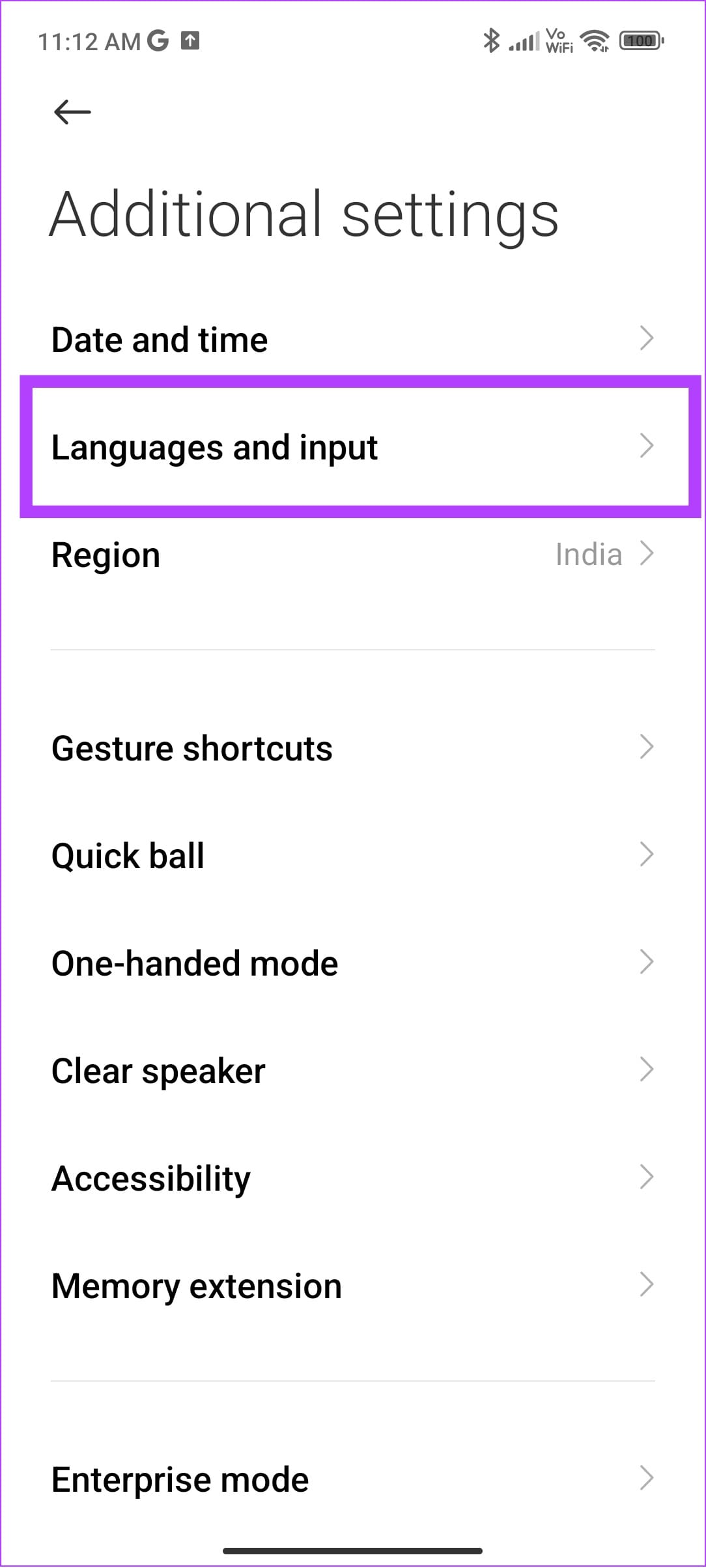

Step 3: Now choose None.
Apart from that, you can also turn off many other Auto-fill options.
Turn off Autofill for Other Services
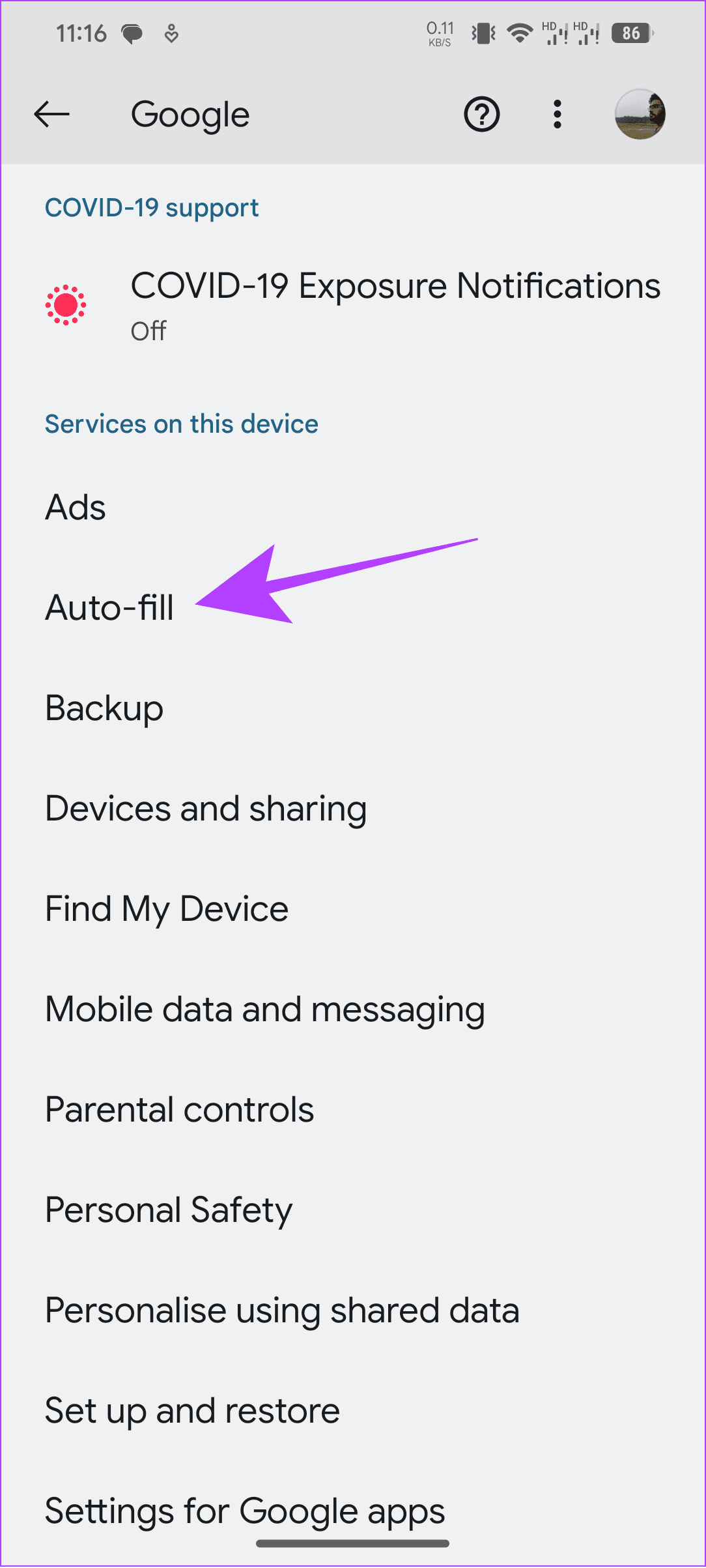
Step 1: Open Settings > tap Google and choose Auto-fill.
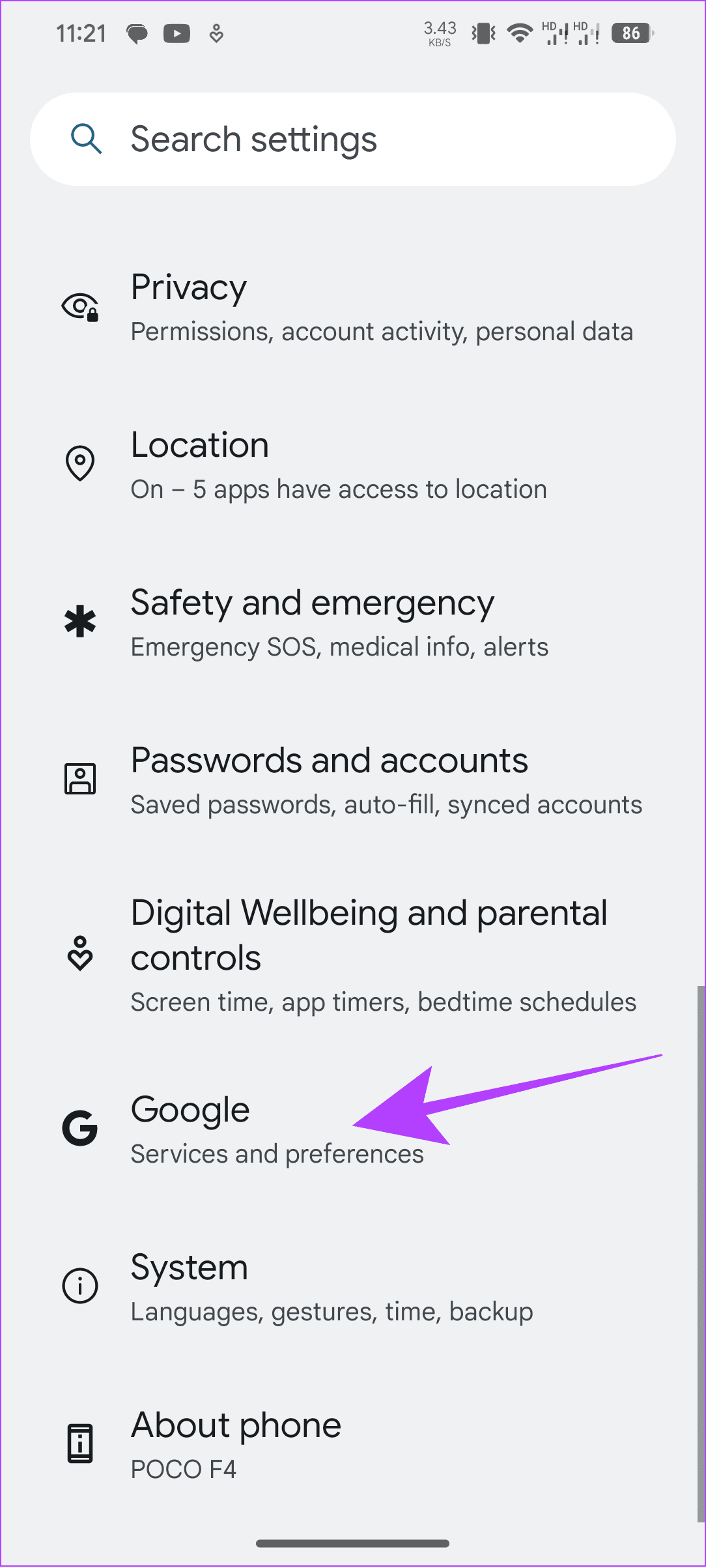
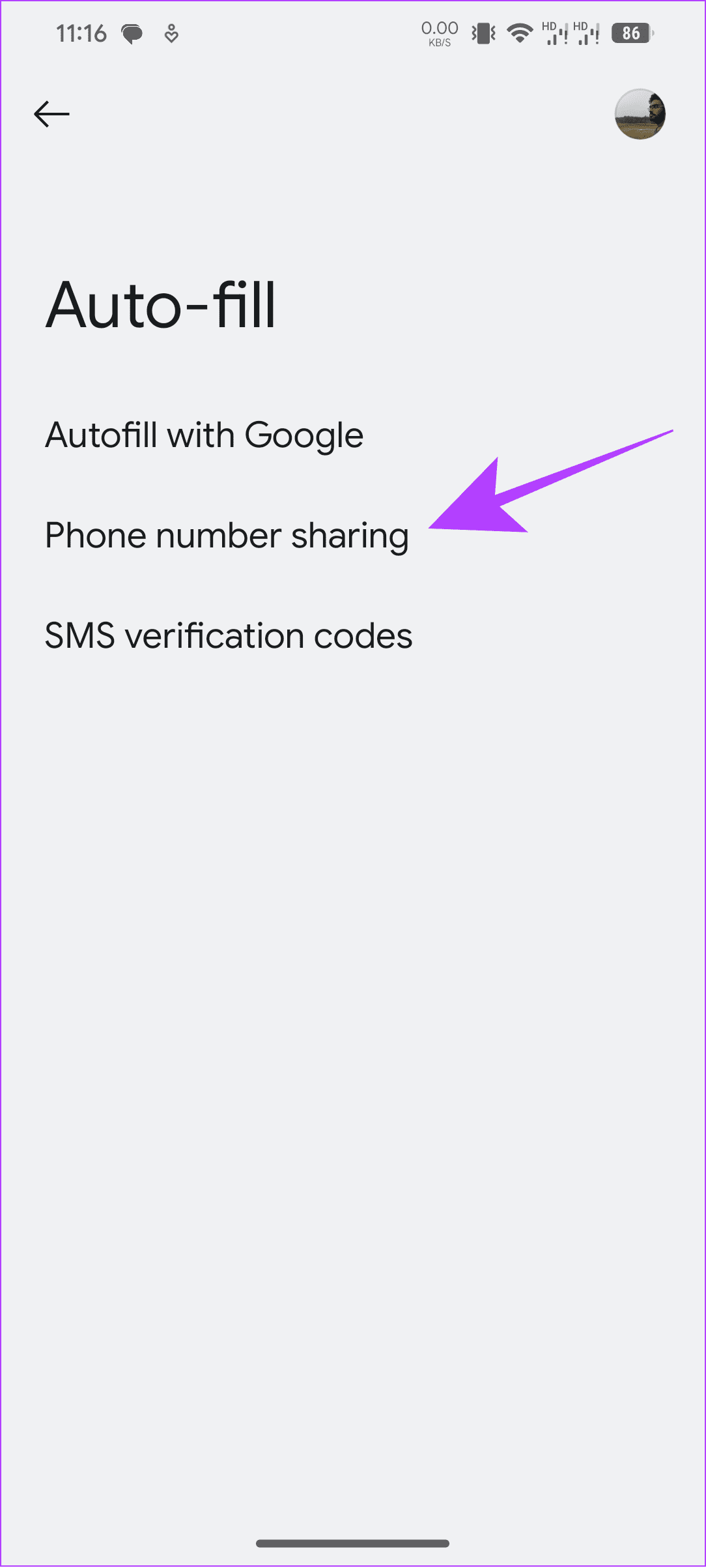
Step 2: Tap Phone number sharing and toggle off Phone number sharing to turn off your phone number sharing.

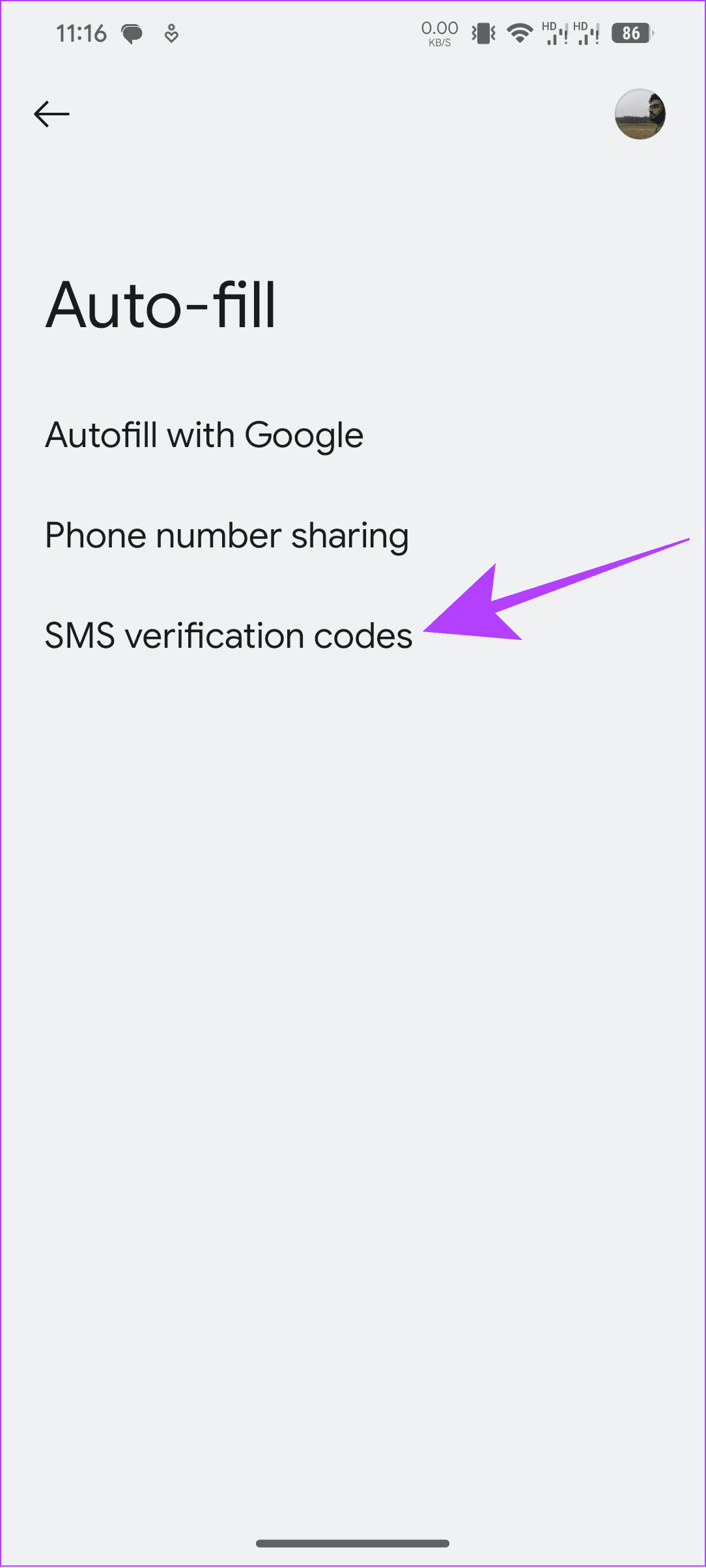
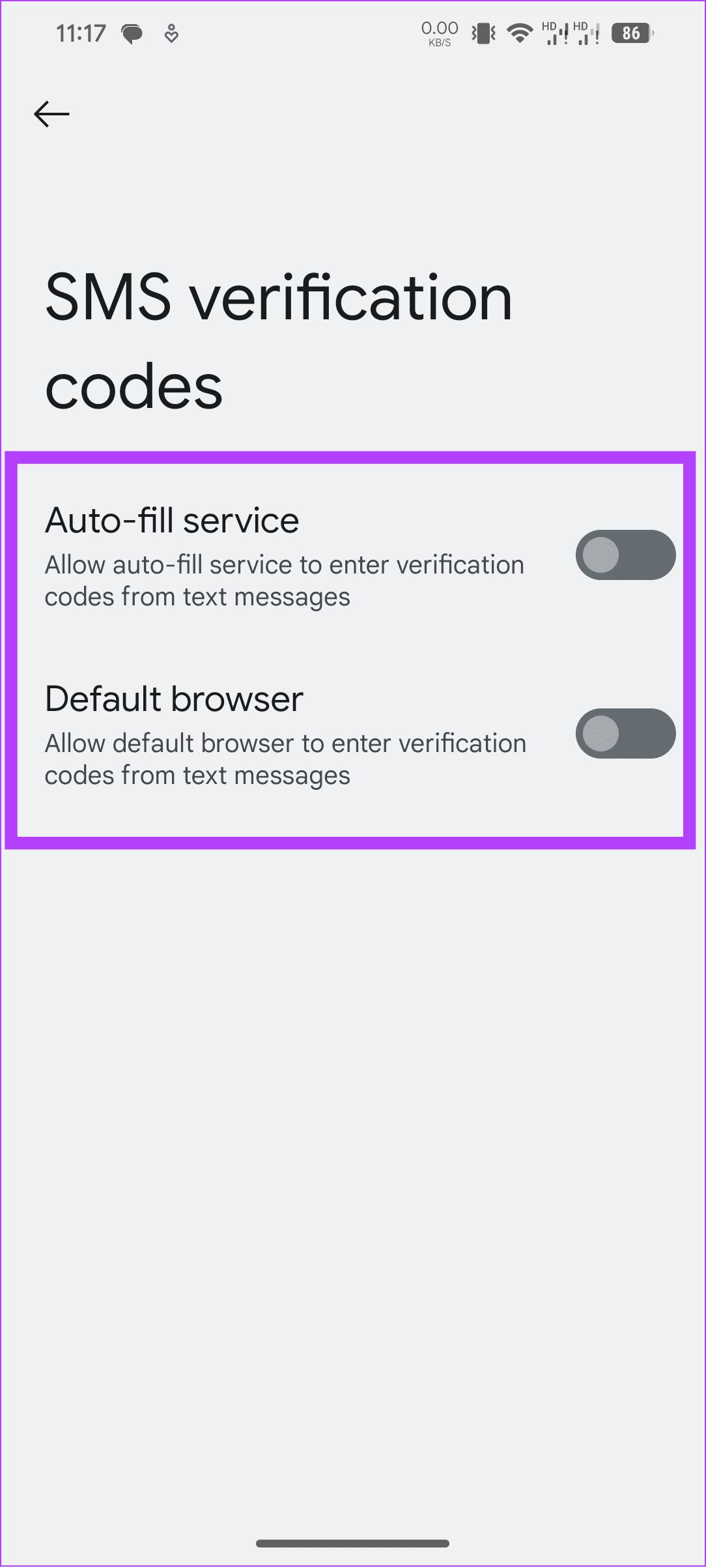
Step 3: Now, go back and choose SMS verification codes and toggle off:
- Auto-fill service: Disables Auto-fill to read any OTP or verification texts you receive.
- Default browser: Prevents Default browser from accessing OTP or verification texts in your device using Auto-fill.
FAQs on Android Autofill
Password managers and the default Google autofill options have strong policies to protect user data. However, that doesn’t mean your data is safe from potential snoopers or hackers. The best measure is to use the best password manager with a strong data protection policy.
To enhance security when using services such as autofill or password managers, consider enabling two-factor authentication (2FA) for your password manager and regularly updating your master password. Ensure your device and software are updated with the latest security patches.
Autofill helps us save time while being useful by storing passwords and automatically fetching and adding OTPs on various services. However, if you are concerned about the data shared with the service, we hope our guide on enabling and disabling Autofill on Android helped you.
Was this helpful?
Last updated on 10 August, 2024
1 Comment
Leave a Reply
Read Next
 How to Enable or Disable Autofill in Google Chrome for PC and Mobile
Are you tired of entering your personal information every time you fill out a form or make an online purchase?
How to Enable or Disable Autofill in Google Chrome for PC and Mobile
Are you tired of entering your personal information every time you fill out a form or make an online purchase?
 4 Ways to Fix Password Autofill Not Working on Android
Basic Fixes App developers have disabled autofill: While most Android apps support password auto-filling, some developers skip the function due to privacy reasons.
4 Ways to Fix Password Autofill Not Working on Android
Basic Fixes App developers have disabled autofill: While most Android apps support password auto-filling, some developers skip the function due to privacy reasons.
 6 Ways to Fix Chrome Autofill Not Working Issue
Fix 1: Check Chrome’s Autofill Settings Usually, Google Chrome automatically saves your passwords, addresses, or payment methods.
6 Ways to Fix Chrome Autofill Not Working Issue
Fix 1: Check Chrome’s Autofill Settings Usually, Google Chrome automatically saves your passwords, addresses, or payment methods.
 How to Remove an Email Address From Gmail Autofill List
Method 1: Remove Saved Email Address From Gmail on Desktop You can’t view or modify saved Gmail contacts from the Gmail web.
How to Remove an Email Address From Gmail Autofill List
Method 1: Remove Saved Email Address From Gmail on Desktop You can’t view or modify saved Gmail contacts from the Gmail web.
 How to Add or Change Autofill Data on Google Chrome
While using Google Chrome on your mobile or computer, you will surely come across websites on which you would want to sign up.
How to Add or Change Autofill Data on Google Chrome
While using Google Chrome on your mobile or computer, you will surely come across websites on which you would want to sign up.
 3 Ways to Fix AutoFill Passwords Not Working on iPhone and iPad
Basic Fixes Turn off private browsing mode: The autofill feature does not work when you browse in private mode on your iPhone or iPad.
3 Ways to Fix AutoFill Passwords Not Working on iPhone and iPad
Basic Fixes Turn off private browsing mode: The autofill feature does not work when you browse in private mode on your iPhone or iPad.
 4 Ways to Fix iPhone OTP Autofill Not Working
https://youtu.be/cemyOQvHUK8 Fix 1: Use the Default Apple Keyboard If you're using a third-party keyboard, switch to the default Apple keyboard when an OTP arrives and see if you can view
4 Ways to Fix iPhone OTP Autofill Not Working
https://youtu.be/cemyOQvHUK8 Fix 1: Use the Default Apple Keyboard If you're using a third-party keyboard, switch to the default Apple keyboard when an OTP arrives and see if you can view
 5 Ways to Fix AutoFill Not Working in Microsoft Excel for Windows
Basic Fixes Try a different workbook: Testing the AutoFill feature in a different workbook will help determine if the issue is limited to a specific Excel file.
5 Ways to Fix AutoFill Not Working in Microsoft Excel for Windows
Basic Fixes Try a different workbook: Testing the AutoFill feature in a different workbook will help determine if the issue is limited to a specific Excel file.
The article above may contain affiliate links which help support Guiding Tech. The content remains unbiased and authentic and will never affect our editorial integrity.


how might one disable/remove the service entirely, so it’s not available, doesn’t show up in Settings, not just set it to None?