Method 1: Disable Chrome Guest Mode Browsing in Windows via Command Prompt
If you use Chrome on Windows, you must create a registry entry from scratch to disable Guest mode. But rather than diving into the Registry Editor and doing that manually, there’s a much faster way: instructing the operating system to create the key using the Command Prompt console.
Step 1: Press Windows + S to bring up Windows Search.
Step 2: Type command prompt into the search box and click Run As Administrator to launch the Command Prompt console with administrative privileges.
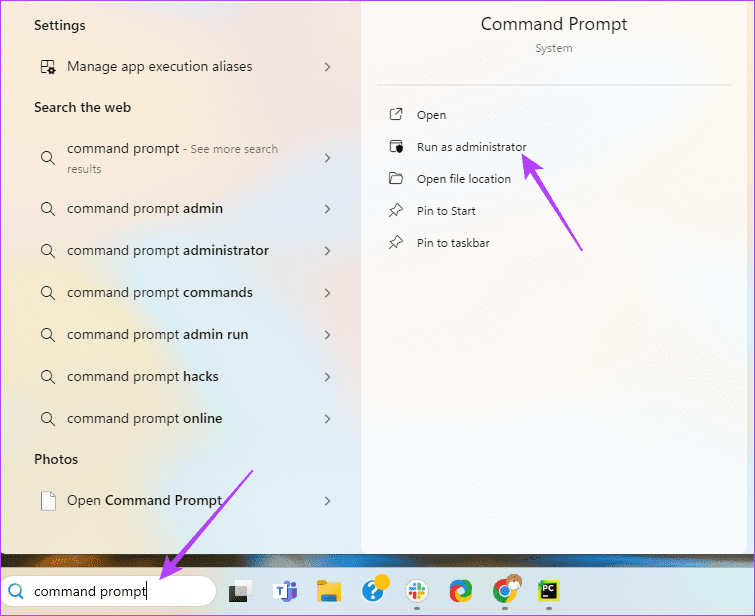
Step 3: Type (or copy and paste) the following command and press Enter:
REG ADD HKLM\SOFTWARE\Policies\Google\Chrome /v BrowserGuestModeEnabled /t REG_DWORD /d 0

Step 4: Exit Chrome, and then restart your computer. Then, relaunch Chrome and click your profile — you won’t find the option to open the Guest mode window listed anymore.
Note: If you want to re-enable Guest mode browsing in Chrome later, you must delete the registry entry that you created earlier. To do that, type (or copy and paste) the following command into a Command Prompt console with administrative privileges and press Enter:
REG DELETE HKLM\SOFTWARE\Policies\Google\Chrome /v BrowserGuestModeEnabled /f
Remember to restart your computer afterward. Otherwise, you will not see the change reflected in the browser.
Method 2: Using the Registry Editor on Windows
This may be a longer method, but it is just as effective. If you want to use the Registry Editor to disable Guest Mode in Chrome, the following steps below should help you do that.
Step 1: Press Windows Key + R shortcut to open the Run box. Next, type regedit into the search box and click OK to launch the Registry Editor.
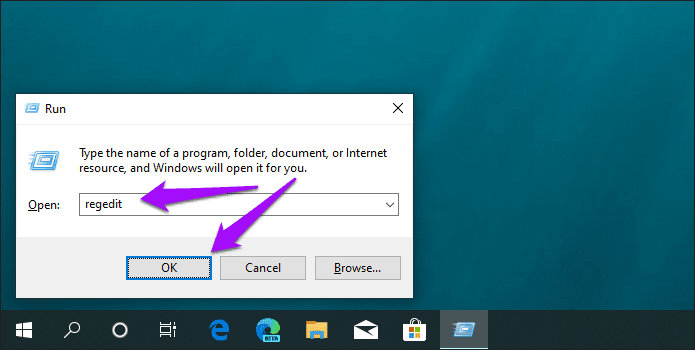
Step 2: Insert the following path into the Registry Editor address bar and press Enter:
HKEY_LOCAL_MACHINE\SOFTWARE\Policies\Google\Chrome

Step 3: Select the folder labeled Chrome on the left of the Registry Editor window > right-click a vacant area on the right > select New > click DWORD (32-bit) Value.
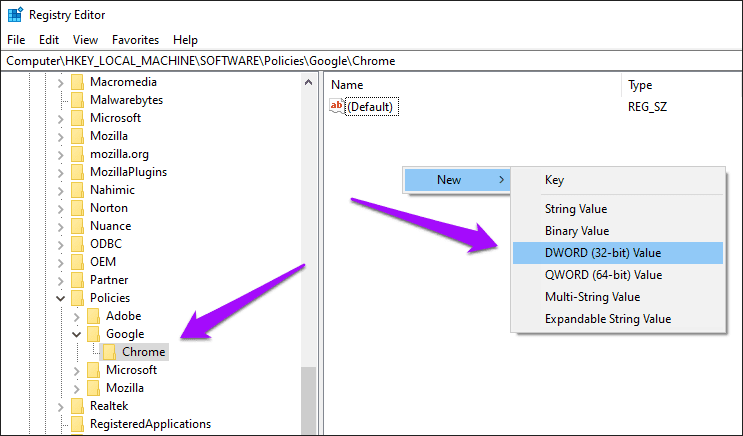
Step 4: Name the newly created registry entry — BrowserGuestModeEnabled.

Step 5: Double-click the BrowserGuestModeEnabled registry entry. In the field underneath Value Data, insert 0 and click OK. Then, exit the Registry Editor.
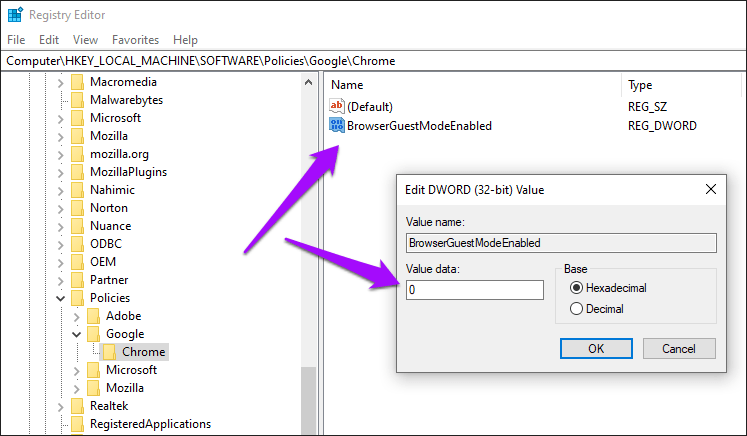
Step 6: Restart your computer and launch Chrome. Guest mode should be disabled.
If you want to re-enable Guest mode, navigate to the same location within the Registry Editor and delete the BrowserGuestModeEnabled registry key. Restart your computer to apply changes.
Method 3: Disable Chrome Guest Mode Browsing on Mac
Disabling Guest mode within Chrome on a Mac is straightforward. A simple macOS Terminal command should help you complete the task quickly.
Step 1: Start by pressing Shift + Cmd + U shortcut to bring up the Utilities folder on your Mac.
Step 2: Double-click Terminal.

Step 3: Type the following command into the macOS Terminal and press Enter.
defaults write com.google.Chrome BrowserGuestModeEnabled -bool false

Step 4: Force-quit Chrome, relaunch it, and click your profile. You will find Guest mode disabled.
If you want to re-enable Guest mode later, type the following command in Terminal and press Enter:
defaults write com.google.Chrome BrowserGuestModeEnabled -bool true
Ensure to exit and relaunch Chrome to apply the changes.
Was this helpful?
Last updated on 27 May, 2024
Read Next
 What Is Caret Browsing in Chrome, Firefox, and Edge and How to Use It
You can highlight and copy text from browser pages using several ways besides using your mouse or trackpad.
What Is Caret Browsing in Chrome, Firefox, and Edge and How to Use It
You can highlight and copy text from browser pages using several ways besides using your mouse or trackpad.
 What Happens When You Clear Browsing Data in Chrome
What Counts as Browsing Data in Chrome When you browse the web using Google Chrome, the browser collects various types of data related to your internet activities.
What Happens When You Clear Browsing Data in Chrome
What Counts as Browsing Data in Chrome When you browse the web using Google Chrome, the browser collects various types of data related to your internet activities.
 How to Disable Private Browsing in Safari on iPhone
Limiting adult websites inside the Content Restrictions menu disables the Private Browsing Mode in Safari.
How to Disable Private Browsing in Safari on iPhone
Limiting adult websites inside the Content Restrictions menu disables the Private Browsing Mode in Safari.
 How to Disable Safari Private Browsing on Mac
If you hand over your Mac to someone else, you may not know what they were up to during their browsing sessions.
How to Disable Safari Private Browsing on Mac
If you hand over your Mac to someone else, you may not know what they were up to during their browsing sessions.
 3 Ways to Get Guest Account Back on Windows 10/11
Microsoft Has Disabled the Guest Account Feature With the Windows 10 build 10159, Microsoft disabled creating a Guest account.
3 Ways to Get Guest Account Back on Windows 10/11
Microsoft Has Disabled the Guest Account Feature With the Windows 10 build 10159, Microsoft disabled creating a Guest account.
 How to Disable Efficiency Mode for Google Chrome on Windows 11
Disable Efficiency Mode for Google Chrome Using Task Manager One of the easiest ways to turn off Efficiency Mode for Google Chrome is by using Windows Task Manager.
How to Disable Efficiency Mode for Google Chrome on Windows 11
Disable Efficiency Mode for Google Chrome Using Task Manager One of the easiest ways to turn off Efficiency Mode for Google Chrome is by using Windows Task Manager.
 How to Disable Chrome Incognito Mode on Windows, macOS, and Android
Disable Chrome Incognito Mode on Windows If you have Windows Pro and above, you can use Group Policy; else, use the Command prompt to update the Windows Registry.
How to Disable Chrome Incognito Mode on Windows, macOS, and Android
Disable Chrome Incognito Mode on Windows If you have Windows Pro and above, you can use Group Policy; else, use the Command prompt to update the Windows Registry.
 How to Enable or Disable Reader Mode in Chrome
Method 1: Using the Reading Mode Chrome Flag Similar to forcing dark mode on Chrome, you may enable the Reader Mode using Chrome flags.
How to Enable or Disable Reader Mode in Chrome
Method 1: Using the Reading Mode Chrome Flag Similar to forcing dark mode on Chrome, you may enable the Reader Mode using Chrome flags.
The article above may contain affiliate links which help support Guiding Tech. The content remains unbiased and authentic and will never affect our editorial integrity.