

The Copilot Read Aloud feature is a fantastic accessibility feature and a handy way to consume a lot of information. When it’s working, that is. There are many reasons why this feature could suddenly fail, and we’re here to provide some troubleshooting tips for Copilot Read Aloud not working.
What Causes This Error
There are a lot of reasons that Copilot’s Read Aloud could fail. Being a newer technology, it’s still susceptible to some growing pains. Because it runs on Edge, Microsoft 365, and as an app, Read Aloud has many potential points for failure. Major reasons include:
- Outdated software
- Rollout of Copilot Read Aloud is not available in your region
- Your volume, or Edge itself, is muted
- Trouble with your subscription or a lack of one
- Internet connectivity troubles
How to Fix Copilot Read Aloud Not Working
We’ve assembled a few troubleshooting tips below to help fix Copilot Read Aloud:
Try the Obvious Fixes First
It’s always good to start simple, and with the basic fixes you might overlook. When you see the Copilot Read Aloud error message, first try the following:
- Check your internet connection and reset your router if need be.
- Restart your browser and your machine.
- Fully update your version of Windows, Edge, Microsoft 365, and the app.
- Check that your volume, app, or Edge isn’t muted.
If these don’t solve the problem, you can move on to the next solution.
Check Your Subscription

While the Classic Read Aloud needs no subscription, the Enhanced Read Aloud option, with interactive Q&As and Audio Overview, does. Head to your Microsoft Account, and to the “Subscriptions” tab from the sidebar. Click “Manage” next to your Microsoft 365 subscription to see whether or not you’ll need to renew things.
Restart Audio Services
It might not be Read Aloud misbehaving, but rather your PC’s audio. Giving it a quick reset can solve things. Here’s how:
Step 1. Open the Run Dialog (Win + R) and type “services.msc” before hitting “OK.”
Step 2. In “Services,” scroll down to “Remote Procedure Call,” “Windows Audio,” and “Windows Audio Endpoint Builder.”

Step 3. For each of these, right-click them and select “Restart” from the Context menu.
Step 4. See if this resolves the issue.
Enable Read Aloud Voice Settings
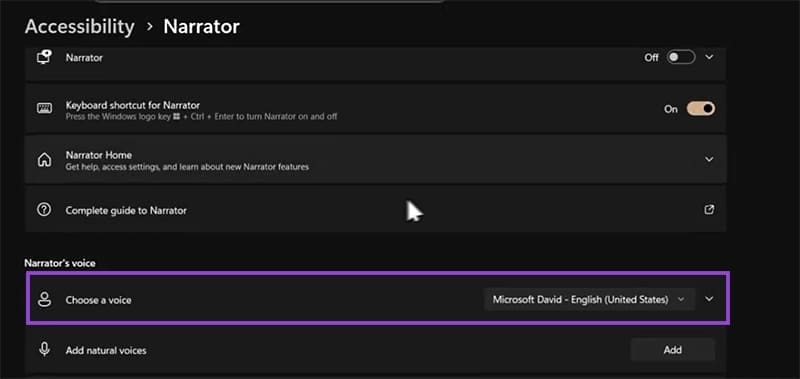
Windows has its own Text to Speech (TTS) settings that must be activated and working for Copilot to run Read Aloud effectively. Here’s how to check:
Step 1. Open Settings (Win + I) and head to “Accessibility” in the sidebar.
Step 2. In the Narrator menu, ensure that a default Narrator voice is chosen and that the TTS pack for it is downloaded.
Reset the Edge Browser
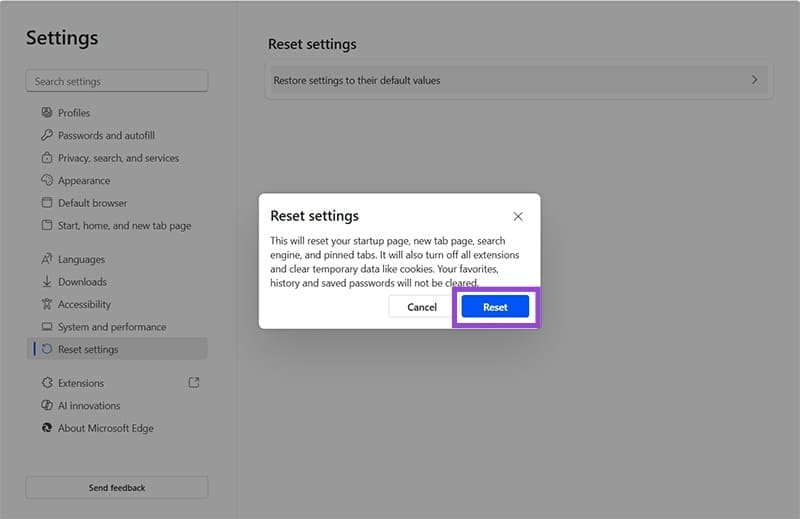
If your browser’s Read Aloud feature is failing you, then it could be the result of file corruption. A good way to start fresh is to reset Edge. Don’t worry about your saved data, though; it’ll be safe. Here’s what to do:
Step 1. Click the “More” button in Edge (three dots) and click “Settings” from the list.
Step 2. In the Settings tab, click “Reset settings” in the sidebar.
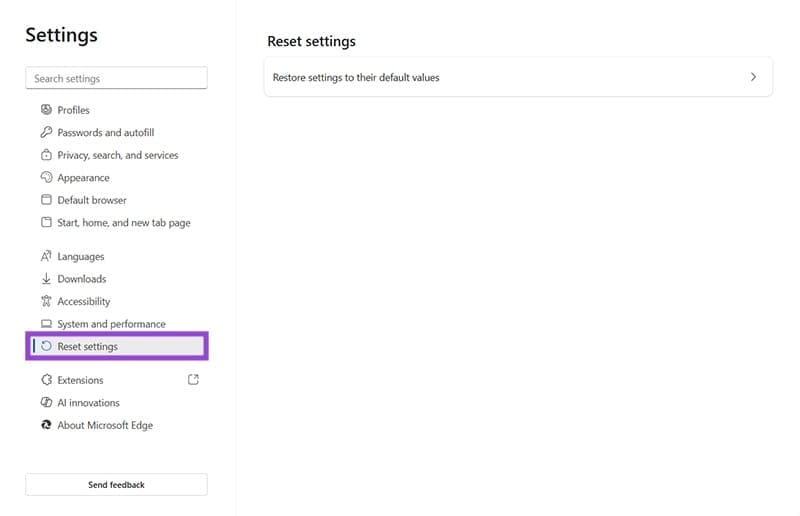
Step 3. Click “Restore settings to their default values.”
Step 4. Finally, click the “Reset” button on the pop-up.
Was this helpful?
Last updated on 17 December, 2025
Read Next
 5 Fixes When Read Aloud Is Not Working in Microsoft Word for Windows
Fix 1: Add the Read Aloud Option Is the Read Aloud option missing from Microsoft Word?
5 Fixes When Read Aloud Is Not Working in Microsoft Word for Windows
Fix 1: Add the Read Aloud Option Is the Read Aloud option missing from Microsoft Word?
 How to Use the Read Aloud Feature in Microsoft Edge
Use Read Aloud in Microsoft Edge on Desktop Microsoft Edge’s Read Aloud feature is simple to use and does not require any setup.
How to Use the Read Aloud Feature in Microsoft Edge
Use Read Aloud in Microsoft Edge on Desktop Microsoft Edge’s Read Aloud feature is simple to use and does not require any setup.
 How to Read Aloud a Webpage on Safari on iPhone
Make Safari Read Text Out Loud on iOS 17 Step 1: Open Safari and open the article or blog you want to listen to.
How to Read Aloud a Webpage on Safari on iPhone
Make Safari Read Text Out Loud on iOS 17 Step 1: Open Safari and open the article or blog you want to listen to.
 Does Bumble Have Read Receipts and How to Tell if Someone Read Your Message
Does Bumble Show Read Receipts?
Does Bumble Have Read Receipts and How to Tell if Someone Read Your Message
Does Bumble Show Read Receipts?
 How to Fix Copilot Not Working in Microsoft Office Apps
Microsoft has leaned hard into integrating its AI assistant Copilot into as many of its subscription-based apps as possible, not to mention its operating system.
How to Fix Copilot Not Working in Microsoft Office Apps
Microsoft has leaned hard into integrating its AI assistant Copilot into as many of its subscription-based apps as possible, not to mention its operating system.
 2 Fixes for Read Receipts Not Working on WhatsApp
Basic Fixes Force quit and relaunch: This will give the app a fresh start and should make the feature work.
2 Fixes for Read Receipts Not Working on WhatsApp
Basic Fixes Force quit and relaunch: This will give the app a fresh start and should make the feature work.
 How to Use Copilot to Transcribe Meetings
Microsoft’s Copilot is showing up in all of its major apps, including Teams.
How to Use Copilot to Transcribe Meetings
Microsoft’s Copilot is showing up in all of its major apps, including Teams.
 How to Use Copilot to Set Reminders and Calendar Events
Whether you're planning meetings or keeping track of personal to-dos, Copilot simplifies scheduling with natural language commands.
How to Use Copilot to Set Reminders and Calendar Events
Whether you're planning meetings or keeping track of personal to-dos, Copilot simplifies scheduling with natural language commands.
The article above may contain affiliate links which help support Guiding Tech. The content remains unbiased and authentic and will never affect our editorial integrity.

