Add Color Block to an Instagram Story
You can add a background color while composing a text story in the Type mode. However, you can also do that in the normal mode by adding a color block.
Step 1: Open Instagram and then go to the Story mode.
Step 2: Either take a new photo or upload one from your gallery.
Step 3: Tap the three dots in the top-right corner and then select Draw.
Step 4: Select the color from the bottom and then long-press the screen to add the color block to your Story.



Add a Cool Transparent Effect To Story
So instead of a solid color, if you want to add a transparent or a glossy effect to your photos, you can do that too with these steps:
Step 1: Go to the Story mode on the Instagram app and then capture or upload a picture.
Step 2: Tap the three dots in the top-right corner and then select Draw.
Step 3: Select any color from the bottom panel. Hold or long touch anywhere on the picture until a translucent layer fills the entire screen.

Step 4: Tap on the Done button.
Now you can continue composing that story.
Show Background Image
You must have seen a lot of stories with randomly drawn lines in the photos to hide something or someone’s face. How about doing something opposite? You can manipulate the color block to show that effect using the eraser tool.
Here are the steps:
Step 1: Color block your image or add a translucent layer to it as shown above.
Step 2: Then tap on the Eraser icon. Using your finger, erase the portion of the color block that you want to reveal.


Step 3: Tap on the Done button.
It’s a unique way to create teaser stories by showing only a significant part of photos.
Change Background of Text
Now that we are talking about colors, let me show you how to change the background color of the text in Instagram Stories. Instagram currently offers five font styles: Typewriter, Strong, Classic, Modern, and Neon. While Moden and Neon don’t support background color, others do.
Step 1: Create a story and then tap on the Text icon.
Step 2: Type your text and then double-tap the Text Background icon at the top to enable background.


Step 3: You can choose the font style from the options below. To change the text background color, tap the Color Wheel icon at the top.
Step 4: After making your choice, tap on Done to confirm.
Change Background of a Question Sticker
The recently introduced question sticker has become quite popular. With this interactive sticker, you can post questions and people can reply to that. Now one may think that we can ask questions normally as well. The twist is that you can share the replies on Instagram using the native share feature.
To change the background color of a question sticker, follow these steps:
Step 1: Go to the Story mode and then tap the Sticker icon. Select the Questions sticker from it.
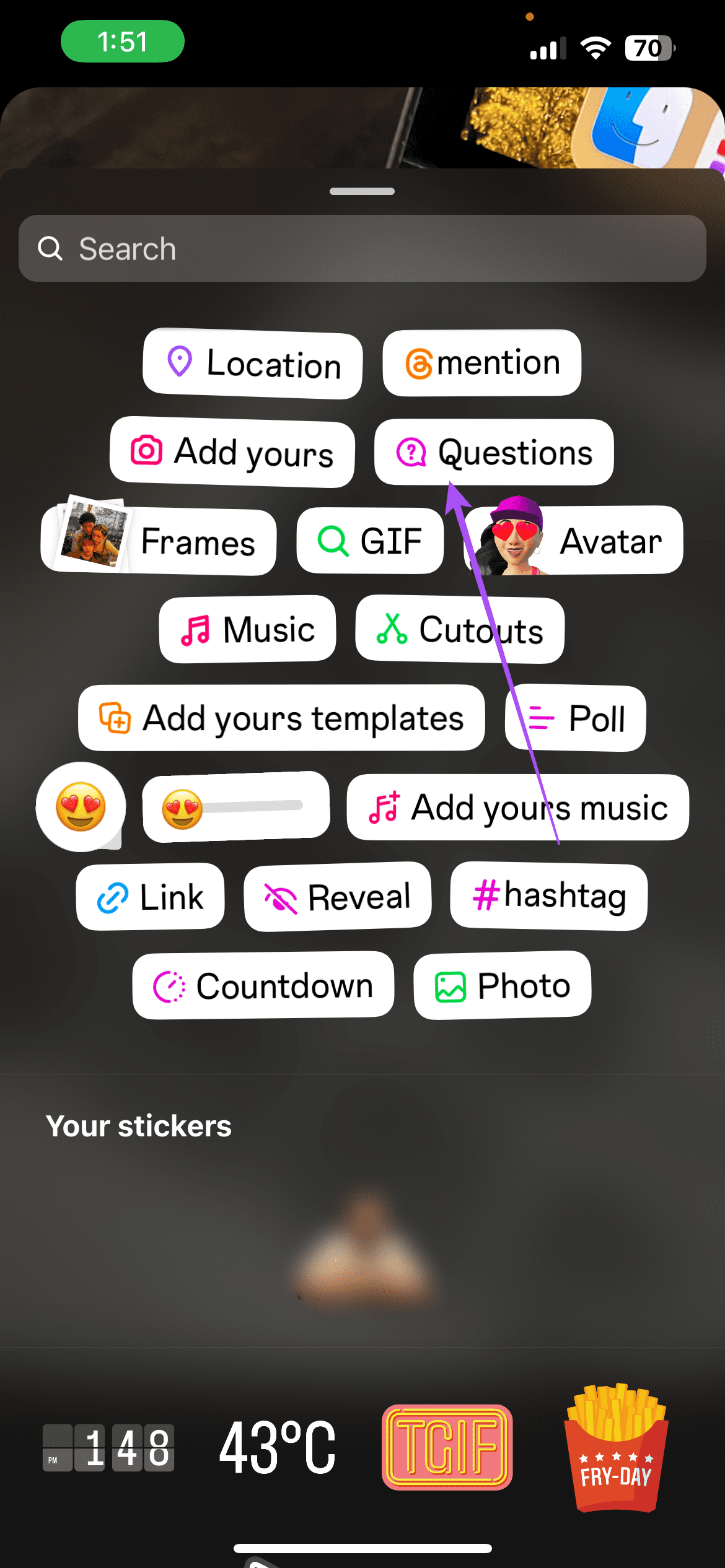

Step 2: Tap on the question sticker and then you will get the color palette at the top. Select any color of your choice to keep it as a background color.
Change the Background Color of a Hashtag
If you add a hashtag sticker, you will be able to choose a color from limited options. But if you want more color and font options, simply add a hashtag using text and then change its color. Here are the steps:
Step 1: Go to the Story mode and then tap the Text icon.
Step 2: Type # followed by your hashtag text. Now you can change its color and style.

Was this helpful?
Last updated on 09 August, 2024
Read Next
 3 Ways to Change Default Background Color in Chrome
Method 1: Use the Customize Chrome Button The easiest way to change the background color in Chrome is to use the Customize Chrome button.
3 Ways to Change Default Background Color in Chrome
Method 1: Use the Customize Chrome Button The easiest way to change the background color in Chrome is to use the Customize Chrome button.
 How to Change Background Color of the Windows Photos App
Method 1: Change Background Through the Photos App By default, the Photos app displays the color mode specified by the operating system.
How to Change Background Color of the Windows Photos App
Method 1: Change Background Through the Photos App By default, the Photos app displays the color mode specified by the operating system.
 How to Change Background Color in Paint 3D
Every person likes certain colors over others.
How to Change Background Color in Paint 3D
Every person likes certain colors over others.
 Facebook Story vs Messenger Story: Similarities and Differences
Key Differences and Similarities FeatureFacebook StoriesMessenger StoriesCross-PostingFacebook Stories are visible to Messenger contacts.Messenger Stories are visible to Facebook friends.AvailabilityAvailable on mobile apps and the Facebook website.Available only on the mobile
Facebook Story vs Messenger Story: Similarities and Differences
Key Differences and Similarities FeatureFacebook StoriesMessenger StoriesCross-PostingFacebook Stories are visible to Messenger contacts.Messenger Stories are visible to Facebook friends.AvailabilityAvailable on mobile apps and the Facebook website.Available only on the mobile
 11 Instagram Story Text Tips and Tricks You Should Know
Tip 1: Change Font Size and Style You can change the font style and size.
11 Instagram Story Text Tips and Tricks You Should Know
Tip 1: Change Font Size and Style You can change the font style and size.
 How to Change Color of Captions on YouTube on Phone and PC
Change YouTube Caption Color on Desktop When watching YouTube videos, you may have noticed that captions usually appear in white with a black outline.
How to Change Color of Captions on YouTube on Phone and PC
Change YouTube Caption Color on Desktop When watching YouTube videos, you may have noticed that captions usually appear in white with a black outline.
 3 Ways to Change Tab Color in Google Chrome on PC
Method 1: Change Tab Colors With a Chrome Theme When you change Chrome’s theme, the color of its toolbar and the top bar change along with the tabs, the search
3 Ways to Change Tab Color in Google Chrome on PC
Method 1: Change Tab Colors With a Chrome Theme When you change Chrome’s theme, the color of its toolbar and the top bar change along with the tabs, the search
 How to Share Comments on Instagram Story
Instagram stories are an easy way to share updates with your followers quickly.
How to Share Comments on Instagram Story
Instagram stories are an easy way to share updates with your followers quickly.
The article above may contain affiliate links which help support Guiding Tech. The content remains unbiased and authentic and will never affect our editorial integrity.