Clipchamp is a fantastic video editing tool from Microsoft, but as with many apps in Windows 11, you need to be logged into your account to benefit from all the features. Which is great if you can, of course, but if you can’t log in, due to an endless loop, then this article is here to help with fixes. We’ll be looking at how to solve a Clipchamp login loop.
What Causes This Error?
Login errors for apps are usually caused by connectivity or account issues, whether that be from Microsoft’s side or yours. When you find yourself in the Clipchamp login loop, some major causes include:
- Internet connectivity issues
- The app’s cache is corrupt
- Troubles with your login details
- Lack of privileges
Let’s take a look at some fixes to rectify the problem.
Clipchamp Login Loop – How to Break the Cycle
If you’re struggling with your Clipchamp account and Clipchamp won’t log in, here are some potential fixes to try:
The Obvious Fixes
They may be no-brainers, but these quick initial troubleshooters might end up saving you time and headaches. Here’s what you should do before continuing:
- Check your internet connection. Restart your router if need be.
- Ensure that Clipchamp and Windows are fully updated.
- Restart your machine.
Check Your User Account
Is your Clipchamp user account the same as your current Windows profile? Conflicting user accounts might cause sign-in loops. In fact, in late 2025, Microsoft made it mandatory that all personal Clipchamp accounts be linked to a Microsoft account, which has been discovered to be a big part of the sign-in loop problem. A school or work account may also not have the same privileges as your other accounts.
It’s a good idea to ensure consistency, either by logging out of Windows and signing back in under the same account as Clipchamp or changing your Clipchamp details.
Check the Microsoft Sign-In Assistant
Much of Windows 11’s functionality is tied to your account. If you’re having sign-in troubles, it could be that the Microsoft Sign-in Assistant Service isn’t running, or running incorrectly. To check:
Step 1. Open the Run dialog (Win + R) and enter “services.msc” before hitting “Enter.”
Step 2. In the Services window, navigate to “Microsoft Sign-In Assistant” and double-click it.
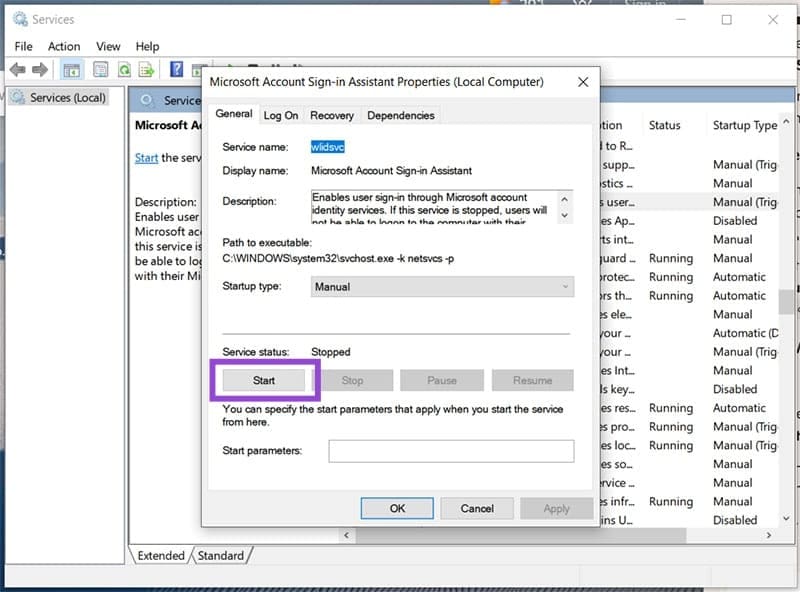
Step 3. If the process isn’t running, click the “Start” button. If it is, click the “Stop” button and start it up again.
Step 4. Try logging in through Clipchamp again.
Repair and Reset
A sign-in loop could also be the sign of a corrupted app. Rather than reinstalling Clipchamp, you can first try repairing and resetting it. Here’s how to do both:
Step 1. Open Settings (Win + I) and click “Apps” in the sidebar.
Step 2. Navigate down the list to find “Clipchamp” and click it.
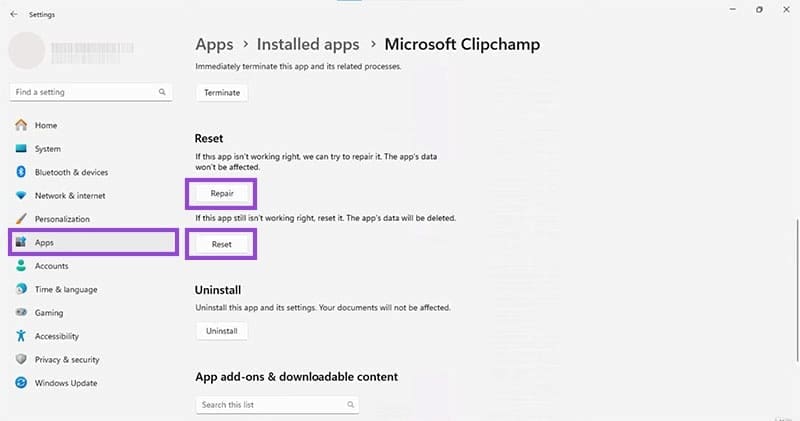
Step 3. Scroll down until you see the “Repair” and “Reset” buttons. Try “Repair” first, then “Reset.”
Step 4. Once each process is finished, try signing in to your account on Clipchamp again.
If neither of these helps, then bite the bullet and click the “Uninstall” button to remove Clipchamp. You can reinstall through the Microsoft Store.
Was this helpful?
Last updated on 31 January, 2026
Read Next
 How to Fix ClipChamp Not Working in Windows 11
Since it’s a built-in app, ClipChamp not working in Windows 11 typically doesn’t get resolved by updating the app or changing app-specific settings.
How to Fix ClipChamp Not Working in Windows 11
Since it’s a built-in app, ClipChamp not working in Windows 11 typically doesn’t get resolved by updating the app or changing app-specific settings.
 Clipchamp Can’t Export Video – How to Fix
Clipchamp is a fantastic video editing and movie-making tool that’s user-friendly and simple to use.
Clipchamp Can’t Export Video – How to Fix
Clipchamp is a fantastic video editing and movie-making tool that’s user-friendly and simple to use.
 How to Remove Email or Accounts From Facebook Login Screen
Remove Remembered Info in Facebook Login on Desktop You can remove the login info from the Facebook webpage or by removing the autofill password for your Facebook account using browser
How to Remove Email or Accounts From Facebook Login Screen
Remove Remembered Info in Facebook Login on Desktop You can remove the login info from the Facebook webpage or by removing the autofill password for your Facebook account using browser
 Top 8 Ways to Fix Wi-Fi Login Page Not Showing on iPhone
Public Wi-Fi networks have become ubiquitous.
Top 8 Ways to Fix Wi-Fi Login Page Not Showing on iPhone
Public Wi-Fi networks have become ubiquitous.
 7 Fixes for Wi-Fi Login Page Not Showing Up on Mac and Windows
https://youtu.be/ZVvbLZKKXKk Fix 1: Forget the Network and Reconnect to It Try forgetting the network so you can reconnect to it.
7 Fixes for Wi-Fi Login Page Not Showing Up on Mac and Windows
https://youtu.be/ZVvbLZKKXKk Fix 1: Forget the Network and Reconnect to It Try forgetting the network so you can reconnect to it.
 3 Ways to Fix ChatGPT Login Not Working
Why ChatGPT Login Isn’t Working ChatGPT may fail to log you in due to one of the following reasons: You're connected to an unstable or slow internet.
3 Ways to Fix ChatGPT Login Not Working
Why ChatGPT Login Isn’t Working ChatGPT may fail to log you in due to one of the following reasons: You're connected to an unstable or slow internet.
 How to Delete ChatGPT Account (With or Without Login)
Things to Know Before Deleting Your ChatGPT Account You need to know some significant points before deleting your ChatGPT account because there is no going back after your account has
How to Delete ChatGPT Account (With or Without Login)
Things to Know Before Deleting Your ChatGPT Account You need to know some significant points before deleting your ChatGPT account because there is no going back after your account has
 How To Login Into Facebook With Instagram
Login Into Facebook Using Instagram on Mobile After Meta took charge of running Instagram, linking and accessing your Facebook account has become easy.
How To Login Into Facebook With Instagram
Login Into Facebook Using Instagram on Mobile After Meta took charge of running Instagram, linking and accessing your Facebook account has become easy.
The article above may contain affiliate links which help support Guiding Tech. The content remains unbiased and authentic and will never affect our editorial integrity.