Preliminary Fixes
- Restart device: Restarting your device refreshes your system, closes background processes that might be interfering, and clears temporary files.
- Clear cache and cookies: Cached files and cookies can sometimes cause sync issues in Chrome. Clearing them ensures that you have a clean slate and removes any corrupted data causing problems.
- Log out of Chrome: Logging out and back into your Chrome account can refresh your sync settings and resolve any temporary glitches.
- Update Chrome: An outdated version of Chrome may have bugs or compatibility issues affecting the sync functionality. Keeping Chrome updated ensures you have the latest features and fixes.
Fix 1: Verify Sync Is On
When you sign in to Chrome, it syncs all your data. Sometimes, the sync is turned off for bookmarks, and that’s why you don’t see them on your other connected devices.
On PC
Step 1: In Chrome, click on the three-dot icon and select Settings.
Step 2: Click on the Turn on button next to your name. That indicates sync is on.
If it says Turn on, the sync is off, and you must enable it.
Step 3: Click on Sync and Google services.

Step 3: Click on Manage what you sync. On the next screen, ensure the toggle for Sync everything is enabled.

If it is off, check if the Bookmarks toggle is enabled. Having the Bookmarks toggle on will sync it to every device.
On Chrome’s Mobile App
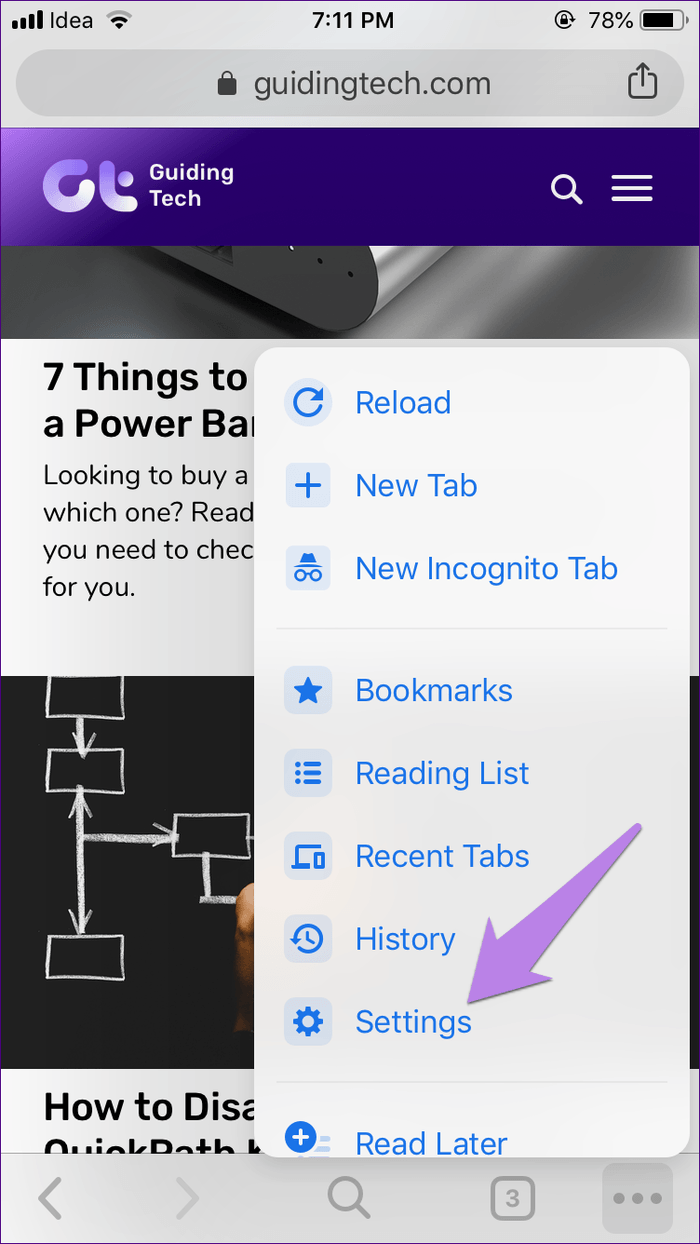
Step 1: Launch Chrome > tap on the three-dot icon > select Settings.

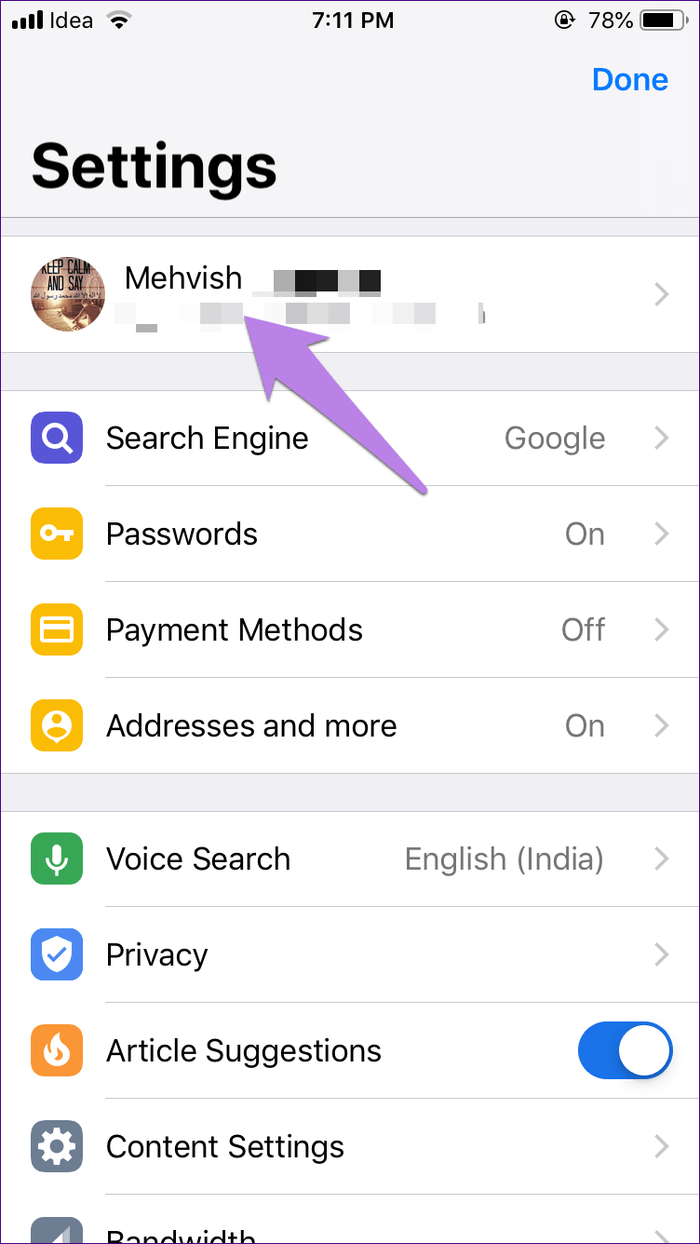
Step 2: Tap on your name at the top.
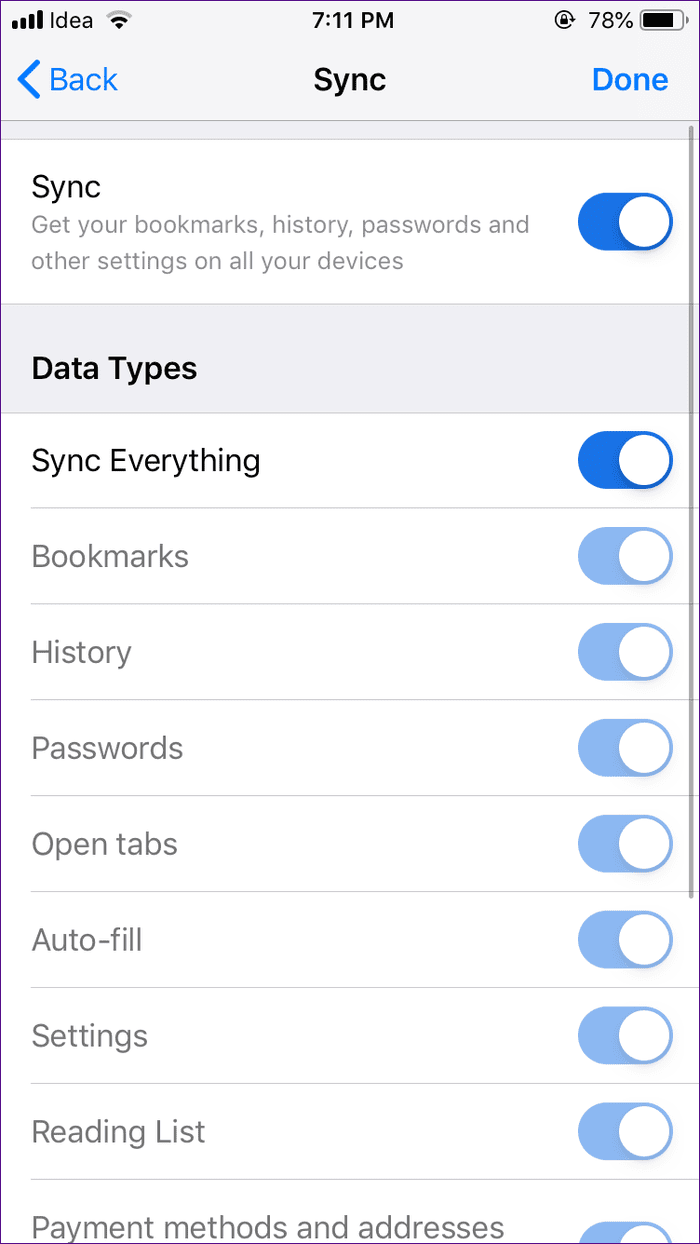
Step 3: Tap on Sync. On the next screen, verify that Sync Everything is enabled. If it’s off, ensure the Bookmarks sync is on.
Fix 2: Force Chrome Bookmarks to Sync
Sometimes, turning off bookmark sync resets the issue. To do so, repeat the steps mentioned above for both PC and mobile apps. However, in the last step, turn off the toggle next to Bookmarks. Wait for some time and turn it on. Doing that will force the browser to resync the bookmarks.
Fix 3: Turn Sync Off Completely
If re-syncing the bookmarks didn’t help, try turning off the sync completely. Here’s what you must do to turn off the sync.
On PC
Step 1: In Chrome, click on the three-dot icon and select Settings.
Step 2: Click on Turn off next to your name.

Step 3: Close Chrome and repeat the steps. Now, turn on sync.
On Chrome’s Mobile App
Step 1: Launch Chrome > tap on the three-dot icon > select Settings.
Step 2: Tap on your name at the top.
Step 3: Tap on Sync. On the next screen, verify that Sync Everything is enabled. If it’s off, ensure the Bookmarks sync is on.
Step 4: Close Chrome by removing it from the list of recent apps. Then, open it again and repeat the steps to turn the sync on.
Fix 4: Disable Extensions
If you recently installed an extension, try disabling it. Otherwise, you must disable the existing extensions one by one to find the culprit.
Step 1: Launch Chrome, click on the three-dot icon, and select Extensions > Manage Extensions.
Step 2: Use the toggle next to each extension to disable it.
Once you find the culprit, keep it disabled or remove it.

Was this helpful?
Last updated on 02 September, 2024
Read Next
 4 Ways to Fix Chrome Bookmarks Not Deleting Issue
Basic Fixes: Check for software updates: Software glitches can cause Chrome bookmarks to show up even after being deleted.
4 Ways to Fix Chrome Bookmarks Not Deleting Issue
Basic Fixes: Check for software updates: Software glitches can cause Chrome bookmarks to show up even after being deleted.
 Top 4 Ways to Export Chrome Bookmarks and Passwords
1.
Top 4 Ways to Export Chrome Bookmarks and Passwords
1.
 How to Import Chrome Bookmarks to Samsung Internet Browser
Samsung Internet Browser is one of the finest alternatives to Chrome on Android, answering many of the persistent usability issues in Google’s flagship browser.
How to Import Chrome Bookmarks to Samsung Internet Browser
Samsung Internet Browser is one of the finest alternatives to Chrome on Android, answering many of the persistent usability issues in Google’s flagship browser.
 How to Import Chrome Bookmarks into Safari for iOS
Using iCloud Bookmark Extension on Windows Safari doesn’t work on Windows, but iCloud does.
How to Import Chrome Bookmarks into Safari for iOS
Using iCloud Bookmark Extension on Windows Safari doesn’t work on Windows, but iCloud does.
 How to Import Chrome Bookmarks into Safari on iPhone
Using iCloud Bookmark Extension on Windows Safari doesn’t work on Windows, but iCloud does.
How to Import Chrome Bookmarks into Safari on iPhone
Using iCloud Bookmark Extension on Windows Safari doesn’t work on Windows, but iCloud does.
 Why Chrome is Asking for Sync Passphrase and How to Fix That
Chrome Sync arguably is the best feature in Google Chrome.
Why Chrome is Asking for Sync Passphrase and How to Fix That
Chrome Sync arguably is the best feature in Google Chrome.
 11 Best Ways to Fix Google Chrome Sync Paused Problem
One of the best things about Google Chrome is cross-platform availability.
11 Best Ways to Fix Google Chrome Sync Paused Problem
One of the best things about Google Chrome is cross-platform availability.
 6 Ways to Fix Chrome Autofill Not Working Issue
Fix 1: Check Chrome’s Autofill Settings Usually, Google Chrome automatically saves your passwords, addresses, or payment methods.
6 Ways to Fix Chrome Autofill Not Working Issue
Fix 1: Check Chrome’s Autofill Settings Usually, Google Chrome automatically saves your passwords, addresses, or payment methods.
The article above may contain affiliate links which help support Guiding Tech. The content remains unbiased and authentic and will never affect our editorial integrity.