


d to your Instagram account and remotely log out of Instagram on all devices.
Mobile App: How to Log Someone Out of Your Instagram Account
When using your Instagram account on multiple devices, there’s a chance that you forgot to log out properly. This may allow someone (known or unknown) to access your account and all its data.
To kick someone (unknown device) off your Instagram account, you’ll need to follow these two steps.
View All Devices Connected to Your Instagram Account
Step 1: Launch your Instagram account. Tap the profile icon from the bottom-right corner.
Step 2: Tap the hamburger (three-line) icon from the top-right corner.
Step 3: Tap Accounts Center. Here, go to Password and security.
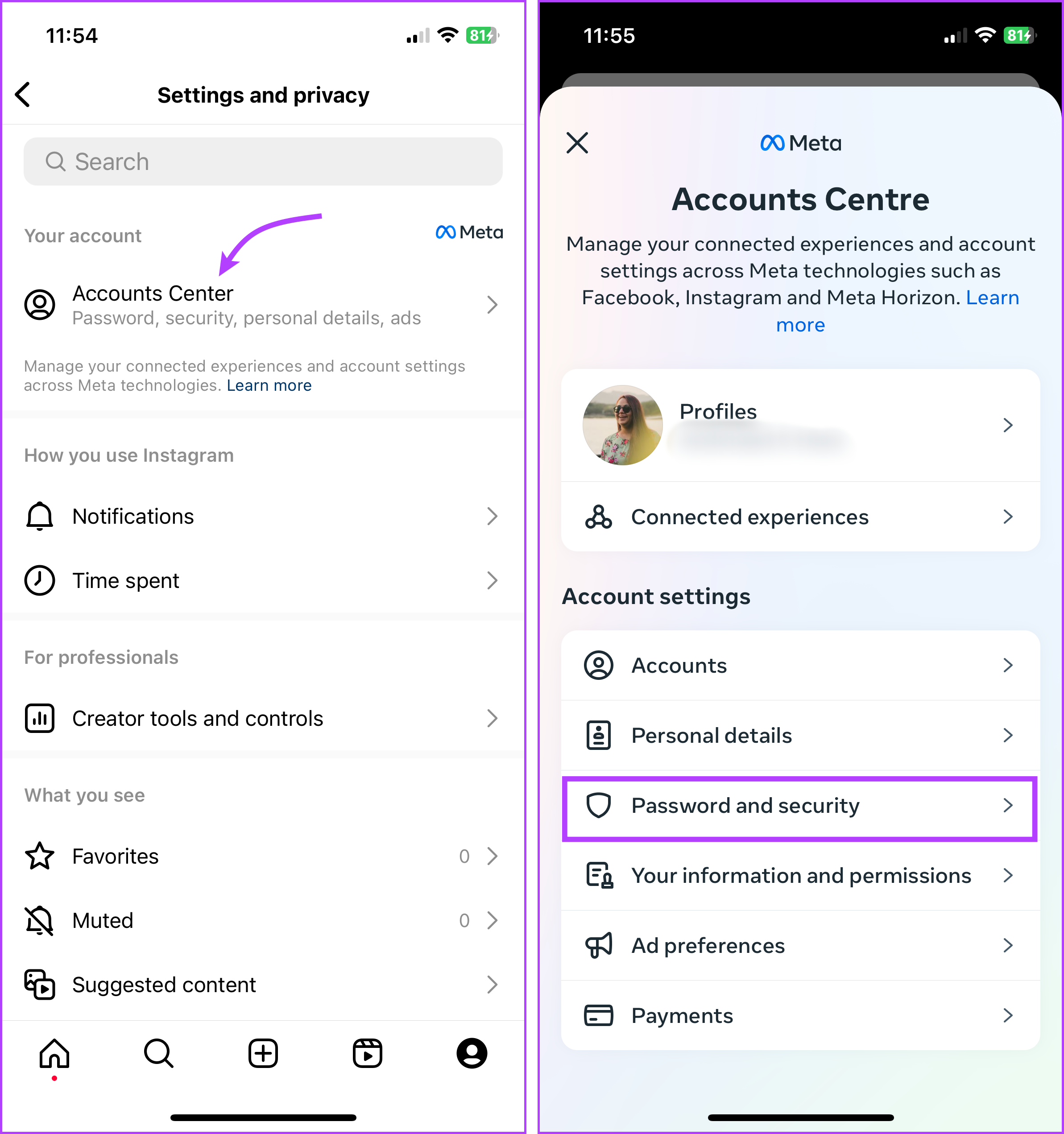
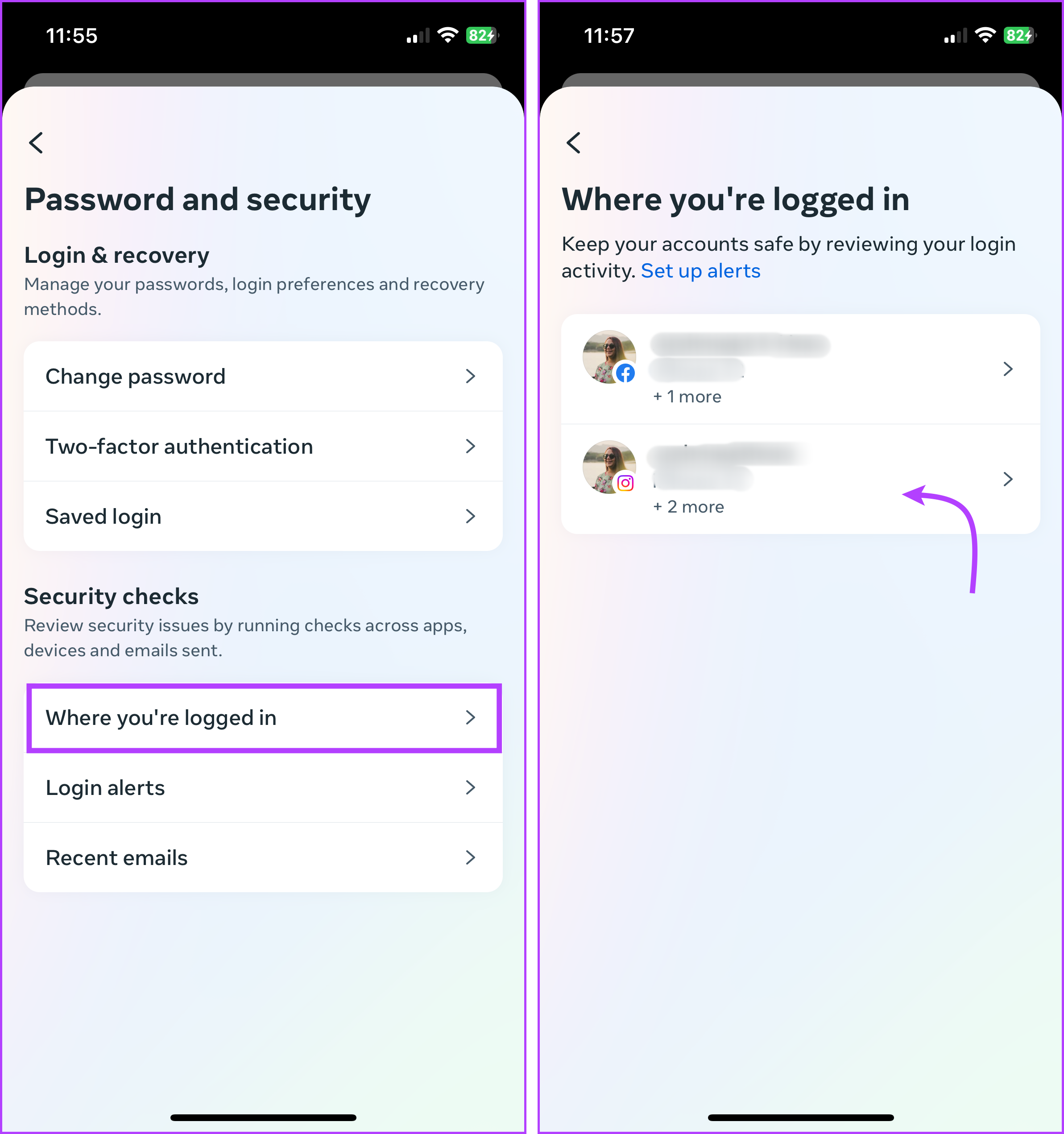
Step 4: Next, select ‘Where you’re logged in’. Select your Instagram account.
Step 5: You’ll see all the devices linked to your Instagram account.
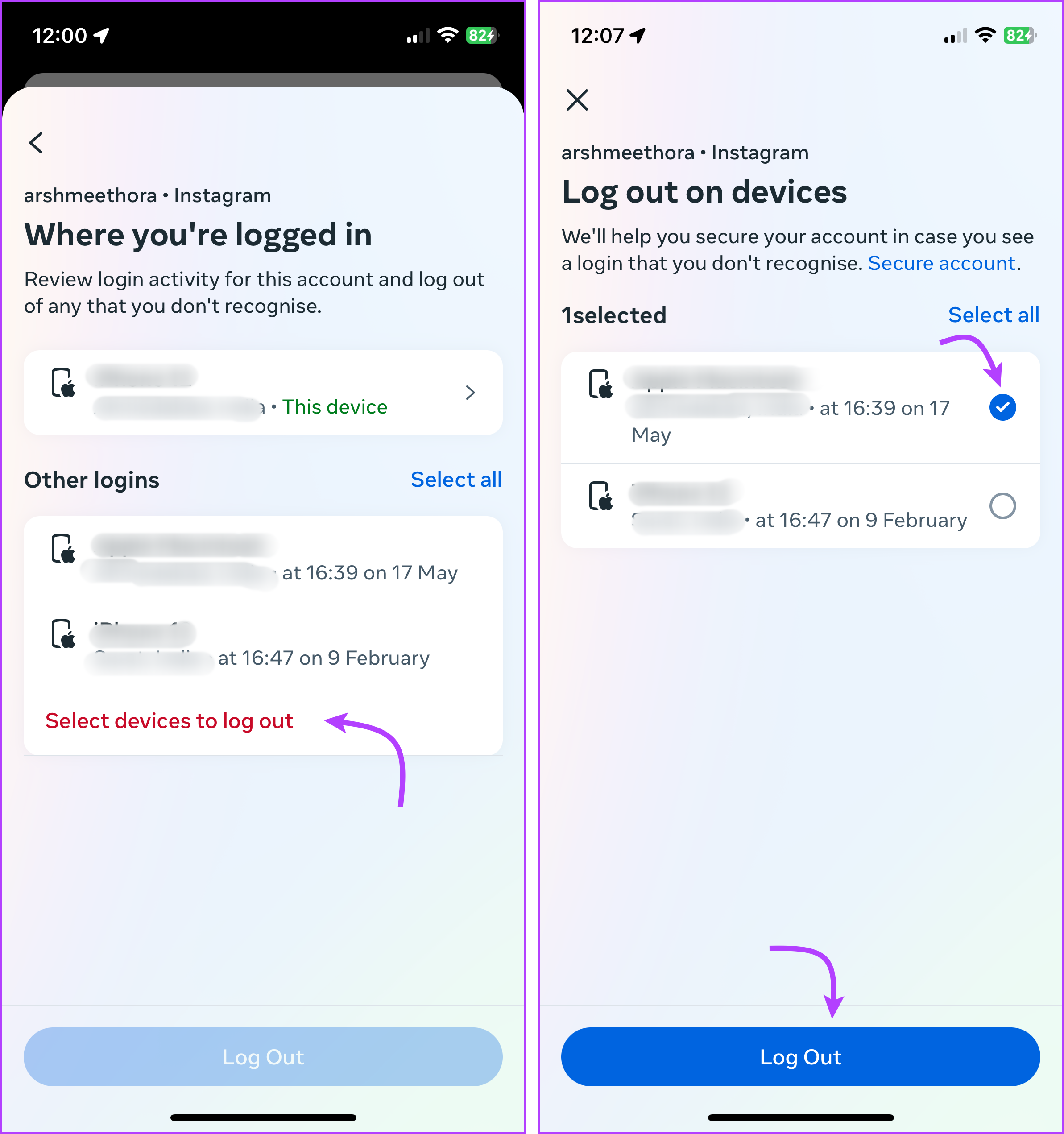
Disconnect Instagram From Other Devices
Step 1: On the login activity page, tap ‘Select devices to log out’.
Step 2: Select the device you want to unlink and tap Log Out. Tap Log Out again to confirm the action.
Instagram Website: Remove Your Instagram Account From A Device
Again, there are two steps involved here. See which devices are connected and log out from unrecognized or old devices.
Check Devices Connected With Your Instagram Account
Step 1: Open a web browser of your choice and then the Instagram website. Log in to your account.
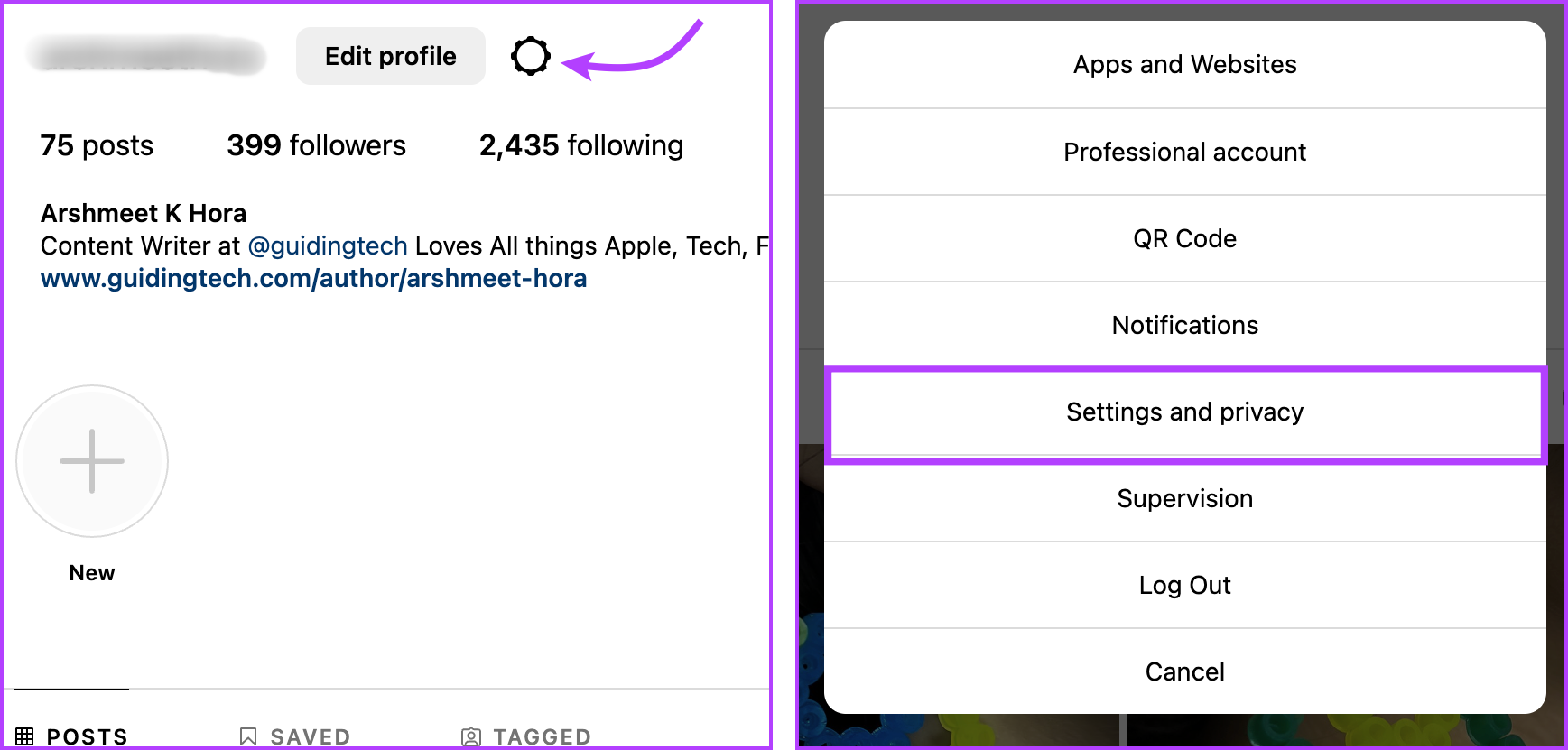
Step 2: Click the profile icon located in the top-right corner. Select the Settings (gear) icon.
Step 3: Select Settings and privacy.
Step 4: Click ‘Password and security‘. And then ‘Password and security‘ again.
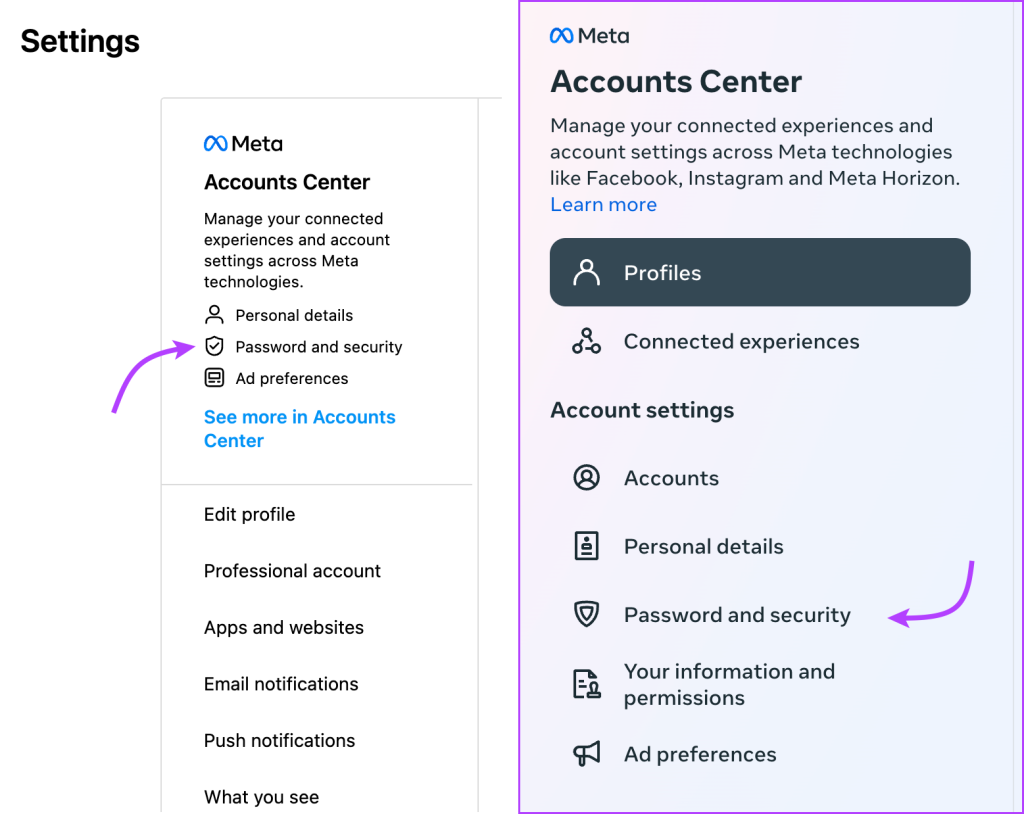
Step 5: Click ‘Where you’re logged in’.Select your account to view all linked devices.

Kick Someone Off Your Instagram Account
Step 1: On the login activity page. Select the device you want to unlink and click Log Out.
Step 2: Click Log out again to confirm.
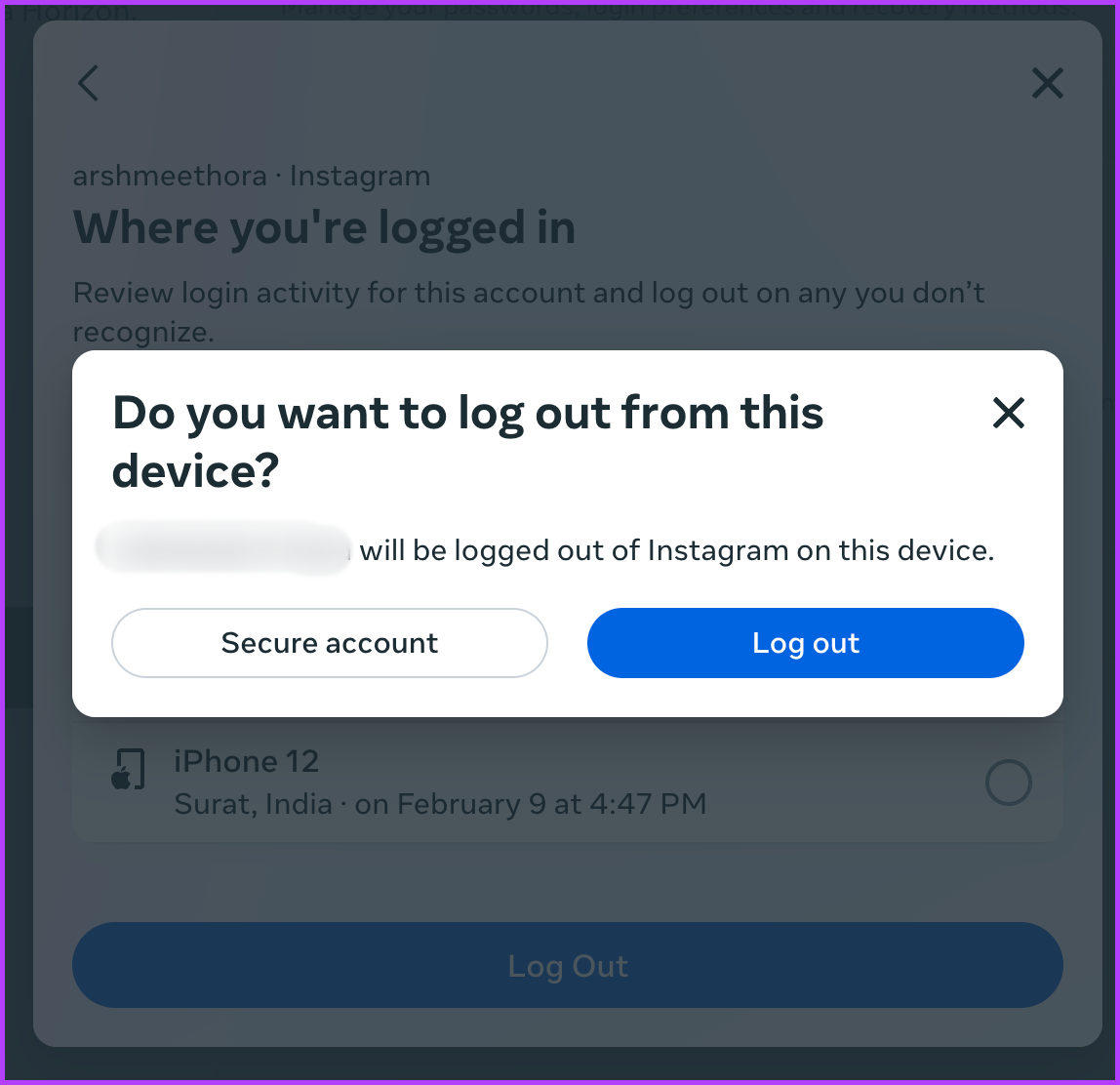
Here, you’ll observe that Instagram offers you a secure account button as well. When clicked, it will prompt you to change your Instagram password. We agree with Instagram, changing your Instagram password is a great way to log out from all devices and keep your account safe.
There’s one more preventive step that you can do to safeguard your account, follow along.
Turn on Login Alerts for your Instagram
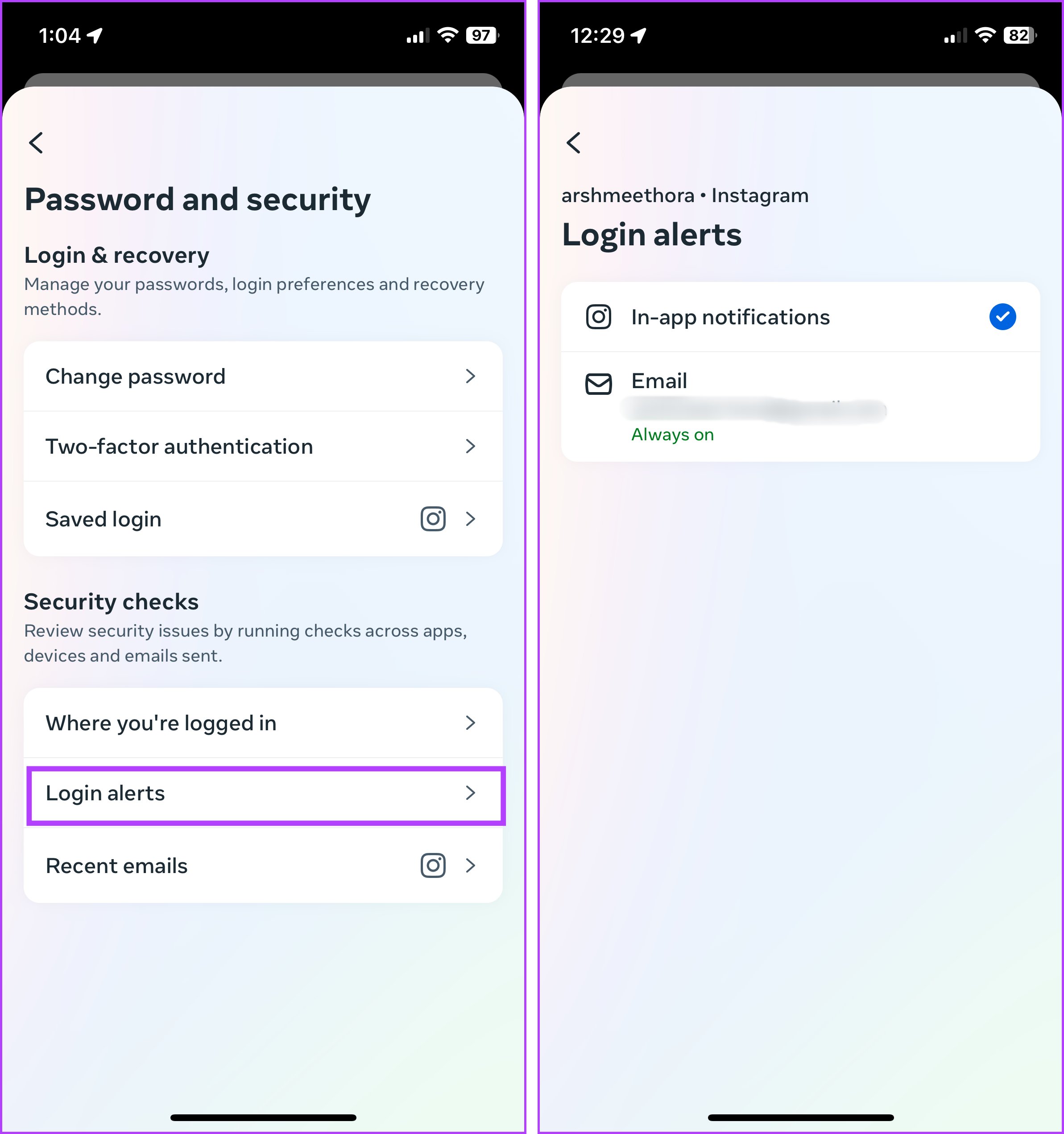
On Mobile App
Go to Profile icon → three-line icon → Accounts Center → Password and security → Login alerts → select account → here ensure in-app notifications and email ID are enabled.
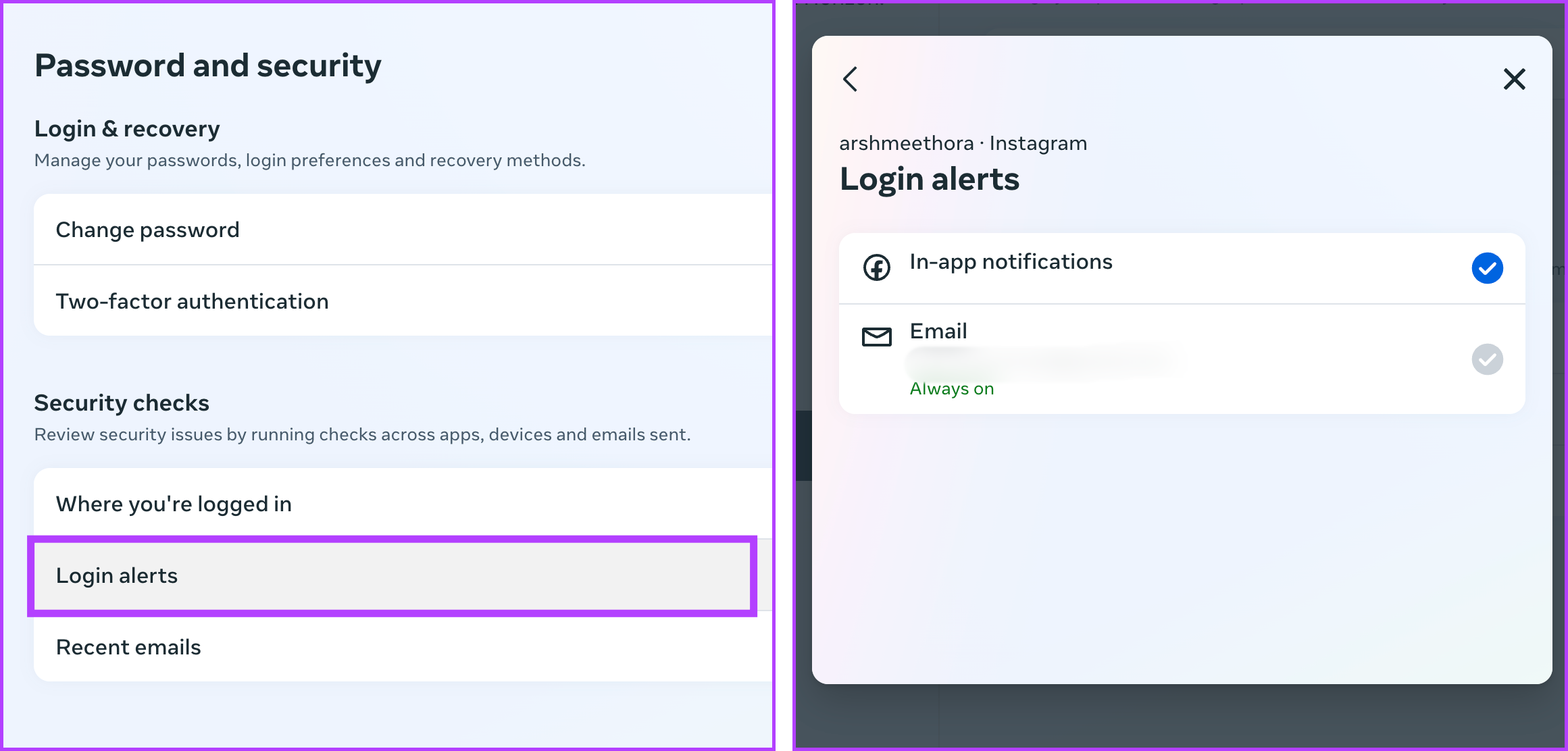
On Instagram Web
Launch the Instagram website → click the Profile icon → Settings icon → Settings and privacy → Password and security → Password and security → Login alerts → select account → Enable in-app notifications and email ID.
While you’re at it, you can also set up two-factor authentication for Instagram to ensure that your account remains secure from hackers.
FAQs About Managing Devices on Instagram
While no set frequency applies to everyone, changing your password every six months or a year is a good practice. However, as per Instagram security tips, you should immediately change it, if you see a prompt from Instagram.
We’ve covered some points in the article, like occasionally monitoring devices linked to your Instagram account, changing passwords, and enabling 2FA. Additionally, it would help if you were mindful of third-party app authorization, phishing attempts, and regularly updating the app.
Yes, when you change your Instagram password, it will log out of all active sessions except for the one on which you changed the password. This is Instagram’s way of ensuring that only you can access your account with the new password.
There are three key reasons behind Instagram displaying this message, multiple device usage, shared account credentials, and unauthorized access. Follow the above-mentioned steps and security tips to ensure your account is safe and secure.
Was this helpful?
Last updated on 24 July, 2024
1 Comment
Leave a Reply
Read Next
 How to Log Out Devices From Telegram Account
Log Out Device From Telegram on Mobile Telegram is available for a wide variety of device platforms.
How to Log Out Devices From Telegram Account
Log Out Device From Telegram on Mobile Telegram is available for a wide variety of device platforms.
 How to Log Out Linked Devices From WhatsApp Account
https://youtu.be/Ij8bVFcMnbE Log Out Linked Devices From WhatsApp on Mobile Before moving on with the steps, we suggest updating WhatsApp version on your iPhone or Android.
How to Log Out Linked Devices From WhatsApp Account
https://youtu.be/Ij8bVFcMnbE Log Out Linked Devices From WhatsApp on Mobile Before moving on with the steps, we suggest updating WhatsApp version on your iPhone or Android.
 How to Remove Registered Devices From Amazon Prime Video
Method 1: Deregister Device Using Mobile The Prime Video App on iPhone or Android will let you enjoy your favorite content on the move or from the porch.
How to Remove Registered Devices From Amazon Prime Video
Method 1: Deregister Device Using Mobile The Prime Video App on iPhone or Android will let you enjoy your favorite content on the move or from the porch.
 How to Remove an Account from Google Photos
How to Remove a Google Account Unfortunately, you cannot remove an account from Google Photos.
How to Remove an Account from Google Photos
How to Remove a Google Account Unfortunately, you cannot remove an account from Google Photos.
 2 Best Ways to Remove Old Phone From Google Account
How to Remove Old Phone From Google Account on Mobile Step 1: Launch the Phone Settings menu.
2 Best Ways to Remove Old Phone From Google Account
How to Remove Old Phone From Google Account on Mobile Step 1: Launch the Phone Settings menu.
 How to Remove or Change Phone Number on Discord Account
Remove or Change the Phone Number in Your Discord Account If you no longer have access to the phone number used while setting up your Discord account, removing or changing
How to Remove or Change Phone Number on Discord Account
Remove or Change the Phone Number in Your Discord Account If you no longer have access to the phone number used while setting up your Discord account, removing or changing
 How to Add or Remove a Trusted Device From Your Google Account
How to Add a Trusted Device to Your Google Account Follow the steps below to add a trusted device to your Google account using your PC, or your smartphone.
How to Add or Remove a Trusted Device From Your Google Account
How to Add a Trusted Device to Your Google Account Follow the steps below to add a trusted device to your Google account using your PC, or your smartphone.
 How to Remove an Email Account From Outlook
Are you looking to declutter your Outlook inbox by removing an email account you no longer need?
How to Remove an Email Account From Outlook
Are you looking to declutter your Outlook inbox by removing an email account you no longer need?
The article above may contain affiliate links which help support Guiding Tech. The content remains unbiased and authentic and will never affect our editorial integrity.

THANKS