

Running apps as Administrator is more than just a power trip. It’s a useful way to access programs with the greatest permissions possible. Running Command Prompt as Admin is crucial for several system-related tasks. If you suddenly can’t run Command Prompt as Admin, then a lot of that power is lost. Not to worry: in this article, we’ll be looking at the reasons and supplying the fixes.
What Causes the Access Error?
If you can’t run Command Prompt as Administrator, then what’s causing the problem? While an antivirus or system corruption might play a role, most of the time, the issue is related to user permissions. Regardless of whether you’re the admin or not, sometimes your system might need reminding. With that said, let’s look at some fixes.
Can’t Run Command Prompt as Admin – Fixes to Try
If you’re having trouble with Command Prompt and Admin access, we’ve got some troubleshooting steps below to help you out:
Check Your Admin Status
You might know you’re an Admin, but does your PC know that you are? Here’s a good way to check:
Step 1. Open the Run dialog (Win + R) and type “netplwiz” before clicking “OK.”
Step 2. In the new window, click your username and then “Properties.”

Step 3. In the next window, click the “Group Membership” tab and ensure “Administrator” is checked.
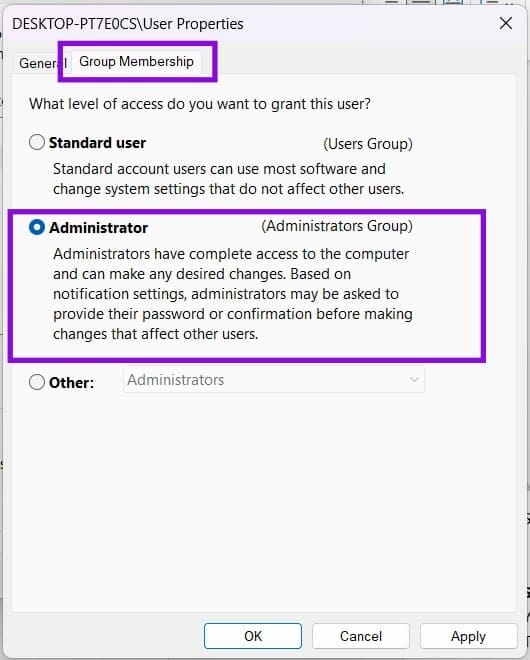
Step 4. Click “Apply” and “OK” to finalize.
Start Command Prompt via Task Manager
You might not know that you can also start Command Prompt (complete with Admin privileges) from Task Manager. Here’s what to do:
Step 1. Open “Task Manager” (Ctrl + Shift + Esc).
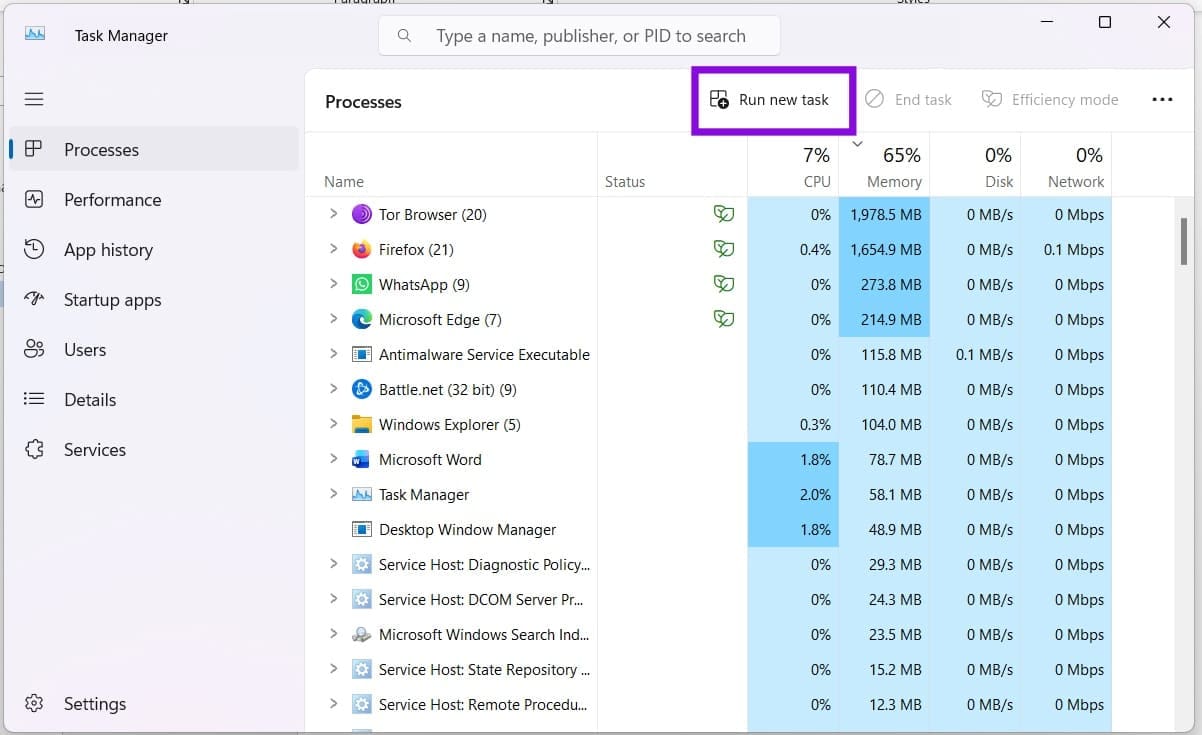
Step 2. Click “Run new task” at the top of the window.
Step 3. In the window that pops up, type “cmd” and tick “Create this task with administrative privileges.”
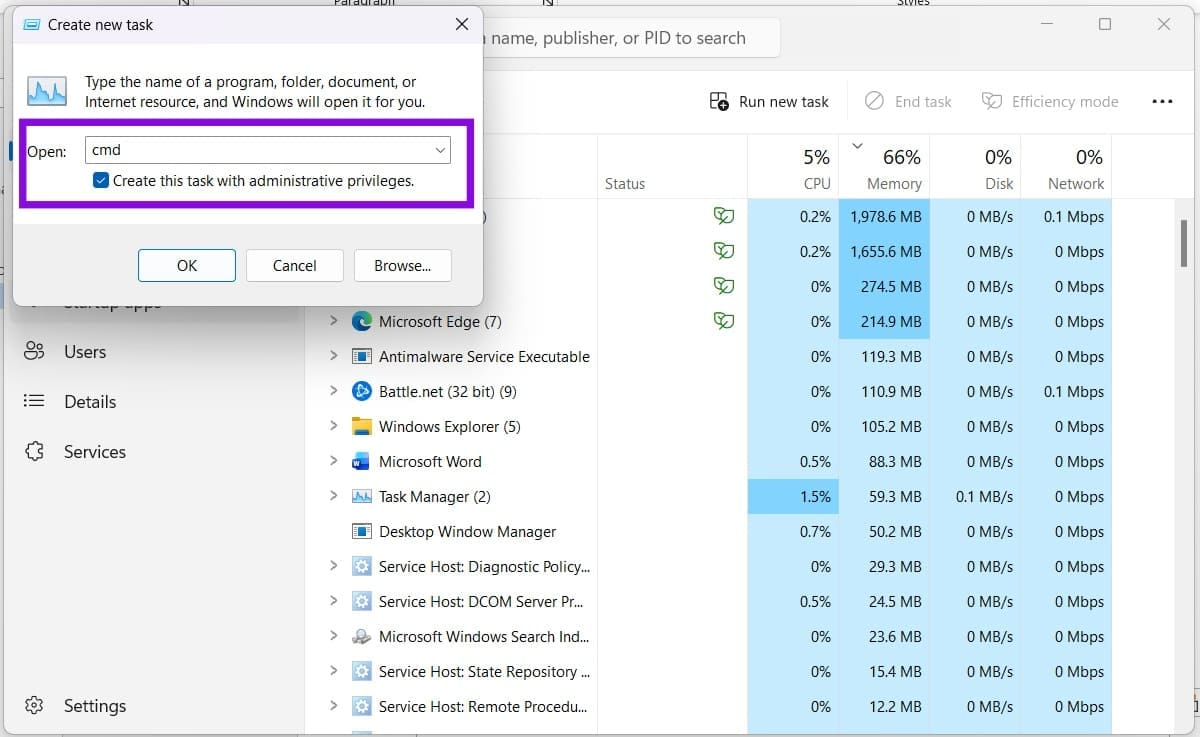
Step 4. Click “OK” to finalize and start.
Check the Application Information Service
The Application Information Service is in charge of the “Run as Administrator” request for every app on your PC. If it’s not working properly, then you aren’t getting permission. Here’s how to check it:
Step 1. Open the Rundialog (Win + R) and type “services.msc” before clicking “Enter.”
Step 2. In Services, navigate to “Application Information” and check that the status is “Running.”

Step 3. If not, right-click the service and choose either “Start” (if it’s stopped) or “Restart” if you want a fresh startup.
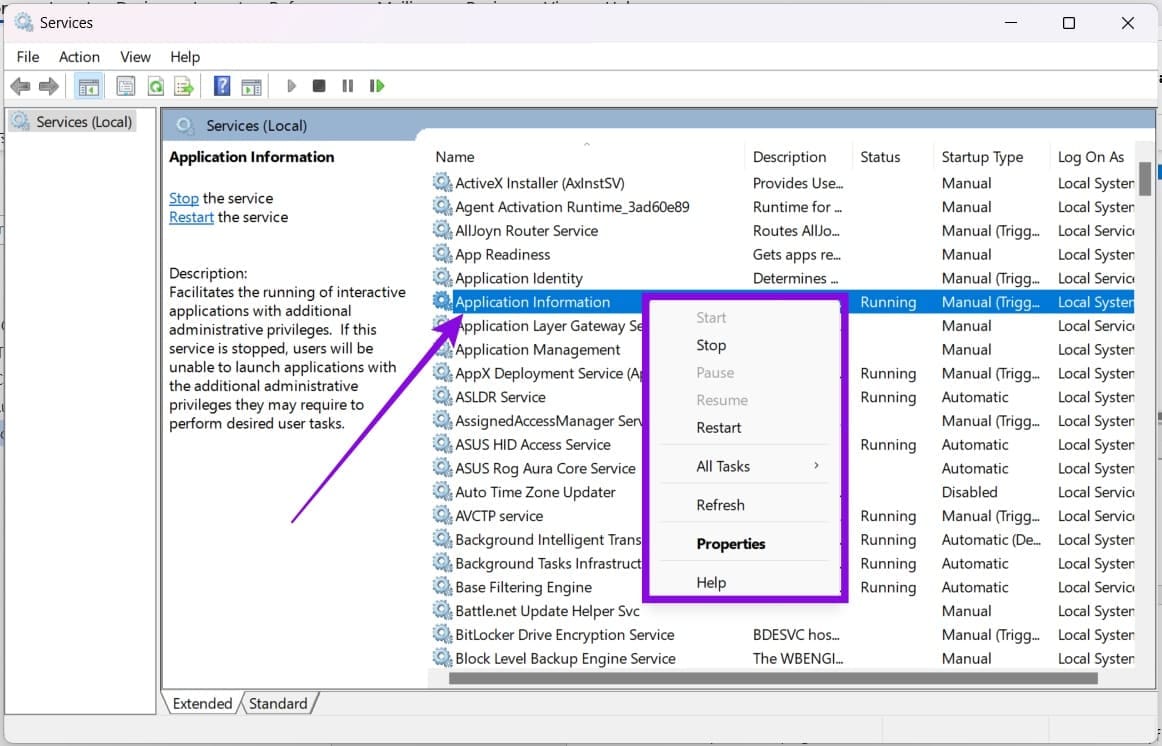
Step 4. Try reopening Command Prompt as Admin again.
Change Group Policy Settings
Another way to troubleshoot Admin settings is to review the UAC elevation policy in Group Policy Editor. Here’s how:
Step 1. Open the Run Dialog (Win + R) and type “gpedit.msc” before hitting “Enter.”
Step 2. Navigate to “Computer Configuration,” then “Windows Settings.”
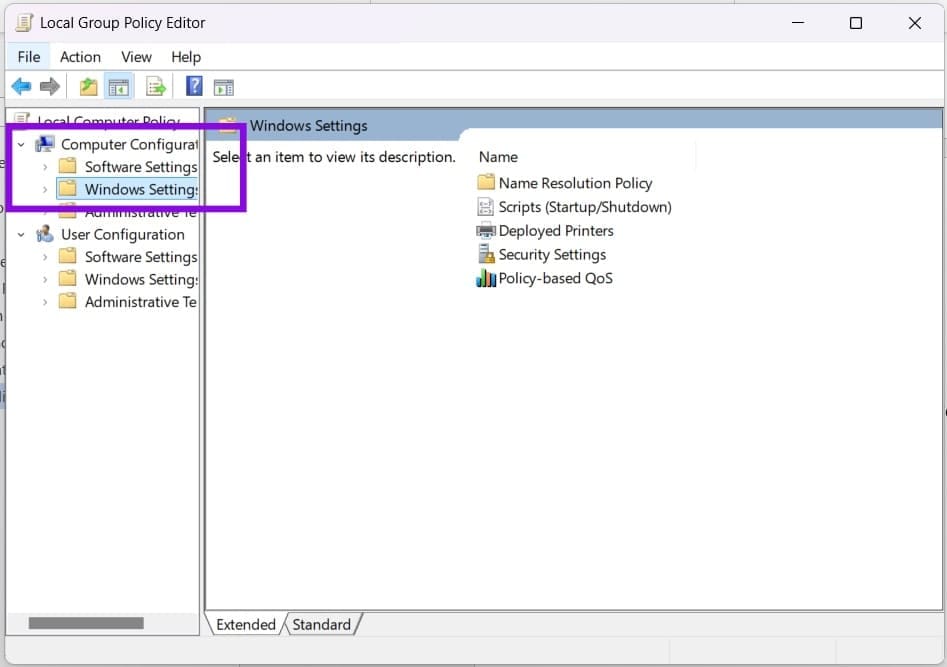
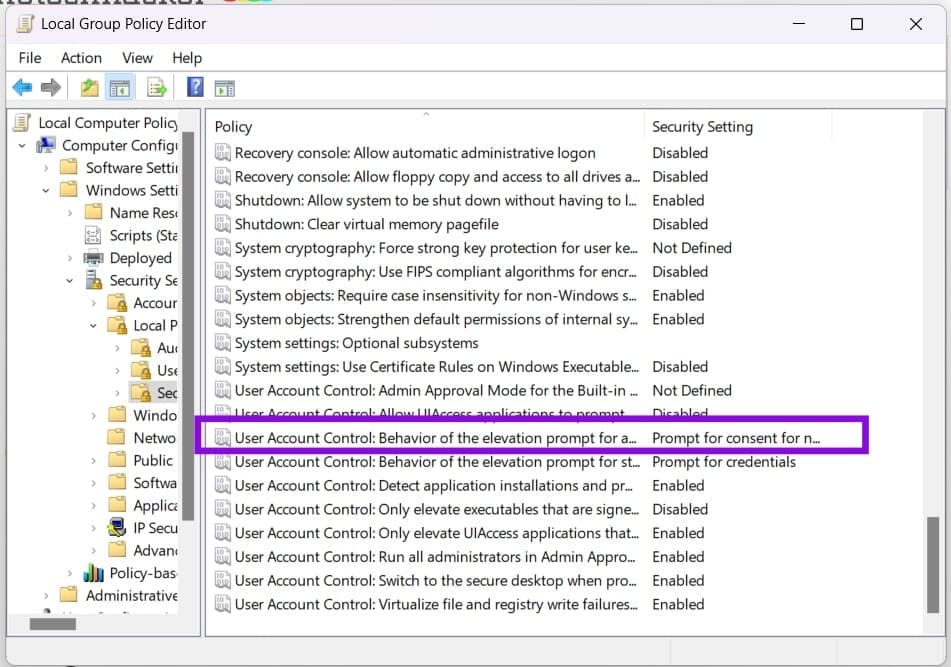
Step 3. Then navigate to “Security Settings,” “Local Policies,” then “Security Options.”
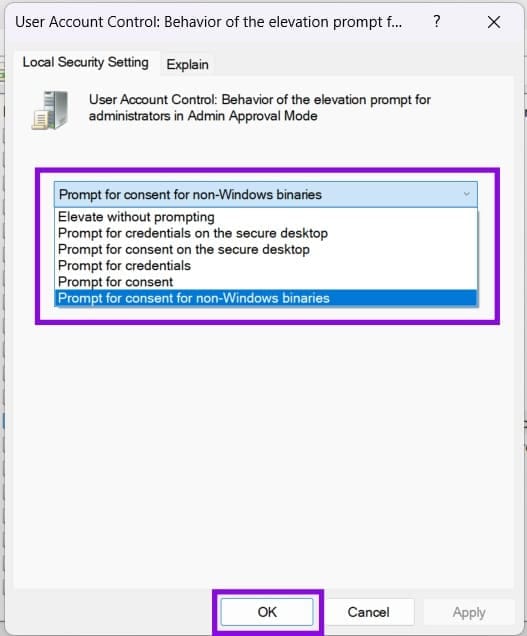
Step 4. Find “User Account Control: Behavior of the elevation prompt for administrators in Admin Approval Mode” and double-click it.
Step 5. Make sure the setting is configured to an appropriate prompting option, such as “Prompt for consent for non-Windows binaries,” then click “Apply” and “OK.”
Was this helpful?
Last updated on 18 August, 2026
Read Next
 15 Brilliant Command Prompt – CMD Tricks You Might Not Know About
Before we get started, here are a few things you need to keep in mind.
15 Brilliant Command Prompt – CMD Tricks You Might Not Know About
Before we get started, here are a few things you need to keep in mind.
 5 Ways to Fix Command Prompt Not Working on Windows 11
Fix 1: Run SFC and DISM Scans Corrupted or missing system files can malfunction Command Prompt on Windows.
5 Ways to Fix Command Prompt Not Working on Windows 11
Fix 1: Run SFC and DISM Scans Corrupted or missing system files can malfunction Command Prompt on Windows.
 4 Ways to Fix Command Prompt Keeps Popping Up in Windows 11
Try Basic Fixes Scan for malware: Command Prompt's unusual behavior could be due to a malware or virus infection.
4 Ways to Fix Command Prompt Keeps Popping Up in Windows 11
Try Basic Fixes Scan for malware: Command Prompt's unusual behavior could be due to a malware or virus infection.
 How to Create a Folder or File from Windows Command Prompt
How to Create Folders From CMD in Windows Create a Single Folder Step 1: Press the Windows key on your keyboard, type Command Prompt, and click Open.
How to Create a Folder or File from Windows Command Prompt
How to Create Folders From CMD in Windows Create a Single Folder Step 1: Press the Windows key on your keyboard, type Command Prompt, and click Open.
 How to View Command Prompt (CMD) History on Windows
Method 1: Use a Keyboard Shortcut There is a keyboard shortcut to view the history on CMD quickly.
How to View Command Prompt (CMD) History on Windows
Method 1: Use a Keyboard Shortcut There is a keyboard shortcut to view the history on CMD quickly.
 How to Reset Admin Password in Windows 11/10
Method 1: Reset Microsoft Account Password Windows now uses Microsoft Account to sign into your computer.
How to Reset Admin Password in Windows 11/10
Method 1: Reset Microsoft Account Password Windows now uses Microsoft Account to sign into your computer.
 How to Change Admin Account on Windows 11
In most cases, you don’t even need to think about which account is the administrator, as personal PCs rarely come with more than one.
How to Change Admin Account on Windows 11
In most cases, you don’t even need to think about which account is the administrator, as personal PCs rarely come with more than one.
 How to Recover a Deleted Admin Account in Windows 11
If you’ve accidentally deleted Admin account Windows 11 you normally use, you might not be able to install software or change most settings.
How to Recover a Deleted Admin Account in Windows 11
If you’ve accidentally deleted Admin account Windows 11 you normally use, you might not be able to install software or change most settings.
The article above may contain affiliate links which help support Guiding Tech. The content remains unbiased and authentic and will never affect our editorial integrity.

