Method 1: Format SD Card Using File Explorer
The primary method for formatting your SD card is using File Explorer in Windows. File Explorer lets you manage the data of both internal and external storage drives, including your SD card. Here’s how to use it to format your SD card.
Step 1: Connect your SD card reader to your Windows PC and press Win + E to open the File Explorer.
Step 2: Click This PC from the left menu in the File Explorer window.
Step 3: Right-click on your SD card drive icon and select Format from the list of options.

Step 4: Select File Format, Volume Label, and Format Options in the new Format window.

Step 4: Click Start > OK to confirm, and Windows will format your SD card. Once done, the SD card will be ready to use.
If the File Explorer is not working on your Windows PC, follow this guide.
Method 2: Use the Settings App
The Settings app on your Windows PC lets you manage disk partitions and external storage devices. It also includes the option to format your SD card.
Step 1: Connect your SD card reader and open Windows Settings using Win + I.
Step 2: Go to Storage > Advanced storage settings > Disks & volumes.
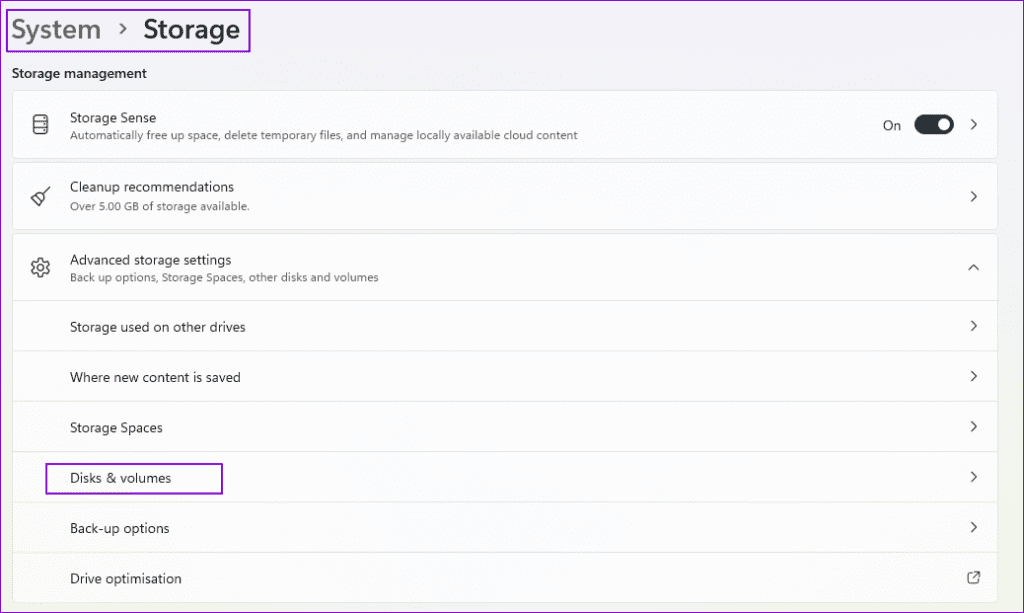
Step 3: Locate the SD Card, expand the section, and click the Properties button.

Step 4: In the SD card details window, click on Format to open the Format volume window.

Step 5: Select Label, File System, and Allocation Size and click on Format. Once the process is completed, the drive will be ready to use.
Method 4: Disk Management Utility
The following method for formatting your SD card is to use the Disk Management Utility on your Windows PC. The Disk Management Utility is a built-in program for creating and modifying disk partitions.
Step 1: Type diskmgmt.msc in the Run prompt (Win + R), and press the Enter key to open the Disk Management Utility.
Step 2: Select the SD Card Volume name you want to format and right-click on it.

Step 3: Select Format from the list of options. You will instantly get a warning. Click on Yes to confirm, and it will open the format window.

Step 4: Select File System and click OK to format your SD card. Unchecking the box for Perform a quick format will take a while.

Method 5: Use SD Card Formatter
The SD Card Formatter is free software for quickly formatting SD cards on Windows 11. You can download and install it from the official SD Card Association website. While downloading it, you must accept the End User License Agreement like any other software. Once installed, here’s how to use it.
Step 1: Download and install the SD Card Formatter, then open it.
Step 2: The SD Card Formatter will automatically detect your SD card and show its storage details on your screen.
Step 3: Click on Format to start the process.

Method 6: Diskpart Utility
The last method we suggest is using Command Prompt or Windows Terminal. Here’s how to instruct it to format your SD card.
Step 1: Open Windows Terminal with admin permission (Win + X, then press A)
Step 2: Type the following commands and press Enter to show all the disk partitions.
diskpart
list disk
Step 3: Check the disk number of your SD card. Then, type the following command and press Enter.
select disk N
N is the disk number of your SD card.

Step 4: Run the following commands individually to format your SD card.
format FS=Ex-FAT
You can choose from formats like Ex-FAT, FAT32, or NTFS.
Step 5: Assign the letter to your SD card drive by typing the following command.

assign letter=A
You can choose any letter except those that have already been assigned. After that, Windows will format your SD card.
Was this helpful?
Last updated on 04 June, 2024
Read Next
 5 Ways to Format a Hard Drive on Windows 11
Method 1: Format a Hard Drive With File Explorer The File Explorer in Windows 11 makes it simple to format a hard drive on your PC.
5 Ways to Format a Hard Drive on Windows 11
Method 1: Format a Hard Drive With File Explorer The File Explorer in Windows 11 makes it simple to format a hard drive on your PC.
 Top 5 Ways to Format a USB Drive on Windows 11
Formatting a USB drive might seem easy as you can click the delete button to erase all the files the USB drive might store.
Top 5 Ways to Format a USB Drive on Windows 11
Formatting a USB drive might seem easy as you can click the delete button to erase all the files the USB drive might store.
 4 Fixes for SD Card Not Showing up on Windows 11
Basic Fixes Unlock SD Card: Every SD card has a tiny sliding switch on one side that helps lock the card to prevent data modification or deletion.
4 Fixes for SD Card Not Showing up on Windows 11
Basic Fixes Unlock SD Card: Every SD card has a tiny sliding switch on one side that helps lock the card to prevent data modification or deletion.
 3 Ways to Format Tables in Google Sheets
Method 1.
3 Ways to Format Tables in Google Sheets
Method 1.
 3 Ways to Fix Roblox Gift Card Not Working
Try Basic Fixes Wait and try again: Due to server overload or other temporary issues, Roblox may sometimes fail to process your gift cards.
3 Ways to Fix Roblox Gift Card Not Working
Try Basic Fixes Wait and try again: Due to server overload or other temporary issues, Roblox may sometimes fail to process your gift cards.
 How to Check File Format of a Photo or Video on iPhone
Method 1: Using the Info Option in the Files App The Files app on your iPhone gives you ready access to files stored in iCloud Drive and other third-party cloud
How to Check File Format of a Photo or Video on iPhone
Method 1: Using the Info Option in the Files App The Files app on your iPhone gives you ready access to files stored in iCloud Drive and other third-party cloud
 What Happens to WhatsApp When You Change Phone or SIM Card
What Happens to WhatsApp When You Remove SIM Card?
What Happens to WhatsApp When You Change Phone or SIM Card
What Happens to WhatsApp When You Remove SIM Card?
 6 Best iPhone 15 Cases With Card Holders
If you want to keep your new iPhone 15 safe and also want to organize your everyday carry better, a case with a cardholder is a must-buy.
6 Best iPhone 15 Cases With Card Holders
If you want to keep your new iPhone 15 safe and also want to organize your everyday carry better, a case with a cardholder is a must-buy.
The article above may contain affiliate links which help support Guiding Tech. The content remains unbiased and authentic and will never affect our editorial integrity.