


Basic Fixes:
- Restart your iPhone: It’s a good idea to restart your iPhone, especially if you don’t remember when you last did that. This will give your iPhone a fresh start and fix any notification badge issues.
- Ensure the app is updated: Bugs from the previous app updates can cause notification badges to show intermittently or not show up at all. If so, check and install the latest updates for the relevant app on your iPhone.
- Check for device updates: Changes in your device’s software can prevent certain features from working properly. So, an update is likely available to rectify this issue. Download and install the latest iOS updates and see if this fixes the issue.
- Uninstall and reinstall the relevant app: If none of the methods work, uninstall the specific app and reinstall it from the App Store. This will eliminate any app settings preventing the notification badges from showing up on your iPhone.
Fix 1: Check if App Notifications and Badges Are Enabled
If you have disabled notification badges for select apps, you won’t see any on the respective app icons. You can check and enable the app notification badges for the affected apps from the Notifications section to ensure this does not happen. Follow these steps to do it.
Step 1: Open the Settings app > tap on Notifications > app that doesn’t display notification badges.


Step 2: Here, enable the toggle for the Allow Notification options. Once visible, turn on the toggle for Badges.


Also Read: How to fix iPhone notifications not working
Fix 2: Disable DND and Focus Modes
If your iPhone has Do Not Disturb (DND) or other Focus Modes enabled, apps may not show notification badges. To fix this, check and disable the DND or Focus Mode currently active on your iPhone. Here’s how.
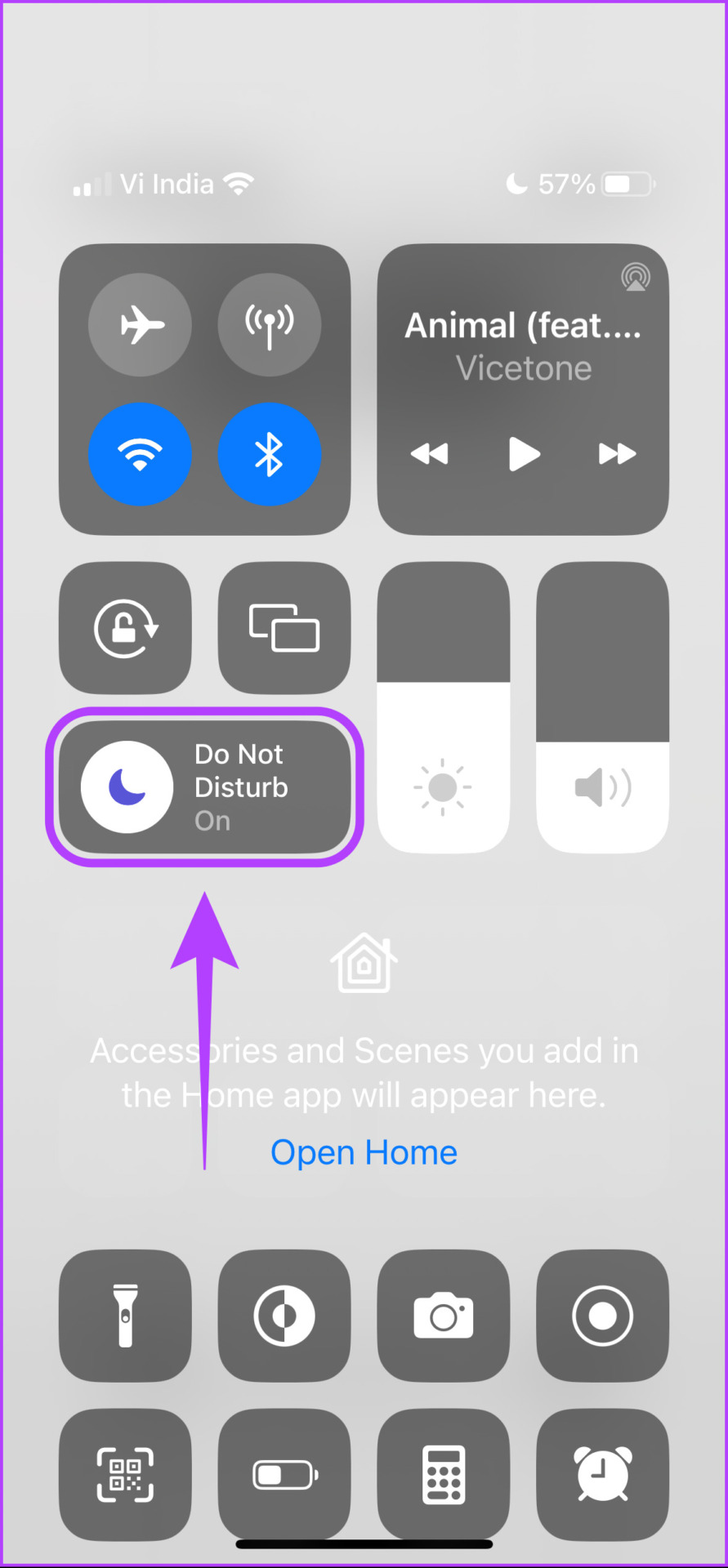
Step 1: Swipe down from the top-right of the iPhone’s display to open the Control Center. Of, if your iPhone has a Home button, swipe up from the bottom to open the Control Center.
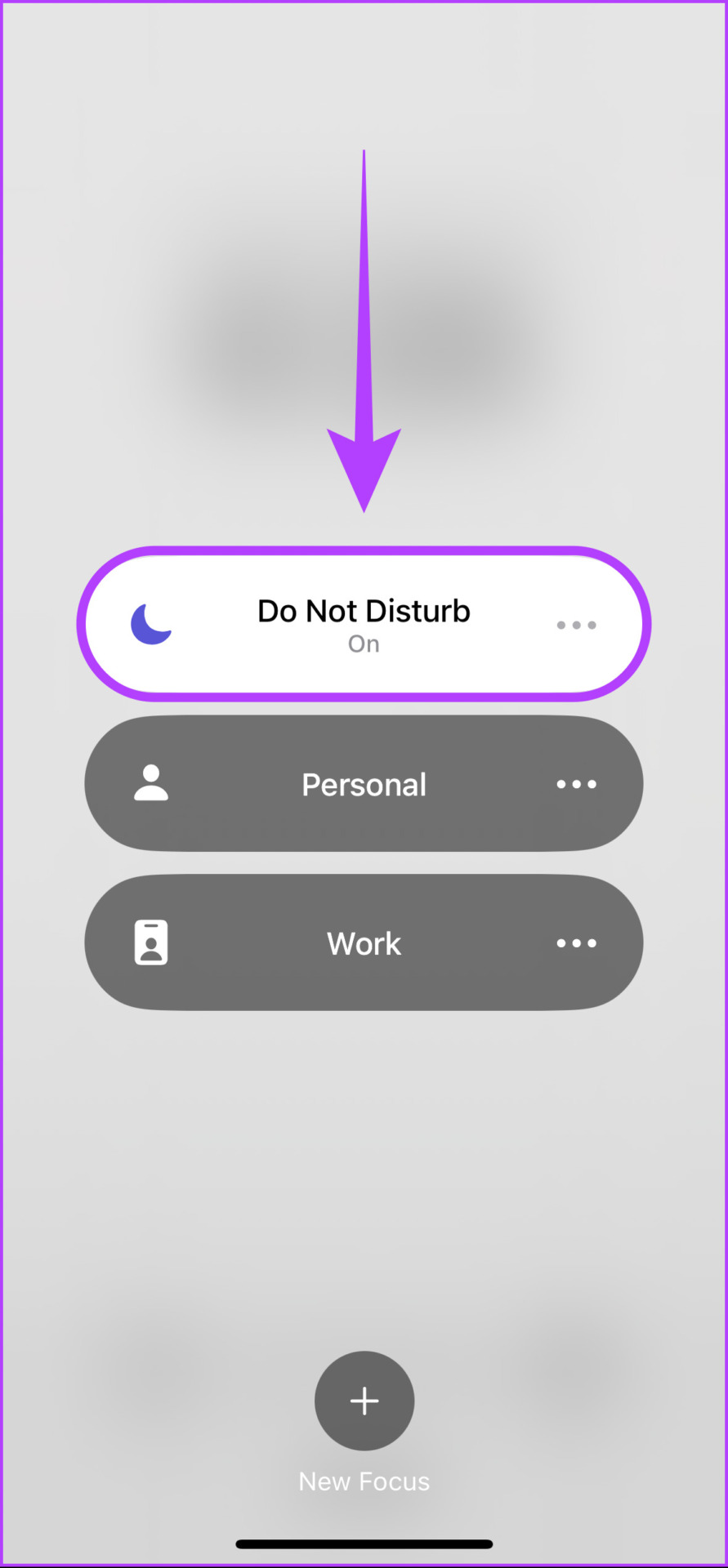
Step 2: Now, tap and hold the Do Not Disturb button. Then, from the list of Focus Modes, tap on the highlighted one to disable it.
Fix 3: Turn off Low Data Mode
iOS offers a Low Data mode to reduce background internet usage and save data on your iPhone. However, enabling this option can interfere with an app’s ability to display notifications. So, disable the Low Data Mode for Wi-Fi and cellular data on your iPhone. Here’s how to do it.
For Wi-Fi
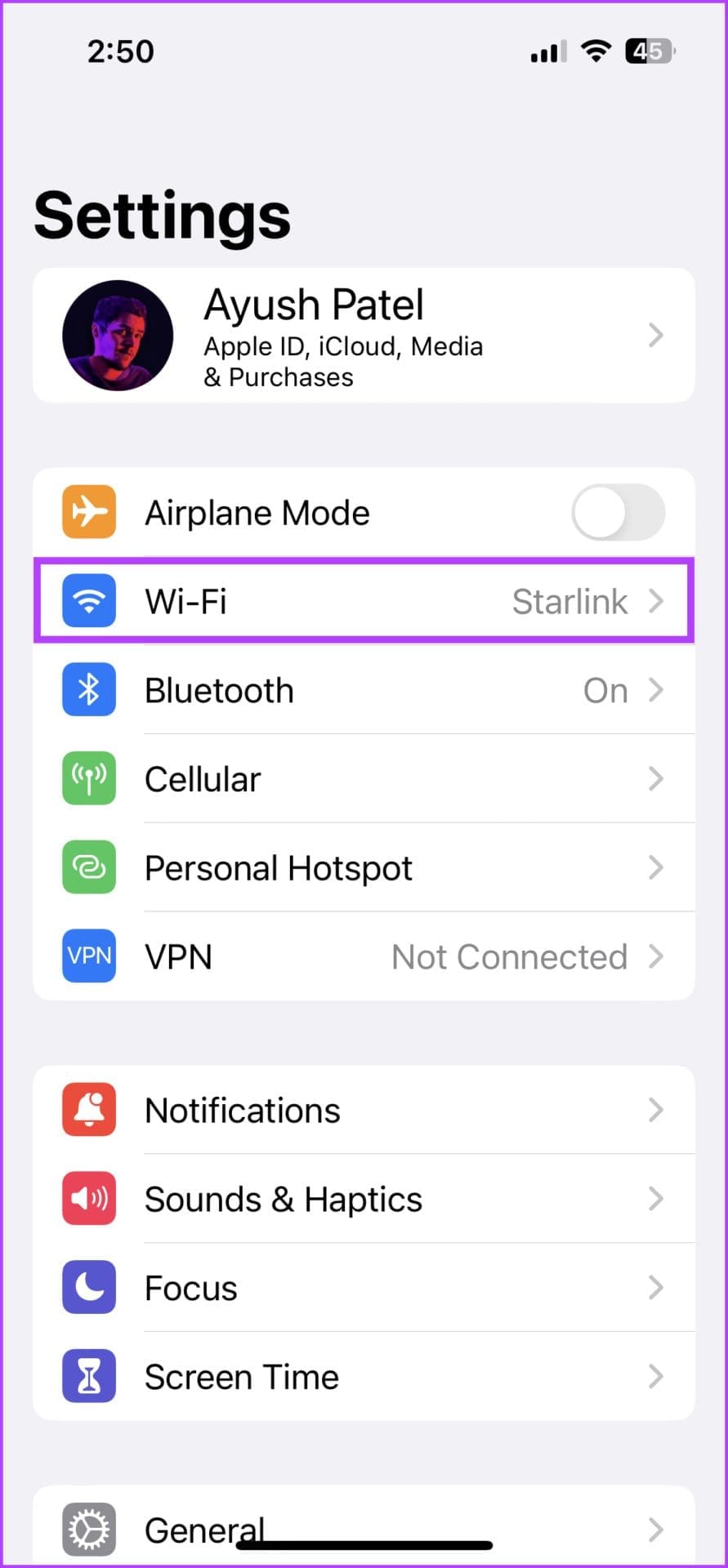
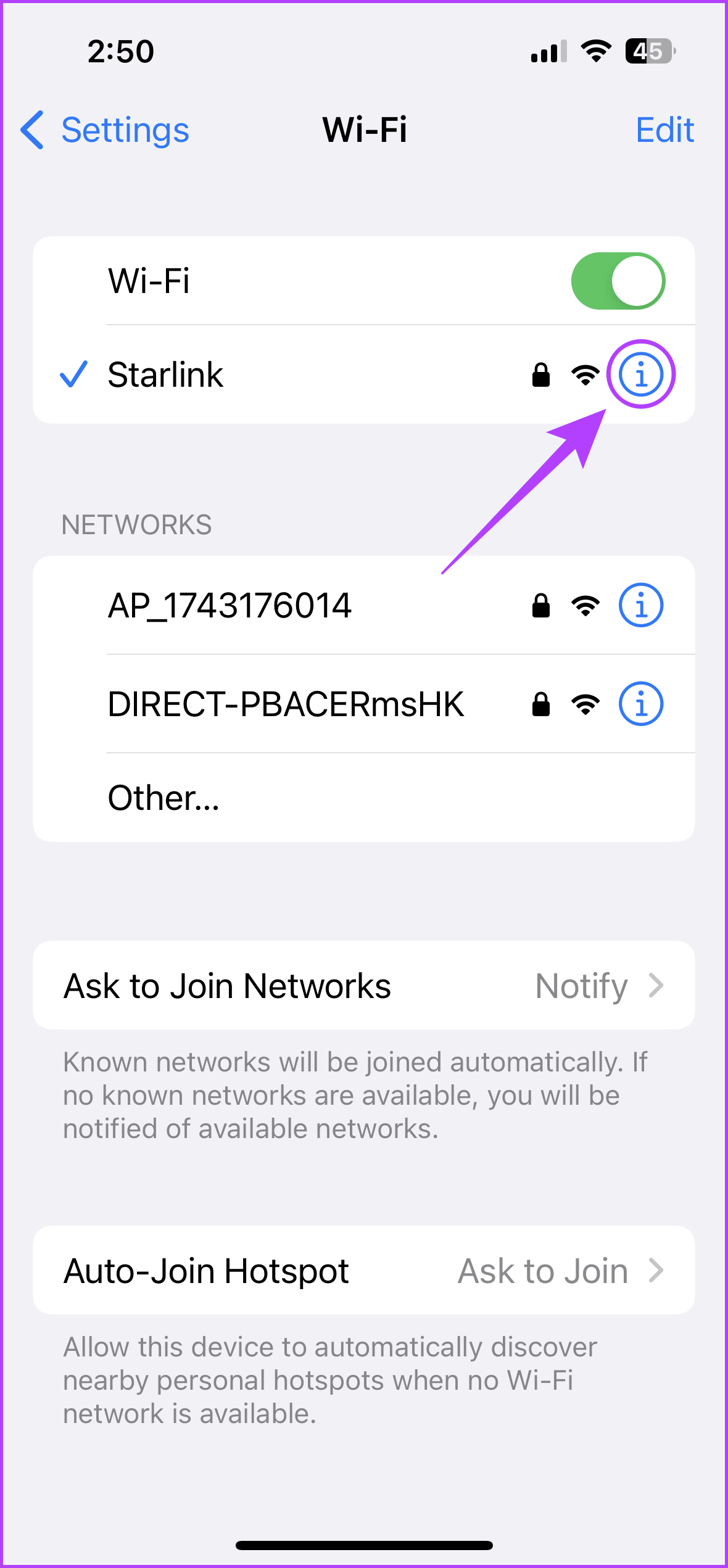
Step 1: Open the Settings app and tap on Wi-Fi. Then, tap on the i icon next to your Wi-Fi network’s name.
Step 2: Here, turn off the toggle for Low Data Mode.

For Cellular Data
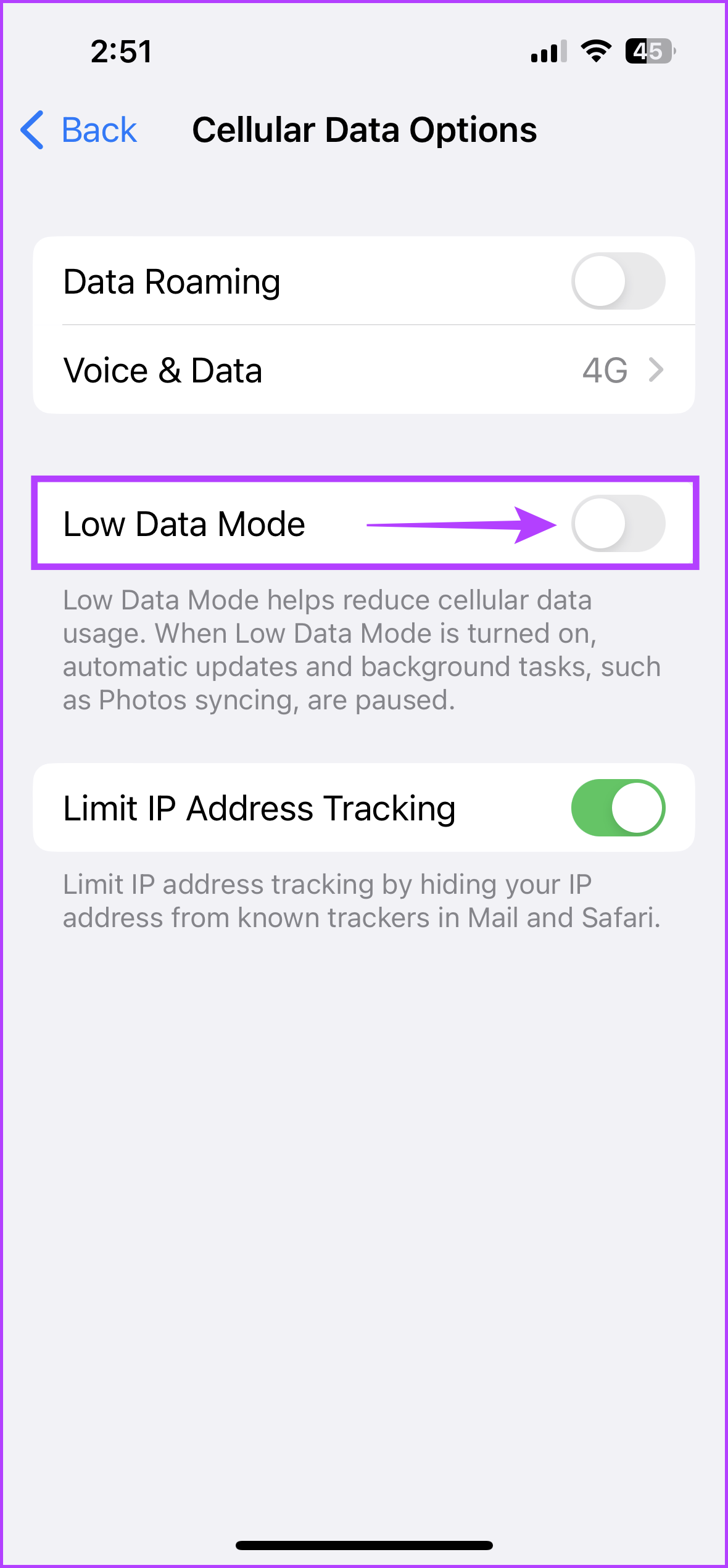
Step 1: Open the Settings app > tap on Cellular > Cellular Data Options.
Step 2: Turn off the toggle for Low Data Mode.


Fix 4: Disable Low Power Mode
iOS offers a Low Power Mode to preserve your iPhone’s battery until the next charge. However, enabling this also disables certain push notifications and other activities. So, once your device is sufficiently charged, disable Low Power Mode on your iPhone. Here’s how to do it.
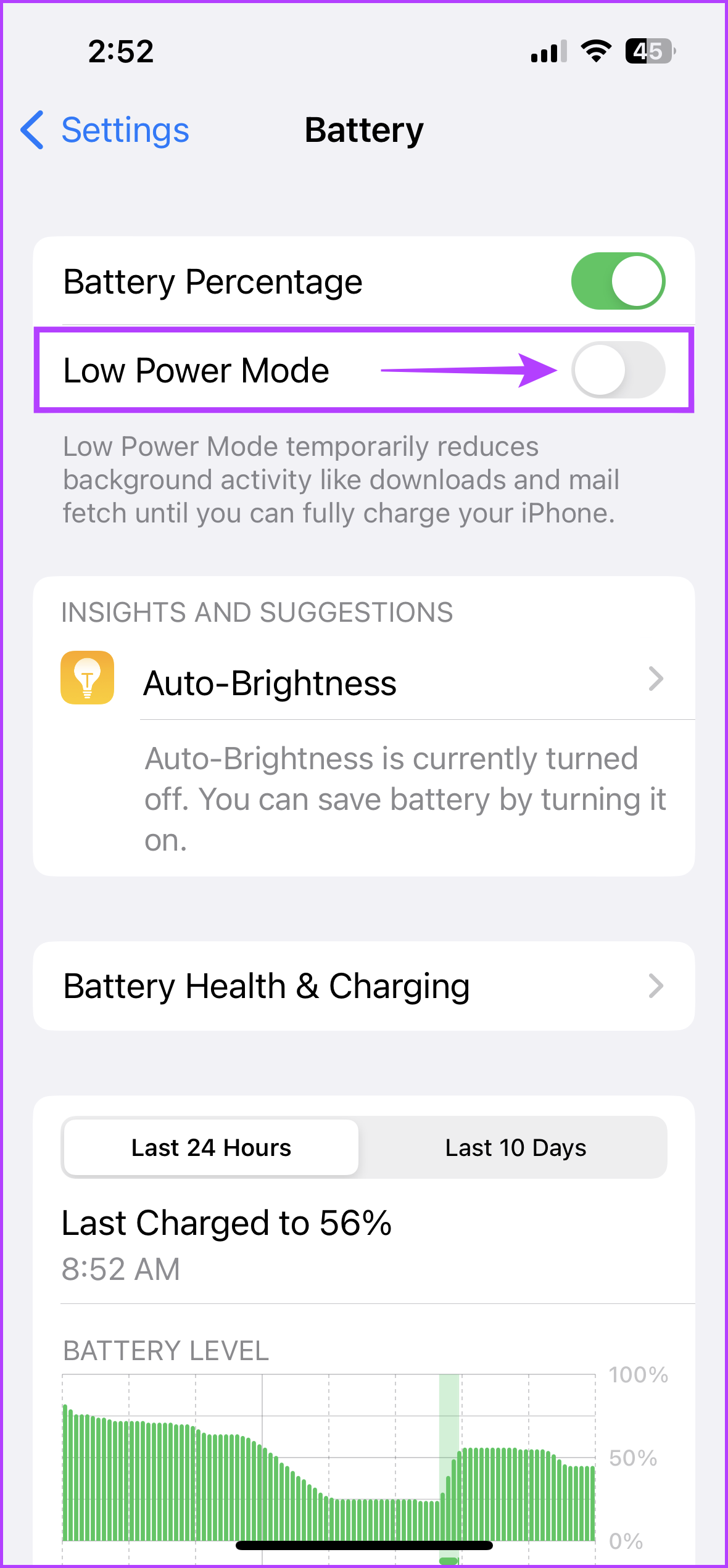
Step 1: Open the Settings app > tap on Battery > turn off the toggle for Low Power Mode.

Fix 5: Enable Background App Refresh
Enabling Background App Refresh allows apps to run processes in the background to fetch new information and deliver push notifications. If it’s turned off for all or a few apps, the notification badges may not show on the app icons. Here’s how to enable it again.
Step 1: Open the Settings app > tap on General > Background App Refresh. Again, tap on Background App Refresh.


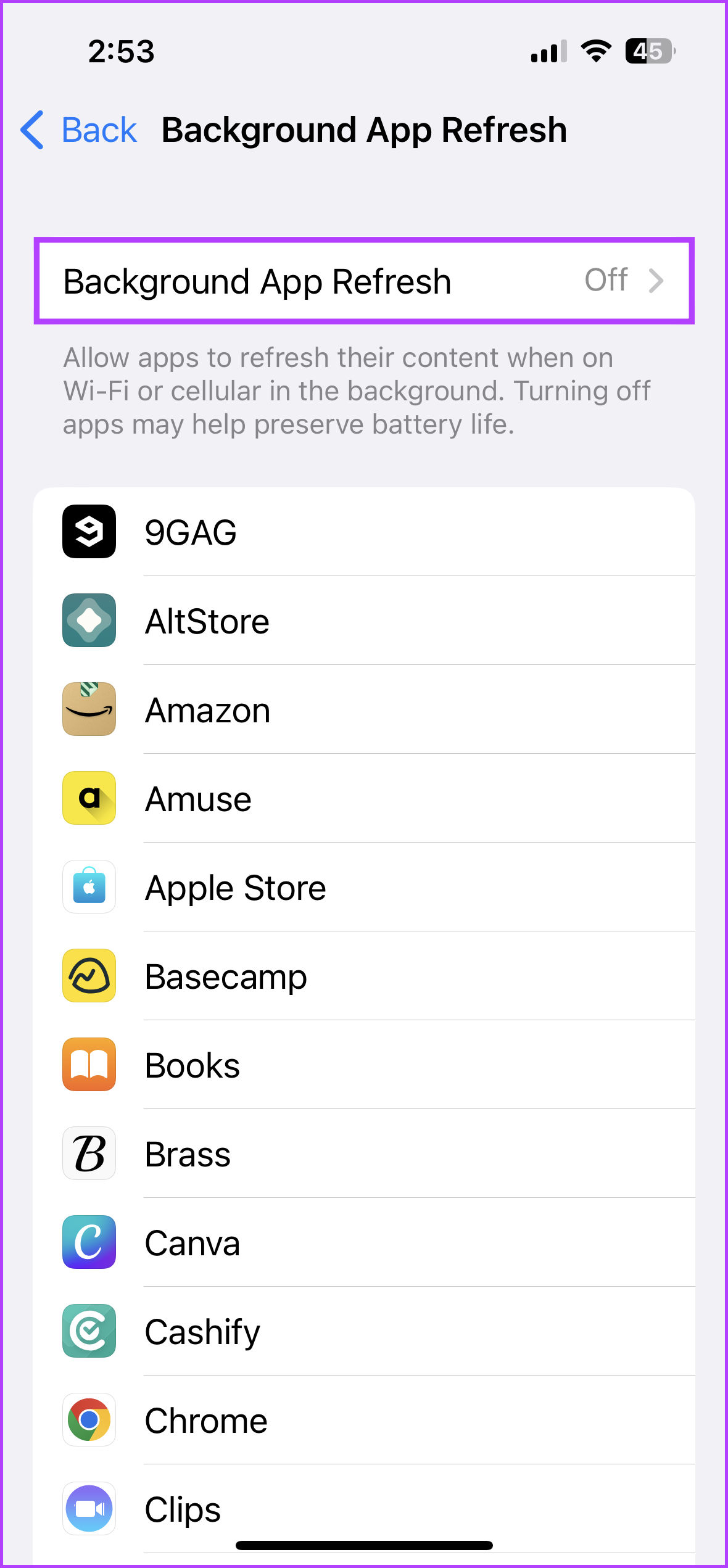
Step 2: From the options, select Wi-Fi & Cellular Data. Once done, go back to the Background App Refresh page.
Step 3: Scroll through the available apps and ensure the toggle is enabled for the relevant apps.


This will allow apps to update in the background and show you the badges for the latest notifications, whenever available.
Was this helpful?
Last updated on 16 May, 2024
2 Comments
Leave a Reply
Read Next
 6 Ways to Fix Notification Badges Not Showing on Android
https://youtu.be/rY1b6h5xFJI Fix 1: Enable Notification Badges on Your Phone First up, you need to go through the notification settings on your phone and ensure that app icon badges are enabled.
6 Ways to Fix Notification Badges Not Showing on Android
https://youtu.be/rY1b6h5xFJI Fix 1: Enable Notification Badges on Your Phone First up, you need to go through the notification settings on your phone and ensure that app icon badges are enabled.
 How to Fix Missed Call Notification Not Showing on Android
Basic Fixes: Disable DND: If your Android phone is currently on DND, you will not be able to receive any missed call notifications as your device actively blocks any distractions.
How to Fix Missed Call Notification Not Showing on Android
Basic Fixes: Disable DND: If your Android phone is currently on DND, you will not be able to receive any missed call notifications as your device actively blocks any distractions.
 4 Ways to Fix iPhone App Notification Sounds Not Working
Basic Fixes: Check your iPhone's speaker: If your iPhone's speaker grill is damaged, it might not play notification sounds.
4 Ways to Fix iPhone App Notification Sounds Not Working
Basic Fixes: Check your iPhone's speaker: If your iPhone's speaker grill is damaged, it might not play notification sounds.
 2 Ways to Get Full Battery Notification on iPhone and iPad
Method 1: Get Battery Full Alert Using iPhone's Shortcuts App Here's how to automate your iPhone to notify you when the battery is charged to 100%.
2 Ways to Get Full Battery Notification on iPhone and iPad
Method 1: Get Battery Full Alert Using iPhone's Shortcuts App Here's how to automate your iPhone to notify you when the battery is charged to 100%.
 4 Ways to Fix Notification Sounds Not Working on iPad
Basic Fixes: Reboot iPad: Sometimes, a simple fix like rebooting the iPad will bring back the notification sound.
4 Ways to Fix Notification Sounds Not Working on iPad
Basic Fixes: Reboot iPad: Sometimes, a simple fix like rebooting the iPad will bring back the notification sound.
 How to Fix WhatsApp Notification Sound Not Working
Basic Fixes Ensure silent mode is turned off - The first thing you should do is to check and turn off Vibrate/Silent mode on your iPhone or Android.
How to Fix WhatsApp Notification Sound Not Working
Basic Fixes Ensure silent mode is turned off - The first thing you should do is to check and turn off Vibrate/Silent mode on your iPhone or Android.
 3 Ways to Fix the Notification Sound Not Working on Windows 11
Basic Fixes: Unmute your Windows PC: You might have muted your Windows PC and forgotten to unmute it after an important meeting or work hours.
3 Ways to Fix the Notification Sound Not Working on Windows 11
Basic Fixes: Unmute your Windows PC: You might have muted your Windows PC and forgotten to unmute it after an important meeting or work hours.
 4 Ways to Fix Facebook Messenger Notification Sound Not Working
Try Basic Fixes Close the Messenger app on your computer: If you have the Messenger app open on your computer, notifications may appear there instead of on your phone, and
4 Ways to Fix Facebook Messenger Notification Sound Not Working
Try Basic Fixes Close the Messenger app on your computer: If you have the Messenger app open on your computer, notifications may appear there instead of on your phone, and
The article above may contain affiliate links which help support Guiding Tech. The content remains unbiased and authentic and will never affect our editorial integrity.
I have a brand new iPhone 14 Pro Max and recently got an Apple Watch. When I connected the watch the badges suddenly vanished. Disabling Do Not Disturb (DND) or other Focus did the trick, in particular disabling “Hide Notification Badges” in DND Options.
Go to settings. Then focus. Then options. Then make sure Hide Badges isn’t activated.