Try These Things First
- Disable Low Data Mode: The first thing to do is turn off Low Data Mode on your iPhone. This is because it can prevent apps from syncing in the background, which can lead to delayed Telegram notifications.
- Disable Low Power Mode: Similar to Low Data Mode, Low Power Mode also restricts background activity and data use to conserve battery life. Therefore, you must turn it off if you’re experiencing delays with Telegram notifications.
- Update or reinstall Telegram: The problem can also occur due to a bug in the Telegram version you’re using. In this case, consider updating the Telegram app. If updating the app wasn’t helpful, consider reinstalling the app.
Fix 1: Reset Notifications Settings in Telegram
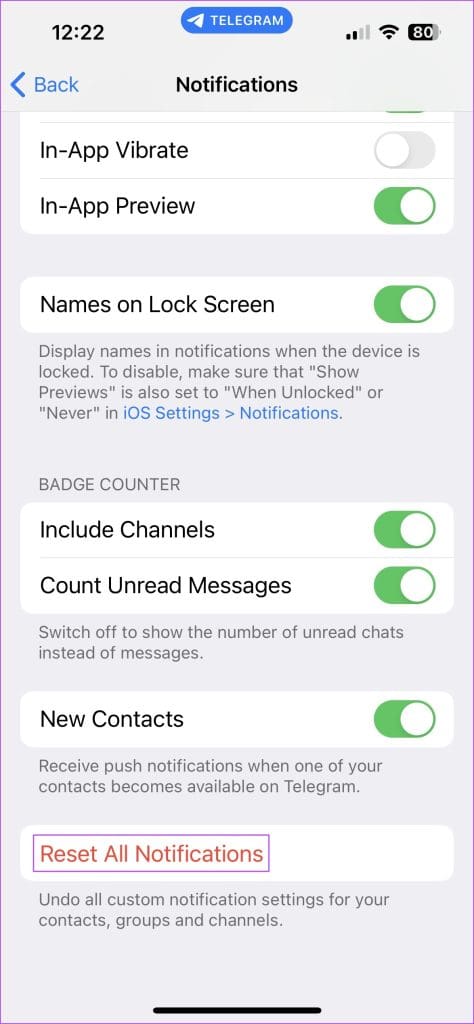
The Telegram app on iOS lets you reset your notifications preferences via the in-app Settings. That’ll change all your preferences about notifications of messages from individuals, groups, and channels to default. Here’s how to do it.
Step 1: Open the Telegram app on your iPhone and tap on Settings at the bottom.
Step 2: Select the Notifications and Sounds option.
Step 3: Tap Reset All Notifications.
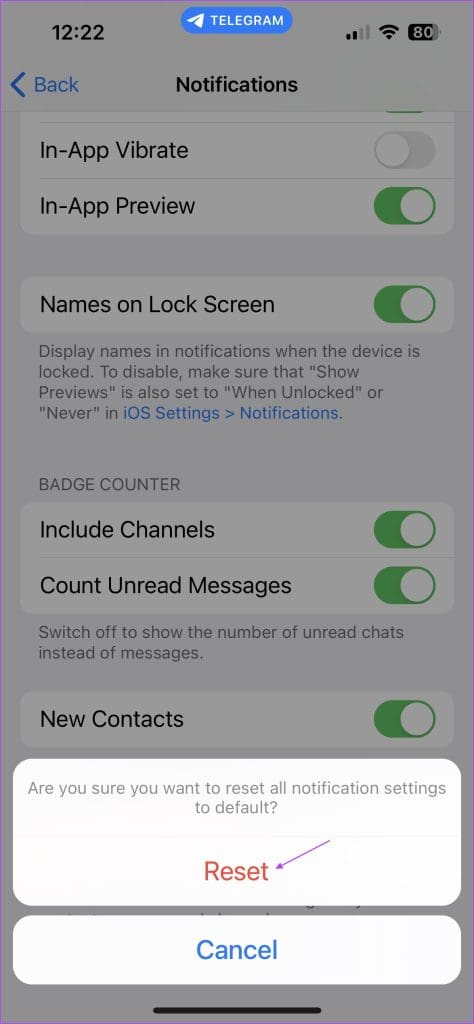
Step 4: Select the Reset option once again when prompted.

Fix 2: Enable Background Refresh for Telegram
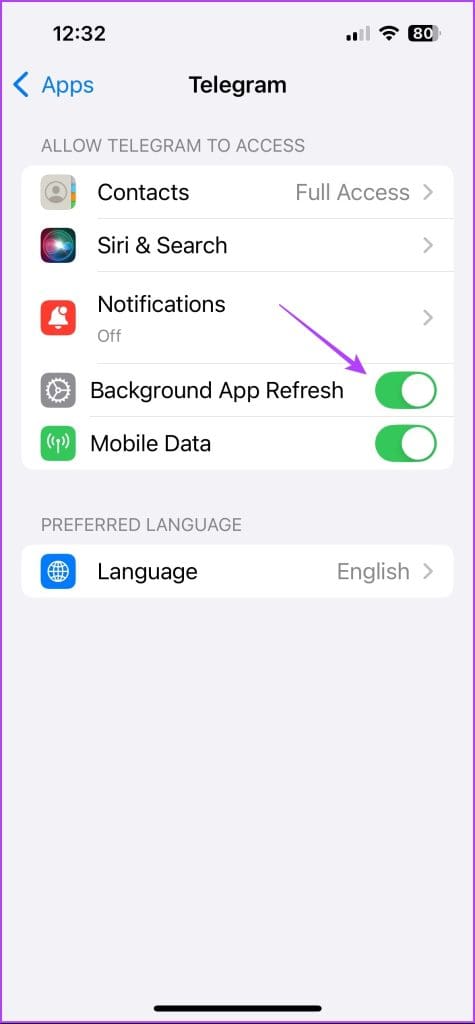
iOS gives you an option to allow apps to refresh in the background. This helps apps push instant notifications even when you’re not actively using them, which is paramount for a messaging app like Telegram. Here’s how to enable background app refresh for Telegram on your iPhone.
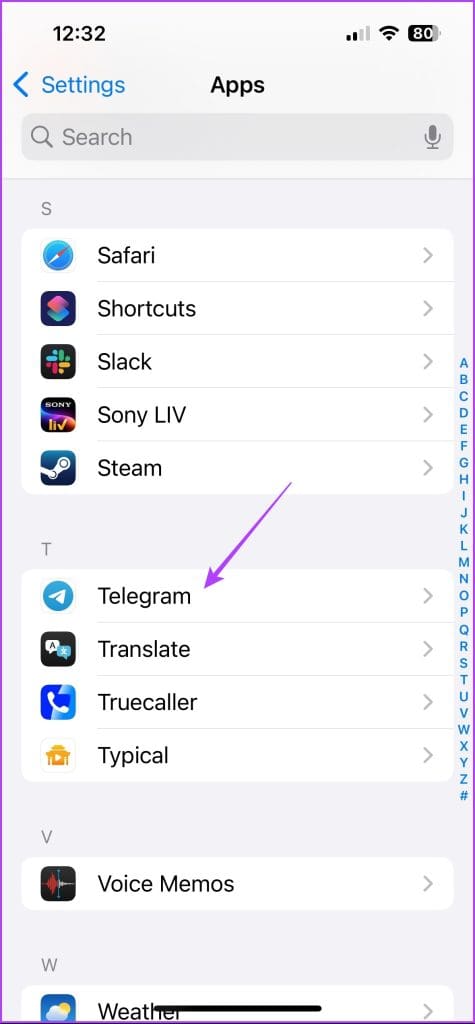
Step 1: Open the Settings app on your iPhone and choose Telegram.
Step 2: Enable the toggle for Background App Refresh.
Fix 3: Reset Network Settings
The problem can also occur due to the misconfigured network settings of your iPhone. In this case, you can reset the network settings to fix the problem. Here’s how:
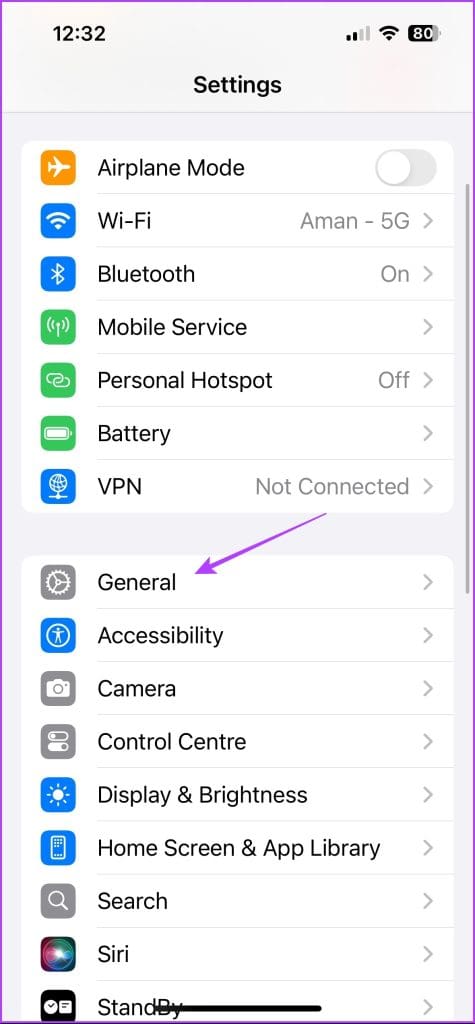
Step 1: Open the Settings app and choose General.
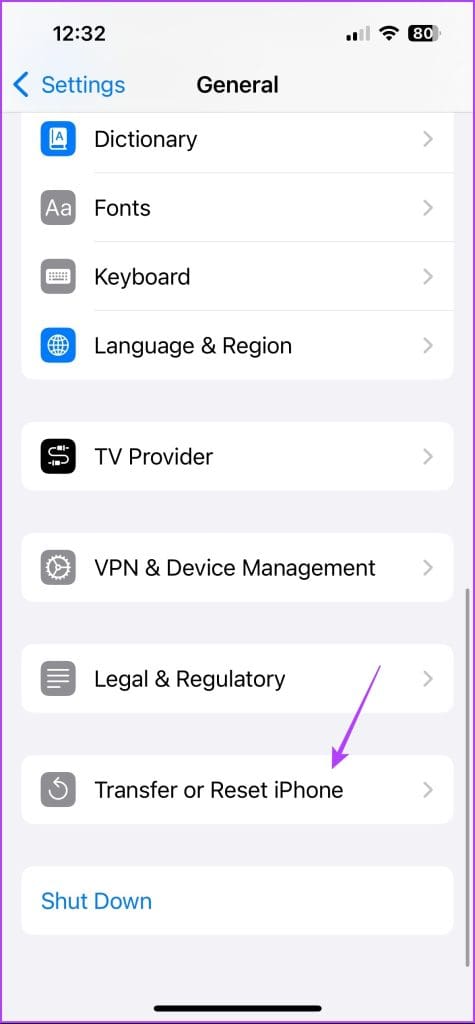
Step 2: Select Transfer or Reset iPhone.
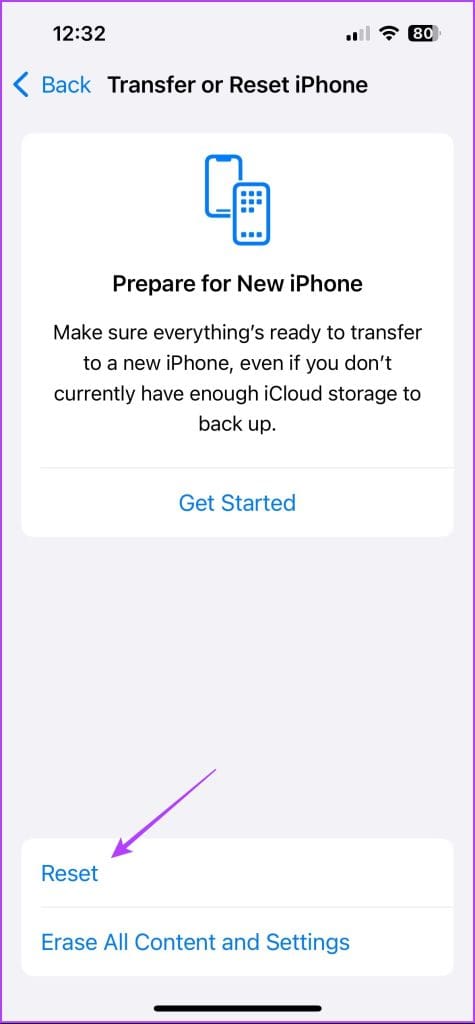
Step 3: Choose Reset > Reset Network Settings.
Step 4: Enter your device passcode and select Reset Network Settings again.

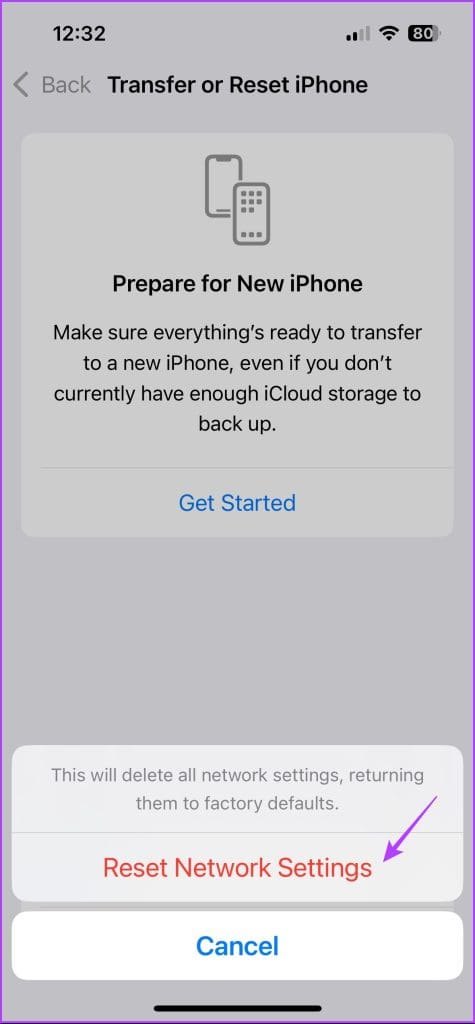
After that, connect to the network; you should no longer face the problem.
Also Read: How to fix delayed WhatsApp notifications on iPhone
Was this helpful?
Last updated on 04 September, 2024
Read Next
 6 Ways to Fix Delayed WhatsApp Notifications on iPhone
Fix 1: Disable Low Data Mode While using a metered network connection or a mobile hotspot, your iPhone will automatically enable Low Data Mode.
6 Ways to Fix Delayed WhatsApp Notifications on iPhone
Fix 1: Disable Low Data Mode While using a metered network connection or a mobile hotspot, your iPhone will automatically enable Low Data Mode.
 4 Ways to Fix Delayed Notifications on iPhone
Common Fixes Disable Focus Mode: An active Focus mode suppresses real-time notifications to save you from distractions.
4 Ways to Fix Delayed Notifications on iPhone
Common Fixes Disable Focus Mode: An active Focus mode suppresses real-time notifications to save you from distractions.
 7 Ways to Fix Delayed Notifications in Facebook Messenger
Basic Troubleshooting Check your notification settings: Ensure that Messenger notifications are enabled in your device settings.
7 Ways to Fix Delayed Notifications in Facebook Messenger
Basic Troubleshooting Check your notification settings: Ensure that Messenger notifications are enabled in your device settings.
 6 Ways to Fix Delayed Instagram Notifications
Basic Fixes: Check Instagram status: When Instagram servers face an outage, you face delays in receiving real-time notifications.
6 Ways to Fix Delayed Instagram Notifications
Basic Fixes: Check Instagram status: When Instagram servers face an outage, you face delays in receiving real-time notifications.
 5 Ways to Fix Delayed Notifications on Samsung Galaxy Phones
Common Fixes Turn off Power saver - This mode disables background tasks, syncing, and other activities to save battery, creating notification delays.
5 Ways to Fix Delayed Notifications on Samsung Galaxy Phones
Common Fixes Turn off Power saver - This mode disables background tasks, syncing, and other activities to save battery, creating notification delays.
 4 Ways to Fix Delayed WhatsApp Notifications on Android
https://youtu.be/2HV0Hl2epgk Try Basic Fixes Update WhatsApp: Your WhatsApp notifications might not work as expected if you’re using an outdated or buggy version of the app.
4 Ways to Fix Delayed WhatsApp Notifications on Android
https://youtu.be/2HV0Hl2epgk Try Basic Fixes Update WhatsApp: Your WhatsApp notifications might not work as expected if you’re using an outdated or buggy version of the app.
 5 Ways to Fix Delayed Gmail Notifications on Android
Try Basic Fixes Check Do Not Disturb schedules: On Android, you can schedule Do Not Disturb mode to turn on automatically and pause notifications for specific time periods.
5 Ways to Fix Delayed Gmail Notifications on Android
Try Basic Fixes Check Do Not Disturb schedules: On Android, you can schedule Do Not Disturb mode to turn on automatically and pause notifications for specific time periods.
 5 Ways to Fix Delayed Emails in Mail App on iPhone
Common Fixes Enable Background App Refresh - Access General settings on iPhone, tap Background App Refresh, and enable the toggle for the Mail app.
5 Ways to Fix Delayed Emails in Mail App on iPhone
Common Fixes Enable Background App Refresh - Access General settings on iPhone, tap Background App Refresh, and enable the toggle for the Mail app.
The article above may contain affiliate links which help support Guiding Tech. The content remains unbiased and authentic and will never affect our editorial integrity.