Basic Troubleshoot
- Ensure Wi-Fi is working: If the network connection is unstable, Alexa may not respond to your question or process a request. If your internet connection is fine, but the speaker still isn’t connecting, try restarting your Wi-Fi router.
- Check if the microphone is muted: Have you muted the smart speaker to prevent it from snooping into your sensitive conversation? Well, check its status and unmute it if needed. Better yet, mute and then unmute the mic to reset the system.
- Ensure the microphone is not covered or blocked: In such cases, the microphone may be unable to catch your voice. So, remove any nearby objects or devices affecting the mic.
- Speak while being closer to a speaker: The microphone on the speaker may malfunction. Try moving closer and then giving your command to see if you receive a response.
- Check Alexa volume: Did you forget to turn up the volume? Maybe Alexa is responding, but the volume is too low to hear. So, ask Alexa to raise the volume or do it manually.
- Unplug and replug the device: Basically, we’re restarting the device to remove any bugs or glitches.
Fix 1. Unlink Your Amazon Account and Add It Once Again
While setting up your Amazon Echo speaker, the speaker will ask you to link it to your Amazon account via the Alexa app. Adding your Amazon account is necessary to use it as a smart speaker. To ensure there’s no problem with your Amazon account, sign out and sign back into it. Here’s how.
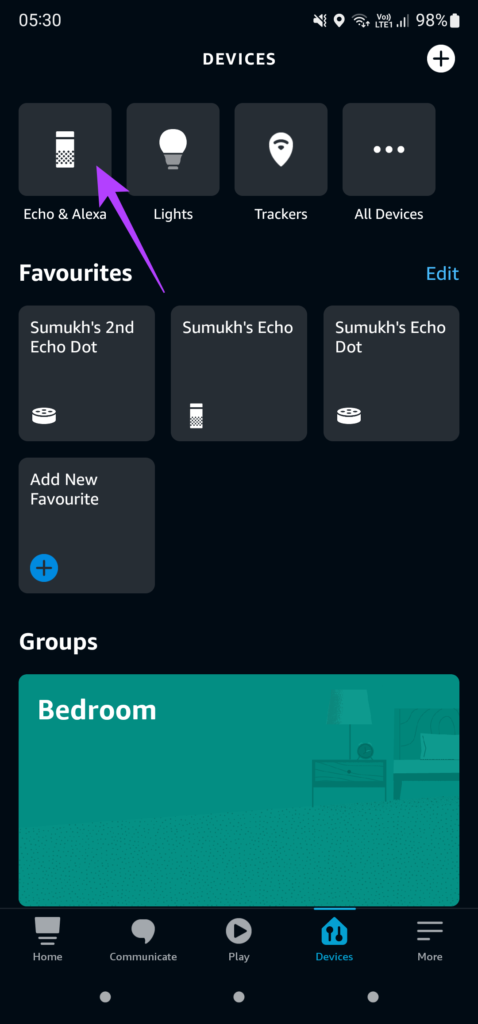
Step 1: Open the Alexa app on your smartphone > navigate to the Devices tab from the screen’s bottom.


Step 2: Tap on Echo & Alexa.
Step 3: Select the Echo device you want to connect to a different network. Next, tap the Settings icon at the top-right corner of the app.
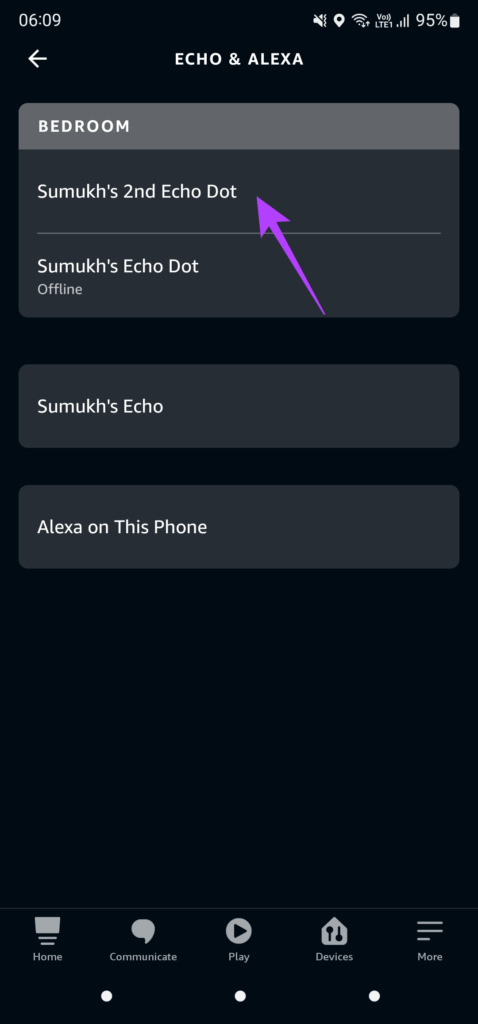

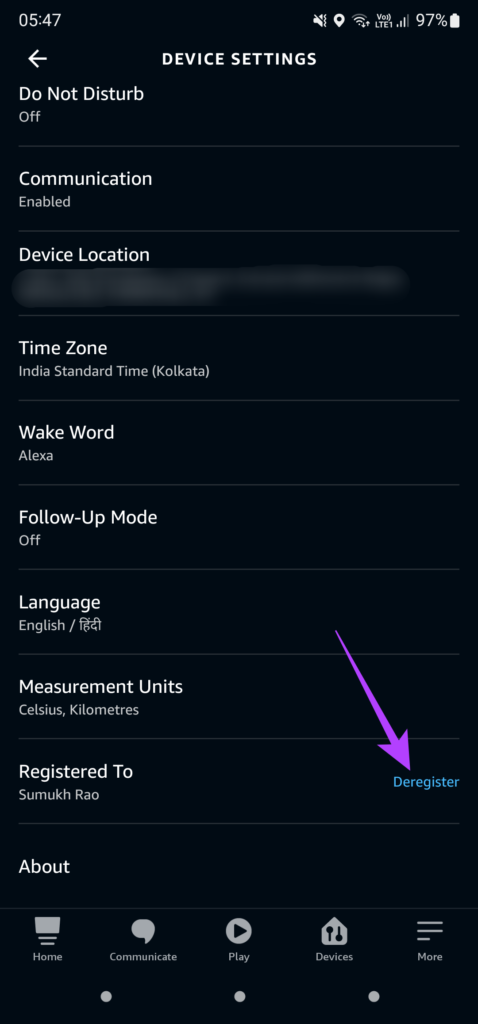
Step 4: Scroll to the bottom to find the Registered To section. Your name will appear in this portion. Tap on Deregister.
Step 5: Select Deregister in the prompt and follow the on-screen instructions to re-register the device. You can use the same Amazon account or try a different one to see if it solves the issue.

Fix 2. Factory Reset the Speaker
Even after trying all the possible solutions, a factory reset seems like your last resort if Alexa still won’t respond to your queries. This will enable you to set up your Echo speaker from scratch. The process to factory reset an Echo speaker differs based on your model or version.
Follow Amazon’s official guide to reset an Echo device. Choose the Echo speaker from the list and follow the instructions step-by-step. The reset procedure generally involves pressing a few button combinations on your speaker.
Was this helpful?
Last updated on 18 July, 2024
Read Next
 3 Fixes for Alexa Not Responding to Voice Commands on Amazon Fire TV Stick 4K
Basic Fixes Bring the remote closer: According to the instruction manual for the Amazon Fire TV Stick 4K, the distance between the Fire TV remote and Fire TV Stick 4K
3 Fixes for Alexa Not Responding to Voice Commands on Amazon Fire TV Stick 4K
Basic Fixes Bring the remote closer: According to the instruction manual for the Amazon Fire TV Stick 4K, the distance between the Fire TV remote and Fire TV Stick 4K
 7 Ways to Fix Alexa Responding But Not Talking on Amazon Echo
Fix 1: Check or Change Wake Word for Alexa The wake word is the name used for calling Alexa.
7 Ways to Fix Alexa Responding But Not Talking on Amazon Echo
Fix 1: Check or Change Wake Word for Alexa The wake word is the name used for calling Alexa.
 8 Fixes for Alexa Not Responding But Lighting Up
We have all been in a situation where Alexa lights up blue after listening to the wake word, but it doesn’t respond.
8 Fixes for Alexa Not Responding But Lighting Up
We have all been in a situation where Alexa lights up blue after listening to the wake word, but it doesn’t respond.
 3 Ways to Fix Google Chrome Not Responding Error
Basic Fixes Restart Google Chrome: If Google Chrome isn't responding, restart the browser.
3 Ways to Fix Google Chrome Not Responding Error
Basic Fixes Restart Google Chrome: If Google Chrome isn't responding, restart the browser.
 3 Ways to Fix Microsoft Word Not Responding on Windows 11/10
Preliminary Fixes Relaunch Microsoft Word app: Relaunching the Microsoft Word app can clear temporary glitches or corrupted processes, effectively reset the session, potentially resolve minor software conflicts, and refresh the
3 Ways to Fix Microsoft Word Not Responding on Windows 11/10
Preliminary Fixes Relaunch Microsoft Word app: Relaunching the Microsoft Word app can clear temporary glitches or corrupted processes, effectively reset the session, potentially resolve minor software conflicts, and refresh the
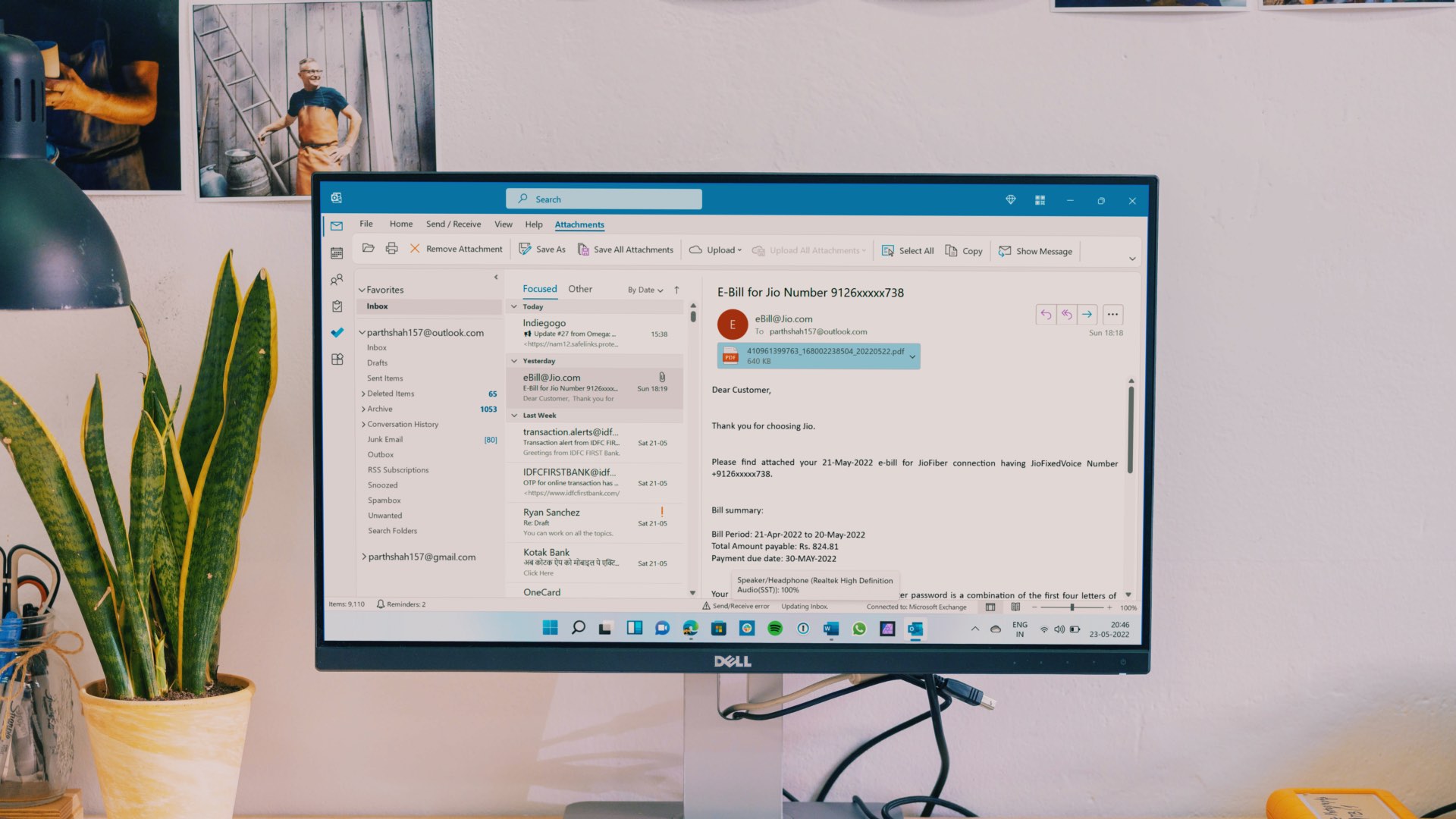 7 Ways to Fix Outlook Not Responding When Trying to Print
Try Basic Fixes: Restart Outlook: When Outlook relaunches, it loads all the modules, including extensions.
7 Ways to Fix Outlook Not Responding When Trying to Print
Try Basic Fixes: Restart Outlook: When Outlook relaunches, it loads all the modules, including extensions.
 Top 6 Ways to Fix Microsoft PowerPoint Not Responding on Windows 11
Microsoft PowerPoint is a popular application for creating visually appealing slideshows business meetings, educational presentations, or conferences.
Top 6 Ways to Fix Microsoft PowerPoint Not Responding on Windows 11
Microsoft PowerPoint is a popular application for creating visually appealing slideshows business meetings, educational presentations, or conferences.
 Easy Ways To Fix Excel Not Responding or Slow
Why Does Excel Keep Freezing or Lags on Windows If the Excel app or file stops responding or lags, it can be attributed to various factors.
Easy Ways To Fix Excel Not Responding or Slow
Why Does Excel Keep Freezing or Lags on Windows If the Excel app or file stops responding or lags, it can be attributed to various factors.
The article above may contain affiliate links which help support Guiding Tech. The content remains unbiased and authentic and will never affect our editorial integrity.