

Basic Fixes
- Clean the headphone jack port: The headphone jack port is prone to accumulating dirt and debris. To avoid connection issues, we suggest cleaning it using a cotton bud.
- Update and restart your Mac: You can try restarting your Mac to check if the problem gets solved.
Fix 1: Check the Output Source
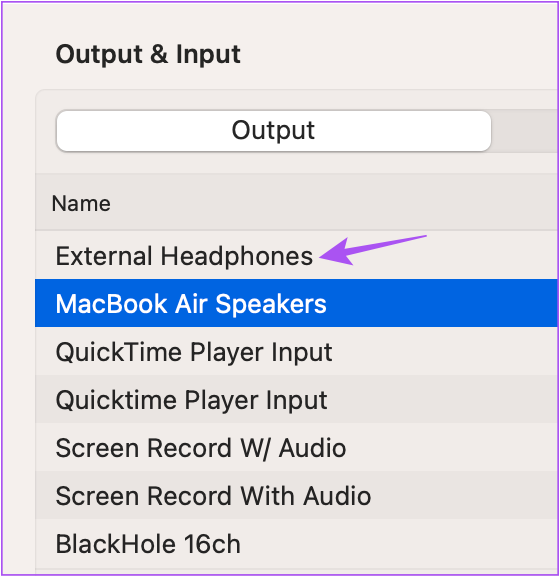
Don’t set your Mac speakers as the output source. You need to select External Headphones to hear audio from the device connected using the headphone jack.
Step 1: Open System Settings and click on Sound from the left menu.

Step 2: Scroll down and click on Output and Input.
Step 3: Select External Headphones as the Output Source.
Fix 2: Restart Sound Controller
Your Mac’s sound controller is known as Core Audio. It is a low-level API (Application Programming Interface) that can handle the various audio needs of applications on your Mac, including audio playback.
Step 1: Open Activity Monitor on your Mac and select the CPU tab.

Step 2: Click on the Search Bar at the top-right corner and type CoreAudiod.

Step 3: Select the result and click the X icon to stop the process.

Step 4: Click on Force Quit to confirm.
Step 5: Close the Activity Monitor window and restart your Mac.
Fix 3: Reset SMC for Intel-Based Macs
You can try resetting the SMC of your Intel-based Mac. This solution doesn’t apply to Macs running on Apple Silicon. Instead, restarting them is equivalent to an SMC reset.
Step 1: Press and hold the Power Button till your Mac shuts down.
Step 2: After your Mac shuts down, wait for a few seconds and press Shift + Left Option + Left Control key. Press and hold the Power Button as well.
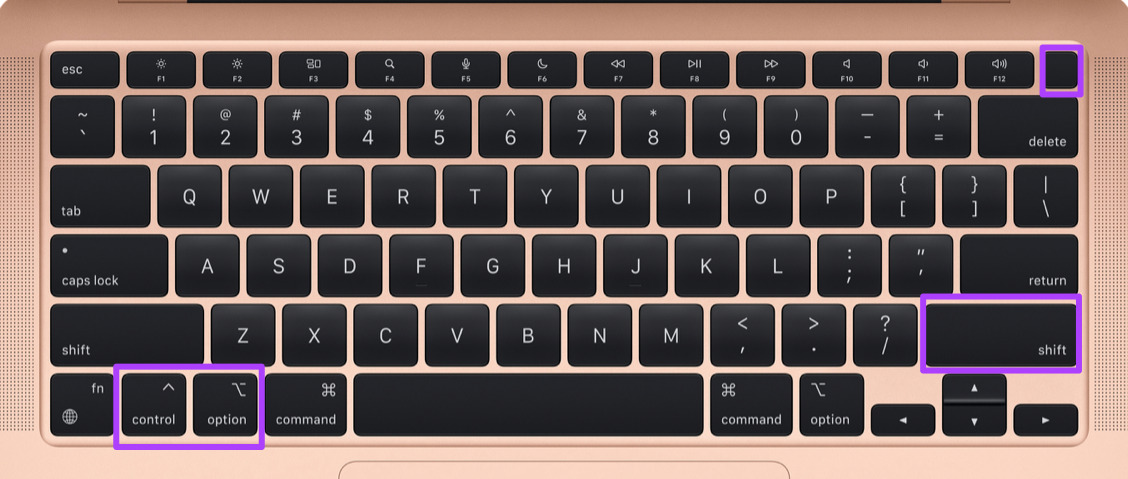
Step 3: Keep pressing the four keys for another 7 seconds. If your Mac turns on, it will play the default startup chime again while you hold down those keys.
When you see the Apple logo, the display will turn on normally. After that, check if the headphone jack is working.
Fix 4: Check Audio Input Info
If none of the solutions have worked for you, it is possible that the headphone jack is internally damaged and requires repairing. To confirm, here’s how to check the Audio Input Info on your Mac.
Step 1: Connect headphones or earphones to your Mac.
Step 2: Click the Apple icon at the top-left corner and select About This Mac.

Step 3: Click on More Info.
Step 4: Scroll down to the bottom of the General tab and click on System Report.
Step 5: Click on Audio from the left menu.

Step 6: Check if you can find External Headphones information on the right side.

If not, visit your nearest Apple Store or Authorized Service Center to have experts inspect your Mac.
Lastly, we suggest using a USB Type-C to Headphone Jack adapter and checking if the problem gets solved.
Was this helpful?
Last updated on 06 June, 2024
1 Comment
Leave a Reply
Read Next
 3 Fixes for Headphone Jack Not Working on Android
Basic Fixes Clean the headphone jack: Use a cotton bud dipped in a small amount of rubbing alcohol as the headphone jack is prone to collecting dust and debris over
3 Fixes for Headphone Jack Not Working on Android
Basic Fixes Clean the headphone jack: Use a cotton bud dipped in a small amount of rubbing alcohol as the headphone jack is prone to collecting dust and debris over
 6 Best USB-C to Headphone Jack (3.5mm) Adapters in 2024
In recent years, USB-C has become the standard connector for many devices, including smartphones, laptops, and tablets.
6 Best USB-C to Headphone Jack (3.5mm) Adapters in 2024
In recent years, USB-C has become the standard connector for many devices, including smartphones, laptops, and tablets.
 5 Best Bluetooth Headphone Adapters for Airplanes
Most in-flight screens don't support Bluetooth, making it challenging to use wireless headphones.
5 Best Bluetooth Headphone Adapters for Airplanes
Most in-flight screens don't support Bluetooth, making it challenging to use wireless headphones.
 3 Ways to Fix iPad Stuck in Headphone Mode
Basic Fixes: Turn Bluetooth off: Your iPad may be connected to some Bluetooth device, which can cause it to show that headphones are connected.
3 Ways to Fix iPad Stuck in Headphone Mode
Basic Fixes: Turn Bluetooth off: Your iPad may be connected to some Bluetooth device, which can cause it to show that headphones are connected.
 Top 9 Fixes for Handoff Not Working on Mac
Handoff is a pretty nifty feature that adds to Apple's ecosystem.
Top 9 Fixes for Handoff Not Working on Mac
Handoff is a pretty nifty feature that adds to Apple's ecosystem.
 3 Fixes for Microsoft Word Not Working on Mac
Basic Fixes Check OneDrive Storage: By default, your Word files are saved in OneDrive.
3 Fixes for Microsoft Word Not Working on Mac
Basic Fixes Check OneDrive Storage: By default, your Word files are saved in OneDrive.
 3 Fixes for Right-Click Not Working on Mac
Basic Fixes Disconnect the external mouse: The right-click function on your external Mouse may have stopped working due to extended usage.
3 Fixes for Right-Click Not Working on Mac
Basic Fixes Disconnect the external mouse: The right-click function on your external Mouse may have stopped working due to extended usage.
 4 Fixes for Night Shift Not Working on iPhone and Mac
Basic Fix Update software version: Update the software version on your iPhone or Mac to fix bugs causing the issue.
4 Fixes for Night Shift Not Working on iPhone and Mac
Basic Fix Update software version: Update the software version on your iPhone or Mac to fix bugs causing the issue.
The article above may contain affiliate links which help support Guiding Tech. The content remains unbiased and authentic and will never affect our editorial integrity.

great solutions – the one that worked? restart! so simple – a little embarrassed that I didn’t try that first. lol -Thank you!