1. Better-OneTab – Easy Tab Storing and Grouping
If you are familiar with the popular OneTab extension for storing your web pages, this is a similar extension on steroids.

To use the extension, right-click the extension icon on the extensions bar and select the appropriate option. You can even enable keyboard shortcuts.
On the tab lists screen, you will find an easy-to-use interface. You can drag the tabs to rearrange them in different folders. Some other exciting features include color coding and pinning lists for better organization.
When you click on the tab, it is removed from the list by default. However, you can change that in the extension settings if you want the web pages to stay until you delete them manually.
Pros
- Offers a simple list view
- Robust customization
- Keyboard shortcuts
- Import option from OneTab
Cons
- Right be buggy
- Closed privacy practices
Price: Free
2. Toby – Simple Tab Management
Toby arranges your saved tabs in collections, which are folders. You can save your entire session from the extension icon or open Toby to drag and drag the open tabs into collections.
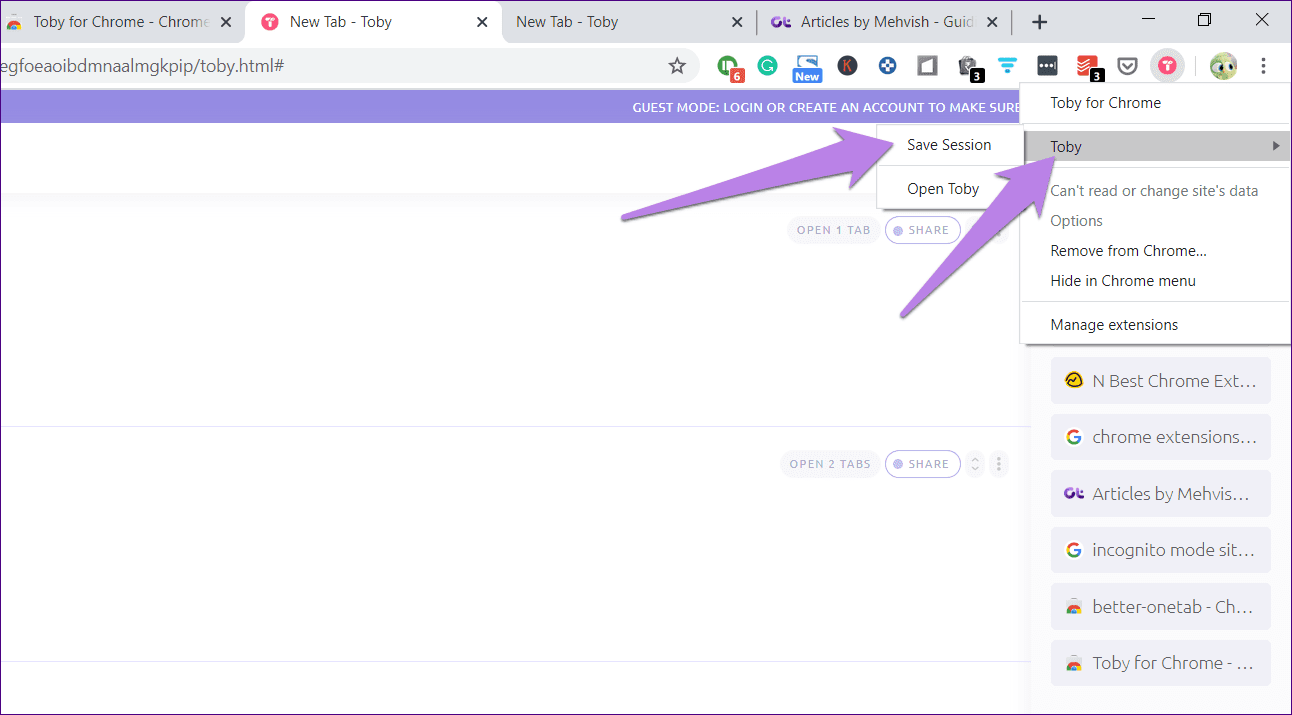
When reopening the tabs, you can open the entire collection or manually choose the tabs. If you no longer require particular tabs, delete them—don’t forget that the extension only saves them temporarily. Other features include syncing collections and dark mode.
Tip: To create a new collection, click on the red icon at the bottom.
The only thing I dislike about this extension is that it takes over the start page in Chrome. Now, that may not be a problem for every person.
Pros
- Fast context switching
- Easy search function
- Team collaboration support
Cons
- Limited customization
- Lack of syncing features
Price: Free
3. Tabzen – Multiple Tab Saving Options
Tabzen is a simple tab manager that shows all the open tabs when activated. You can save a single tab or all the open tabs by clicking on the star icon.

Like other tab managers, this extension lets you organize your tabs in folders. You can check the folders from the pop-up window when you click on the extension. If you want to manage your tabs better, you should open the Tab Manager by clicking on the three-dot icon on that extension.
The Tab Manager supports drag-and-drop to organize tabs. You can import or export tabs and even sort them. You can open tabs through the pop-up window or the Tab Manager.
This extension’s drawback is that it doesn’t offer additional customization features, such as color-coding, managing what happens when you click on the link, etc.
Pros
- Has import/export functionality
- Allows several keyboard shortcuts
- Privacy-centric, accessing saved tabs from DuckDuckGo
Cons
- Little customization features
- Opening several tabs may be resource-intensive
Price: Free
4. Session Buddy – Great for Thematic Saving
Sometimes, instead of saving the selected tabs, one wants to save the entire session. Session buddy is great at this.
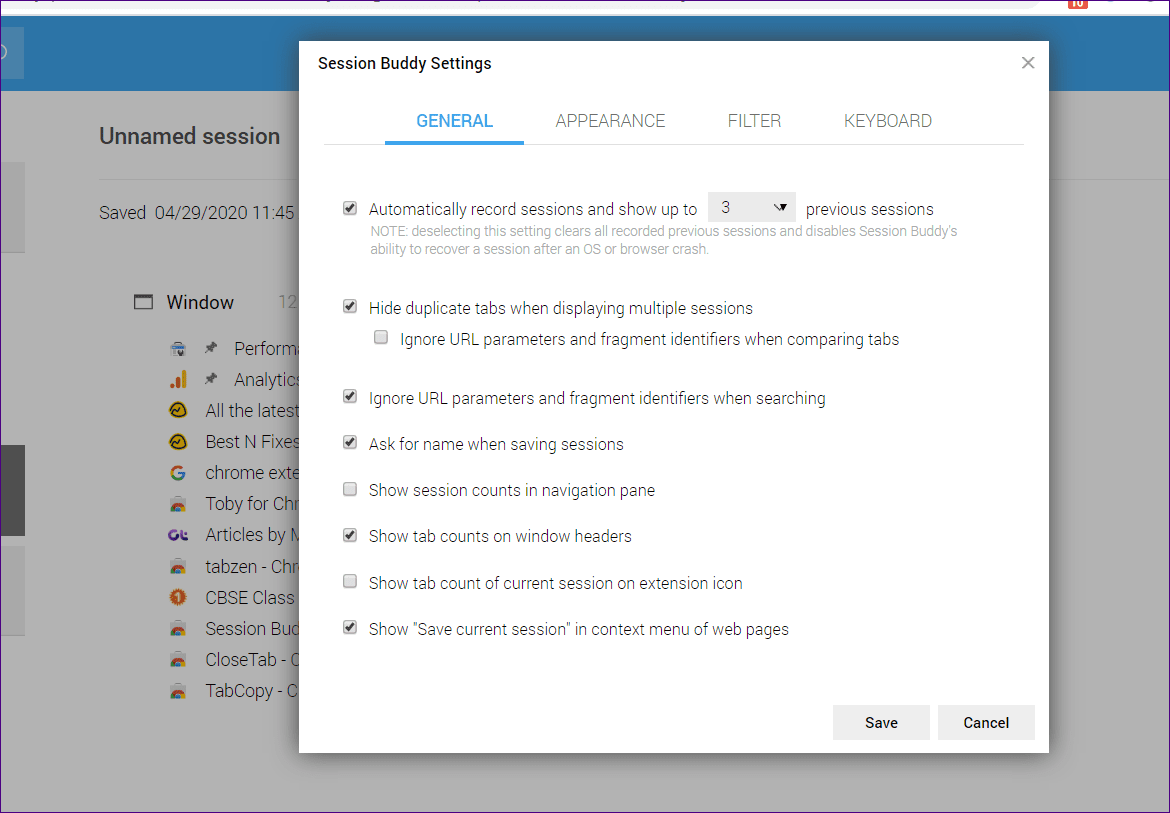
It comes in handy when you have multiple tabs open related to the same topic. For instance, if you were researching a topic you need later, you could save the entire session. Later, when you need it, you can reopen the tabs from that session using Session Buddy.
You can open an individual tab or all tabs from the session. When you finish the session, you can remove it by right-clicking on the session name and choosing Delete.
Pros
- It avoids data loss during restarts
- Offers an improved migration process
- Options for collapsible windows/folders
Cons
- It may be prone to occasional bugs
- No collapsible folders
Price: Free
5. Tabbie – Simple Tab Saver
If you are looking for a simple extension to save your tabs in Chrome for later use, you might like Tabbie. It offers three ways to store tabs: saving all tabs without closing them, saving and closing all tabs, and saving selected tabs only.

In the last option, you must select the Chrome tabs first. To select tabs, press the Ctrl (Windows) or Command (Mac) key and click on the tabs you want to choose with your mouse. Once selected, launch the extension and check the box next to Save selected tabs only. The selected tabs will be saved in the group.
All the tab groups will be available on the same screen. Click on a tab group to see the pages inside it, or click on Open to launch all the pages.
Pros
- Easy-to-use features
- Simplistic UI
- Fee and open-source
Cons
- Limited group allowance
- Does not open tabs in the current window
Price: Free
6. Onetab – Privacy-Centric Tab Saver
We explored Better-OneTab, which seems to add to Onetab’s features. However, the Onetab extension is still very effective at saving open tabs in Chrome.
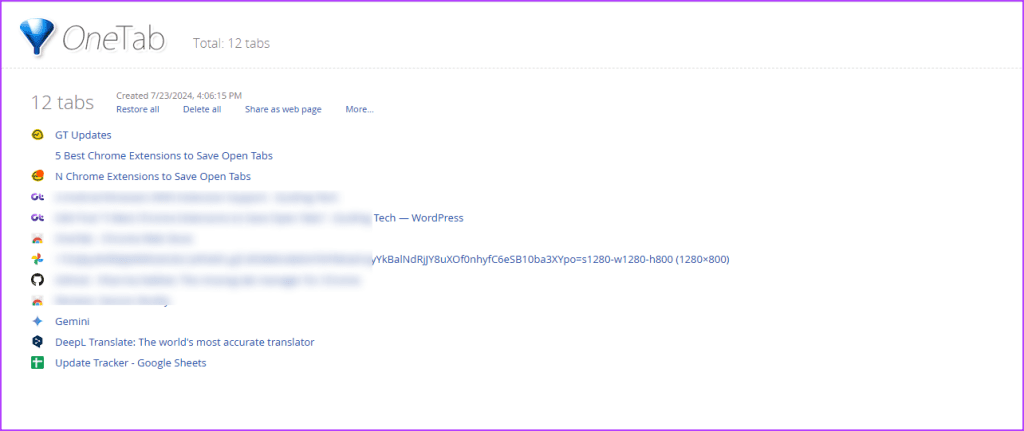
Your information is not shared with the Onetab developers unless you click the share as a web page feature. This makes it a great option for privacy. This feature allows you to share your webpage list with other people. Using this extension reduces the CPU load on your computer.
Pros
- Several tab restoration options
- Great for improved PC speed
- Tab information is not disclosed
- Allows tab sharing
Cons
- Occasional tab link loss
- May use more system resources than advertised
Price: Free
7. Tab Wrangler – Great Auto-Close Feature
Besides saving your tabs, Tab Wrangler goes the extra mile of automatically closing your idle Chrome tabs.

The extension is also smart enough to prevent the auto-closing of your regularly used sites. One reason it is popular is that you can sync your settings across devices.
If you want to prevent certain tabs from automatically closing, you simply have to pin them. But even the auto-closed tabs can easily be recovered because they are locked safely in a folder.
Pros
- Syncing functionality across devices
- Auto tab management
- It can be configured to ignore certain sites
Cons
- Updates may occasionally freeze
- It may auto unlock locked tabs
Price: Free
Note: Removing extensions you no longer need is just as easy.
Was this helpful?
Last updated on 23 July, 2024
Read Next
 How to Save Tabs Before Closing Chrome and Restore Lost Ones
Use Built-In Chrome Feature to Reopen Tabs Automatically Google Chrome has a native feature to open the last used tabs automatically.
How to Save Tabs Before Closing Chrome and Restore Lost Ones
Use Built-In Chrome Feature to Reopen Tabs Automatically Google Chrome has a native feature to open the last used tabs automatically.
 How to Restore Tabs & Save Tab Groups In Google Chrome
Usually when Google Chrome crashes, it gives you a restore tabs option when you open the chrome browser again.
How to Restore Tabs & Save Tab Groups In Google Chrome
Usually when Google Chrome crashes, it gives you a restore tabs option when you open the chrome browser again.
 How to Create and Save a Group of Tabs in Chrome
How to Create and Save Tab Groups in Chrome On Mac If you find that you’ve got too many tabs open while in the middle of a Google Chrome session,
How to Create and Save a Group of Tabs in Chrome
How to Create and Save Tab Groups in Chrome On Mac If you find that you’ve got too many tabs open while in the middle of a Google Chrome session,
 Top 4 Ways to Open All Links in New Tabs in Chrome
Method 1: Scroll Wheel/Middle Mouse Button If you do not like the idea of having a Chrome extension, you can trust the mouse to handle this job for you.
Top 4 Ways to Open All Links in New Tabs in Chrome
Method 1: Scroll Wheel/Middle Mouse Button If you do not like the idea of having a Chrome extension, you can trust the mouse to handle this job for you.
 How to Stop Chrome From Opening Old Tabs at Startup
Basic Fixes: Disable third-party tools: Some third-party tools can interfere with Chrome tabs.
How to Stop Chrome From Opening Old Tabs at Startup
Basic Fixes: Disable third-party tools: Some third-party tools can interfere with Chrome tabs.
 How to Enable Sleeping Tabs in Google Chrome
Method 1: Enable Sleeping Tabs Using Memory Saver Step 1: Open Google Chrome and click on three vertical dots.
How to Enable Sleeping Tabs in Google Chrome
Method 1: Enable Sleeping Tabs Using Memory Saver Step 1: Open Google Chrome and click on three vertical dots.
 How to Close All Tabs From the Same Website on Google Chrome
Note: Chrome doesn't support this feature by default.
How to Close All Tabs From the Same Website on Google Chrome
Note: Chrome doesn't support this feature by default.
 8 Best Dictionary Extensions for Chrome
1.
8 Best Dictionary Extensions for Chrome
1.
The article above may contain affiliate links which help support Guiding Tech. The content remains unbiased and authentic and will never affect our editorial integrity.