1. Use Chrome Sync
Step 1: Click the profile icon on the upper-right corner, and then select Turn on sync.

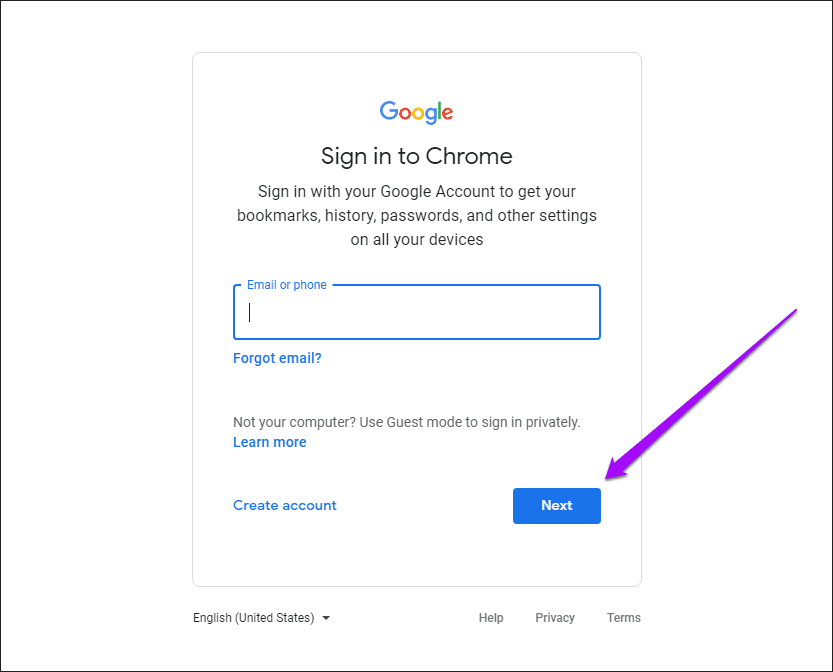
Step 2: Insert your Google Account credentials to sign in to the web browser.
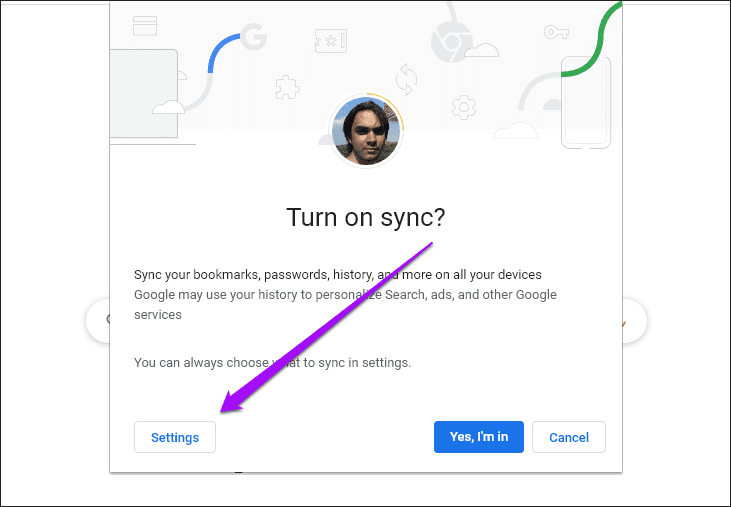
Step 3: Click the Settings option when prompted to turn on Chrome Sync.
Step 4: Toggle on Bookmarks and Passwords in this case. Then, click the arrow-shaped Back icon.

Step 5: Finally, click Confirm to turn on Chrome Sync.
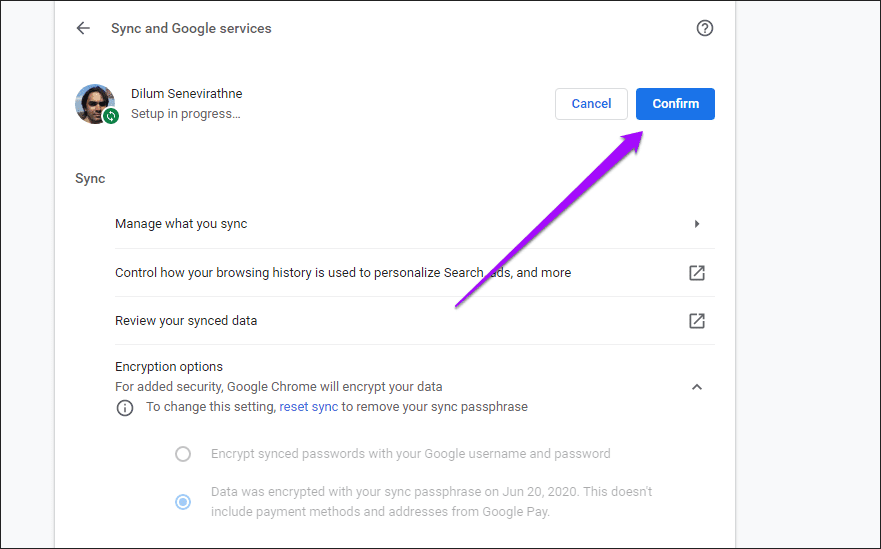
That should prompt Chrome to start backing up your bookmarks, passwords, and any other forms of specified data. Chrome Sync will also update your data whenever you make any additions or modifications. To access your data on another device, simply sign in to Chrome with your Google account.
You can also use Chrome Sync on the Android and iOS versions of Google Chrome to back up your bookmarks and passwords. Check out our complete Chrome Sync guide for more details.
2. Export Bookmarks and Passwords to an HTML or CSV File
Exports Bookmarks to an HTML File
Step 1: Open the Chrome menu > Bookmarks and lists, and click Bookmark Manager.
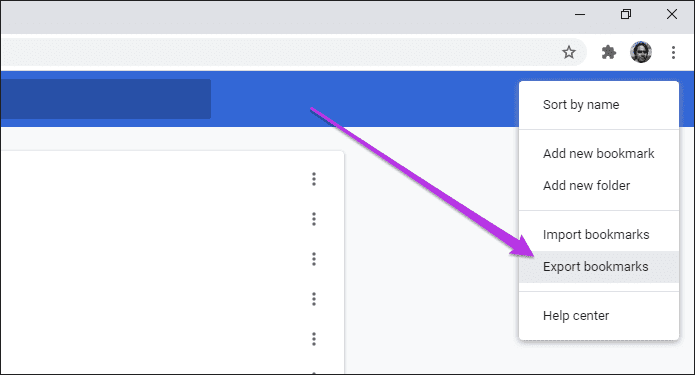
Step 2: Click the three-dot icon in the upper-right corner of the Chrome window.

Step 3: Select the option labeled Export Bookmarks.
Step 4: Specify a location within local storage to export the bookmarks to, then click Save.
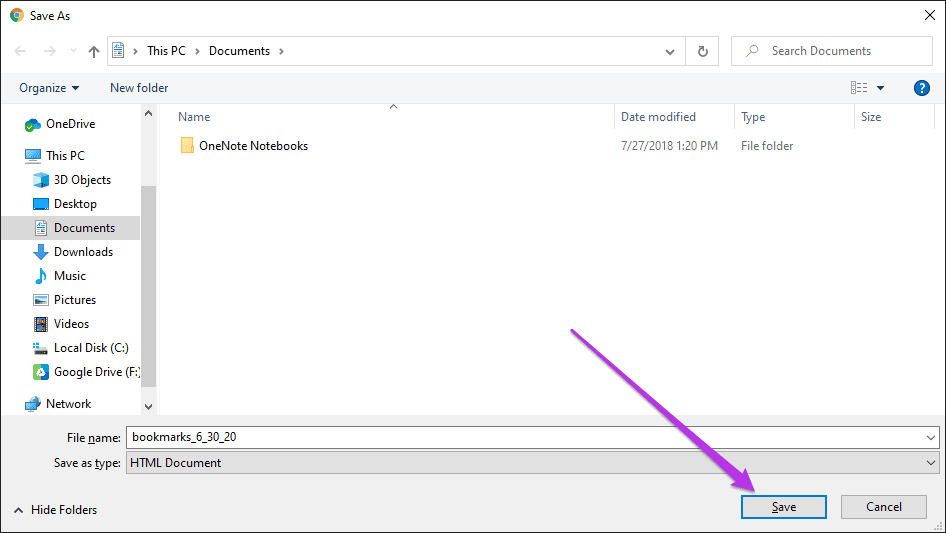
You can use the exported HTML file to import bookmarks back to Chrome or other supported browsers on any desktop device.
The Android and iOS versions of Chrome do not offer the option to export bookmarks as an HTML file. However, you can use Chrome Sync to sync your bookmarks from your mobile to a desktop and then export them to an HTML file using the steps above.
Exporting Passwords to a CSV File
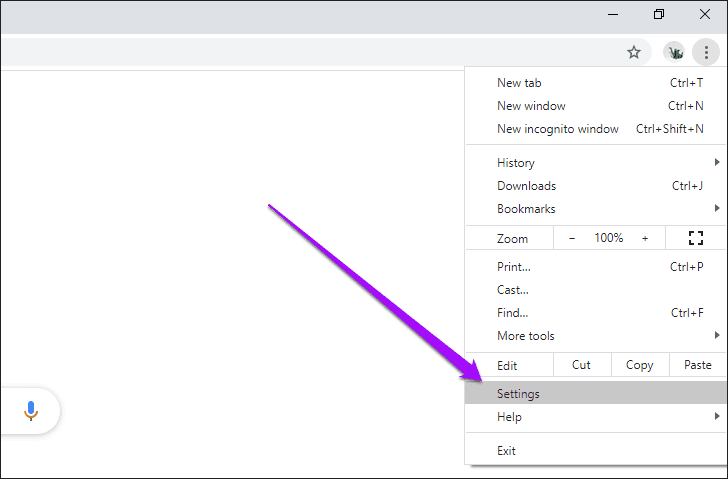
Step 1: Open the Chrome menu, and then click Settings.
Step 2: Go to Autofill and passwords, followed by Google Password Manager.
Step 3: Under Google Password Manager, navigate to Settings.
Step 4: Click Export passwords.
Step 6: Specify a destination, and then click Save.
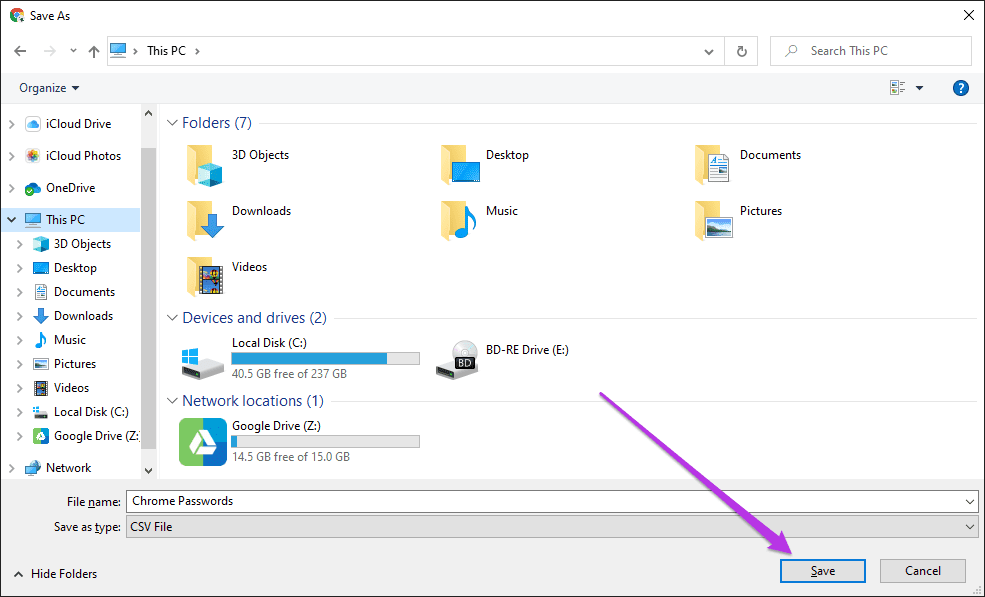
You can read the contents within a CSV file using a spreadsheet program. Additionally, exporting passwords to the CSV format is largely the same on Android and iOS. You can refer to our guide on exporting Chrome passwords to CSV.
3. Use Storage Files
Step 1: Go to the folder that stores your Chrome data:
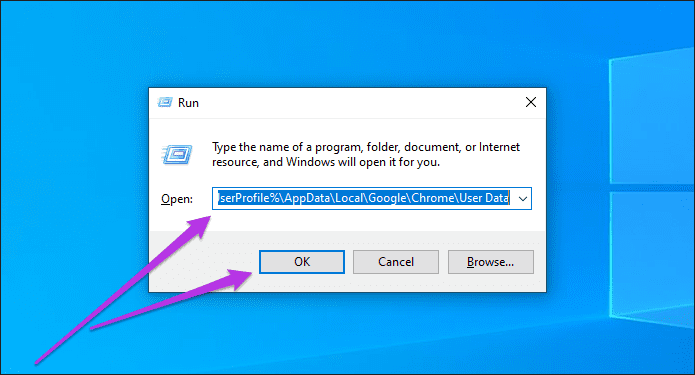
Windows: press Windows+R to open Run, copy and paste the folder path below, and then click OK.
%UserProfile%\AppData\Local\Google\Chrome\User Data
Note: Ensure to replace %UserProfile% with your PC’s user profile name.
macOS: press Cmd+Space, copy and paste the folder path below, and then hit Return key.
~/Library/Application Support/Google/Chrome/
Step 2: Double-click the folder labeled Default to access the contents of your Chrome profile.

Note: If you have multiple profiles in Chrome, the related profile folders will appear as Profile 1, Profile 2, Profile 3, and so on.
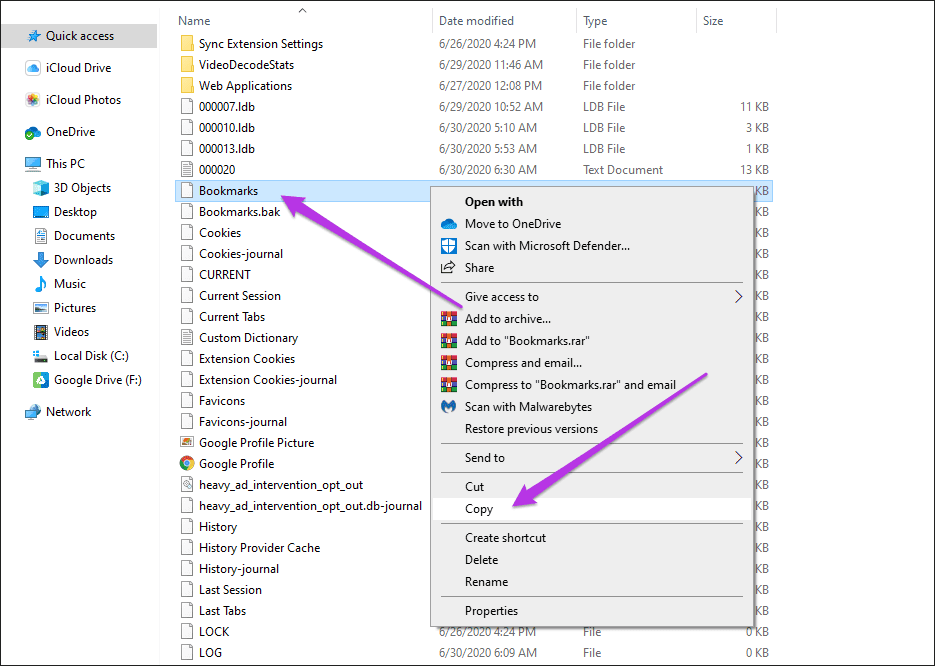
Step 3: Copy the file labeled Bookmarks to create a backup of your bookmarks.
Step 4: Copy the files labeled Login Data and Login Data-journal to back up your passwords.
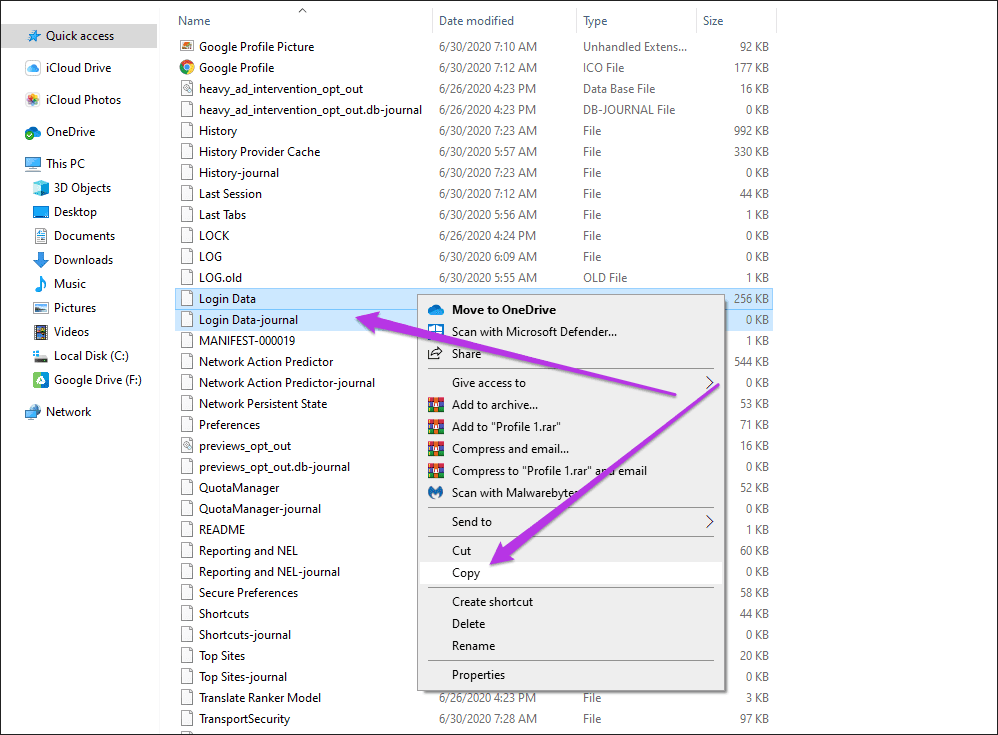
Once again, remember that you can’t use the Login Data and Login Data-journal files to restore your passwords on a different device or operating system profile. If you don’t just want to save Chrome bookmarks but also want to export passwords, keep reading.
4. Use Third-Party Tools
For demonstration, we will go with the EaseUp Todo Backup tool. If you want, you can use any of the mentioned tools.
Step 1: Go to EaseUS’s official website from your preferred browser. Click the Free Download button to download the tool.
Step 2: Once downloaded, double-click on the installer file to install the tool.
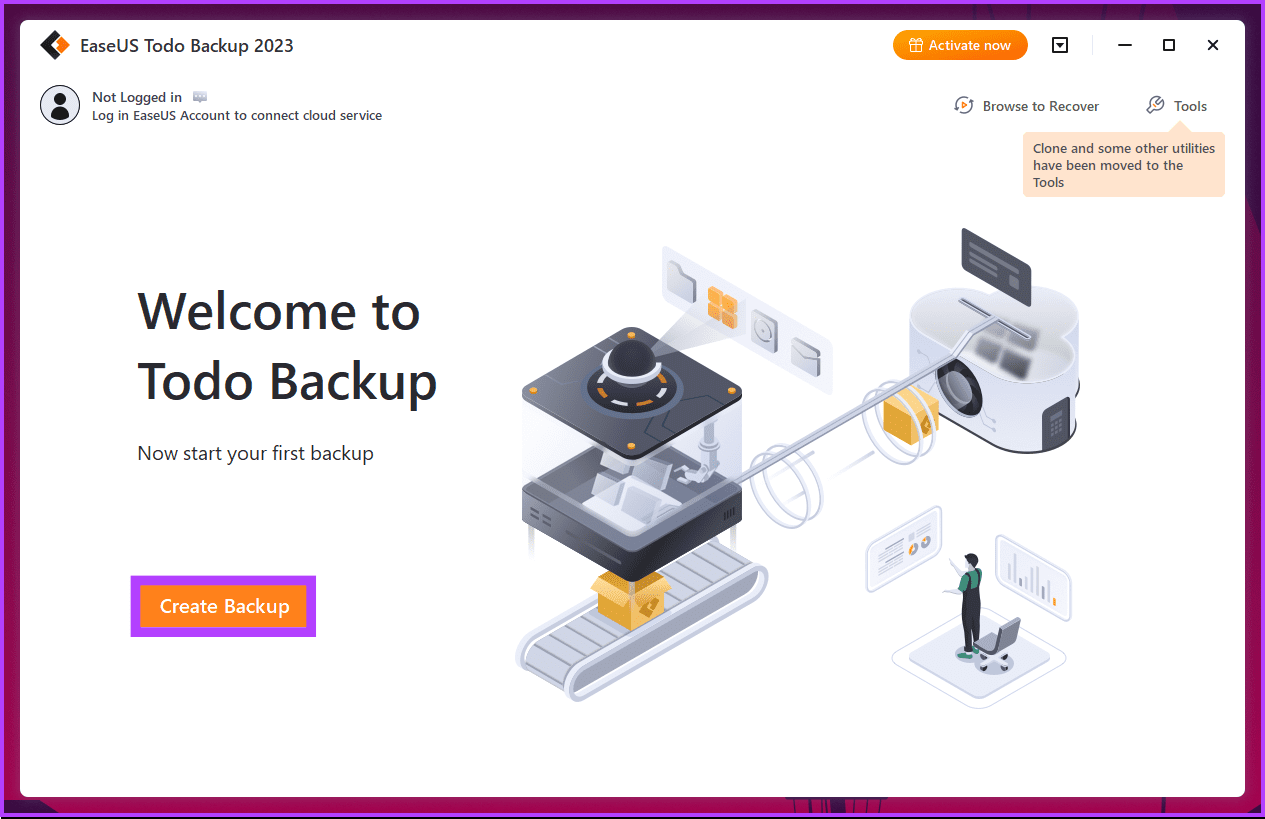
Step 3: Once installed, launch the tool. Now, click the Create Backup button.
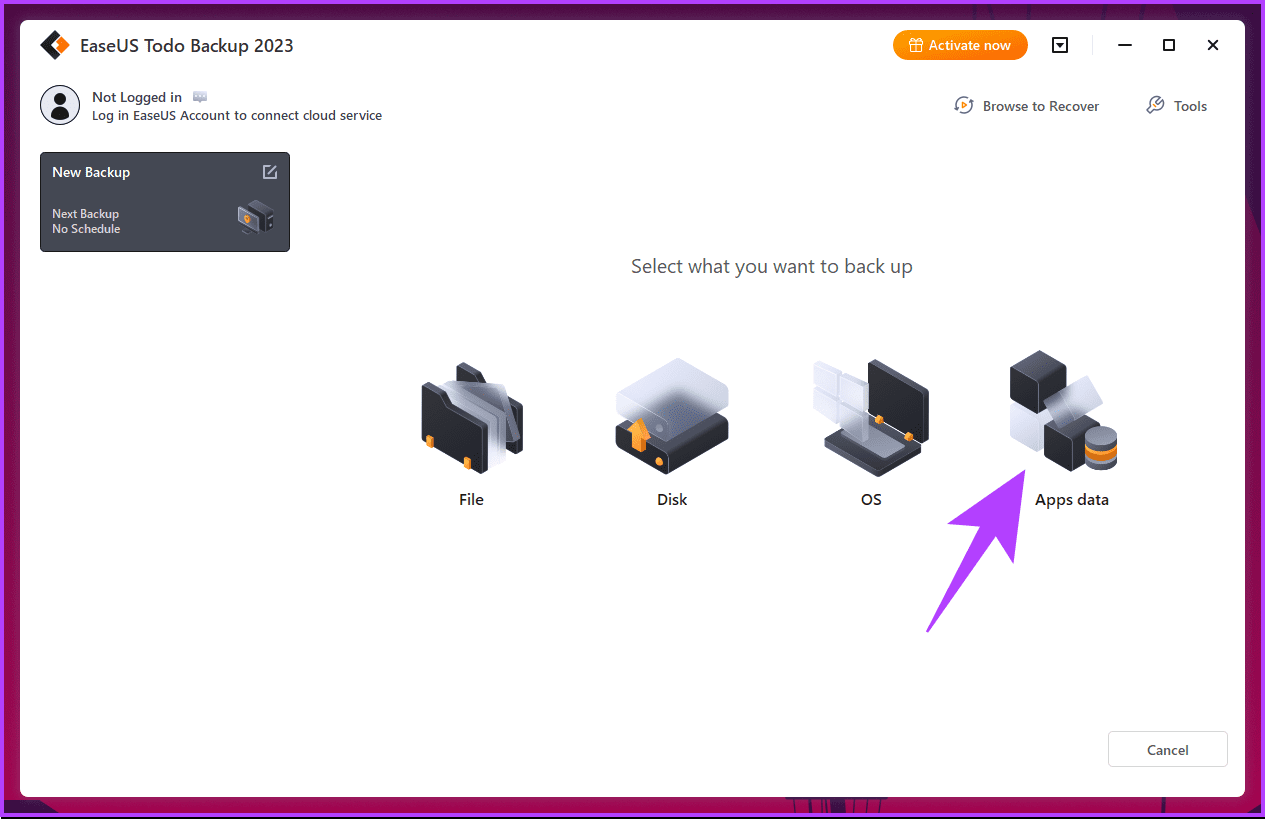
Step 4: From the list of backups, click on Apps data.
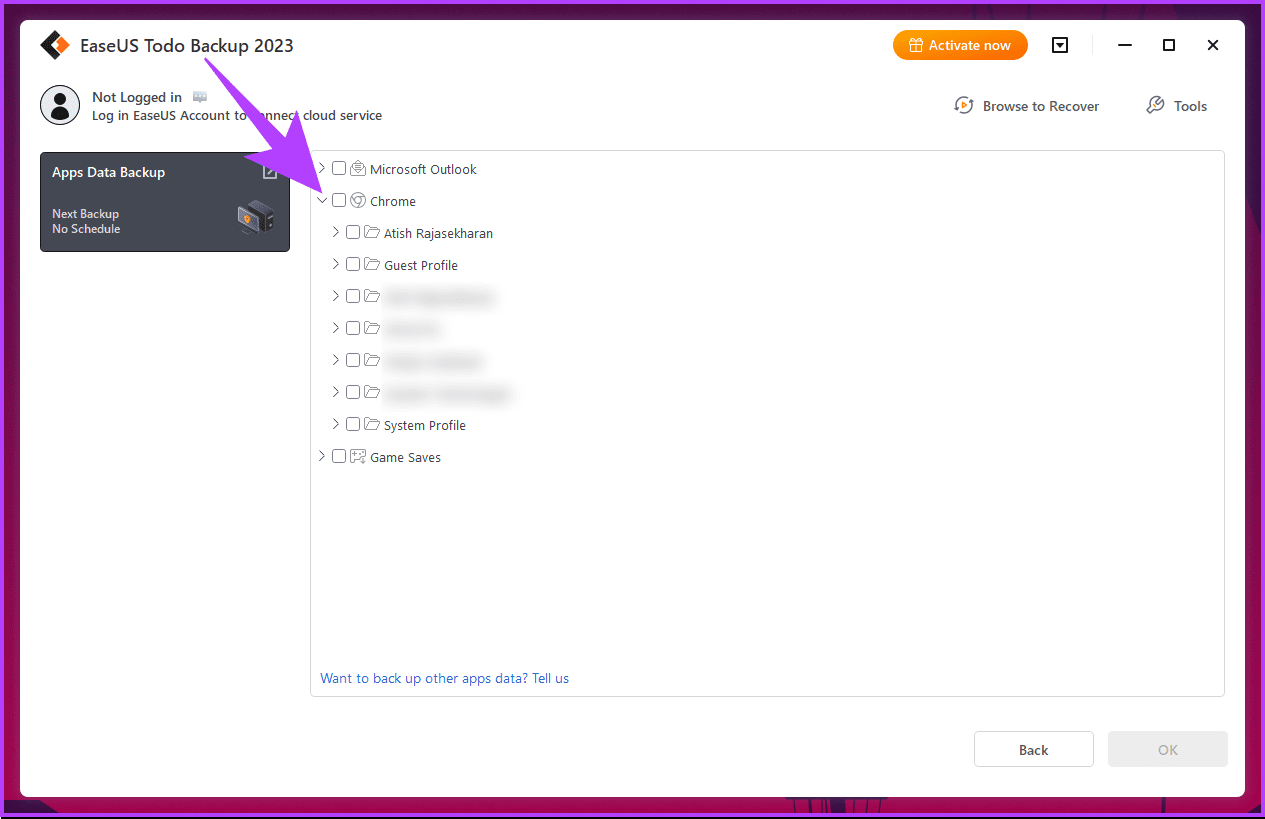
Step 5: Expand the Chrome menu.
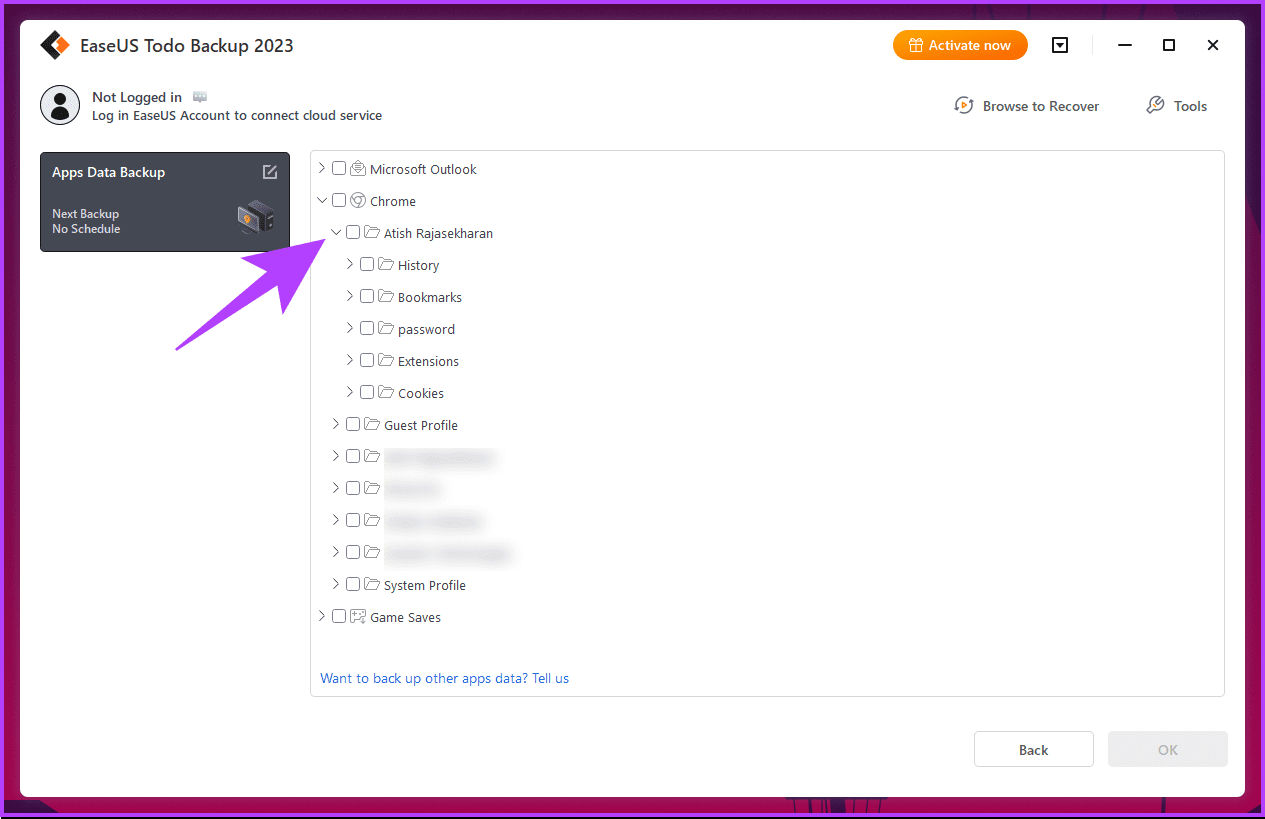
Step 6: Choose the Chrome profile to expand.
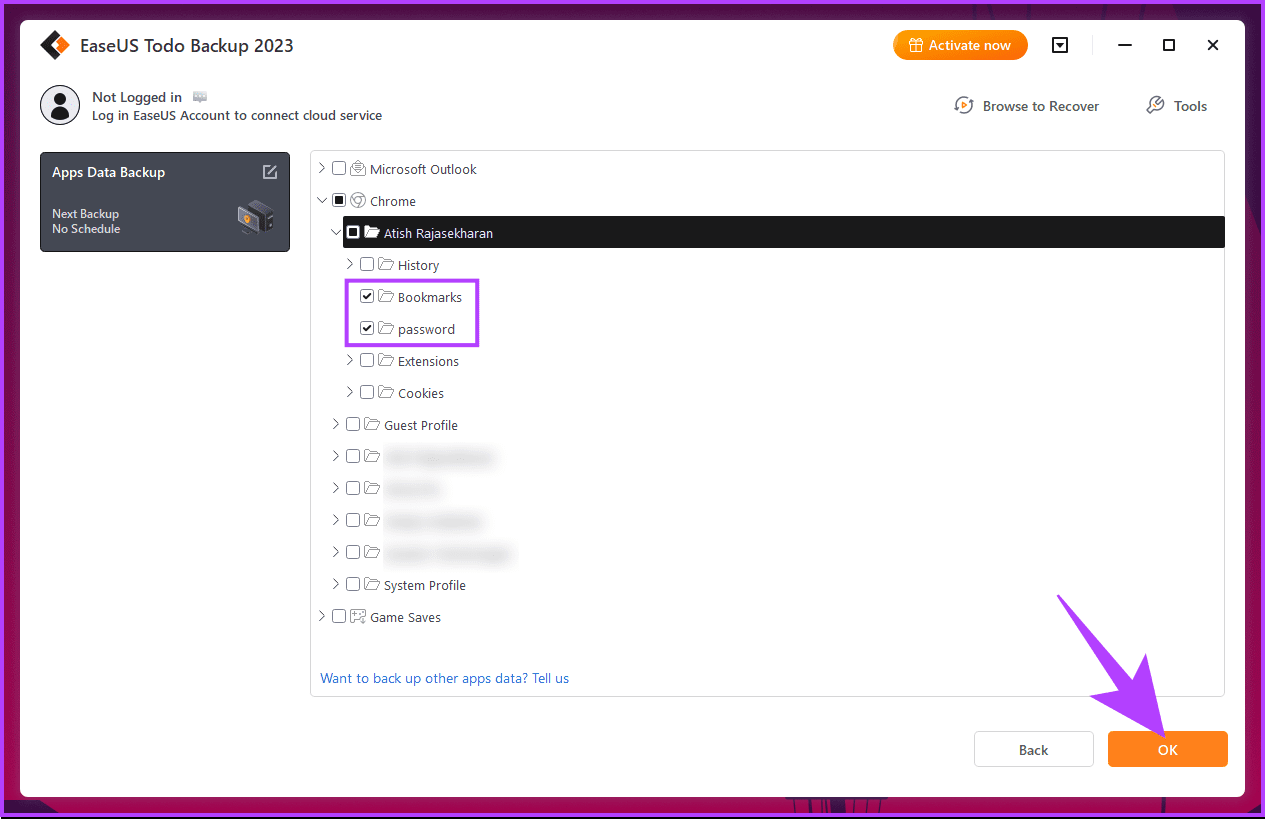
Step 7: From the expanded menu, check the box next to Bookmarks and password. Then, click OK.
Step 8: Finally, click the Backup Now button to export bookmarks and passwords.
Note: If you want, you can also change the destination folder.
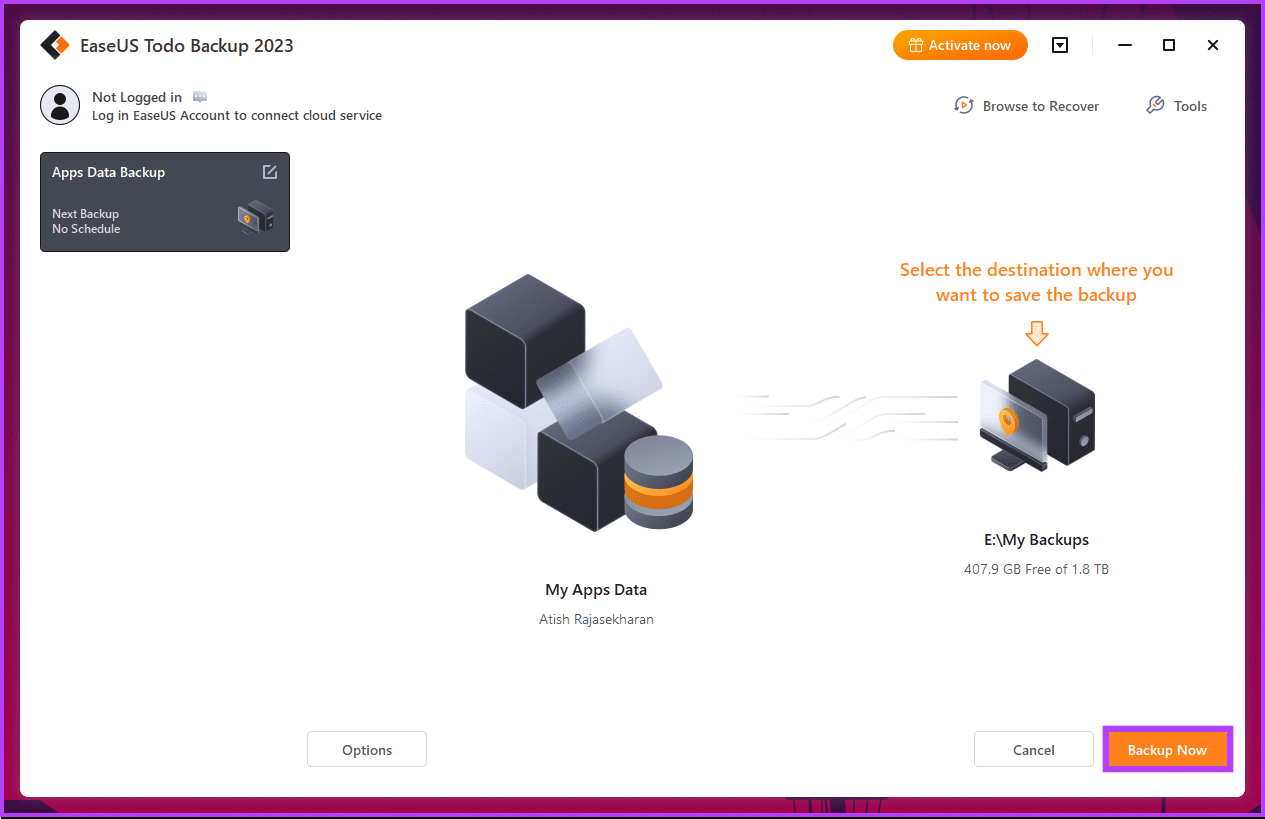
That’s it. All the bookmarks and passwords from the Chrome profile get saved to the destination folder. If you have any queries, check out the FAQ section below.
FAQs on Backing Up Chrome Bookmarks and Passwords
Chrome doesn’t have a direct feature to back up bookmarks to Google Drive. However, you can either save the exported HTML file to Google Drive manually or use a third-party tool to do the backup for you.
If you’re signed in with a Google account and have sync enabled, passwords are automatically backed up and can be accessed on other devices.
Yes, passwords are encrypted during export and import processes to maintain security.
Exporting and importing bookmarks and passwords have no impact on your browsing history.
Now that you know how to export Chrome bookmarks and passwords, you know that using Chrome Sync is the best and fastest way—not only is it convenient in practice, but it also backs up your data continuously.
Was this helpful?
Last updated on 23 August, 2024
Read Next
 How to Export Chrome Passwords to CSV
Are you tired of losing or forgetting your passwords?
How to Export Chrome Passwords to CSV
Are you tired of losing or forgetting your passwords?
 How to Import or Export Firefox Bookmarks
Browsers are a part and parcel of our lives.
How to Import or Export Firefox Bookmarks
Browsers are a part and parcel of our lives.
 Top 10 Ways to Fix Chrome Passwords Not Syncing Issue
Chrome's built-in password manager may lack the advanced functionalities of dedicated services such as 1Password, LastPass, or Dashlane, but it sure is convenient to use.
Top 10 Ways to Fix Chrome Passwords Not Syncing Issue
Chrome's built-in password manager may lack the advanced functionalities of dedicated services such as 1Password, LastPass, or Dashlane, but it sure is convenient to use.
 4 Ways to Fix Chrome Bookmarks Not Deleting Issue
Basic Fixes: Check for software updates: Software glitches can cause Chrome bookmarks to show up even after being deleted.
4 Ways to Fix Chrome Bookmarks Not Deleting Issue
Basic Fixes: Check for software updates: Software glitches can cause Chrome bookmarks to show up even after being deleted.
 How to Fix Chrome Sync Bookmarks Not Working Issue
Preliminary Fixes Restart device: Restarting your device refreshes your system, closes background processes that might be interfering, and clears temporary files.
How to Fix Chrome Sync Bookmarks Not Working Issue
Preliminary Fixes Restart device: Restarting your device refreshes your system, closes background processes that might be interfering, and clears temporary files.
 How to Import Chrome Bookmarks to Samsung Internet Browser
Samsung Internet Browser is one of the finest alternatives to Chrome on Android, answering many of the persistent usability issues in Google’s flagship browser.
How to Import Chrome Bookmarks to Samsung Internet Browser
Samsung Internet Browser is one of the finest alternatives to Chrome on Android, answering many of the persistent usability issues in Google’s flagship browser.
 How to Recover Deleted Passwords in Google Chrome
Recover Deleted Passwords in Google Chrome Step 1: Launch Google Chrome on the computer you have previously logged into your Google account.
How to Recover Deleted Passwords in Google Chrome
Recover Deleted Passwords in Google Chrome Step 1: Launch Google Chrome on the computer you have previously logged into your Google account.
 How to Remove Saved Passwords From Google Chrome
Method 1: Use Google Chrome Desktop Step 1: Open Google Chrome, click the three-dot menu, and select Settings.
How to Remove Saved Passwords From Google Chrome
Method 1: Use Google Chrome Desktop Step 1: Open Google Chrome, click the three-dot menu, and select Settings.
The article above may contain affiliate links which help support Guiding Tech. The content remains unbiased and authentic and will never affect our editorial integrity.