


Use Intelligent Wi-Fi on Your Samsung Phone
Intelligent Wi-Fi is a feature on Samsung Galaxy phones that automatically connects to known Wi-Fi networks when in range. To use this feature, you must enable it on your Samsung device.
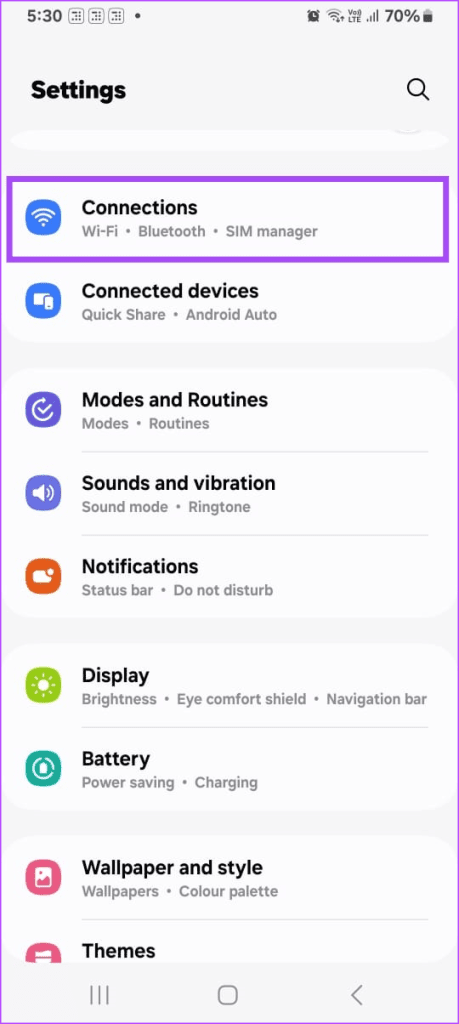
Step 1: Open the Settings app on your Samsung phone.
Step 2: Tap on Connections > Wi-Fi.

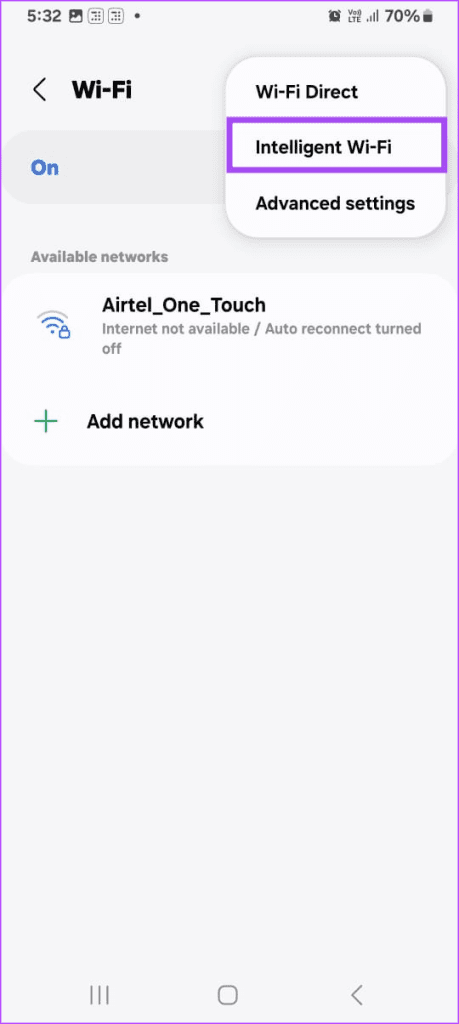
Step 3: In the Wi-Fi settings, tap on three dots and select Intelligent Wi-Fi.


Step 4: Toggle on Switch to better Wi-Fi networks and Turn Wi-Fi on/off automatically.
Once enabled, the Intelligent Wi-Fi feature will automatically switch to a better Wi-Fi network if it detects a stronger signal or if your current connection is unstable. It will also turn off Wi-Fi when you’re not near any known networks to conserve battery life.
How Does Intelligent Wi-Fi Work?
Intelligent Wi-Fi analyzes your device’s location services and network information stored on your phone to determine which Wi-Fi networks you frequently use. It then automatically switches to those networks when you’re in range.
This feature is especially useful when you frequently commute between home, work, and other locations. It saves you from manually switching Wi-Fi networks every time you change locations.
Use Modes and Routines
Modes and Routines on Samsung Galaxy phones that lets you create custom routines based on your time and location. With this, you can automate tasks such as connecting to Wi-Fi upon arrival or turning it off when you leave.
To set up a location-based routine, follow these steps:
Note: This feature is only available for mid-range and high-end Samsung Galaxy phones. The function isn’t available on several Galaxy M-series smartphones.
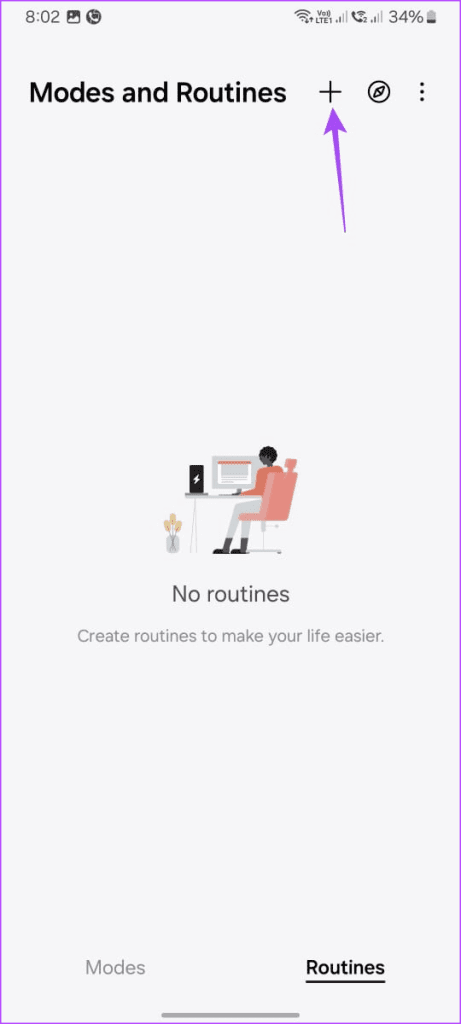
Step 1: Open the Modes and Routines app and switch to the Routines tab.
Step 2: Tap the + icon in the top right corner to create a new routine.
Step 3: In the If section, tap on Place.


Step 4: Choose from My current location, Home, or Pick a place, then enter the address.
Step 5: Select When I arrive, then tap Done.


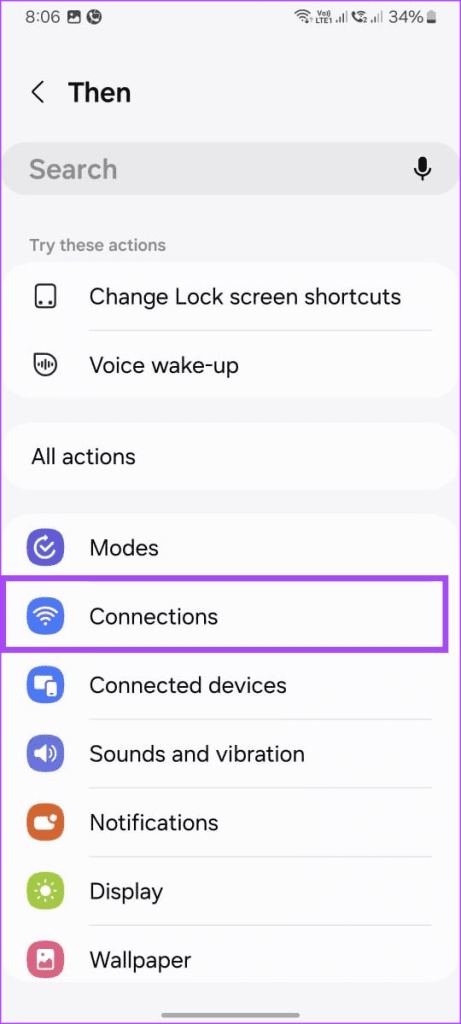
Step 6: Tap on Connections > Wi-Fi.
Step 7: Choose On, then tap Done.

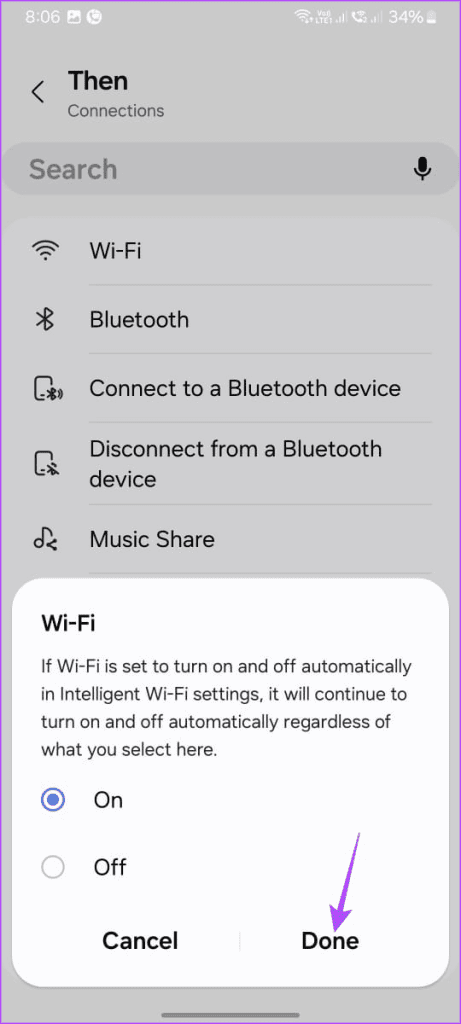
Step 8: Review the summary of your routine, then tap Save to proceed.
Step 9: Name your routine and tap Done.
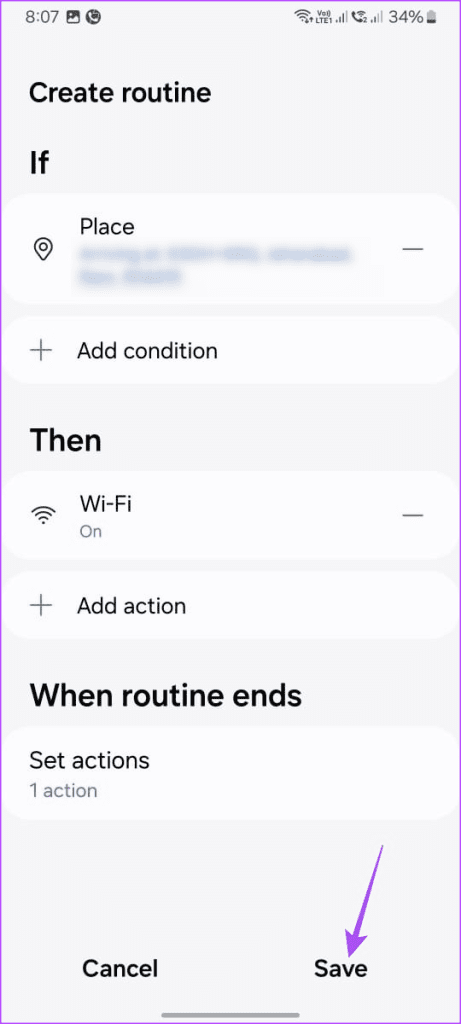

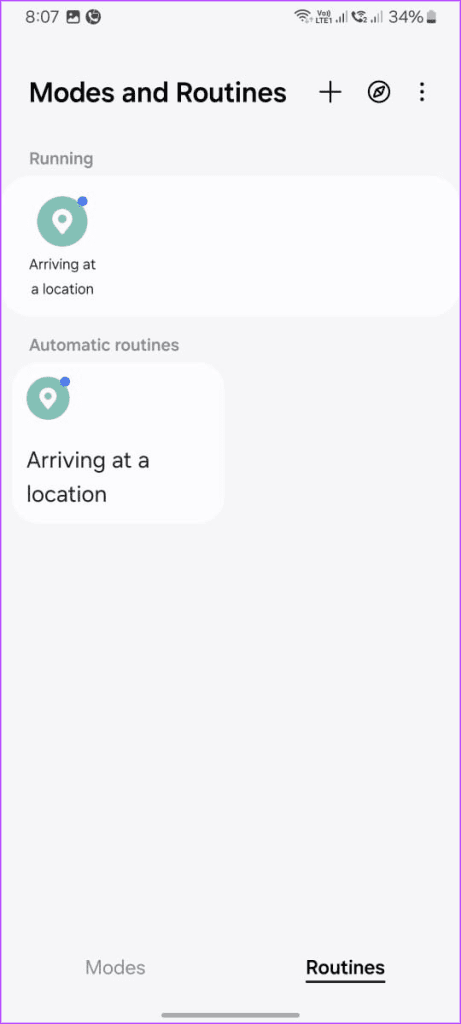
Now, whenever you arrive at the selected location, your phone will automatically connect to Wi-Fi.
Similarly, you can also create routines based on time. For example, you can set your phone to automatically turn off Wi-Fi every night when you go to bed.
Was this helpful?
Last updated on 16 July, 2024
Read Next
 5 Fixes for Samsung Health App Not Tracking Steps
Basic Fixes Ensure that step counter is enabled: Open the Health app > Tap on Steps > Three dots in the top-right corner > Check and ensure that the step
5 Fixes for Samsung Health App Not Tracking Steps
Basic Fixes Ensure that step counter is enabled: Open the Health app > Tap on Steps > Three dots in the top-right corner > Check and ensure that the step
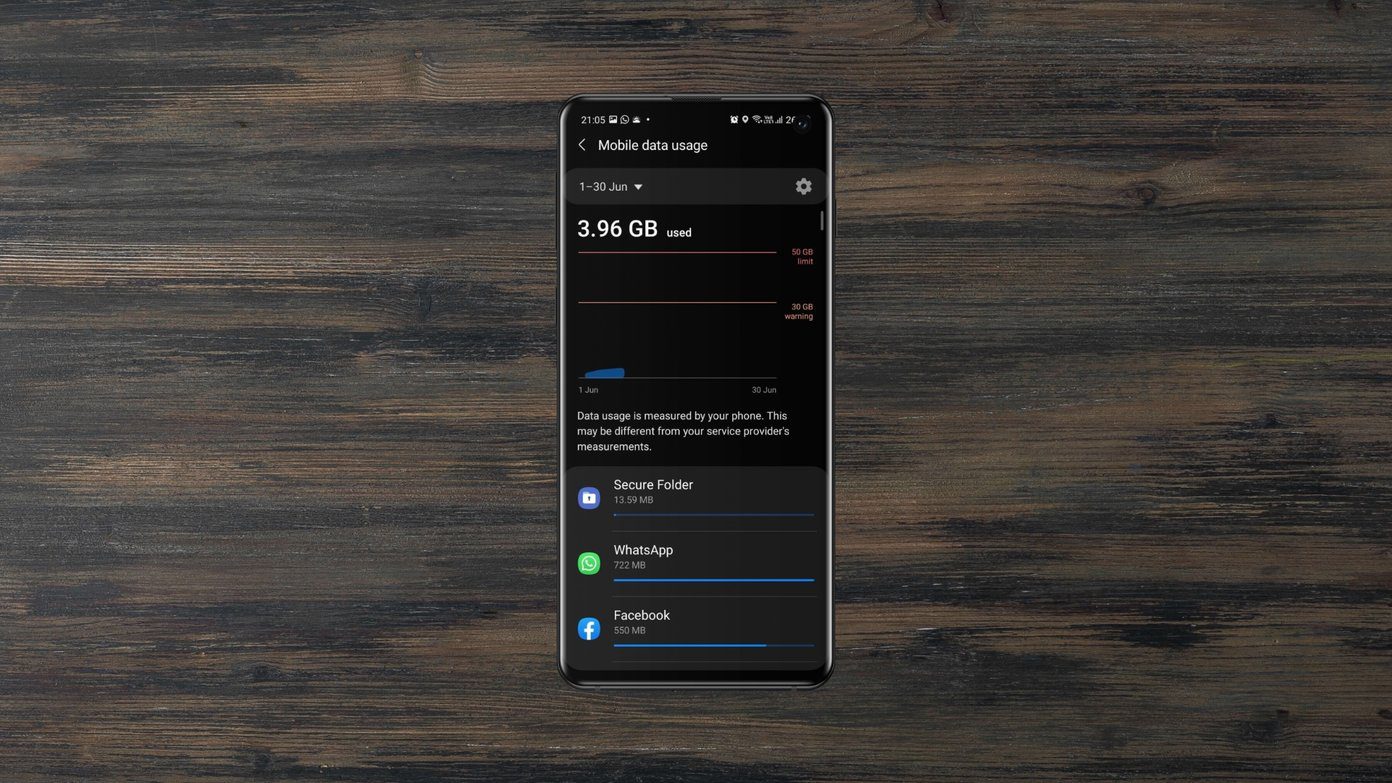 How to Set Up Data Limit on Samsung Galaxy Phones
How to Add or Change Data Usage Limit You can set up data limit warnings on your Samsung Galaxy phone to ensure you're warned once you reach the relevant threshold.
How to Set Up Data Limit on Samsung Galaxy Phones
How to Add or Change Data Usage Limit You can set up data limit warnings on your Samsung Galaxy phone to ensure you're warned once you reach the relevant threshold.
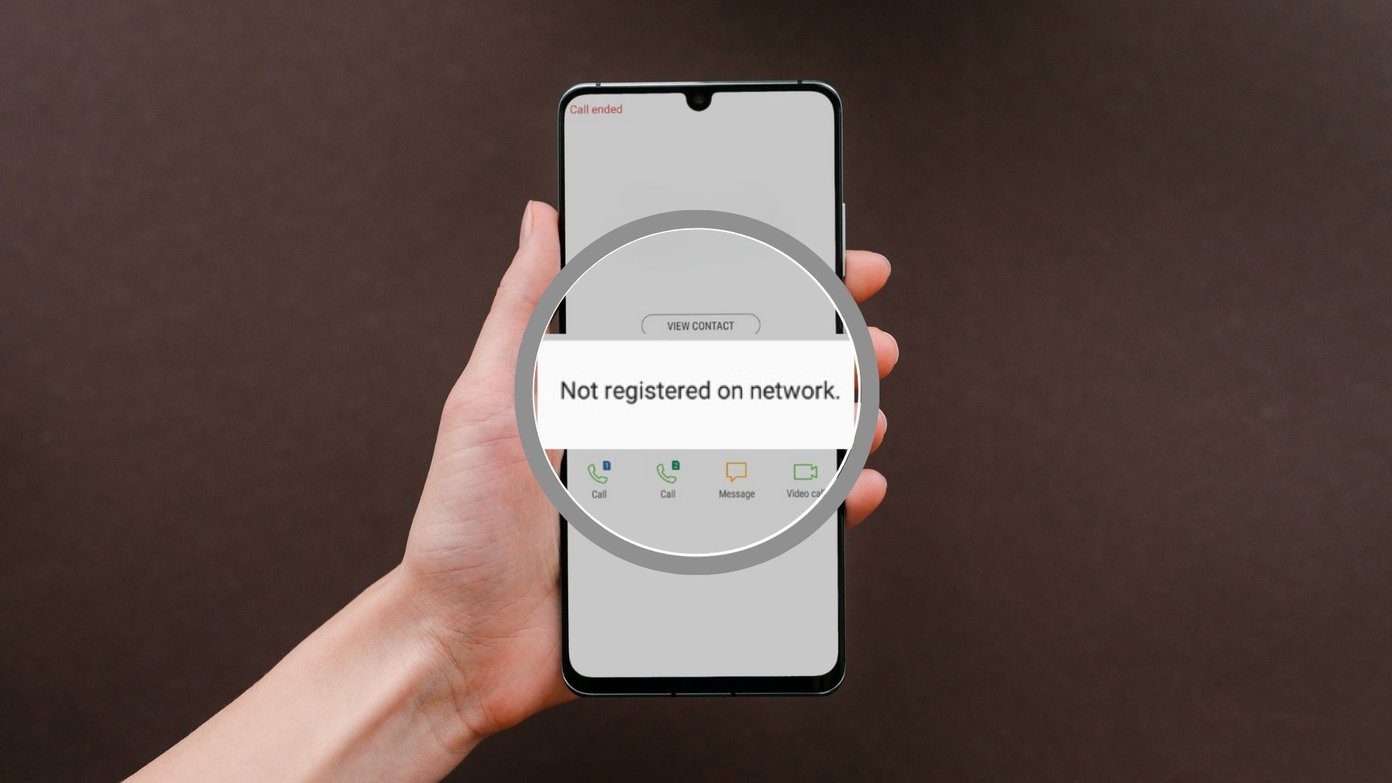 4 Ways to Fix “Not Registered on Network” Error on Samsung Galaxy Phones
Basic Fixes Remove and reinsert the SIM: An improperly inserted SIM can result in such network errors.
4 Ways to Fix “Not Registered on Network” Error on Samsung Galaxy Phones
Basic Fixes Remove and reinsert the SIM: An improperly inserted SIM can result in such network errors.
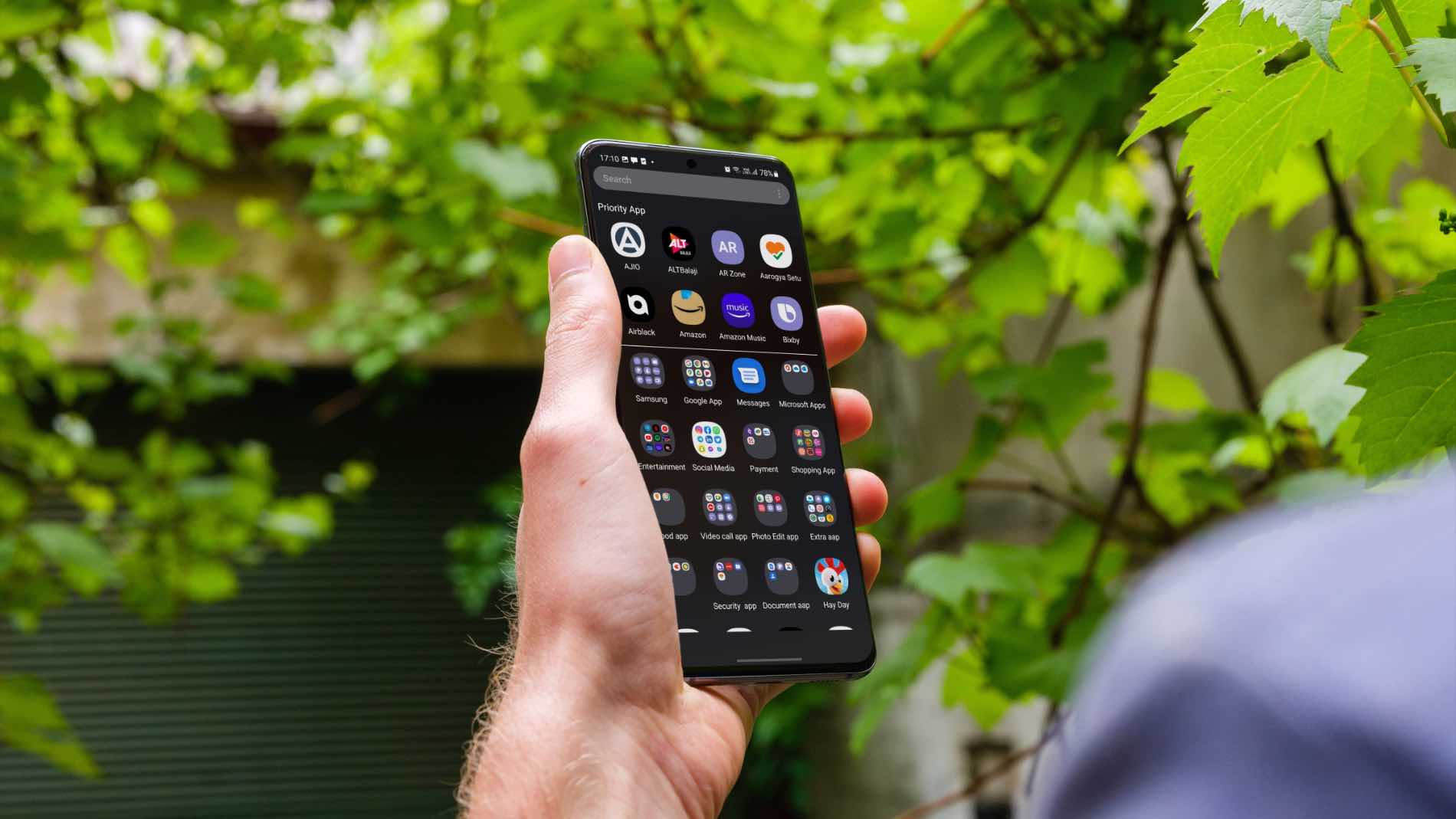 Top 3 Ways to Change App Drawer on Samsung Galaxy Phones
https://youtu.be/A_ni2sV14uM 1.
Top 3 Ways to Change App Drawer on Samsung Galaxy Phones
https://youtu.be/A_ni2sV14uM 1.
 5 Ways to Fix Samsung Keyboard Not Working on Galaxy Phones
Fix 1: Update the Samsung Keyboard App Running an outdated version of the Samsung Keyboard app can cause it to malfunction and stop working on your phone.
5 Ways to Fix Samsung Keyboard Not Working on Galaxy Phones
Fix 1: Update the Samsung Keyboard App Running an outdated version of the Samsung Keyboard app can cause it to malfunction and stop working on your phone.
 How to Use Modes and Routines on Samsung Galaxy Phones
Basic fixes You can select a mode based on your current activity or location, and One UI changes device settings to match the situation.
How to Use Modes and Routines on Samsung Galaxy Phones
Basic fixes You can select a mode based on your current activity or location, and One UI changes device settings to match the situation.
 4 Ways to Access Secure Folder on Samsung Galaxy Phones
Method 1: From the App Drawer or Home Screen Once you create the Secure Folder the first time, you can access it easily from your phone’s App drawer or home
4 Ways to Access Secure Folder on Samsung Galaxy Phones
Method 1: From the App Drawer or Home Screen Once you create the Secure Folder the first time, you can access it easily from your phone’s App drawer or home
 10 Best Ways to Fix Samsung Gallery Not Showing All Pictures on Galaxy Phones
Samsung Galaxy phones have a default Gallery app to manage and edit media files.
10 Best Ways to Fix Samsung Gallery Not Showing All Pictures on Galaxy Phones
Samsung Galaxy phones have a default Gallery app to manage and edit media files.
The article above may contain affiliate links which help support Guiding Tech. The content remains unbiased and authentic and will never affect our editorial integrity.

