Method 1: Download and Send an Email as an Attachment
You can download an email from Gmail, stored in the .eml file format. You can then simply attach this downloaded file to another email. Here’s how.
Step 1: Open Gmail in your preferred web browser and log in with your Google account details.
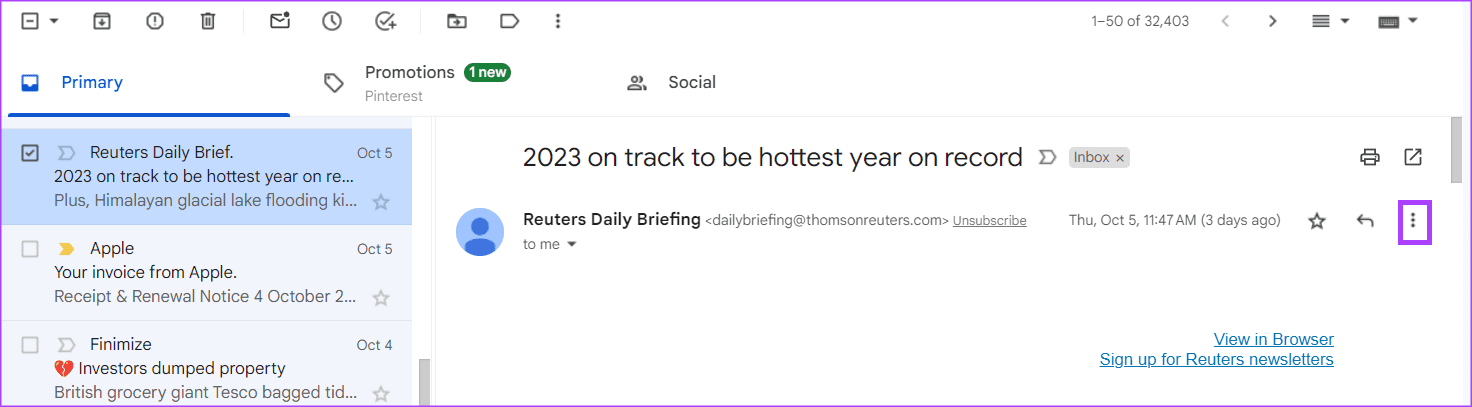
Step 2: Open the email you want to send as an attachment. Click on the three-dots icon.
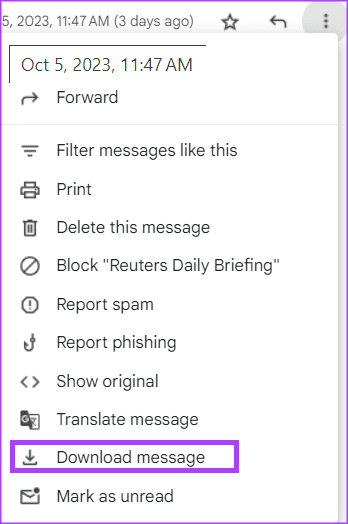
Step 3: Click on Download message.
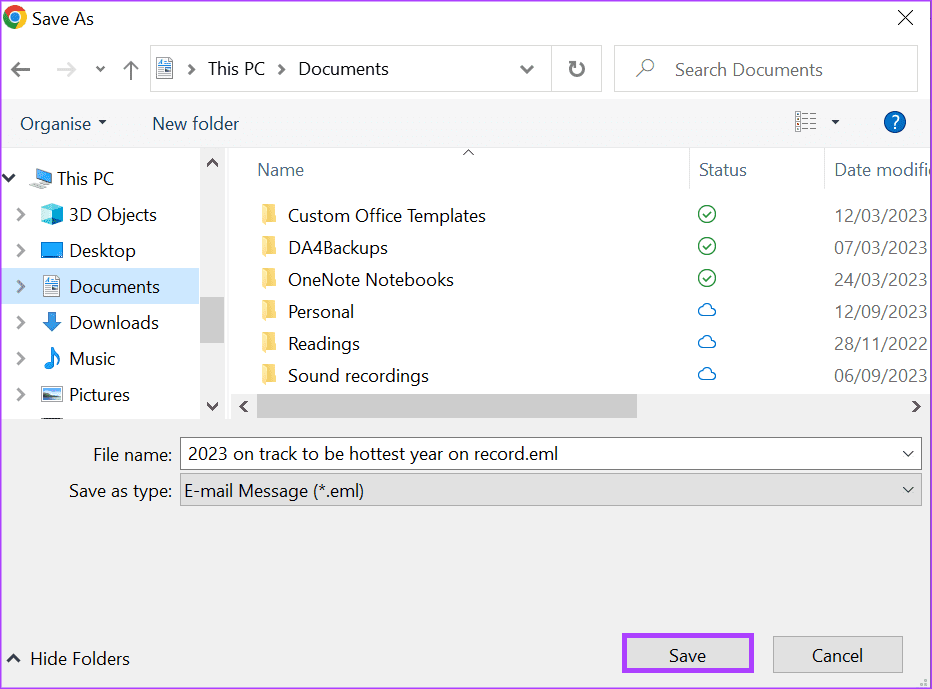
Step 4: Save the email as a .EML file on your PC.
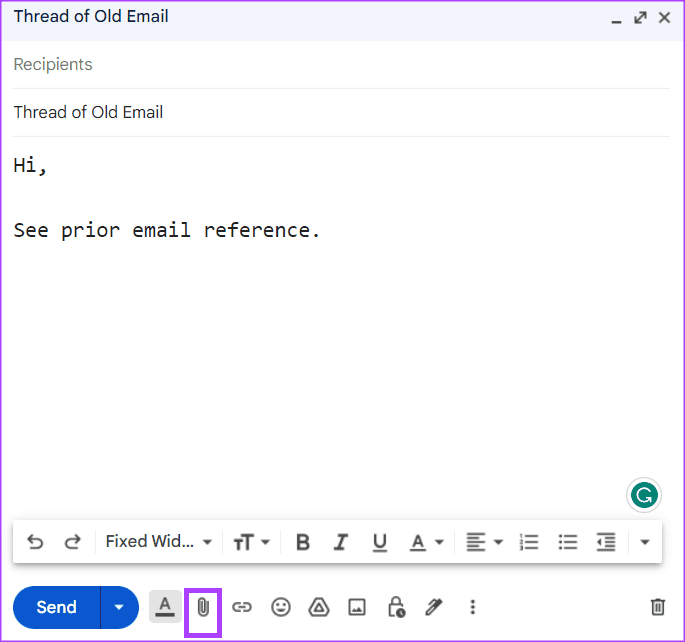
Step 5: Compose your new email and click on the attachment icon.
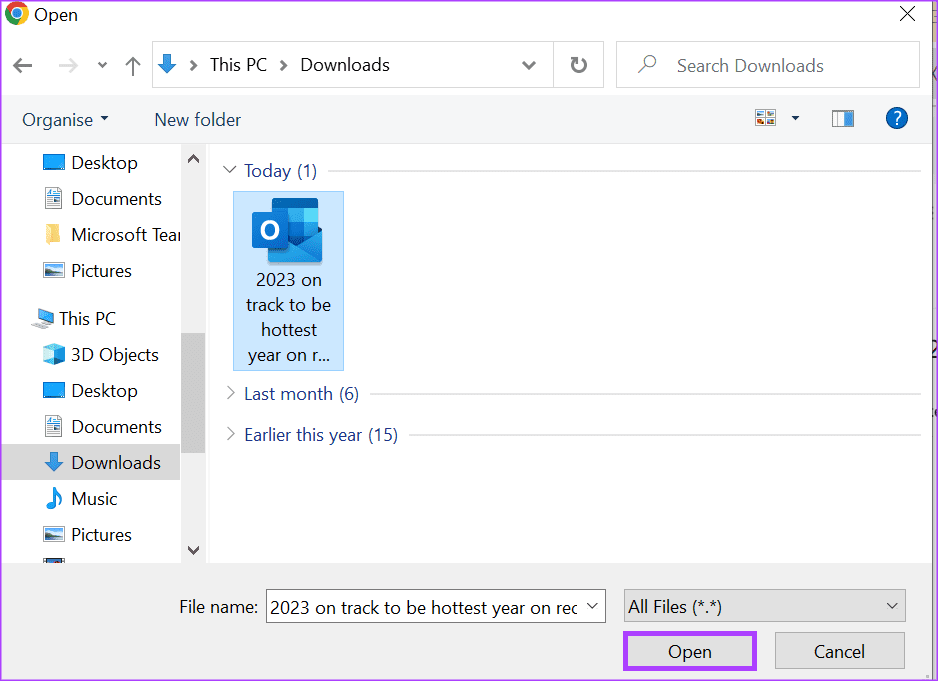
Step 6: Navigate to the location in your file library with the .EML file and click on Open. The .EML file will be included as an attachment in the new email.
Step 7: Click on Send to send the email.
Method 2: Drag and Drop to Attach an Email to Another Email
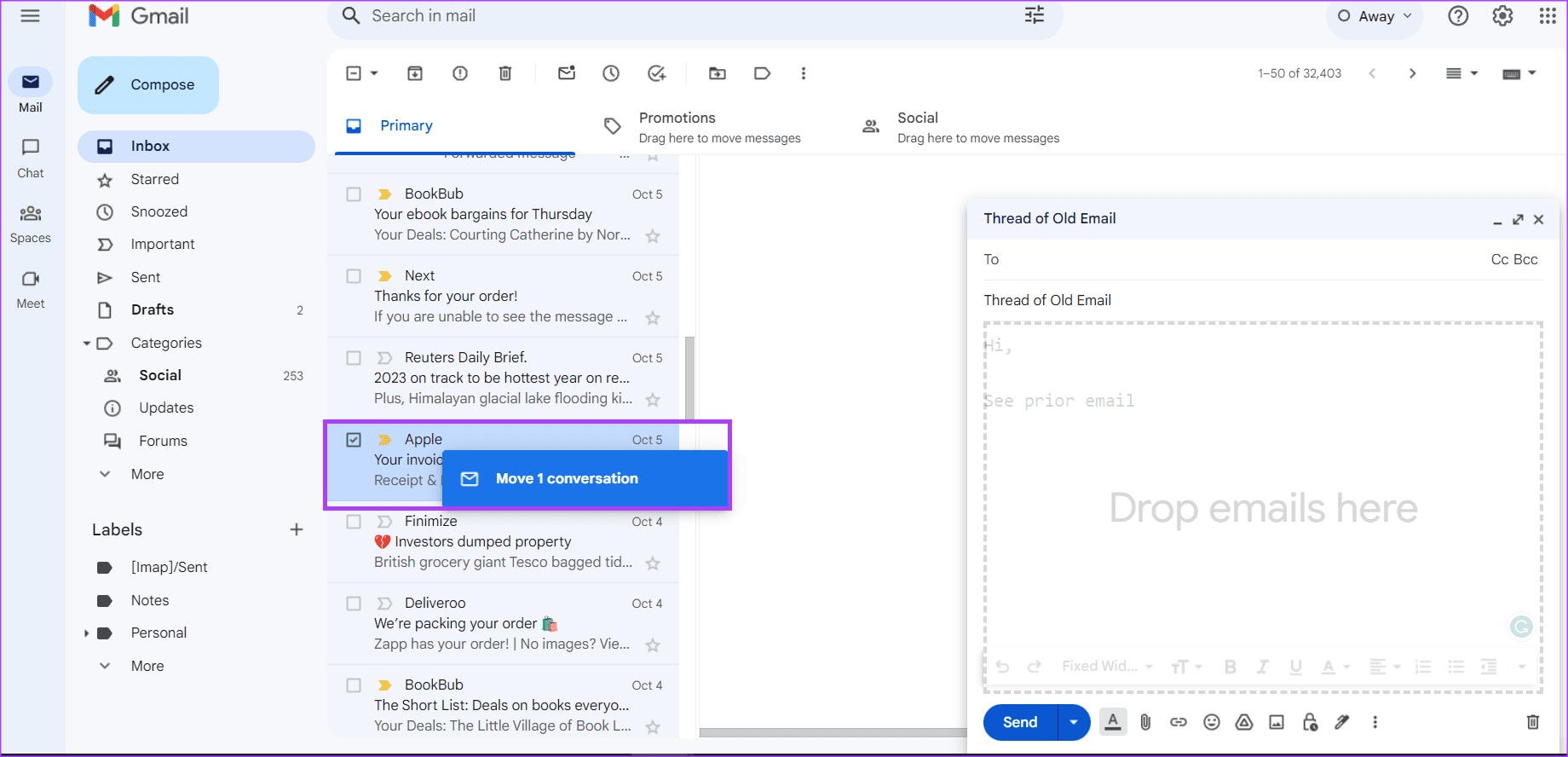
This little trick makes the process more fun and equally faster. Click on the Compose button to begin writing a new email.
You can drag and drop emails to the Compose window on the lower right side of the screen to attach them.
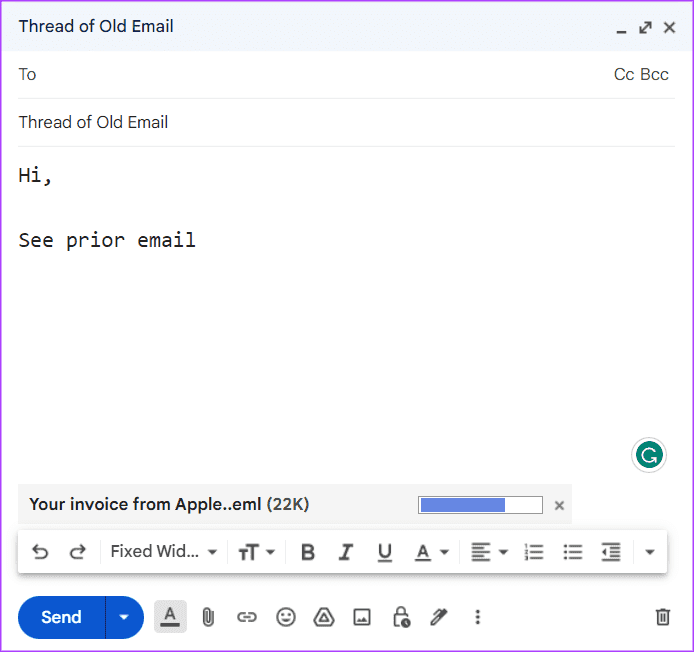
Emails attached in Gmail will appear at the bottom of the newly composed email, like regular attached files.
If you want to attach multiple emails, first select all emails and then use the mouse to drag and drop them as you do with files and folders inside Windows.
Method 3: Forward an Email as an Attachment
From Gmail’s context menu, you can forward an email as an attachment. This will create a new email with the selected email as an attachment.
Step 1: Right-click on the email you want to forward to view the context menu.
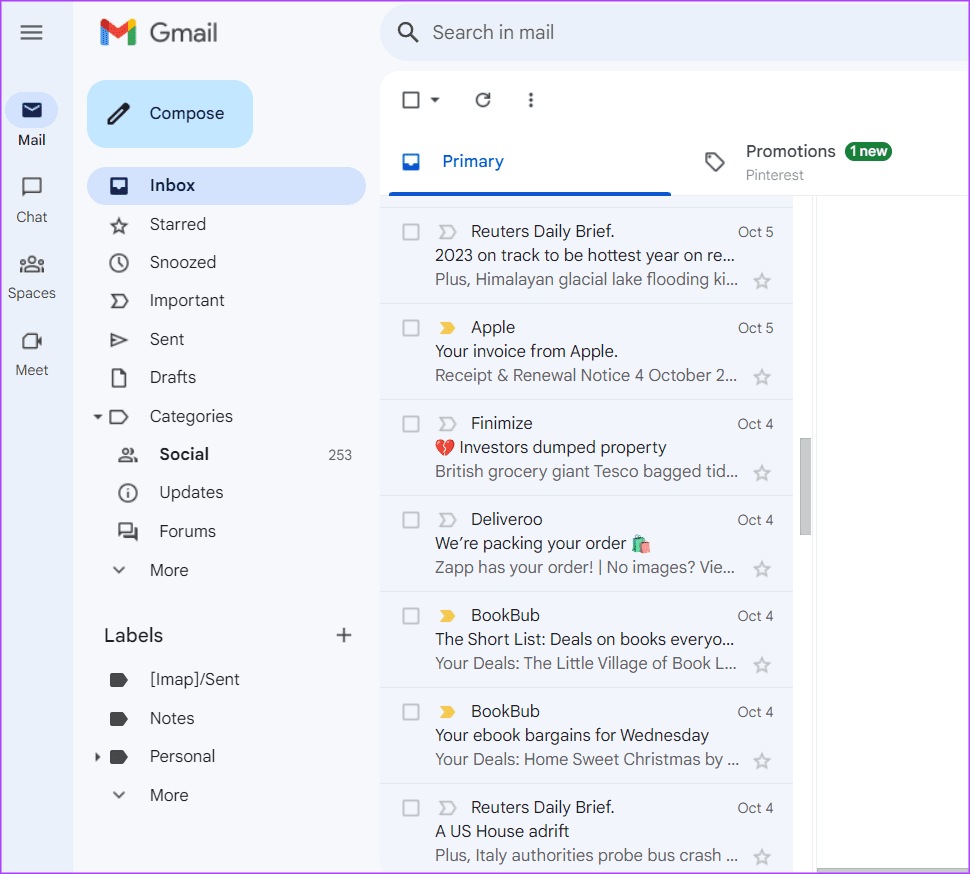
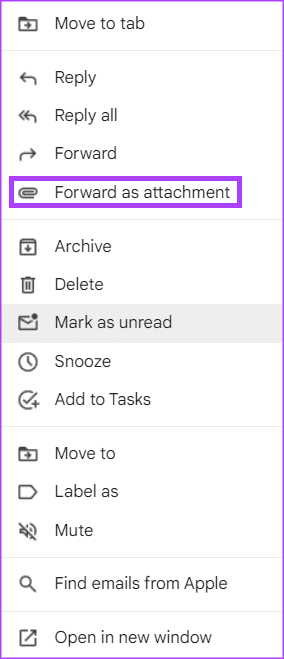
Step 2: Select Forward as attachment from the options. This will create a new email with the selected email as an attachment.
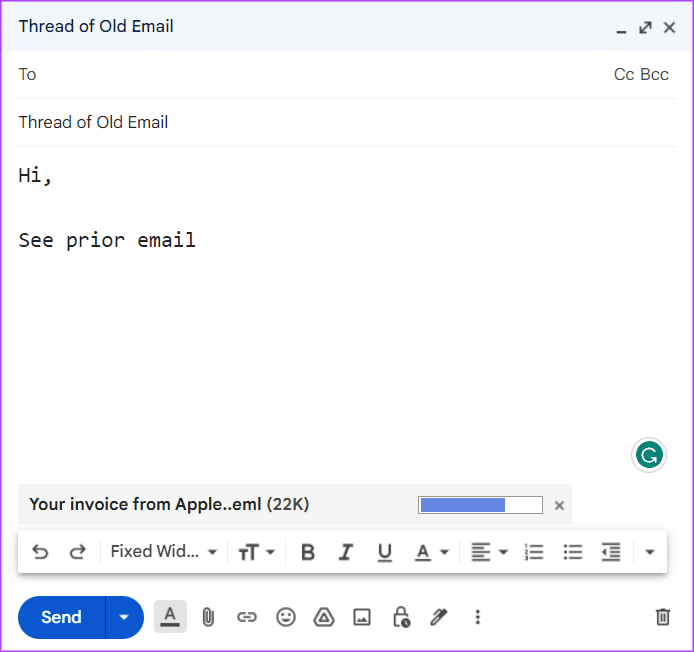
Step 3: Fill in the Address field, Subject field, and body of the email. Click Send to send the email as an attachment.
Method 4: Send Multiple Emails as an Attachment
If you want to forward more than one email as an attachment in one outgoing email, you can use the More Options menu.
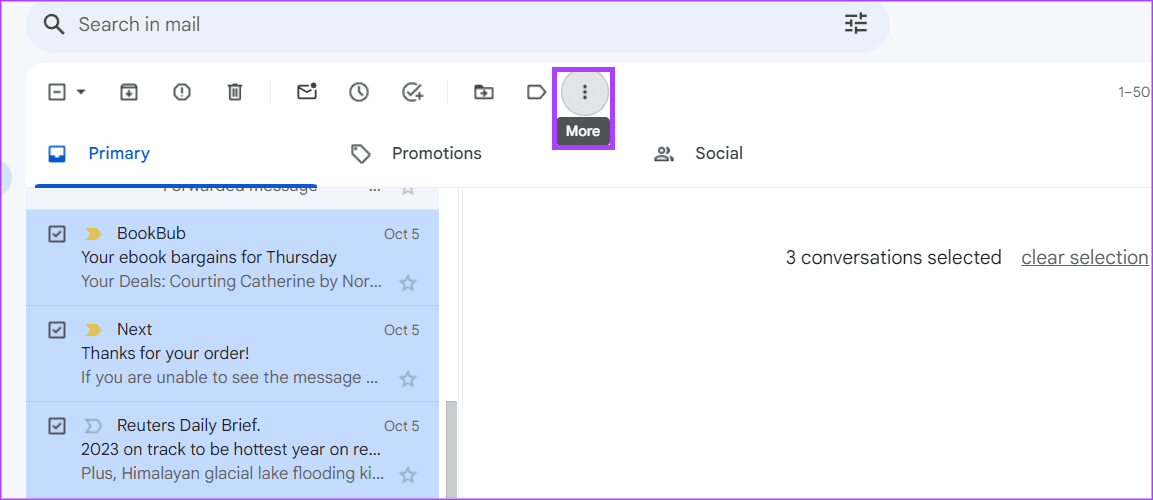
Step 1: From your inbox, check the boxes beside the emails you want to forward.
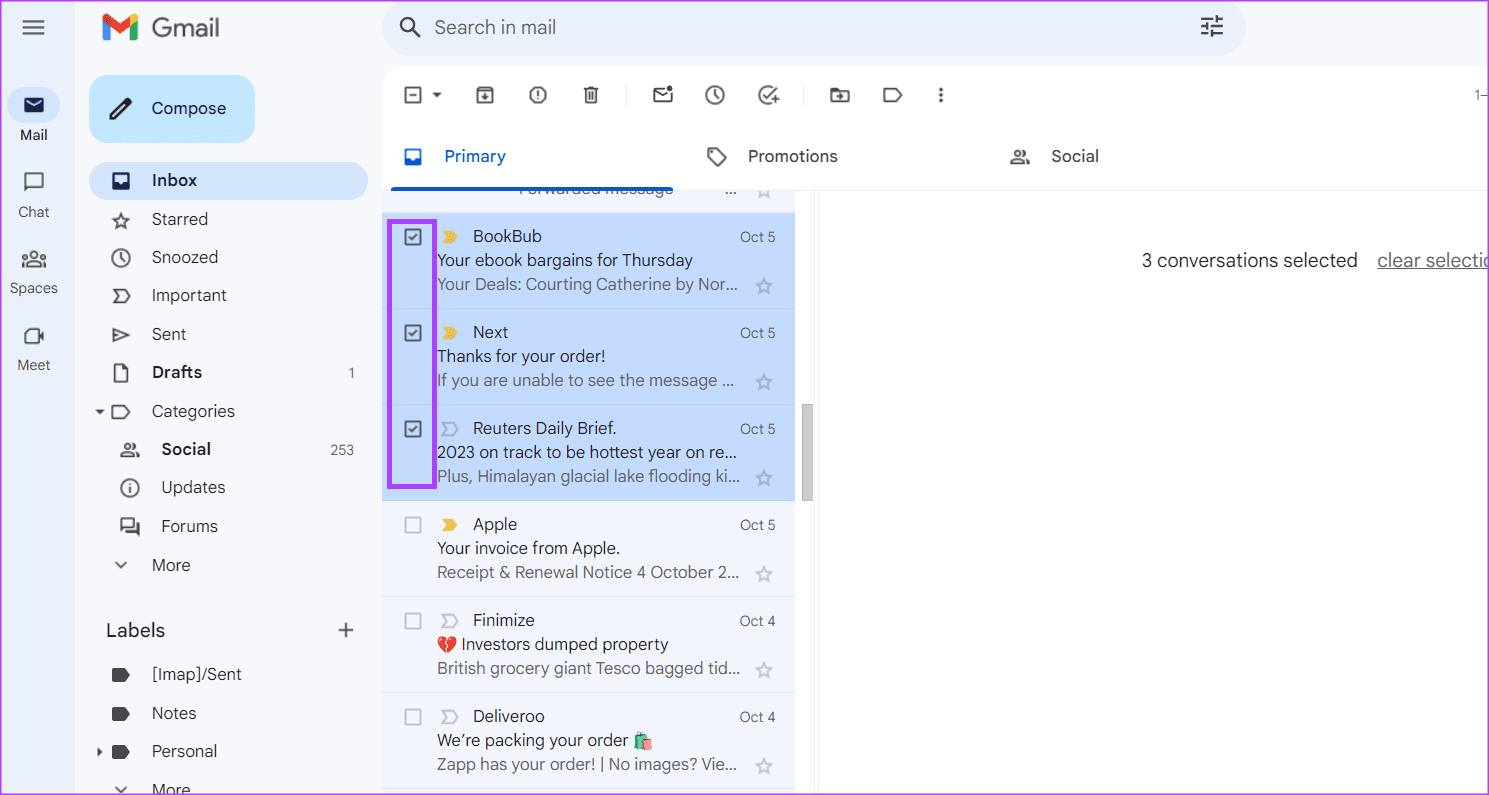
Step 2: On the Gmail main pane, click on the More icon at the top.
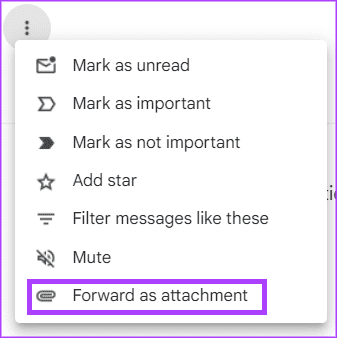
Step 3: Select Forward as attachment from the options shown. This will create a new email with the selected email as an attachment.
Step 4: Fill in the Address field, Subject field, and body of the email. Click Send to send the emails as an attachment.

Also Read: Why can’t I attach files in Gmail?
Method 5: Print an Email and Attach as PDFs
If you want to send emails as a PDF document, you can print the email as PDF and then attach it to the email.
Step 1: Open Gmail in your web browser and open the mail chain you want to print.
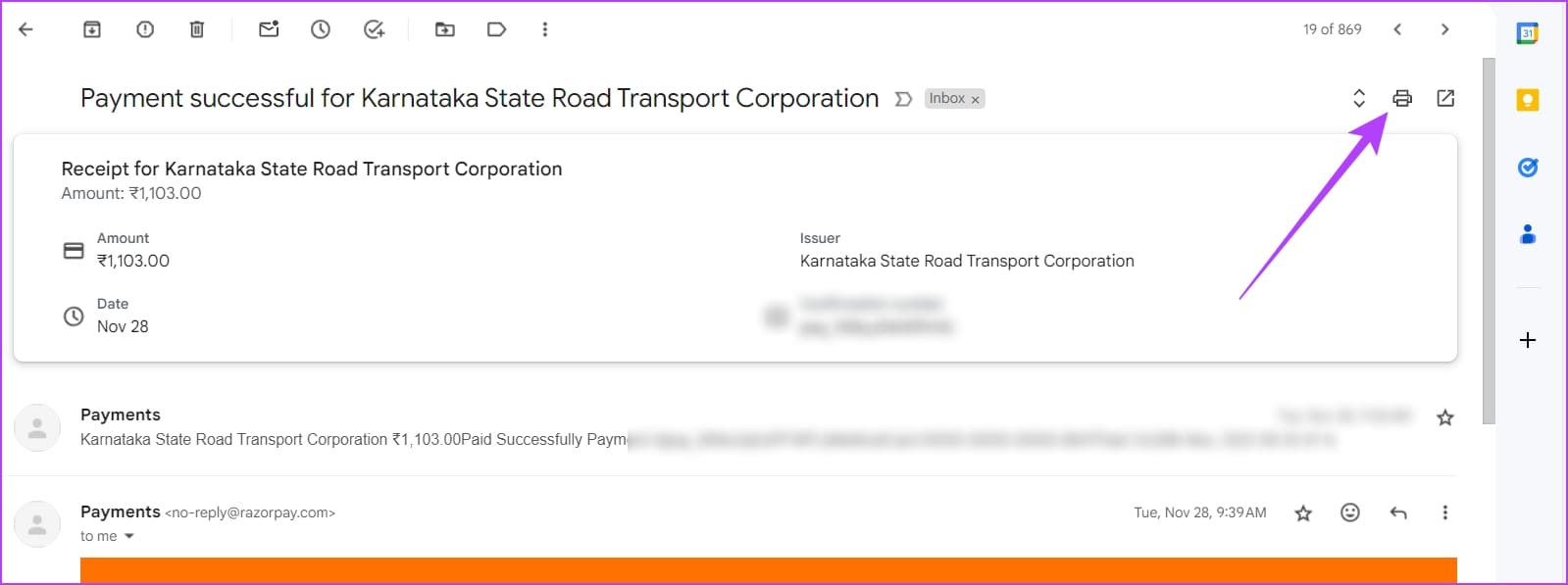
Step 2: Click on the printer icon at the top-right corner.
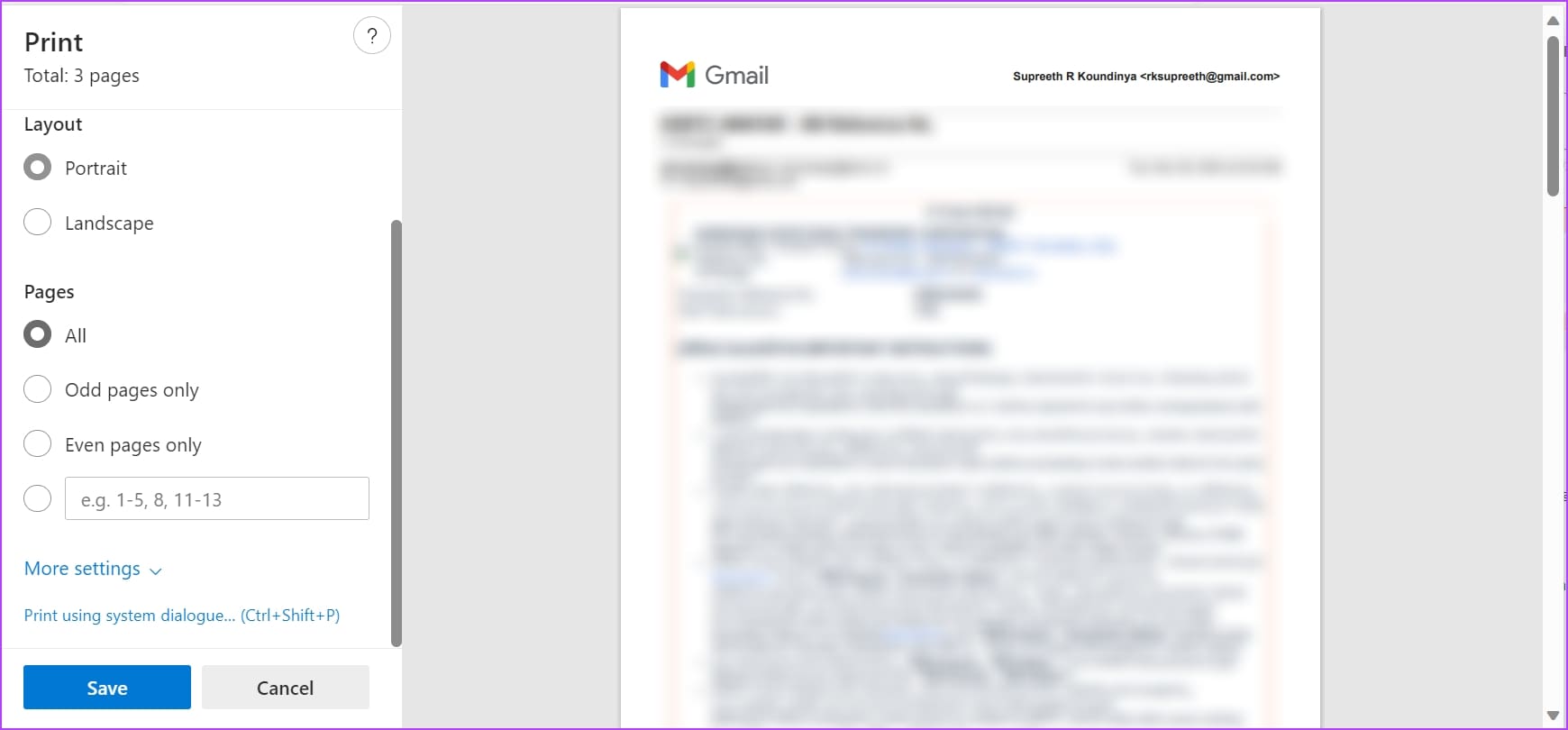
Step 3: The print window will open. You can save the email as a PDF document.
Then, proceed to attach the downloaded PDF document in an email.
If you want to print a particular email from a chain, here’s what you must do.
Step 1: Navigate to the mail you want to print on Gmail.
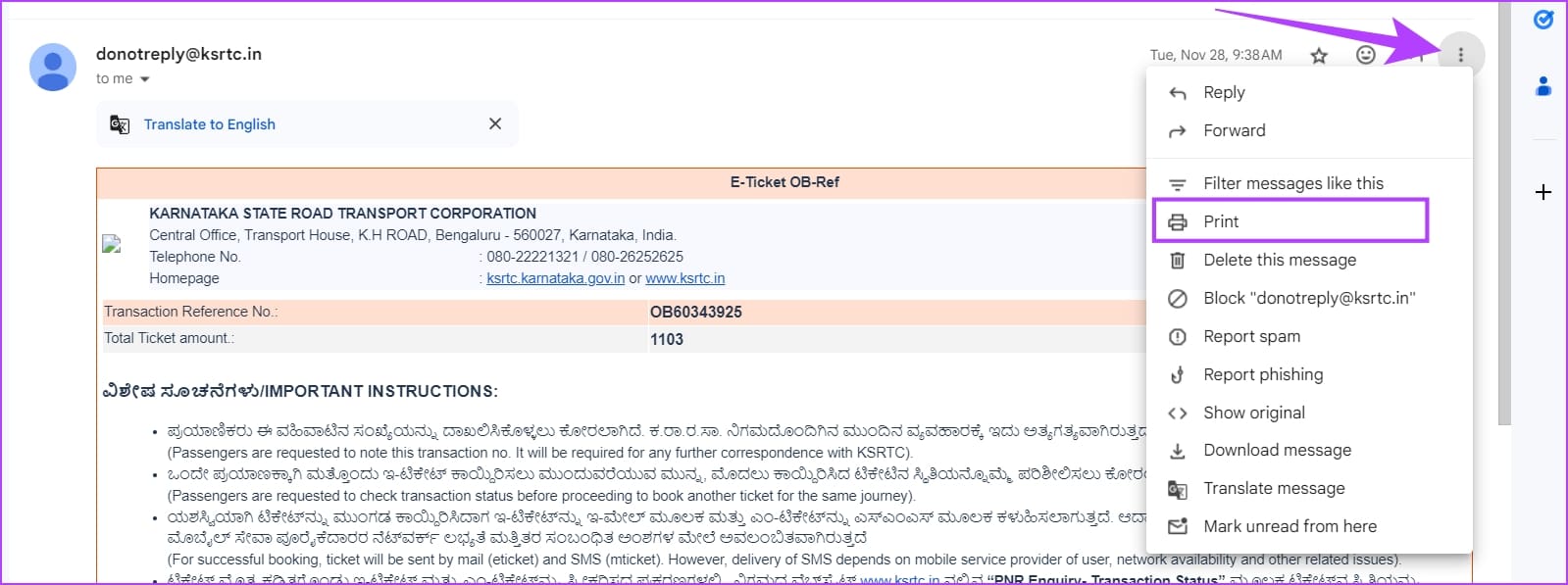
Step 2: Click on the three vertical dots icon at the top-right corner of the mail and select Print.
Step 3: This will open the print preview window, and you can save the email as a PDF document.
You can then proceed to attach the downloaded PDF document in an email.
Also Read: How to fix Gmail app not downloading attachments
Method 6: Send a Gmail Email as a File Attachment on Mobile
Sadly, there is no direct way to attach emails in Gmail mobile apps. This is true for both Android and iOS smartphones. However, you can print an email as a PDF document, and proceed to attach the downloaded file.
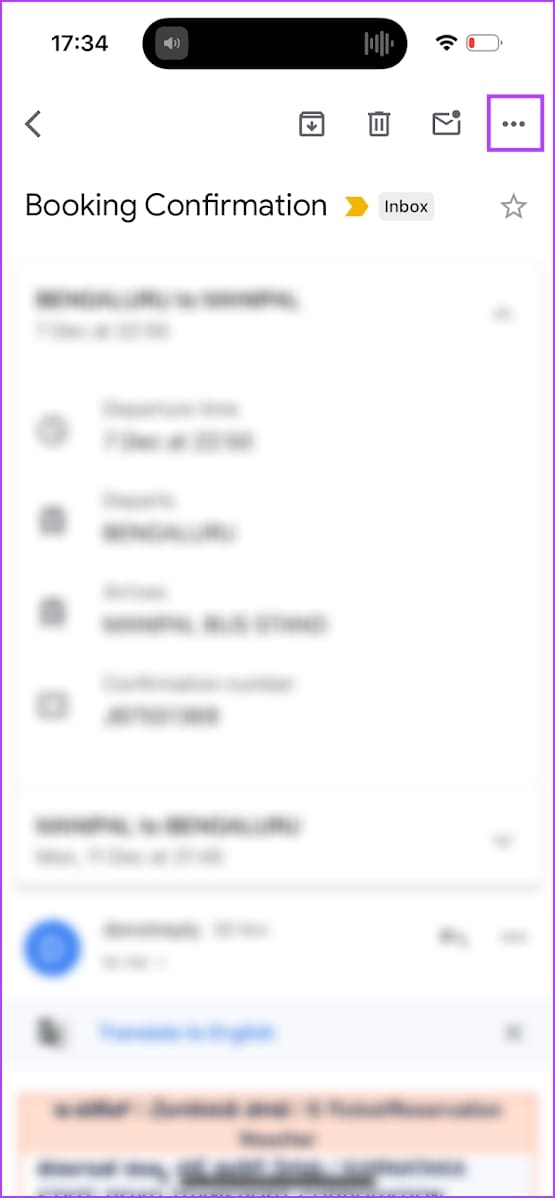
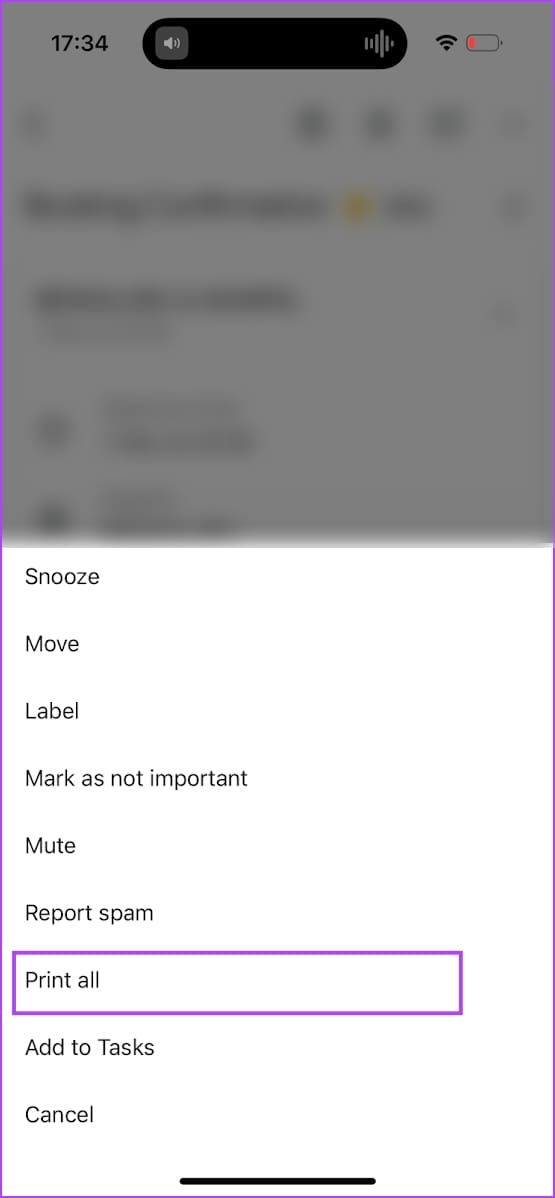
If you want to print an entire email chain, tap on the three dots icon at the top right corner of your screen. Tap on Print All. You will see a preview, and you can save the Gmail email as a PDF.
You can then proceed to attach the downloaded PDF document in an email.
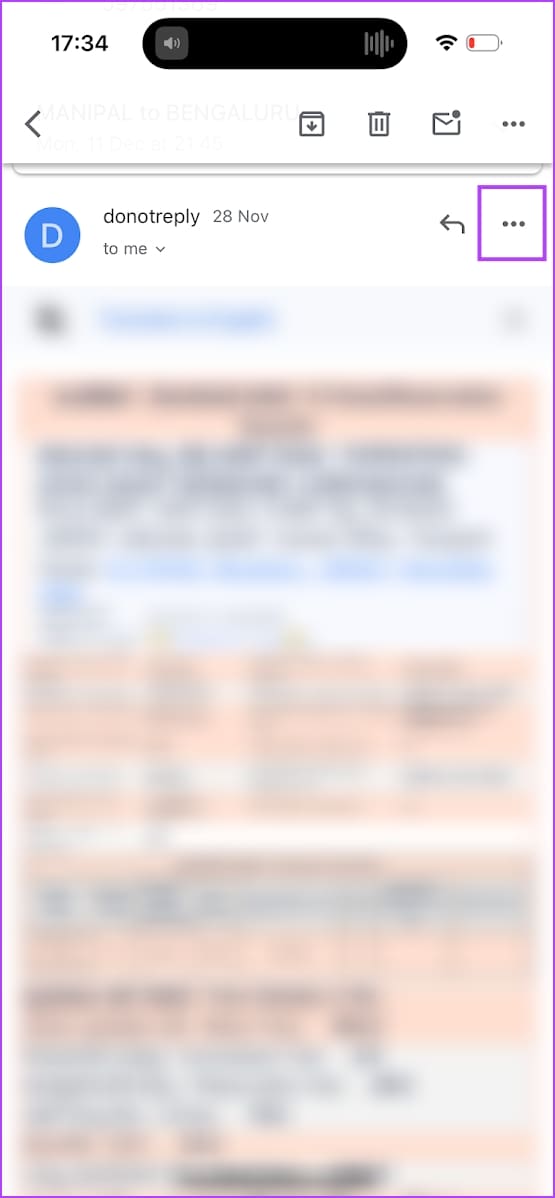
If you want to print a specific email, you can navigate to the mail > tap on the three dots icon next to it > select Print. In the preview, save it as a PDF.
You can then proceed to attach the downloaded PDF document in an email.

Also Read: How to fix Gmail notification sound not working on Android and iPhone
Was this helpful?
Last updated on 09 July, 2024
Read Next
 Why Can’t I Attach Files in Gmail and How to Fix This
Basic Fixes Check Gmail attachment limits: You can sent files up to 25MB in size using Gmail.
Why Can’t I Attach Files in Gmail and How to Fix This
Basic Fixes Check Gmail attachment limits: You can sent files up to 25MB in size using Gmail.
 How to Attach Files on Gmail on iPhone and Android
How to Send Photo as an Attachment on Gmail When composing an email, you can access the attachment icon at the top right.
How to Attach Files on Gmail on iPhone and Android
How to Send Photo as an Attachment on Gmail When composing an email, you can access the attachment icon at the top right.
 How to Remove an Email Address From Gmail Autofill List
Method 1: Remove Saved Email Address From Gmail on Desktop You can’t view or modify saved Gmail contacts from the Gmail web.
How to Remove an Email Address From Gmail Autofill List
Method 1: Remove Saved Email Address From Gmail on Desktop You can’t view or modify saved Gmail contacts from the Gmail web.
 How to Edit or Cancel a Scheduled Email in Gmail
How to Edit a Scheduled Email in Gmail During the time between scheduling and sending an email, you can edit or reschedule the content as needed.
How to Edit or Cancel a Scheduled Email in Gmail
How to Edit a Scheduled Email in Gmail During the time between scheduling and sending an email, you can edit or reschedule the content as needed.
 How to Recall an Email in Gmail Using App or Web Browser
While proofreading an email is a must, there are always times when you end up missing things.
How to Recall an Email in Gmail Using App or Web Browser
While proofreading an email is a must, there are always times when you end up missing things.
 How to Add Canva Email Signature to Gmail
Create a Gmail Signature Using Canva You can quickly create an email signature in Canva for free, as its intuitive user interface has drag-and-drop options.
How to Add Canva Email Signature to Gmail
Create a Gmail Signature Using Canva You can quickly create an email signature in Canva for free, as its intuitive user interface has drag-and-drop options.
 How to Forward Email to Your Phone as a Text
Popular Carriers and SMS Gateways to Convert Email to Text Before we move forward, we need to look at the phone carrier and their email-SMS gateway address.
How to Forward Email to Your Phone as a Text
Popular Carriers and SMS Gateways to Convert Email to Text Before we move forward, we need to look at the phone carrier and their email-SMS gateway address.
 5 Ways to Fix Spell Check Not Working in Gmail
Fix 1: Make Sure Spell Check Is Enabled This may seem obvious, but it's worth double-checking that you haven't accidentally turned off the spell check feature in Gmail.
5 Ways to Fix Spell Check Not Working in Gmail
Fix 1: Make Sure Spell Check Is Enabled This may seem obvious, but it's worth double-checking that you haven't accidentally turned off the spell check feature in Gmail.
The article above may contain affiliate links which help support Guiding Tech. The content remains unbiased and authentic and will never affect our editorial integrity.