How to Add Photos to Your Snapchat Story
Before we get started on adding multiple pictures from your camera roll, let us quickly look at how to add a single Snapchat Story from your camera roll. This will allow you to post your Snapchat Story, one photo at a time. Follow the below steps to do it.
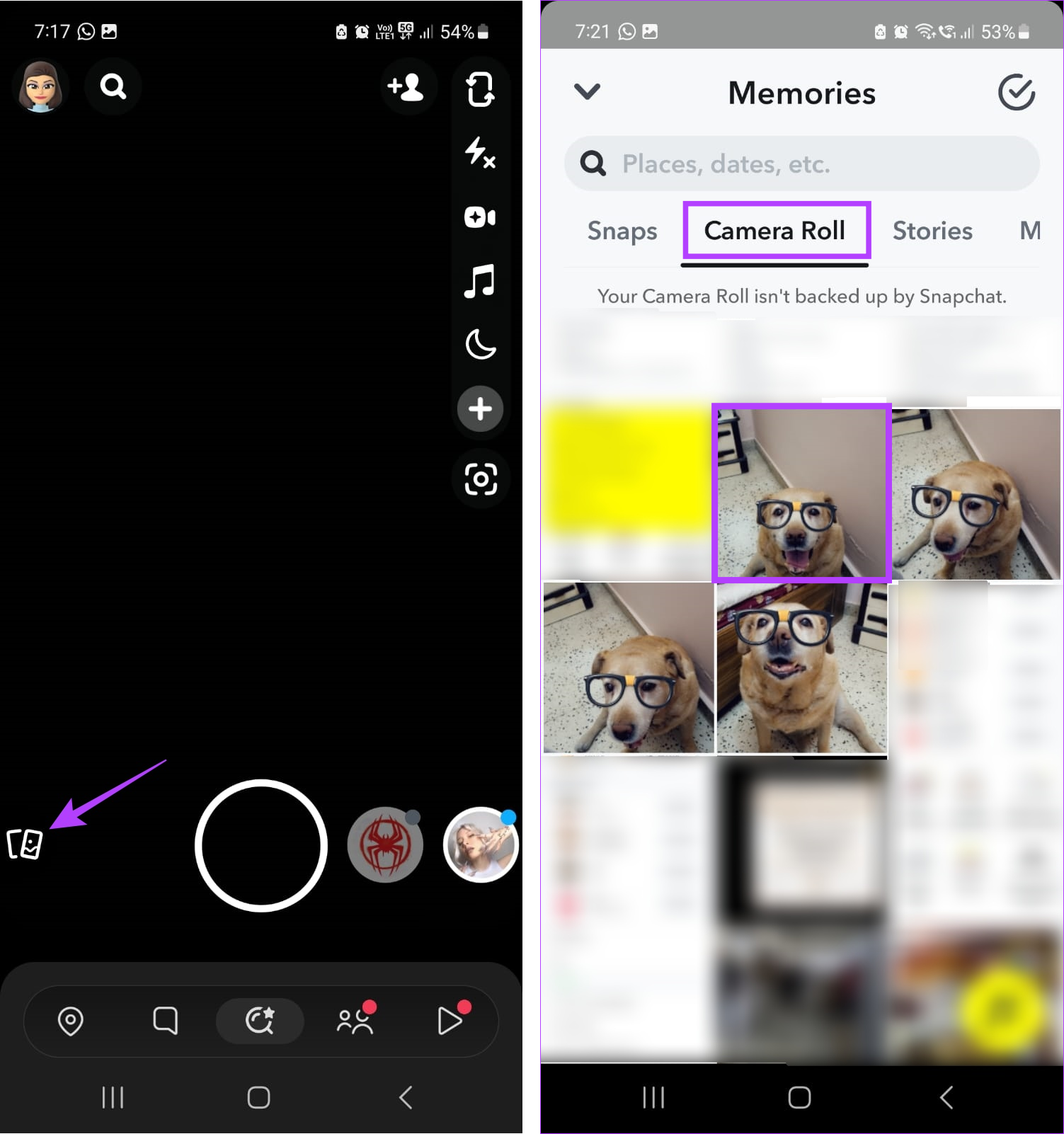
Step 1: Open Snapchat > tap on the Snapchat Memories icon > tap on the Camera Roll tab.
Step 2: Then, tap on the image you want to add to your Story.
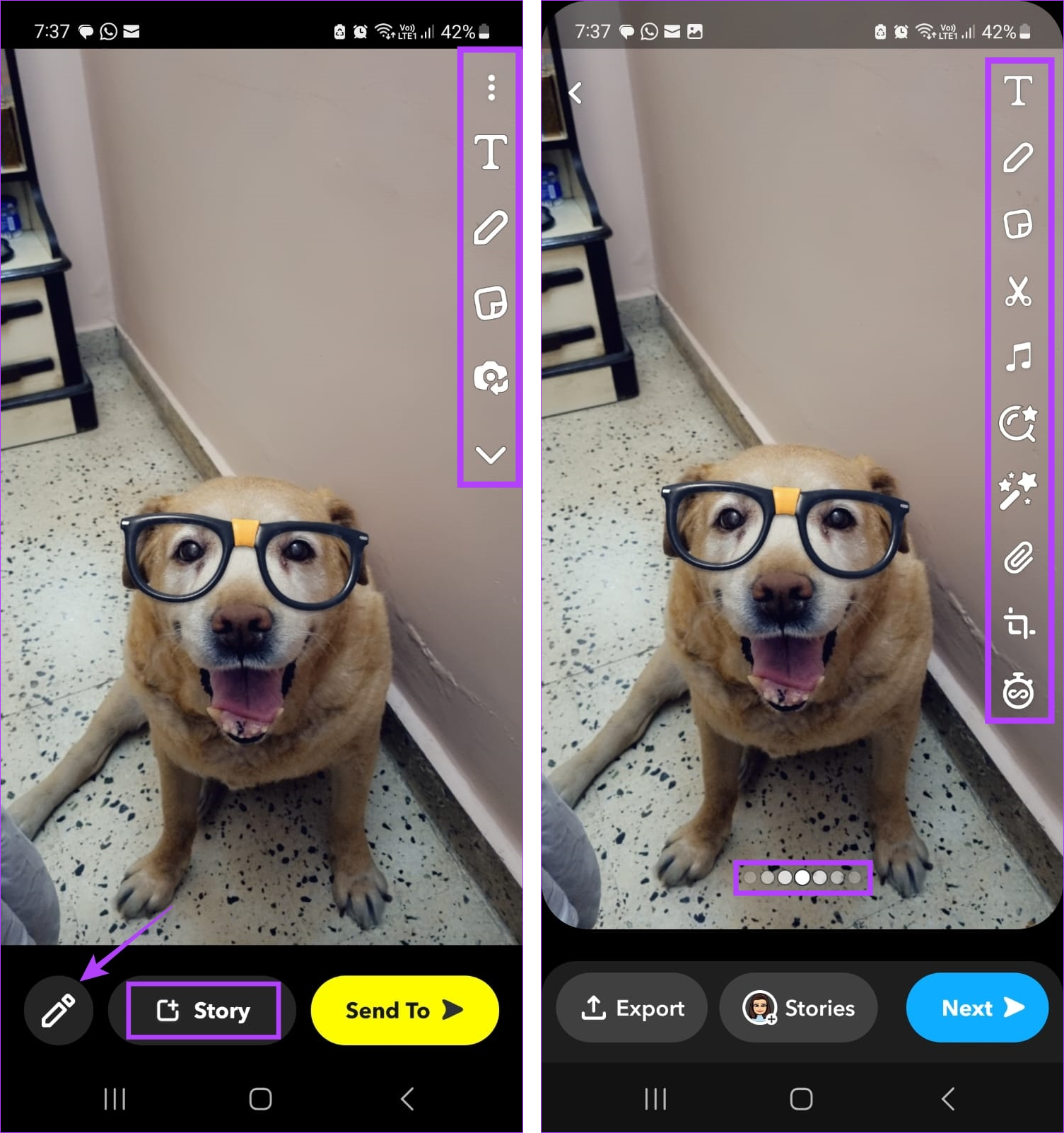
Step 3: Use the side menu to add text, stickers, or other items to the image.
Step 4: Tap on Story to post the photo directly to your Stories. If you wish to edit the image further, tap on the pencil icon.
Step 5: Here, again use the menu options to edit the image.
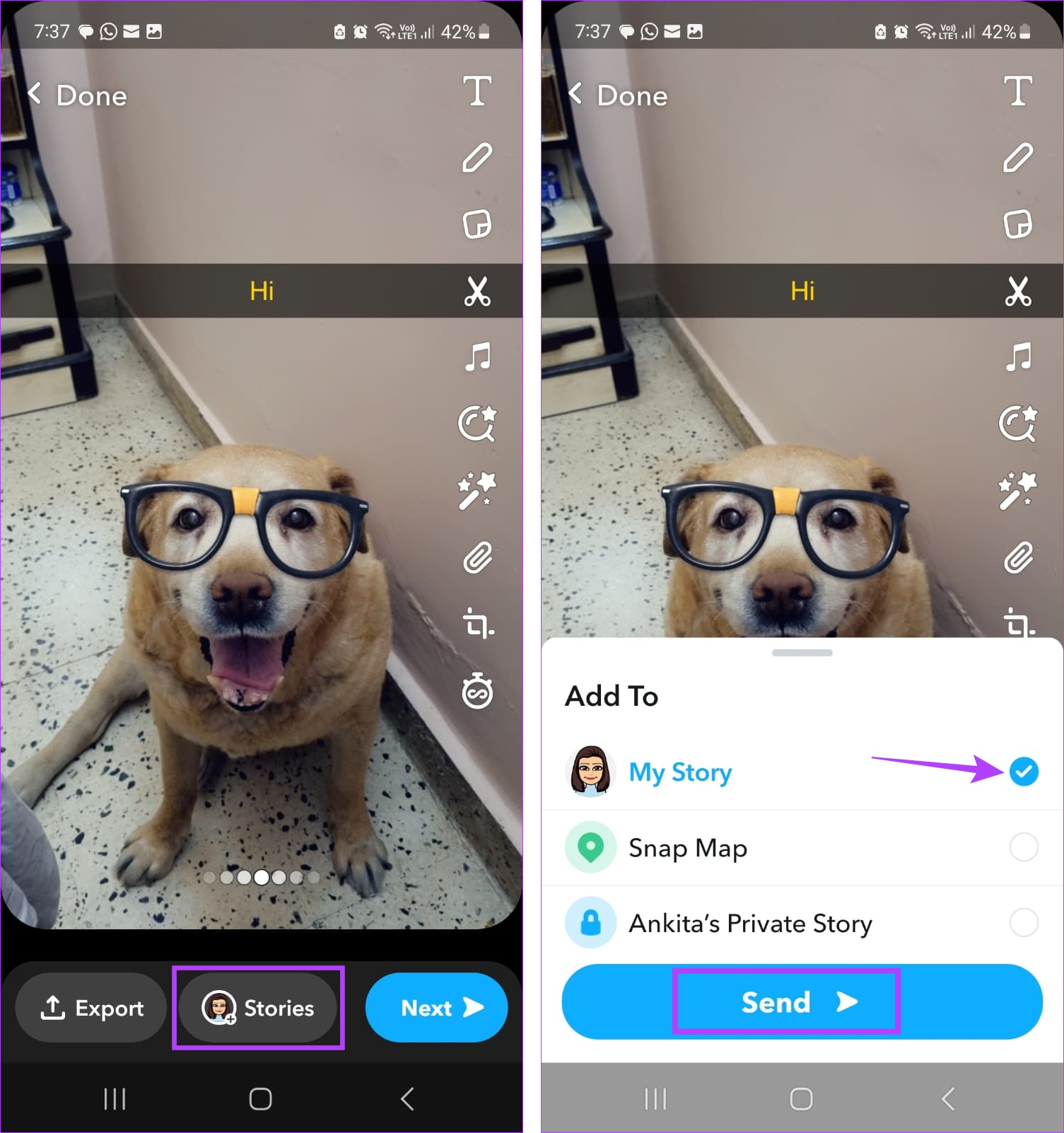
Step 6: Once done, tap on Stories. If prompted, select My Story and tap on Send.
Tip: Check our guide to add music to your Snapchat Stories.
How to Add Multiple Pictures From Camera Roll to Snap Story
Besides adding a single picture, you can also add multiple pictures from your camera roll to your Snap Story using your iOS or Android device. This will allow you to post all the pictures simultaneously. Please note that the images will appear in the order they are added. Here’s how to do it.
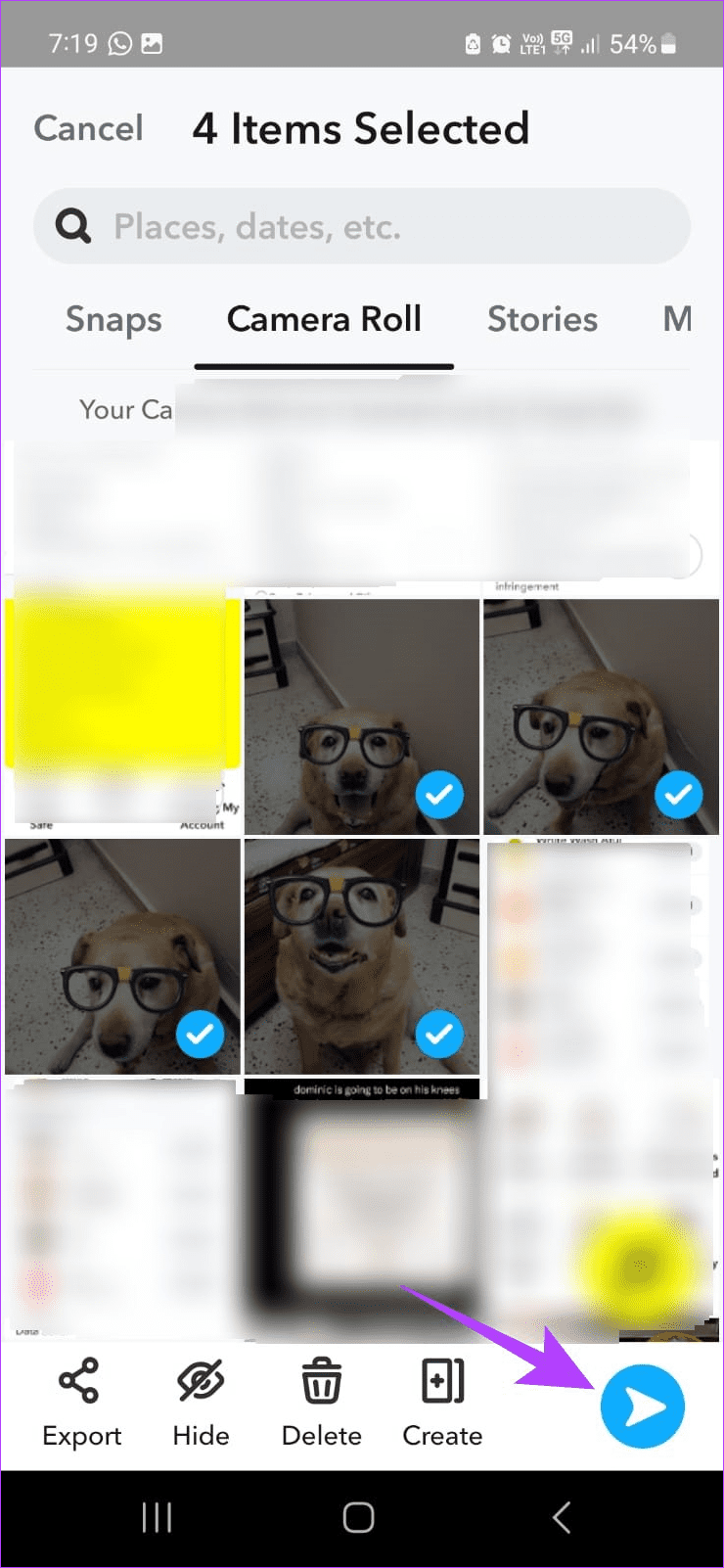
Step 1: Open the Snapchat app > tap on the Memories icon > Camera Roll.
Step 2: Here, select the images you want to add to your Story.

Step 3: Then, tap on the blue arrow icon at the bottom right. Next to the selected photos, add a Chat if you wish to.
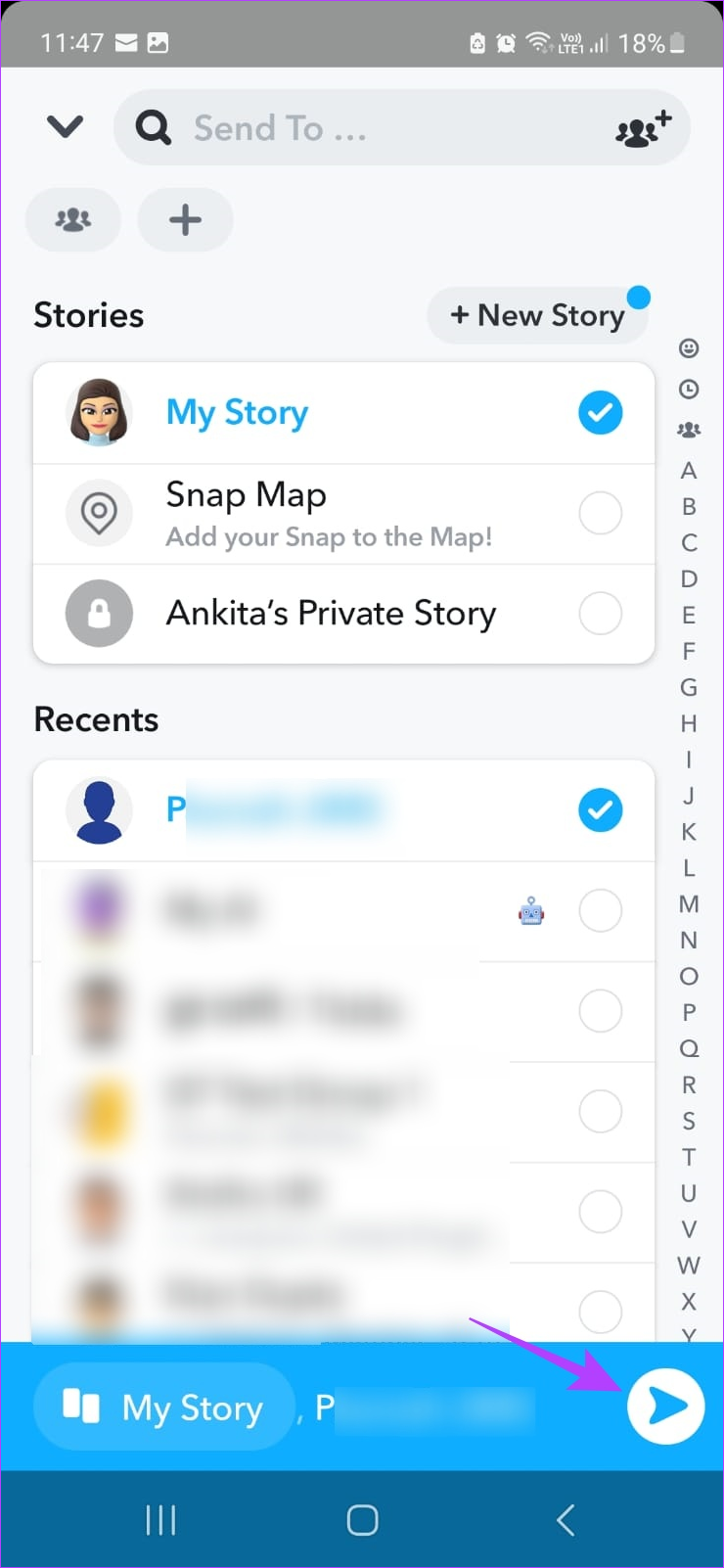
Step 4: Then, tap on My Story.
Step 5: You can also select any other user that you want to separately send the photos to. The images will be sent separately along with the Chat message.
Step 6: Once done, tap on the blue arrow icon. This will add pictures to your Snap Story.

Use Snapchat Camera to Add Multiple Photos to Stories at Once
While you can use the Snapchat camera to add pictures to your Snapchat Story as well, you will have to post one Story at a time to do it. To upload all the Stories at once, turn on Airplane Mode. Then, upload the stories and turn off Airplane Mode. Here’s how to do it.
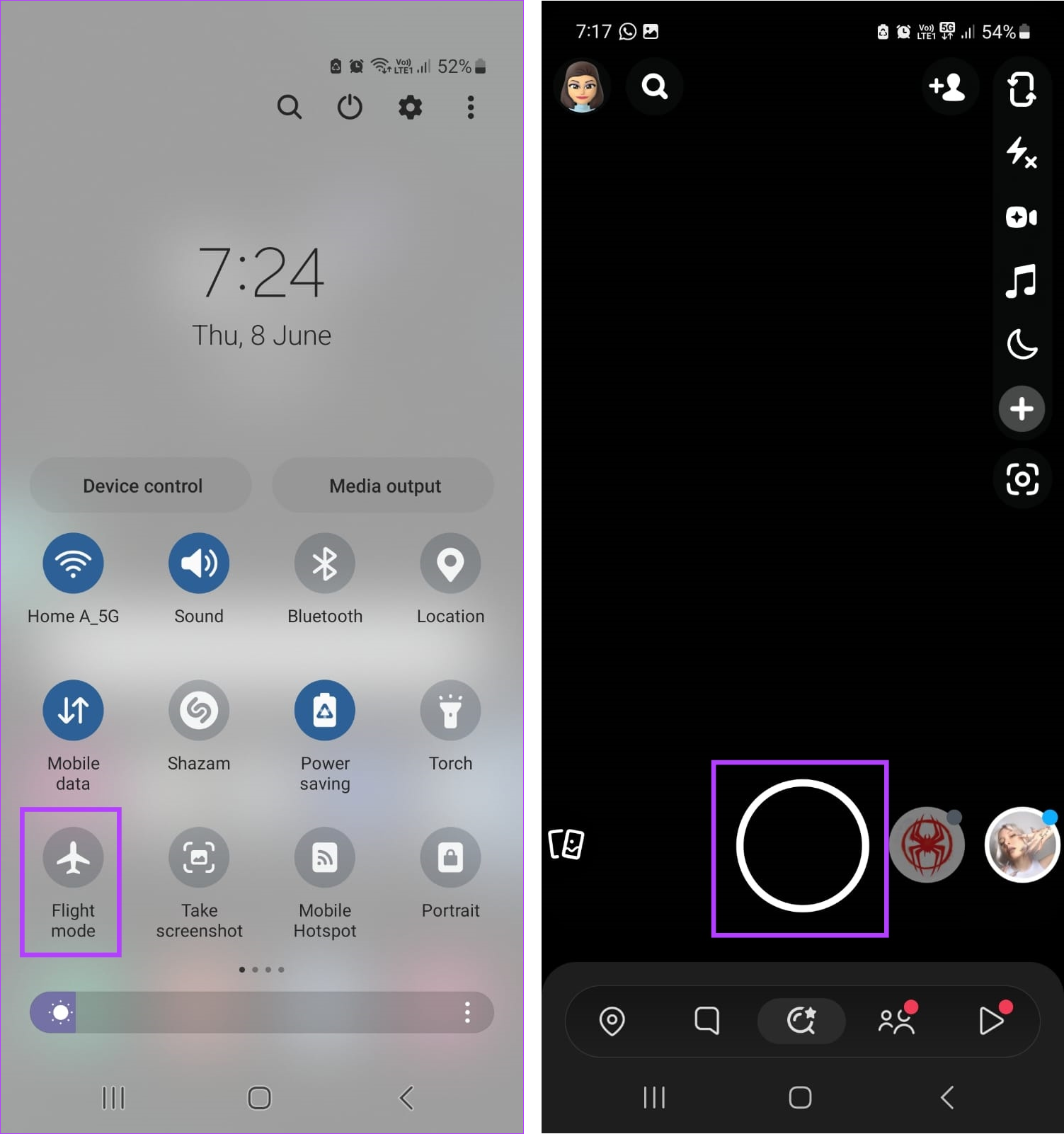
Step 1: Use the Quick Settings menu or Control Center to turn on Airplane Mode on your device.
Step 2: Then, open Snapchat and tap the Camera button to take a picture.
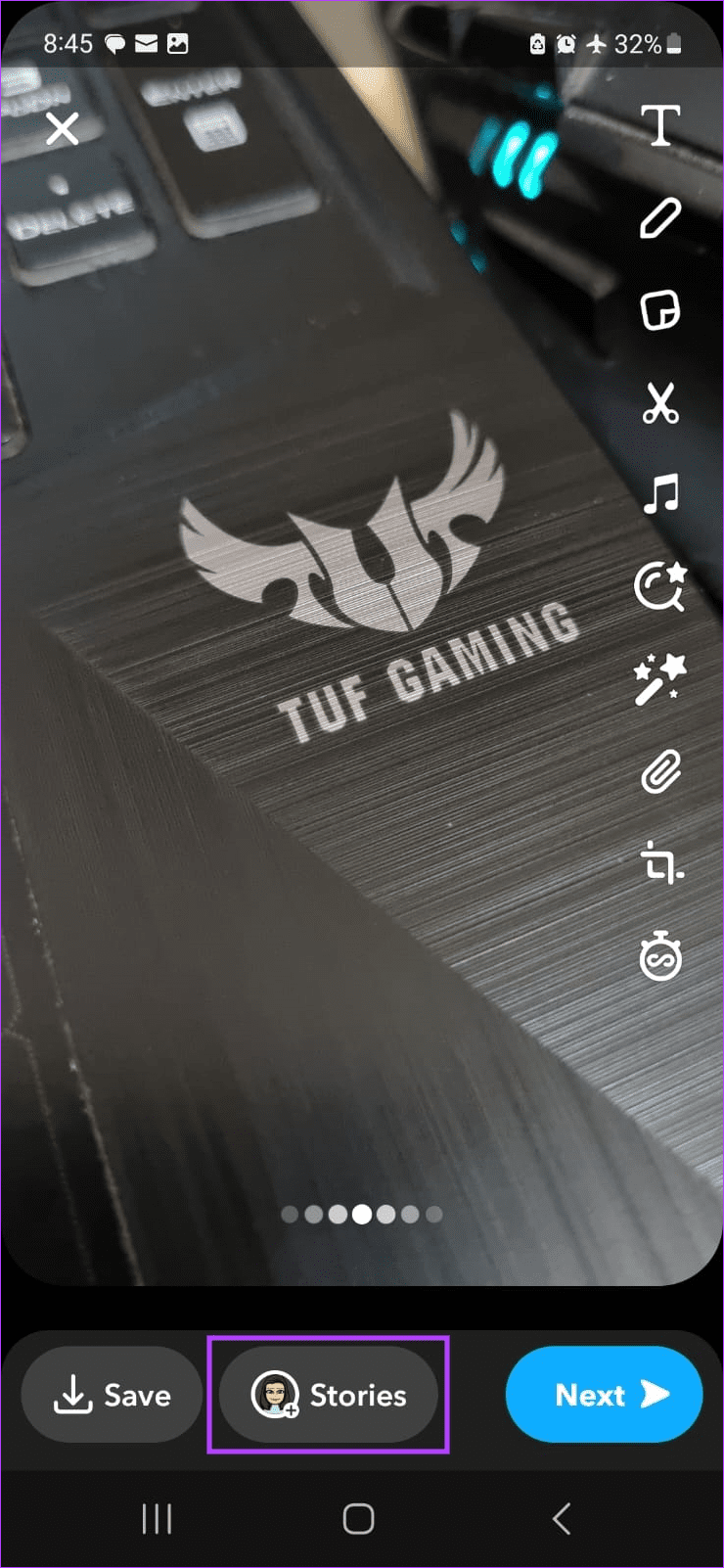
Step 3: Now, use the menu options to edit the picture. Once done, tap on Stories.
Step 4: Select My Story and tap on Send.


Step 5: To add a video to your Snap Story, long-press the Camera button to start recording.
Step 6: Once the video is recorded, use the menu options to add effects. You can also use the + option to add another video.

Step 7: Then, tap on Stories. Select My Story and tap on Send.

Repeat these steps to add more photos or videos to your Snapchat Story. Once done, disable Airplane Mode. All the previously taken Stories will be uploaded and added to your Snapchat story at once.
Bonus: Use Multi Snap on Snapchat
As the name suggests, the Multi Snap feature on Snapchat helps you take a series of snaps in quick succession. Then, the user can choose which Snaps to keep and which ones to do away with. Once the editing is done, add the videos or photos to your Snapchat Story. Follow the below steps to use it.
Note: This feature might be unavailable in the newer version of Snapchat.
Step 1: Open Snapchat and tap on the + icon from the menu options.
Step 2: Here, go to Multi Snap and tap on the + icon in front of it.

Step 3: Then, use the shutter button to take multiple snaps, one after the other. Multi Snap can capture up to 8 Snaps at a time.
Step 4: Once all the Snaps have been captured, tap on Edit & Send.

Step 5: Tap on any of the Snaps to edit. You can also tap on the x icon to delete a Snap.

Step 6: Once everything is done, tap on Next > My Story.
Step 7: You can also select a contact to separately send the Multi Snap to. Tap on Next to finish.
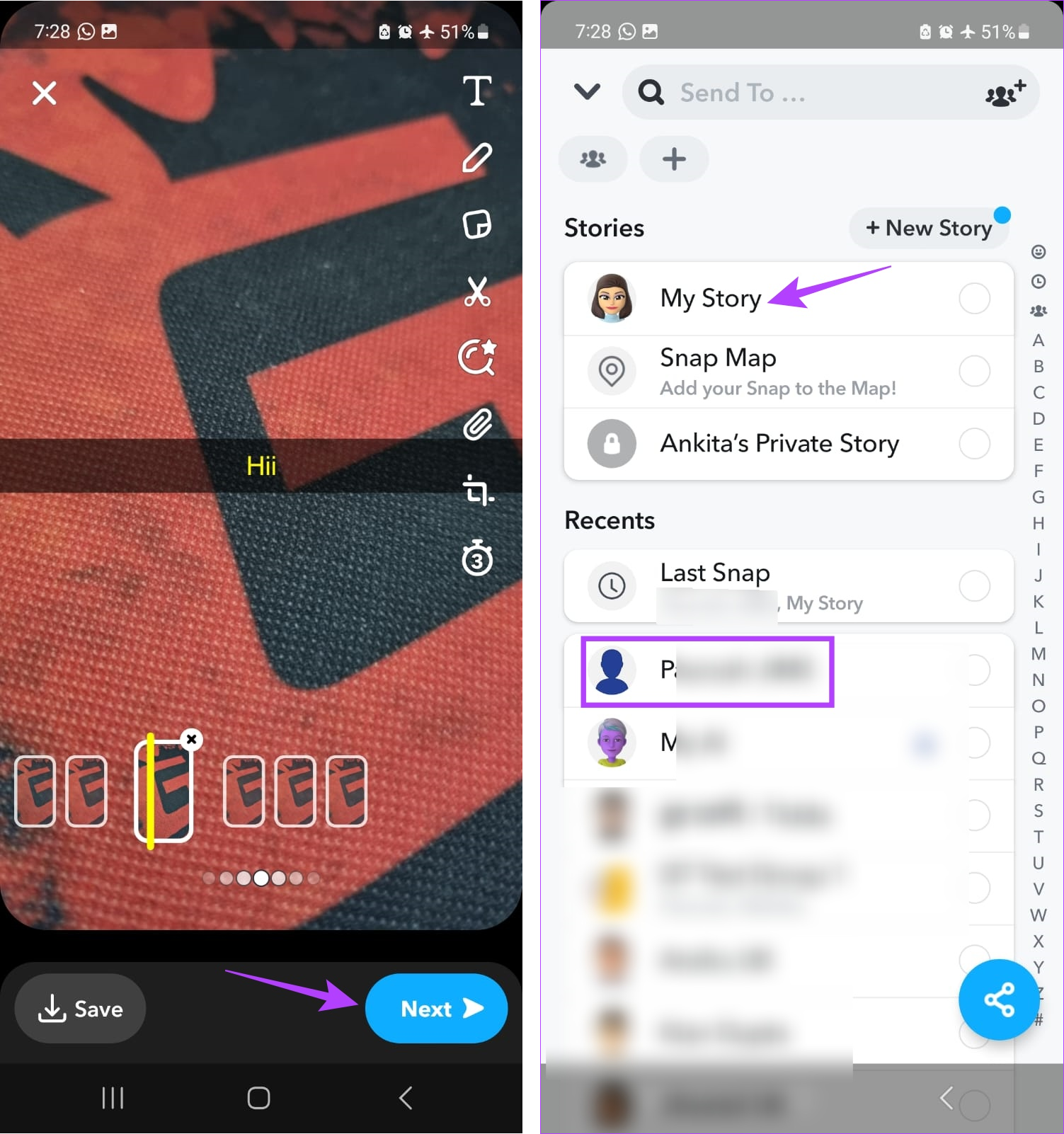
This will instantly upload the Multi Snap to your Snapchat Stories.
FAQs
When creating Snaps on Snapchat, you can save them to your device or Snapchat’s memories. Additionally, you can go to a Snap that has already been posted and save it before it expires.
Go to your Snapchat Story and open the Snap you wish to delete. Then, tap on the three-dot icon > Delete. This will instantly delete the photo from your Snapchat snaps.
Was this helpful?
Last updated on 26 June, 2024
Read Next
 How to Add Multiple Photos to Facebook and Messenger Story
Add Multiple Photos From Android and Ios Devices Step 1: Tap on Create Story on the home screen and tap on Select Multiple.
How to Add Multiple Photos to Facebook and Messenger Story
Add Multiple Photos From Android and Ios Devices Step 1: Tap on Create Story on the home screen and tap on Select Multiple.
 How to Stop Photos From Messages Saving to iPhone’s Camera Roll
Do your friends spam you with their vacation photos on iMessage?
How to Stop Photos From Messages Saving to iPhone’s Camera Roll
Do your friends spam you with their vacation photos on iMessage?
 Facebook Story vs Messenger Story: Similarities and Differences
Key Differences and Similarities FeatureFacebook StoriesMessenger StoriesCross-PostingFacebook Stories are visible to Messenger contacts.Messenger Stories are visible to Facebook friends.AvailabilityAvailable on mobile apps and the Facebook website.Available only on the mobile
Facebook Story vs Messenger Story: Similarities and Differences
Key Differences and Similarities FeatureFacebook StoriesMessenger StoriesCross-PostingFacebook Stories are visible to Messenger contacts.Messenger Stories are visible to Facebook friends.AvailabilityAvailable on mobile apps and the Facebook website.Available only on the mobile
 How to Hide a Story from Someone on Snapchat
Snapchat on iOS and Android uses a similar UI.
How to Hide a Story from Someone on Snapchat
Snapchat on iOS and Android uses a similar UI.
 Can You Remove Yourself From a Private Story on Snapchat
In order to ensure your snaps remain private, users can create private stories on Snapchat.
Can You Remove Yourself From a Private Story on Snapchat
In order to ensure your snaps remain private, users can create private stories on Snapchat.
 How to Share Instagram Post to Snapchat Story
Can You Link Instagram to Snapchat No, you cannot directly connect Instagram to Snapchat.
How to Share Instagram Post to Snapchat Story
Can You Link Instagram to Snapchat No, you cannot directly connect Instagram to Snapchat.
 4 Best Vacuum Cleaners With Tangle-Free Brush Roll
Vacuum cleaners are one of the best appliances for cleaning floors and upholsteries, especially if you have pets or carpeted floors.
4 Best Vacuum Cleaners With Tangle-Free Brush Roll
Vacuum cleaners are one of the best appliances for cleaning floors and upholsteries, especially if you have pets or carpeted floors.
 How To Post Multiple Landscape and Portrait Photos on Instagram
Instagram Size Guide for Images Adhering to Instagram's recommended image sizes is paramount to ensure that your photos are displayed in the best possible quality.
How To Post Multiple Landscape and Portrait Photos on Instagram
Instagram Size Guide for Images Adhering to Instagram's recommended image sizes is paramount to ensure that your photos are displayed in the best possible quality.
The article above may contain affiliate links which help support Guiding Tech. The content remains unbiased and authentic and will never affect our editorial integrity.