

Developers spend a lot of time and effort on their work, so no wonder they love adding bits of themselves (such as hidden group photos in Office 95) or minigames (like Google’s Zerg Rush) into their work. These Easter Eggs are fun additions that show the human effort behind operating systems like Windows 11, and a lovely surprise for those looking.
Today, we’ll show you 4 Easter Eggs in Windows 11, and where (and how) to find them.
Easter Eggs in Windows 11 Waiting for You
Every major instalment of Windows has had some form of hidden feature or Easter Egg, and Windows 11 is no exception. Let’s see what you might find with a bit of hunting:
The Secret Emoji Panel
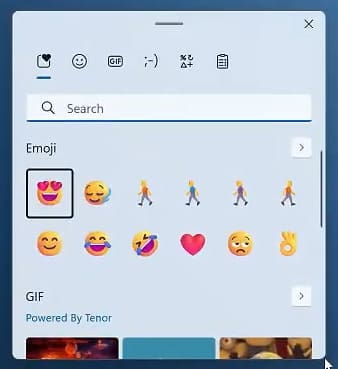
Do you ever wish you could have access to emojis on your PC just as easily as on your phone? Wish no more, because this Easter Egg is here. You can easily enable the secret emoji pane by doing the following:
Step 1. Press (Win + .) anywhere in Windows 11.
Step 2. The emoji panel will pop up. Switch between the tabs (or scroll down) to look at different GIFs, emojis, kaomojis, and symbols. Simply click on any emoji to insert it wherever you’re currently typing.
Surf the Web with Edge
You can literally surf the web on Edge, which includes its own minigame, Edge Surf. It’s a fun game that holds its own against (if not beats) Google Chrome’s dinosaur game. Accessing this game is simple:
Step 1. Open Edge.
Step 2. Type “edge://surf” into the Address Bar, and the game should load.
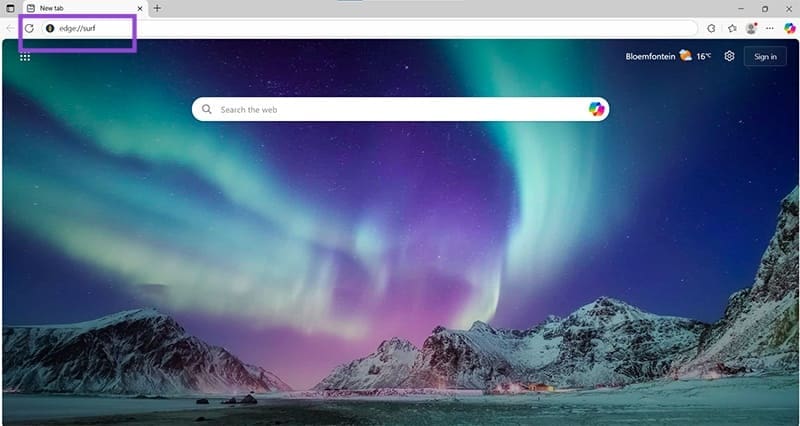
Step 3. Have fun!

Star Wars in Command Prompt
A certain galaxy far, far away has made its way into Windows 11. The creator of this ASCII art retelling of Star Wars first began working on this project in 1997, and it’s been included with Windows OS releases for ages. The movie can be activated through Telnet (which is no longer enabled by default in Windows). Here’s what to do:
Step 1. Open up Control Panel in the search bar and click “Programs.”
Step 2. Choose “Programs and Features” on the next screen.
Step 3. In the sidebar, click “Turn Windows features on or off.”
Step 4. Scroll down to “Telnet Client” and enable it.
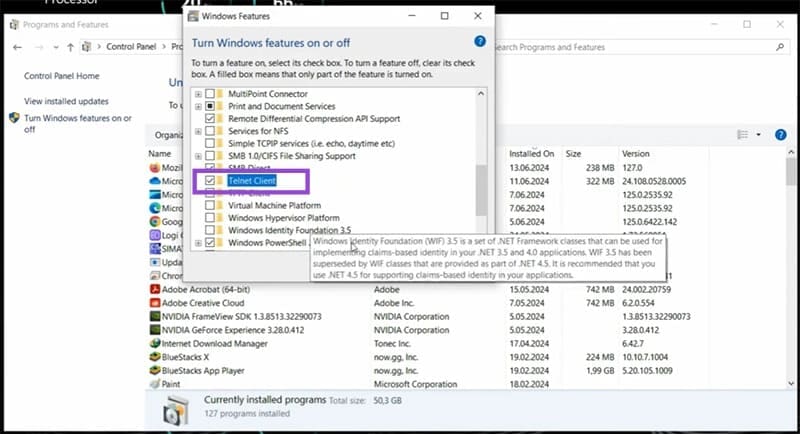
Step 5. Open the Run Dialogue (Win + R) and type the following “telnet towel.blinkenlights.nl” before pressing “Enter.”
Step 6. Command Prompt will open, and the show will begin.

God Mode
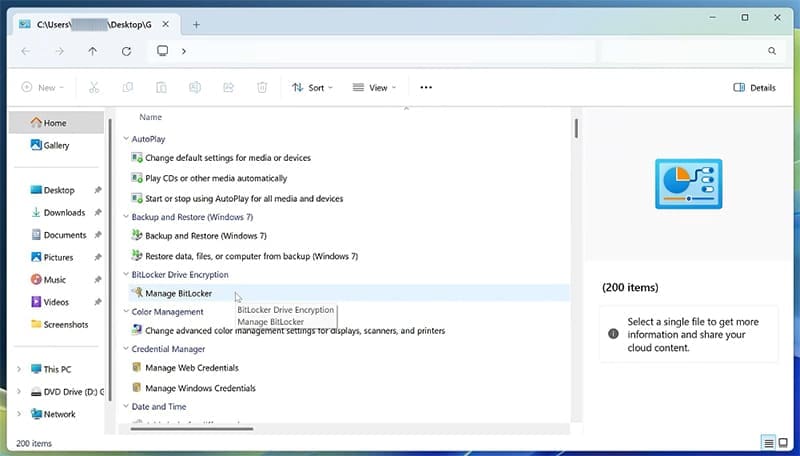
Next up is a rather practical Easter Egg that’ll enable you to get a “god’s-eye view” of every setting on your computer. You no longer need to root around in different folders or use the search bar. Here’s how to do it:
Step 1. First, create a new folder on your desktop or Explorer (Ctrl + Shift + N).
Step 2. Change your folder’s name to the following: “GodMode.{ED7BA470-8E54-465E-825C-99712043E01C}” and press “Enter.”
Step 3. The icon of your folder will change to a Control Panel. Double-click this to open up God Mode.
Was this helpful?
Last updated on 11 September, 2025
Read Next
 How to Show Hidden Files and Folders in Windows 11
Have you ever been in a situation where you hid some files on your Windows device while sharing them with friends or family and couldn't find them later?
How to Show Hidden Files and Folders in Windows 11
Have you ever been in a situation where you hid some files on your Windows device while sharing them with friends or family and couldn't find them later?
 12 Hidden Google Games You Can Play on Chrome, Android, Earth, Search, and Assistant
Google is a company like no other.
12 Hidden Google Games You Can Play on Chrome, Android, Earth, Search, and Assistant
Google is a company like no other.
 14 Best Android 14 Hidden Features and Tips You Should Know
1.
14 Best Android 14 Hidden Features and Tips You Should Know
1.
 8 Ways to Find Hidden Apps on iPhone
Method 1: Using Spotlight Search One of the easiest ways to find anything on your iPhone is by using Spotlight Search.
8 Ways to Find Hidden Apps on iPhone
Method 1: Using Spotlight Search One of the easiest ways to find anything on your iPhone is by using Spotlight Search.
 This Hidden iPhone Trick Lets You Create a 3D Model of Your Room
Note: To use this trick, you will need an iPhone equipped with a LiDAR scanner, limiting compatibility to the iPhone 12 Pro, iPhone 13 Pro, iPhone 14 Pro, and iPhone
This Hidden iPhone Trick Lets You Create a 3D Model of Your Room
Note: To use this trick, you will need an iPhone equipped with a LiDAR scanner, limiting compatibility to the iPhone 12 Pro, iPhone 13 Pro, iPhone 14 Pro, and iPhone
 Cool Hidden Features in Microsoft Teams
MS Teams is one of the top meeting apps, rivaling the likes of Zoom and Google Meet.
Cool Hidden Features in Microsoft Teams
MS Teams is one of the top meeting apps, rivaling the likes of Zoom and Google Meet.
 6 Best Ways to Access Windows Tools on Windows 11
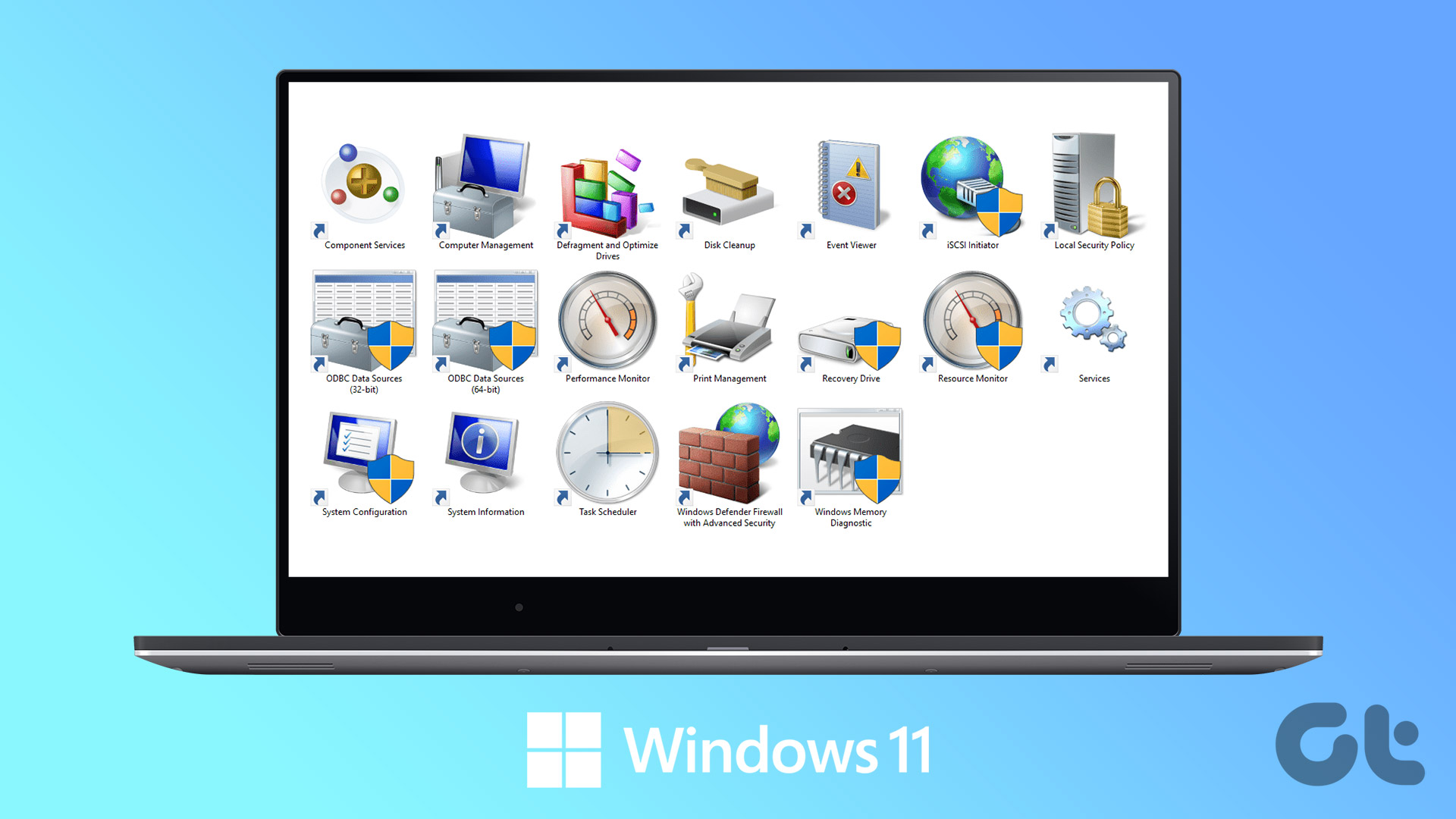
Windows Tools carries useful utilities like Event Viewer, Task Scheduler, and System Configuration Tool, organized into a folder for easy access.
6 Best Ways to Access Windows Tools on Windows 11
Windows Tools carries useful utilities like Event Viewer, Task Scheduler, and System Configuration Tool, organized into a folder for easy access.
 3 Ways to Access the WindowsApps Folder on Windows
https://youtu.be/Sug1OVa0Q3A Method 1: Gain Access to the WindowsApps Folder via File Explorer The easiest way to open the WindowsApps folder is through File Explorer.
3 Ways to Access the WindowsApps Folder on Windows
https://youtu.be/Sug1OVa0Q3A Method 1: Gain Access to the WindowsApps Folder via File Explorer The easiest way to open the WindowsApps folder is through File Explorer.
The article above may contain affiliate links which help support Guiding Tech. The content remains unbiased and authentic and will never affect our editorial integrity.

