Notepad has been remodeled from being one of the simplest text processors that you use to copy and paste text between other editors to something that actually looks to be useful on its own. And with the most recent updates, Microsoft is pushing Copilot AI onto the app, allowing you to manipulate or even generate text via AI in Notepad.
But is it any good and how can AI help take notes? Read on to learn more.
Turning On AI in Notepad
By default, the newest version of Windows should have all the AI features enabled, including in Notepad. You can check whether you have Notepad with AI features in its settings.
Step 1. Open Notepad.
Step 2. Click on the cogwheel icon (Settings) on the top-right.
Step 3. Scroll down and ensure “Copilot” is turned on.

Note that even if the option is checked, you’ll need to have a Microsoft 365 subscription active and registered on the Microsoft account that is currently logged into the PC. If you don’t, trying to use any option will just prompt you to purchase a subscription instead.
Option 1: Use the Rewrite Feature to Clean Up Notes
The Rewrite feature lets you take rough text notes and polish them without having to retype anything. The AI might take some creative liberties, but it will try to align itself with the tone it sees (or is prompted with).
Step 1. Type or paste your notes into Notepad, then highlight the text you want to improve.
Step 2. Press “Ctrl + D” or right-click the selected text and choose “Rewrite” from the menu. The option is also available via the “Rewrite” button in the Copilot toolbar on the top.
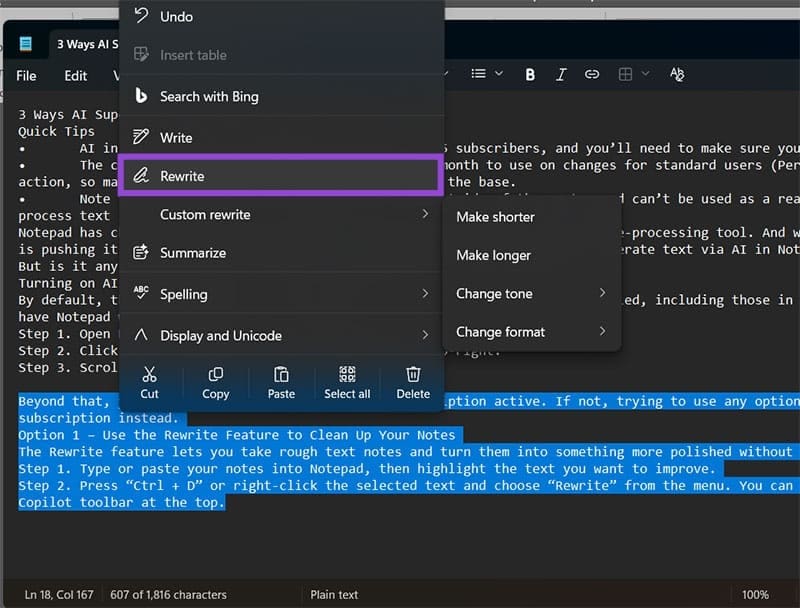
Step 3. A second dialog box will pop up with options to make your text longer or shorter, or if you want to change the tone or format of the text. Pick what you need, and you may get additional prompts.
Step 4. After working for a bit, the app should show three different rewritten versions in a popup. Click “Replace” on the one you like best to swap it into your document.
Option 2: Summarize Long Notes
If you’ve got pages of notes from a lecture, meeting, or article and just need the important stuff, you need the “Summarize” feature. As its name suggests, it compiles everything to the bare essentials (often in a bullet-point list).
Step 1. Highlight the text you want to condense.
Step 2. Hit “Ctrl + M,” right-click and select “Summarize,” or click on the option in the Copilot toolbar.
Step 3. Choose how short you want the summary based on the details you want to keep.
Step 4. Review the summary that pops up. If it looks good, click “Insert Below” to add it to your document right under your original text, or just copy it to use somewhere else.
Note that the app doesn’t really do do-overs here, so if it fails to summarize once, it will continue failing unless you add more context or remove bits that might be confusing it.
Option 3: Make New Content With the Write Feature
The Write feature can help you get out of writer’s block or provide an initial structure to improve with your research and notes.
Step 1. Click where you want the new text to appear in your document. If you’ve got some existing content or resources you want the AI to reference, highlight it first.
Step 2. Use “Ctrl + Q” or right-click and choose “Write” from the menu (or the Copilot bar).
Step 3. Describe what you want in plain language, like “write a friendly reminder email about the team meeting” or “create a bulleted point list for travel packing essentials.”
Step 4. Click “Send,” and the AI in Notepad will generate the content. If you like it, click “Keep Text” to add it to your document. If not, you can ask for another version or just discard it.
How Can AI Help Take Notes
Ultimately, Notepad is still a bit limited since it can’t really interface with your microphone to capture sound and transliterate it into notes. For that, you’ll need a dedicated third-party tool. But after that, the AI in Notepad can make those notes actually usable and make sense by providing vital context or summarizing them for easier browsing.
Was this helpful?
Last updated on 23 February, 2026
Read Next
 Steps for Personalizing Your Workflow Using Microsoft Copilot
Copilot can be a handy tool for generating ideas and quickly drafting content, but don’t sleep on its ability to tweak processes you’ve already created manually.
Steps for Personalizing Your Workflow Using Microsoft Copilot
Copilot can be a handy tool for generating ideas and quickly drafting content, but don’t sleep on its ability to tweak processes you’ve already created manually.
 13 Ways to Connect iPhone to Mac and Smoothen Your Workflow
The iPhone and Mac are both powerful devices individually.
13 Ways to Connect iPhone to Mac and Smoothen Your Workflow
The iPhone and Mac are both powerful devices individually.
 4 Ways to Fix Notepad Not Opening on Windows 11
Basic Fixes Restart PC: Press the Windows + X shortcut to open the Power User Menu.
4 Ways to Fix Notepad Not Opening on Windows 11
Basic Fixes Restart PC: Press the Windows + X shortcut to open the Power User Menu.
 10 Notepad++ Plugins for Writers and Coders
1.
10 Notepad++ Plugins for Writers and Coders
1.
 How to Fix Notepad Missing Issue in Windows 11/10
Method 1: Install Notepad From Optional Features Microsoft has made Notepad an optional feature.
How to Fix Notepad Missing Issue in Windows 11/10
Method 1: Install Notepad From Optional Features Microsoft has made Notepad an optional feature.
 How to Disable the Pin Tab in Notepad++
When the minds behind the open-source Notepad++ released version 8.7.2 of the software, they snuck in an interesting feature.
How to Disable the Pin Tab in Notepad++
When the minds behind the open-source Notepad++ released version 8.7.2 of the software, they snuck in an interesting feature.
 How to Get Classic Notepad Back in Windows 11
Windows 11 has brought with it many changes, and one such example is to the Microsoft staple, Notepad.
How to Get Classic Notepad Back in Windows 11
Windows 11 has brought with it many changes, and one such example is to the Microsoft staple, Notepad.
 How to Get Back the Old Notepad Without AI Features
In March 2025, Microsoft decided to roll out new AI features in an updated version of the classic Notepad app.
How to Get Back the Old Notepad Without AI Features
In March 2025, Microsoft decided to roll out new AI features in an updated version of the classic Notepad app.
The article above may contain affiliate links which help support Guiding Tech. The content remains unbiased and authentic and will never affect our editorial integrity.