A loud PC is usually nothing to worry about when you’re gaming or using particularly demanding video editing programs. But if you’re still wondering “Why is my PC fan so loud?” Here are some of the most common reasons and how changing a few settings (or cleaning the PC) can help.
How to Tell if the Reason Why Is My PC Fan So Loud Is Hardware?
When diagnosing fan issues, the best way to go about them is to disable anything and everything that might be using up the CPU.
For that, you can go to the Task Manager and check through all the programs, which includes background apps that might not be showing on your desktop.
In the Task Manager, sorting by the CPU tab will list all processes based on how much CPU time they’re using.
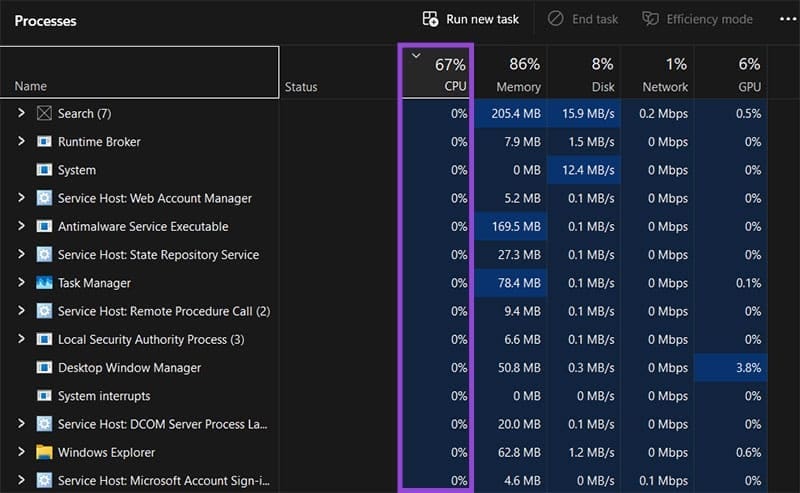
Notably, look for any processes that suddenly jump to high percentages, as well as if the overall usage exceeds 30-40%.
If you do find a process that’s taking up a lot of CPU, you can right-click on it and end it to check if the fan speed goes back to normal.
If the process name sounds unfamiliar, you can try to search what it does online (use the full name of the process and you will likely get some decent results).
Additionally, Windows drivers might be responsible for running the programs smoothly. So to ensure you’ve got the most recent versions of programs and drivers that are compatible with them, run Windows Update and ensure you’re on the most recent version and there aren’t any major updates pending.
Fix 1: Fix Loud PC Fan After Update
If your PC fans got loud after a Windows update, chances are the update isn’t quite yet compatible with your hardware.
You can roll back an update by going to Windows Update.
Step 1. Search for Windows Update in the search bar or find it in Settings.
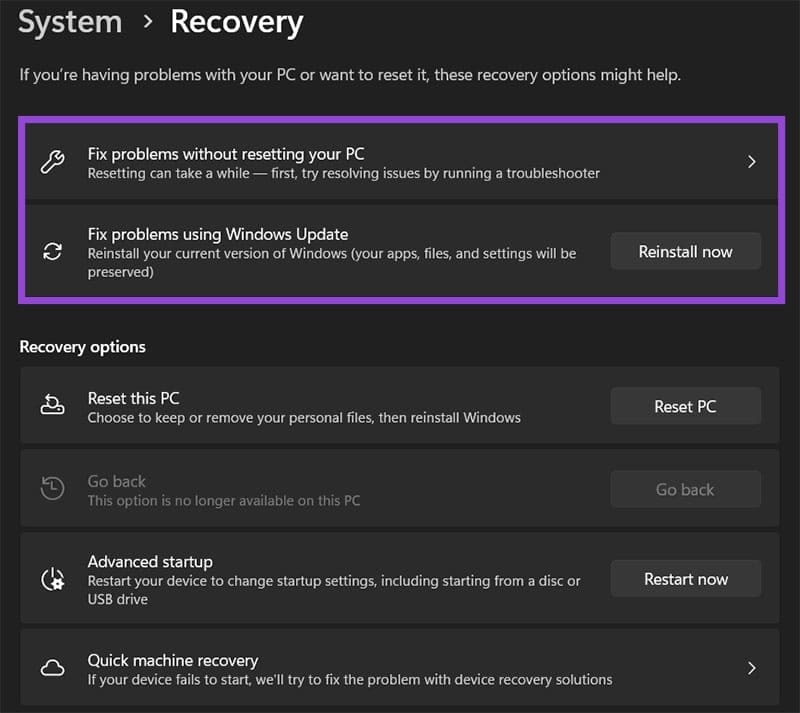
Step 2. Go to “Advanced options” then to “Recovery.”

Step 3. Click on “Uninstall Updates” to remove the most recent update (if possible). Alternatively, use “Fix problems without resetting your PC” or “Fix problems using Windows Update.”
Fix 2: Fix Loud PC Fan Hardware
There are three main things you need to worry about on a physical fan, each with its own solution:
- Accumulated dust: If you see a layer of dust on top of the fan intake or the propeller, chances are it’s also inside the PC. You’ll need to clean it out using compressed air (you can buy a can of compressed air or use a compressor).
- Lack of airflow: Check where the PC gets the air from to circulate inside the case. For laptops, this is usually on the side or the bottom of the casing, but PC cases can vary wildly. Then, make sure that the openings aren’t covered.
- Check if the fan actually works properly: This one is the trickiest to diagnose and usually involves exhausting the two options above. One of the most tell-tale signs is apart from being noisy, the fan clicks or buzzes unexpectedly.
If you suspect a fan is broken, your only option is to replace it, as repairing it is usually a pointless endeavor. A new fan (one rated for higher power demands) will likely be able to cool your PC better and run quieter.
Was this helpful?
Last updated on 18 February, 2026
Read Next
 How to Control Fan Speed in Windows PC
If your PC is a bit too loud even when you don’t have any demanding programs running, here are some methods on how to control fan speed in Windows 11
How to Control Fan Speed in Windows PC
If your PC is a bit too loud even when you don’t have any demanding programs running, here are some methods on how to control fan speed in Windows 11
 How to Make Windows 11 Read Text Out Loud With Narrator
How to Enable Narrator on Windows 11 To get started, you must first enable the Narrator tool on your Windows 11 PC.
How to Make Windows 11 Read Text Out Loud With Narrator
How to Enable Narrator on Windows 11 To get started, you must first enable the Narrator tool on your Windows 11 PC.
 Windows 11 25H2 Won’t Install – Common Fixes
Just when it seems you’re over the hurdle of installing Windows 11 24H2, along comes its successor a year later to make your life difficult all over again.
Windows 11 25H2 Won’t Install – Common Fixes
Just when it seems you’re over the hurdle of installing Windows 11 24H2, along comes its successor a year later to make your life difficult all over again.
 5 Ways to Fix Low or Loud Alarm Volume on iPhone
Common Fixes Restart iPhone - Press and hold either of the volume buttons with the side button and drag the power off slider to shut down.
5 Ways to Fix Low or Loud Alarm Volume on iPhone
Common Fixes Restart iPhone - Press and hold either of the volume buttons with the side button and drag the power off slider to shut down.
 How to Solve Windows 10 Game Bar Not Working and Other Common Issues
With the recent Windows 10 version 1809 update, Microsoft pushed a bunch of improvements to the Xbox Game Bar.
How to Solve Windows 10 Game Bar Not Working and Other Common Issues
With the recent Windows 10 version 1809 update, Microsoft pushed a bunch of improvements to the Xbox Game Bar.
 Five Common Office API Error Codes and What They Mean
Office Add-ins allow you to extend your standard Microsoft Office solution into something more.
Five Common Office API Error Codes and What They Mean
Office Add-ins allow you to extend your standard Microsoft Office solution into something more.
 Common Issues in 25H2 and How to Fix Them
The Windows 11 25H2 update wasn’t nearly as traumatic for most users as its far bigger predecessor 24H2, but there are still a few issues that have popped up, many
Common Issues in 25H2 and How to Fix Them
The Windows 11 25H2 update wasn’t nearly as traumatic for most users as its far bigger predecessor 24H2, but there are still a few issues that have popped up, many
 Common Fast Startup Issues and When (and How) to Disable It
Ideally, Fast Startup allows you to continue where you left off when you restart your PC, even after a while.
Common Fast Startup Issues and When (and How) to Disable It
Ideally, Fast Startup allows you to continue where you left off when you restart your PC, even after a while.
The article above may contain affiliate links which help support Guiding Tech. The content remains unbiased and authentic and will never affect our editorial integrity.