What Is MAC Randomization and How Does It Work
A MAC (Media Access Control) address is a unique 12-digit identifier assigned to internet-capable devices, which helps identify devices on a network. When you connect to a Wi-Fi network, your device’s MAC address is visible, which can expose its identity and location.
Enabling MAC randomization assigns a temporary MAC address to your device, reducing the privacy risk by hiding the original one. This ensures the safety and privacy of your devices on public or shared Wi-Fi networks.
How to Enable MAC Randomization on Windows 11
You may occasionally need to connect your Windows 11 laptop to public Wi-Fi networks. Before doing so, it’s essential to enable MAC randomization for added privacy.
Step 1: Press the Windows key + I to open the Settings app and head to Network & internet > Wi-Fi.

Step 2: Turn on the toggle for the Random hardware addresses option.

Step 3: In the Wi-Fi section, click the Manage known networks option.

Step 4: Click on the Wi-Fi network you want to configure.
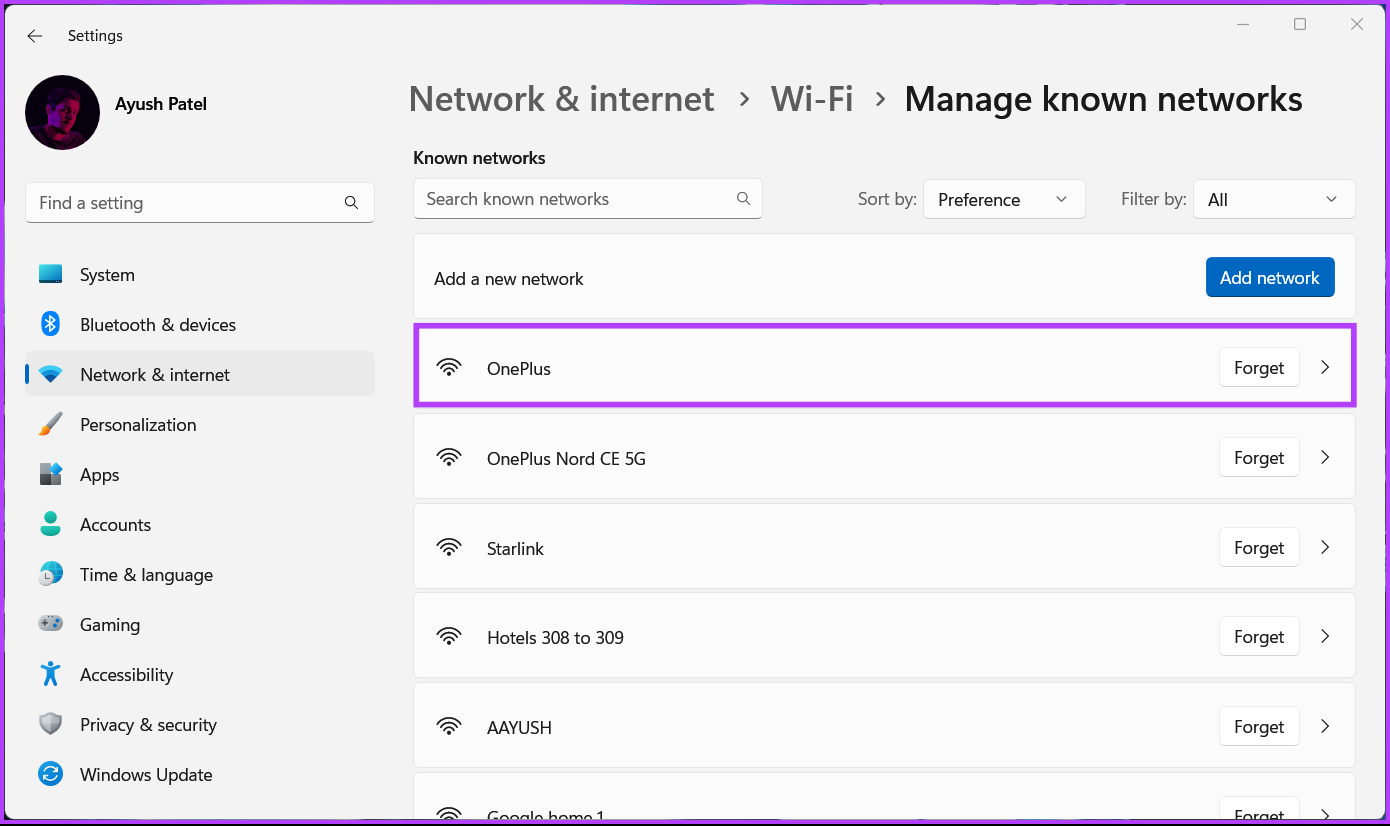
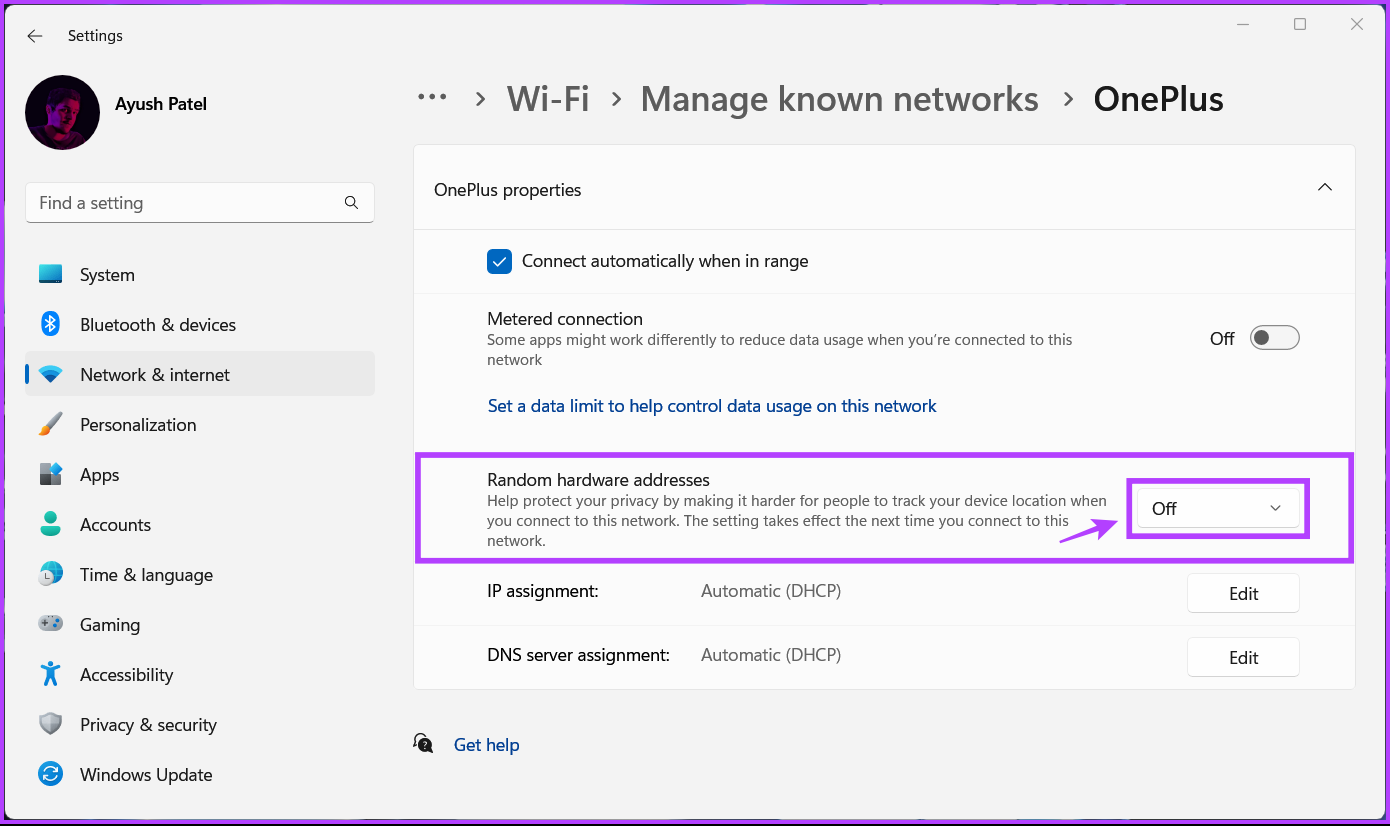
Step 5: Click the drop-down next to Random hardware addresses and select On or Change daily.
How to Enable MAC Randomization on Android
Most phones updated to Android 10 or later have MAC randomization enabled by default. However, it’s wise to verify, as different manufacturers may implement varying configurations across devices.
Here’s how you can enable MAC randomization on your Android phone or tablet:
Step 1: Open the Settings app and head to Wi-Fi.
Step 2: Look for the Wi-Fi network connected to your Android and tap the gear icon next to it.

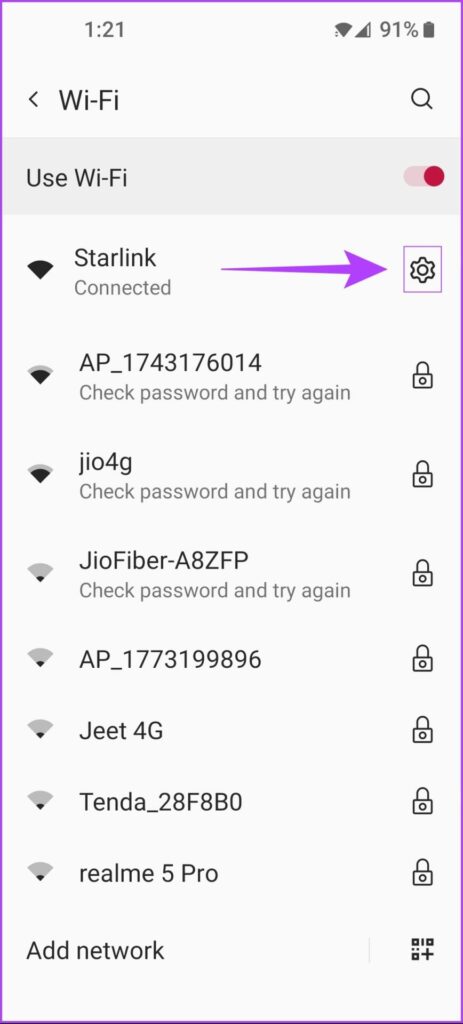
Step 3: Under Network details, go to Advanced > Privacy. Then, select Use randomized MAC (default).


How to Enable MAC Randomization on iOS and iPadOS
Apple requires users to enable MAC randomization manually for each wireless network, as it doesn’t allow it for all networks by default. The steps are similar for both iPhone and iPad.
Step 1: Head to the Settings app on your iPhone or iPad and tap on Wi-Fi.
Step 2: Tap the info icon next to your network and enable the Private Wi-Fi Address toggle.


Can You Enable MAC Randomization on Mac?
Unfortunately, Apple doesn’t support MAC randomization directly on Macs. To achieve this, you’ll need to install Homebrew, a free open-source package manager, and use a tool called Spoof-mac. The process is more complex and requires technical steps.
Was this helpful?
Last updated on 04 September, 2024
Read Next
 How to Remove Your Instagram Account From Other Devices
d to your Instagram account and remotely log out of Instagram on all devices.
How to Remove Your Instagram Account From Other Devices
d to your Instagram account and remotely log out of Instagram on all devices.
 How to Disable ‘Send to Your Devices’ in Google Chrome
How to Remove the Send to Your Devices Option on Desktop Step 1: Open Google Chrome on your Windows or Mac computer.
How to Disable ‘Send to Your Devices’ in Google Chrome
How to Remove the Send to Your Devices Option on Desktop Step 1: Open Google Chrome on your Windows or Mac computer.
 3 Fixes for Chrome Send to Devices Missing or Not Working Issue
Note: The steps are the same for Windows and Mac on desktop and Android and iOS on mobile.
3 Fixes for Chrome Send to Devices Missing or Not Working Issue
Note: The steps are the same for Windows and Mac on desktop and Android and iOS on mobile.
 How to Log Out Devices From Telegram Account
Log Out Device From Telegram on Mobile Telegram is available for a wide variety of device platforms.
How to Log Out Devices From Telegram Account
Log Out Device From Telegram on Mobile Telegram is available for a wide variety of device platforms.
 How to Log Out Linked Devices From WhatsApp Account
https://youtu.be/Ij8bVFcMnbE Log Out Linked Devices From WhatsApp on Mobile Before moving on with the steps, we suggest updating WhatsApp version on your iPhone or Android.
How to Log Out Linked Devices From WhatsApp Account
https://youtu.be/Ij8bVFcMnbE Log Out Linked Devices From WhatsApp on Mobile Before moving on with the steps, we suggest updating WhatsApp version on your iPhone or Android.
 How to Use Microsoft Edge Drop Feature to Share Files Between Devices
How to Send Files From Your Desktop Using Microsoft Edge Drop Microsoft Edge’s Drop feature is only available in version 110.0.1587.41 or later.
How to Use Microsoft Edge Drop Feature to Share Files Between Devices
How to Send Files From Your Desktop Using Microsoft Edge Drop Microsoft Edge’s Drop feature is only available in version 110.0.1587.41 or later.
 4 Ways to Fix Unable to Use WhatsApp on Two Devices on iPhone and Android
Before you begin, ensure there are no problems with the network connectivity on your device, and install the latest version of WhatsApp from the Play Store or App Store.
4 Ways to Fix Unable to Use WhatsApp on Two Devices on iPhone and Android
Before you begin, ensure there are no problems with the network connectivity on your device, and install the latest version of WhatsApp from the Play Store or App Store.
 How to Log Out of Facebook and Messenger on All Devices
How to Log Out of Messenger From All Devices at Once You can use the Messenger mobile app to open Meta's Accounts Center.
How to Log Out of Facebook and Messenger on All Devices
How to Log Out of Messenger From All Devices at Once You can use the Messenger mobile app to open Meta's Accounts Center.
The article above may contain affiliate links which help support Guiding Tech. The content remains unbiased and authentic and will never affect our editorial integrity.